 openspp.org
View Service Points
Contents
View Service Points#
Applies to: SP-MIS
This guide is for users who need to view and understand service points in OpenSPP.
What You Will Do#
Learn how to navigate to service points, view their details, and understand their status.
Before You Start#
You need Service Point Viewer or Administrator access
Service points must already be configured in your system
What is a Service Point?#
A service point is a physical or virtual location where beneficiaries receive their benefits. Examples include:
Local government offices
Bank branches
Mobile money agents
Community centers
Each service point has contact information, an assigned area, and a status indicating whether it can process payments.
Steps#
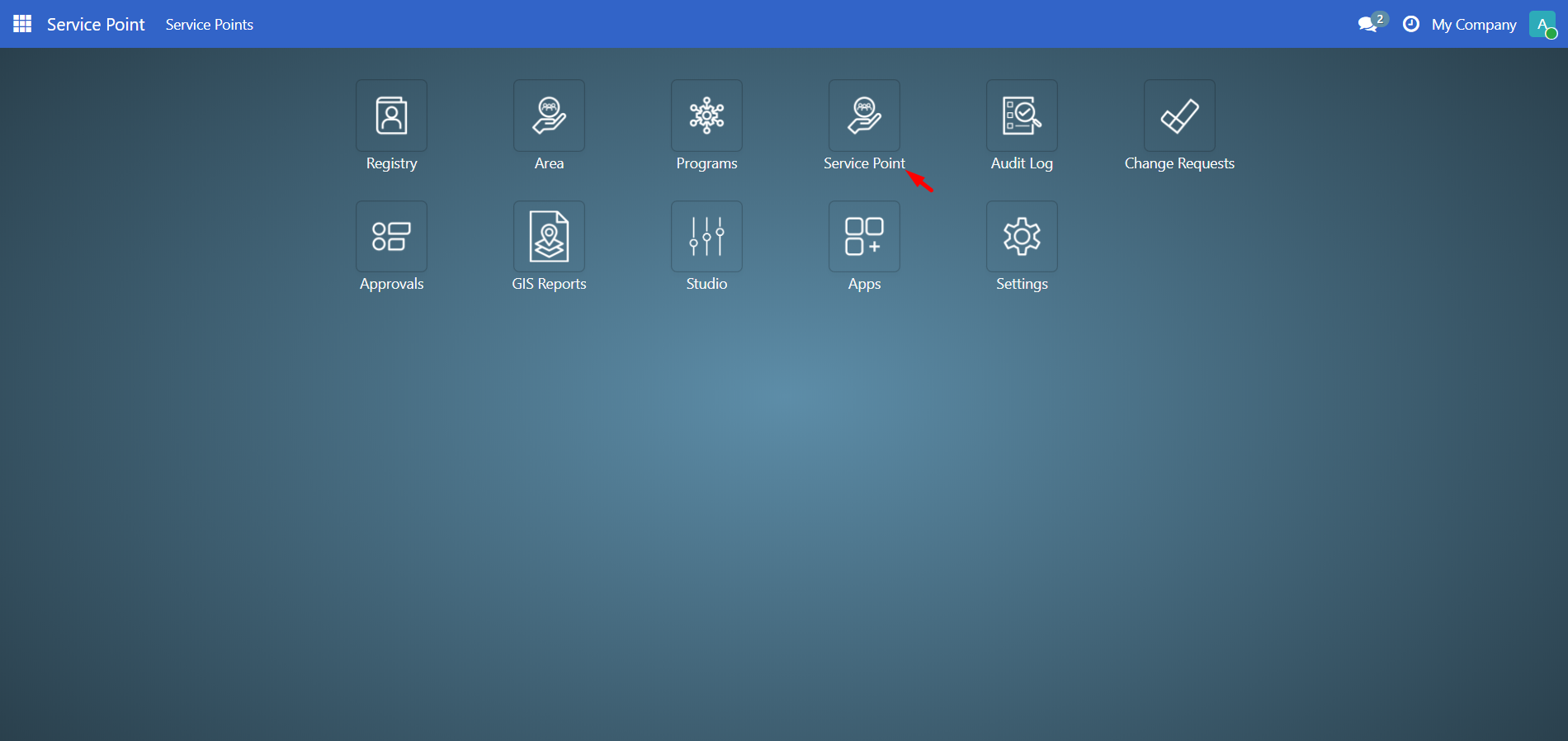
2. View the Service Points List#
Click Service Points in the main menu to open the list of all available service points.
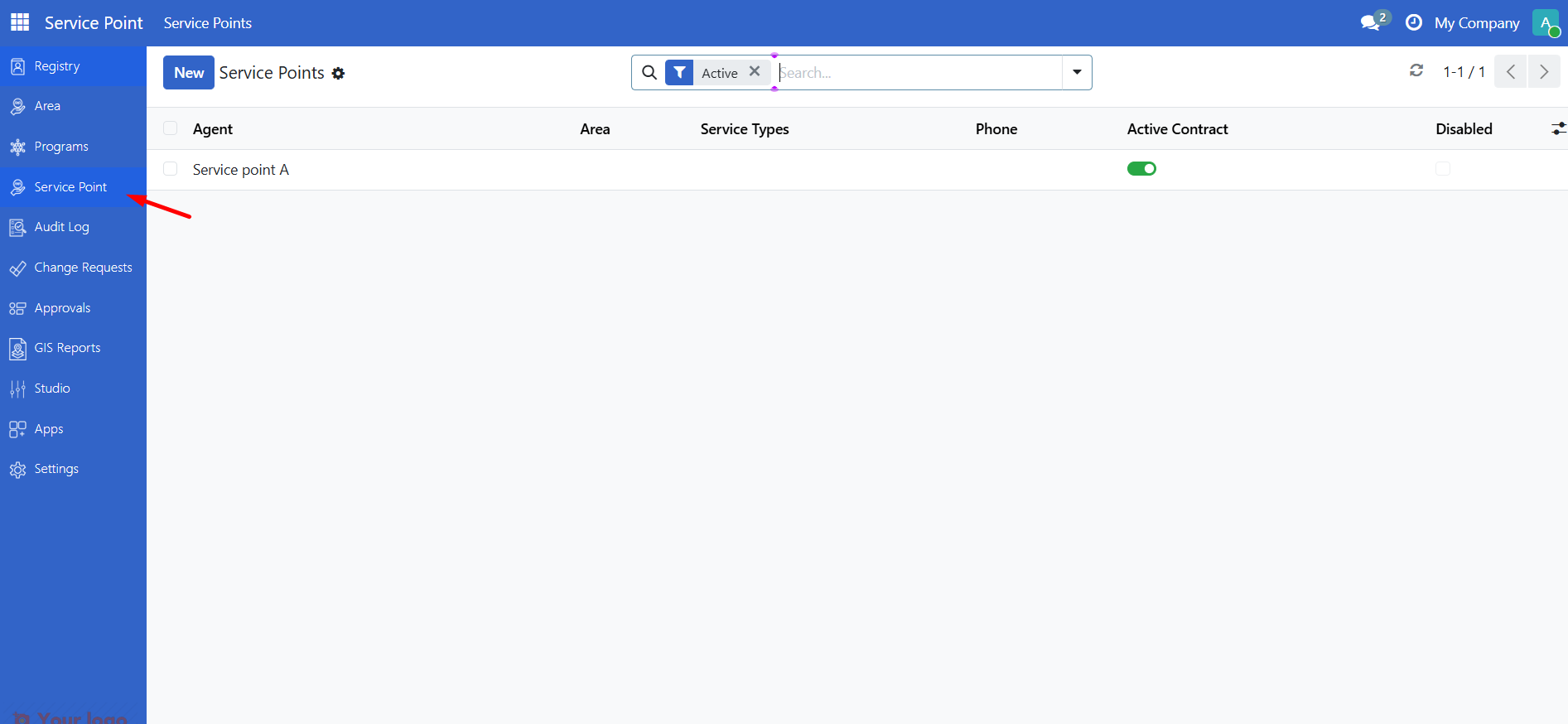
The list shows:
Column |
Description |
|---|---|
Name |
The agent or location name |
Area |
Geographic area the service point serves |
Service Types |
Types of services offered (e.g., cash disbursement) |
Phone |
Contact phone number |
Active Contract |
Whether the service point has an active contract |
Disabled |
Whether the service point is currently disabled |
3. Filter Service Points#
Use the search and filter options to find specific service points.
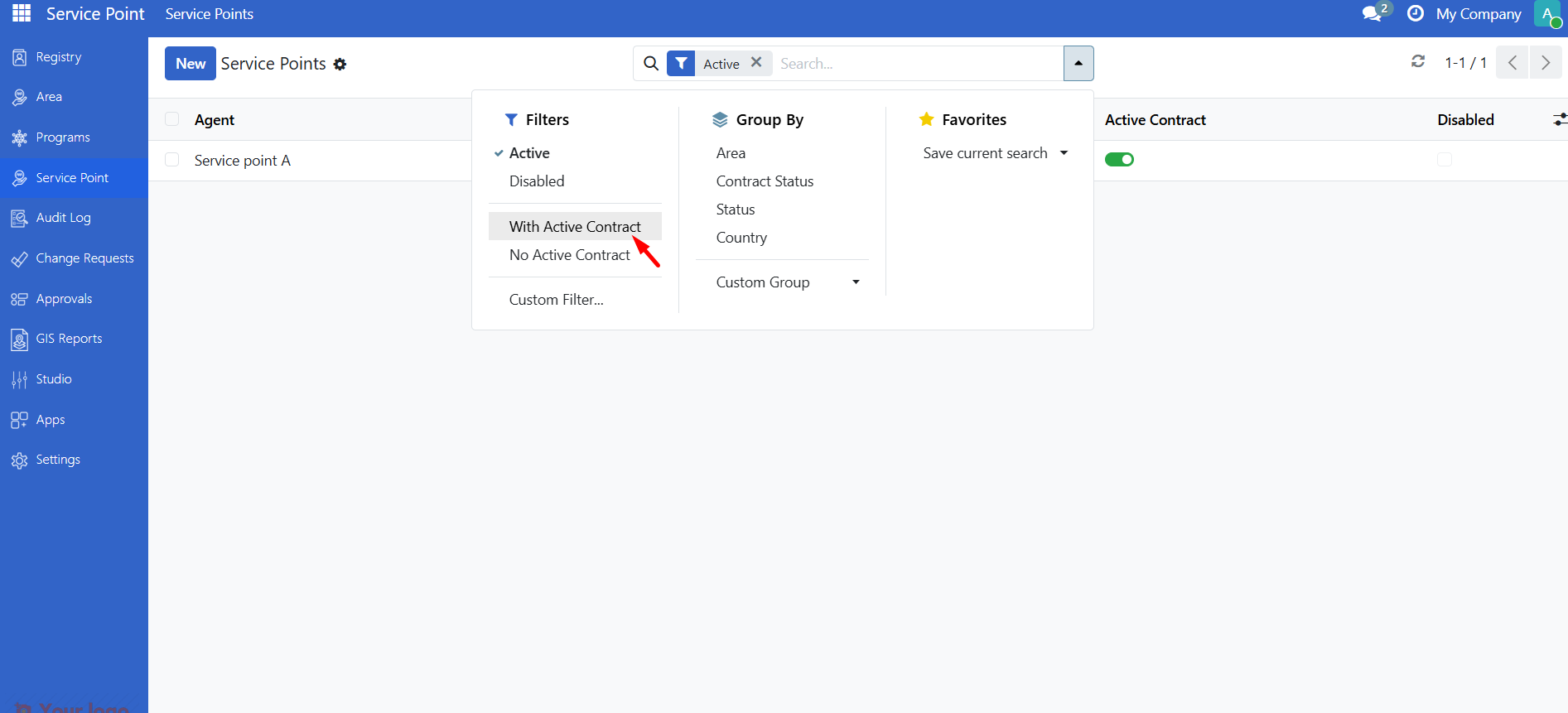
Quick Filters:
Filter |
Shows |
|---|---|
Active |
Only service points that are not disabled |
Disabled |
Only disabled service points |
With Active Contract |
Service points with active contracts |
No Active Contract |
Service points without active contracts |
Group By:
Area - Groups service points by geographic area
Contract Status - Groups by whether contract is active
Status - Groups by enabled/disabled status
4. View Service Point Details#
Click on a service point name to open its details.
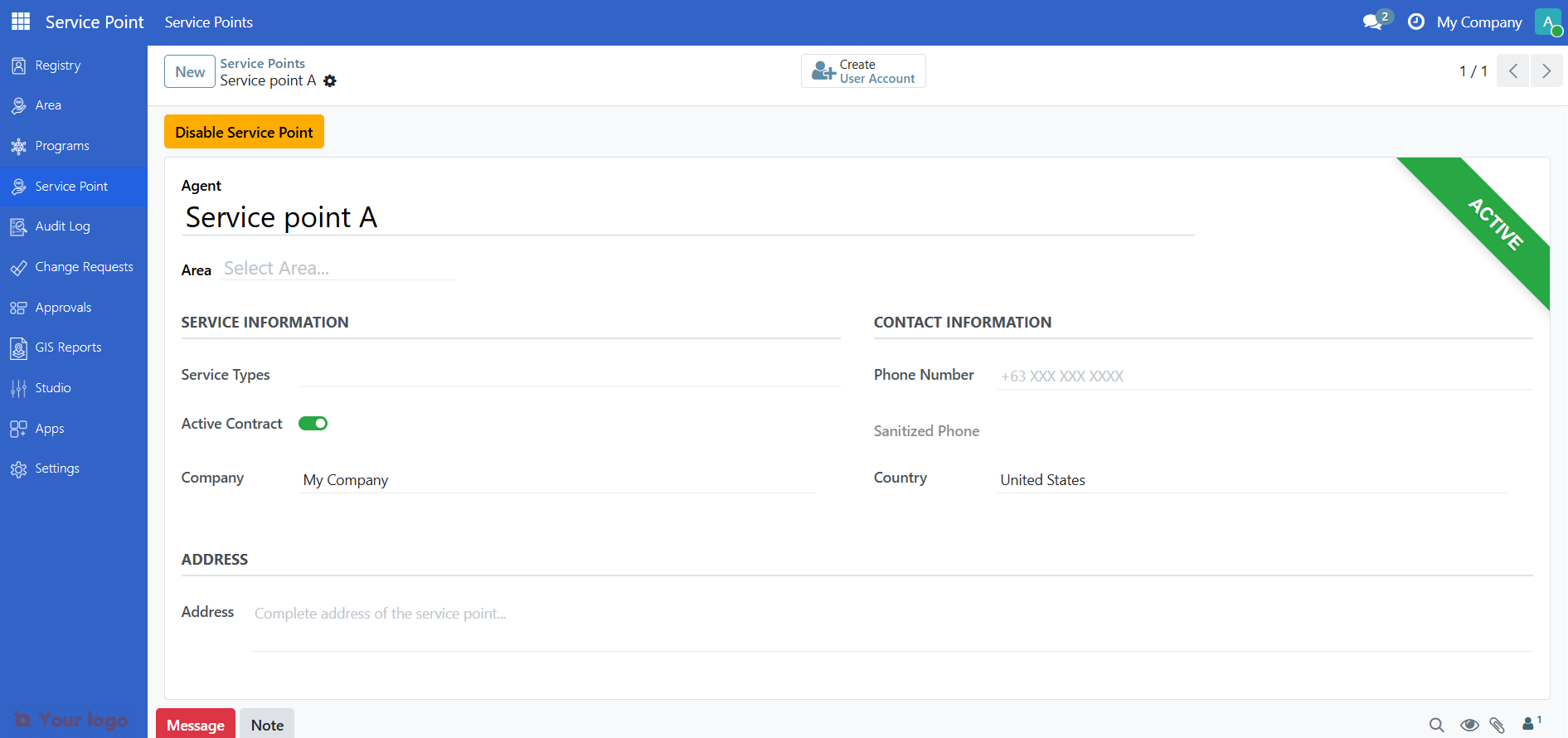
The form shows:
Service Information:
Field |
Description |
|---|---|
Name |
The agent or service point name |
Area |
The geographic area this service point serves |
Service Types |
Types of services offered |
Active Contract |
Toggle showing if contract is active |
Company |
The company or organization running this service point |
Contact Information:
Field |
Description |
|---|---|
Phone Number |
Contact number for the service point |
Country |
Country where the service point is located |
Address |
Physical address of the service point |
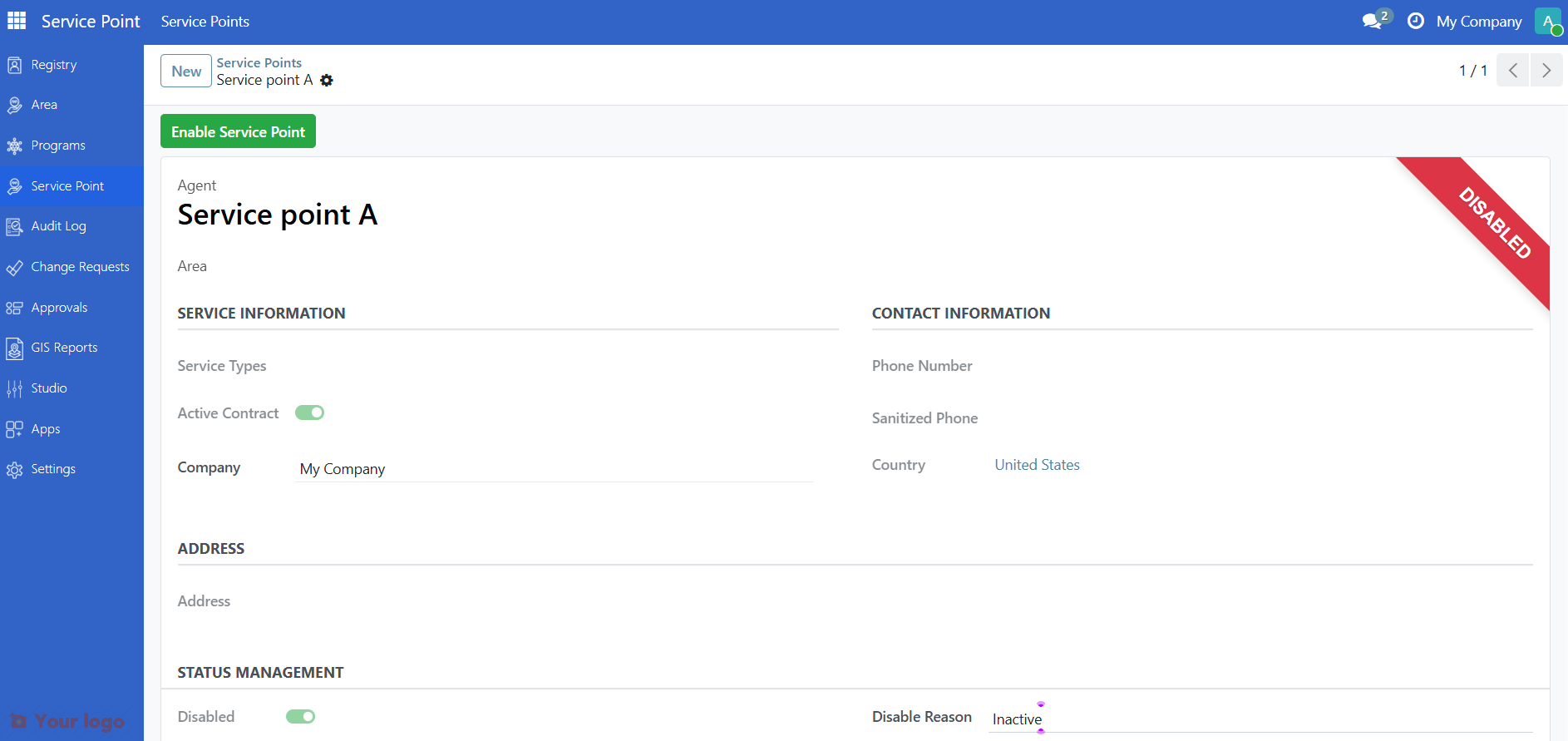
5. Understand Service Point Status#
Service points can have different statuses:
Status |
Ribbon Color |
Meaning |
|---|---|---|
Active |
Green |
Service point can accept transactions |
Disabled |
Red |
Service point cannot accept new transactions |
When a service point is disabled:
A red "Disabled" ribbon appears on the form
The date it was disabled is shown
The reason for disabling is displayed
No new transactions can be processed there
6. View Area Details#
To see more information about the area a service point serves:
Open the service point form
Click the View Area Details button in the button box
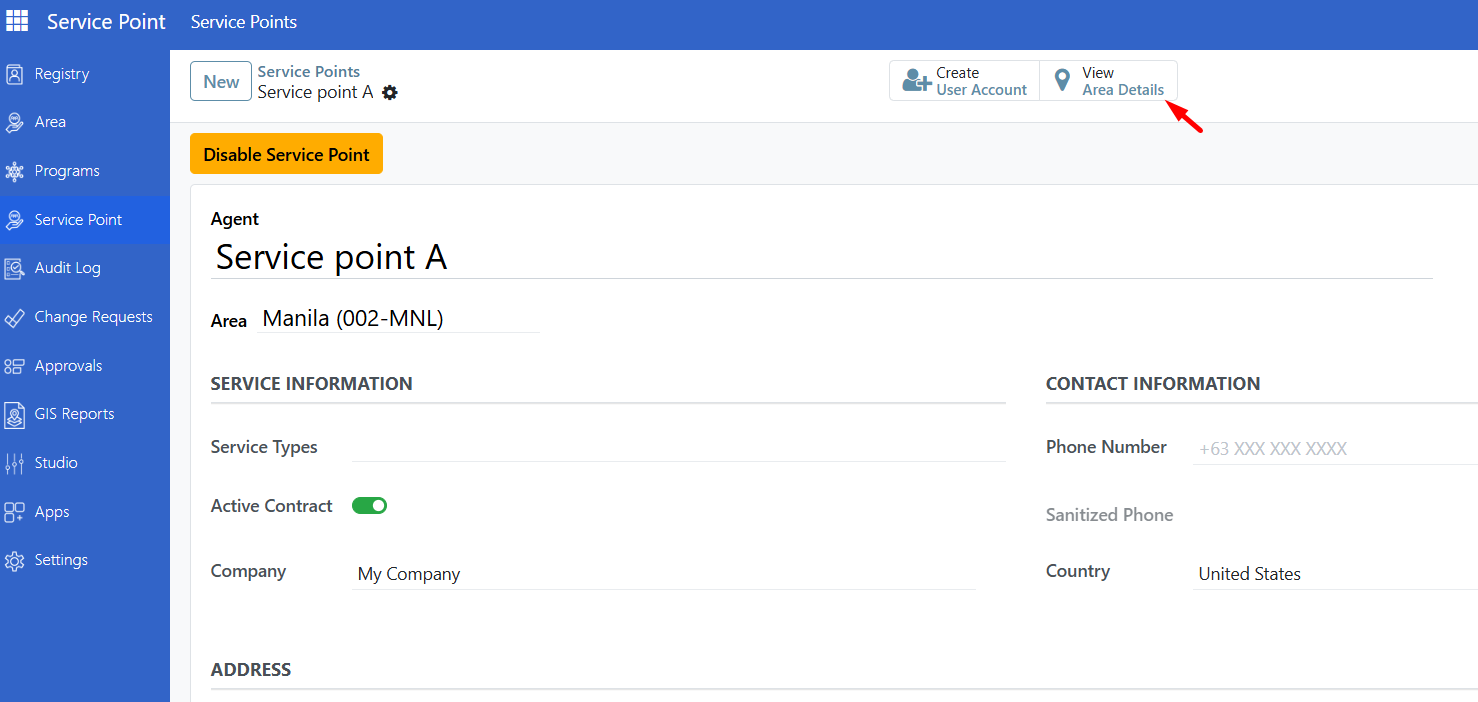
This opens the area record showing:
Area name and code
Parent area (if any)
Other service points in the area
Understanding Service Point Access#
Service points may show different programs they serve. The Programs field (if visible) shows which social protection programs distribute benefits through this location.
Are You Stuck?#
Cannot find the Service Point menu? You may not have the right permissions. Contact your administrator to request Service Point Viewer access.
Service point list is empty? Service points must be configured by an administrator. If you expect to see service points, contact your system administrator.
Cannot see a specific service point? Your user account may be restricted to certain areas. Contact your administrator if you need access to service points in other areas.
Service point shows as disabled? A disabled service point cannot process payments. If you believe this is an error, contact your administrator. Only users with manager access can enable service points.
Next Steps#
Point of Sales - Use Point of Sale to disburse payments