 openspp.org
Configuring Alerts and Thresholds
Contents
Configuring Alerts and Thresholds#
This guide is for implementers configuring alert thresholds and monitoring in DRIMS. You should be comfortable with program configuration and monitoring setup, but you don't need to write Python or understand database internals.
What You'll Learn#
How DRIMS detects and alerts on inventory issues
How to set global threshold defaults
How to override thresholds per incident
How to configure different alert types
Mental Model#
DRIMS automatically monitors your disaster response operations and creates alerts when it detects problems. Think of alerts as an early warning system with four sensors:
Alert Type |
What It Detects |
Why It Matters |
|---|---|---|
Low Stock |
Inventory below 50% of pending requests |
You may run out before fulfilling promises |
SLA Warning |
Requests approaching due date (2 days) |
Time to expedite before breach |
SLA Breach |
Requests past due date, not delivered |
Commitments missed, requires escalation |
Expiry |
Items approaching expiration (30 days) |
Risk of waste or unsafe distribution |
Alert States#
Alerts flow through three states:
Active → Acknowledged → Resolved
Active: New alert requiring attention (appears in dashboards)
Acknowledged: Someone is handling it (removes from urgent list)
Resolved: Issue fixed, alert closed (archived for reporting)
How Alerts Are Generated#
DRIMS runs automated checks on a schedule. You don't need to configure these schedules—they run automatically:
Check |
Frequency |
What It Does |
|---|---|---|
Low Stock |
Every 4 hours |
Compares available inventory to pending request quantities |
SLA Compliance |
Every 2 hours |
Checks due dates for approved requests |
Expiry Warning |
Daily |
Scans lot expiration dates in DRIMS warehouses |
KPI Refresh |
Every 15 minutes |
Updates dashboard metrics |
Note
The expiry check requires the Product Expiry module (product_expiry) to be installed. If you don't track expiration dates, this check won't run.
Setting Threshold Defaults#
Global defaults apply to all incidents unless overridden. These control when alerts are created.
Accessing Global Settings#
DRIMS global thresholds are stored as system parameters. There is no dedicated Settings → DRIMS page — the values live in ir.config_parameter and are edited through the System Parameters list.
Activate Developer Mode (Settings → General Settings → scroll to the bottom → Activate the developer mode)
Go to Settings → Technical → System Parameters
Filter by
drims.to see all DRIMS keysEdit the value of the key you want to change
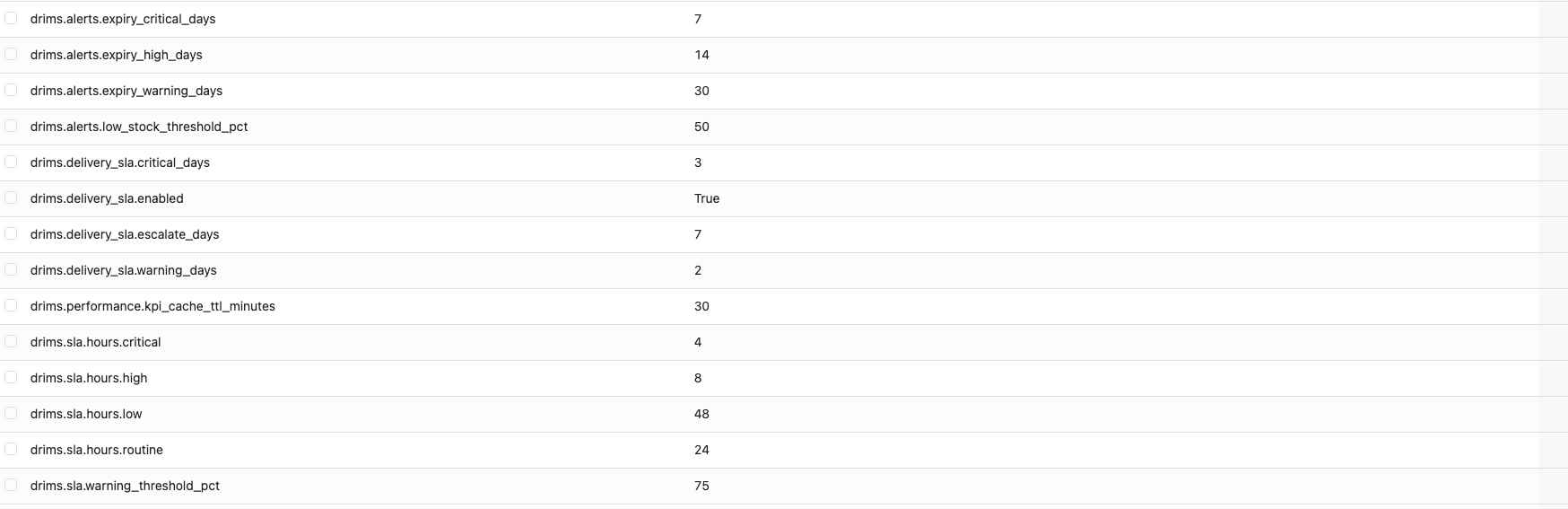
Global Threshold Configuration#
Key |
Default Value |
What It Means |
|---|---|---|
|
50 |
Alert when available stock is below this percent of pending request quantity |
|
2 |
Alert when request due date is within this many days |
|
30 |
Alert when items expire within this many days |
|
14 |
Escalate to high priority when items expire within this many days |
|
7 |
Escalate to critical priority when items expire within this many days |
Important
Changes to global defaults only affect NEW alerts. Existing alerts retain the thresholds they were created with.
Incident-Level Overrides#
Each hazard incident can override global thresholds. This lets you tune monitoring for different disaster types.
When to Override#
Use incident-level overrides when:
High-urgency incidents (earthquakes, floods) need tighter SLA monitoring (1 day instead of 2)
Long-term responses (droughts, displacement) can tolerate longer expiry windows (60 days instead of 30)
Perishable goods incidents (food relief) need stricter expiry alerts (14 days instead of 7)
Configuring Incident Overrides#
Open the Hazard Incident record
Go to the Alert Thresholds tab
Fill in any override values — leave a field blank to keep using the global default for that threshold
Save the incident
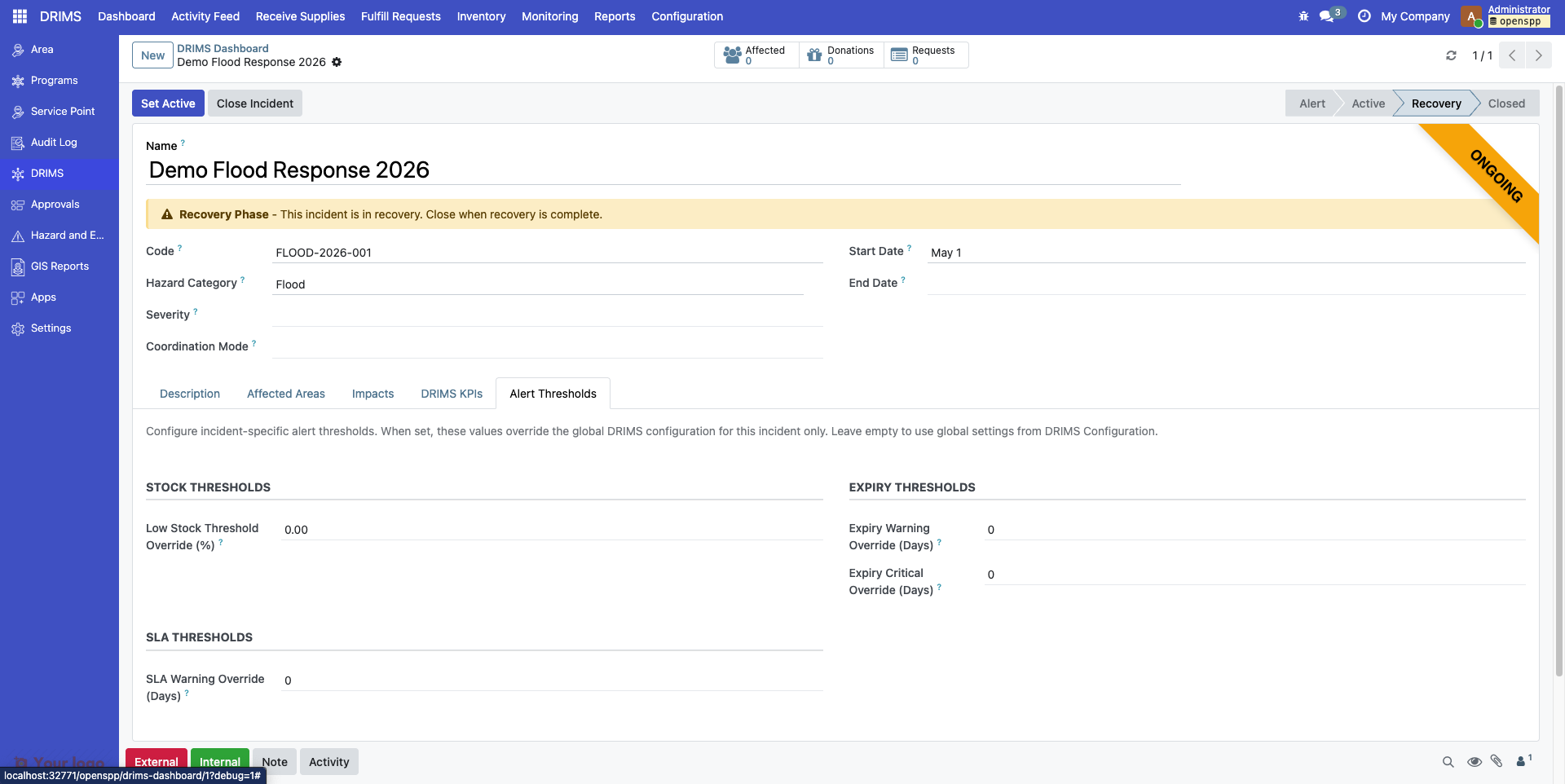
Field |
Description |
Example Use Case |
|---|---|---|
SLA Warning Days |
Days before due date to warn |
Emergency: 1 day; Standard: 3 days |
Expiry Warning Days |
Days before expiration to warn |
Perishables: 14 days; Durable goods: 60 days |
Expiry Critical Days |
Days before expiration for critical alert |
Food: 3 days; Medical supplies: 7 days |
Note
Low stock threshold (50%) cannot be overridden per incident. It's always calculated as 50% of the pending request quantity.
Configuring Each Alert Type#
Low Stock Alerts#
Trigger Condition:
Available Quantity < (Pending Request Quantity × 0.50)
Priority Assigned:
High: Zero stock available
Medium: Some stock but below 50% threshold
Configuration:
Low stock alerts are automatically calculated. The threshold is always 50% of pending quantities. You cannot configure this threshold, but you can adjust it by:
Ensuring request quantities are accurate
Marking unfillable requests as "Rejected" to remove them from calculations
Dispatching partial shipments to reduce pending quantities
Example Scenario:
Product |
Pending Requests |
Available Stock |
Alert? |
|---|---|---|---|
Rice 25kg |
1000 bags |
600 bags |
No (60% > 50%) |
Tents |
200 units |
80 units |
Yes (40% < 50%) - Medium priority |
Water bottles |
5000 units |
0 units |
Yes (0%) - High priority |
SLA Alerts#
Two Alert Types:
SLA Warning - Request due within warning period (default: 2 days)
SLA Breach - Request past due date and not delivered
Priority for Warnings:
High: Due today or tomorrow
Medium: Due in 2 days
Priority for Breaches:
Critical: More than 7 days overdue
High: 3-7 days overdue
Medium: 1-3 days overdue
Configuration:
Set warning threshold in Settings > DRIMS > SLA Warning Days or override per incident.
Example Timeline:
Request due date: January 15

January 13 (2 days before): SLA Warning created (Medium priority)
January 14 (1 day before): Priority escalates to High
January 16 (1 day overdue): SLA Breach created (Medium priority)
January 19 (4 days overdue): Priority escalates to High
January 23 (8 days overdue): Priority escalates to Critical
Expiry Alerts#
Trigger Condition:
Items with lot expiration dates within the warning period (default: 30 days).
Priority Assigned:
Critical: Expires within 7 days
High: Expires within 14 days
Medium: Expires within 30 days
Configuration:
Setting |
Where to Configure |
Default |
|---|---|---|
Warning Days |
Settings > DRIMS or Incident override |
30 days |
Critical Days |
Settings > DRIMS or Incident override |
7 days |
Requirements:
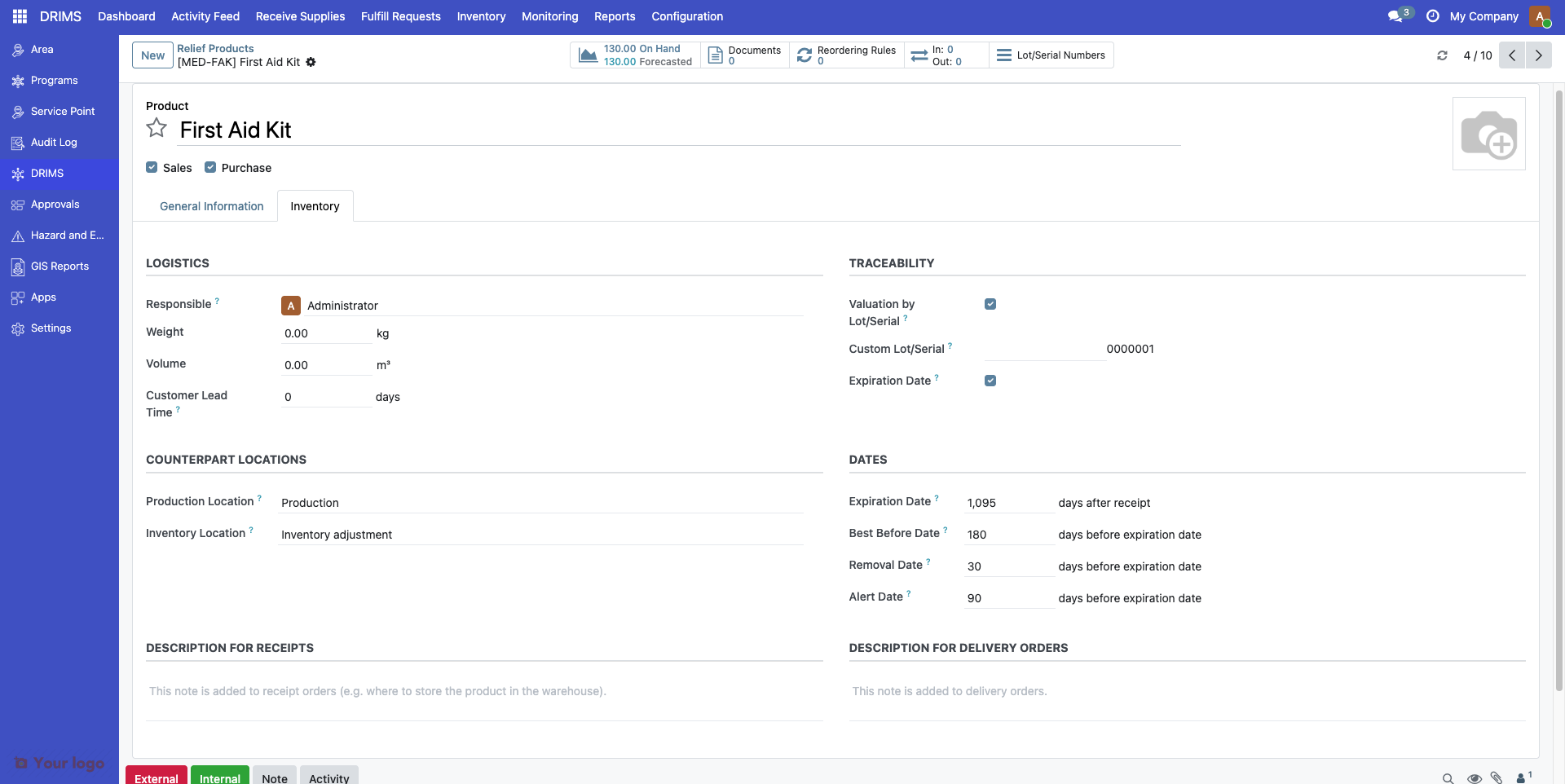
Product Expiry module must be installed
Products must have Track By Lots enabled
Lots must have Expiration Date set
Stock must be in a DRIMS warehouse
Example Scenario:
Today is January 1. You have these lots:
Product |
Lot |
Expiry Date |
Days Until |
Alert Priority |
|---|---|---|---|---|
Antibiotics |
LOT-001 |
Jan 5 |
4 days |
Critical |
Rice |
LOT-002 |
Jan 10 |
9 days |
High |
Blankets |
LOT-003 |
Jan 25 |
24 days |
Medium |
Tents |
LOT-004 |
Mar 1 |
59 days |
No alert |
Common Patterns#
Pattern 1: Emergency Response (High Urgency)#
Scenario: Earthquake relief requiring rapid deployment.
Configuration:
Setting |
Value |
Rationale |
|---|---|---|
SLA Warning Days |
1 day |
Tight deadlines, need immediate action |
Expiry Warning Days |
14 days |
Focus on fresh food and medical supplies |
Expiry Critical Days |
3 days |
Urgent redistribution or disposal |
Result: Very tight monitoring, many alerts, high responsiveness.
Pattern 2: Displacement Camp (Long-Term)#
Scenario: Ongoing support for displaced population over 6+ months.
Configuration:
Setting |
Value |
Rationale |
|---|---|---|
SLA Warning Days |
3 days |
More flexibility in delivery scheduling |
Expiry Warning Days |
60 days |
Durable goods, long shelf life |
Expiry Critical Days |
14 days |
Still time to redistribute |
Result: Fewer alerts, focus on planning not emergency response.
Pattern 3: Perishable Goods Distribution#
Scenario: Food relief program with short shelf-life items.
Configuration:
Setting |
Value |
Rationale |
|---|---|---|
SLA Warning Days |
2 days |
Standard delivery timeline |
Expiry Warning Days |
21 days |
Start planning redistribution early |
Expiry Critical Days |
7 days |
Week before expiry, urgent action needed |
Result: Heavy focus on expiry alerts, moderate SLA monitoring.
Pattern 4: Standard Response (Balanced)#
Scenario: General disaster response with mixed urgency.
Configuration:
Use global defaults (no overrides):
Setting |
Value |
|---|---|
SLA Warning Days |
2 days |
Expiry Warning Days |
30 days |
Expiry Critical Days |
7 days |
Result: Balanced monitoring suitable for most incidents.
Monitoring Alert Health#
Warehouse Health Status#
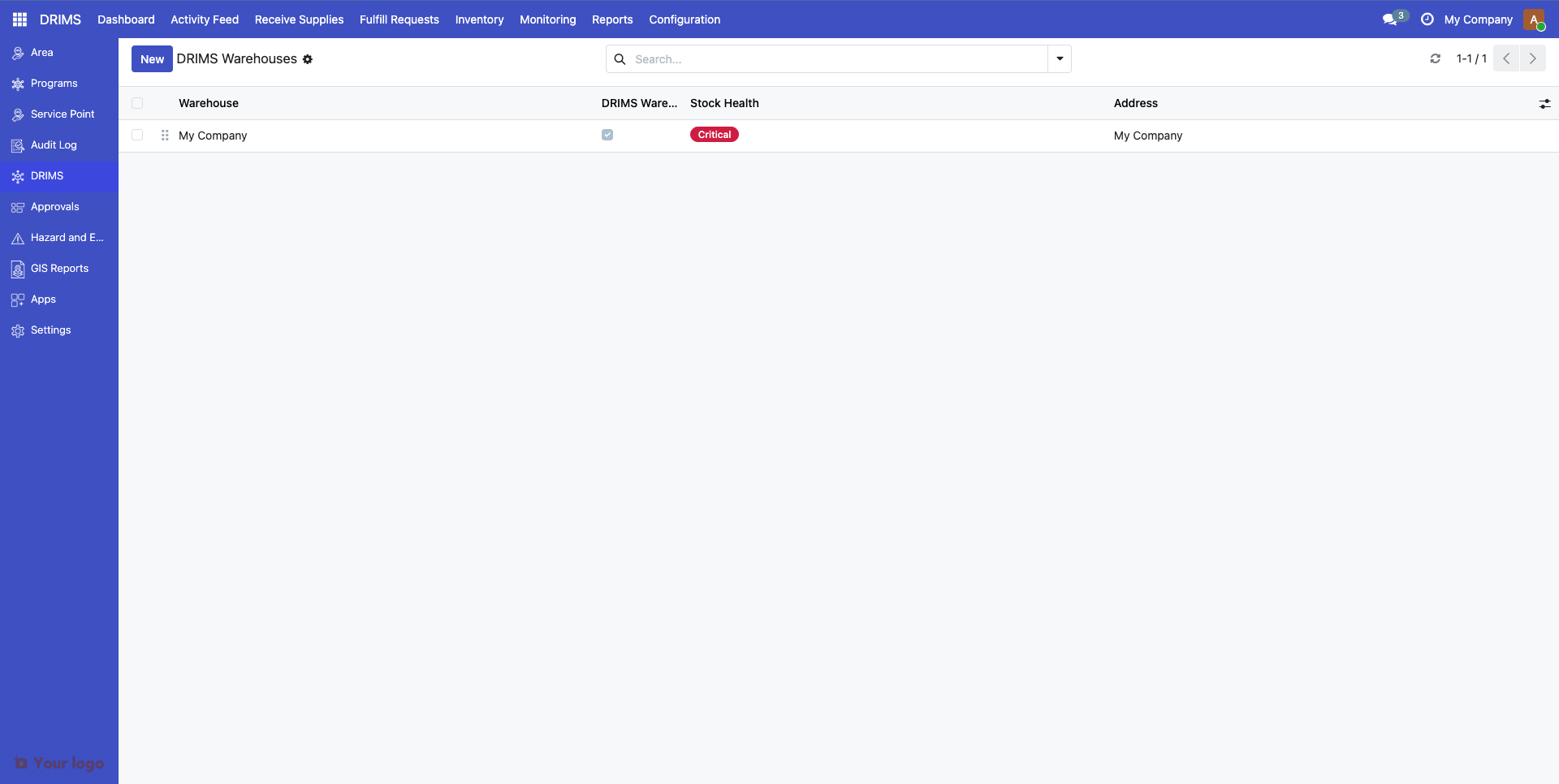
Warehouses automatically calculate health status based on active alerts:
Health Status |
Condition |
Dashboard Color |
|---|---|---|
Critical |
3+ active alerts |
Red |
Warning |
1–2 active alerts |
Orange |
Good |
No active alerts |
Green |
Alert Dashboard#
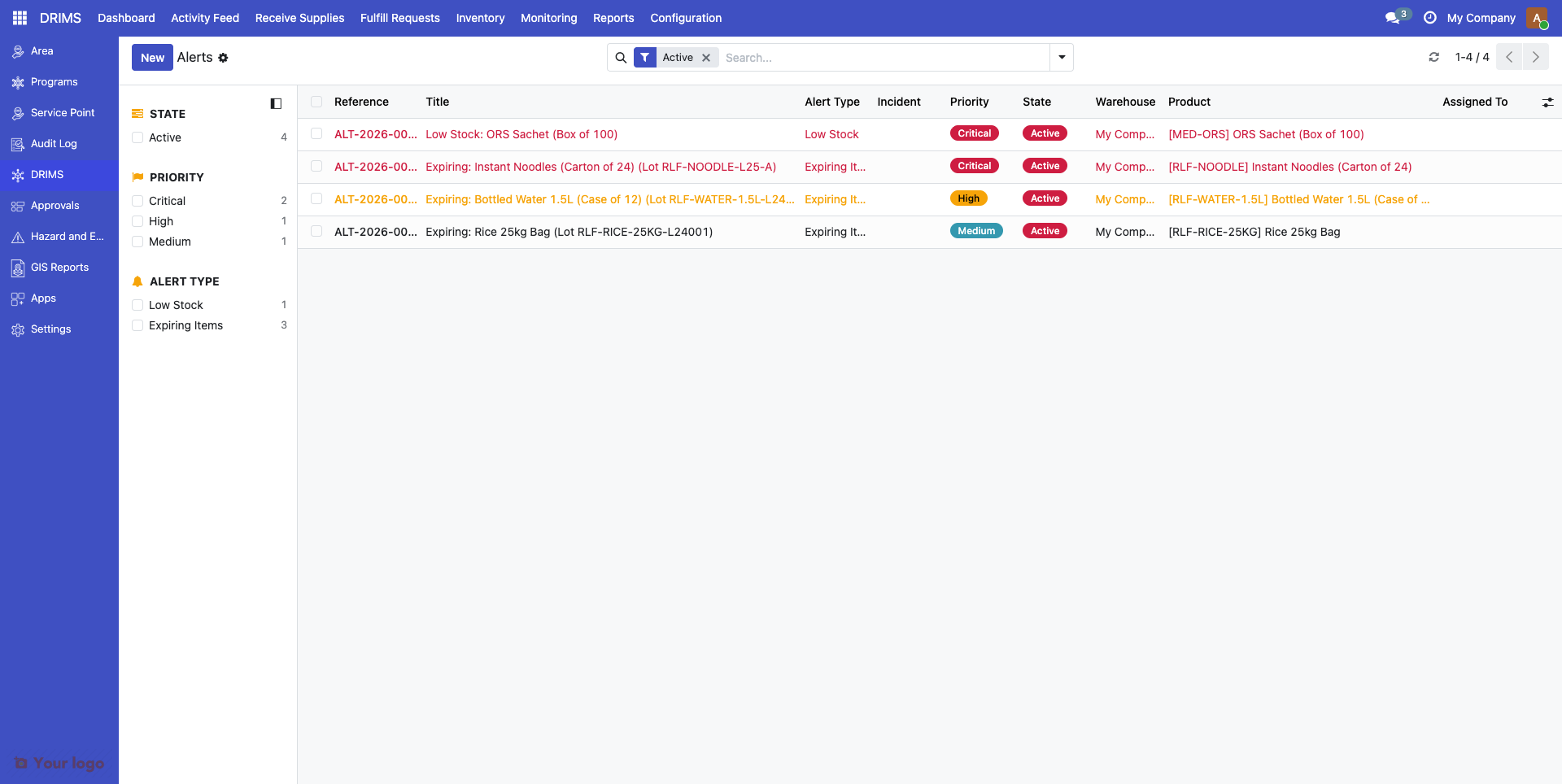
View all active alerts in DRIMS > Monitoring > Alerts.
Filter by:
Priority (Critical, High, Medium, Low)
Type (Low Stock, SLA Breach, SLA Warning, Expiry)
State (Active, Acknowledged, Resolved)
Warehouse
Incident
Responding to Alerts#
Acknowledging Alerts#
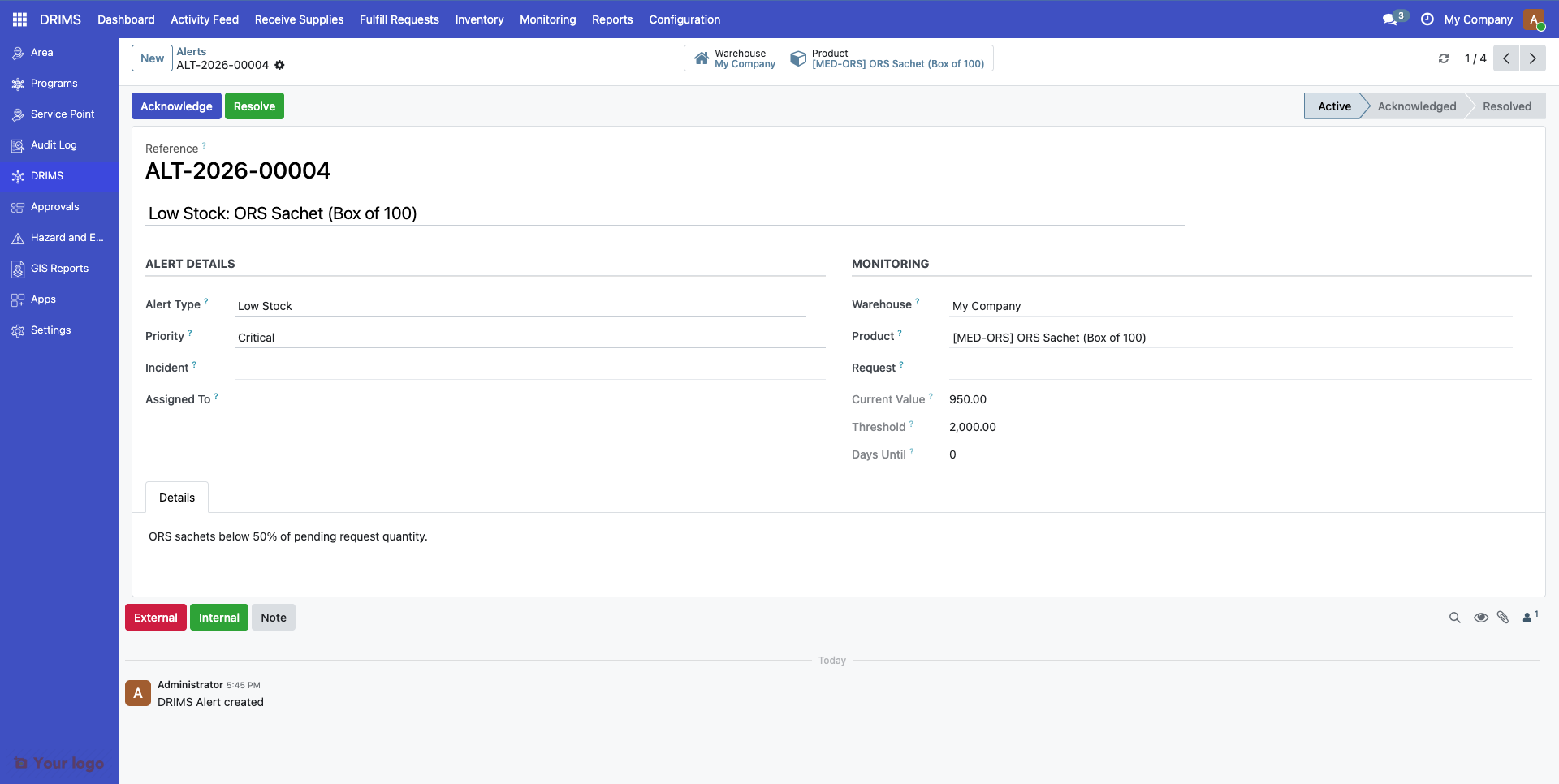
When you start investigating an alert:
Open the alert record
Click Acknowledge
Add notes about your action plan
This removes the alert from "urgent" views but keeps it tracked.
Resolving Alerts#
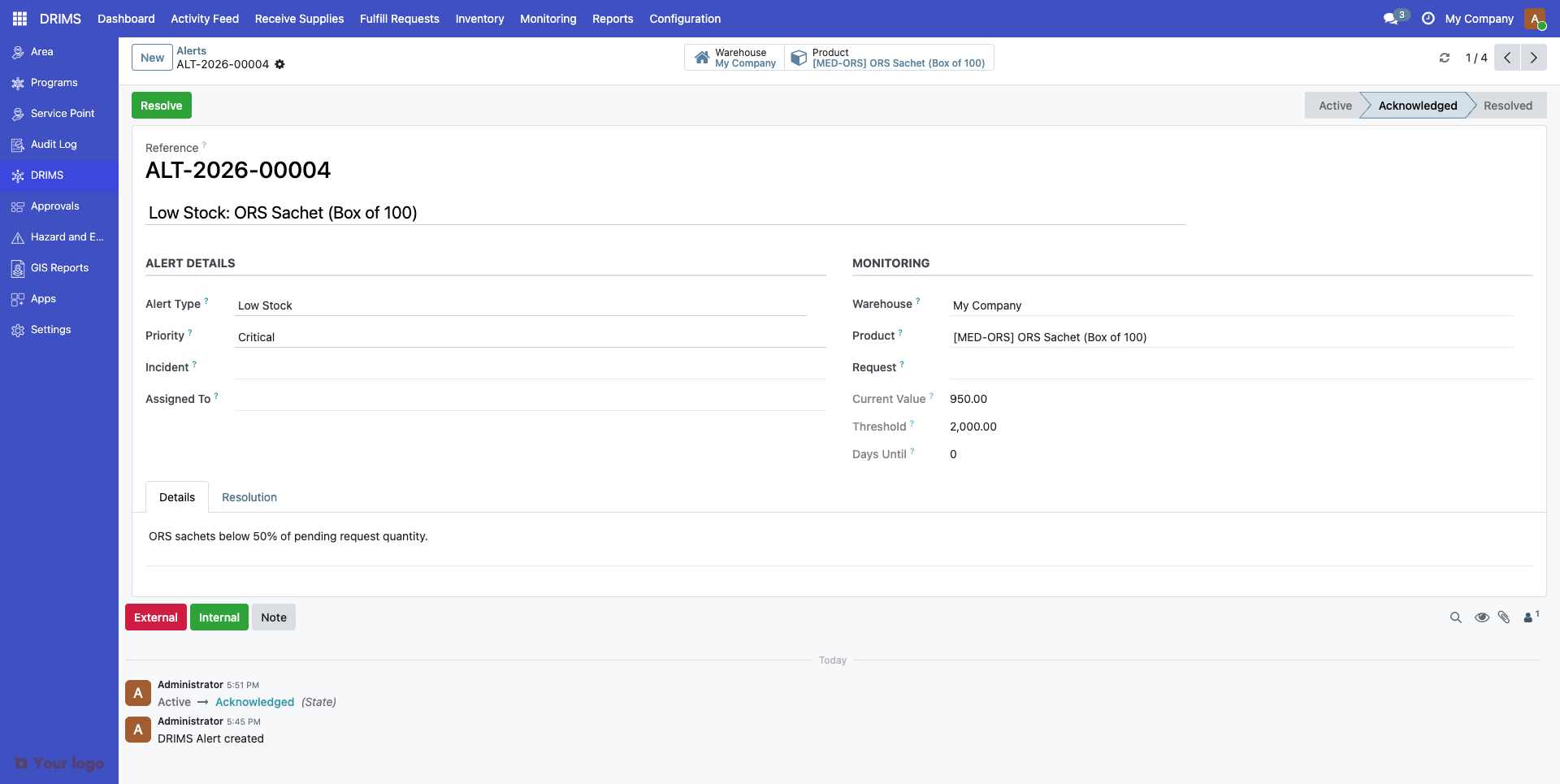
When the underlying issue is fixed:
Open the alert record
Verify the issue is resolved (check stock levels, confirm delivery, etc.)
Click Resolve
Add notes about the resolution
Resolved alerts are archived but remain in reporting for analysis.
Alert Activity Feed#
All DRIMS alerts are logged in DRIMS > Activity Feed. Use this to:
Track who acknowledged/resolved alerts
Analyze response times
Generate compliance reports
Are You Stuck?#
Alerts Not Being Created#
Problem: Expected an alert but none appeared.
Check:
Alert already exists - DRIMS won't create duplicates. Search for existing alert for same product/warehouse/incident.
Request state - Only "Approved" and "Pending" requests trigger low stock alerts. Check request is not in "Draft" or "Rejected" state.
Expiry module - For expiry alerts, verify
product_expirymodule is installed. Go to Apps and search for "Product Expiry".Lot configuration - For expiry alerts, product must have "Tracking: By Unique Serial Number" or "By Lots" enabled.
Wait for cron - Manual changes won't trigger immediate alerts. Wait for next scheduled check or manually run the cron (Admin only).
Wrong Priority Assigned#
Problem: Alert priority doesn't match expectations.
Explanation:
Priority is calculated automatically based on thresholds:
Low Stock: Zero stock = High, Some stock = Medium
SLA Breach: Days overdue determines priority
Expiry: Days until expiration determines priority
You cannot manually change priority. To get different priority:
Adjust global thresholds in Settings
Override thresholds on the incident
Wait for next cron cycle to recreate alert with new priority
Too Many Alerts#
Problem: Alert dashboard is overwhelming.
Solutions:
Tighten request management - Reject unfillable requests so they don't trigger low stock alerts
Adjust thresholds - Increase SLA warning days or expiry warning days for less urgent incidents
Resolve stale alerts - Clean up alerts for issues that were fixed but not marked resolved
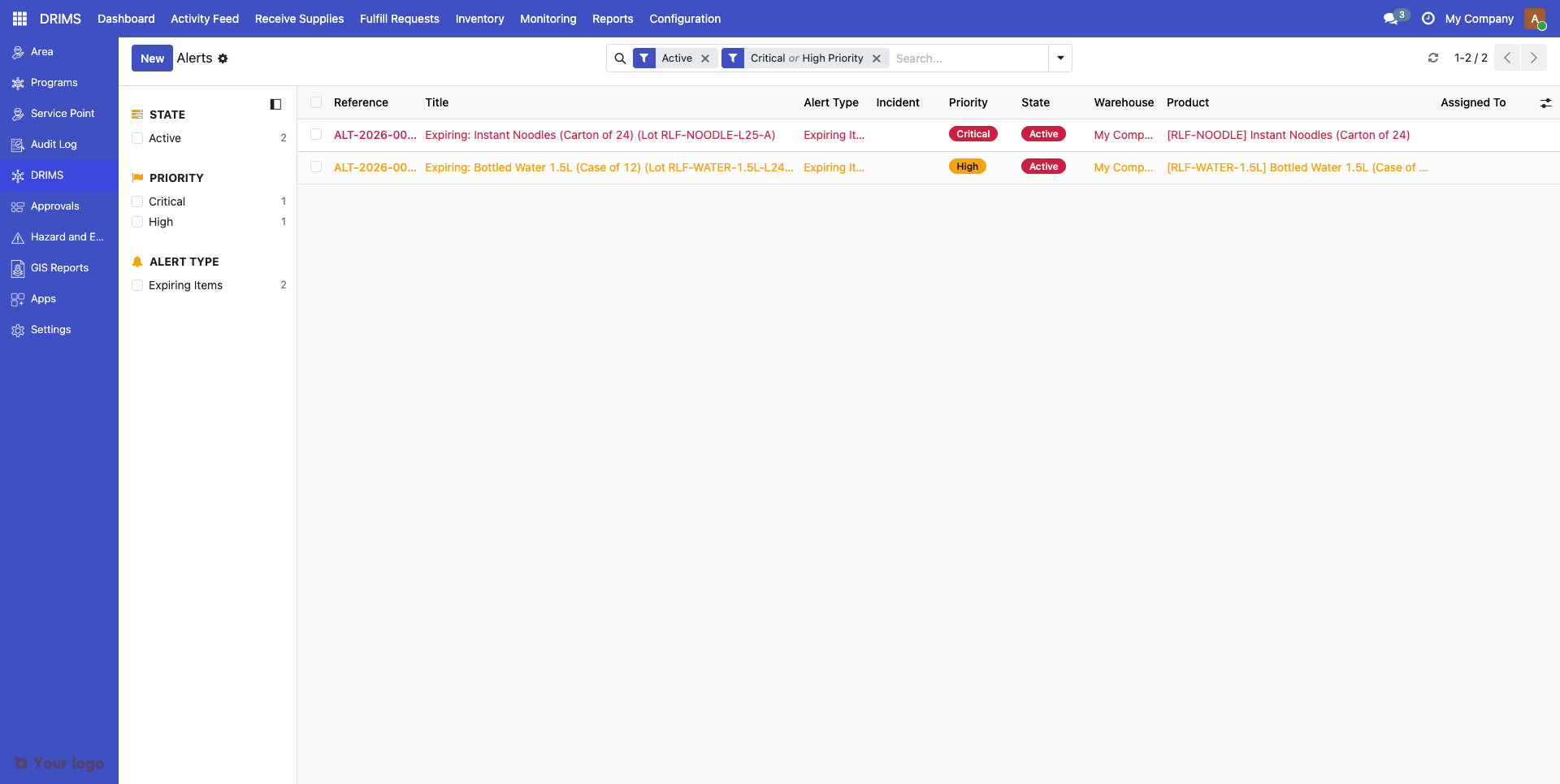
Filter dashboards - Use priority filters to focus on Critical and High alerts only
Alert Created But Condition Resolved#
Problem: Alert still shows as active even though stock was replenished or item delivered.
Explanation:
Alerts are not automatically resolved. The cron jobs only create new alerts, they don't close existing ones.
Solution:
Manually resolve the alert:
Go to DRIMS > Monitoring > Alerts
Find the alert
Click Resolve
Add note: "Stock replenished" or "Request delivered"
Can't Find Alert Settings on Incident#
Problem: No "Alert Configuration" tab on incident record.
Check:
DRIMS module version - Alert overrides were added in DRIMS v2. Verify you're running latest version.
Form view - Make sure you're in "Edit" mode, not just viewing the record.
Permissions - You need "DRIMS Manager" or "Administrator" role to see configuration tabs.
Expiry Alerts for Non-Perishable Items#
Problem: Getting expiry alerts for items that don't expire (tents, blankets).
Solutions:
Disable lot tracking - If product genuinely doesn't expire, remove "Track by Lots" from product configuration
Remove expiration dates - Edit lots and clear expiration date field
Increase warning threshold - Set expiry warning to very high value (e.g., 365 days) for durable goods
Warning
Don't disable lot tracking if you need it for traceability or donation tracking. Instead, just don't set expiration dates on those lots.
Next Steps#
Monitor daily - Check alert dashboard each morning to catch issues early
Analyze patterns - Use Activity Feed to identify recurring problems
Tune thresholds - Adjust settings based on your team's response capacity
Train staff - Ensure warehouse managers know how to acknowledge and resolve alerts
For details on warehouse management, see Configuring Warehouses.
For request processing workflows, see Submit and manage relief requests.