 openspp.org
Expression templates
Contents
Expression templates#
This guide is for implementers using and creating CEL expression templates for common eligibility criteria.
What are templates?#
Templates are pre-built CEL expressions for common eligibility scenarios. They provide:
Quick start - Select a template instead of writing from scratch
Consistency - Standard expressions across programs
Governance - Locked templates for compliance requirements
Available templates#
OpenSPP includes templates for common social protection criteria:
Individual-based templates#
Template |
Expression |
Use case |
|---|---|---|
Senior Citizens (65+) |
|
Old age pension |
Adults (18+) |
|
Adult programs |
Adult Women (18+) |
|
Women's programs |
Women of Reproductive Age (15-49) |
|
Maternal health |
Household-based templates#
Template |
Expression |
Use case |
|---|---|---|
Large Households (4+) |
|
Family support |
Children Under 5 |
|
Child nutrition |
School-Age Children (6-18) |
|
Education support |
Female-Headed Households |
|
Vulnerability targeting |
Elderly-Headed Households (60+) |
|
Elderly support |
High Dependency Ratio (3+) |
|
Vulnerability scoring |
Using a template#
Step 1: Open the eligibility manager#
Go to Programs → Programs and open your program
Click the Configuration tab
Find the Eligibility Manager section
Click the gear icon to open manager settings
Step 2: Select a template#
In the eligibility manager form:
Look for the Based On or template selector field
Click to open the template list
Select the appropriate template
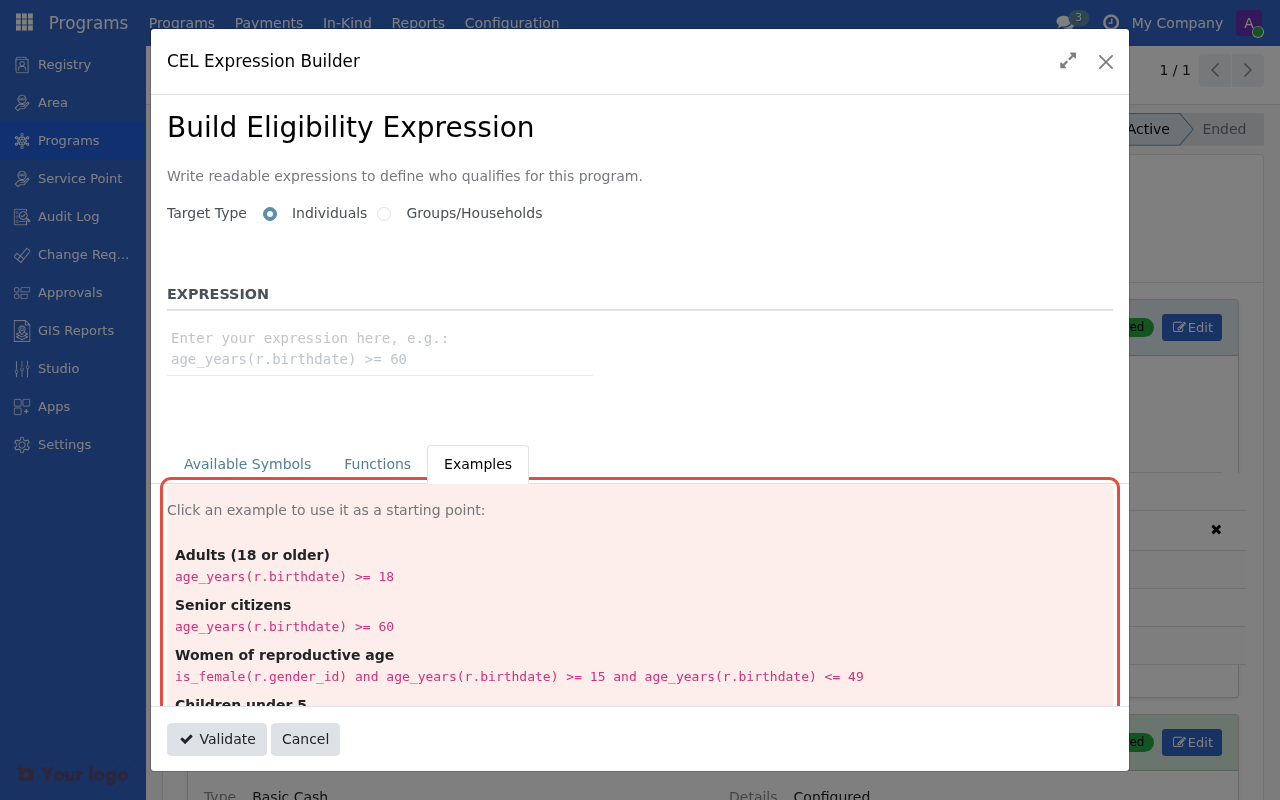
The Examples tab in the Advanced Builder showing available expression templates.#
Step 3: Review and customize#
After selecting a template:
The CEL expression is populated automatically
Review the expression to ensure it matches your requirements
Modify if needed (unless the template is locked)
Check the match count
Save the configuration
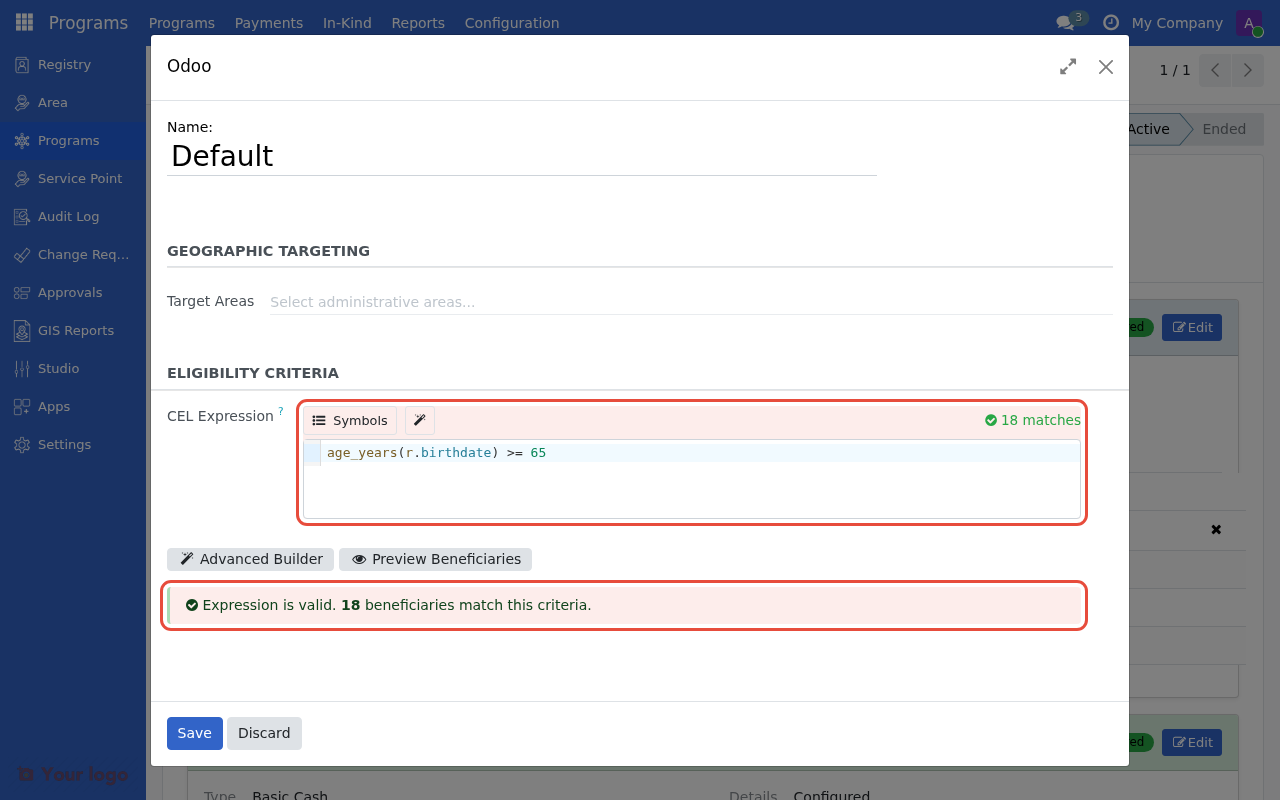
A template expression applied to the eligibility manager with validation and match count.#
Template lineage tracking#
When you use a template, OpenSPP tracks:
Field |
Description |
|---|---|
Based On |
The source template |
Modified |
Whether you've changed the expression |
Locked |
Whether modifications are prevented |
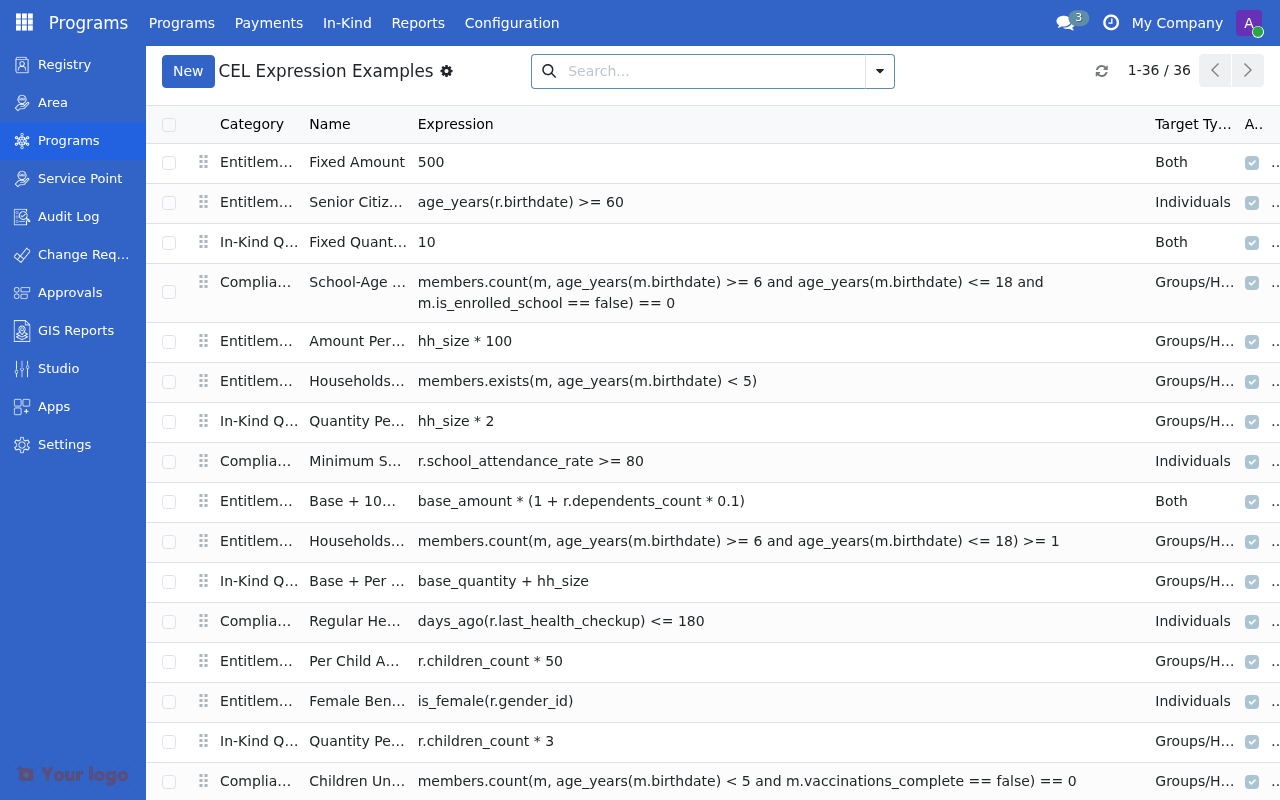
The CEL Expression Examples list where templates are managed. Each template has a category, name, expression, and target type.#
Modified indicator#
If you change a template's expression:
A "Modified" indicator appears
The original template reference is preserved
You can compare your version to the original
Locked templates#
Some templates are locked for governance:
The expression cannot be modified
Ensures compliance with standardized criteria
Contact an administrator to unlock if needed
Warning
Locked templates show a warning: "This eligibility criteria is locked and cannot be modified."
Customizing templates#
Unless locked, you can modify a template's expression:
Adding conditions#
# Original: Senior Citizens (65+)
age_years(r.birthdate) >= 65

# Customized: Senior Women (65+)
age_years(r.birthdate) >= 65 and is_female(r.gender_id)
Adjusting thresholds#
# Original: Large Households (4+)
hh_size >= 4

# Customized: Very Large Households (6+)
hh_size >= 6
Combining templates#
You can combine criteria from multiple templates:
# Combine: Female-headed AND children under 5
members.exists(m, head(m) and is_female(m.gender_id)) and members.count(m, age_years(m.birthdate) < 5) >= 1
Creating custom templates#
Administrators can create new templates for organization-specific criteria.
Step 1: Access template management#
Go to Programs → Configuration → CEL Expression Examples
Note
This menu is only visible to administrators with the appropriate permissions.
Step 2: Create new template#
Click Create
Fill in template details:
Field |
Description |
|---|---|
Name |
Display name (e.g., "Subsistence Farmers") |
Code |
Unique identifier (e.g., |
Expression Type |
Select "Filter" for eligibility |
Context Type |
Individual or Group |
CEL Expression |
The eligibility rule |
Is Template |
Check this box |
Is Locked |
Check to prevent modifications |
Step 3: Test and activate#
Verify the expression is valid
Test with sample data
Set state to Active
The template now appears in the template selector
Template best practices#
Naming conventions#
Use clear, descriptive names:
Good |
Bad |
|---|---|
Senior Citizens (65+) |
Elderly |
Households with Children Under 5 |
HH Children |
Female-Headed Households |
FHH |
Include the threshold in the name where applicable (65+, 4+, etc.).
When to lock templates#
Lock templates when:
Standardized criteria are required for compliance
Multiple programs must use identical criteria
Central policy defines the eligibility rules
When to allow modifications#
Allow modifications when:
Programs need flexibility for local adaptation
Templates are starting points, not strict requirements
Implementers need to add additional conditions
Are you stuck?#
Template not showing in the list?
Check the template's state is "Active"
Verify the context type matches your program (Individual vs Group)
Ask an administrator to verify template configuration
Can't modify a locked template?
Contact an administrator to unlock if changes are required
Or create a new program with an unlocked template
Expression from template doesn't match expected count?
Verify your registry data contains the expected values
Check the context type (Individual vs Group)
Review the expression logic carefully
Next steps#
CEL expressions for eligibility - Understand CEL syntax for customization
Testing eligibility rules - Validate template-based eligibility
Advanced eligibility configuration - Use multiple managers with different templates