 openspp.org
Import matching overview
Contents
Import matching overview#
This guide is for implementers setting up deduplication rules for data imports. You should understand your data model but don't need programming knowledge.
Mental model#
Import matching has two layers:
Layer |
What it does |
Example |
|---|---|---|
Rule |
Defines how to find existing records |
"Match registrants by national ID" |
Fields |
Specifies which fields to compare |
National ID + Phone Number |
Think of it like a phone book lookup: the rule says "look up by name", and the fields specify whether to match by first name, last name, or both.
Key concepts#
Matching rules#
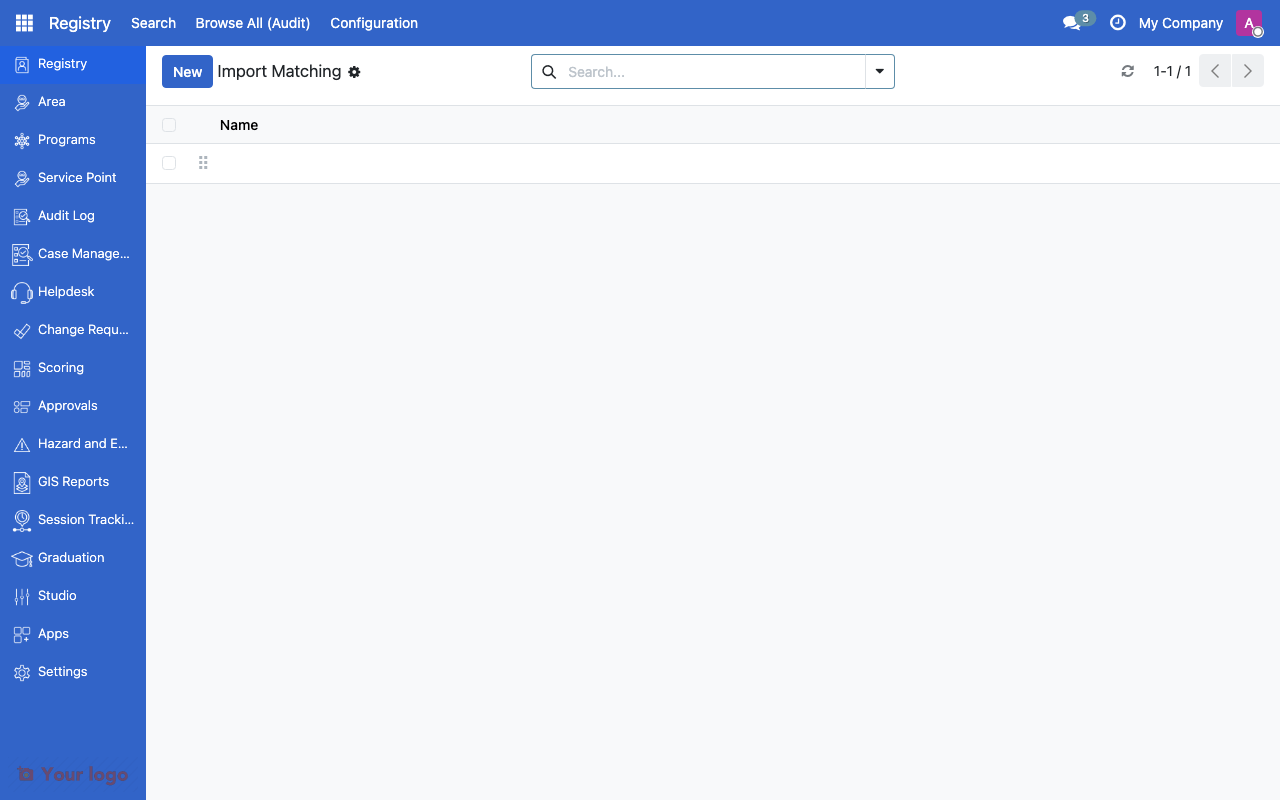
Import matching rules list showing model and field configurations.#
Field |
What it means |
|---|---|
Model |
The type of record to match against (e.g., Registrants, Programs) |
Fields |
List of field specifications for matching |
Overwrite |
Whether to update existing matched records |
Field specifications#
Each field in a rule defines one matching criterion:
Field |
What it means |
|---|---|
Field Name |
The field to compare |
Sub-field |
For linked fields, which specific value to compare (e.g., the bank's name rather than its ID) |
Matching behavior#
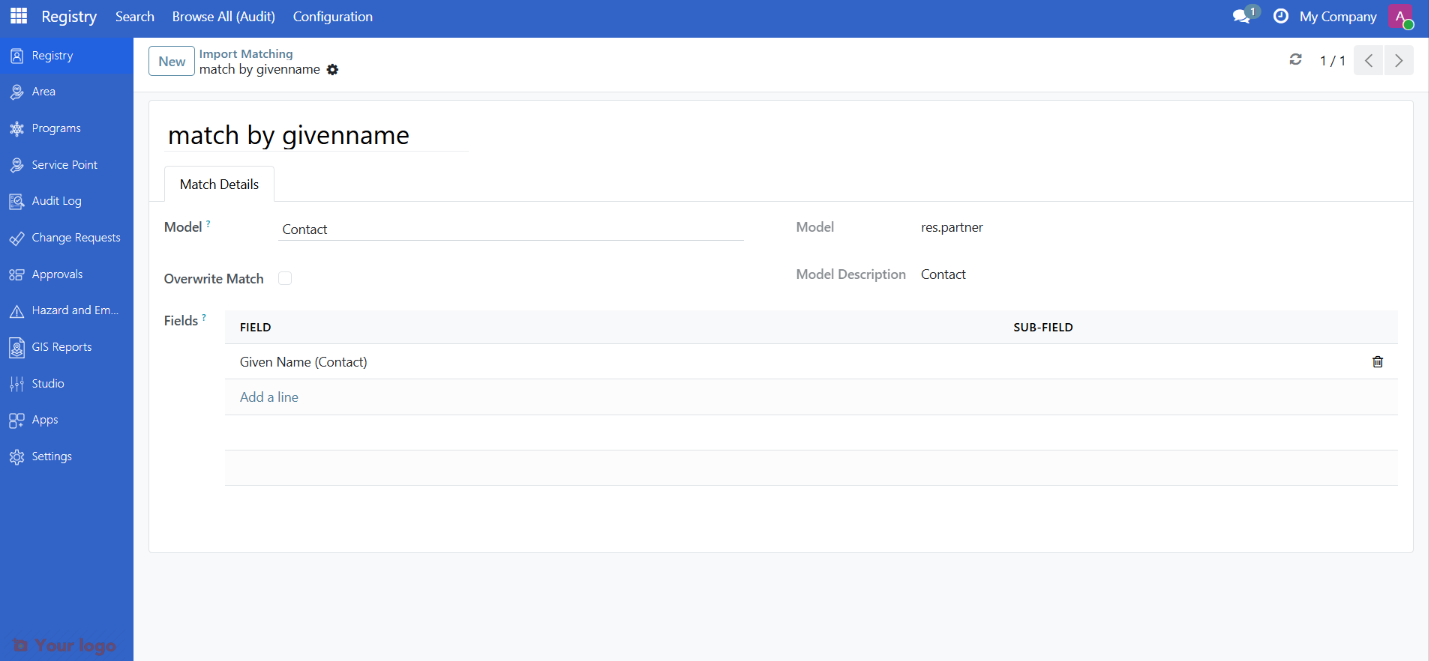
Import matching rule form showing fields and overwrite settings.#
When importing data:
For each incoming record, the system checks all active matching rules for the model
Fields are compared in order - all fields must match for a record to be considered a duplicate
If a match is found:
Overwrite enabled: Update the existing record with new data
Overwrite disabled: Skip the incoming record
If no match: create a new record
Setting up matching rules#
Step 1: Create a rule#
Navigate to Configuration > Import Match
Click Create
Select the Model (e.g., Registrants)
Step 2: Add fields#
In the Fields tab, add matching fields
For each field:
Select the field name
Optionally set a sub-field for relational fields
Step 3: Configure overwrite behavior#
Overwrite enabled: Matched records are updated with imported data (useful for bulk updates)
Overwrite disabled: Matched records are skipped (useful for preventing duplicates)
Matching patterns#
Pattern 1: National ID match#
Match registrants by their unique national ID:
Field |
Sub-field |
|---|---|
national_id |
- |
Simple and reliable when national IDs are consistently formatted.
Pattern 2: Name + Phone compound match#
Match when both name and phone number match:
Field |
Sub-field |
|---|---|
name |
- |
phone |
- |
Reduces false matches compared to single-field matching.
Are You Stuck?#
Import still creates duplicates?
Check that the matching fields have consistent data. Whitespace, capitalization, or formatting differences can prevent matches (e.g., "John Smith" vs "john smith").
Wrong records being matched?
Your matching fields may be too broad. Add more fields to make matching more specific (e.g., add phone number alongside name).
Overwrite updating fields I don't want changed?
Overwrite updates all imported fields on the matched record. To protect specific fields, exclude them from the import file.
Can I have multiple matching rules for the same model?
Yes. Multiple rules are evaluated in order. The first matching rule that finds a result is used.
Relational fields not matching?
Use the Sub-field to specify which value on the linked record to compare. For example, for a bank field, use the sub-field "name" to match the bank's name.
Next steps#
Consent management overview - Consent for imported data