 openspp.org
Review a change request
Contents
Review a change request#
Applies to: Social Registry, SP-MIS
This guide is for validators (local validators and HQ validators) who need to review and approve change requests submitted by staff.
What you will do#
Review change requests submitted by registry officers, verify the proposed changes against supporting documents, and approve, request changes, or decline them. Approved requests are then finalized and recorded to the registrant's profile.
Before you start#
You need validator permissions. Your organization may configure this as either:
One global validator role - A single person with both Validator and Validator HQ roles, OR
Two-tier system - Separate Validator (local) and Validator HQ roles assigned to different people
Understand your organization's approval policies
Know what documentation is required for different types of changes
Note
Single Validator Approval: By default, change requests can be approved by a single validator. The approval system supports two configurations:
Default (Single Approver): Only one validator needs to approve the request
Multiple Approvers Required: Your organization may configure certain request types to require multiple validators to approve. In this case, the system will track how many approvals are needed and who has already approved.
If you're unsure about your organization's approval requirements, check with your administrator or look at the approval status indicators on the request form.
Steps#
Step 1. Open pending requests#
Click Change Requests in the main menu, then click Pending Approval in the sidebar.
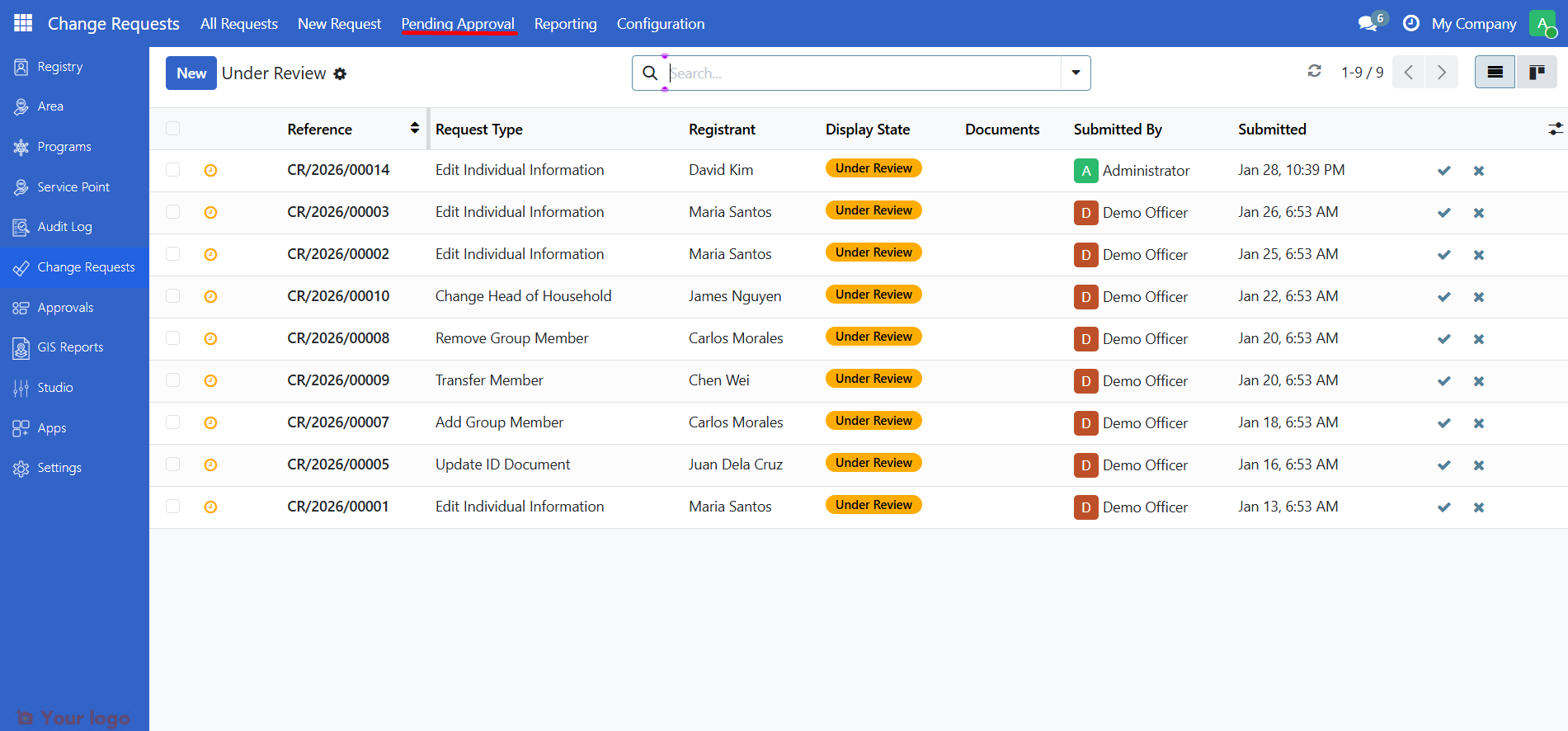
This shows all requests waiting for review.
Step 2. Open a request to review#
Click on a request in the list to open it.
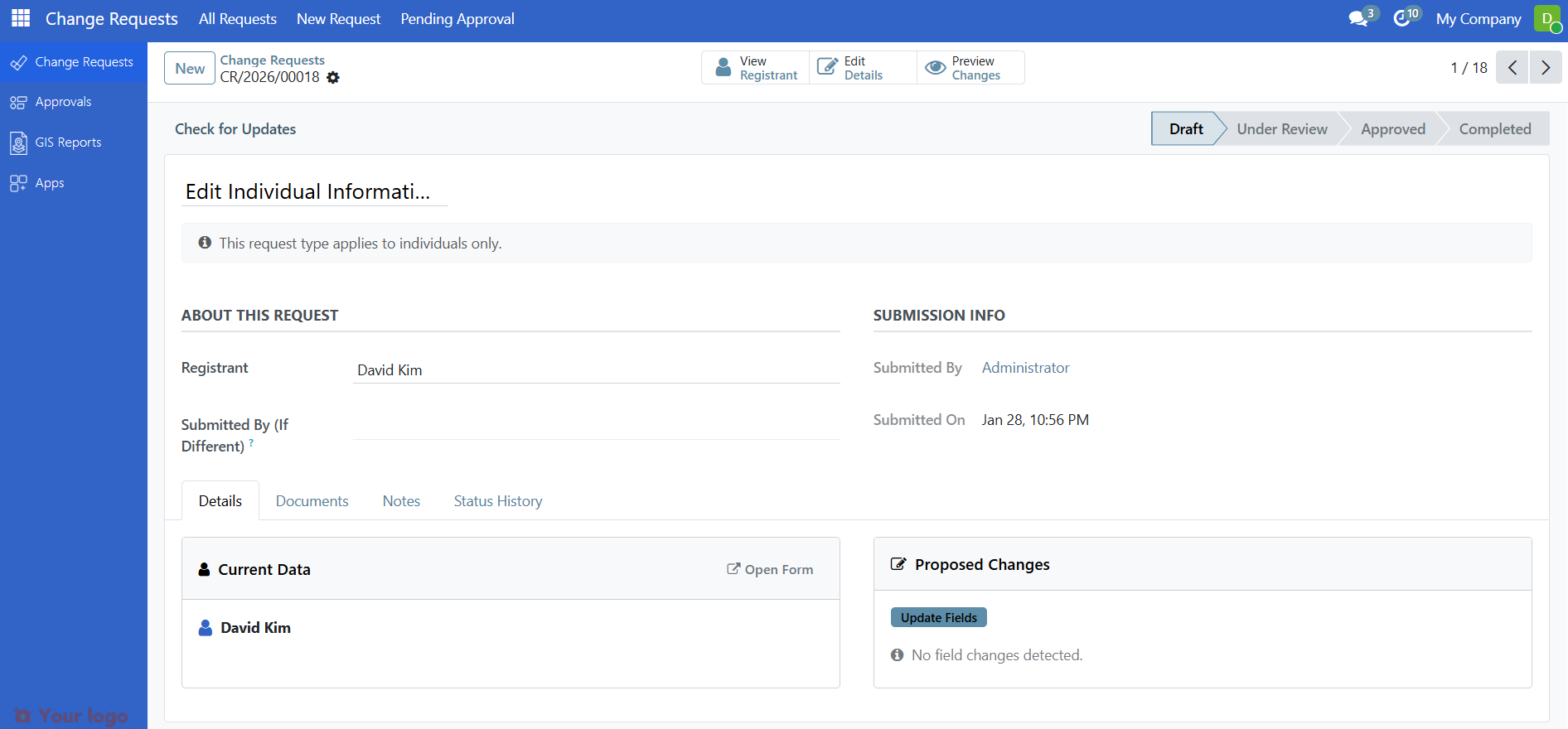
The request form opens with all details.
Step 3. Review the request information#
The displayed information will vary depending on the type of change request, but the common data is
What to check |
|
|---|---|
Change Request ID |
The unique identifier for this change request |
Request Type |
What kind of change is requested |
Registrant |
Who will be affected by this change |
Blue banner |
The current step in the change request flow |
Yellow banner |
The action required on the change request |
Proposed Changes tab |
The requested modifications |
Attached Documents tab |
The uploaded documents |
Request Log tab |
What actions have been taken on this specific change request |
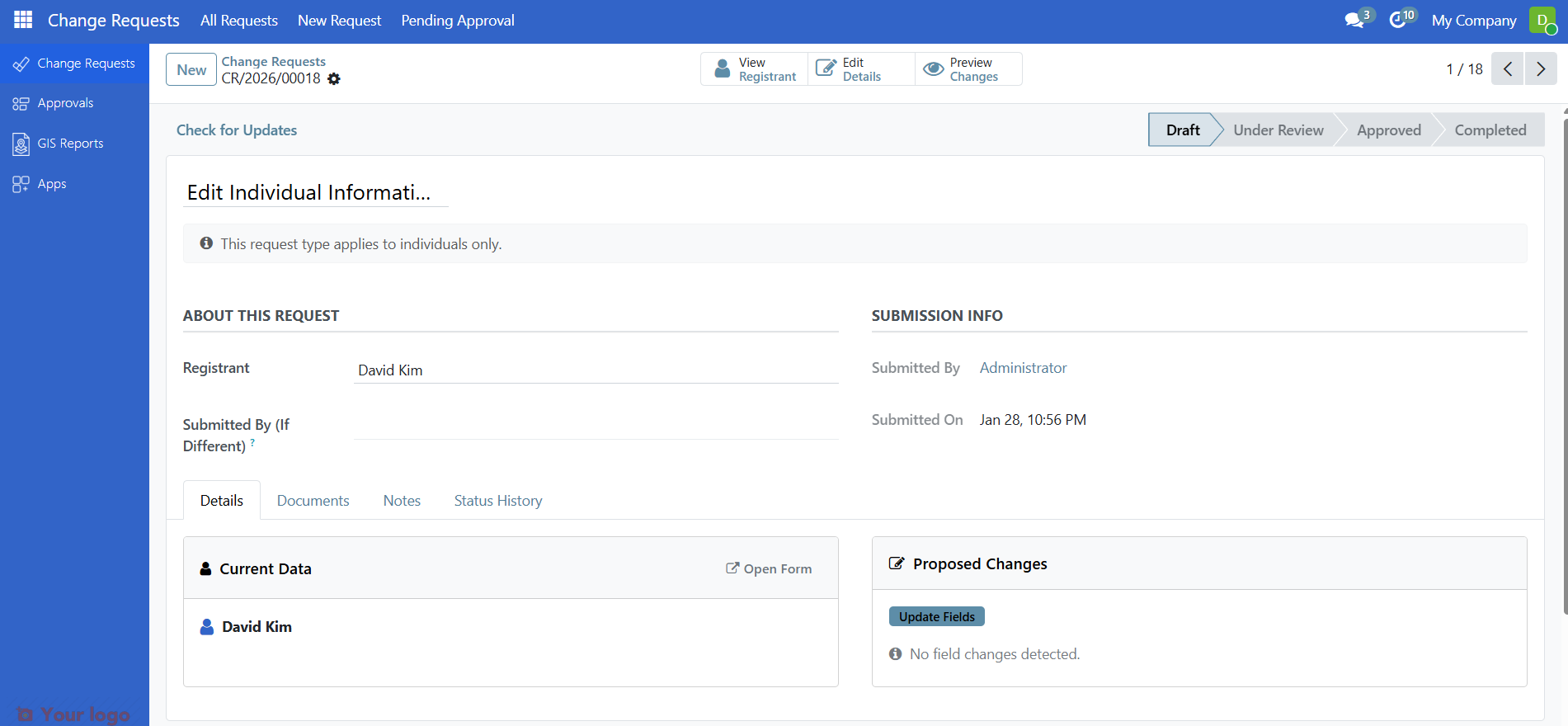
Step 4. Review the proposed changes#
The Proposed Changes tab shows information on the current and proposed data.
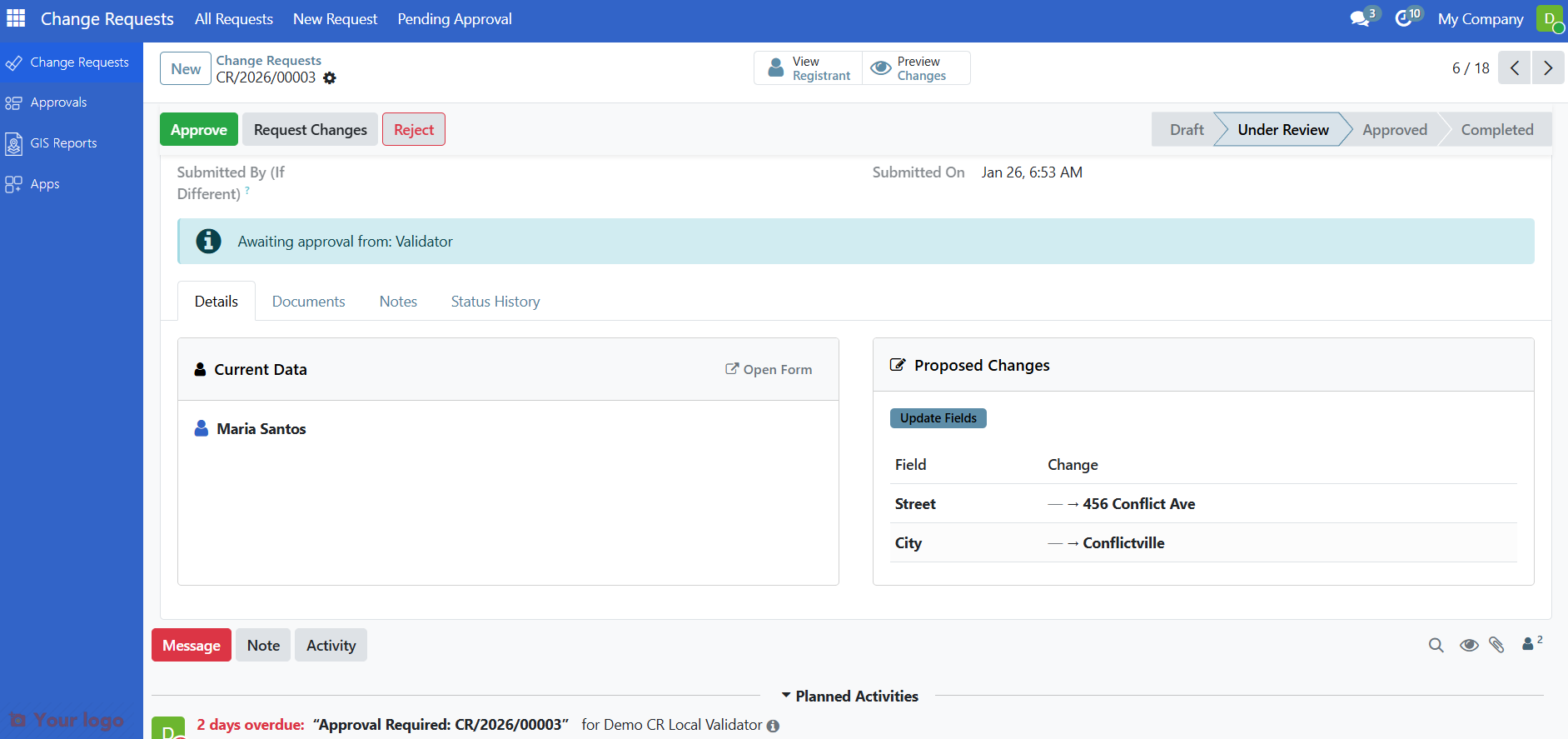
Review each proposed change carefully.
Step 5. Check supporting documents#
Click the Attached Documents tab to view uploaded files.
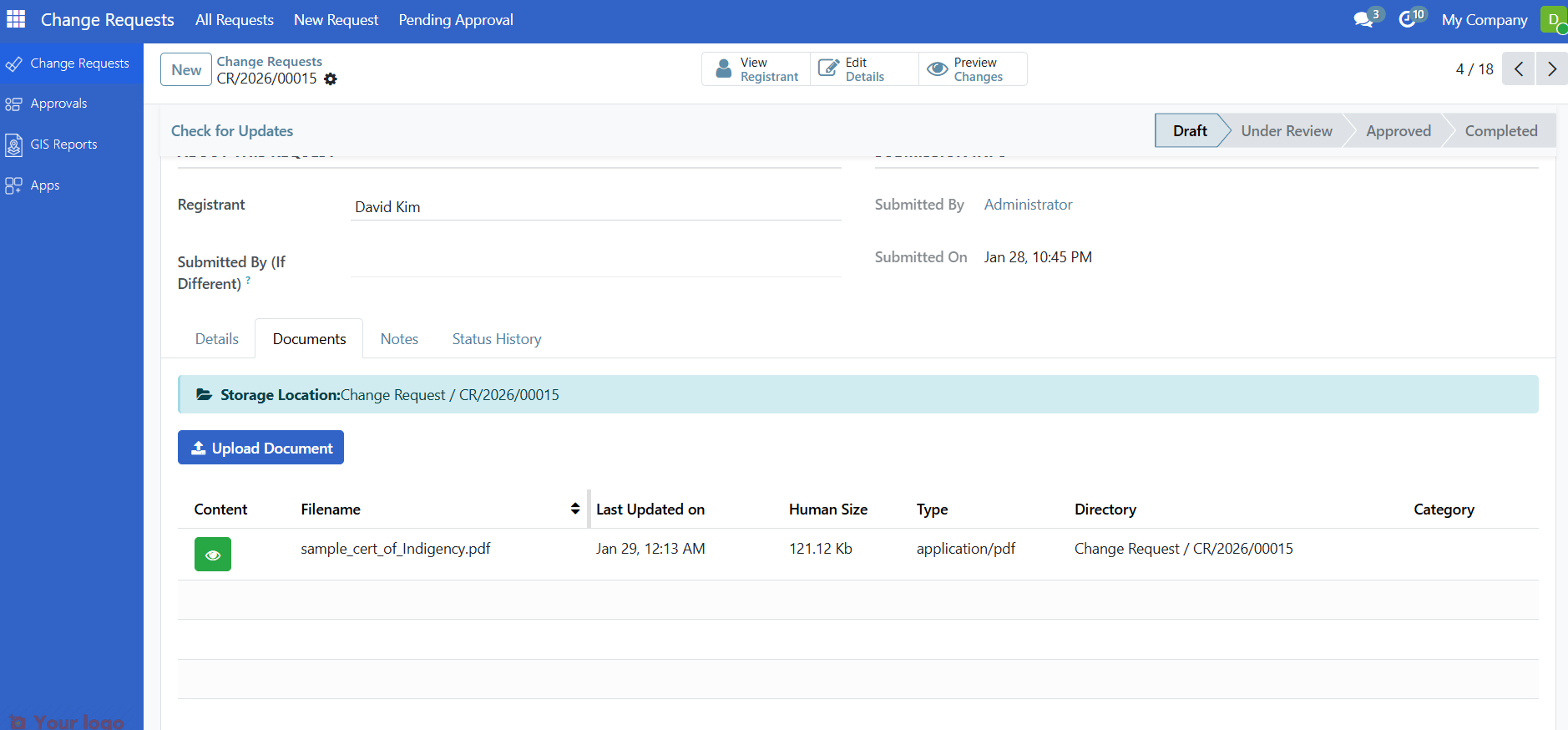
Click on a document to view it.
Verify that:
Required documents are present.
Documents match the requested changes.
Documents appear authentic.
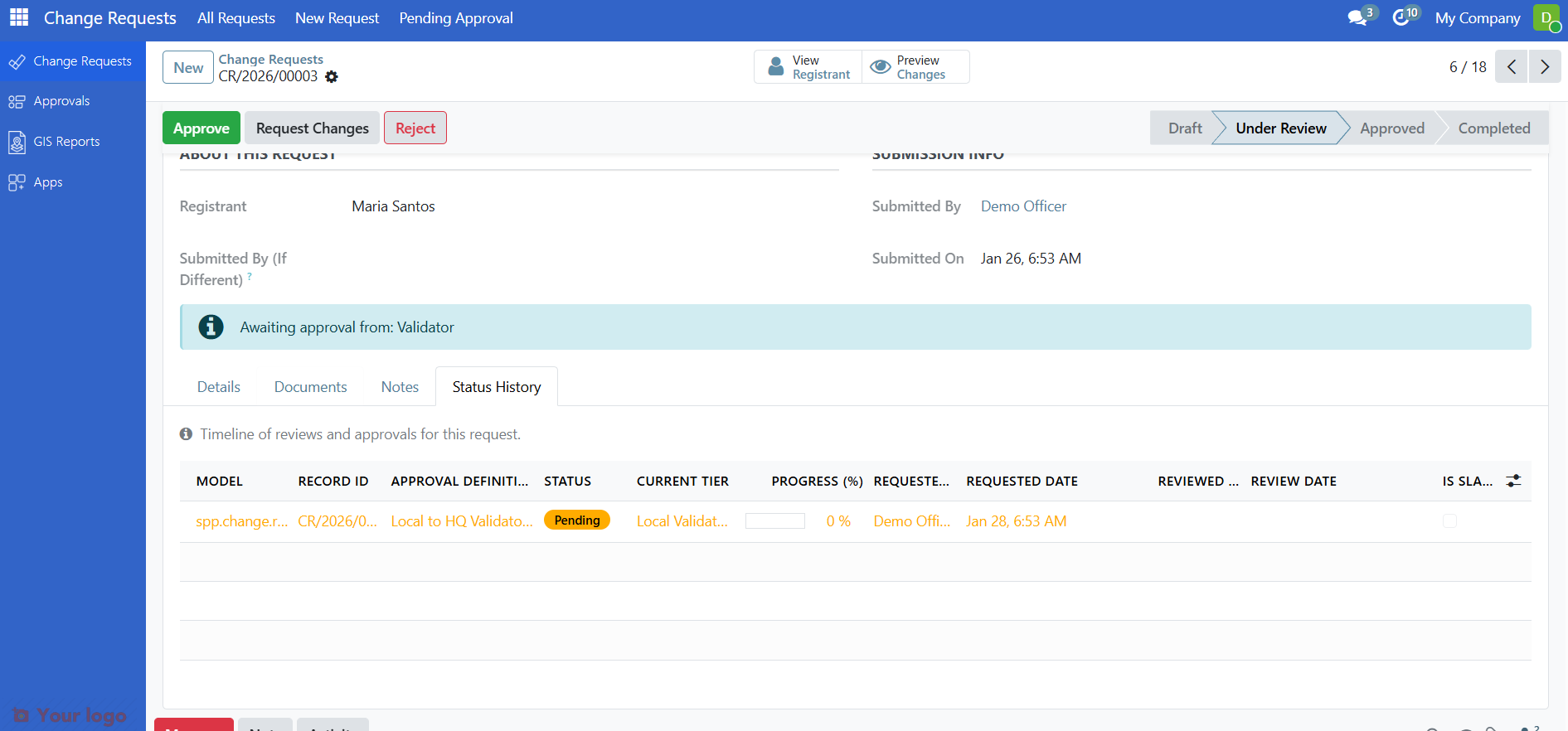
Step 6. Check status history (optional)#
Click the Request Log tab to see:
Who created the request.
Previous review actions (for resubmitted requests).
Timestamps for each status change.
Step 7. Make your decision#
You have three options:
Option A: Approve#
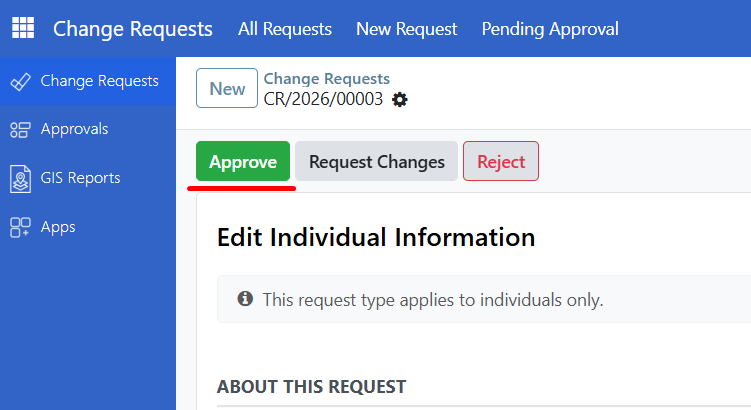
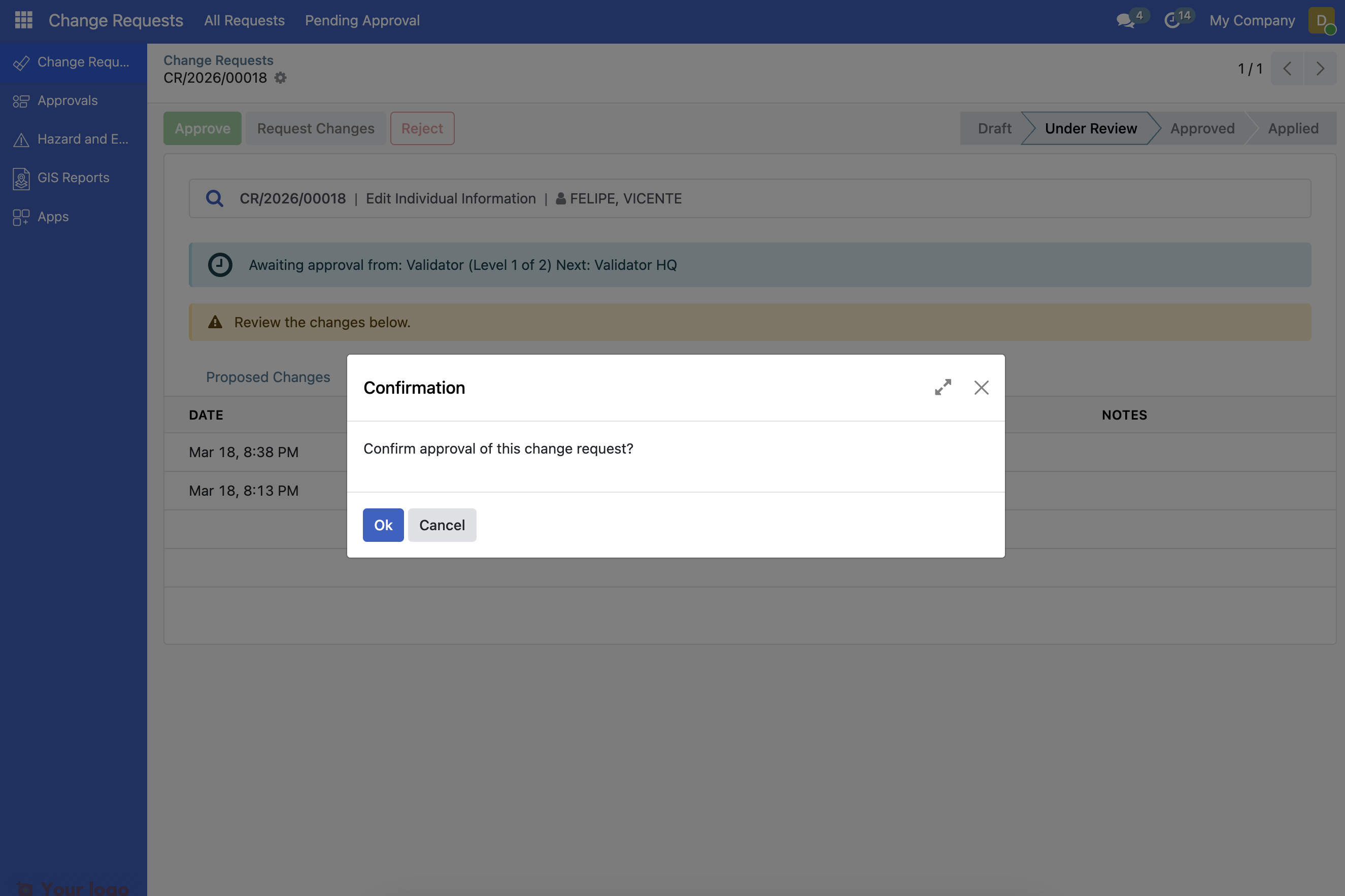
If everything is correct and properly documented:
Click Approve in the header
Confirm by clicking OK in the dialog.
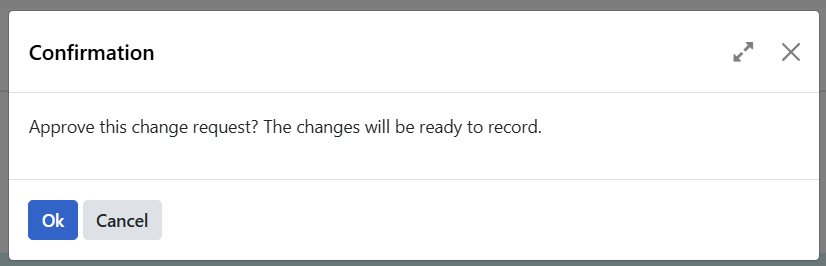
The status changes to Approved.
Note
Auto-Apply: By default, most request types have auto-apply enabled. When you approve a request with auto-apply enabled, the changes are automatically recorded and the status becomes Completed. If auto-apply is disabled for the request type, you will need to manually click Finalize & Record Changes after approval.
Option B: Request changes#
If the submitter needs to fix something:
Click Request Changes in the header
In the dialog, explain what needs to be corrected
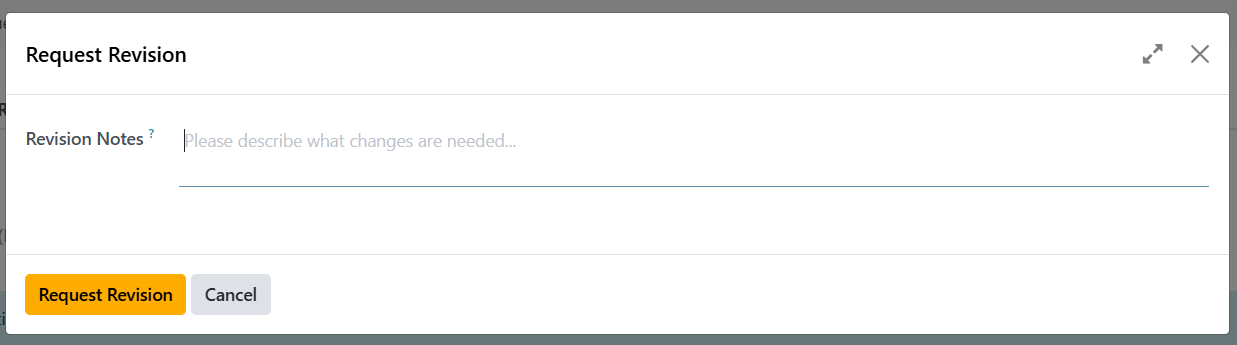
Click Request Revision.
The status changes to Needs Changes. The submitter will see your feedback and can edit and resubmit the request.
Note
When the Request Changes button appears: The Request Changes button is only visible when:
The request status is Under Review (pending approval)
You have Validator or Validator HQ permissions
You have permission to approve this specific request
If you don't see the button, check the troubleshooting section below.
Option C: Reject#
If the request should not be processed:
Click Reject in the header
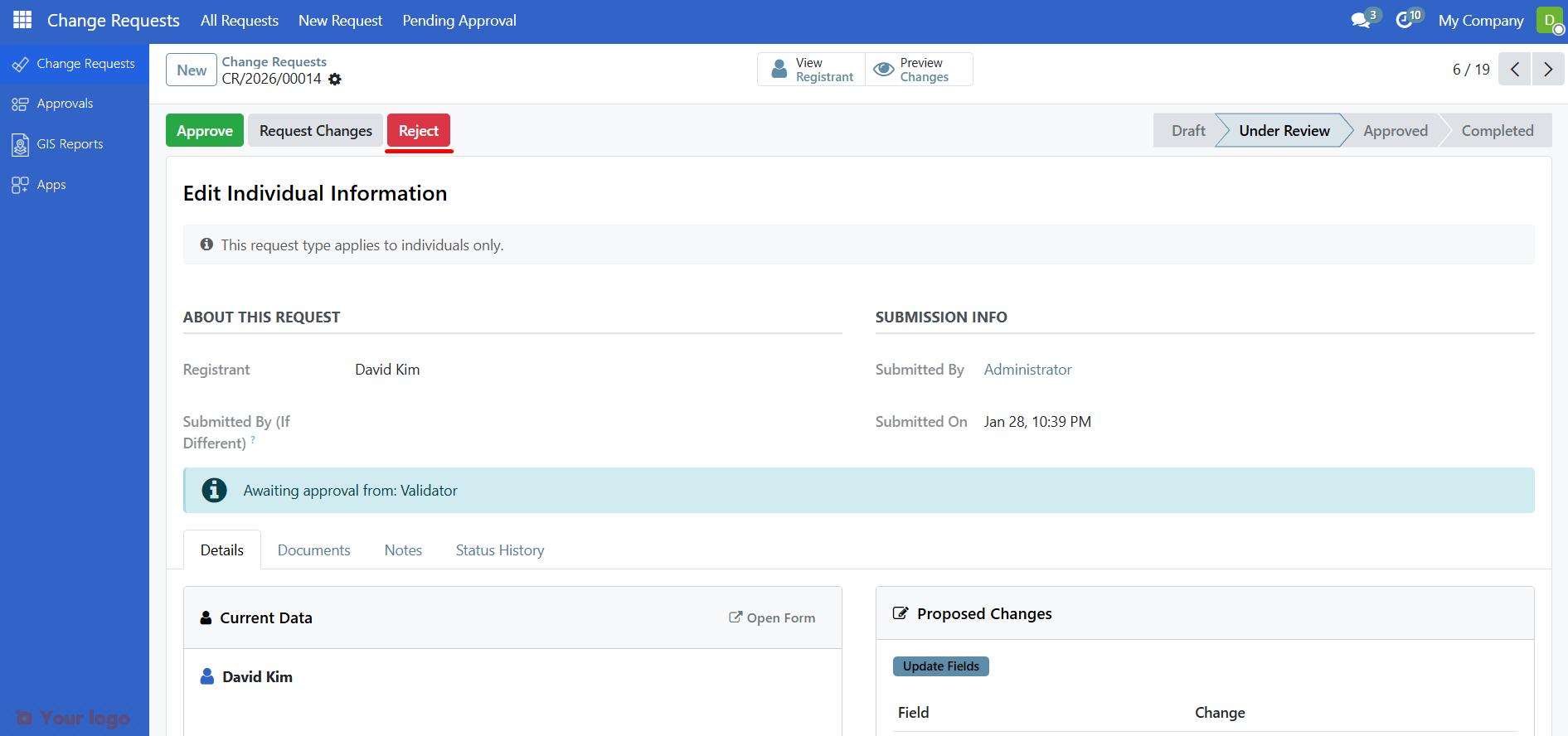
Click Confirm.
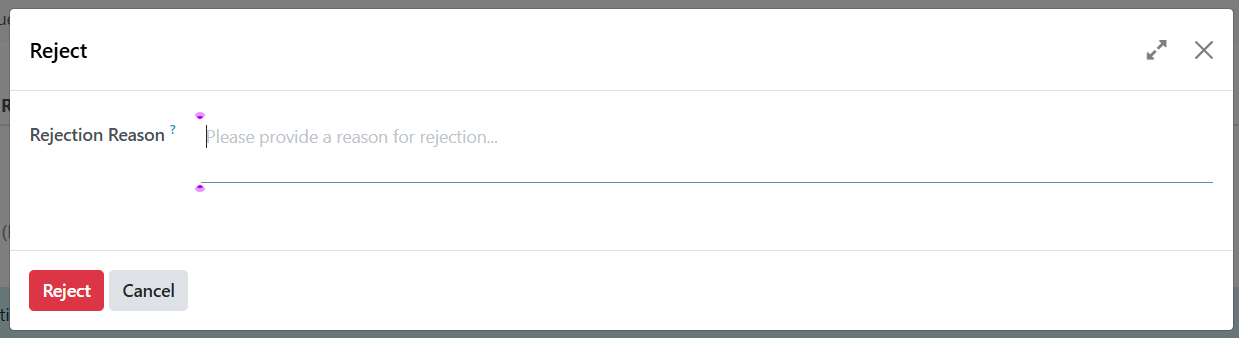
The status changes to Declined. The changes are not applied.
Using the All Requests View#
To see all requests (not just pending):
Click All Requests in the sidebar
Use filters to narrow the list:
Filter
Shows
Draft
Requests being created
Under Review
Waiting for approval
Needs Changes
Sent back for corrections
Approved
Approved, waiting to be finalized
Completed
Changes have been recorded
Declined
Rejected requests
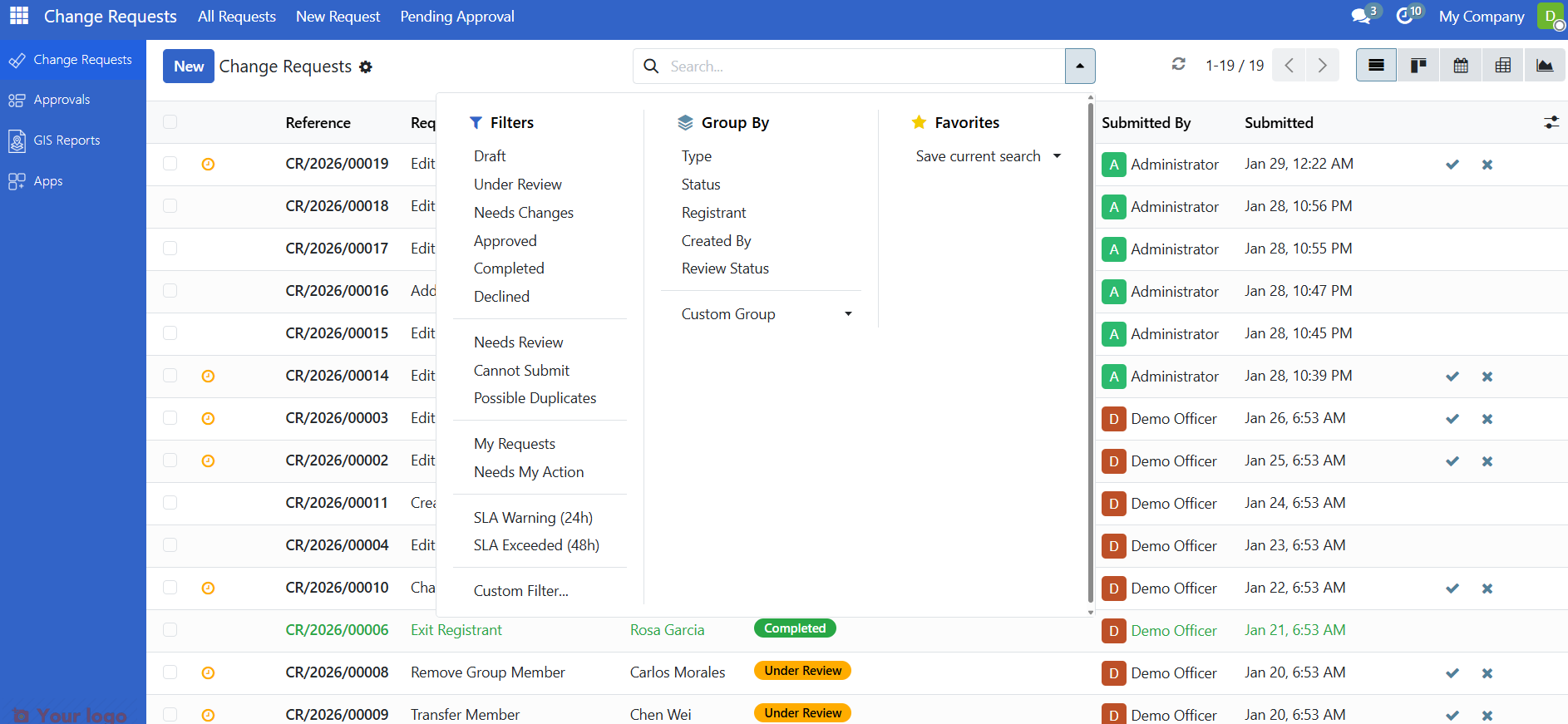
Use Group By to organize by Type, Status, or Creator.
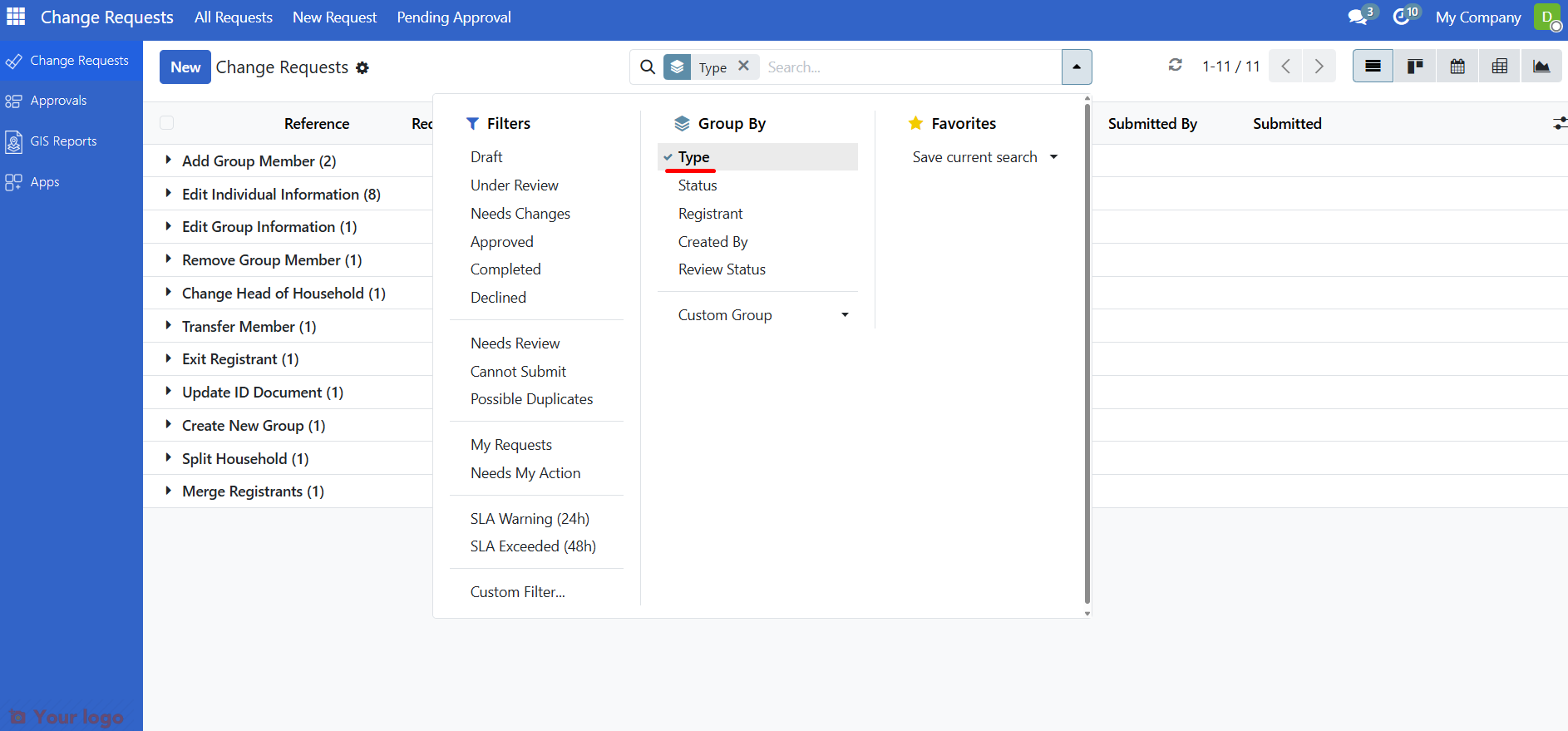
Reviewing multiple requests#
For efficient batch processing:
Use the kanban view (click the kanban icon)
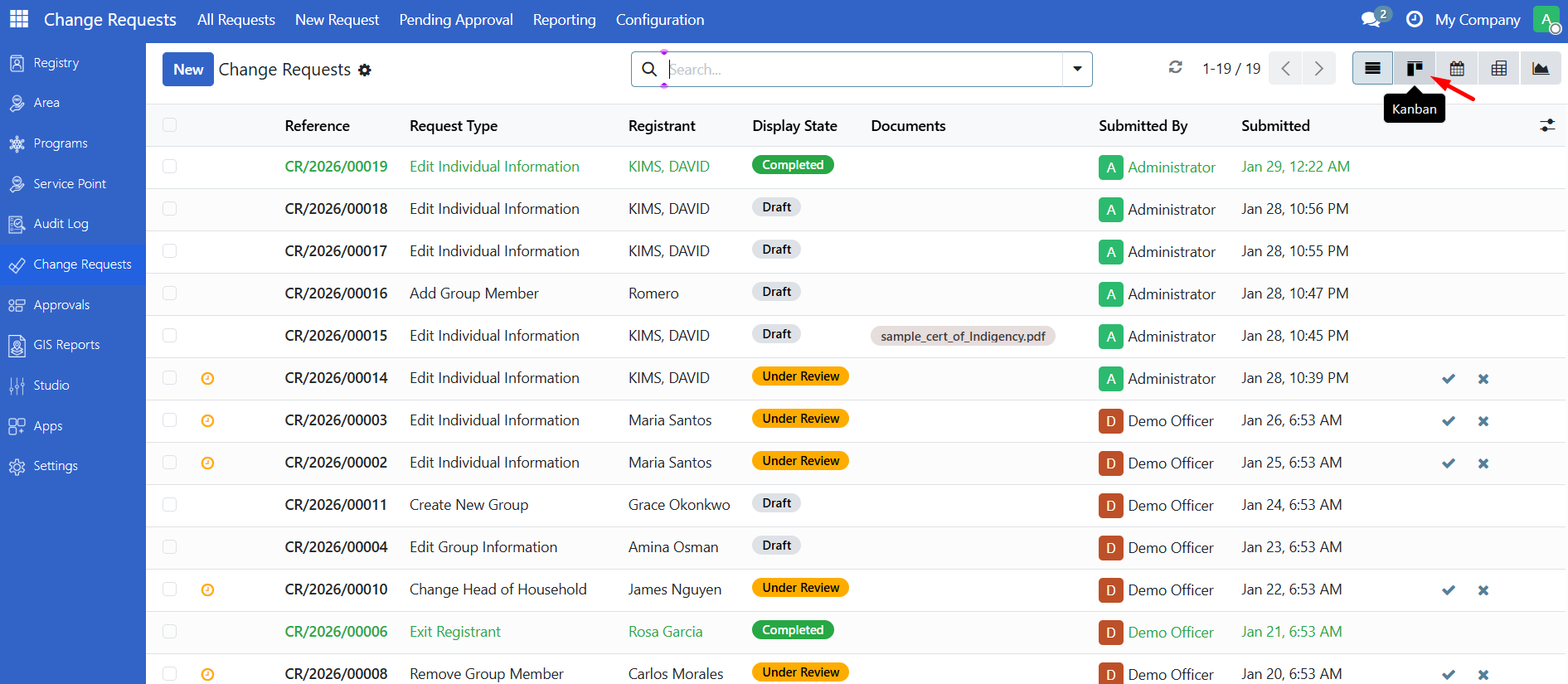
Requests are grouped by status.
Click a card to open the full request.
Use keyboard shortcuts for faster review (when viewing a pending change request form):
A - Approve
R - Request Changes
D - Decline
Note
Keyboard Shortcuts: These shortcuts work when you have a pending change request form open. They are not available in the kanban view itself - you need to open the request first.
Are you stuck?#
Cannot see the Approve button? You may not have Validator or Validator HQ permissions. Contact your administrator.
Approve button is disabled?
The request may not be in Under Review status.
For multi-tier approvals, an earlier tier may need to be completed first.
For requests requiring multiple approvers, the required number of approvals may not yet be met (check the approval status on the request).
You may not have Validator or Validator HQ permissions to approve this request.
Cannot see any pending requests?
Check that you have the Pending Approval view selected
Make sure no filters are hiding requests
Click Clear Filters to reset the view
Request shows "Unable to Complete Request" error?
The error message explains what went wrong.
This could be a data conflict or validation issue.
Check the error message displayed in the red alert box on the request form.
Contact your administrator if the error persists.
Need to undo an approval? Once changes are recorded to a registrant (status: Completed), they cannot be undone through the change request system. Create a new change request with the correct information instead.
Approved request but changes not applied?
Check if auto-apply is enabled for this request type. If not, you need to manually click Finalize & Record Changes.
The request must be in Approved status (not just pending) before you can finalize it.
Submitter keeps resubmitting incorrect request? Use Reject instead of Request Changes if the request should not be processed at all. Include a clear explanation in the rejection reason.
Documents tab is empty but submitter says they uploaded files?
Check if the submitter has permission to upload documents.
The documents may be in a different format than expected.
Ask the submitter to re-upload using the Document Upload wizard.
Cannot see the Request Changes button?
The request must be in Under Review status. If it's in Draft, Approved, or another status, the button won't appear.
You must have Validator or Validator HQ permissions. Contact your administrator if you need these permissions.
For multi-tier approvals, you may need to wait for your tier to become active before the button appears.
The button appears alongside Approve and Reject in the header. If you can see those buttons but not Request Changes, refresh the page or check with your administrator.
Next Steps#
Submit a change request - Learn how staff submit requests
Change request types - See all available request types