 openspp.org
Configure relief products
Contents
Configure relief products#
This guide is for implementers setting up the product catalog for a DRIMS deployment. Products must be defined before donations, requests, or dispatches can reference any relief items.
Mental model#
In DRIMS, a product represents a type of relief item — a blanket, a 50kg bag of rice, a first aid kit. Products are not individual physical items; they are the catalog entries that all operations reference when recording quantities.
Product catalog (configured by implementer)
  ↓
Donation line   → "50 units of Blanket – Adult"
Request line    → "20 units of Rice – 50kg bag"
Dispatch line   → "20 units of Rice – 50kg bag"
Key concepts:
Product: A named item type in the catalog (e.g., "Tarpaulin – 4×6m")
Product category: A grouping of related products (e.g., "Shelter", "Food", "Medical Supplies")
Tracking: Whether individual batches of the product are tracked by lot number for expiry and audit purposes
Storable product: DRIMS only uses storable products — items that are physically counted and stocked in warehouses
Before you start#
You need DRIMS Manager or system administrator access to create products
Set up product categories first so you can assign them during product creation
Coordinate with warehouse staff to agree on naming conventions before creating the catalog
Step 1. Create product categories#
Organize your catalog into categories before adding products. This makes products easier to find in donation and request forms and enables category-level filtering in inventory reports.
Go to DRIMS → Inventory → Product Categories.
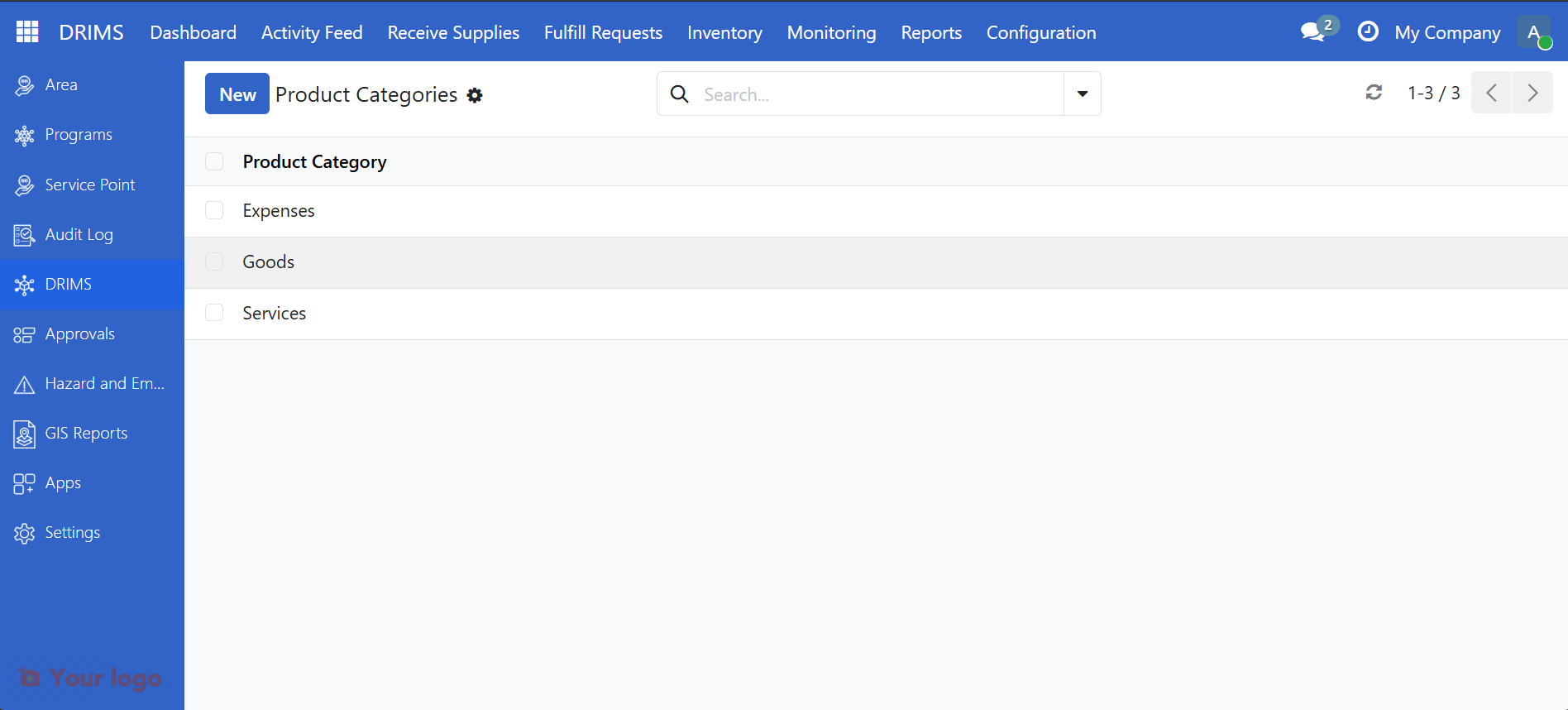
Click New.
Fill in the category form:
Field
What to enter
Category
Category label (e.g., "Food", "Shelter", "Medical Supplies", "Non-Food Items")
Parent category
Leave blank for a top-level category, or select a parent to nest it (e.g., "Food → Dry Rations")
Click Save.
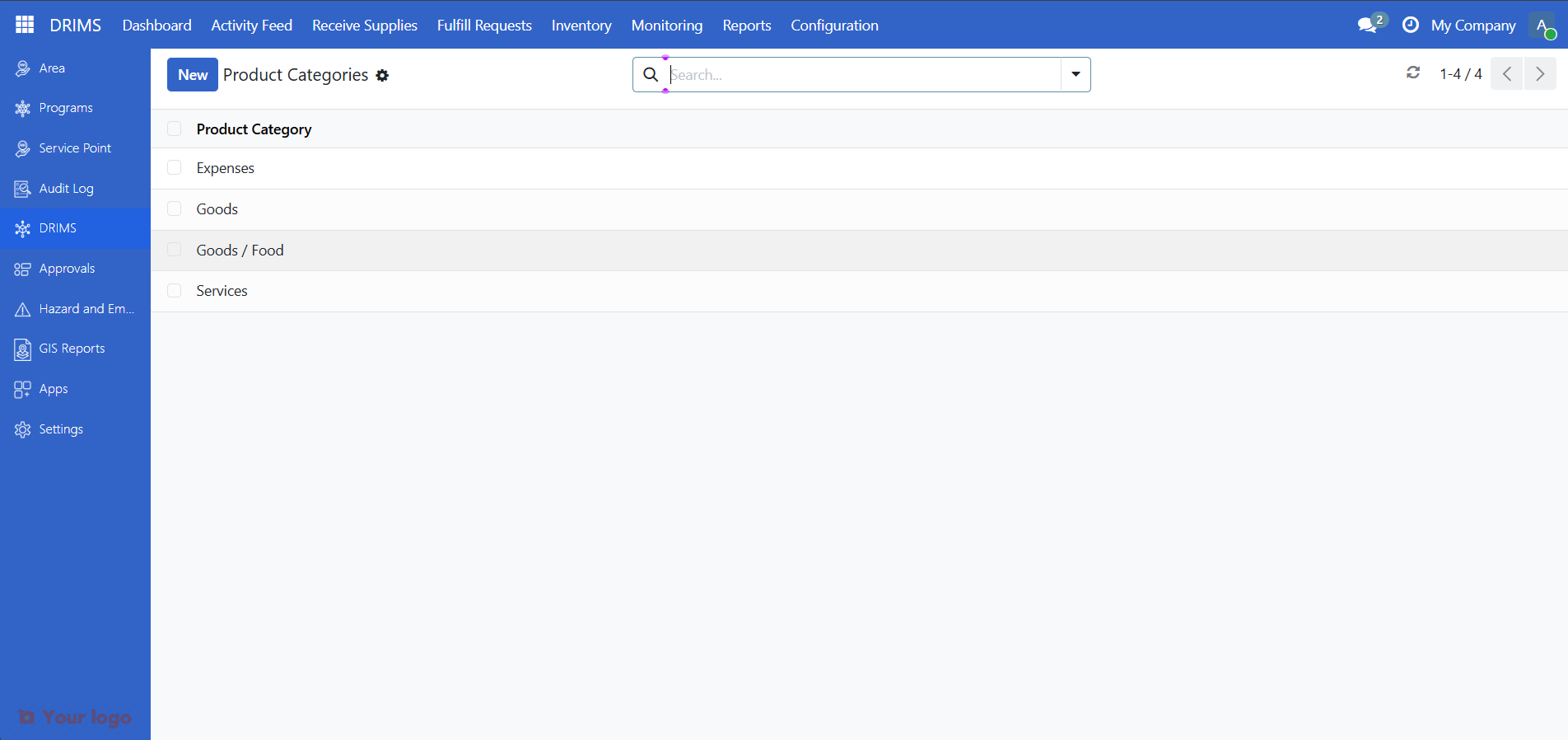
Repeat for each category your organization uses. Common categories for disaster response:
Category |
Typical products |
|---|---|
Food |
Rice, flour, cooking oil, ready-to-eat meals |
Non-Food Items (NFI) |
Blankets, tarps, jerry cans, solar lamps |
Shelter |
Tarpaulins, tent kits, plastic sheeting |
Medical Supplies |
First aid kits, oral rehydration salts, hygiene kits |
WASH |
Water purification tablets, soap, buckets |
Step 2. Create a product#
Go to DRIMS → Inventory → Products.
Click New.
Fill in the product form:
Field
What to enter
Product name
A clear, specific name including unit where relevant (e.g., "Rice – 50kg bag", "Blanket – adult size", "Tarpaulin – 4×6m")
Category
Select from your configured product categories
Tracking
Choose how individual batches are tracked — see tracking options below
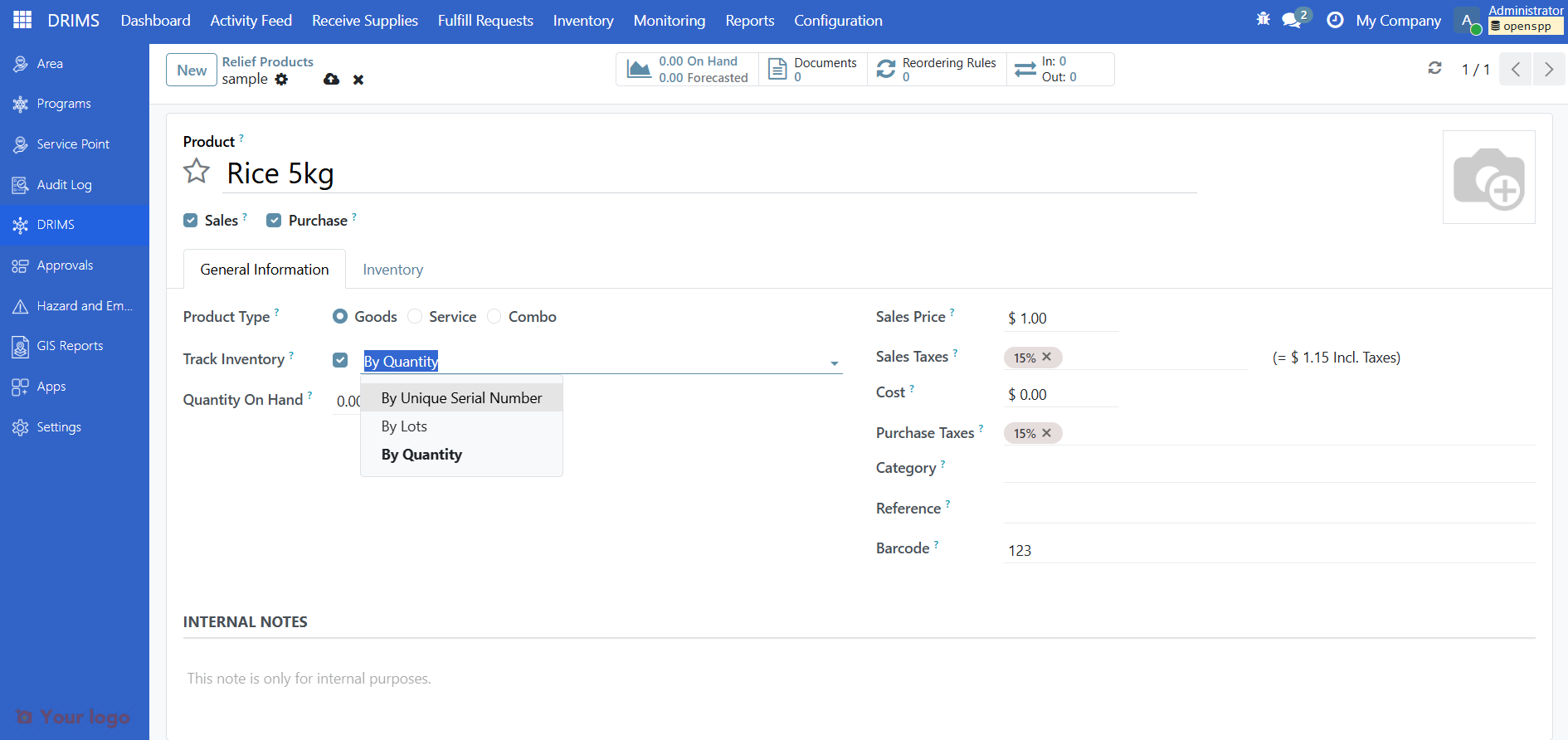
Click Save.
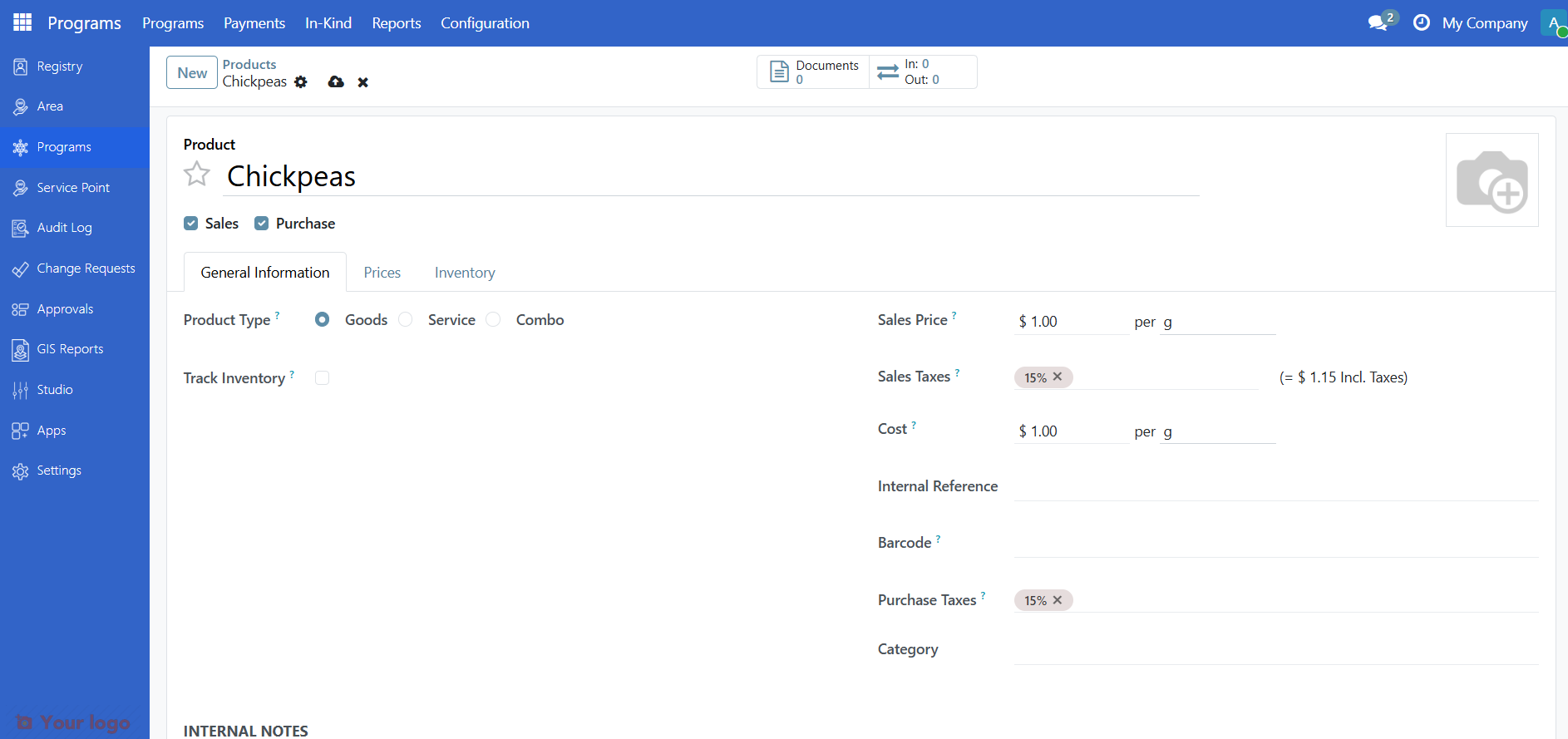
The product is successfully created and now available in donation lines, request lines, and dispatch orders.
Tracking options#
The Tracking field controls whether individual items or batches can be identified and traced through the warehouse.
Option |
When to use |
Effect |
|---|---|---|
By quantity |
Bulk commodities where individual batches don't need to be distinguished |
Faster data entry; no lot required on receipts or dispatches |
By lots |
Items with expiry dates or where donor batch traceability is required |
Each receipt requires a lot number; expiry dates can be recorded per lot |
By unique serial number |
High-value equipment tracked individually (generators, water pumps, medical devices) |
Each individual unit gets its own serial number; full history of where that specific item went |
By lots is the right choice for most DRIMS relief items. A lot groups a batch of identical items under one number — for example, all 500 rice bags from the same donor delivery share one lot number. This enables expiry date tracking per batch and links stock back to a specific donor shipment.
By unique serial number is for equipment you need to track unit by unit. Use it when you need to know exactly which physical device went to which location — for example, a generator deployed to a specific warehouse, or a tablet assigned to a field officer. Each unit must be scanned or entered individually on every receipt and dispatch, so it adds data entry overhead that is not justified for bulk relief goods.
Tip
Use By lots for any item that can expire (medicine, food, water purification tablets) or where a donor requires batch-level reporting. Use By unique serial number only for individually identifiable equipment. Use By quantity for durable bulk goods like tarps or jerry cans where neither expiry nor individual tracking is needed.
Changing tracking after stock has been received#
Warning
Changing the tracking setting on a product that already has stock movements will cause inconsistencies in inventory history. Define tracking correctly before the first donation is received. If you need to change it after operations have started, contact a developer.
Configuring expiry dates#
For lot-tracked products, you can enable expiry date tracking so warehouse staff can monitor batch shelf life and receive advance warnings before items expire.
Step 1. Enable expiry tracking on the product#
Open the product form (DRIMS → Inventory → Products → [product name])
Go to the Inventory tab
Check the Expiration Date checkbox
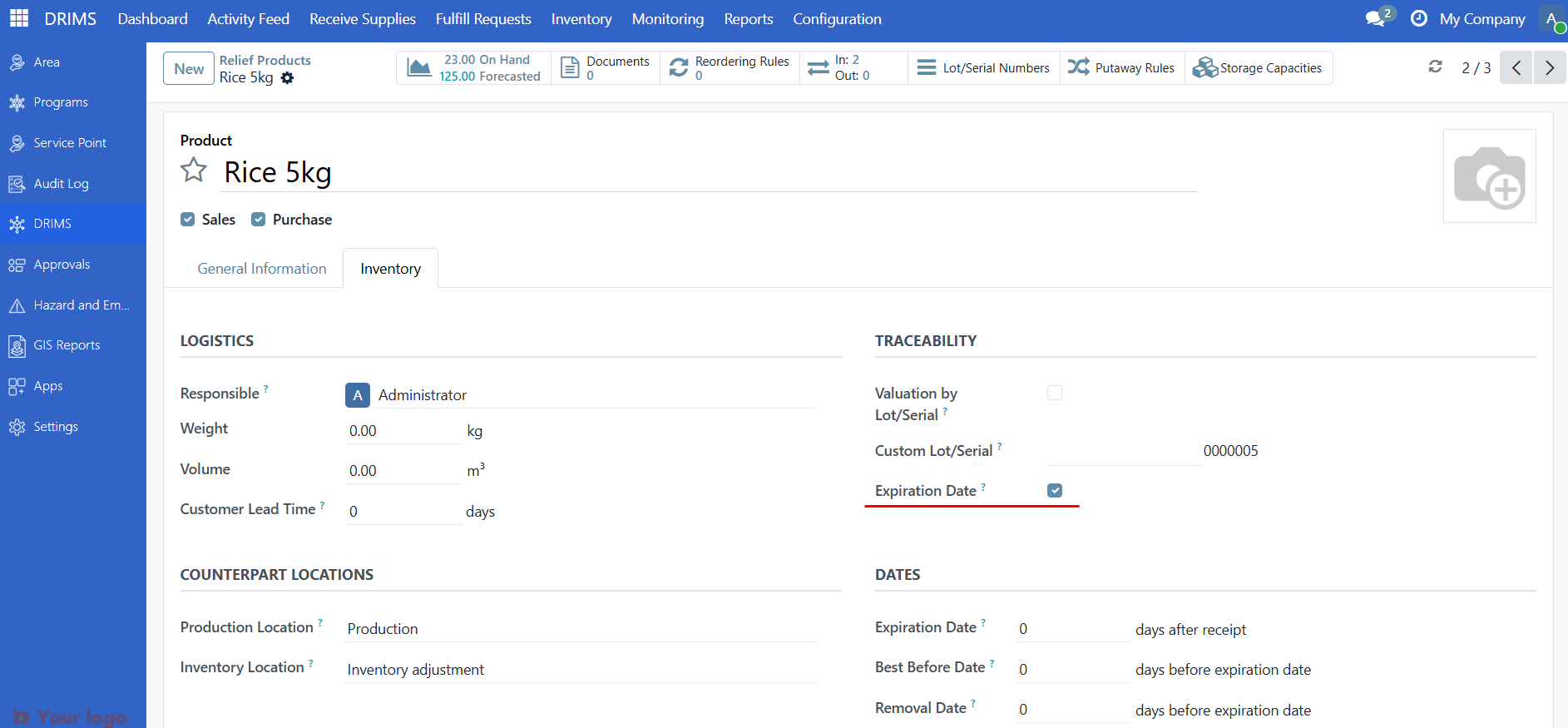
Click Save
Once enabled, every lot created for this product will have expiry date fields available.
Step 2. Set the date offsets#
After enabling the checkbox, configure the date offset fields under the Dates section on the same Inventory tab:
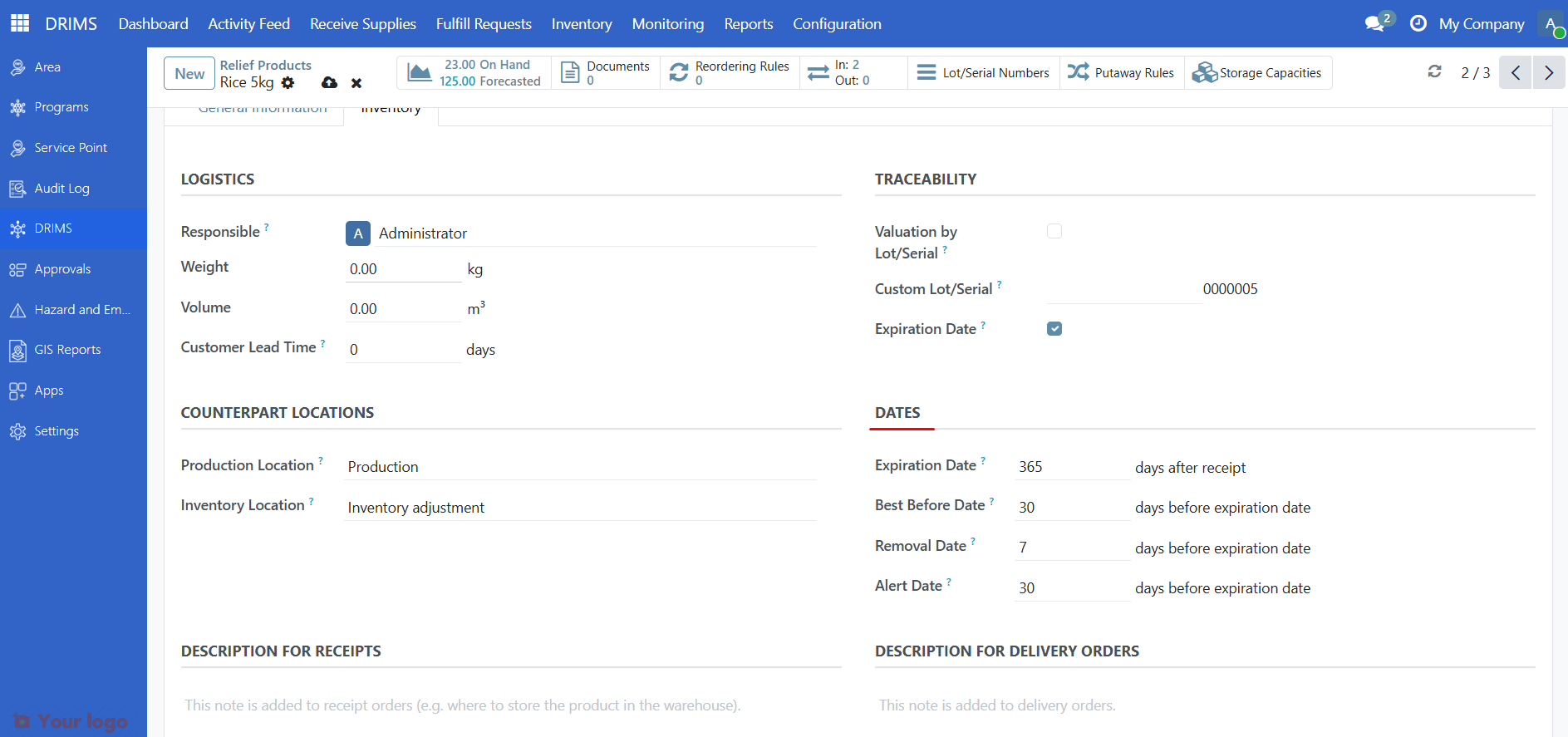
Field |
What it controls |
Example |
|---|---|---|
Expiration Date |
How many days after receipt the lot expires |
Rice – 365 days |
Best Before Date |
How many days before expiration the item is past its best-before date |
30 days before expiration |
Removal Date |
How many days before expiration the item should be removed from stock |
7 days before expiration |
Alert Date |
How many days before expiration the lot appears in the Expiration Alerts filter |
30 days before expiration |
Important
The Alert Date offset is the most important field for warehouse operations. It controls how early a lot appears in the Expiration Alerts filter in Lots & Batches — giving staff advance notice to dispatch or dispose of items before they expire. A value of 0 means the alert only triggers on the expiration date itself, leaving no time to act.
If you leave all offsets at 0, DRIMS will not calculate dates automatically — warehouse staff must enter the expiration date manually on each lot when receiving a donation.
Note
Date offsets only apply to new lots created after expiry tracking is enabled. Existing lots already in inventory will have empty date fields and must be updated manually — open each lot record and fill in the Expiration date directly.
How expiry dates appear on lots#
When a donation is received for a lot-tracked product with expiry enabled, the lot record shows:
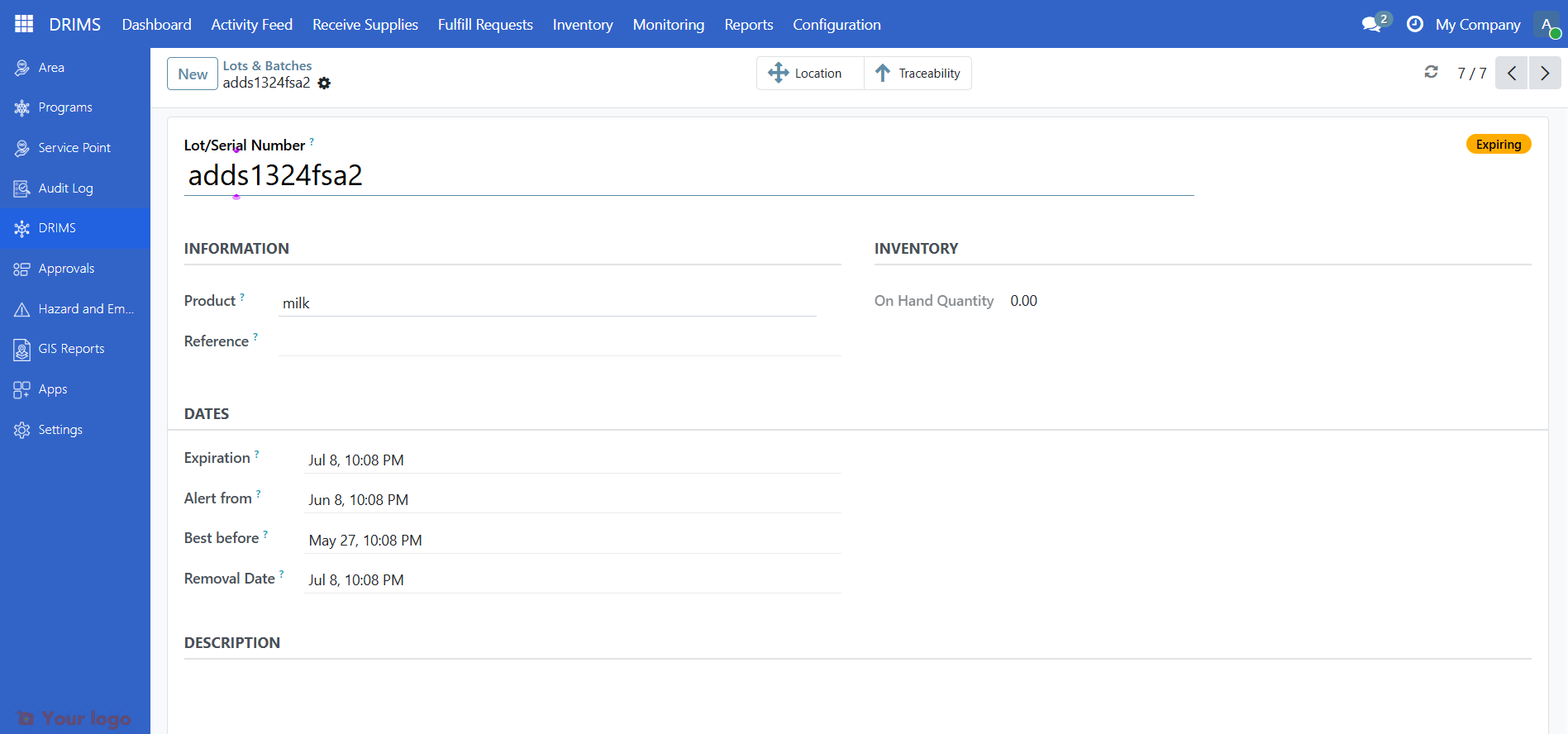
Field on lot |
Populated from |
|---|---|
Expiration |
Entered manually by warehouse staff, or calculated from receipt date + offset |
Alert from |
Calculated as Expiration Date minus Alert Date offset |
Best before |
Calculated as Expiration Date minus Best Before Date offset |
Removal Date |
Calculated as Expiration Date minus Removal Date offset |
Staff can always edit these dates manually on the lot record after it is created.
Naming conventions#
Consistent product names prevent duplicates and make catalog maintenance easier. Recommended format:
[Item type] – [Specification]
Examples:
Good name |
Avoid |
|---|---|
Rice – 50kg bag |
rice, Rice 50kg, RICE_50KG |
Blanket – adult, fleece |
Blanket, blanket adult |
First aid kit – basic |
FAK, First Aid |
Tarpaulin – 4×6m, blue |
Tarp, Tarpaulin 4x6 |
Include the unit size in the name when the same item comes in different pack sizes (e.g., "Cooking oil – 5L bottle" and "Cooking oil – 20L drum" as separate products).
Are you stuck?#
The Products menu is not visible. Go to DRIMS → Inventory. If Products is missing from the submenu, check that your user has DRIMS Manager access. Contact your administrator to assign the role.
A product I created does not appear in the donation form. DRIMS donation lines only show storable products. When creating a product, confirm it is set as a storable product (this is the default when created from the DRIMS menu). If the product was created from the general Inventory module, open it and set the product type to Storable Product.
I cannot find the right category in the dropdown. Categories must be created before products. Go to DRIMS → Inventory → Product Categories and create the category first, then return to the product form.
Two staff members created duplicate products with different names. Decide on the canonical name, open the duplicate, and archive it using the Action → Archive menu. Archived products no longer appear in dropdown lists but their history is preserved.
I need to track both 5L and 20L versions of the same item. Create them as two separate products with the pack size in the name (e.g., "Cooking oil – 5L" and "Cooking oil – 20L"). DRIMS tracks quantities in units, so the pack size must be part of the product definition.
Next steps#
Configuring Warehouses - Configure warehouses to receive products
Configuring Vocabularies - Set up donor types, priorities, and item conditions
Receive a donation - Receive donations using the product catalog
Manage Inventory - View stock levels by product