 openspp.org
SLA rules
Contents
SLA rules#
This guide is for implementers configuring service level agreements for grievance response and resolution times.
Mental model#
SLA rules define your service promises:
Component |
What it does |
Example |
|---|---|---|
Response target |
Maximum time before first response |
"Acknowledge within 24 hours" |
Resolution target |
Maximum time to resolve the issue |
"Resolve within 5 business days" |
Escalation |
What happens when targets are missed |
"Escalate to supervisor after 48 hours" |
SLA rule configuration#
Field |
What it means |
|---|---|
Name |
Rule label (e.g., "Critical - 4 Hour Response") |
Description |
Explanation of the rule |
Sequence |
Evaluation order (lower = first checked) |
Condition Domain |
Filter for which tickets this SLA applies to (e.g., only critical tickets) |
Response Hours |
Maximum hours for initial response |
Resolution Hours |
Maximum hours for complete resolution |
Escalate After |
Hours before automatic escalation |
Escalate To User |
Specific user to escalate to |
Escalate To Team |
Team to escalate to |
Categories |
Specific categories this rule covers (blank = all) |
Teams |
Specific teams this rule covers (blank = all) |
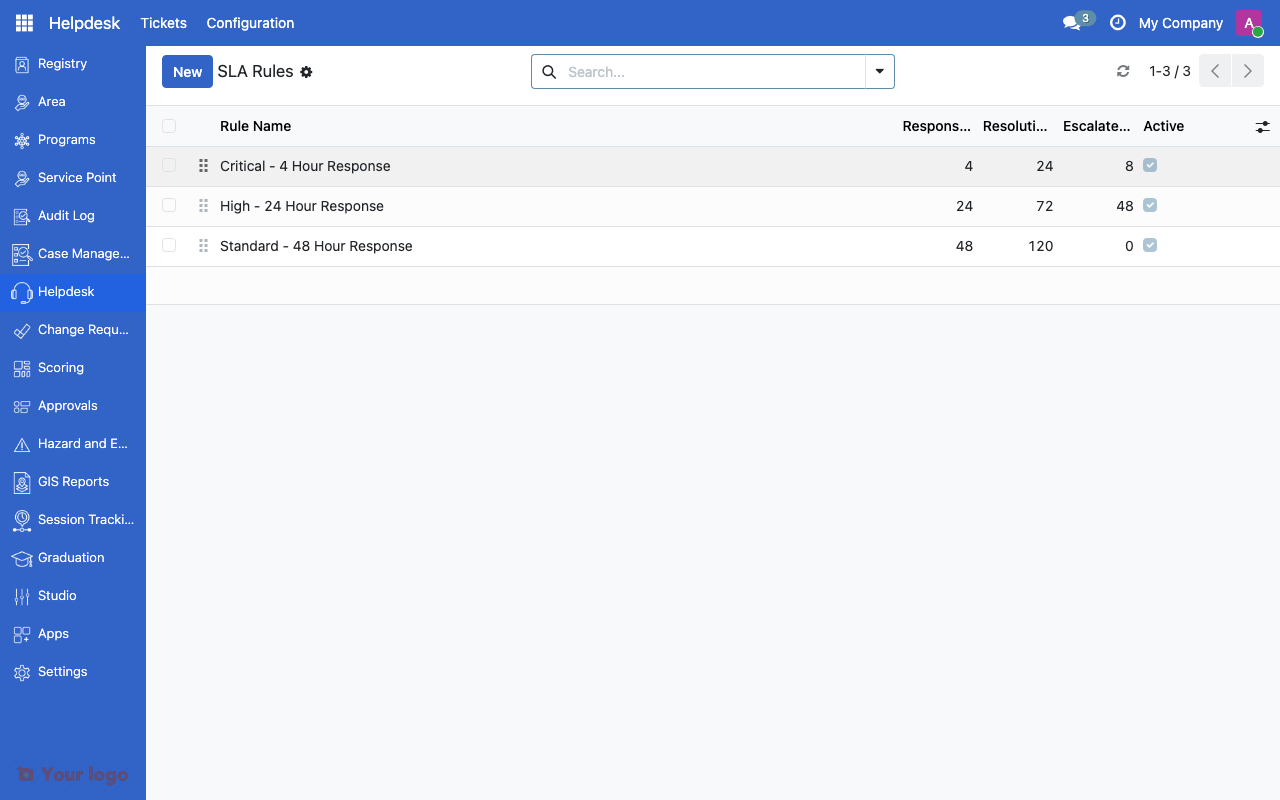
SLA rules list showing response and resolution time targets.#
Setting up SLA rules#
Step 1: Define your service standards#
Plan your SLA targets by severity:
Severity |
Response Target |
Resolution Target |
Escalation |
|---|---|---|---|
Critical |
4 hours |
24 hours |
After 8 hours |
High |
24 hours |
72 hours |
After 48 hours |
Medium |
48 hours |
120 hours (5 days) |
After 96 hours |
Low |
72 hours |
240 hours (10 days) |
None |
Step 2: Create SLA rules#
Navigate to Helpdesk > Configuration > SLA Rules
Click Create
Enter the Name and set Response Hours and Resolution Hours
Configure the Condition Domain to filter tickets by severity
Set escalation targets
Save
Step 3: Scope rules to categories or teams#
To create category-specific SLAs:
Add categories to the rule's Categories field
Leave blank to apply to all categories
To create team-specific SLAs:
Add teams to the rule's Teams field
Leave blank to apply to all teams
Note
When multiple SLA rules match a ticket, the rule with the lowest sequence number applies.
SLA patterns#
Pattern 1: Severity-based SLA#
Different targets for each severity level:
Rule |
Condition |
Response |
Resolution |
|---|---|---|---|
Critical SLA |
severity = critical |
4h |
24h |
High SLA |
severity = high |
24h |
72h |
Medium SLA |
severity = medium |
48h |
120h |
Low SLA |
severity = low |
72h |
240h |
Pattern 2: Category-based SLA#
Different targets for specific complaint types:
Rule |
Categories |
Response |
Resolution |
|---|---|---|---|
Payment SLA |
Payment Issues |
24h |
48h |
Enrollment SLA |
Enrollment |
48h |
120h |
General SLA |
(all others) |
72h |
240h |
Pattern 3: Escalation chain#
Progressive escalation as deadlines approach:
Escalation Point |
After |
Action |
|---|---|---|
First warning |
50% of response time |
Notify assigned agent |
Escalation |
100% of response time |
Escalate to team supervisor |
Critical escalation |
150% of response time |
Escalate to program manager |
Are You Stuck?#
SLA not applying to tickets?
Check that the rule's Condition Domain matches the ticket's category or severity. Also verify the rule's sequence — a higher-priority rule may be matching first.
Escalation not triggering?
Ensure the Escalate After hours and Escalate To fields are set. The escalation requires a valid target (user or team).
Can I pause SLA timers?
SLA timers pause when a ticket enters a "Waiting" stage type (waiting for external information). They resume when the ticket moves to an active stage.
How do I report on SLA compliance?
Use the ticket list view and filter by SLA status (met, at risk, breached). Export data for detailed analysis.
Multiple SLA rules match - which one wins?
The rule with the lowest Sequence number. Set more specific rules to lower sequences so they take priority.
Next steps#
Grievance redress overview - GRM fundamentals
GRM teams and tags - Configure GRM teams