 openspp.org
CEL quick start
Contents
CEL quick start#
This guide is for implementers who want to start writing CEL expressions in OpenSPP.
You should be comfortable with "logic builders" (like CommCare or Kobo configuration) but you don't need Python experience.
What you'll learn#
By the end of this guide, you will:
Understand the three core concepts (symbols, variables, expressions)
Create your first variable
Create your first expression
Know how to discover what data is available
Prerequisites#
Access to OpenSPP with Studio Editor or Studio Manager permissions
The CEL modules installed (standard in OpenSPP V2)
The three core concepts#
1. Symbols#
Symbols are the data available in a given context. The most common symbols:
Symbol |
What it represents |
Available in |
|---|---|---|
|
Current record (registrant, ticket, etc.) |
Most contexts |
|
Household members |
Group/household context |
|
Program memberships |
Registry context |
|
Entitlement records |
Registry context |
|
Event data records |
When event integration installed |
Note
The symbol r represents the current record. Inside aggregate functions (like counting members), use m to reference each member.
2. Variables#
Variables are named data points you define once and reuse everywhere:
Source type |
Example |
Use case |
|---|---|---|
Model Field |
|
Maps directly to a registry field |
Constant |
|
Threshold values (can be program-specific) |
Computed |
|
Calculated from CEL expression |
Aggregate |
|
Computed over household members |
External |
|
From external data provider |
Vocabulary |
|
From vocabulary concept |
Scoring |
|
From scoring model results |
3. Expressions#
Expressions are reusable rules that combine variables and symbols:
children_under_5_count >= 1 and household_income < poverty_line
Expressions have different types based on their purpose:
Expression type |
Output |
Use case |
|---|---|---|
Filter |
Boolean |
Select records (eligibility, search) |
Formula |
Number |
Calculate amounts (entitlements) |
Scoring |
Number |
Compute indicator scores |
Validation |
Boolean |
Data validation rules |
Example A: Create a variable (do this first)#
Goal: Create a variable that counts children under 5 in a household.
Important
Complete Example A before Example B. Example B uses the children_under_5_count variable created here.
Step 2: Create a new variable#
Click New to create a new variable
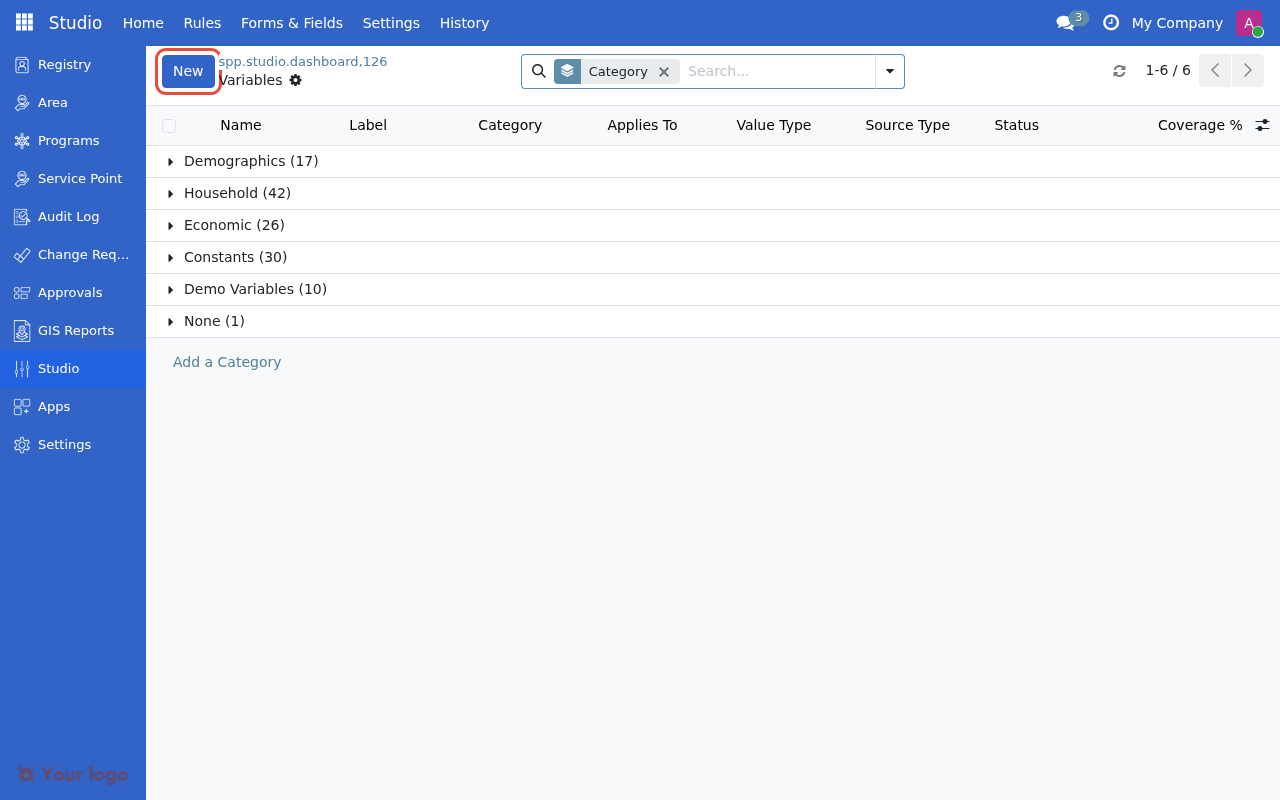
Click New to create a new variable.#
Step 3: Configure the variable#
Fill in the basic information:
Field |
Value |
|---|---|
Variable Name |
Children Under 5 Count |
CEL Accessor |
|
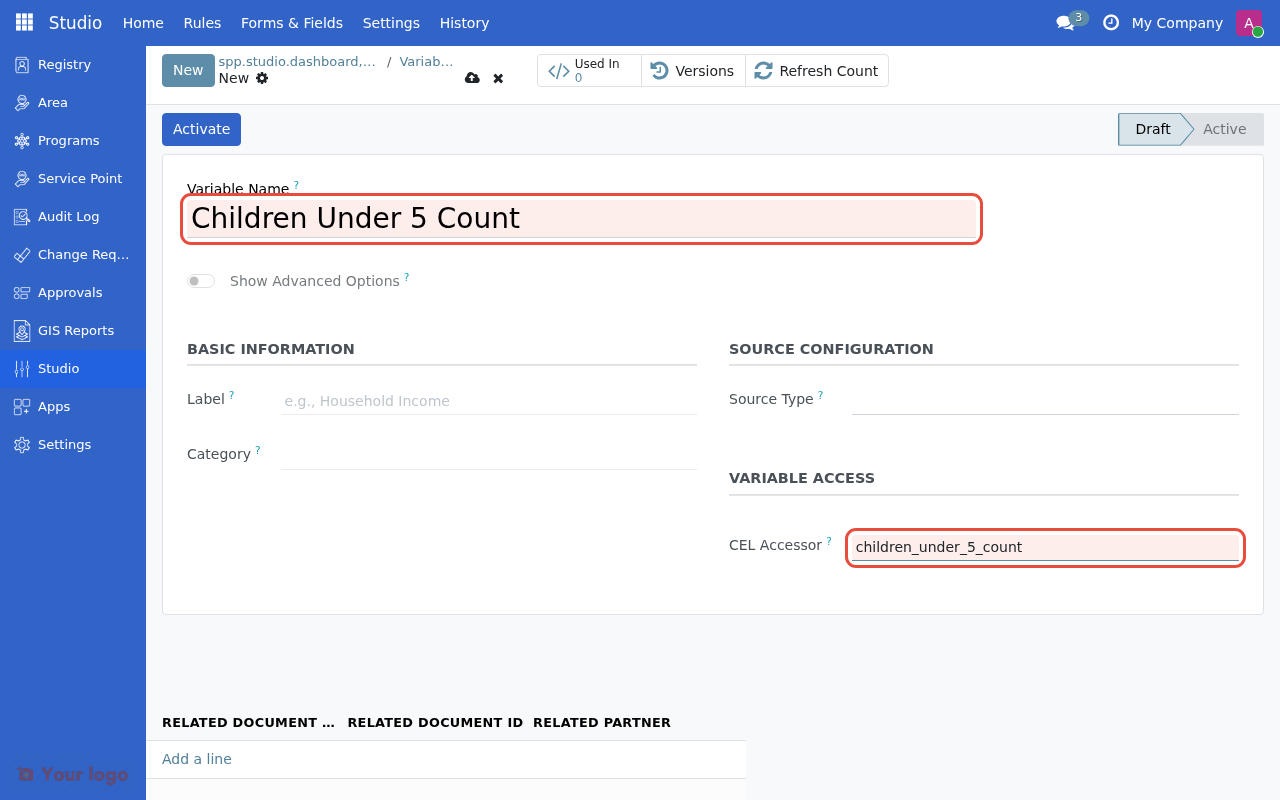
Fill in the variable name and CEL accessor.#
Step 4: Configure the source#
Select Member Aggregate as the Source Type, then configure:
Field |
Value |
|---|---|
Source Type |
Member Aggregate |
Aggregate Target |
Household Members |
Aggregate Type |
Count |
Filter (optional) |
|
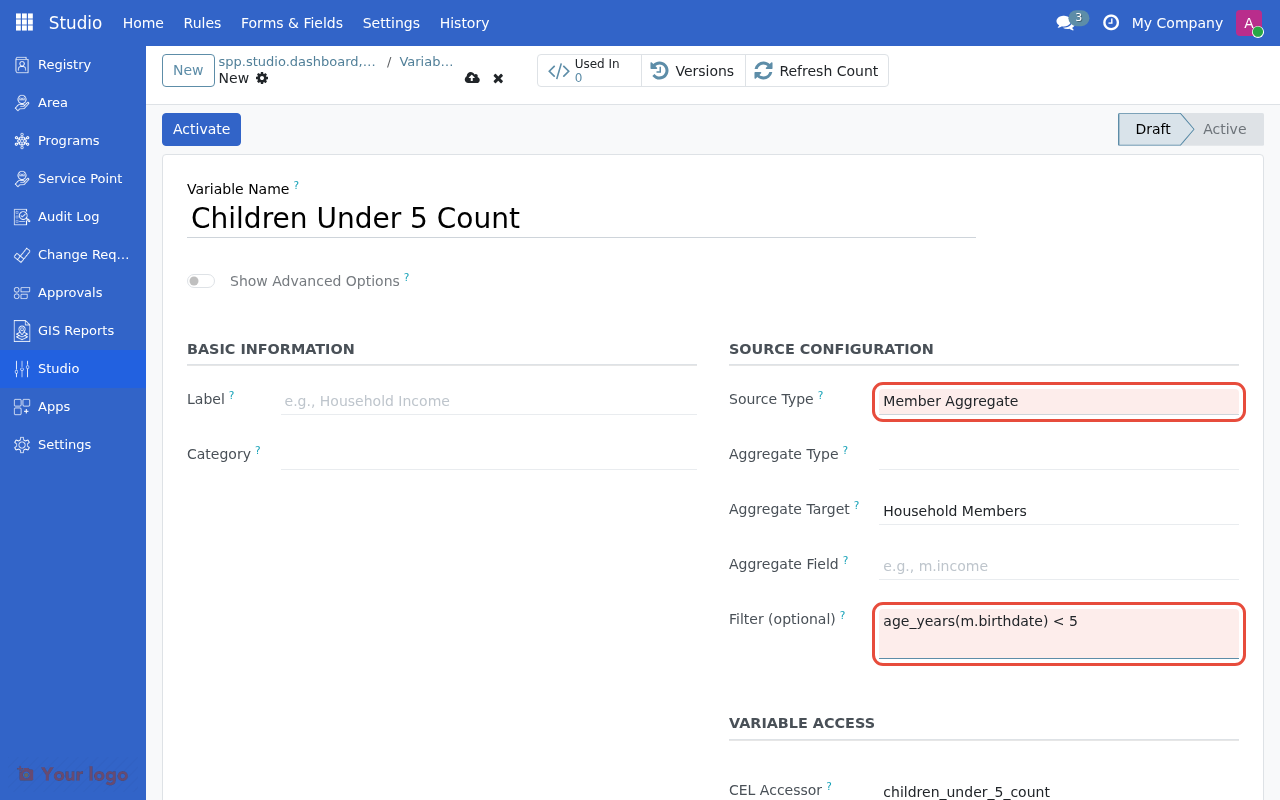
Configure the aggregate source type, target, and filter expression.#
Note
In aggregate filters, use m to reference each member. The expression age_years(m.birthdate) < 5 checks each member's age.
Step 5: Save and activate#
Click Save to create the variable in Draft state
Click Activate to make it available for use
Now you can use children_under_5_count in any expression that applies to groups/households.
Example B: Create an expression (requires Example A)#
Important
You must complete Example A first. This example uses the children_under_5_count variable you created there.
Goal: Create an expression that identifies "priority households" (those with children under 5).
Step 2: Create a new expression#
Click New to create a new expression
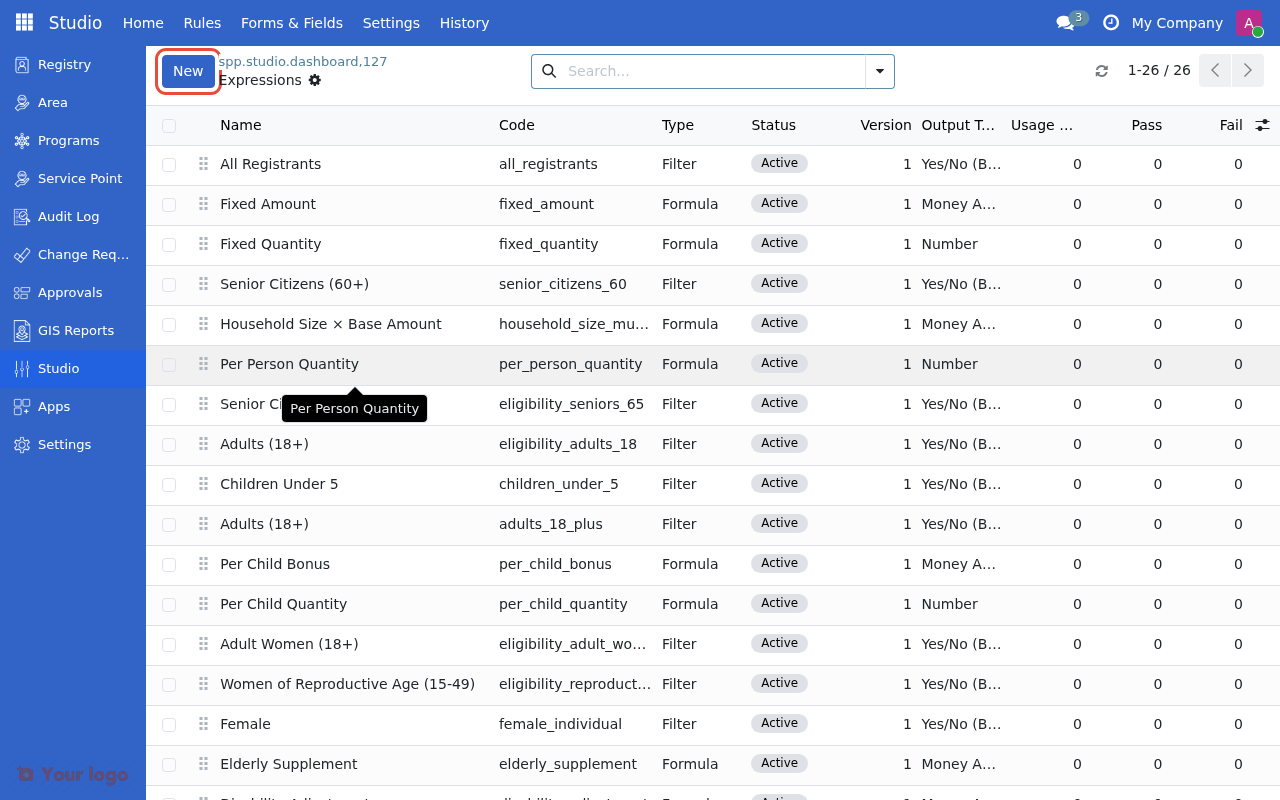
Click New to create a new expression.#
Step 3: Configure the expression#
Fill in the basic information:
Field |
Value |
|---|---|
Name |
Priority Household |
Type |
Filter |
Context |
Group/Household |
Output Type |
Yes/No (Boolean) |
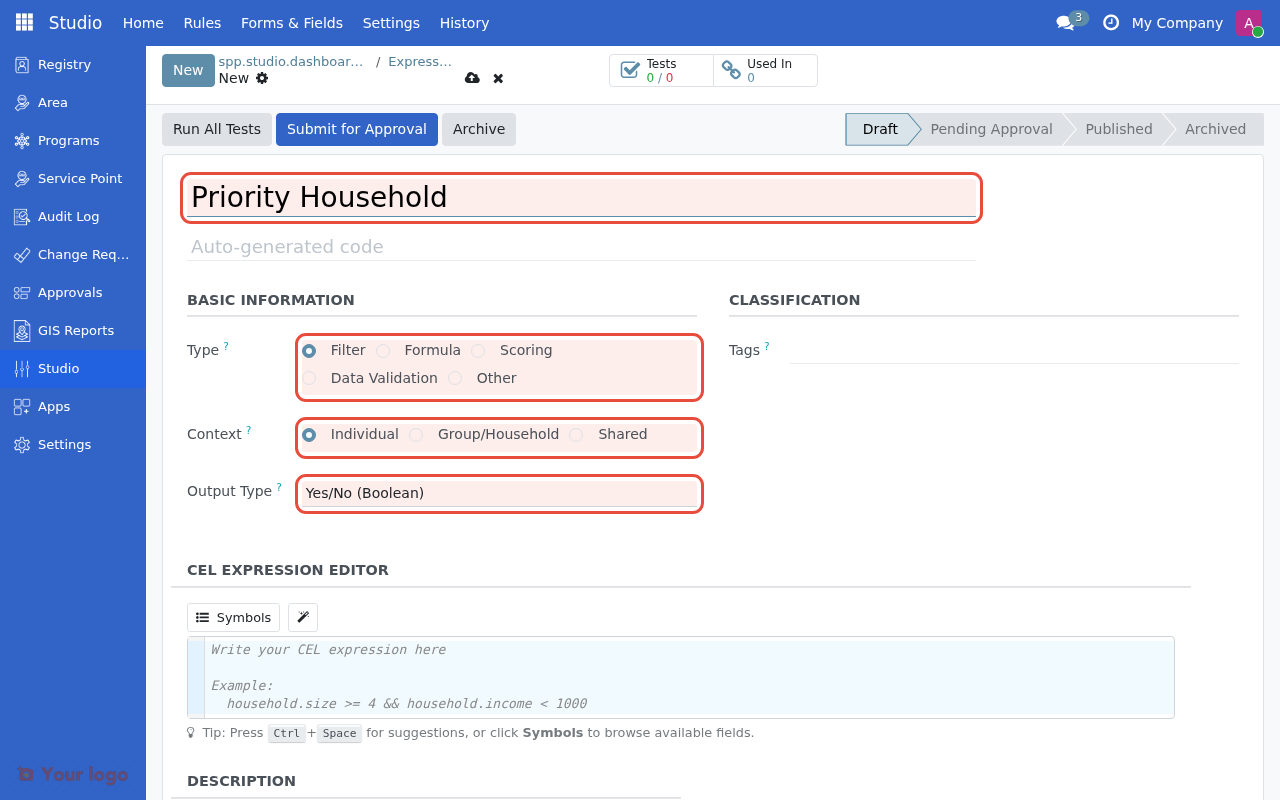
Fill in the expression name, type, context, and output type.#
Step 4: Enter the CEL expression#
In the CEL editor, enter:
children_under_5_count >= 1
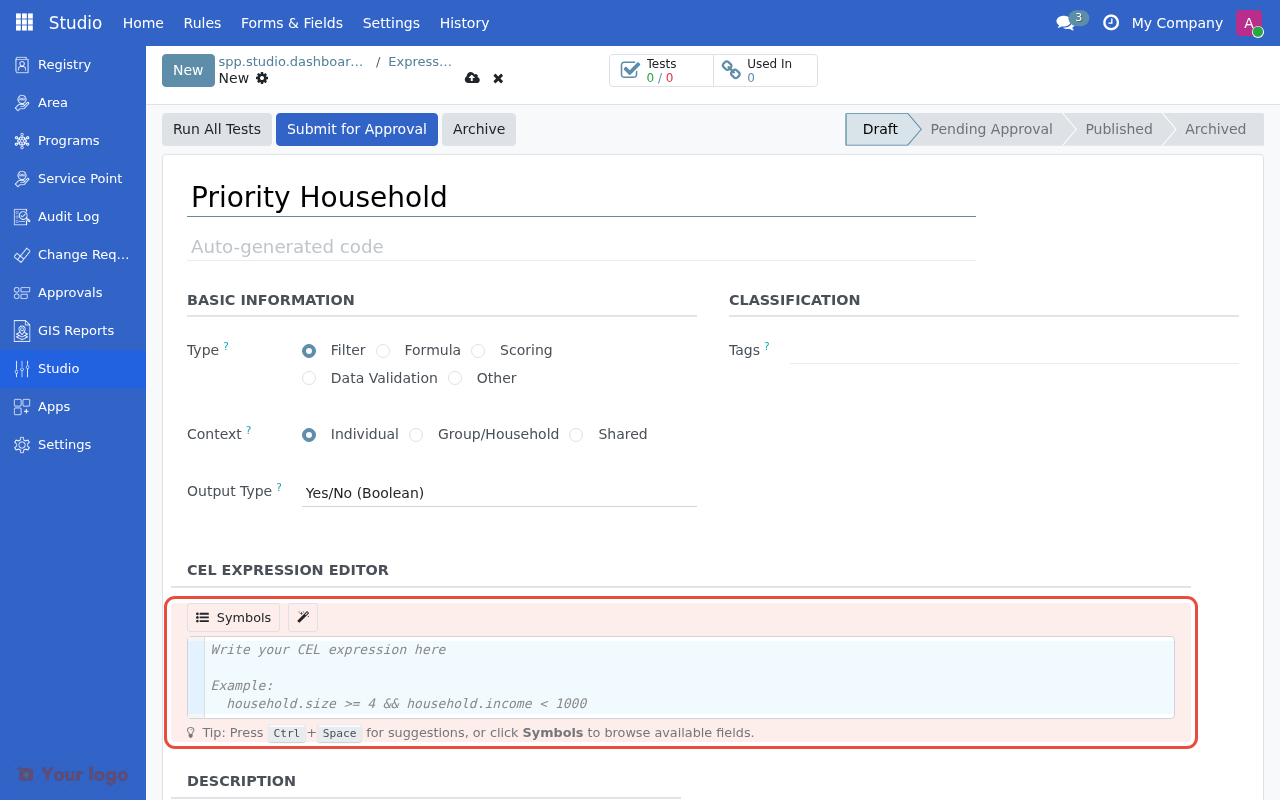
Enter the CEL expression in the editor.#
The editor provides:
Autocomplete: Type
childrenand press Ctrl+Space to see matching variablesValidation: Errors appear as red underlines with explanations
Matching count: Shows how many records match your expression
Step 5: Test your expression (recommended)#
Click the Tests tab
Click Add a test case to add a test case
Select a test household from the registry
Set the expected result (True or False)
Click Run All Tests to verify
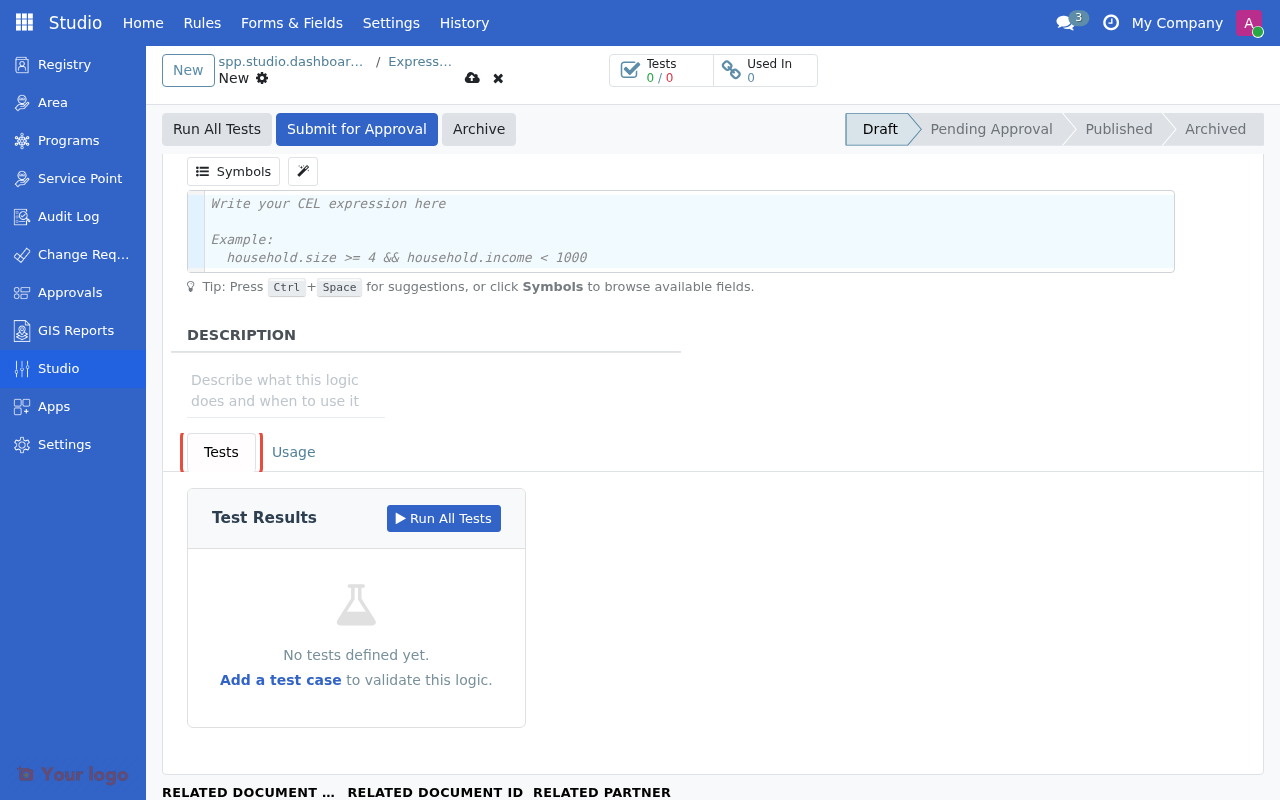
Add test cases and click Run All Tests to verify your expression.#
Step 6: Save and activate#
Click Save to create the expression in Draft state
Click Activate to make it available for use
Note
Expressions follow the same workflow as variables: Draft → Active → Inactive.
How to know what data is available#
The CEL editor provides tools to discover available data:
Autocomplete#
Type in the editor and press Ctrl+Space to see suggestions:
Type
r.to see fields on the current recordType a variable name to see matching variables
Type a function name to see its signature
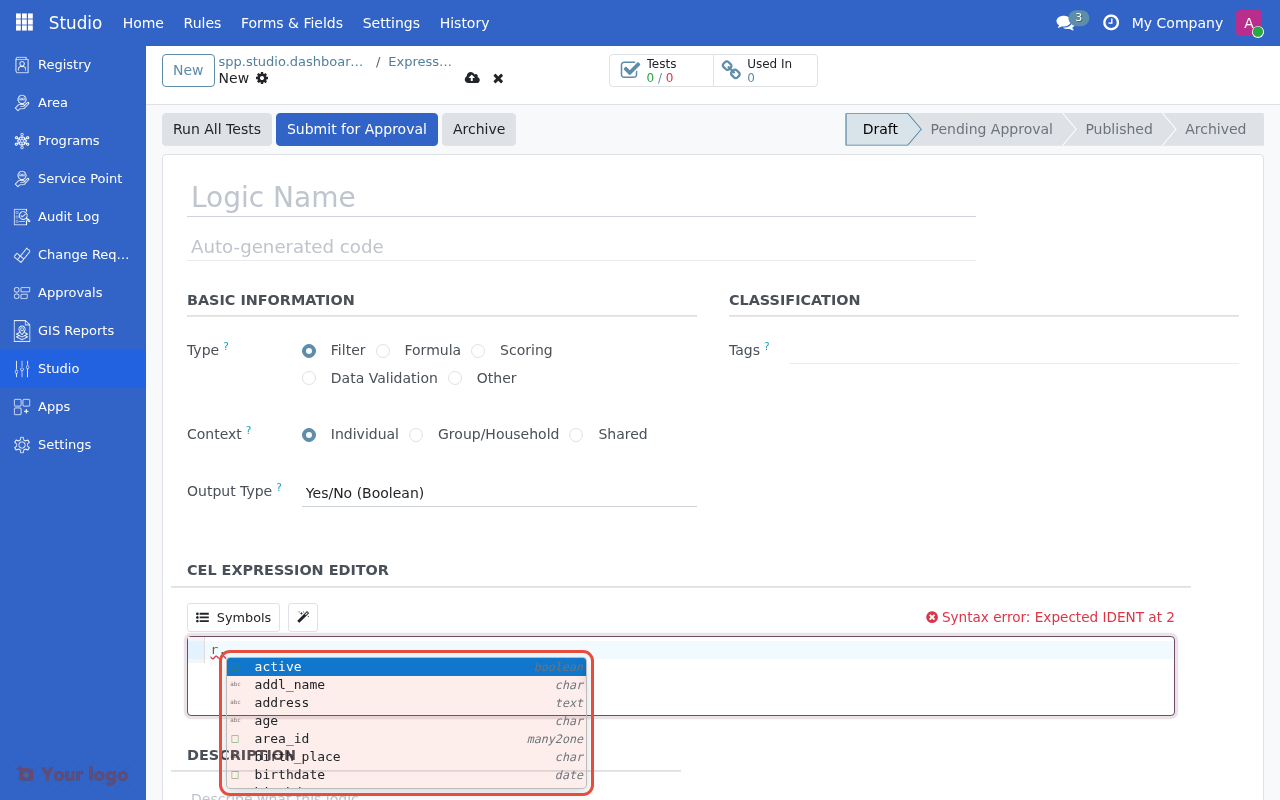
Type r. and press Ctrl+Space to see available fields.#
Symbol browser#
Click the Symbols button above the CEL editor to browse:
Available symbols and their fields
Active variables you can use
Built-in functions with descriptions
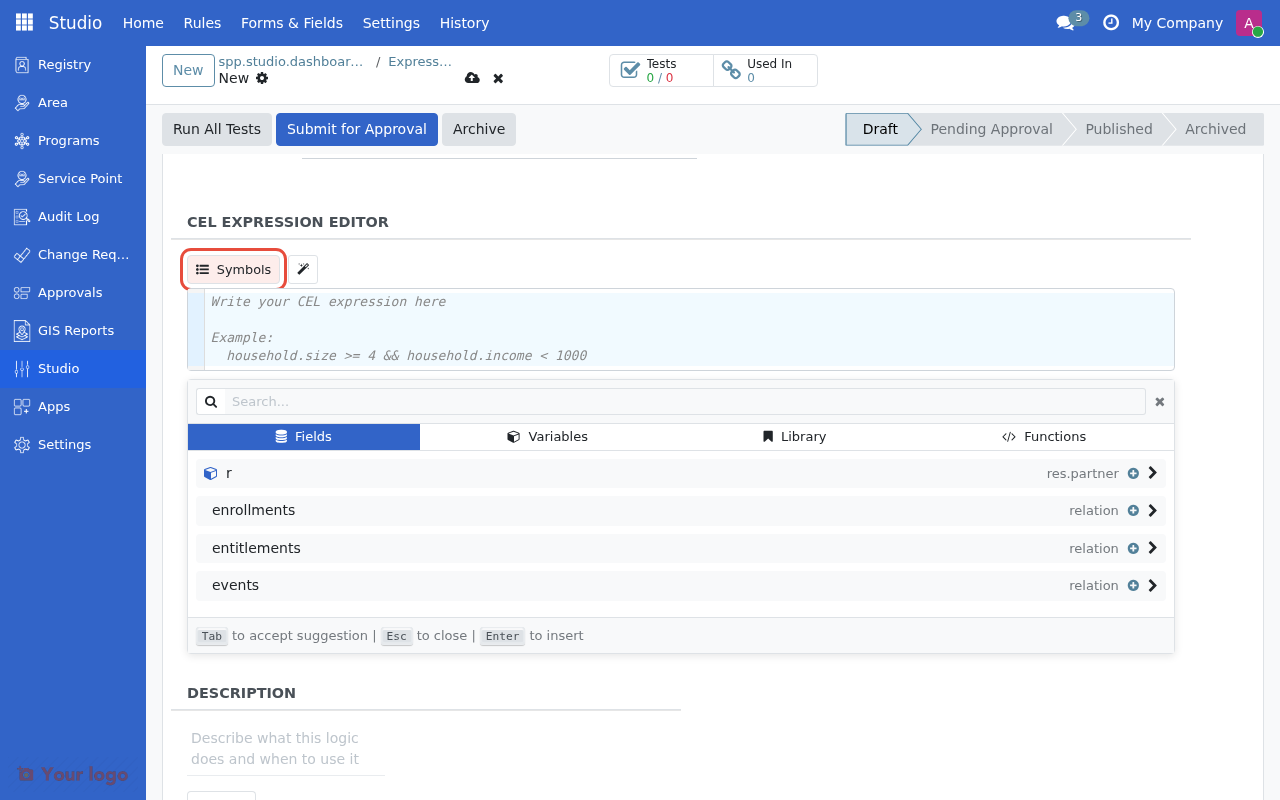
Click Symbols to browse available fields, variables, and functions.#
Validation feedback#
The editor shows real-time validation:
Red underlines: Syntax errors or unknown symbols
Hover for details: See error explanations
Matching count: For filter expressions, shows how many records match
Common mistakes#
Mistake |
Problem |
Fix |
|---|---|---|
|
Unquoted string |
|
|
Wrong case |
|
|
Wrong case |
|
|
Missing context |
|
|
Missing member reference |
|
Are you stuck?#
Can't find the Variables or Expressions menu?
Check that you have Studio Editor or Studio Manager permissions
Try accessing via the Studio Dashboard cards instead
Variable not appearing in autocomplete?
Make sure the variable is Active (variables use Draft → Active workflow)
Check that the variable's context matches your expression context (Individual vs Group)
Verify you're using the CEL Accessor name, not the display name
Expression validates but matches 0 records?
Check that you're testing against the correct registry type (Individual vs Group)
Verify test data exists with the expected field values
Try simplifying the expression to
truefirst, then add conditions one at a time
"Unknown symbol" error?
Use autocomplete (Ctrl+Space) to see available symbols
Check that referenced variables are Active
Verify the context matches (individual vs group profiles have different symbols)
Can't activate a variable or expression?
You need Studio Manager permission to activate variables and expressions
Check that all required fields are filled
For aggregates, verify the filter expression is valid
Next steps#
Common patterns: CEL cookbook
Full syntax reference: CEL syntax reference
Debugging tips: CEL troubleshooting
Variable system details: Variables