 openspp.org
Area management overview
Contents
Area management overview#
This guide is for implementers configuring geographic areas in OpenSPP. You should know your country's administrative divisions but don't need programming knowledge.
Mental model#
Areas in OpenSPP have three layers:
Layer |
What it does |
Example |
|---|---|---|
Area hierarchy |
Organizes locations in parent-child structure (up to 10 levels) |
Country → Region → Province → Municipality |
Area types |
Classifies each level of the hierarchy |
"Region", "Province", "District" |
Area tags |
Adds flexible labels across levels |
"Urban", "Conflict zone", "Flood-prone" |
Think of it like a filing cabinet: area types are the drawer labels (fixed structure), hierarchy is how folders nest inside drawers, and tags are colored stickers you can put on any folder regardless of drawer.
Key concepts#
Area hierarchy#
Each area can have one parent and many children. The hierarchy depth is limited to 10 levels.
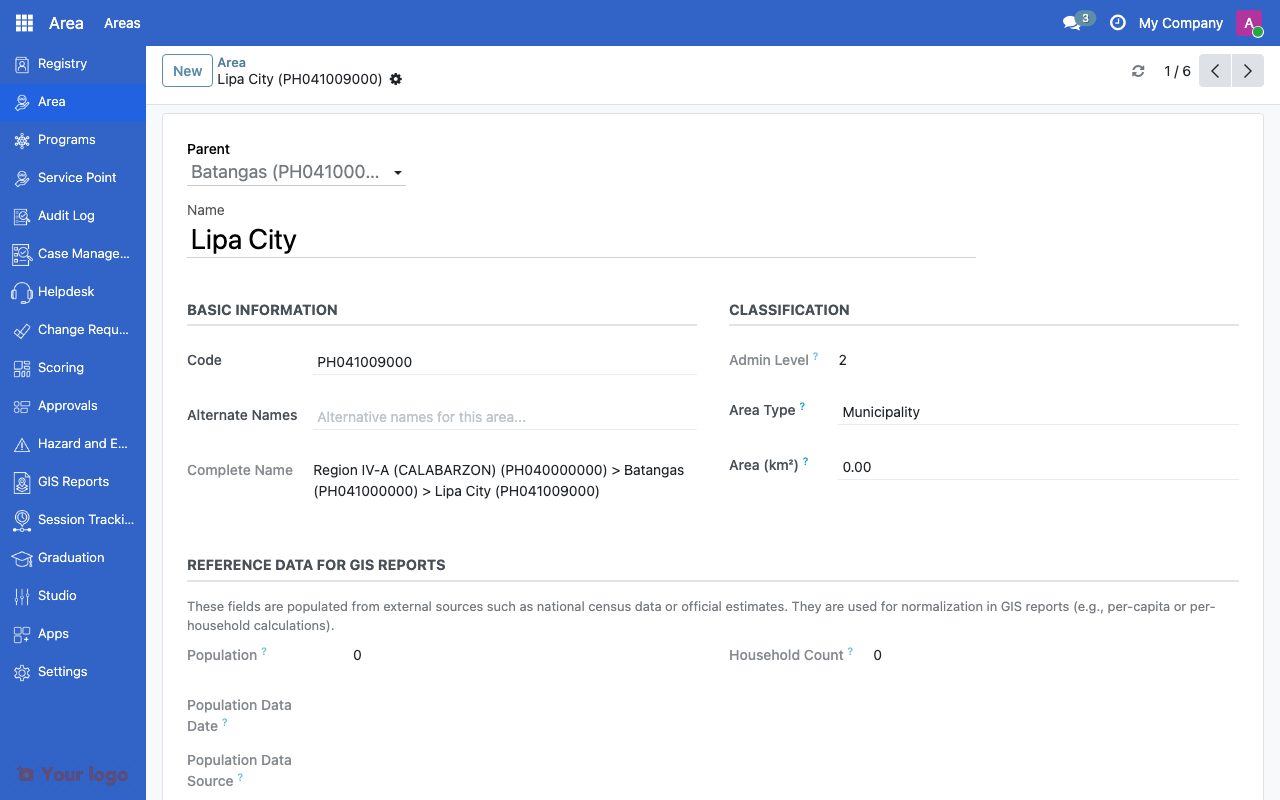
Area form showing details for a municipality including parent hierarchy and classification.#
Field |
What it means |
|---|---|
Draft Name |
Display name (translatable) |
Code |
Unique identifier (e.g., ISO code, P-code) |
Alternate Name |
Alternative spelling or local name |
Parent |
Parent area in the hierarchy |
Area Type |
Classification (e.g., Province, District) |
Area Size |
Size in square kilometers |
OpenSPP automatically computes:
Complete Name - Full hierarchical path (e.g., "Philippines / Region IV-A / Laguna")
Area Level - Depth in the hierarchy (0 = top level)
Area types#
Area types classify areas at each administrative level. They are hierarchical themselves, allowing you to group types.
Field |
What it means |
|---|---|
Name |
Type label (e.g., "Province", "Municipality") |
Parent Type |
Optional grouping of types |
Area tags#
Tags provide flexible, cross-cutting labels that don't depend on the hierarchy.
Field |
What it means |
|---|---|
Name |
Tag label (e.g., "Urban", "Food insecure") |
Color |
Visual color in the UI |
Bulk import#
The Area Import tool lets you load areas from an Excel file through a step-by-step process:
New → Uploaded → Parsed → Imported → Validated → Done
Step |
What happens |
|---|---|
Upload |
Upload Excel file with area data |
Parse |
System reads and validates the file structure |
Import |
Rows are mapped to area records |
Validate |
System checks hierarchy consistency and duplicates |
Done |
Areas are available in the system |
Navigation#
Menu |
Purpose |
|---|---|
Area > Areas > Area |
View and manage all areas |
Area > Areas > Area Types |
Define area classifications |
Area > Areas > Area Tags |
Manage area tags |
Area > Areas > Area Import |
Bulk import from Excel |
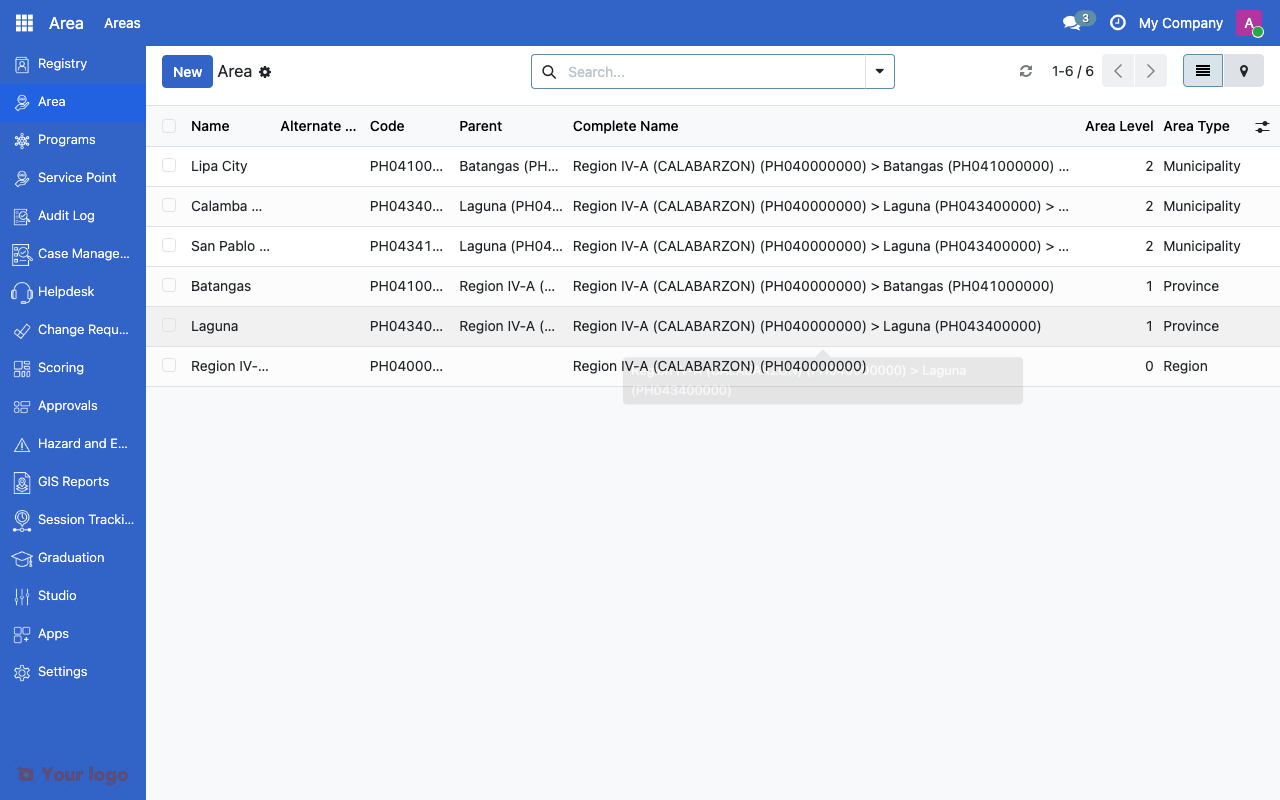
Area list view showing hierarchical records with name, code, parent, and area type columns.#
Common use cases#
Use case 1: Country administrative boundaries#
Goal: Set up the full administrative hierarchy for a country.
Setup:
Create area types for each admin level (e.g., Region, Province, District, Village)
Import areas using the Area Import tool with an Excel file containing codes, names, and parent references
Verify the hierarchy by browsing the area tree view
Use case 2: Project-specific zones#
Goal: Group areas by project scope rather than administrative level.
Setup:
Create tags like "Project Alpha Zone", "Phase 1 Rollout"
Assign tags to relevant areas regardless of their position in the hierarchy
Use tag filters in program targeting to select areas by project zone
Use case 3: Disaster-affected areas#
Goal: Mark areas affected by a specific disaster for emergency response.
Setup:
Create a tag like "Typhoon Rai Affected"
Tag all affected municipalities and barangays
Use the tag in program eligibility rules for emergency cash transfers
Are You Stuck?#
Where do I manage areas?
Go to Area > Areas > Area. Area types and tags are in the same menu section.
My import file keeps failing?
Check that the Excel file has the required columns (name, code, parent code) and that parent codes reference areas that already exist or appear earlier in the file.
Can I move an area to a different parent?
Yes. Edit the area and change its Parent field. The complete name and level will recalculate automatically.
How many levels can I nest?
Up to 10 levels deep. Most countries use 3-5 levels.
Areas don't show up in program targeting?
Make sure the area is active (not archived). Check that the registrant records have an area assigned.
How do I merge duplicate areas?
There is no automatic merge. You need to reassign registrants from the duplicate to the correct area, then archive the duplicate.
Next steps#
HDX COD integration - Import admin boundaries from HDX
Geographic targeting - Use areas in eligibility rules
Service points overview - Link service points to areas