 openspp.org
Understand the Dashboard
Contents
Understand the Dashboard#
Applies to: DRIMS
This feature is available in OpenSPP deployments with the DRIMS module installed.
This guide is for DRIMS users who need to monitor disaster response operations, track inventory, and respond to alerts.
What You'll Do#
Learn how to read the DRIMS dashboard to understand the current status of your disaster response at a glance:
Incident cards - See donations, requests, stock, and distributions for each disaster
Key Performance Indicators (KPIs) - Track what's happening in real time
Warehouse health - Identify warehouses that need attention
Alerts - Get notified when action is needed (low stock, overdue requests, expiring items)
Before You Start#
You need DRIMS Viewer or higher access to view the dashboard
You need DRIMS Warehouse Staff or Manager access to acknowledge and resolve alerts
At least one hazard incident must exist — every DRIMS operation (donation, request, dispatch) is linked to an incident, so the dashboard will be empty until one is created. Incidents are created by an implementer or administrator. See Hazards and incidents for how to record and manage incidents.
The Incident Dashboard#
Where to find it: Click DRIMS in the sidebar, then select Dashboard.
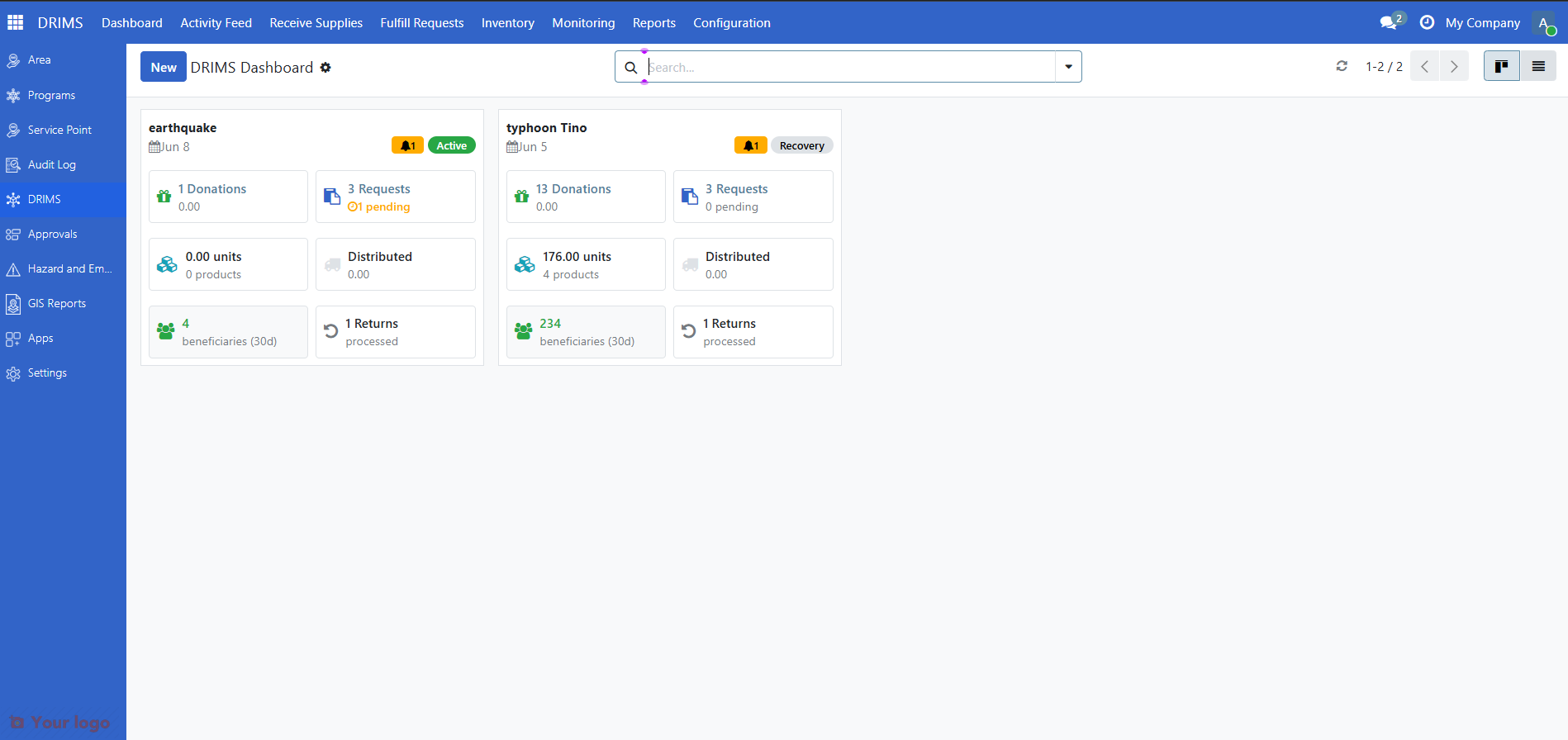
The dashboard displays each active incident as a card. Cards are organized by status (Alert, Active, Recovery, Closed) and show the most important information about each disaster response operation.
Note
New incidents default to Active status. The Alert status is for pre-disaster preparedness (e.g., a typhoon is approaching but hasn't hit yet) and can only be set by an administrator. The typical flow is: Active → Recovery → Closed.
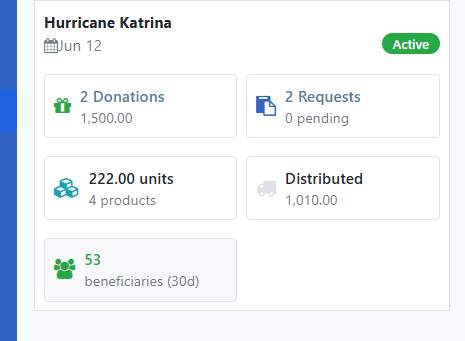
Each incident card displays:
Incident name - The disaster or emergency
Status badge - Current state (Alert, Active, Recovery, Closed)
KPI row - Key metrics at a glance
Alert indicators - Warnings that need attention
Reading Incident Cards#
Each incident card shows key performance indicators (KPIs) that help you understand the response status.
What the Numbers Mean#
KPI |
What It Shows |
Example |
|---|---|---|
Donations |
Number of donations received and their total value |
"5 donations, $25,000" |
Requests |
Total requests and how many are pending approval |
"12 requests, 3 pending" |
Stock |
Items currently on hand across warehouses assigned to this incident (not yet dispatched). Drops to zero once goods are sent out — does not reflect total received. |
"176 units, 4 products" |
Distributed |
Total value of goods dispatched (unit price × quantity), not a cash payment. Shows zero if products have no unit price set. |
"$15,000 distributed" |
Beneficiaries |
Number of beneficiaries served in the last 30 days from completed distributions |
"234 beneficiaries (30d)" |
Returns |
Number of processed return dispatches |
"1 return processed" |
Note
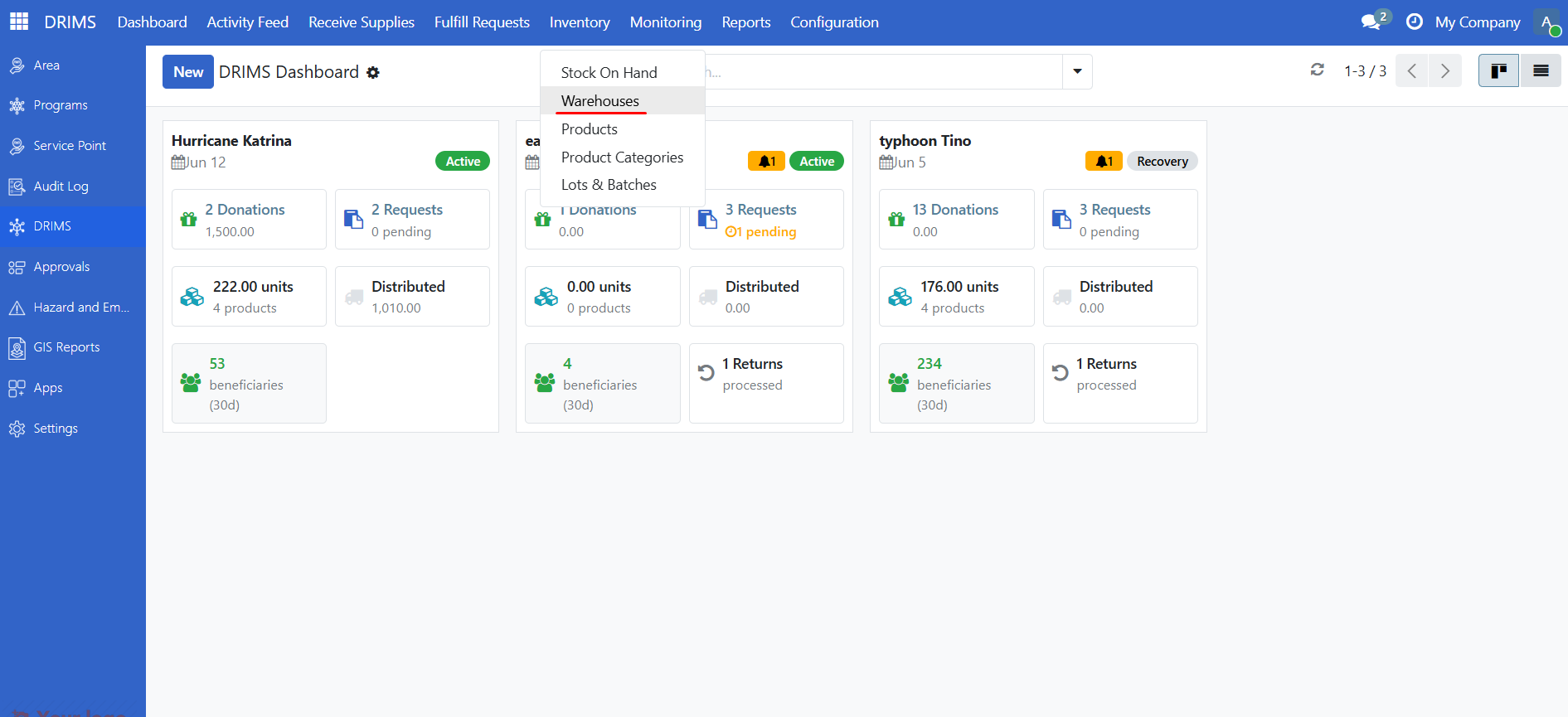
KPI numbers (stock, distributed value, beneficiaries) are cached for performance and may not reflect the latest changes immediately. If a number looks wrong — for example, stock shows zero when you know items exist — first check that the warehouse is linked to the incident under Active Response (DRIMS → Inventory → Warehouses). If the warehouse is correctly linked but the number is still wrong, contact your system administrator to refresh the cache.
Understanding the Badges#
Red badge (⚠) - One or more critical priority alerts on this incident
Orange badge (🔔) - Active alerts present, none critical
Orange "pending" indicator on Requests - Requests waiting for approval
Warehouse Health Indicators#
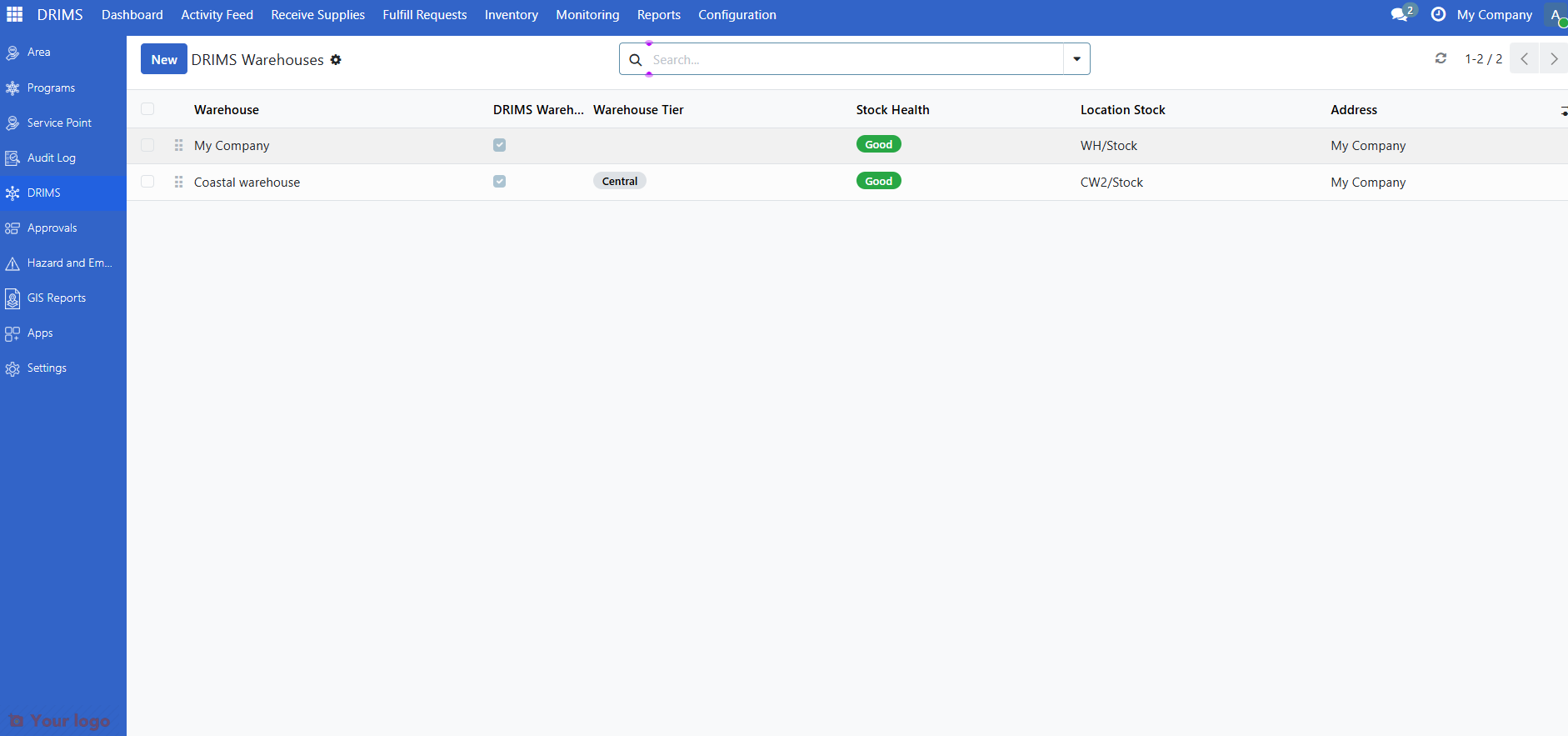
Warehouses assigned to an incident display a health badge showing whether they need attention. For configuration details see Configuring Warehouses.
Status |
Color |
What It Means |
|---|---|---|
Critical |
Red |
3 or more active alerts |
Warning |
Orange |
1–2 active alerts |
Good |
Green |
No active alerts |
Where to find it: Click DRIMS in the sidebar, then Inventory → Warehouses.
Understanding Alerts#
DRIMS automatically monitors your operations and creates alerts when something needs attention. For full configuration and threshold details see Configuring Alerts and Thresholds.
Alert Type |
What It Means |
|---|---|
Low Stock |
Available stock has dropped below 50% of pending request quantities |
SLA Warning |
A request is approaching its due date (within 2 days) |
SLA Breach |
A request is past its due date and has not been delivered |
Expiry Warning |
Items in a DRIMS warehouse are approaching their expiration date |
Alerts are assigned Critical, High, or Medium priority depending on how urgent the situation is. Check DRIMS → Monitoring → Alerts to see all active alerts filtered by priority, type, or warehouse.
Acknowledging and Resolving Alerts#
Alerts have three states that show whether they've been addressed:
State |
Badge |
What It Means |
|---|---|---|
Active |
Red |
New alert that hasn't been reviewed yet |
Acknowledged |
Orange |
Someone is working on it |
Resolved |
Green |
Issue has been fixed |
How to Acknowledge an Alert#
Acknowledge an alert when you've seen it and are taking action.
Steps:
Click DRIMS in the sidebar, then select Monitoring → Alerts
Click on the alert you want to acknowledge
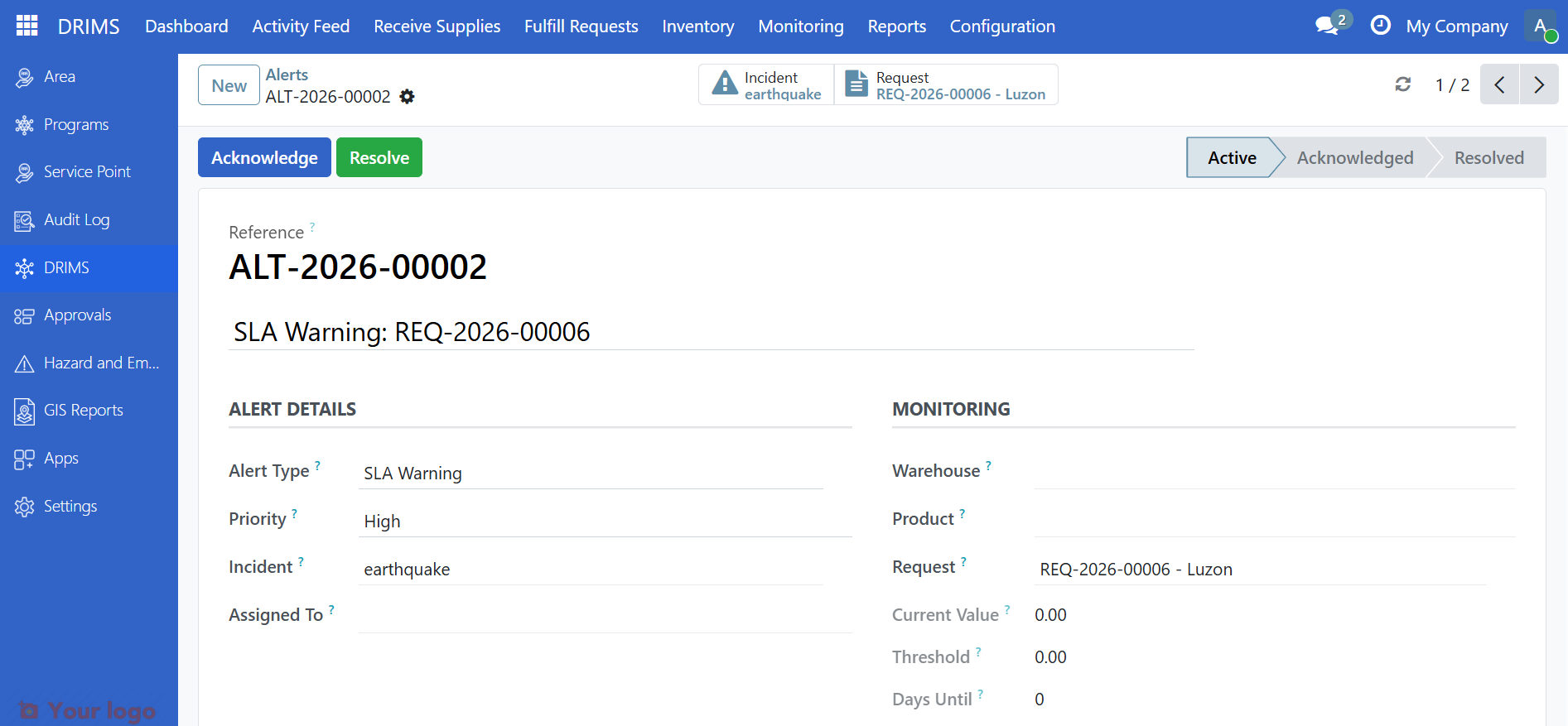
Click the Acknowledge button at the top of the form
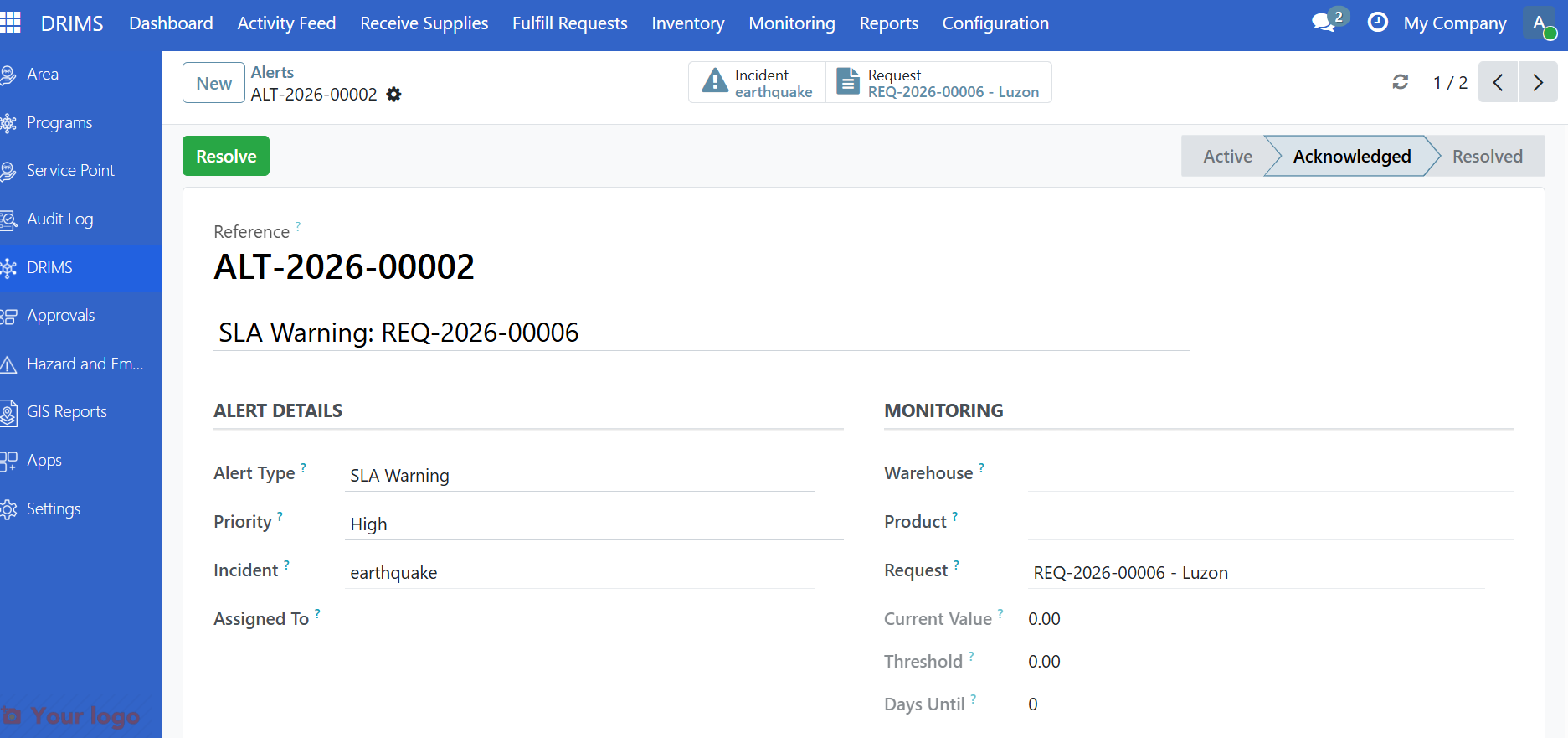
The alert badge changes to orange, showing others that someone is handling it.
How to Resolve an Alert#
Resolve an alert after you've fixed the underlying problem.
Steps:
Fix the issue:
Low stock: Receive new donations or transfers
SLA breach/warning: Complete the dispatch and delivery
Expiry warning: Distribute items before they expire, or record wastage if expired
Open the alert (see steps above)
Click the Resolve button at the top of the form
The alert is marked resolved and no longer appears in active counts.
Note
DRIMS automatically checks for problems every few hours. If the problem still exists after you resolve an alert, a new alert will be created on the next check.
Are You Stuck?#
The KPI numbers look wrong#
KPIs are updated automatically, but stock, distributed value, and beneficiary counts are cached for performance and may lag behind recent changes. Wait a few minutes and refresh the page. If numbers still look wrong, check that the warehouse is linked to the incident — see the note in the KPI table above. If the issue persists, contact your system administrator.
I resolved an alert but it came back#
DRIMS automatically rechecks for problems every few hours. If the underlying issue wasn't fully fixed, a new alert will be created. For example:
Low stock alert: You need to receive enough stock to meet 50% of pending requests
SLA breach alert: The request must be fully delivered, not just dispatched
Expiry warning: Items must be distributed or marked as waste
What does "pending" mean for requests?#
Pending requests are waiting for approval. They haven't been rejected, but they haven't been approved for dispatch yet. Check with your warehouse manager or approval officer.
Can I create alerts manually?#
Yes. Go to DRIMS → Monitoring → Alerts and click New. This is useful when you notice a problem that DRIMS didn't automatically detect.
How do I know which warehouse to restock?#
Check the Warehouse Health Indicators (DRIMS → Inventory → Warehouses). Warehouses with red or orange status need attention. Click on a warehouse to see its active alerts.
The alert says "SLA breach" but what does SLA mean?#
SLA stands for "Service Level Agreement" - it's the due date or deadline for a request. An SLA breach means the request wasn't delivered by its due date.
Next Steps#
Receive a donation - Learn how to receive and process donations
Manage Inventory - Learn how to view and manage stock levels
Submit and manage relief requests - Learn how to submit relief requests