 openspp.org
Creating Variables
Contents
Creating Variables#
This guide is for implementers creating and configuring variables in OpenSPP Studio.
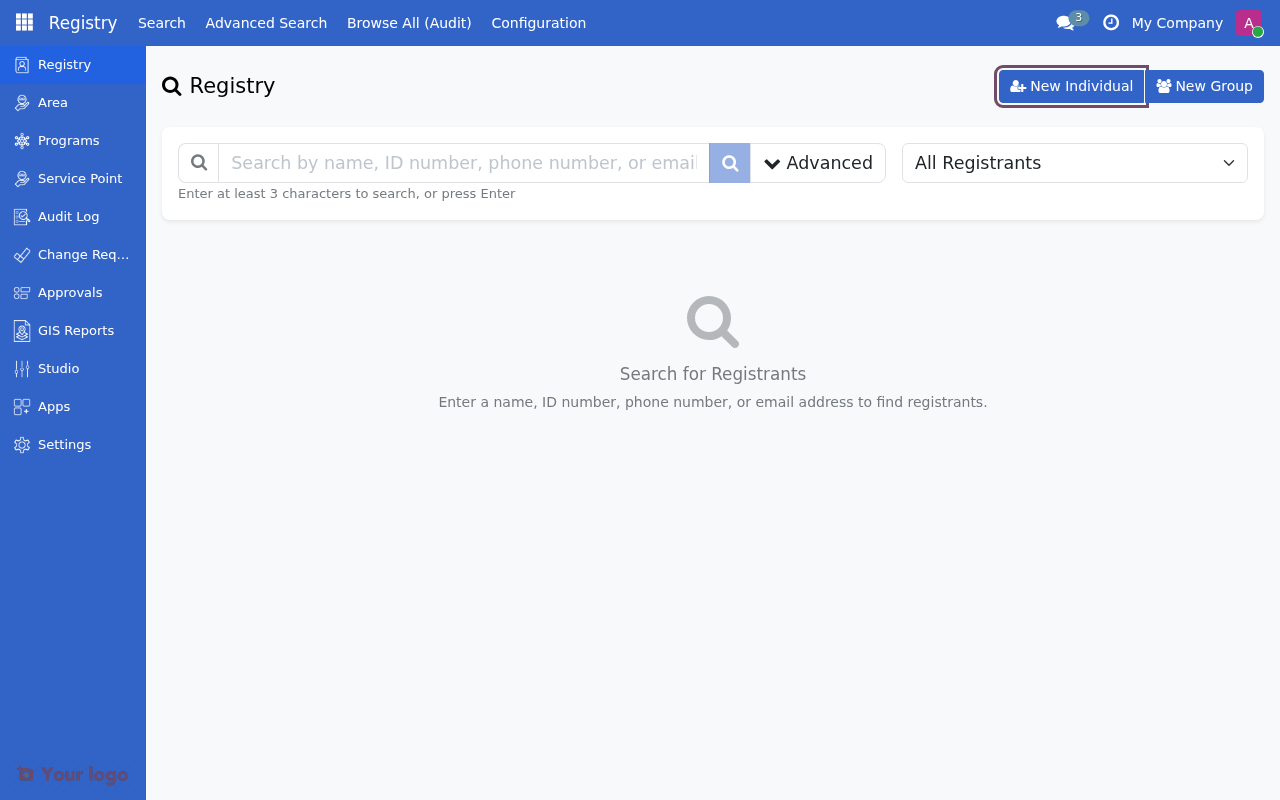
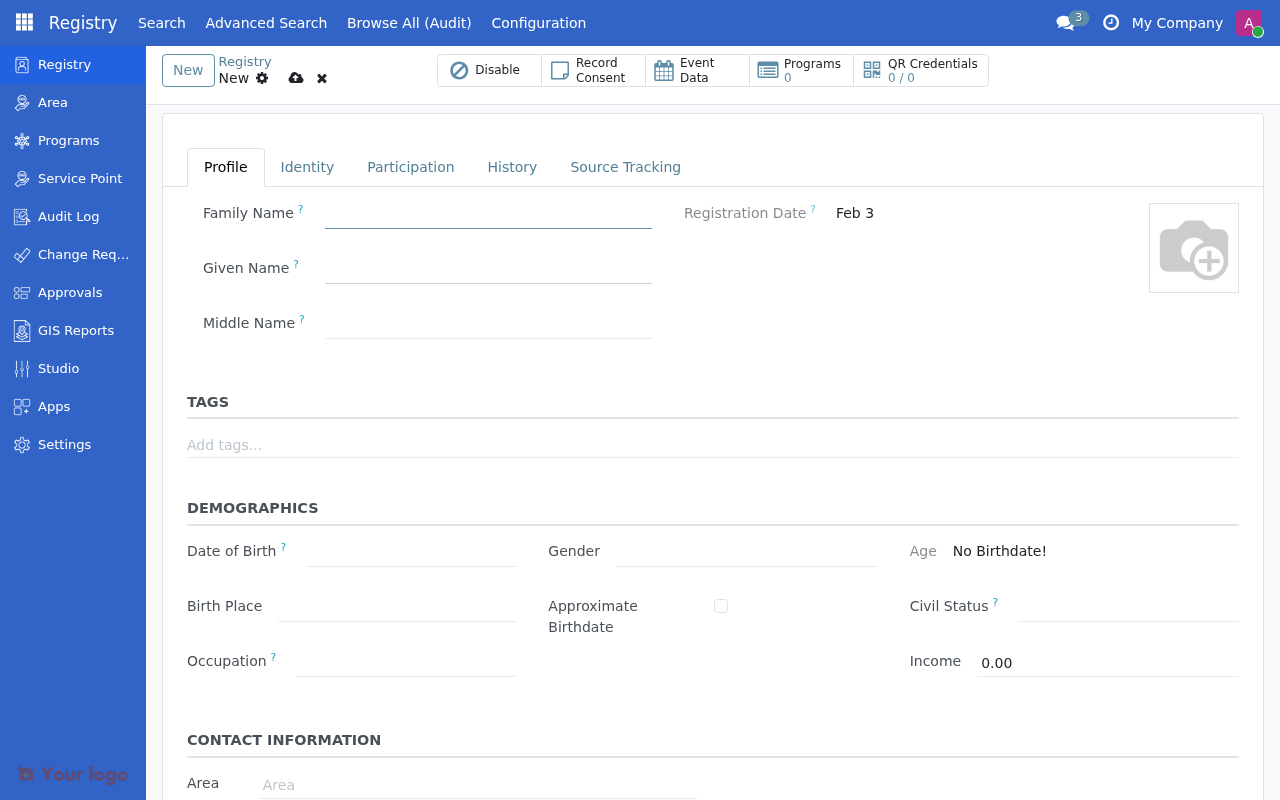
Basic Configuration#
Step 1: Define Identity#
Field |
Value |
Notes |
|---|---|---|
Name |
|
Technical name (lowercase, underscores) |
Label |
Household Income |
User-friendly display name |
CEL Accessor |
|
How to reference in CEL (auto-filled from name) |
Naming Conventions:
Use lowercase with underscores:
child_count,has_disabilityKeep names short but descriptive
Avoid reserved words:
if,true,false,null
Step 2: Select Source Type#
Field |
Value |
|---|---|
Source Type |
(select from dropdown) |
Source Type Options:
Type |
When to Use |
|---|---|
Model Field |
Reference an existing field on a model |
Computed (CEL) |
Calculate from other variables/fields |
Member Aggregate |
Count/sum over household members |
Constant/Parameter |
Fixed value, optionally program-configurable |
External Source |
Data from external API provider |
Vocabulary Concept |
Value from vocabulary concept group |
Scoring Result |
Output from scoring/PMT calculation |
Step 3: Configure Source (varies by type)#
For Model Field:
Field |
Value |
Notes |
|---|---|---|
Source Model |
|
The Odoo model |
Source Field |
|
The field name |
For Computed (CEL):
Field |
Value |
Notes |
|---|---|---|
CEL Expression |
|
Expression to compute |
For Member Aggregate:
Field |
Value |
Notes |
|---|---|---|
Aggregate Type |
Count |
Count, Sum, Average, Min, Max, Exists |
Aggregate Target |
Household Members |
What to aggregate over |
Aggregate Filter |
|
Filter expression (use |
Aggregate Field |
(for sum/avg) |
Field to aggregate |
For Constant/Parameter:
Field |
Value |
Notes |
|---|---|---|
Default Value |
|
The constant value |
Program Configurable |
Yes/No |
Can programs override this? |
Step 4: Set Value Type#
Field |
Value |
|---|---|
Value Type |
(select) |
Value Type Options:
Type |
Use For |
Example |
|---|---|---|
Number |
Counts, scores, numeric values |
age, score, count |
Yes/No |
Boolean flags |
is_disabled, has_id |
Text |
String values |
occupation, status |
Date |
Date values |
enrollment_date |
Money |
Currency amounts |
income, benefit |
List |
Multiple values |
programs, id_types |
Step 5: Set Applies To#
Field |
Value |
|---|---|
Applies To |
Individual / Group/Household / Both |
Choose based on where this variable makes sense:
Individual: Person-level data (age, gender)
Group/Household: Household-level data (size, total income)
Both: Works in either context
Step 6: Assign Category (Optional)#
Field |
Value |
|---|---|
Category |
Demographics |
Categories help organize variables in the picker.
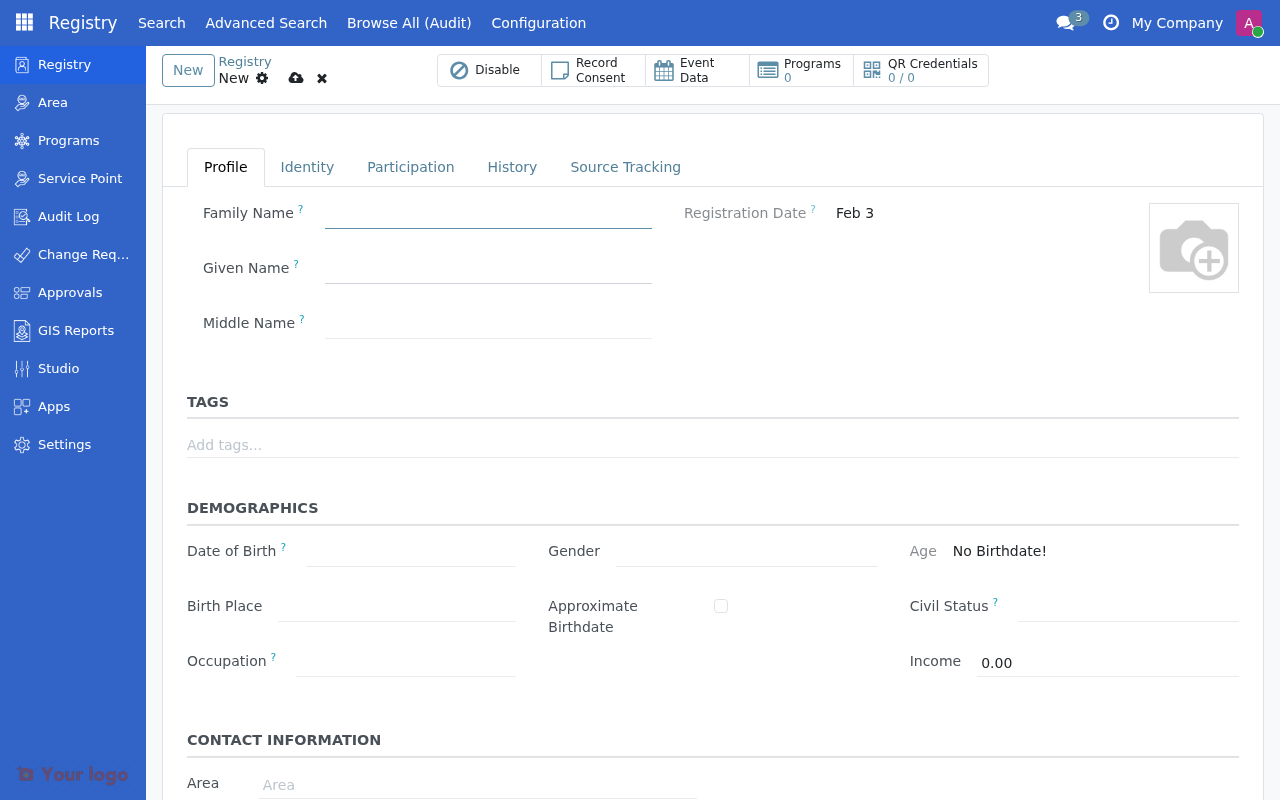
Advanced Configuration#
Click Show Advanced Options to reveal additional settings.
Caching Configuration#
Field |
Value |
Notes |
|---|---|---|
Cache Strategy |
TTL-based |
No Caching / Session / TTL-based / Manual |
Cache TTL (seconds) |
3600 |
Only for TTL-based (1 hour = 3600) |
Invalidate on Field Change |
|
Fields that trigger cache refresh |
Cache Strategy Guidelines:
Strategy |
Use When |
|---|---|
No Caching |
Data changes frequently, small dataset |
Session |
Batch processing, data stable within request |
TTL-based |
Stable data, want performance without staleness |
Manual |
Data refreshed on schedule/trigger |
Period Granularity#
Field |
Value |
Notes |
|---|---|---|
Period Granularity |
Monthly |
Current / Daily / Monthly / Quarterly / Yearly / Snapshot |
Supports Historical |
Yes |
Enable historical queries |
When to Use Each:
Granularity |
Example |
|---|---|
Current |
Always-latest income |
Monthly |
Monthly benefit amounts |
Yearly |
Annual income for tax year |
Snapshot |
Income at enrollment time |
Display Settings#
Field |
Value |
Notes |
|---|---|---|
Show in Registry |
Yes |
Display computed value in registry form |
Display Format |
Currency |
Default / Currency / Percentage / Integer |
Display Order |
10 |
Order within category |
Visible to Groups |
(select) |
Restrict who can see |
Documentation#
Field |
Value |
|---|---|
Description |
Total household income from all sources |
Unit |
USD |
Example Values |
1000, 5000, 10000 |
Synonyms |
family income, earnings |
Activating Variables#
Variables must be activated before use in CEL expressions.
Step 1: Review Configuration#
Ensure all required fields are set correctly.
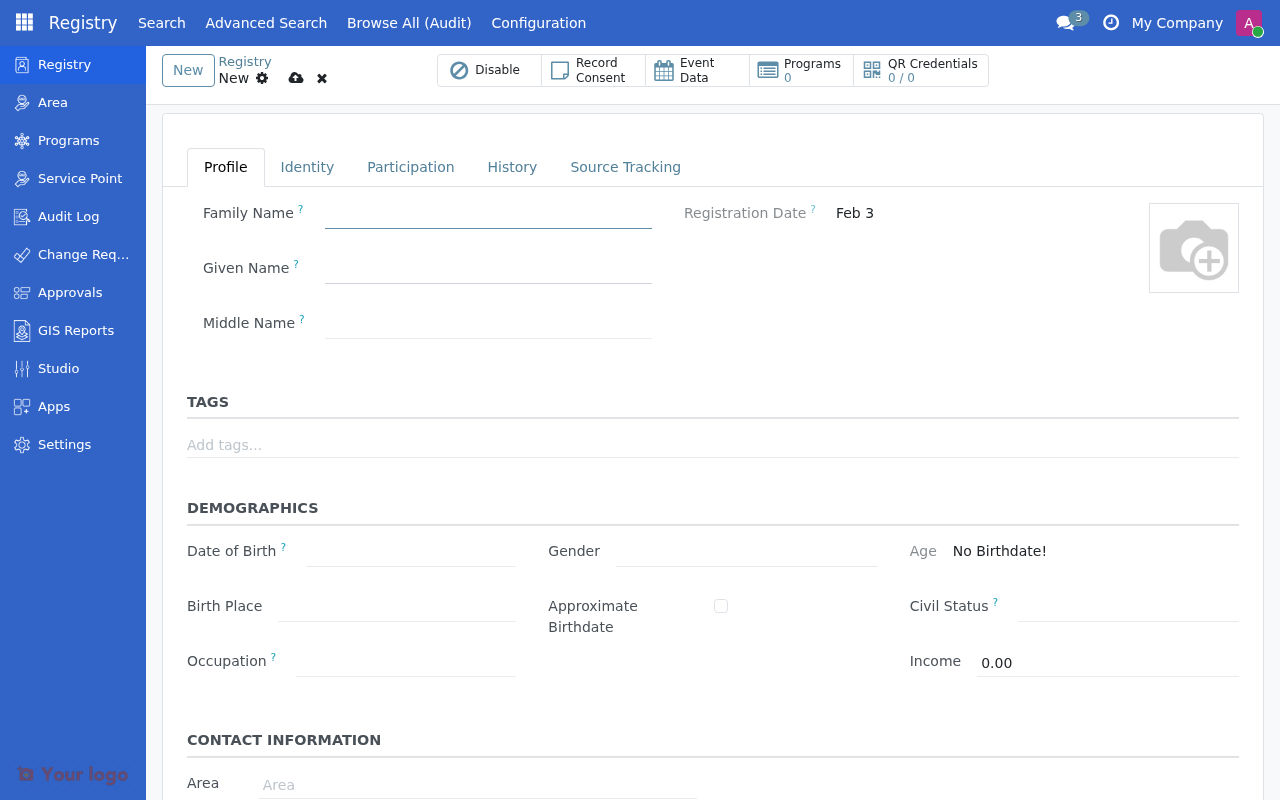
Step 3: Test in CEL Builder#
Go to Studio → Expressions and verify the variable appears in autocomplete.
Creating Aggregate Variables#
Aggregates compute values over household members, enrollments, or entitlements.
Example: Count Children Under 5#
Field |
Value |
|---|---|
Name |
|
Label |
Children Under 5 |
Source Type |
Member Aggregate |
Aggregate Type |
Count |
Aggregate Target |
Household Members |
Aggregate Filter |
|
Value Type |
Number |
Applies To |
Group/Household |
Example: Sum of Member Incomes#
Field |
Value |
|---|---|
Name |
|
Label |
Total Member Income |
Source Type |
Member Aggregate |
Aggregate Type |
Sum |
Aggregate Target |
Household Members |
Aggregate Field |
|
Value Type |
Money |
Applies To |
Group/Household |
Example: Has Disabled Member#
Field |
Value |
|---|---|
Name |
|
Label |
Has Disabled Member |
Source Type |
Member Aggregate |
Aggregate Type |
Exists |
Aggregate Target |
Household Members |
Aggregate Filter |
|
Value Type |
Yes/No |
Applies To |
Group/Household |
Aggregate Filter Syntax#
Use m. prefix to reference member fields:
Expression |
Meaning |
|---|---|
|
Member's birthdate |
|
Member's gender |
|
Member is under 18 |
|
Member is HOH |
Creating Event-Based Variables#
Event data is accessed through dedicated event functions, not the aggregate system. Use a Computed (CEL) variable with event functions.
Example: Count Health Visits This Year#
Field |
Value |
|---|---|
Name |
|
Label |
Health Visits This Year |
Source Type |
Computed (CEL) |
CEL Expression |
|
Value Type |
Number |
Applies To |
Individual |
Note
Event functions require the spp_cel_event module. See the Variables guide for the full list of event functions and time range parameters (within_days, within_months, period).
Creating Program Constants#
Constants with optional program-level overrides.
Example: Poverty Line Threshold#
Field |
Value |
|---|---|
Name |
|
Label |
Poverty Line |
Source Type |
Constant/Parameter |
Default Value |
5000 |
Program Configurable |
Yes |
Value Type |
Money |
Unit |
USD |
When Program Configurable is enabled, each program can set its own value for this constant.
Variable Categories#
Creating a Category#
Go to Studio → Variables → Categories and click New.
Field |
Value |
|---|---|
Name |
Demographics |
Code |
demographics |
Icon |
fa-users |
Color |
#3498db |
Sequence |
10 |
Assigning Variables to Categories#
Edit a variable and set the Category field.
Are You Stuck?#
Can't find Source Field in dropdown?
The Source Model must be set first. If the field still doesn't appear, it may be a computed field that OpenSPP cannot use as a variable source — ask your administrator.
Aggregate Filter not working?
Ensure you use the m. prefix for member fields. Check that the field exists on the member model.
Variable created but not appearing in CEL?
The variable must be in "Active" state. Check the Status field.
How do I delete a variable?
You can't delete variables that are used in expressions. Set the state to "Inactive" instead.
Next Steps#
To... |
See... |
|---|---|
Learn about source types in detail |
|
Use variables in expressions |
|
Understand variable concepts |