 openspp.org
Geographic targeting
Contents
Geographic targeting#
This guide is for implementers configuring area-based eligibility to target registrants in specific administrative areas.
What is geographic targeting?#
Geographic targeting restricts program eligibility to registrants in specific administrative areas (regions, districts, villages, etc.). It's often combined with demographic criteria.
Example use cases:
Scenario |
Geographic targeting |
|---|---|
Regional pilot program |
Target 3 pilot districts |
Disaster response |
Target affected areas only |
Urban poverty program |
Target urban municipalities |
Phased rollout |
Start with accessible areas |
How it works#
The Eligibility Manager has a Target Areas section where you select administrative areas:
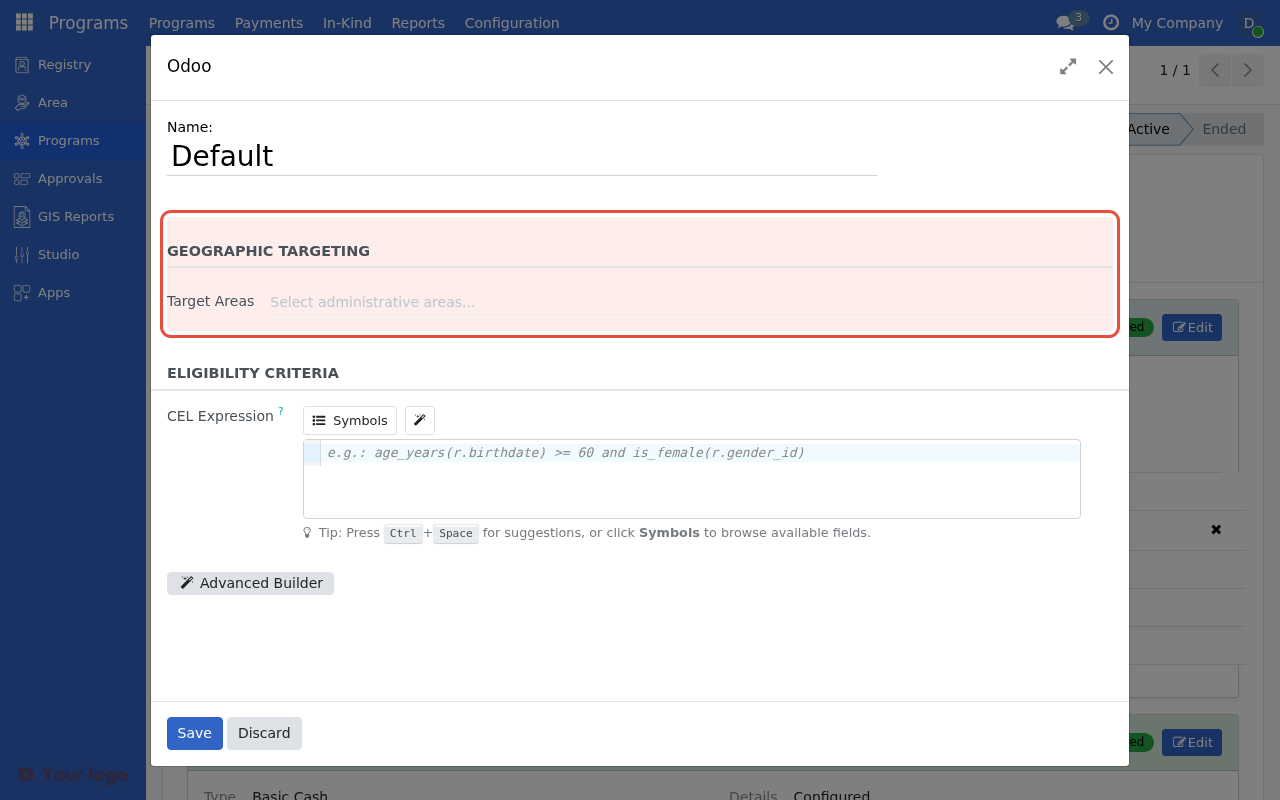
The Target Areas section in the eligibility manager settings.#
When geographic targeting is configured:
Registrants must be in one of the selected areas AND
Registrants must match the CEL expression (if defined)
        graph TD
    R[Registrant] --> A{In target area?}
    A --> |Yes| C{Matches CEL?}
    A --> |No| N[Not Eligible]
    C --> |Yes| E[Eligible]
    C --> |No| N
Configuring target areas#
Step 1: Open the eligibility manager#
Go to Programs → Programs
Open your program
Click the Configuration tab
Find the Eligibility Manager section
Click the gear icon to open manager settings
Step 2: Select target areas#
In the Target Areas field:
Click the field to open the area selector
Search or browse for areas
Select one or more areas
Areas can be at any level (region, district, village)
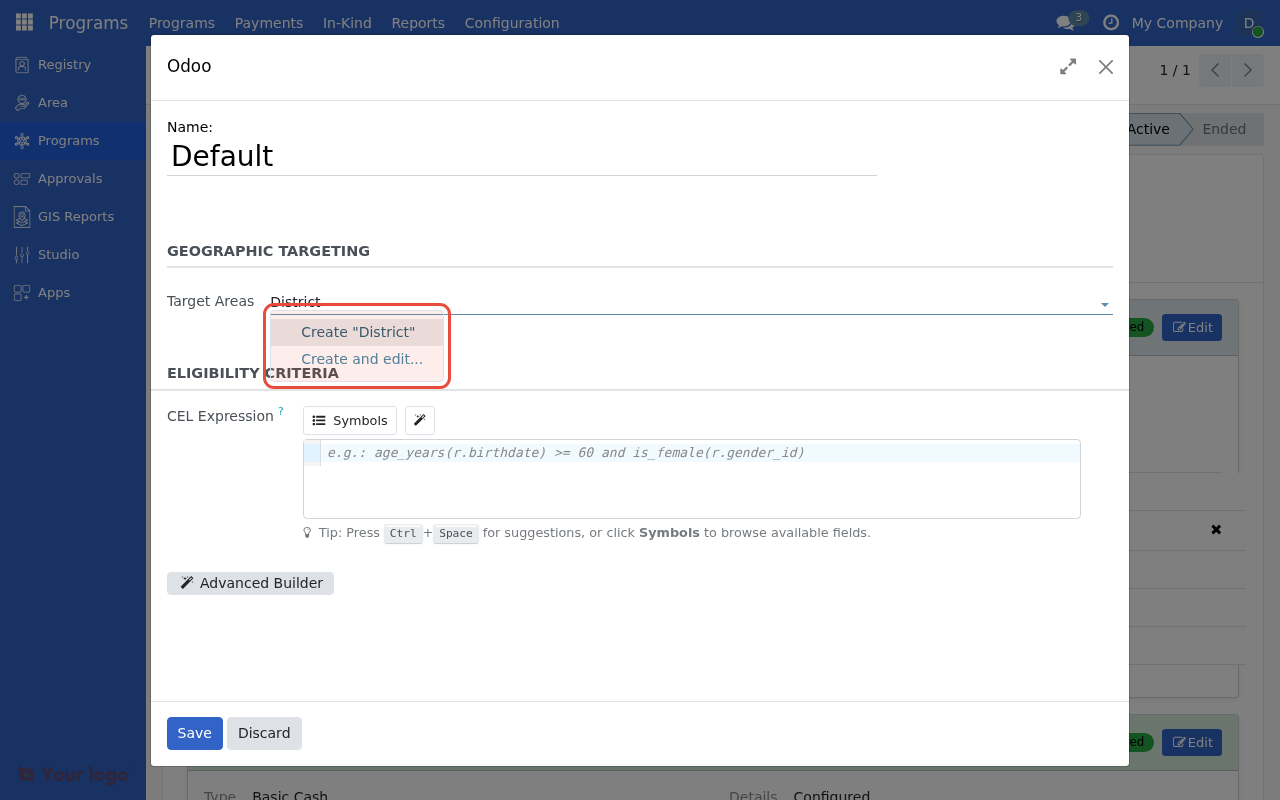
Click the Target Areas field to search and select administrative areas.#
Step 3: Save configuration#
Click Save to apply the geographic targeting.
Area hierarchy#
Administrative areas in OpenSPP form a hierarchy:
Country
└── Region
    └── District
        └── Sub-district
            └── Village
When you select an area:
Selection |
Who is included |
|---|---|
Region only |
Registrants in that region (all districts) |
District only |
Registrants in that district only |
Multiple areas |
Registrants in any selected area |
Note
Child areas are not automatically included. If you select "Region A", only registrants with area_id set to "Region A" match—not those in districts within Region A. Select all relevant areas explicitly.
Combining with CEL expressions#
Geographic targeting works alongside CEL expressions:
Configuration |
Result |
|---|---|
Areas only |
All registrants in selected areas |
CEL only |
All registrants matching the expression |
Areas + CEL |
Registrants in areas AND matching CEL |
Example: Elderly in pilot districts#
To target senior citizens (65+) in three pilot districts:
CEL Expression:
age_years(r.birthdate) >= 65Target Areas: Select the three pilot districts
Both conditions must be true for eligibility.
Using area in CEL expressions#
You can also reference area in CEL expressions:
# Registrants in a specific area (by area code)
r.area_id.code == "DISTRICT_01"

# Registrants in urban areas (if area type is tracked)
r.area_id.area_type == "urban"
However, using the Target Areas field is preferred for:
Easier configuration (point-and-click)
Clear audit trail
Simpler expression maintenance
Best practices#
Do: Be explicit about area levels#
Select areas at the appropriate level. If you want all districts in a region, select each district individually.
Do: Document your targeting rationale#
Record why specific areas were selected (e.g., "Pilot phase 1 districts" or "Flood-affected areas 2024").
Don't: Mix area methods#
Choose one approach:
Use Target Areas field for straightforward area targeting
Use CEL expressions only if you need dynamic area logic
Mixing both can create confusion.
Don't: Forget to update areas#
When program scope changes (e.g., expansion to new areas), update the target areas configuration.
Viewing targeted areas#
To see which areas are configured:
Open the program's Configuration tab
Find the Eligibility Manager section
Look for the Target Areas field
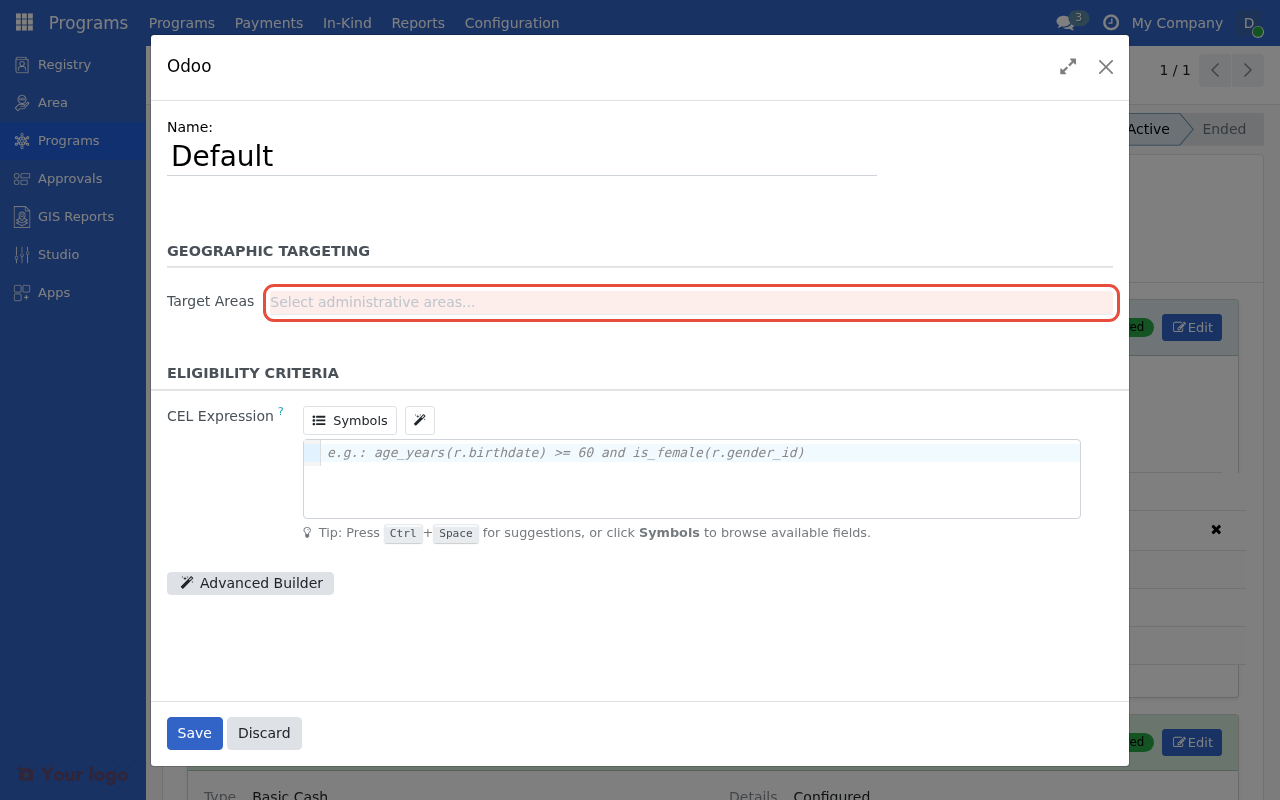
The Target Areas field where selected administrative areas appear.#
Are you stuck?#
Registrants in the area aren't matching?
Verify the registrant's
area_idis set correctlyCheck you selected the correct area level (district vs region)
Ensure the area names match exactly
Need to target by area type (urban/rural)?
Use a CEL expression:
r.area_id.area_type == "urban"Or create separate programs for urban vs rural
Want to include all sub-areas?
Select each sub-area individually in the Target Areas field
Or use CEL:
r.area_id.parent_id.code == "REGION_01"
Next steps#
CEL expressions for eligibility - Add demographic criteria to area targeting
Testing eligibility rules - Verify your geographic targeting works correctly
Advanced eligibility configuration - Use multiple eligibility managers for complex targeting