 openspp.org
Audit configuration overview
Contents
Audit configuration overview#
This guide is for implementers setting up audit logging in OpenSPP. You should understand your compliance requirements but don't need programming knowledge.
Mental model#
Auditing in OpenSPP has three layers:
Layer |
What it does |
Example |
|---|---|---|
Rule |
Defines what model and actions to track |
"Track all changes to registrant records" |
Action |
Specifies which operations to log |
Create, Update, Delete, Activate, Download |
Backend |
Where audit logs are stored |
Database, file system, syslog, HTTP endpoint |
Think of it like a security camera system: rules decide which rooms to monitor, actions decide what events trigger recording, and backends decide where the footage is stored.
Key concepts#
Audit rules#
Each rule targets a specific model (e.g., registrants, programs, payments):
Field |
What it means |
|---|---|
Name |
The model being audited |
Parent Rule |
For field-level rules nested under a model rule |
Standard actions#
These track basic data operations (creating, editing, and deleting records):
Action |
What it logs |
|---|---|
Log Creation |
When a new record is created |
Log Update |
When an existing record is modified |
Log Deletion |
When a record is deleted |
View Logs |
Adds "View Audit Logs" to the record's action menu |
Lifecycle actions#
These track status changes:
Action |
What it logs |
|---|---|
Log Activation |
When a record is activated (unarchived) |
Log Deactivation |
When a record is deactivated (archived) |
Log State Changes |
When a record's state changes (approve, reject, etc.) |
File access logging#
Action |
What it logs |
|---|---|
Log Downloads |
When a user downloads an attached file |
Log Previews |
When a user previews a file in the browser |
Log Exports |
When data is exported (CSV, Excel) |
Integration#
Setting |
What it does |
|---|---|
Post to Chatter |
Adds audit entries to the record's Chatter (the message feed at the bottom of each form), so team members can see changes |
Field-level tracking#
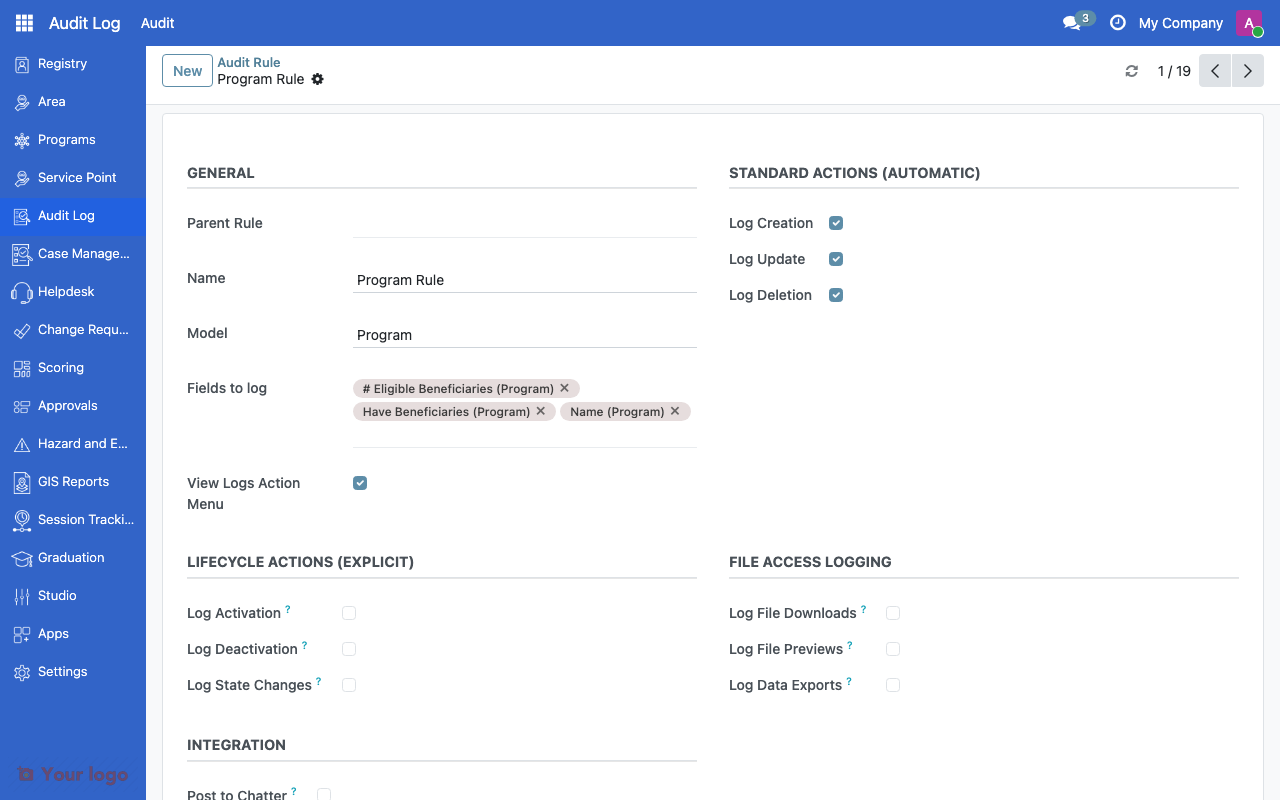
Audit rule form showing standard actions, lifecycle actions, and file access logging options.#
For sensitive fields, you can create child rules under a model rule:
Open the model-level audit rule
Add a child rule for specific fields
Select which fields to track via the Fields field
When those fields change, the old and new values are recorded
Setting up audit rules#
Step 1: Identify what to audit#
Common models to audit in social protection:
Model |
Why audit it |
|---|---|
Registrants (beneficiaries) |
Track changes to beneficiary data |
Programs |
Monitor program configuration changes |
Entitlements |
Track benefit calculations and payments |
Change Requests |
Log approval workflow changes |
Users |
Monitor access and role changes |
Cases |
Track case management activity |
Step 2: Create or edit rules#
Navigate to Audit Rules
Click Create (or edit an existing rule)
Select the Model to audit
Enable the relevant action types
Save
Step 3: Add field-level tracking (optional)#
For high-sensitivity fields:
Open the model-level audit rule
Under child rules, add a new line
Select the specific fields to track (e.g., Phone Number, National ID, Bank Account)
Old and new values are logged for every change to these fields
Audit log records#
Each audit log entry contains:
Field |
What it stores |
|---|---|
User |
Who performed the action |
Action |
What was done (created, edited, deleted, etc.) |
Record Type |
What kind of record was affected (e.g., Registrant, Program) |
Record ID |
Which specific record |
Old Value |
Previous value (for updates) |
New Value |
New value (for updates) |
Timestamp |
When the action occurred |
System ID |
Internal identifier for traceability |
Note
Audit logs are tamper-resistant. Once a log entry is created, it cannot be modified or backdated.
Navigation#
Menu |
Purpose |
|---|---|
Audit Rules |
Create and manage audit rules |
Audit Logs |
View and search audit log entries |
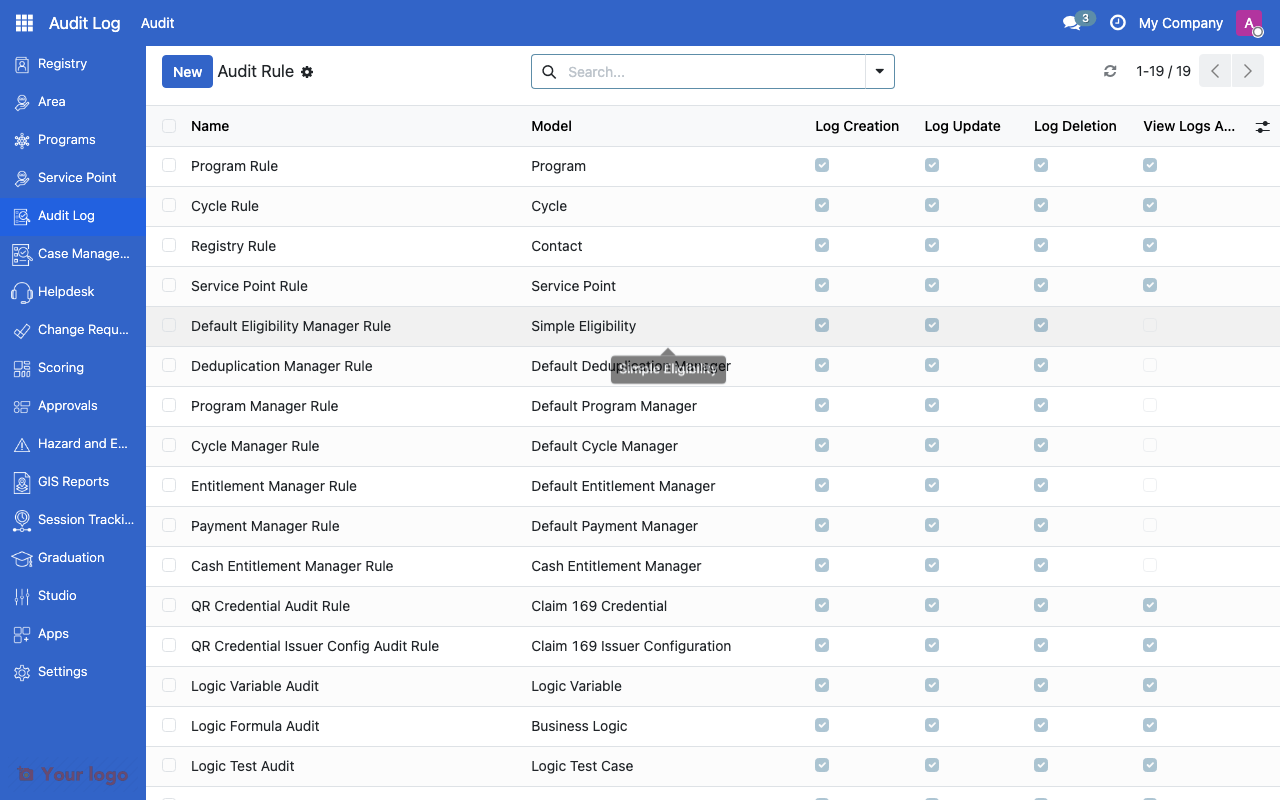
Audit rules list showing models being audited and enabled action types.#
Common use cases#
Use case 1: Compliance audit trail#
Goal: Track all changes to beneficiary records for regulatory compliance.
Setup:
Create an audit rule for the registrant model
Enable Log Creation, Log Update, and Log Deletion
Add field-level tracking for personal information fields (Name, ID Number, Phone, Address)
Enable Post to Chatter for transparency
Use case 2: File access monitoring#
Goal: Track who downloads beneficiary documents.
Setup:
Create an audit rule for the document/attachment model
Enable Log Downloads and Log Previews
Review access logs periodically for unauthorized access patterns
Use case 3: Payment accountability#
Goal: Ensure payment changes are tracked and attributable.
Setup:
Create audit rules for entitlement and payment models
Enable all standard and lifecycle actions
Add field-level tracking for amount, status, and recipient fields
Configure the database backend for long-term retention
Are You Stuck?#
Audit logs are empty even though rules are configured?
Check that the rule is active and that the action types are enabled. Some actions (like lifecycle) only trigger when specific operations occur (e.g., state changes).
Can I audit custom fields?
Yes. Add them to the field-level tracking in a child rule under the appropriate model.
How long are audit logs retained?
Retention depends on the backend configuration. Database logs persist until manually purged. File and syslog backends follow their own rotation policies (see Audit backends).
Can I search audit logs by user?
Yes. The Audit Logs view has filters for user, action, model, and date range.
Audit logging slows down the system?
Tracking many fields on frequently updated records can slow down the system. Be selective about which fields you track. For high-volume environments, ask your IT team about using an external storage backend.
Can I export audit logs?
Yes. Use the standard Odoo export feature on the Audit Logs list view to export to CSV or Excel.
Next steps#
Audit backends - Configure audit log storage
Access control overview - Set up who can view audit logs