 openspp.org
Case stages
Contents
Case stages#
This guide is for implementers configuring the lifecycle stages that cases move through from intake to closure.
Mental model#
Stages represent the lifecycle of a case:
Intake → Assessment → Planning → Implementation → Monitoring → Evaluation → Closure
Each stage can enforce requirements before a case can enter it, ensuring proper process compliance.
Stage configuration#
Field |
What it means |
|---|---|
Name |
Stage label (e.g., "Assessment") |
Sequence |
Display order (lower = earlier) |
Phase |
Classification of the stage's purpose |
Is Closed |
Marks the case as closed when entering this stage |
Requires Assessment |
Case must have an assessment before entering |
Requires Intervention Plan |
Case must have an intervention plan before entering |
Requires Approval |
Stage transition needs approval workflow |
Minimum Intensity Level |
Only cases at or above this intensity can enter |
Folded in Board View |
Collapse this column in the card board view |
Color |
Visual color indicator |
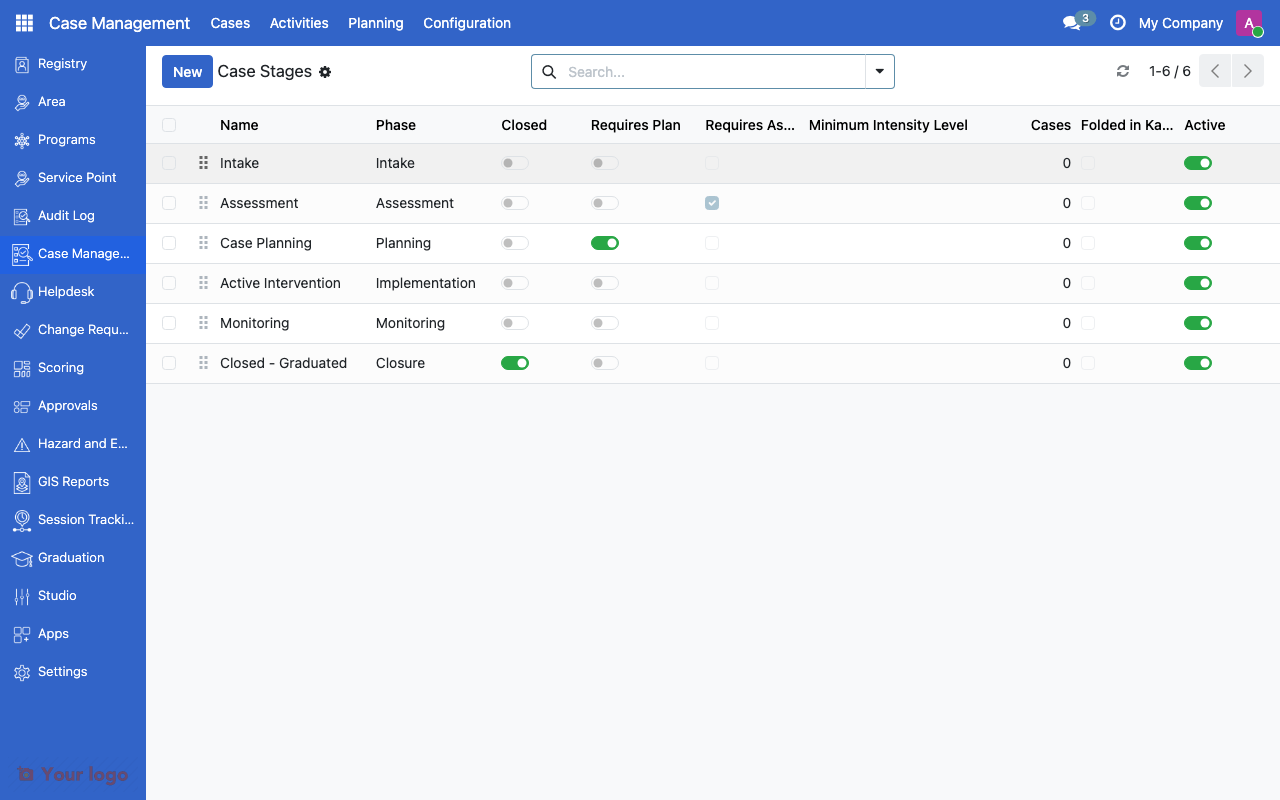
Case stages list showing phase, sequence, and requirements.#
Phase classifications#
Each stage maps to one of seven phases:
Phase |
Purpose |
Typical stages |
|---|---|---|
Intake |
Initial registration and triage |
Referral, New Case |
Assessment |
Evaluating needs and risks |
Initial Assessment, Detailed Assessment |
Planning |
Designing the intervention |
Case Plan Development |
Implementation |
Delivering services |
Active Intervention, Service Delivery |
Monitoring |
Tracking progress |
Follow-up, Review |
Evaluation |
Measuring outcomes |
Outcome Assessment |
Closure |
Ending the case |
Closed - Graduated, Closed - Transferred |
Phases help with reporting and analytics by grouping stages into standard categories regardless of their custom names.
Setting up stages#
Step 1: Plan your stages#
Before creating stages, map your program's workflow:
Identify the key decision points in a case
Determine what information is needed at each point
Decide which transitions require approval
Define closure conditions
Step 2: Create stages#
Navigate to Cases > Configuration > Case Stages
Click Create
Set the Name, Sequence, and Phase
Configure requirements (assessment, plan, approval)
Save
Step 3: Link stages to case types#
Open the Case Type record
In the Available Stages field, select which stages apply to this type
Save
Note
A stage can be shared across multiple case types. Only link stages that are relevant to each type.
Stage requirements#
Requirements enforce process compliance by preventing premature stage transitions:
Requirement |
Effect |
|---|---|
Requires Assessment |
Worker must complete an assessment form before moving the case to this stage |
Requires Intervention Plan |
Worker must create an intervention plan before entering this stage |
Requires Approval |
Stage transition is routed through the approval workflow |
Minimum Intensity |
Only cases at the specified intensity level or higher can enter |
Closure reasons#
When a case reaches a closed stage, a closure reason must be selected:
Field |
What it means |
|---|---|
Name |
Reason label (e.g., "Graduated Successfully") |
Code |
Unique identifier |
Outcome Type |
Positive, Neutral, or Negative |
Common closure reasons#
Reason |
Outcome Type |
When to use |
|---|---|---|
Graduated successfully |
Positive |
Beneficiary achieved program goals |
Transferred to another service |
Neutral |
Case referred to different provider |
Relocated out of area |
Neutral |
Beneficiary moved away |
Withdrawn by beneficiary |
Neutral |
Beneficiary chose to leave |
Lost to follow-up |
Negative |
Cannot contact beneficiary |
Deceased |
Negative |
Beneficiary passed away |
Outcome types enable reporting on case closure patterns and program effectiveness.
Are You Stuck?#
Worker can't move a case to the next stage?
Check the stage requirements. The worker may need to complete an assessment or intervention plan first. Also verify the case intensity meets the minimum level.
Closed cases reappearing in active views?
Ensure the closing stage has Is Closed checked. Only stages with this flag properly mark cases as closed.
Need different stages for different case types?
Create all stages globally, then use the Available Stages field on each case type to select only the relevant ones.
Can I reopen a closed case?
Move the case back to an active stage. This is allowed but should be done sparingly - consider creating a new case with a reference to the previous one.
Stage order looks wrong in kanban?
Check the Sequence values. Lower numbers appear first (leftmost column in the board view). Use increments of 10 (10, 20, 30) so you can insert new stages between existing ones later.
Next steps#
Case teams - Configure case management teams
Case management overview - Case management fundamentals
Approval workflows overview - Set up approval for stage transitions