 openspp.org
Process a dispatch
Contents
Process a dispatch#
Applies to: DRIMS
This feature is available in OpenSPP deployments with the DRIMS module installed.
This guide is for warehouse staff who pick, pack, and ship relief supplies to distribution points.
What you'll do#
Process a dispatch from an allocated request: pick and pack items, record departure, and confirm delivery with proof of delivery.
Before you start#
You need Warehouse Officer or DRIMS Manager access
The dispatch must have been created by a coordinator from an approved, allocated request
Relief items must be in stock at your warehouse
How dispatches are created#
Dispatches are created automatically when a DRIMS coordinator allocates an approved request and clicks Create Dispatch. See Submit and manage relief requests for how coordinators do this.
A single request can have multiple dispatches — for example, if only part of the stock is available now and the rest arrives later. Each dispatch covers the not-yet-dispatched balance at the time it was created.
You'll receive dispatches in the Ready state — stock is already reserved and items are ready to pick.
Finding your dispatches#
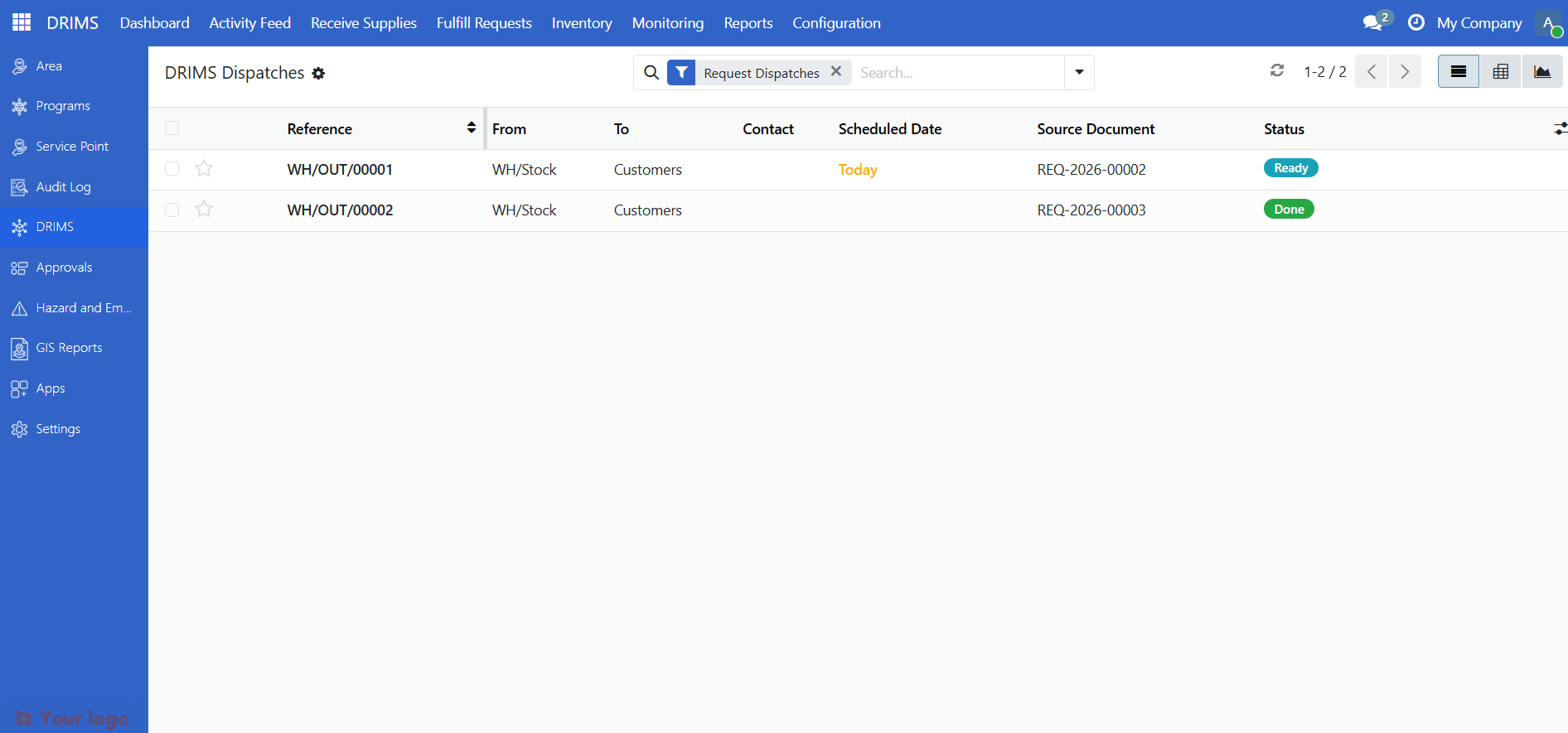
Click DRIMS in the top navigation bar
Go to Fulfill Requests → Dispatches
Use the Request Dispatches filter to see only request dispatches assigned to your warehouse
Dispatch states#
The dispatch status bar shows four states, but in normal DRIMS use you will only encounter the last two:
State |
What it means |
What you do |
|---|---|---|
Draft |
Not used in DRIMS — dispatches skip this automatically |
— |
Waiting |
Not used in DRIMS — allocation ensures stock is reserved before dispatch creation |
— |
Ready |
Stock reserved, ready to pick and pack |
Pick, pack, then validate |
Done |
Items validated and inventory updated |
Record departure and confirm delivery via the DRIMS tab |
Departure, arrival, and proof of delivery are recorded separately in the DRIMS tab once the dispatch is in Done state — they don't change the status bar.
Processing a dispatch#
DRIMS ensures that stock must be allocated before a dispatch can be created. Because of this, when you open a dispatch it will always be in Ready state — stock is already reserved and it is ready to pick.
1. Review the dispatch#
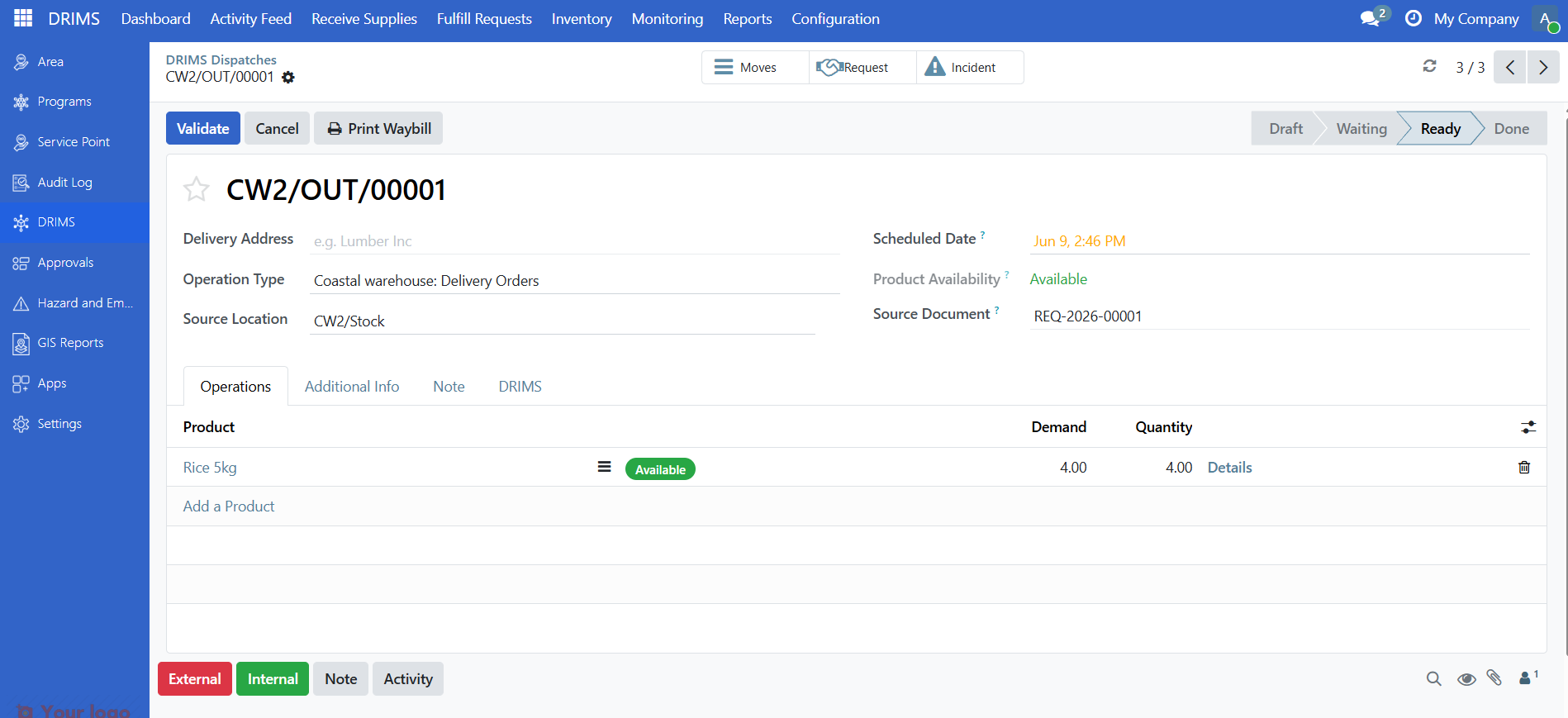
Open the dispatch and check that the product list and quantities match what you expect. The Source Document field shows the originating request reference.
2. Fill in required dispatch details#
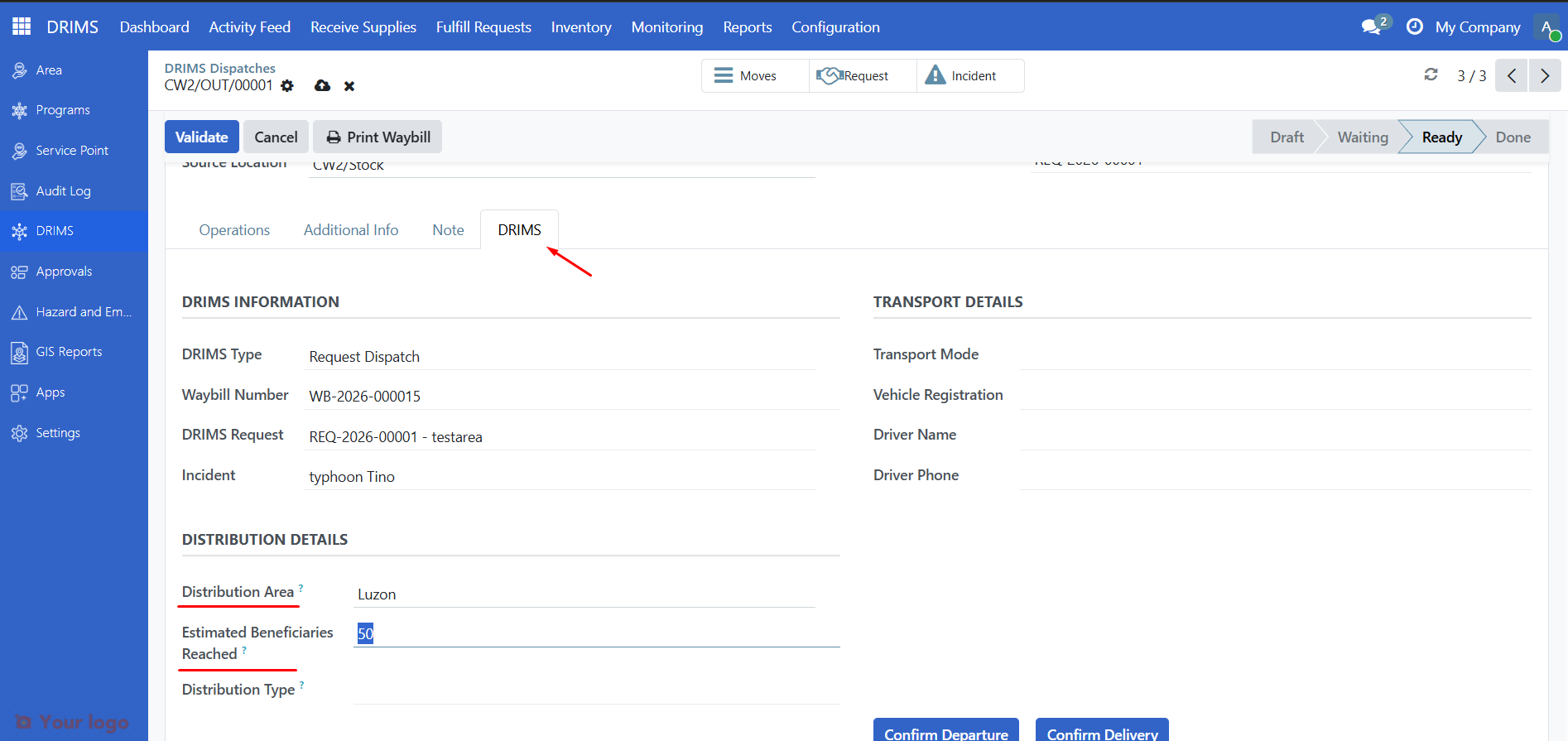
Before you can validate, open the DRIMS tab and fill in the required distribution fields:
Field |
What to enter |
|---|---|
Distribution Area |
The geographic area receiving the supplies |
Estimated Beneficiaries Reached |
Number of people who will benefit from this dispatch |
Important
Validation will fail if Distribution Area and Estimated Beneficiaries Reached are empty. Fill both in before clicking Validate.
3. Pick and pack items#
Click Print Waybill to get the list of items to pick
Go to your warehouse and collect the items on the list
Verify quantities match the waybill
Pack items securely for transport
4. Validate the dispatch#
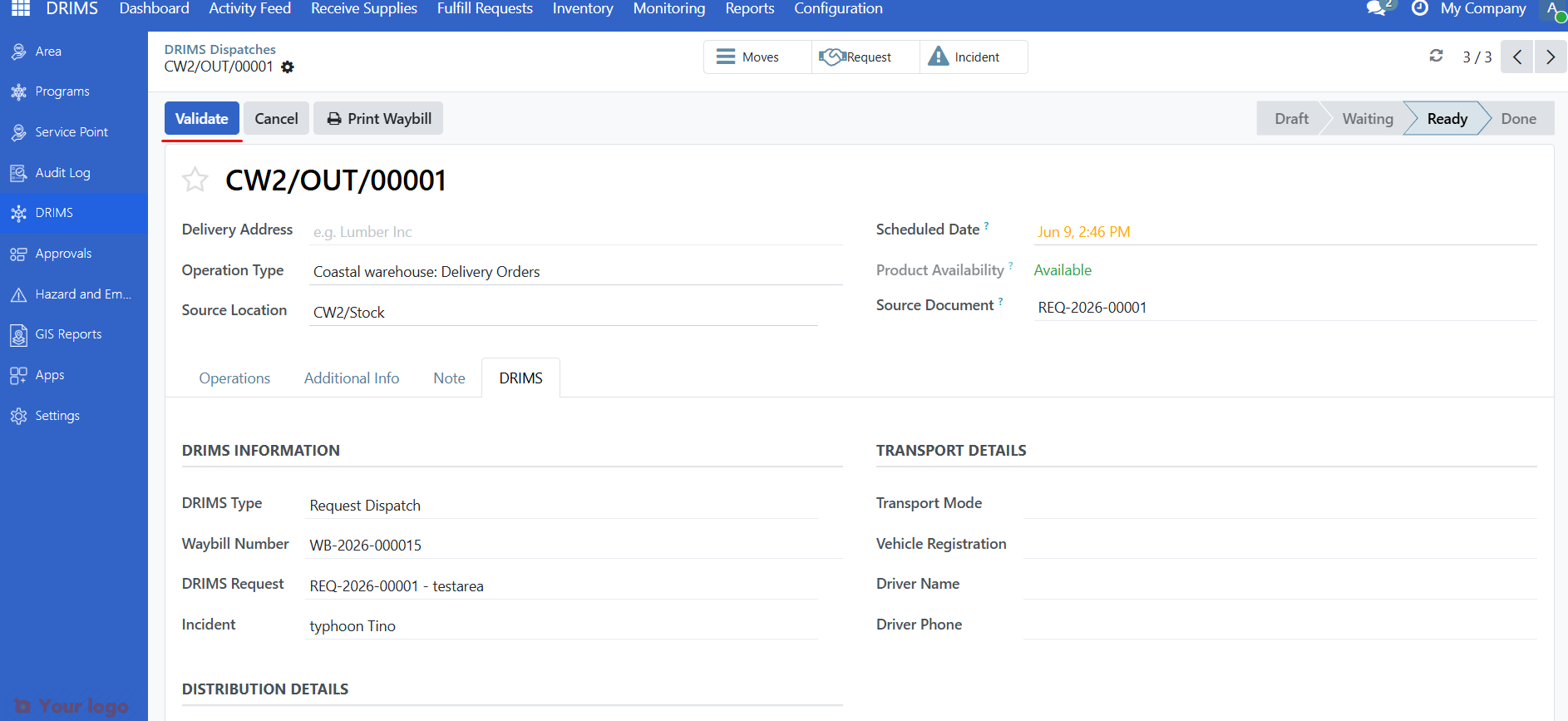
After packing, return to the dispatch and click Validate.
This confirms that the items have been physically picked and updates your inventory. The dispatch moves to Done.
Note
If a validation error appears directing you to the DRIMS tab, open the DRIMS tab to see the specific issue — usually a missing Distribution Area or Estimated Beneficiaries Reached.
Partial quantities#
If you don't have all the requested quantities available:
In the Quantity column under the Operations tab, enter the quantity you physically have (less than the Demand)
Click Validate
A Create Backorder? dialog appears — select Create Backorder to create a second dispatch for the outstanding balance, or No Backorder if the remaining items will not be sent
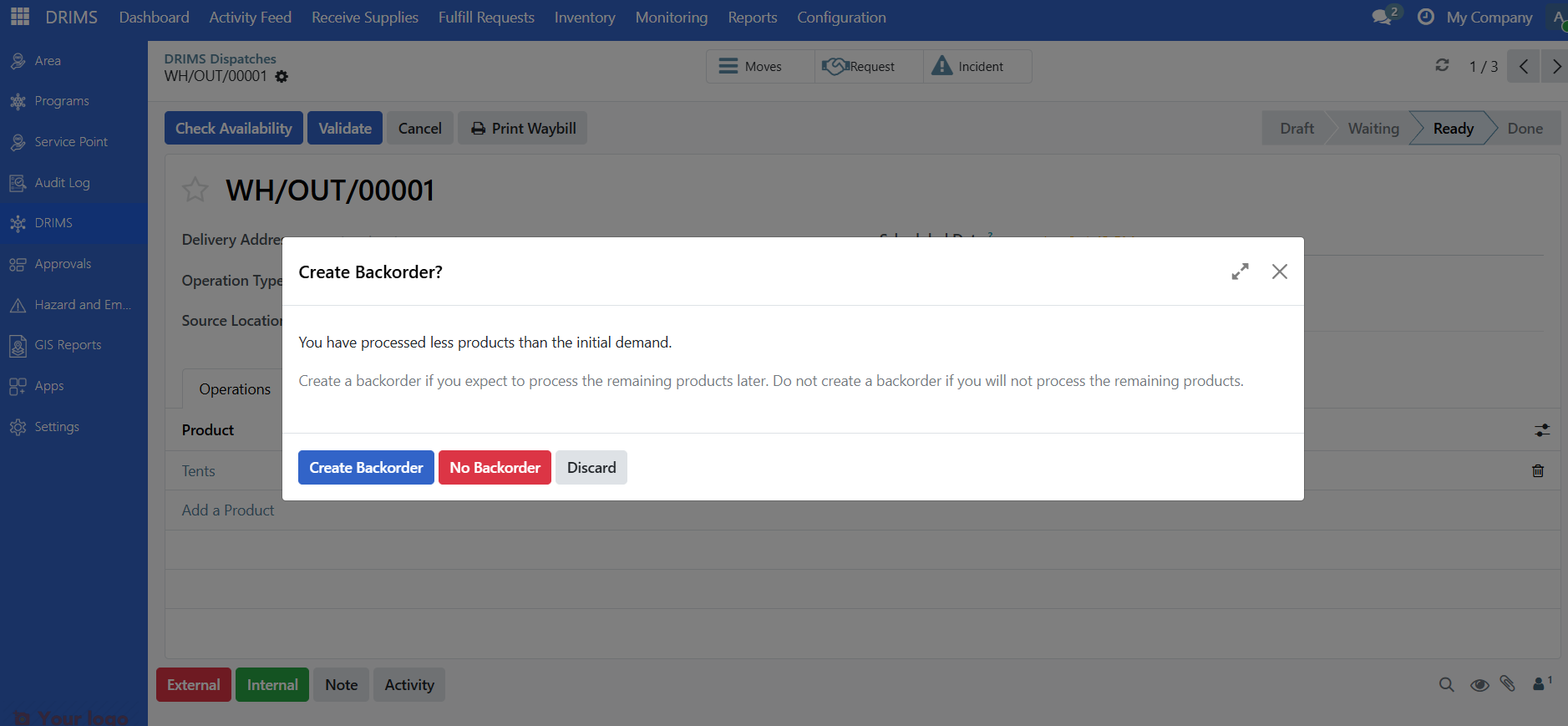
The backorder dispatch is created automatically and goes straight to Ready state — it does not route back through the request allocation flow. This is a known gap (see ticket: Backorder dispatch bypasses DRIMS request allocation).
Printing the waybill#
The Waybill is the official shipping document that travels with the goods.
Click Print Waybill in the dispatch form header, then give the printed copy to the driver.
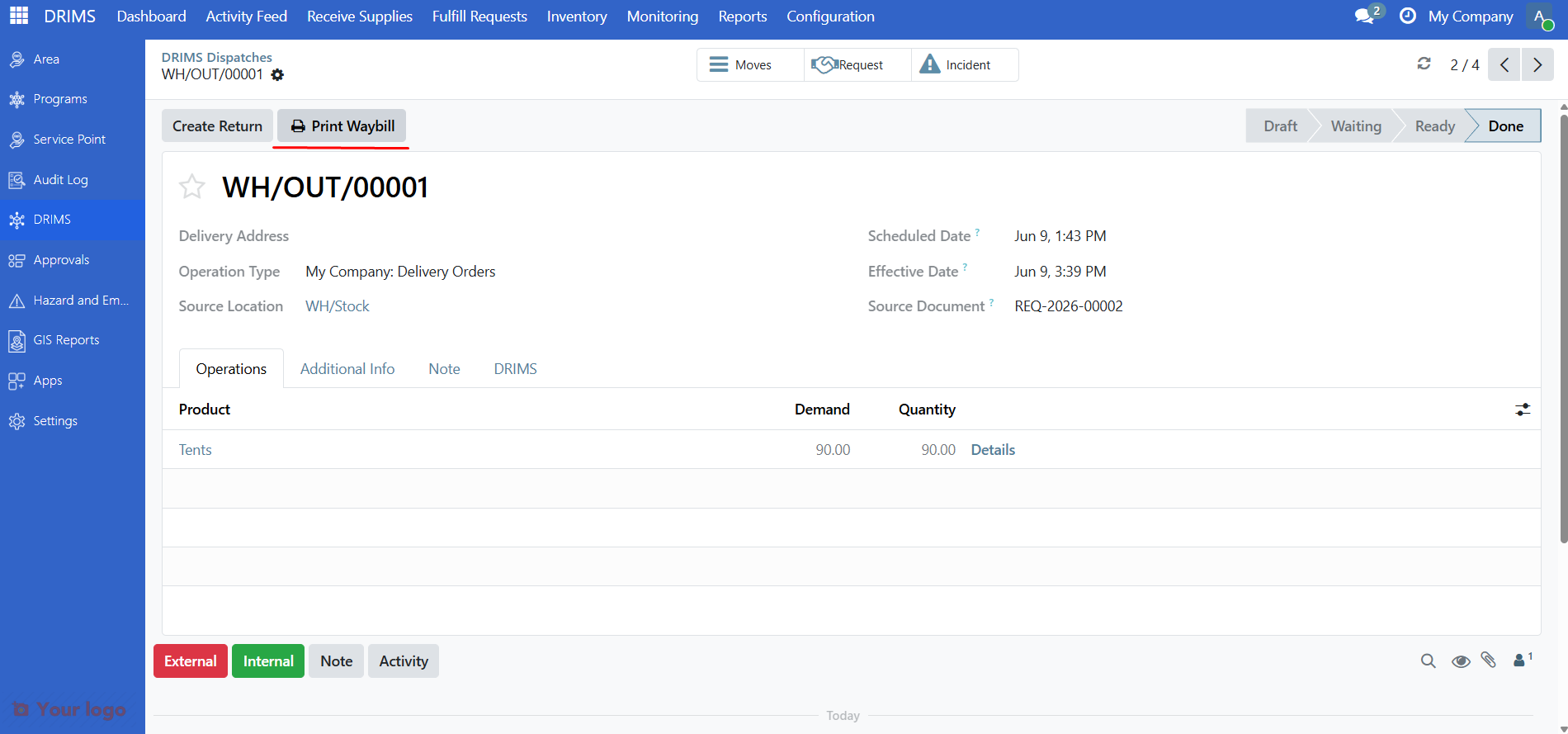
The waybill includes the dispatch reference, source and destination details, the full item list with quantities, and signature blocks for the driver and receiver.
Important
The driver must get the waybill signed by the person receiving the goods at the destination.
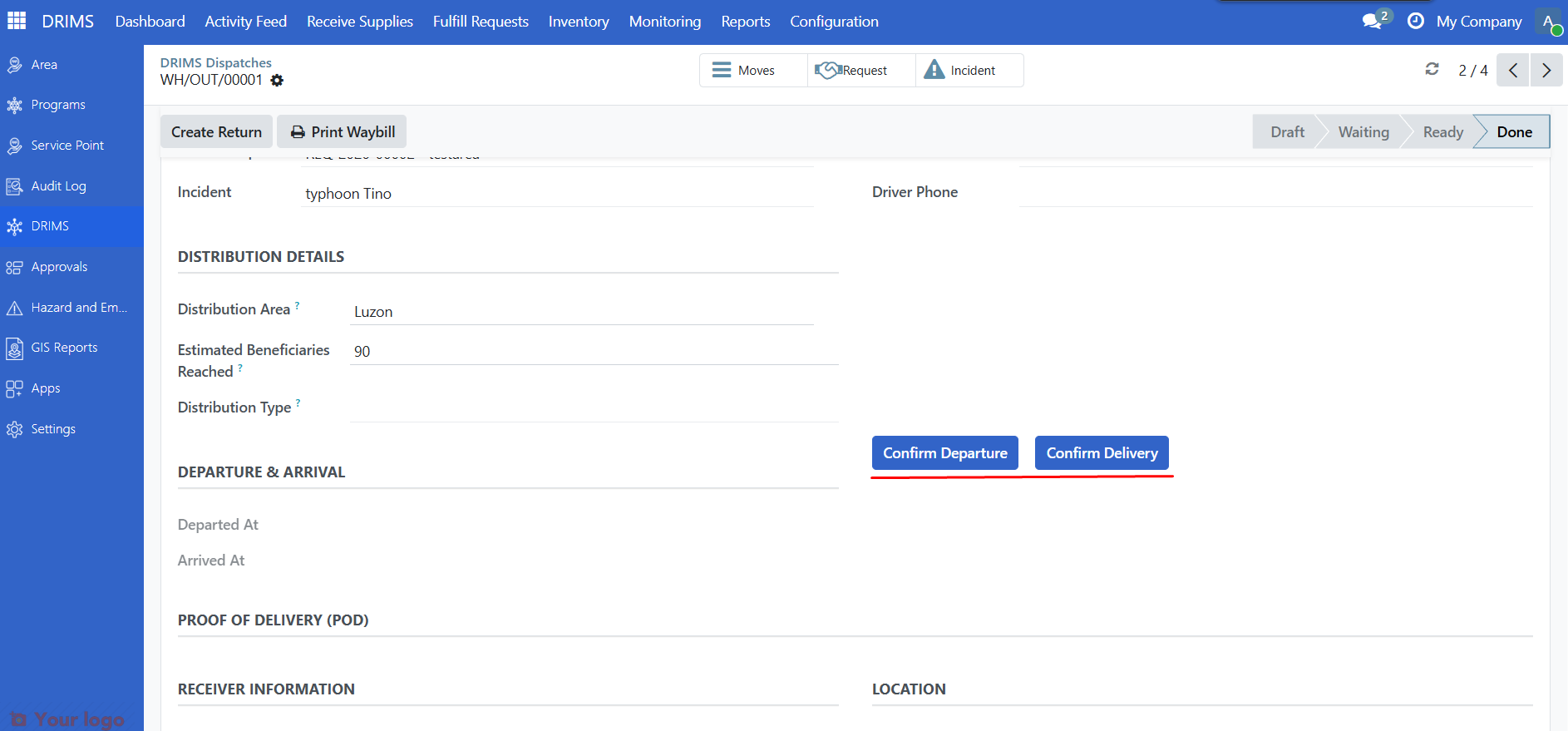
Recording departure#
When the vehicle leaves your warehouse with the shipment:
Open the dispatch (now in Done state)
Open the DRIMS tab
In the Departure & Arrival section, click Confirm Departure
The departure date and time are stamped on the record.
Confirming delivery (proof of delivery)#
After the shipment arrives, record proof of delivery (POD).
Note
Field staff at the destination usually record this. But if they contact you with the details, you can enter it on their behalf.
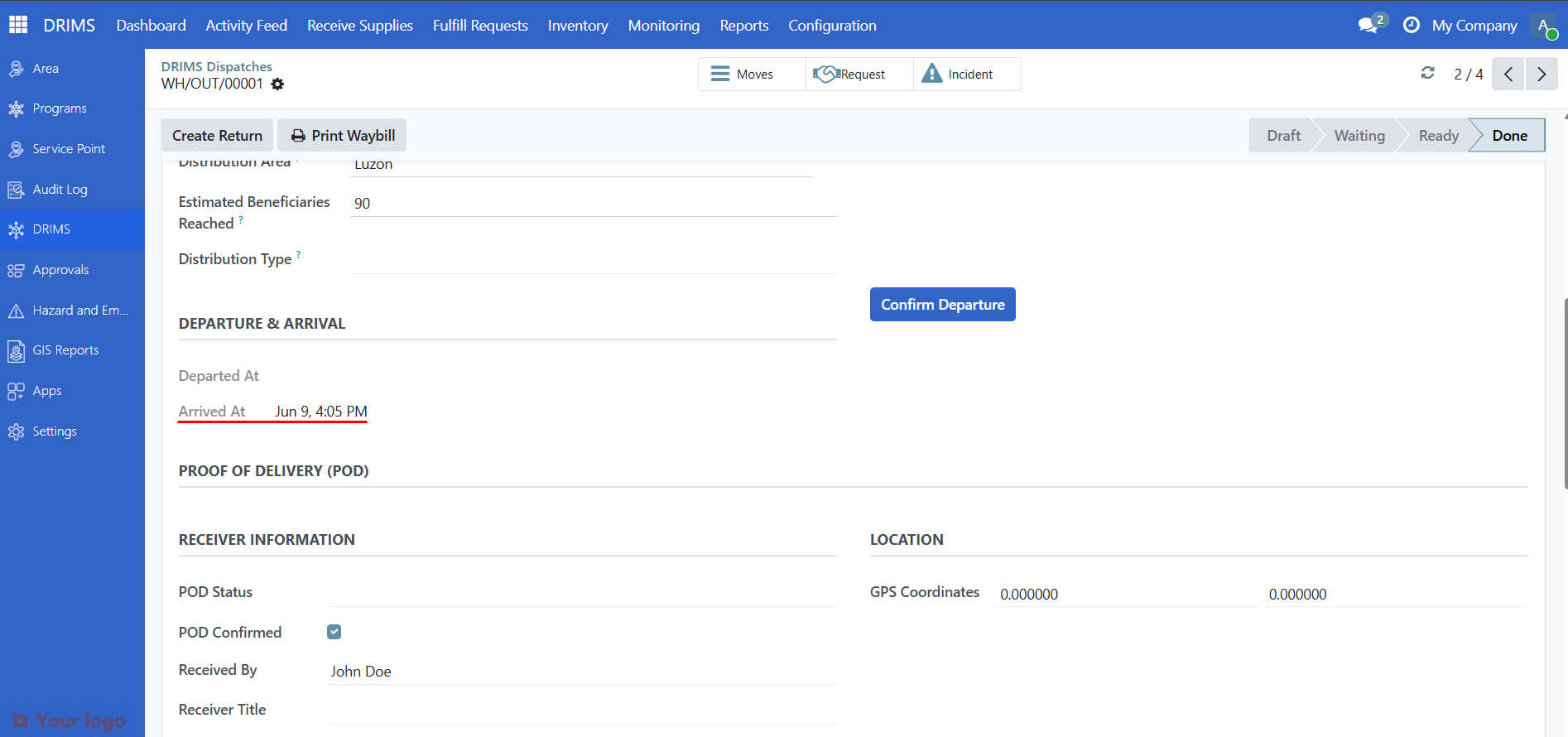
1. Confirm arrival#
When the shipment reaches the destination, open the dispatch and go to the DRIMS tab. In the Departure & Arrival section, click Confirm Delivery to log the arrival date and time.
The arrival date and time are stamped on the record.
2. Complete the proof of delivery#
Scroll down in the DRIMS tab to the Proof of Delivery (POD) section and fill in:
Field |
What to enter |
|---|---|
POD Status |
Overall delivery outcome: Complete, Partial Delivery, Damaged, or Not Received |
Received by |
Full name of the person who received the goods |
Receiver title |
Their position (e.g., "Camp Coordinator", "Distribution Officer") |
Receiver ID number |
Their ID or reference number |
Signature |
Digital signature if using a tablet at the destination |
Delivery photos |
Photos of the delivered goods |
POD notes |
Any notes about condition, shortages, or issues |
Check POD Confirmed when all details are filled in.
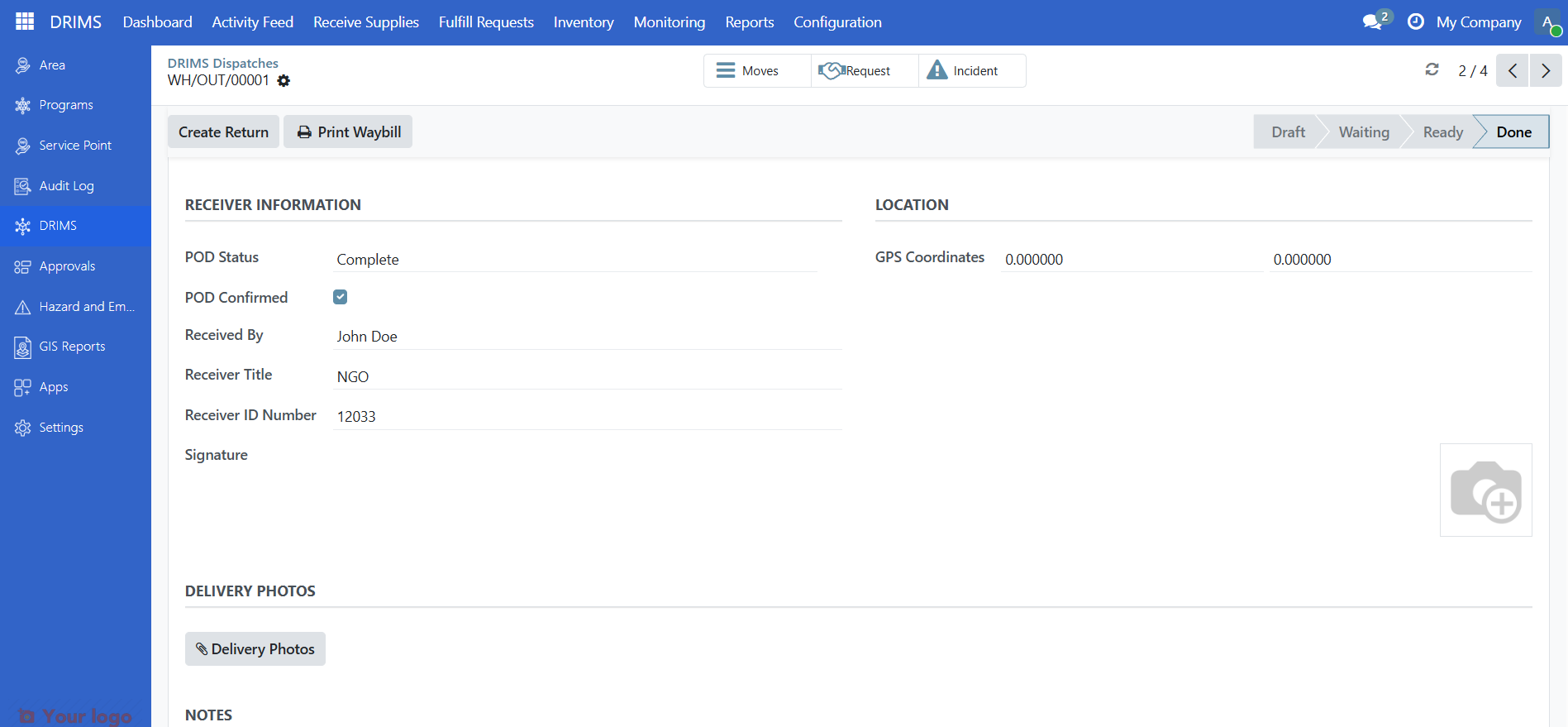
The delivery is recorded and the linked request line is marked as delivered.
Important
If the receiver signed a paper waybill instead, attach a scan or photo using the Delivery photos field, or note "Paper waybill on file" in POD notes.
Are you stuck?#
Can't find the dispatch in the list?
Make sure you're under Fulfill Requests → Dispatches and have the Request Dispatches filter active. If it's still missing, the coordinator may not have created the dispatch yet — check with them.
Check Availability says no stock?
The items aren't available at your warehouse. Contact your DRIMS coordinator to either allocate from a different warehouse or wait for new stock.
Validate button is grayed out?
Click Check Availability first to reserve the stock before validating.
Validation fails with an error about the DRIMS tab?
Open the DRIMS tab on the dispatch form. Make sure Distribution Area and Estimated Beneficiaries Reached (must be greater than zero) are both filled in.
Shipment was damaged or items are missing?
Record the arrival and use POD Status: Damaged or Partial Delivery. Describe what happened in POD notes. Your DRIMS coordinator will handle the follow-up.
Receiver didn't sign the waybill?
Record the arrival and enter the receiver's details. In POD notes, explain why there's no signature and follow up with your coordinator.
Need to cancel a dispatch?
Dispatches in Waiting state can be cancelled with the Cancel button. If the dispatch is already Ready or Done, contact your DRIMS coordinator before cancelling.
Next steps#
Handle returns - Handle items returned from the field
Manage Inventory - Check updated stock levels after dispatch
Understand the Dashboard - Monitor warehouse alerts and KPIs