 openspp.org
Search and filter registrants
Contents
Search and filter registrants#
Applies to: Social Registry, SP-MIS
What you will do#
Find specific individuals or groups in the registry using search and filter features.
Before you start#
You need Registry Viewer, Officer, or Administrator access
Know what you are looking for (name, ID, phone number, etc.)
Using the registry search portal#
The registry search portal is the main way to find registrants.
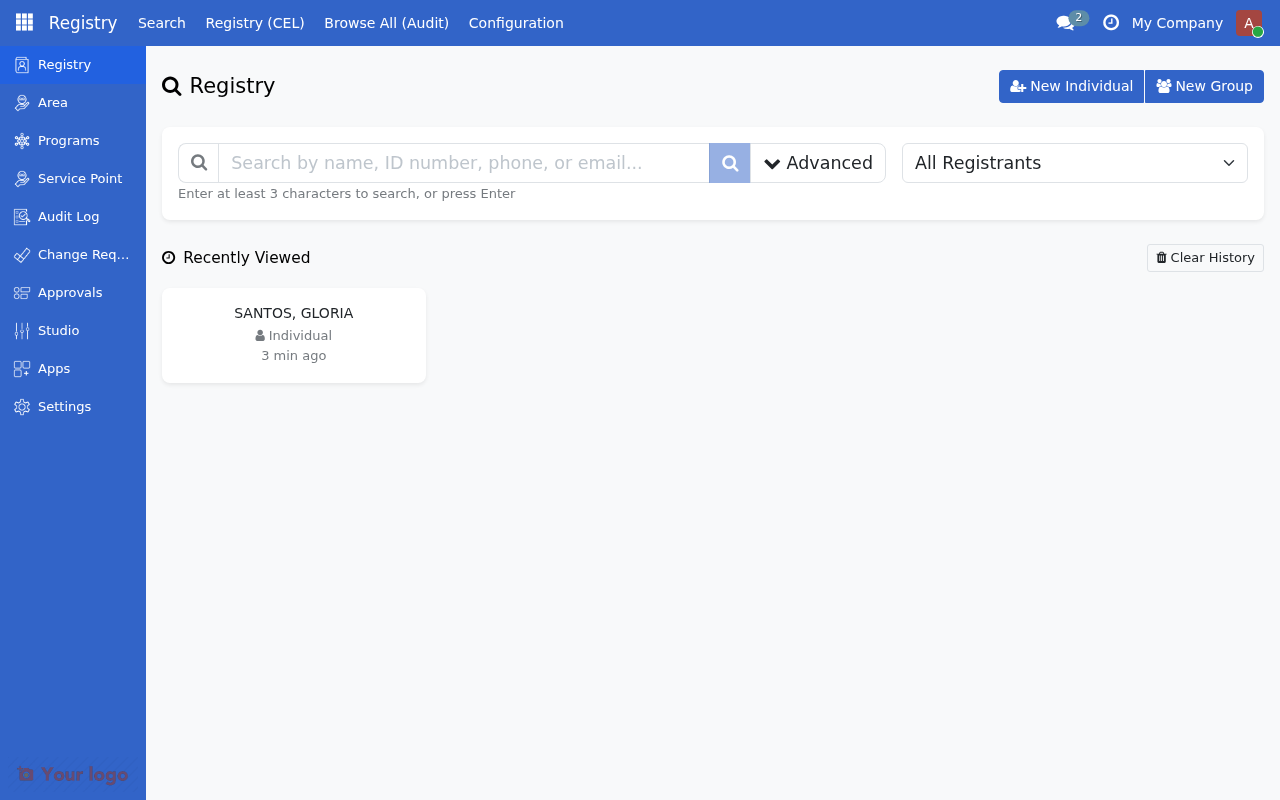
Step 2. Enter search terms#
Type in the search box to search by:
Name (first name, last name, or full name)
Phone number
Email address
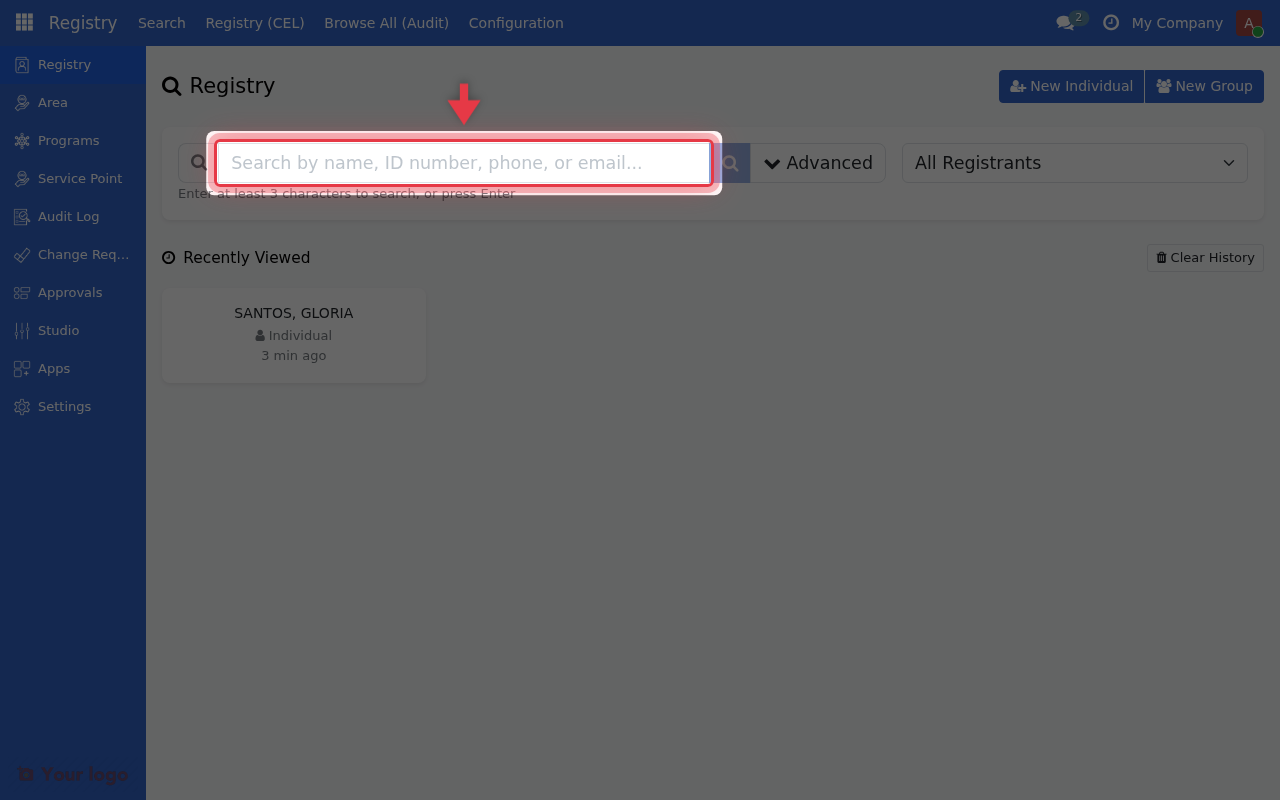
Press Enter or click Search to see results.
Step 3. View results#
Results show matching registrants with key information:
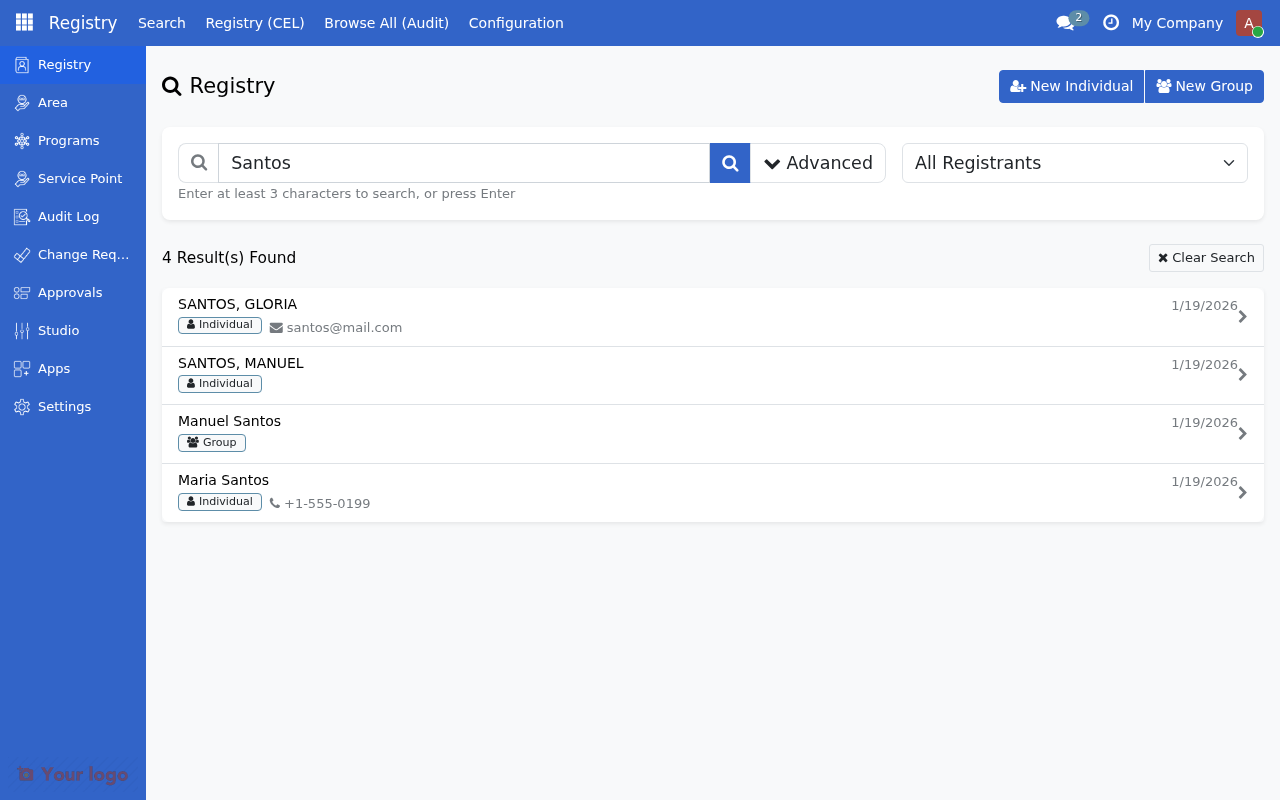
Column |
Description |
|---|---|
Name |
Individual or group name |
Phone |
Contact phone number |
Registration Date |
When they were registered |
Step 4. Filtering by type#
Search individuals only#
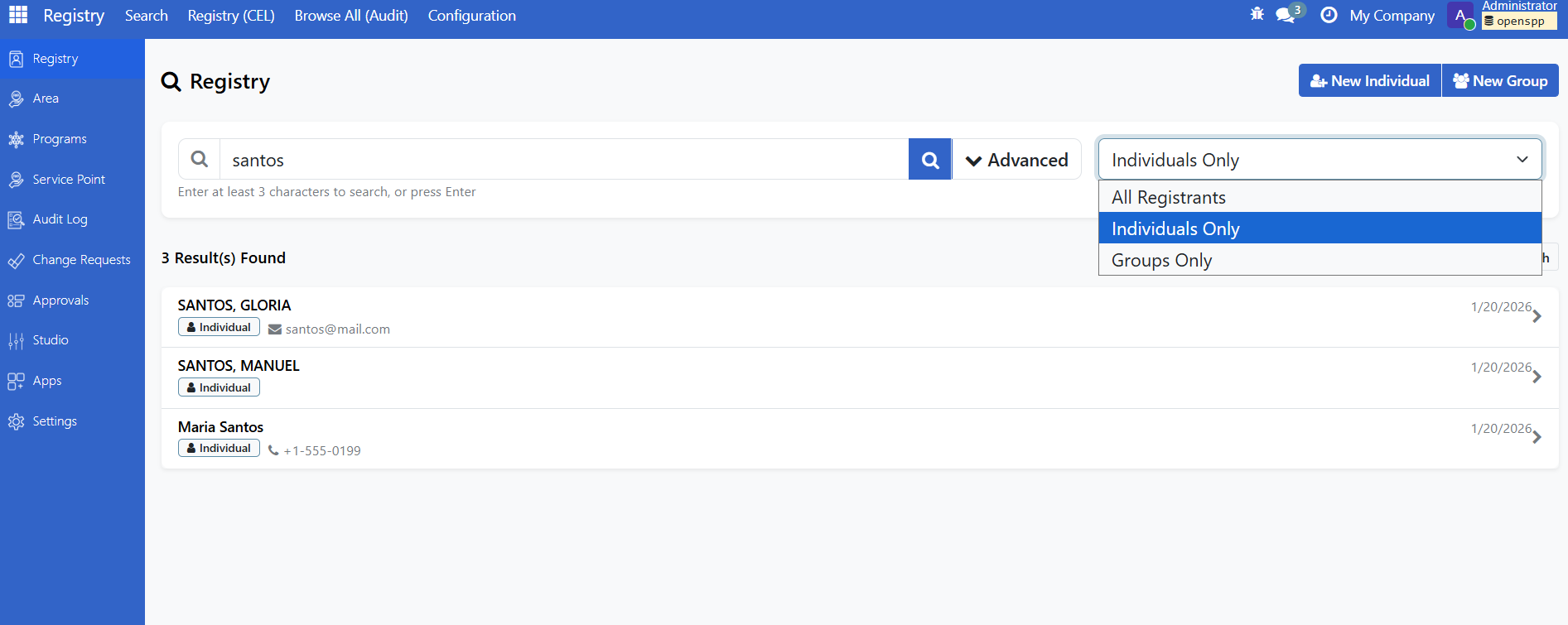
To search only for individuals:
Open the Registry Search Portal
Select Individuals from the type filter (if available)
Enter your search terms
The results would only display individuals.
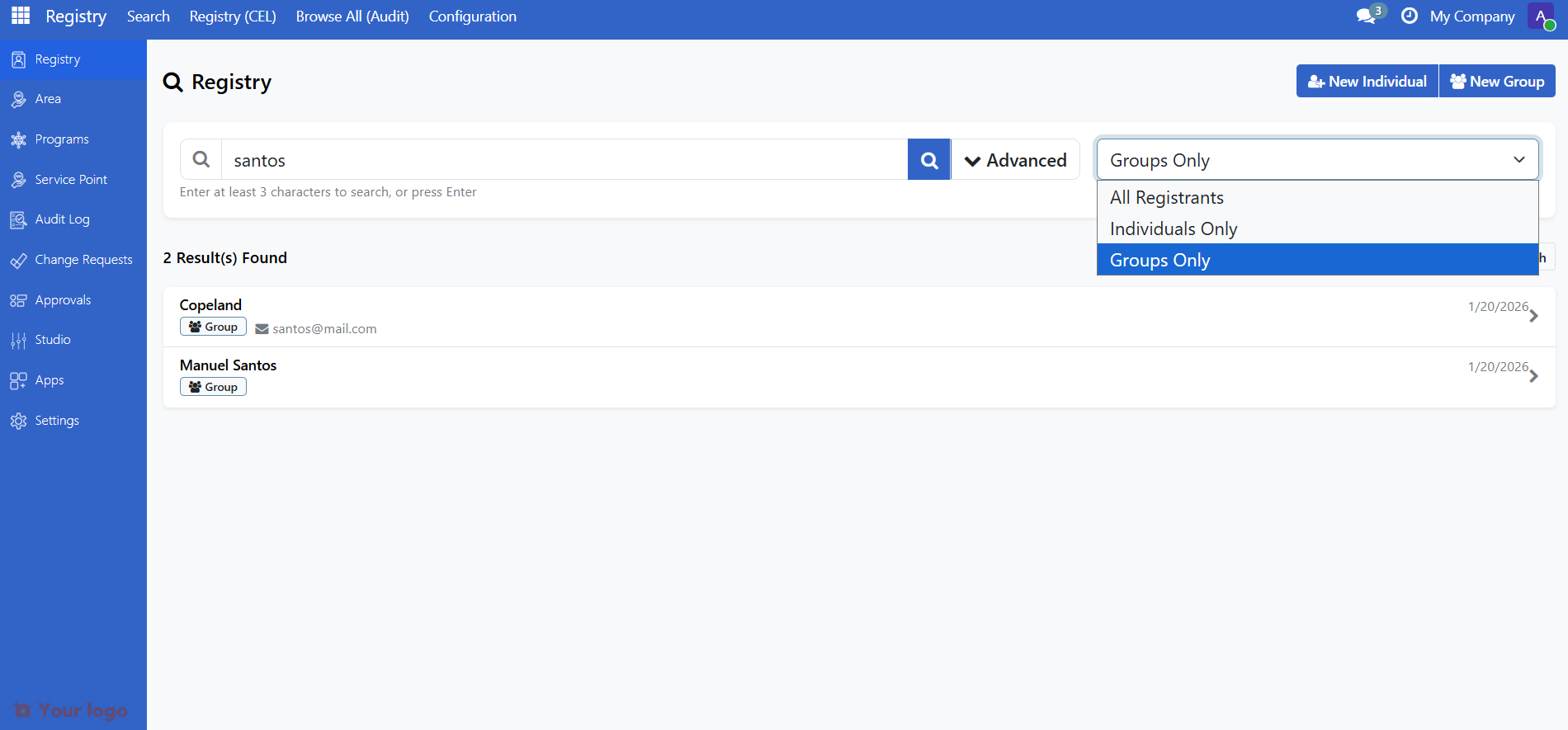
Search groups only#
To search only for groups:
Open the registry search portal
Select Groups from the type filter
Enter your search terms
Are you stuck?#
Search returns no results?
Check your spelling
Try searching by a different field (name, phone, email)
Make sure you are searching the right type (Individuals vs Groups)
The person may not be registered yet
Cannot find a recently registered person?
Check if they were registered under a different name
Verify the registration was saved successfully
Next steps#
Export registrant data - Export search results to CSV or Excel
Register an individual - Register a new individual if not found
Register a group - Register a new group if not found