 openspp.org
Manage entitlements
Contents
Manage entitlements#
Applies to: SP-MIS
What you will do#
Learn how to view, understand, and manage entitlements in OpenSPP.
Before you start#
You need Program Validator, Program Manager, or Administrator access to approve entitlements
An approval definition must be configured in the entitlement manager for the program before entitlements can be approved
What is an entitlement?#
An entitlement represents the benefit a beneficiary will receive for a specific cycle. Each entitlement includes:
The beneficiary receiving the benefit
The amount or items they will receive
The validity period
The current approval status
There are two types of entitlements:
Type |
Description |
|---|---|
Cash entitlement |
Monetary benefit with an amount and currency |
In-kind entitlement |
Physical items with quantity and product details |
Entitlement states#
Entitlements progress through these states:
State |
Meaning |
Who can change |
|---|---|---|
Draft |
Not yet submitted |
Program Officer |
Pending Approval |
Waiting for validation (cash entitlements) |
Program Validator |
Pending Validation |
Waiting for validation (in-kind entitlements) |
Program Validator |
Approved |
Ready for distribution |
- |
Transferred to FSP |
Sent to payment provider |
- |
Redeemed/Paid |
Beneficiary received benefit |
- |
Rejected |
Declined (with reason) |
- |
Cancelled |
Voided |
Program Manager |
Expired |
Validity period ended |
Automatic |
Note
State display names: Cash entitlements show "Pending Approval" while in-kind entitlements show "Pending Validation" in the interface, though both represent the same workflow state.
View entitlements#
From a cycle#
Open the program and click the Cycles smart button.
Select a cycle.
Click the Entitlements smart button.
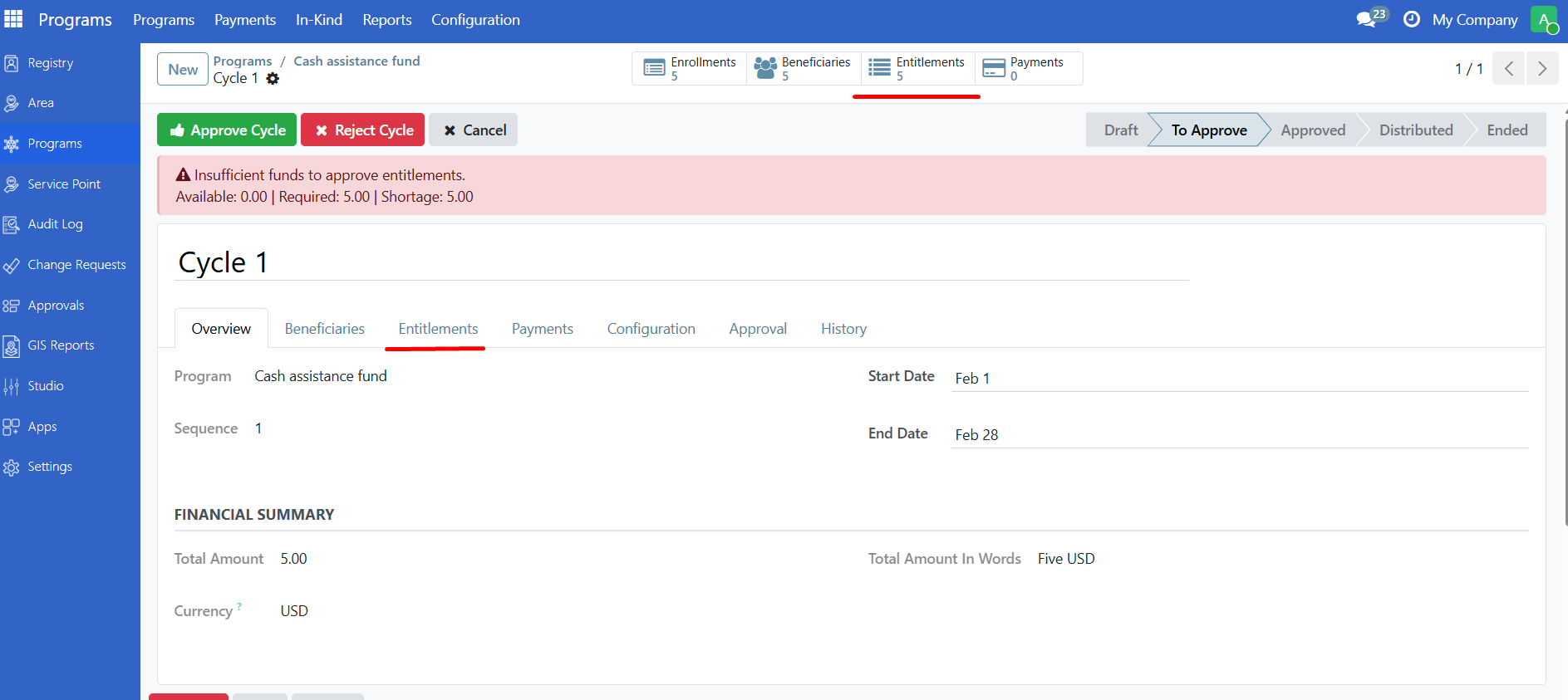
From the In-Kind Menu#
For in-kind entitlements:
Click Programs > In-Kind > Entitlements.
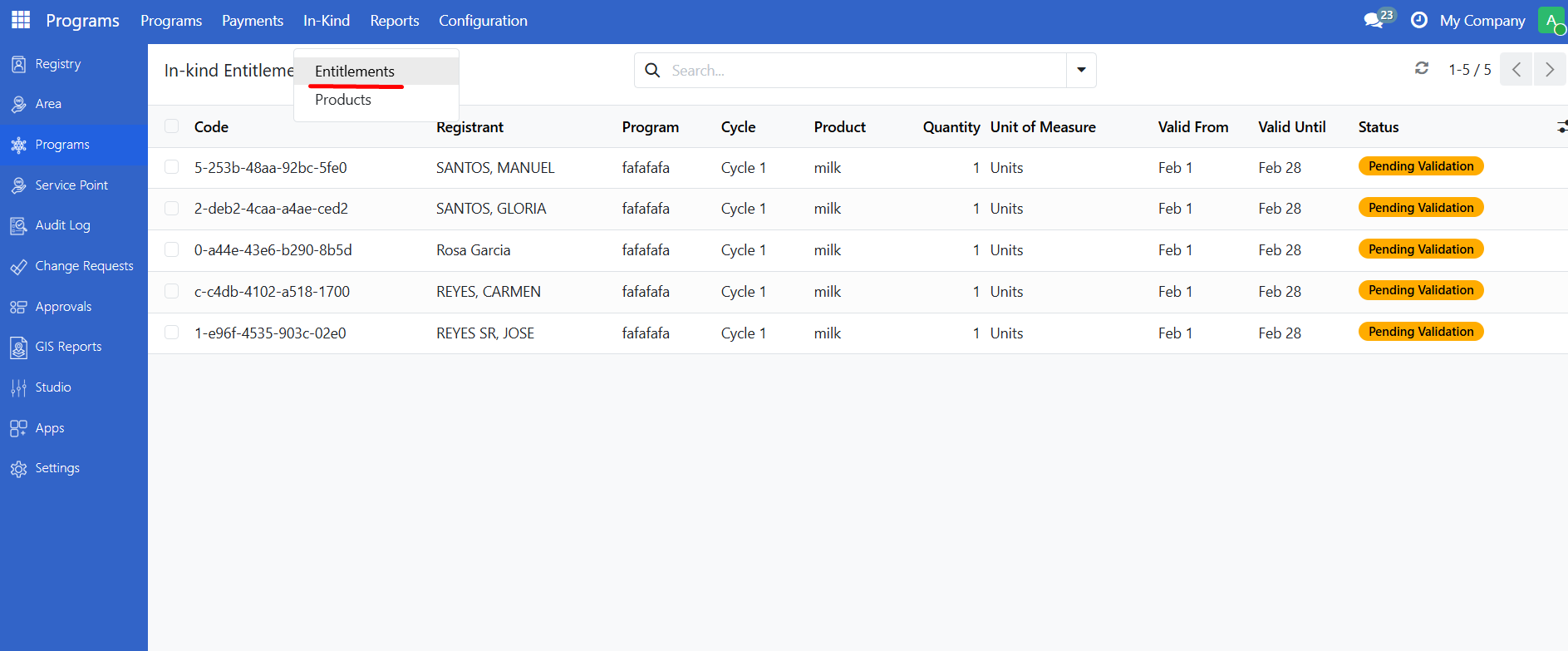
The entitlements list shows all in-kind entitlements.
Understand entitlement information#
Cash entitlement fields#
Field |
Description |
|---|---|
Code |
Unique reference number |
ERN |
Entitlement Reference Number (generated on approval) |
Registrant |
Beneficiary name |
Program |
Parent program |
Cycle |
Distribution cycle |
Initial Amount |
Benefit amount |
Currency |
Payment currency |
Valid From |
Start of validity |
Valid Until |
End of validity |
Status |
Current status |
In-Kind entitlement fields#
Field |
Description |
|---|---|
Code |
Unique reference number |
Registrant |
Beneficiary name |
Program |
Parent program |
Cycle |
Distribution cycle |
Product |
Item being distributed |
Quantity |
Number of items |
Unit of Measure |
Units (kg, pieces, etc.) |
Valid From |
Start of validity |
Valid Until |
End of validity |
Status |
Current status |
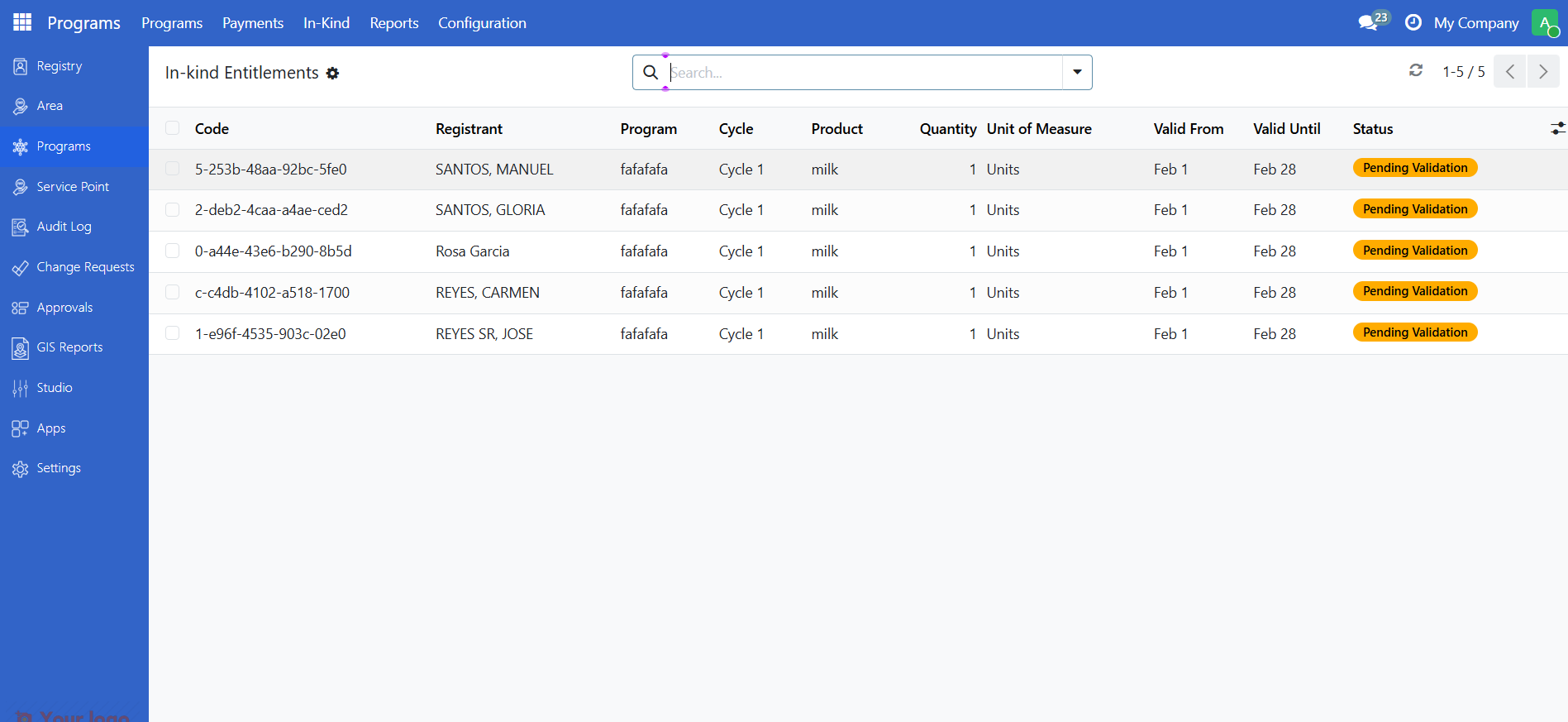
Filter and search entitlements#
Use filters#
From the entitlements list, use filters to find specific entitlements:
Filter |
Shows |
|---|---|
Draft |
Entitlements not yet submitted |
Pending Validation |
Awaiting approval |
Approved |
Ready for distribution |
Cancelled |
Voided entitlements |
Expired |
Past validity date |
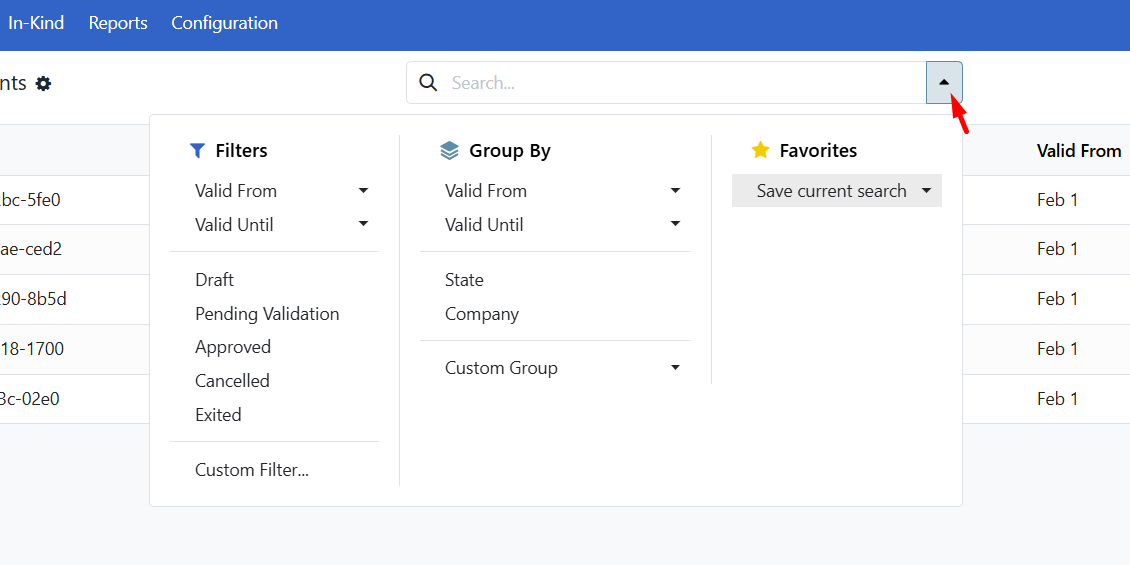
Search by beneficiary#
Type a beneficiary name or ID in the search bar to find their entitlements.
Group results#
Group entitlements by:
State - See counts per status
Valid From - Group by date
Company - For multi-company setups
Approve entitlements#
Approve from a cycle#
To approve all entitlements in a cycle at once:
Open the cycle (must be in To Approve state).
Click Validate Entitlements.
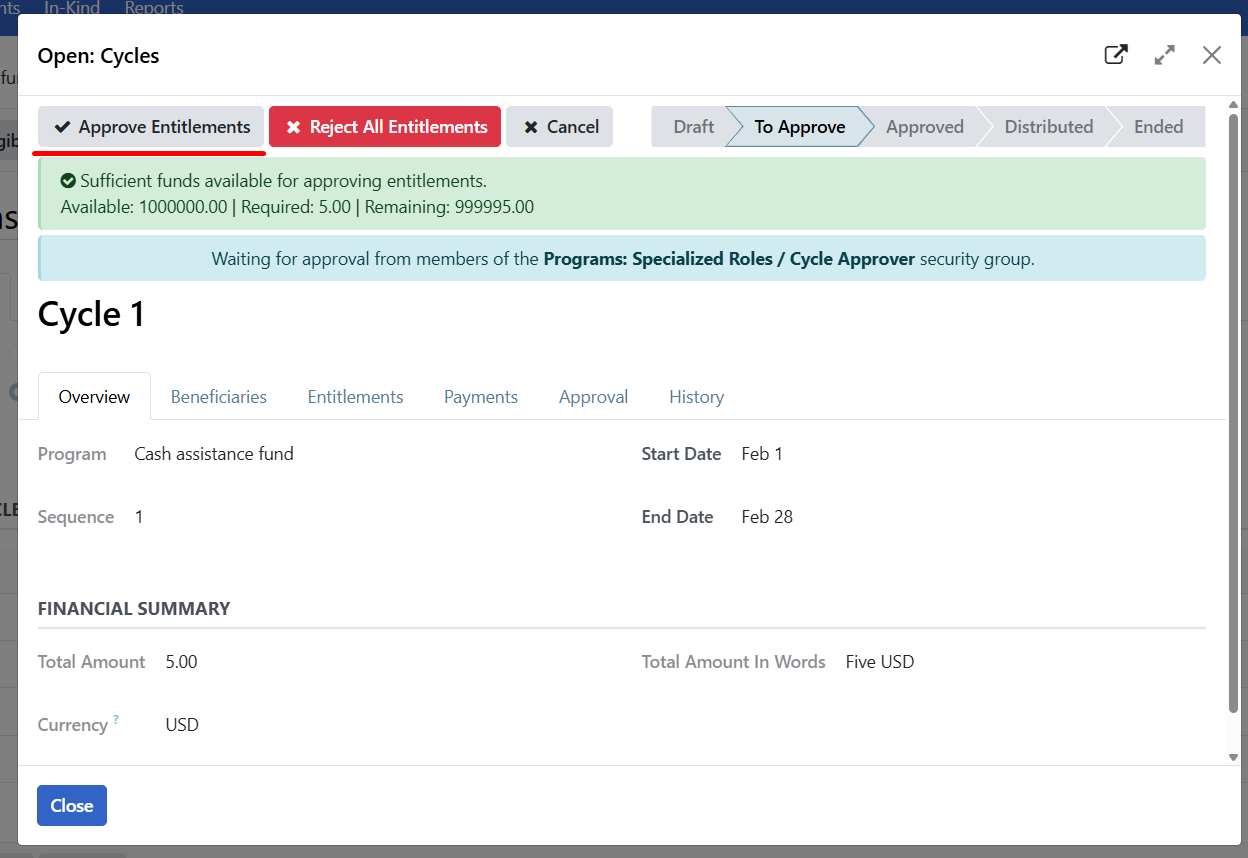
All pending entitlements in the cycle are approved.
Click Approve Cycle to complete the approval process.
Approve individual entitlements#
To approve a single entitlement:
Open the entitlement.
Click Approve Entitlement.
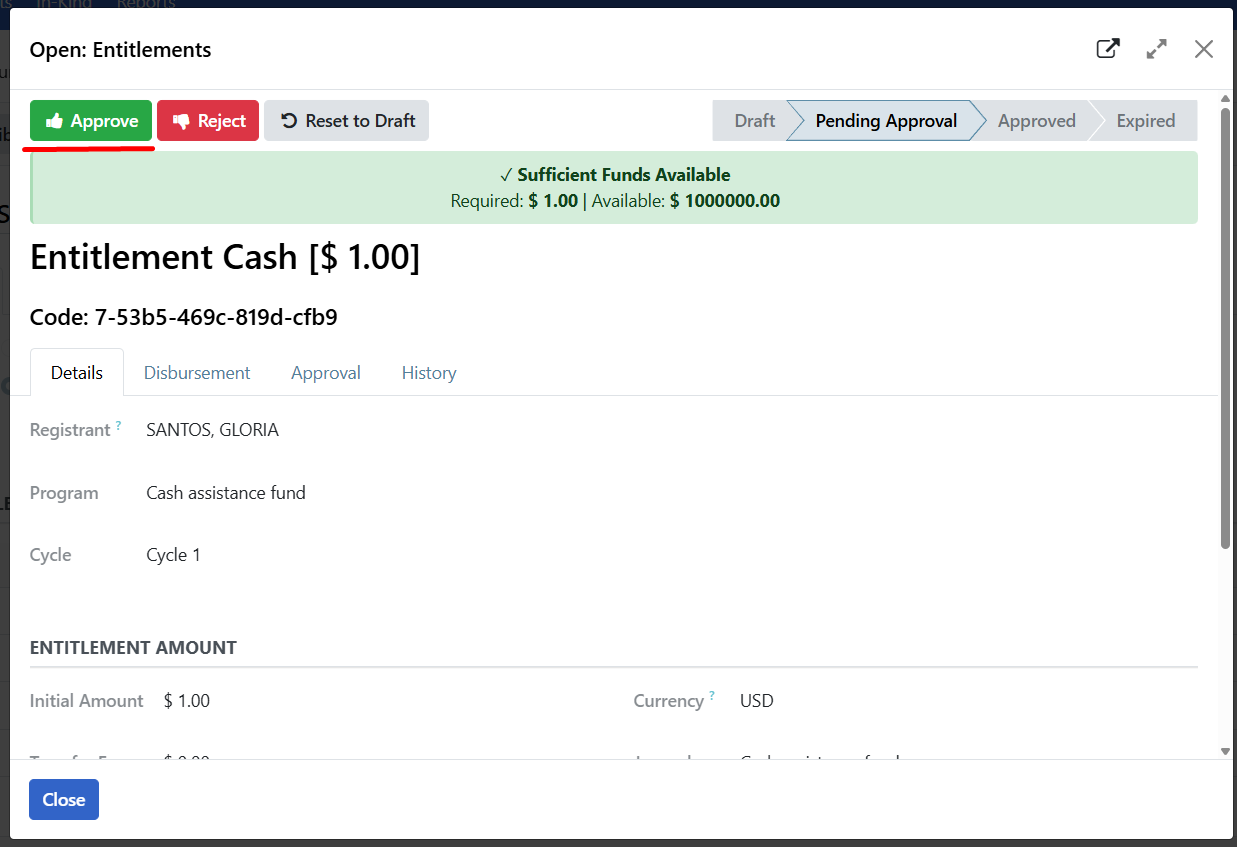
The entitlement state changes to Approved.
Batch approve#
To approve multiple entitlements at once:
Open the cycle and click the expand button to view entitlements.
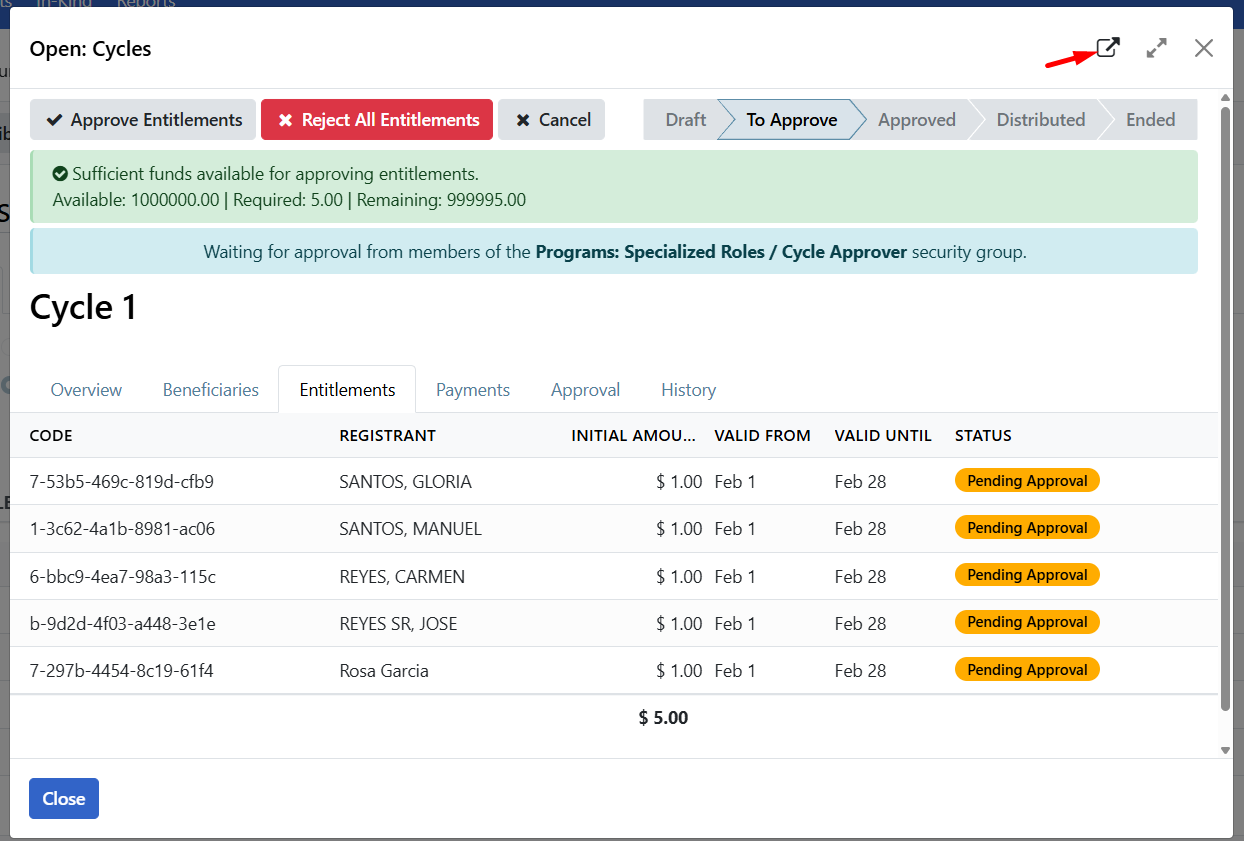
Click the Entitlements smart button from the cycle form page.
Select the entitlements to approve using the checkboxes. You can also click the checkbox header to select all entitlements at once.
Click Action > Approve.
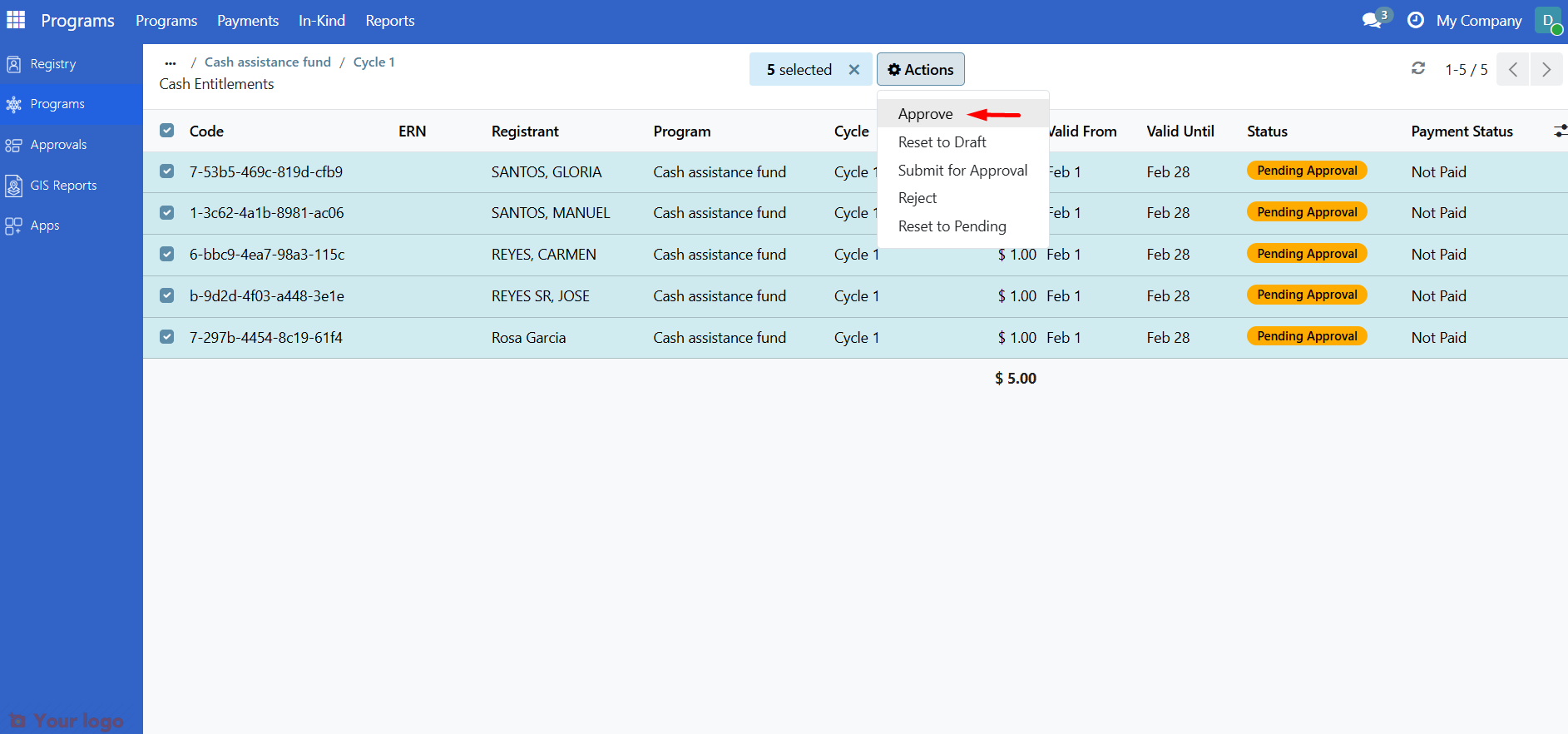
Confirm the approval.
Reject entitlements#
If an entitlement should not be paid:
Open the entitlement.
Click Reject.
A rejection wizard opens. Enter a rejection reason in the text field.
The system records the reason and sets the entitlement state to Rejected.
Note
Rejection states: The system uses three rejection states internally:
Rejected: Beneficiary didn't want the entitlement - When beneficiary declined
Rejected: Beneficiary account does not exist - When payment account is invalid
Rejected: Other reason - For any other rejection reason
The specific state is determined automatically based on the context, but you only need to enter a reason in the text field.
Submit for approval#
To submit draft entitlements for approval:
Open the entitlement (must be in Draft state).
Click Submit for Approval.
The entitlement state changes to Pending Approval (cash) or Pending Validation (in-kind).
Note
Automatic submission: When entitlements are generated by the entitlement manager, they may automatically be submitted for approval if the manager is configured to do so. You can also submit individual entitlements manually.
Reset to draft#
If corrections are needed on a pending, rejected, or cancelled entitlement:
Open the entitlement.
Click Reset to Draft (if available).
Make corrections.
Submit for approval again.
Note
Reset limitations: Only entitlements in Pending Approval/Pending Validation, Rejected, or Cancelled states can be reset to draft. Approved entitlements cannot be reset to draft. Contact a Program Manager if an approved entitlement needs to be cancelled.
View entitlement history#
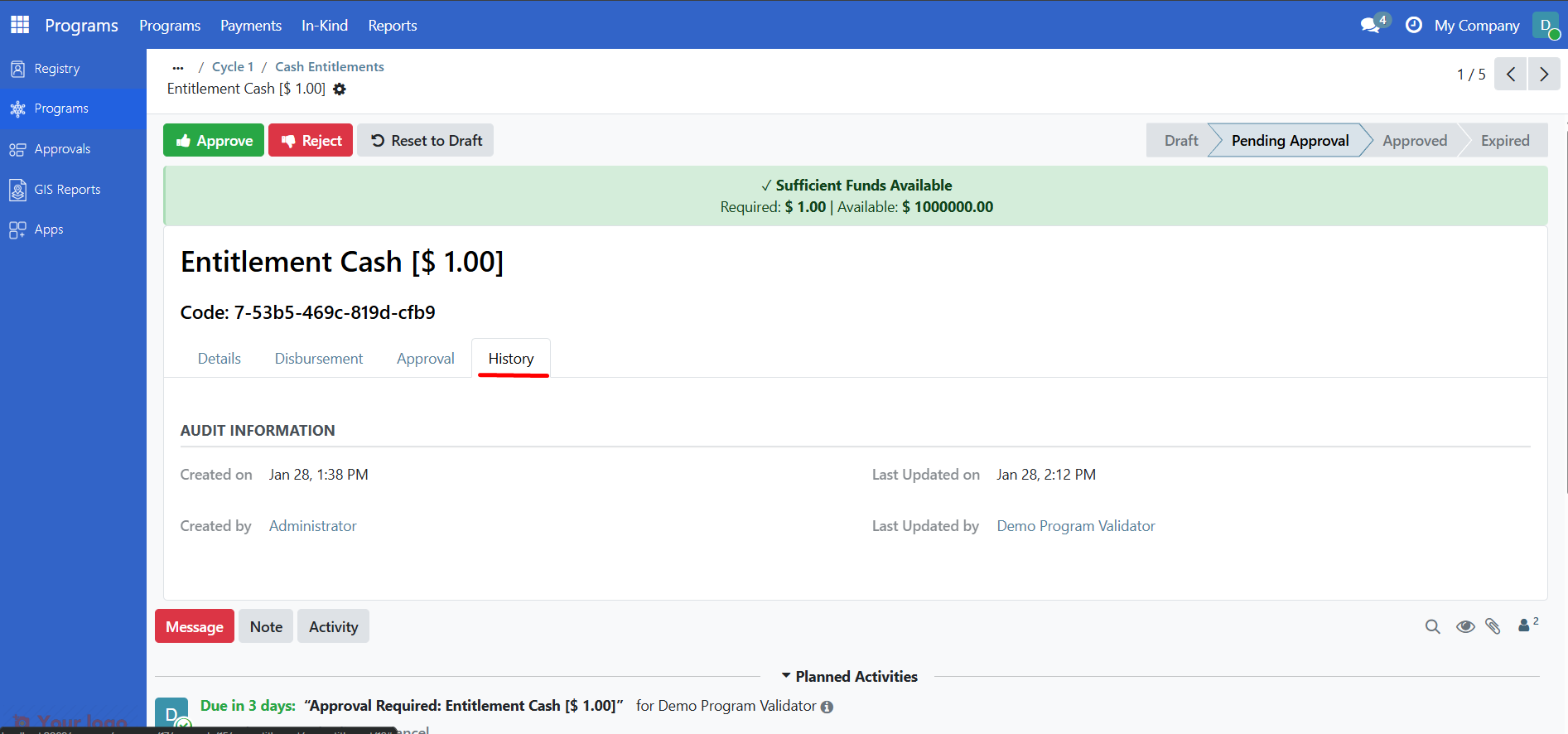
For each entitlement, you can track:
When it was created
Who submitted it for approval
Who approved or rejected it
Approval comments
This information is visible in the Approval tab (for cycles) or the form chatter.
Check payment status#
Note
Configuration required: A payment manager must be configured for the program and a payment gateway must be configured in your OpenSPP instance before payment status information will be displayed. If these are not configured, the payment status section will be hidden and entitlements will not show Paid or Not Paid status.
After entitlements are approved:
Status |
Meaning |
|---|---|
Not Paid |
Payment not yet processed |
Paid |
Beneficiary received payment |
The payment date shows when the payment was completed.
Are you stuck?#
Cannot see the Approve button?
Only Program Validators and Managers can approve entitlements
The entitlement must be in Pending Approval (cash) or Pending Validation (in-kind) state
An approval definition must be configured in the entitlement manager for the program
Contact your administrator if you need approval permissions or to configure the approval definition
Entitlement shows wrong amount?
Amounts are calculated by the entitlement manager
Contact your Program Manager to verify the calculation rules
For draft entitlements, the cycle may need to regenerate entitlements
Entitlement is expired but should be valid?
Check the Valid Until date
Expired entitlements cannot be reactivated
A new entitlement must be created in the next cycle
Cannot find an entitlement?
Check all states (including Cancelled and Expired)
Search by beneficiary name or entitlement code
Verify you are looking in the correct cycle
Reject button is not visible?
The entitlement may already be approved or cancelled
Only pending entitlements can be rejected
Batch approve fails for some entitlements?
The error message shows which entitlements failed and why
Usually caused by entitlements not in Pending Approval/Pending Validation state
May also fail if insufficient funds are available (for cash entitlements) or if approval definition is not configured
Review and retry the individual entitlements
Next steps#
Work with program cycles - Learn about cycle workflows
Enroll beneficiaries - Add more beneficiaries
Payments - Process payments for approved entitlements