OpenSPP Documentation v2.0

⌘ K
  • Products
    • OpenSPP SP-MIS
    • OpenSPP Social Registry
    • OpenSPP Farmer Registry
    • OpenSPP DRIMS
    • Features
      • Unified registry
      • GIS & land management
      • Program management
      • Eligibility & targeting
      • Payment & disbursement
      • In-Kind benefits
      • Data integration & APIs
      • Change management
      • Grievance redress
    • What's new in OpenSPP v2
  • Learn
    • Registry
    • Programs
    • Cycles
    • Eligibility
    • Compliance
    • Entitlements
    • Payments
    • Deduplication
    • Change requests
  • Get started
    • Installing OpenSPP
      • Docker installation
    • Module installation
      • SP-MIS installation
      • Social Registry installation
      • Farmer Registry installation
    • Explore OpenSPP
    • Your first household
      • Step 1: Access the Registry
      • Step 2: Create a Household
      • Step 3: Add members
    • Your first program
      • Step 1: Access the program section
      • Step 2: Create your first social protection program
      • Step 3: Import and enroll beneficiaries
      • Step 4: Understanding program cycles
      • Step 5: Distribute entitlements
    • From Proof of Concept to Pilot
  • User guide
    • Getting started
      • Navigating the OpenSPP interface
      • Administrating role-based access
    • Registry
      • Register an individual
      • Register a group
      • Search and filter registrants
      • Import registrant data
      • Export registrant data
    • Change Requests
      • Submit a change request
      • Review a change request
      • Change request types
    • Programs
      • Create programs
      • Manage in-kind products
      • Work with program cycles
      • Enroll beneficiaries
      • Allocate funds to programs
      • Manage entitlements
    • Payments
      • View Service Points
    • Approvals
      • Review and Approve Requests
    • Reference
      • Geographic Areas
      • Vocabularies (Code Lists)
  • Configuration guide
    • OpenSPP Studio
      • Studio Overview
      • Custom Fields (Registry Field Builder)
      • Event Type Designer
      • Change Request Builder
    • CEL expressions
      • CEL quick start
      • CEL syntax reference
      • Variables
      • CEL cookbook
      • CEL troubleshooting
    • Eligibility rules
      • CEL expressions for eligibility
      • Geographic targeting
      • Expression templates
      • Testing eligibility rules
      • Advanced eligibility configuration
    • Entitlement formulas
      • Cash calculations
      • In-kind and basket entitlements
      • Formula library
      • Dynamic entitlements
      • Conditional logic
    • Vocabulary System
      • Vocabulary Overview
      • Standard Vocabularies
      • Vocabulary Profiles
      • Custom Vocabularies
    • Variables & Indicators
      • Variables Overview
      • Creating Variables
      • Variable Types
      • Using Variables in CEL
    • Event Data
      • Event Data Overview
      • Configuring Event Types
      • Defining Event Fields
    • Change request types
      • Overview
      • Creating change request types
      • Field mappings
      • Conflict and duplicate detection
      • Common configuration patterns
      • Custom detail models
      • Troubleshooting
    • Consent configuration
      • Consent management overview
      • Configuring privacy notices
      • Recording consent
      • API consent filtering
    • Role configuration
      • Access control overview
      • Assigning roles to users
      • Predefined roles
      • Creating custom roles
      • Troubleshooting
  • Operations guide
    • Deployment
      • Production Hardening
    • Security
      • Access Control
      • Data Classification
      • PII Encryption
      • Key Management
      • Audit Logging
      • Security Scanning
    • Storage
    • Backup & Recovery
    • Monitoring & Alerts
  • Reference
    • Modules Reference
      • API V2
      • API V2 - Cycles
      • API V2 - Data
      • API V2 - Entitlements
      • API V2 - Products
      • API V2 - Service Points
      • API V2 - Vocabulary
      • Approval Workflows
      • Area Management
      • Audit
      • Banking / Bank Details
      • Base (Common)
      • Base Settings
      • Branding Kit
      • CEL Domain Query Builder
      • CEL Expression Widget
      • Change Request V2
      • QR Credentials (Claim 169)
      • Consent
      • CR Types - Advanced
      • CR Types - Base
      • Custom Fields
      • DCI Client
      • DCI Client - CRVS
      • DCI Client - Disability Registry
      • DCI Client - IBR
      • DCI Server
      • Demo
      • Document Management System
      • Event Data
      • GIS
      • GIS Reports
      • Grievance Redress Mechanism
      • Hide Menus Base
      • Key Management
      • MIS Demo V2
      • Programs
      • Registry
      • Registry Search Portal
      • Security
      • Service Points
      • Source Tracking
      • Starter: Social Registry
      • Starter: SP-MIS
      • Studio
      • Studio - Change Requests
      • Studio - Events
      • User Roles
      • Versioning
      • Vocabulary
      • Theme
    • Vocabulary Reference
    • Humanitarian Terms Glossary
    • OpenSPP Glossary
  • Community and support
    • Contributing
    • Internationalization and Localization
    • Modules Maturity Levels and Development Status Policy
    • Module Lifecycle - Maintainer Role Policy
    • Contributor Covenant Code of Conduct
    • OpenSPP Vulnerability Disclosure Policy
    • Licensing

openspp.org openspp.org

Navigating the OpenSPP interface – User guide
  • repository
  • open issue
  • suggest edit
  • .md
Contents
  • What you will do
  • Logging in
    • Step 1: Open OpenSPP in your browser
    • Step 2: Enter your credentials
    • Step 3: First-time login
  • The main interface
    • The app menu
    • The main menu (sidebar)
    • The user menu
    • Understanding breadcrumbs
  • Finding your way around
    • Using search
    • Filtering lists
  • Common actions
    • Creating a new record
    • Editing an existing record
    • Saving changes
    • Discarding changes
    • Deleting records
  • Getting help
    • In-app guidance
    • Contacting your administrator
  • Are you stuck?
  • Next steps

Navigating the OpenSPP interface

Contents

  • What you will do
  • Logging in
    • Step 1: Open OpenSPP in your browser
    • Step 2: Enter your credentials
    • Step 3: First-time login
  • The main interface
    • The app menu
    • The main menu (sidebar)
    • The user menu
    • Understanding breadcrumbs
  • Finding your way around
    • Using search
    • Filtering lists
  • Common actions
    • Creating a new record
    • Editing an existing record
    • Saving changes
    • Discarding changes
    • Deleting records
  • Getting help
    • In-app guidance
    • Contacting your administrator
  • Are you stuck?
  • Next steps

Navigating the OpenSPP interface#

Applies to: Social Registry, SP-MIS, DRIMS

What you will do#

Learn how to log in to OpenSPP, navigate the interface, and perform common actions like creating, editing, and saving records.

Logging in#

Step 1: Open OpenSPP in your browser#

Open your web browser and go to your organization's OpenSPP address. This is typically something like https://openspp.yourorganization.gov.

Note

Your administrator will provide you with the exact web address to use.
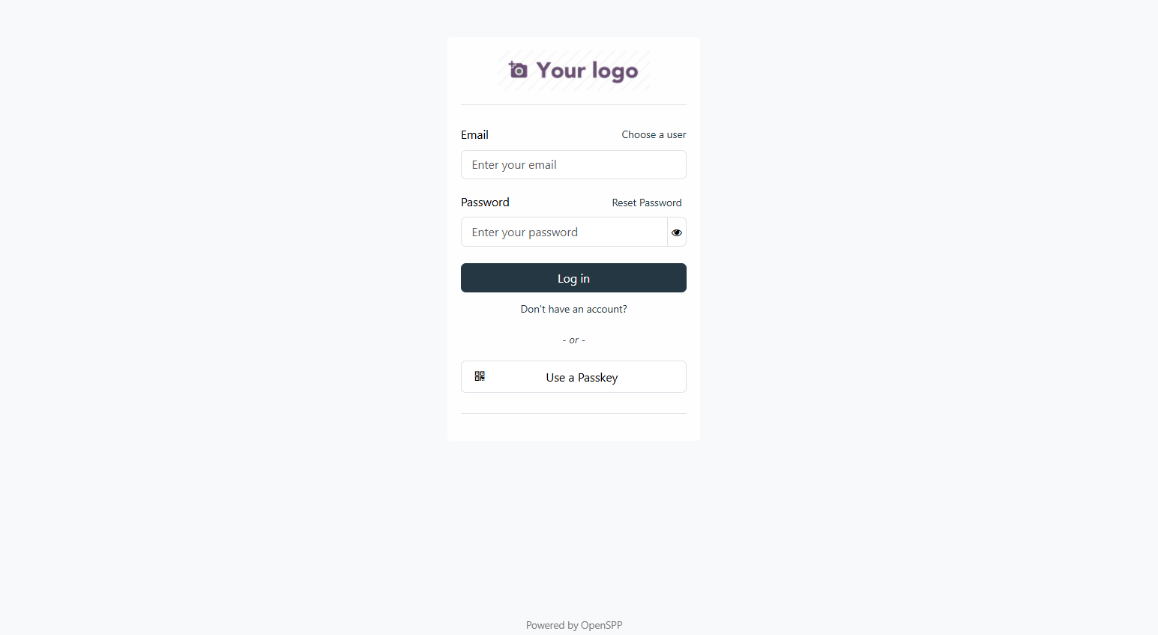
OpenSPP login page

Step 2: Enter your credentials#

  1. Type your username in the Email field.

  2. Type your password in the Password field.

  3. Click the Log in button.

Step 3: First-time login#

If this is your first time logging in, you may be asked to change your password:

  1. Enter your current (temporary) password.

  2. Enter your new password.

  3. Confirm your new password by typing it again.

  4. Click Change password.

Tip

Choose a password that is easy for you to remember but hard for others to guess. Use a mix of letters, numbers, and symbols.

Note

You can also change your password at any time by going to your User Menu (top right), selecting My Preferences and then opening the Security tab.

The main interface#

After logging in, you will see the main OpenSPP interface. Here are the key areas:
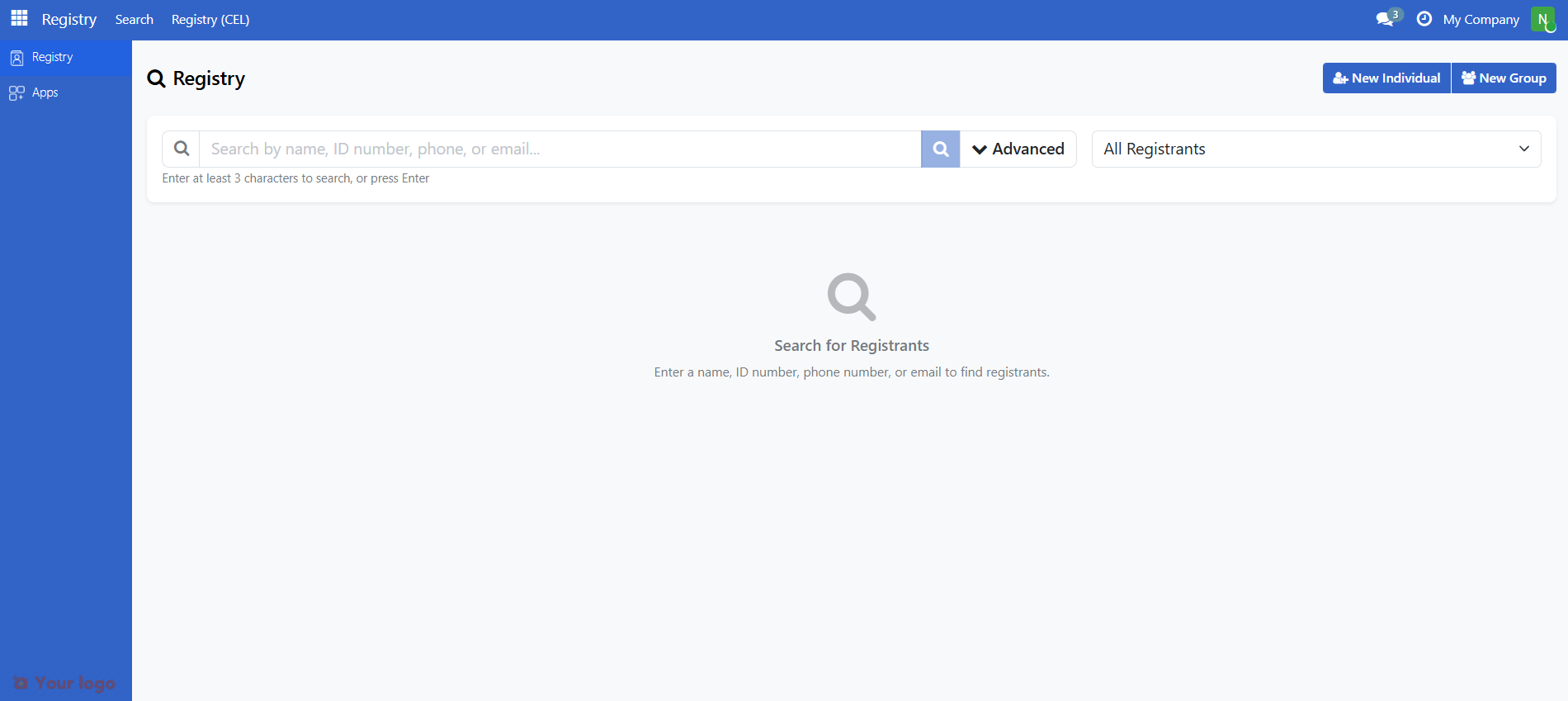
Main interface overview

Area

Name

What it does

1

App menu

Switch between different parts of OpenSPP

2

Main menu

Access features within the current section

3

Search bar

Search for records

4

User menu

Access your profile and settings

5

Main content area

Where you view and work with data

6

Breadcrumbs

Shows where you are and lets you go back

The app menu#

The app menu appears at the top left of the screen. Click it to see all the sections available to you.
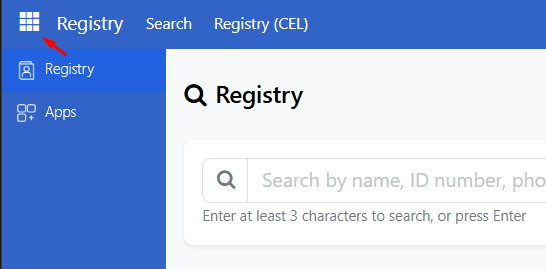
App menu expanded

Common sections include:

Section

What you will find

Registry

Individuals, groups, and households

Programs

Social protection programs and enrollment

Payments

Payment processing and service points

Settings

System configuration (if you have access)

Note

You may see different sections depending on your role and permissions.

The main menu (sidebar)#

Once you select a section from the App Menu, the Main Menu on the left shows features within that section.
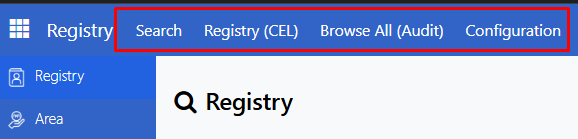
Sidebar navigation

For example, in the Registry section you might see:

  • Search

  • Registry (CEL)

  • Browse All (Audit)

  • Configuration

Click any item to open it in the main content area.

The user menu#

Click your name or profile icon in the top right corner to open the User Menu.
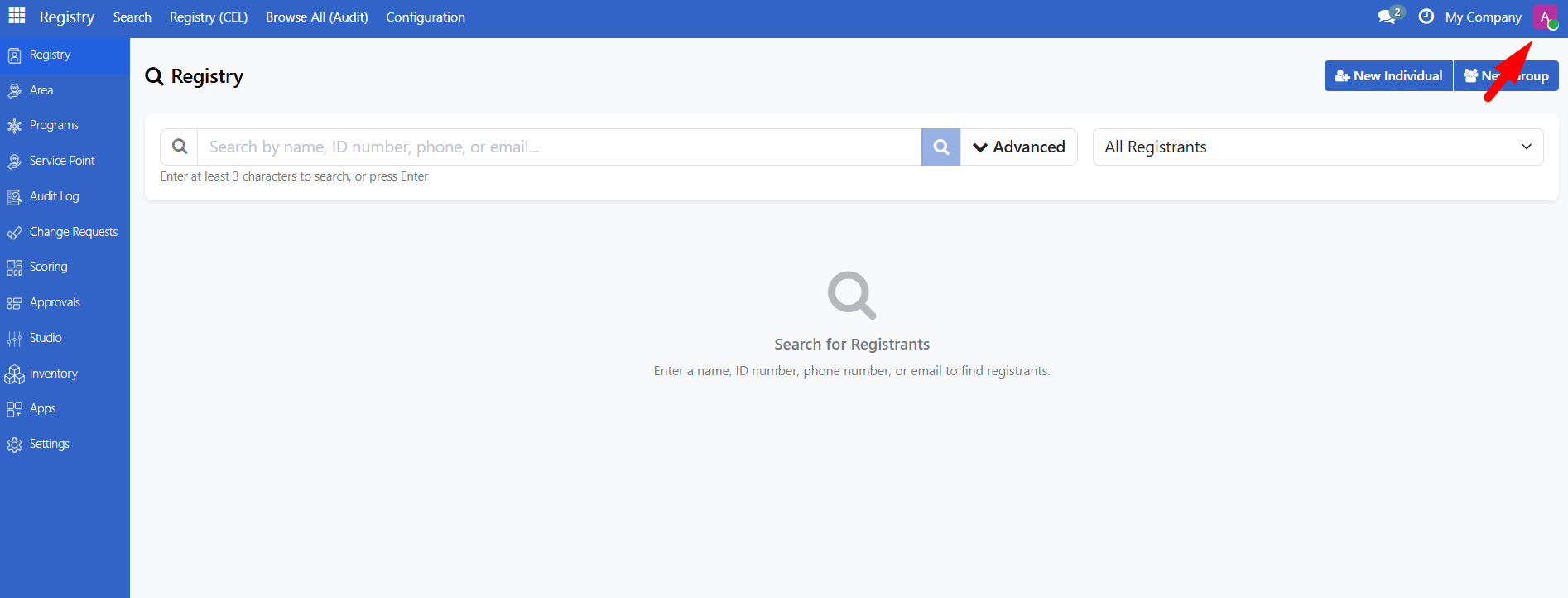
User menu options

Option

What it does

My Preferences

View and update your account information, change your password, and customize your OpenSPP view

OpenSPP Documentation

Access the OpenSPP documentation

OpenSPP Support

Visit the OpenSPP official website for support

Log out

Sign out of OpenSPP

Understanding breadcrumbs#

Breadcrumbs appear below the top menu bar. They show where you are in the system and let you go back to previous pages.
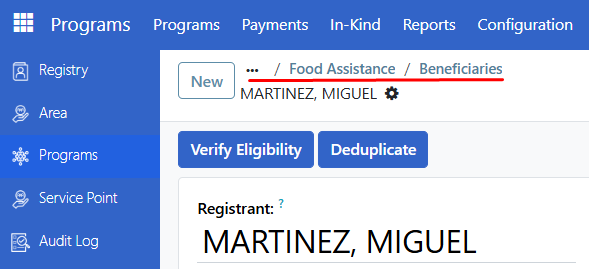
Breadcrumb navigation

For example: .. / Food Assistance / Beneficiaries

  • Click .. to go back to the first page

  • Click Food Assistance to go back to the program's page

  • Click Beneficiaries to go back to beneficiary list page

  • Martinez, Miguel is where you are now

Finding your way around#

Using search#

The search bar at the top lets you quickly find records.
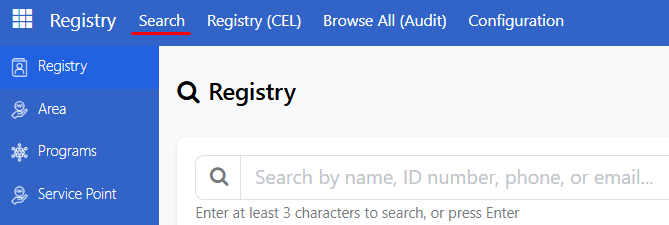
Using the search bar

  1. Click in the search bar.

  2. Type what you are looking for (a name, ID number, Phone or email).

  3. Press Enter or click the search icon.

Filtering lists#

When viewing a list of records, you can filter to find what you need.
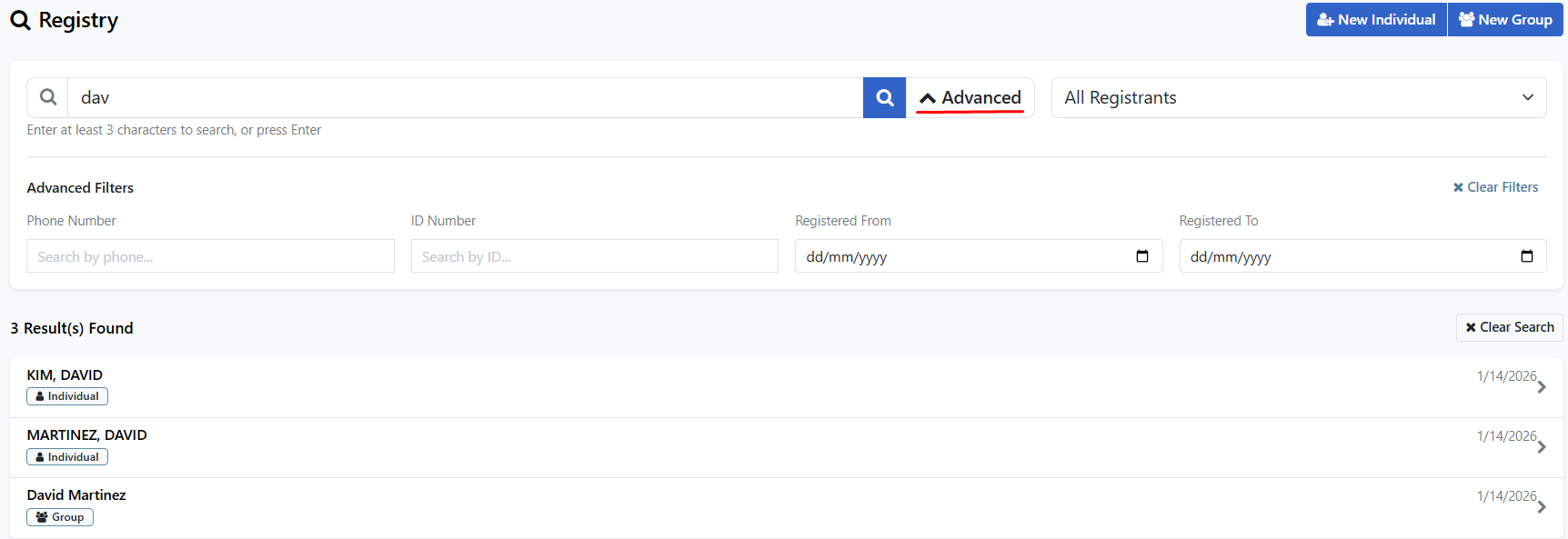
Filter options on a list

  1. Click the Advanced dropdown above the list.

  2. Select a filter option.

  3. The list updates to show only matching records.

To remove filters, click the X Clear Filters button.

Common actions#

Creating a new record#

  1. Navigate to the section where you want to create a record (for example, Registry > Individuals).

  2. Click the New button in the top left corner.
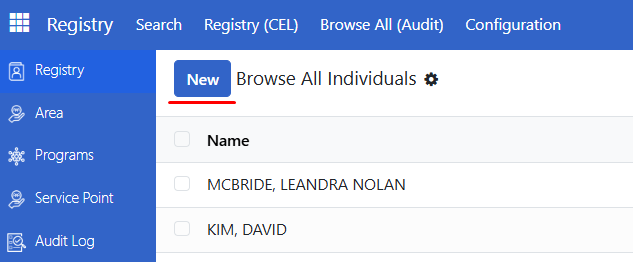
    New button location

  3. A blank form opens. Fill in the required fields (marked with a bold label or asterisk).

  4. Click Save when finished.

Editing an existing record#

  1. Find and open the record you want to change.

  2. Click on a field and edit directly.

Note

Edit functionality may only be available for certain user roles. If you cannot edit a record, contact your administrator to check your permissions.

  1. Make your changes.

  2. Click Save to keep your changes.

Saving changes#

After creating or editing a record, click the Save button to store your changes.

Save button location

Note

If you navigate away without saving, your changes will automatically be saved.

Discarding changes#

If you made changes you do not want to keep:

  1. Click the Discard button before saving.
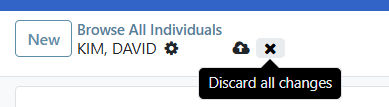
    Discard button location

  2. The record returns to its previous state.

Deleting records#

Warning

Deleting records is permanent. Make sure you really want to remove the record before proceeding.

  1. Open the record you want to delete.

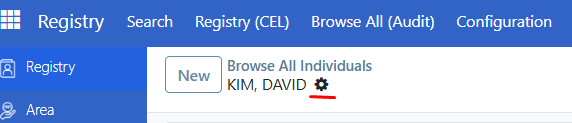
  2. Click the Action menu (Gear icon).

    Action menu location

  3. Select Delete.

  4. Confirm when prompted.

Note

You may not be able to delete certain records if they are linked to other data in the system. If you see an error, contact your administrator.

Getting help#

In-app guidance#

Some screens include help text and tooltips:

  • Hover over a field label to see a description of what to enter

  • Look for information icons next to complex fields

Contacting your administrator#

If you need help with:

Issue

Who to contact

Login problems

System Administrator

Permission issues

System Administrator

How to do a specific task

Your supervisor or training lead

System errors

IT Support

Tip

When reporting a problem, note down any error messages you see and what you were trying to do. This helps your support team resolve the issue faster.

Are you stuck?#

Cannot find the menu you need? Your access depends on your role. If you need access to a feature you cannot see, ask your administrator to check your permissions.

The page shows "Access Denied"? You do not have permission to view this page. Contact your administrator if you believe you should have access.

Clicked the wrong button and lost your work? If you have not saved yet, try pressing Ctrl + Z to undo in text fields. For larger mistakes, you may need to re-enter the information.

The system is slow or unresponsive? Try these steps:

  1. Refresh the page (press F5)

  2. Clear your browser cache

  3. Try a different browser

  4. Contact IT support if the problem continues

Forgot your password? Click "Forgot Password" on the login page to reset it. If that option is not available, contact your administrator.

Next steps#

Now that you know how to navigate OpenSPP, you are ready to start working with the system.

  • Registry - Learn how to register individuals and groups

  • Programs - Learn about managing programs

  • Change Requests - Learn how to submit and process change requests

previous

Getting started

next

Administrating role-based access

By The OpenSPP community
© Copyright OpenSPP.

The text and illustrations in this website are licensed by the OpenSPP Project under a Creative Commons Attribution 4.0 International license. All other trademarks are owned by their respective owners.