 openspp.org
Core case management workflow
Contents
Core case management workflow#
This guide is for users — government employees and program staff who manage client cases in OpenSPP.
What you will do#
Open a case for a client, assess their needs, build a support plan, deliver services, record activities, and formally close the case when goals are met.
Before you start#
You need one of these roles:
Role |
What you can do |
|---|---|
Case Worker |
Create and manage cases assigned to you |
Case Supervisor |
Review assessments and approve intervention plans |
Case Manager |
Configure the system and monitor team performance |
If the Case Management menu is missing, ask your administrator to install spp_case_base and assign you a case management role.
An implementer must configure approval workflows before cases requiring approval can be processed. See Approval workflows overview.
Initial setup (case managers only)#
A case manager or admin must complete this configuration before cases are created. If this has already been done, skip to Step 1.
Case types
Go to Case Management > Configuration > Case Setup > Case Types. Define the types of cases your organization handles (for example, Child Protection, Livelihood Assistance, Crisis Intervention). Each type can have a default caseload limit and intensity level.
Stages
Go to Case Management > Configuration > Case Setup > Stages. Define the stages a case moves through (for example, Intake → Assessment → Active → Monitoring → Closed). You can require certain actions before a stage can advance.
Risk factors and vulnerabilities
Go to Case Management > Configuration > Assessment. Set up the risk factors (for example, lack of income, disability, solo parent) and vulnerability categories used in assessments. Each factor has a severity weight that contributes to the overall risk score.
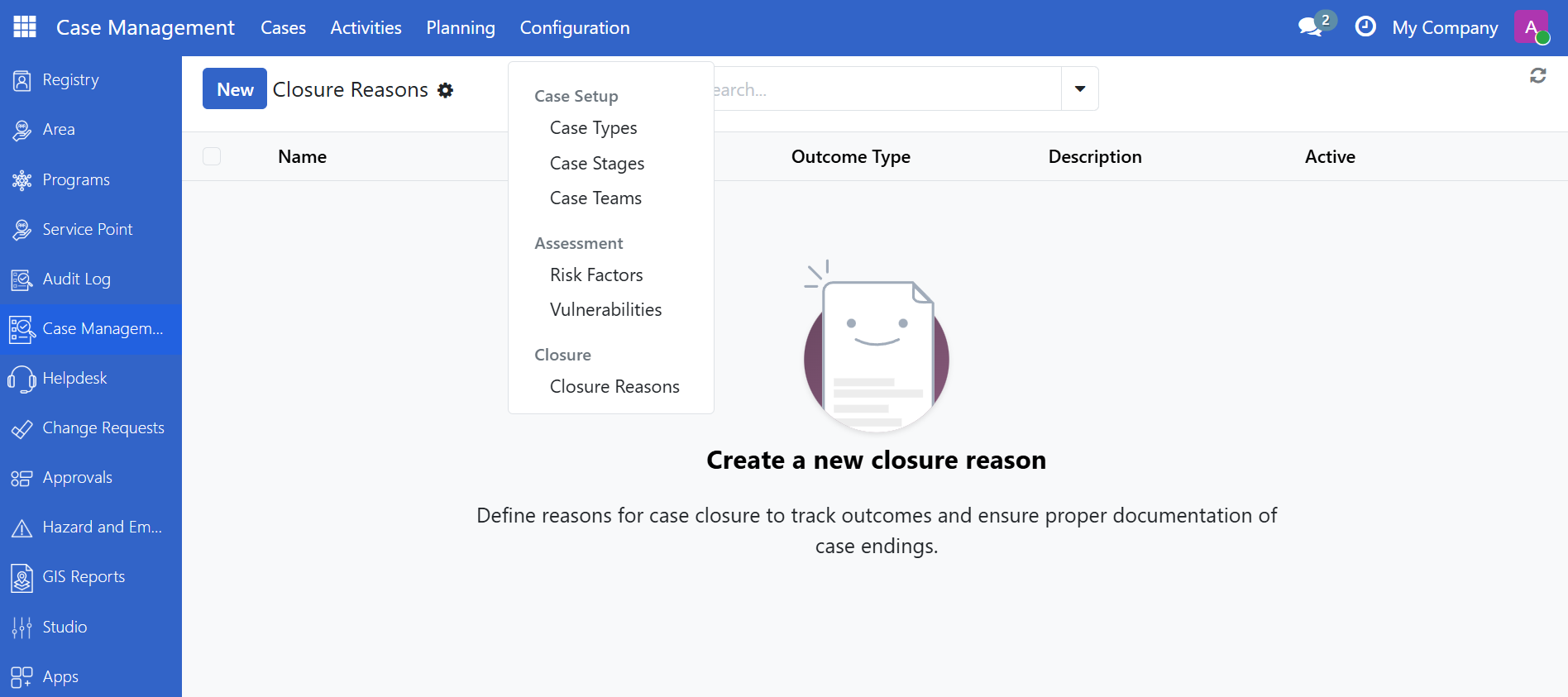
Closure reasons
Go to Case Management > Configuration > Closure. Define the reasons a case can be closed and the expected outcome types (for example, graduated, referred, withdrawn, deceased).
Steps#
Step 1. Create a new case#
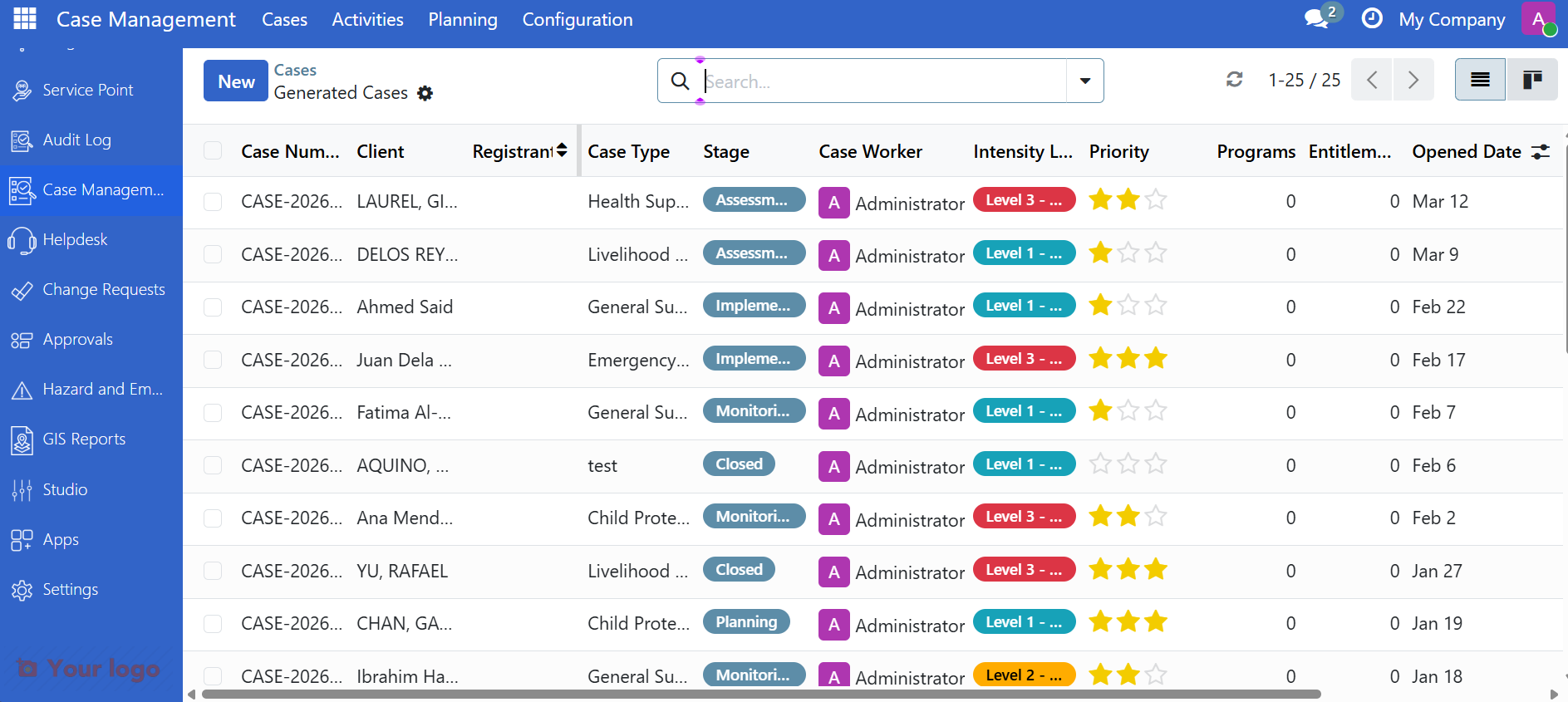
Go to Case Management > Cases > All Cases and click New(If New button is disabled, switch to list view from kanban view in the upper right section of the page).
Fill in the case form:
Field |
What to enter |
|---|---|
Client |
Search and link to the registrant (individual or household) |
Case type |
The type of support needed |
Client Type |
Individual or Household |
Case worker |
The person responsible for this case |
Team |
The team this case belongs to |
Presenting Issue |
Indicate the issue for this case |
Click Save. The case is now in the first stage (for example, Intake) with a unique case number.
Tip
If this case was escalated from a GRM ticket, it may already be pre-filled. Open it from the GRM ticket's smart button or from My Cases.
Step 2. Conduct a risk assessment#
After intake, the case worker performs a structured risk assessment.
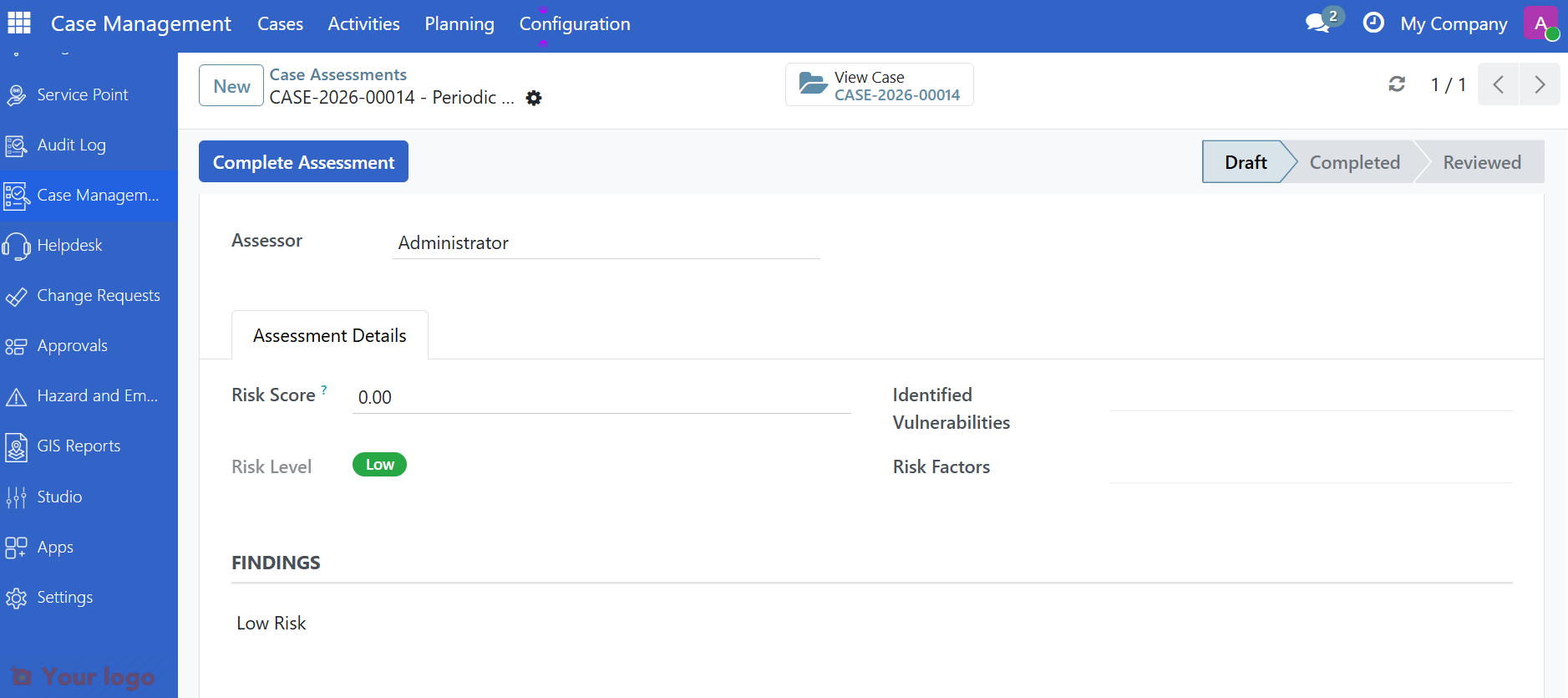
On the case form, go to the Assessments tab, or navigate to Case Management > Activities > Assessments.
Click New Assessment.
Select the relevant Risk factors that apply to this client.
Add Findings — written observations from the assessment interview.
Click Save.
The system automatically calculates a Risk score (0–100) and classifies the risk level (Low, Medium, High, or Critical). Once completed, the assessment is no longer editable. The supervisor reviews and confirms the assessment.
Step 3. Create an intervention plan#
Based on the assessment, create a plan of action for the client.
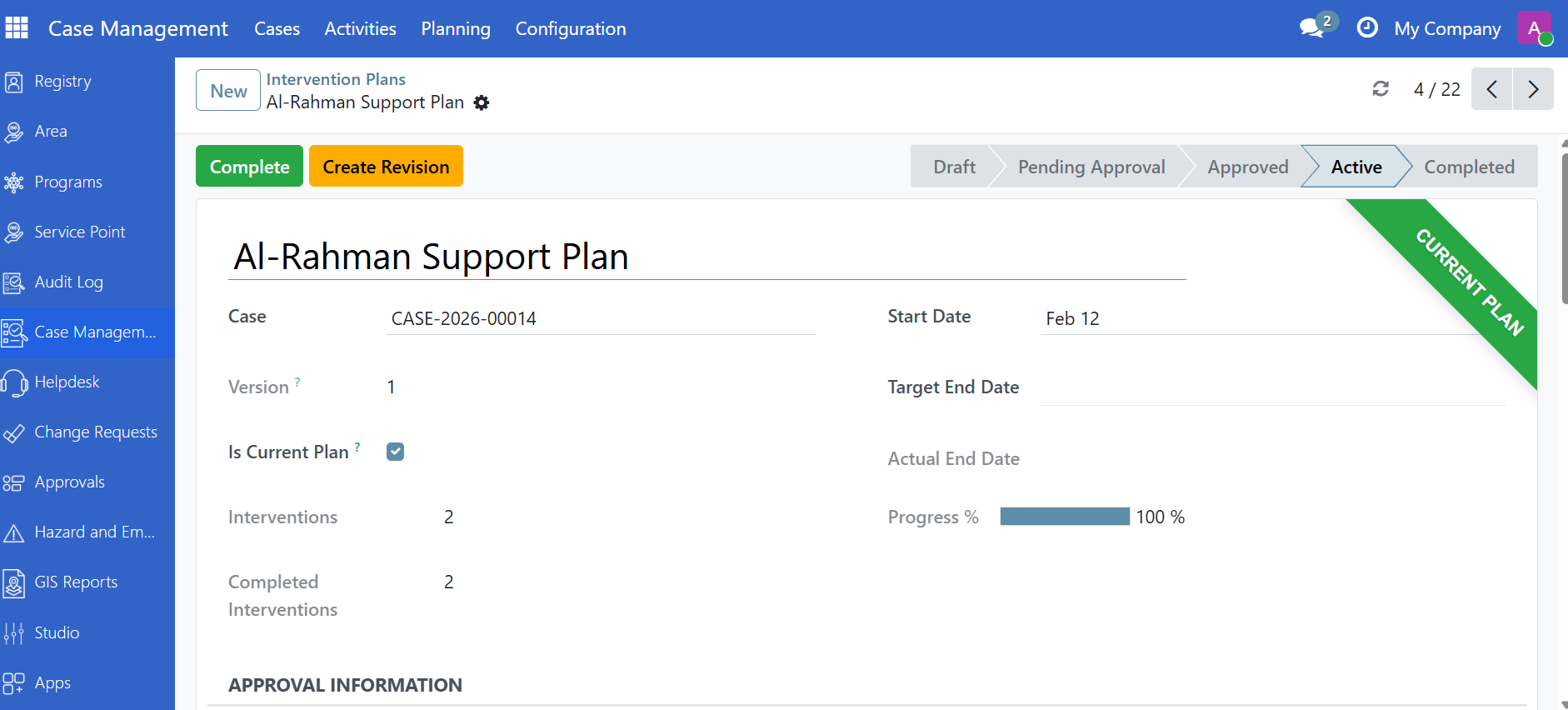
Go to Case Management > Planning > Intervention Plans and click New.
Link the plan to the case.
Add individual Interventions — specific actions to be taken (for example, enroll in livelihood training, coordinate with another agency for cash assistance, monthly home visit).
For each intervention, set a target date and responsible person.
Click Save.
To activate the plan, complete these steps in order:
Click Submit for approval — the plan moves to Pending Approval.
Click Approve (supervisor) — the plan moves to Approved.
Click Activate — the plan becomes Active and interventions can begin.
Step 4. Log activities#
As the case progresses, record ongoing activities.
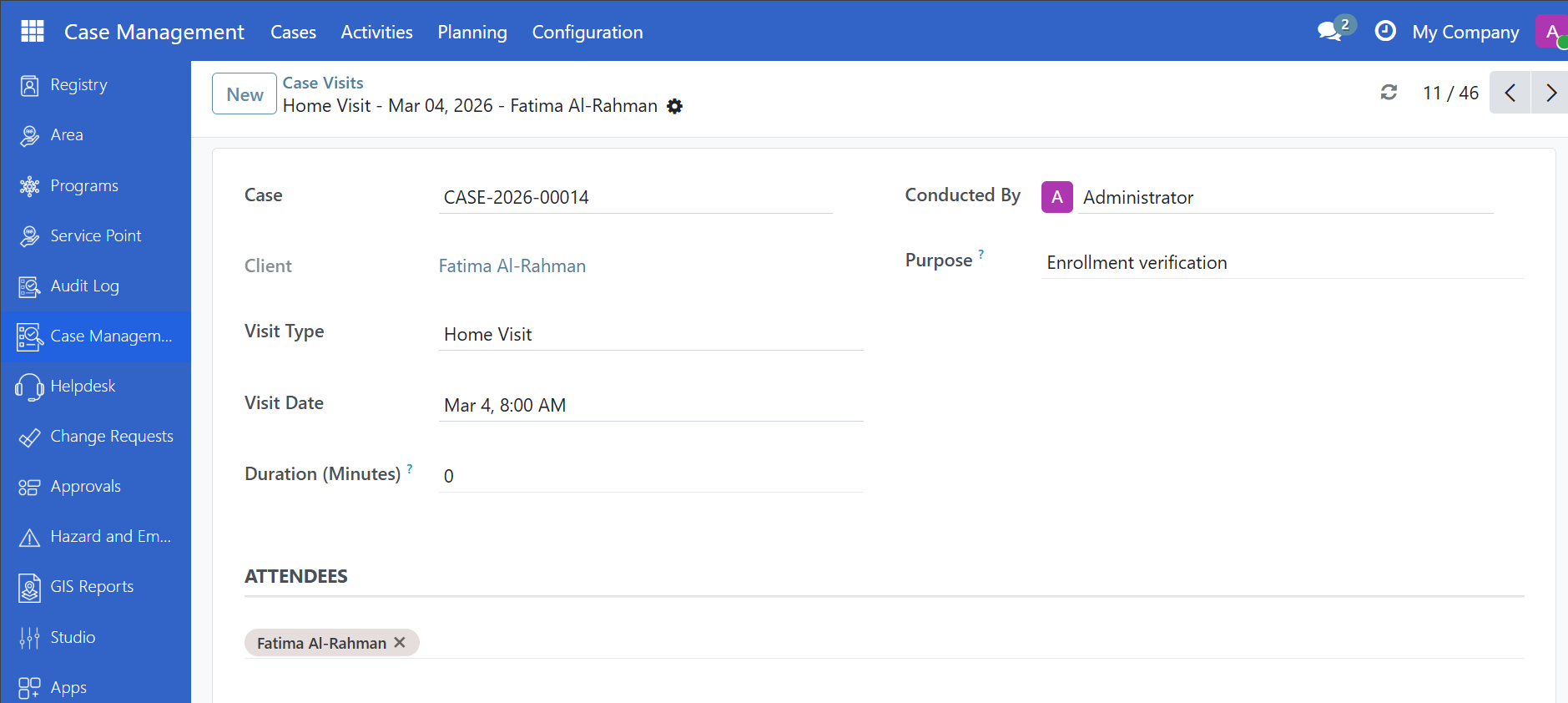
Visits
Go to Case Management > Activities > Visits. Log each home or office visit — date, type, location, and notes.
Notes
Go to Case Management > Activities > Notes. Add written notes to the case. Sensitive notes can be marked confidential so only supervisors can see them.
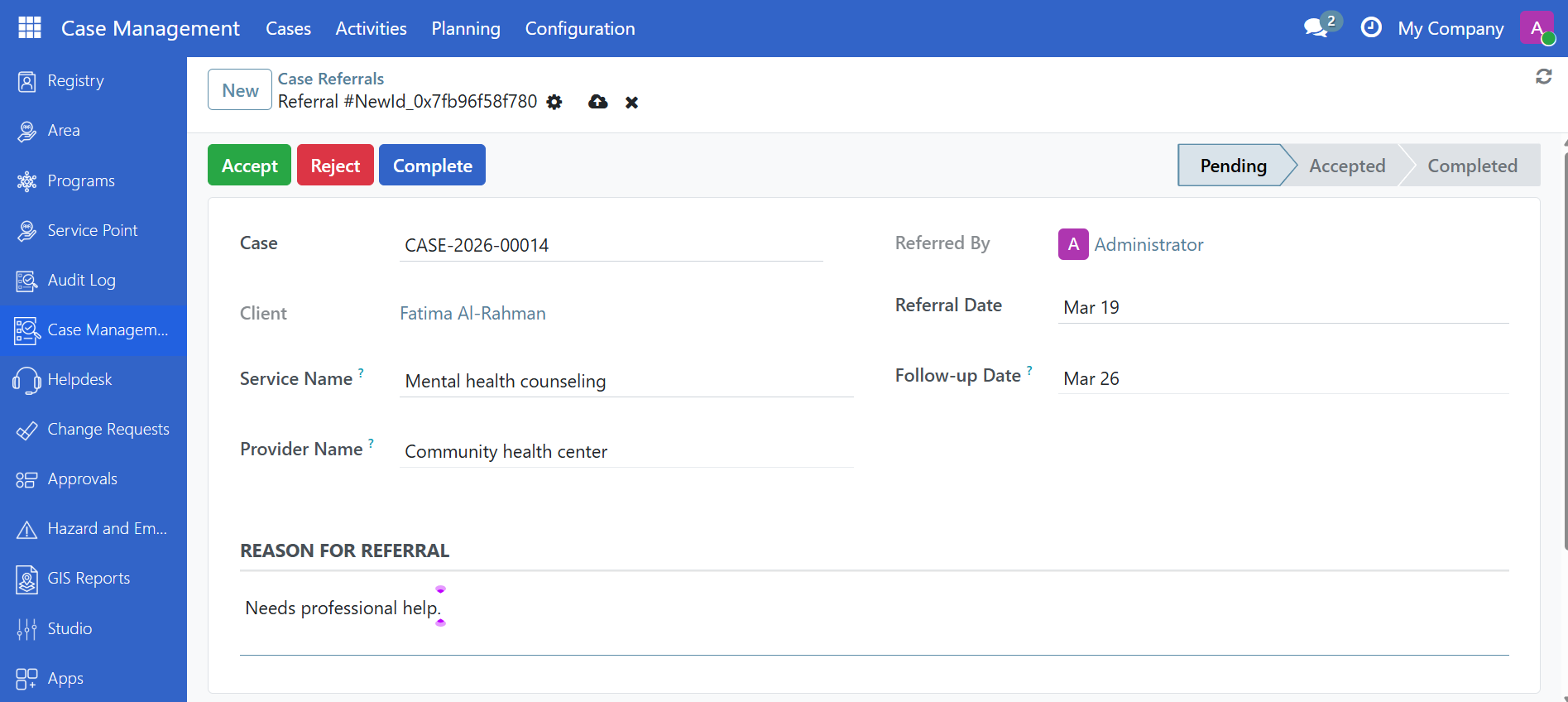
Referrals
Go to Case Management > Activities > Referrals. Record when the client is referred to an external service (for example, health center, legal aid, livelihood program). Track the referral status and outcome.
Step 5. Monitor and update#
Regularly update the status of each intervention as it progresses (Pending → In Progress → Completed).
The supervisor can schedule periodic reviews and track whether the intervention plan is being followed.
Update the assessment if the client's situation changes significantly.
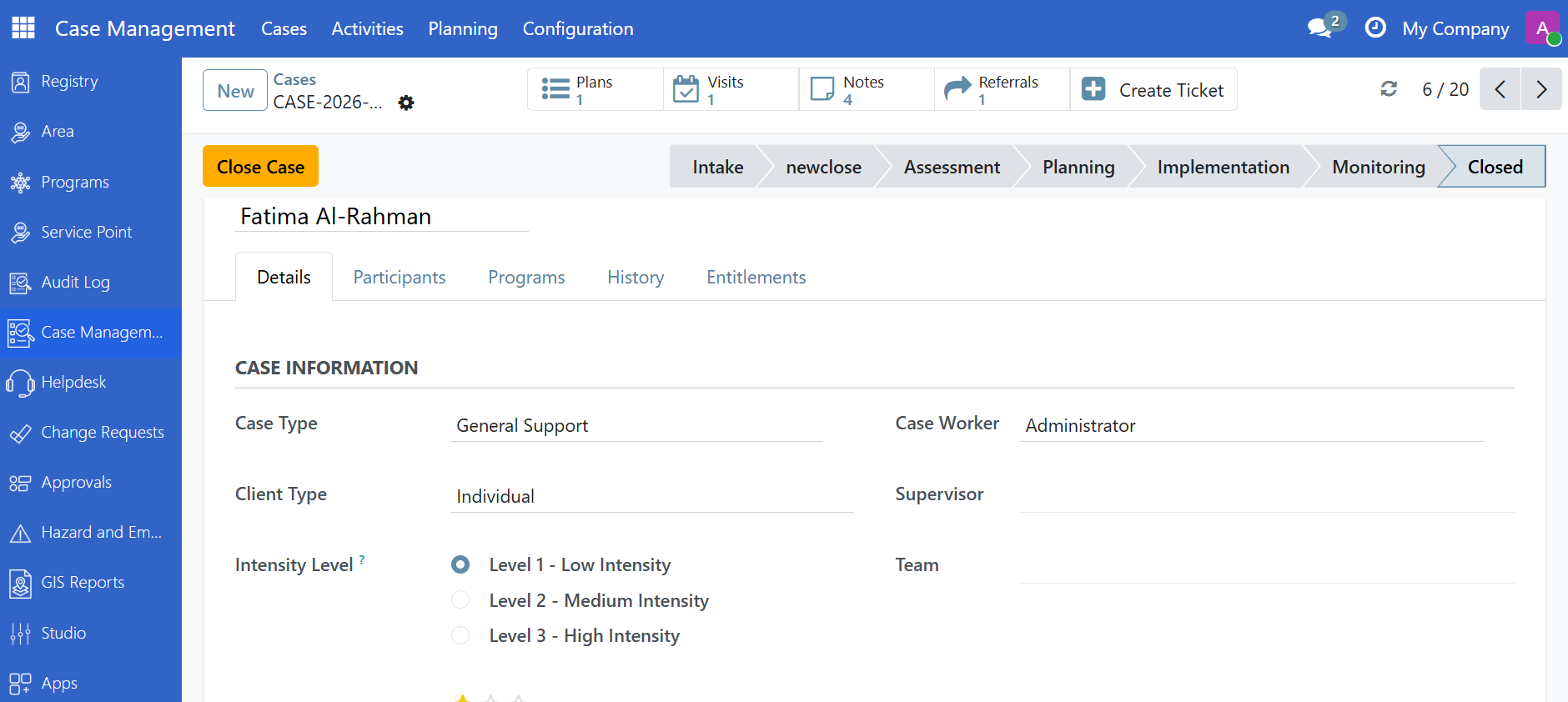
Step 6. Close the case#
When the client has achieved the desired outcome or can no longer be served:
Advance the stage to Closed by clicking the Close Case button.
Select a Closure reason (for example, Graduated from program, Referred to another agency, Client withdrew).
Select the Outcome — was the intervention successful?
Add a closing summary note.
Click Save. The case is now closed.
Are you stuck?#
I cannot assign a case worker.
The case worker must be a member of a Case Management team.
Ask your case manager to add the person to a team in Configuration > Teams.
They also need at least the Case Worker user role.
My Cases is empty but I know I have assigned cases.
My Cases shows only cases where you are the assigned case worker.
Ask your supervisor to verify the assignment on the case record.
The risk score is not calculating.
Risk factors must be set up with severity weights in Configuration > Assessment > Risk Factors before the score can compute.
If factors have no weights, the score will be zero. Ask your case manager to configure the weights.
The intervention plan is stuck in Draft.
The plan must be submitted for approval and approved by a supervisor before it becomes active.
If the Submit button is not visible, check that you are the assigned case worker or have the correct role.
I cannot see confidential notes.
Notes marked as confidential are only visible to supervisors and managers.
Ask your supervisor to share the note content or adjust the confidentiality setting.
This case came from a GRM ticket — how do I see the original complaint?
On the case form, look for the GRM Tickets tab or the smart button showing the number of linked tickets.
Click it to open the original grievance. You can navigate back and forth between the case and the ticket.
The Case Management menu is missing.
The module may not be installed, or you may not have a case management role.
Ask your administrator to install
spp_case_baseand assign you the appropriate role (Viewer, Worker, Supervisor, or Manager).