 openspp.org
Configuring Warehouses
Contents
Configuring Warehouses#
This guide is for implementers setting up warehouse infrastructure for a DRIMS deployment. You should be familiar with basic inventory concepts and disaster response coordination, but you don't need to know Python or Odoo internals.
Mental Model#
DRIMS organizes warehouses into a three-tier hierarchy that mirrors real-world disaster response operations:
┌─────────────────────────────────┐
│   Central Warehouse (Tier 1)    │  ← National stockpile
│   • High-capacity storage        │
│   • Receives bulk donations      │
│   • Supplies regional warehouses │
└─────────────────────────────────┘
           │ Distributes to
           ▼
┌─────────────────────────────────┐
│  Regional Warehouses (Tier 2)   │  ← Provincial/district hubs
│  • Medium-capacity storage       │
│  • Serves multiple districts     │
│  • Coordinates local distribution│
└─────────────────────────────────┘
           │ Distributes to
           ▼
┌─────────────────────────────────┐
│   Mobile Warehouses (Tier 3)    │  ← Field distribution points
│   • Temporary field locations    │
│   • Direct beneficiary access    │
│   • Rapid deployment capability  │
└─────────────────────────────────┘
Key concepts:
DRIMS-enabled warehouse: Any Odoo warehouse marked for disaster response operations
Warehouse tier: Classification that determines the warehouse's role in the distribution chain
Incident linkage: Warehouses can be assigned to specific disasters to track incident-specific inventory
Area assignment: Links warehouses to geographic locations for routing and reporting
Enabling a Warehouse for DRIMS#
Before a warehouse can be used for disaster response operations, it must be enabled in DRIMS.
Steps#
Navigate to DRIMS → Inventory → Warehouses
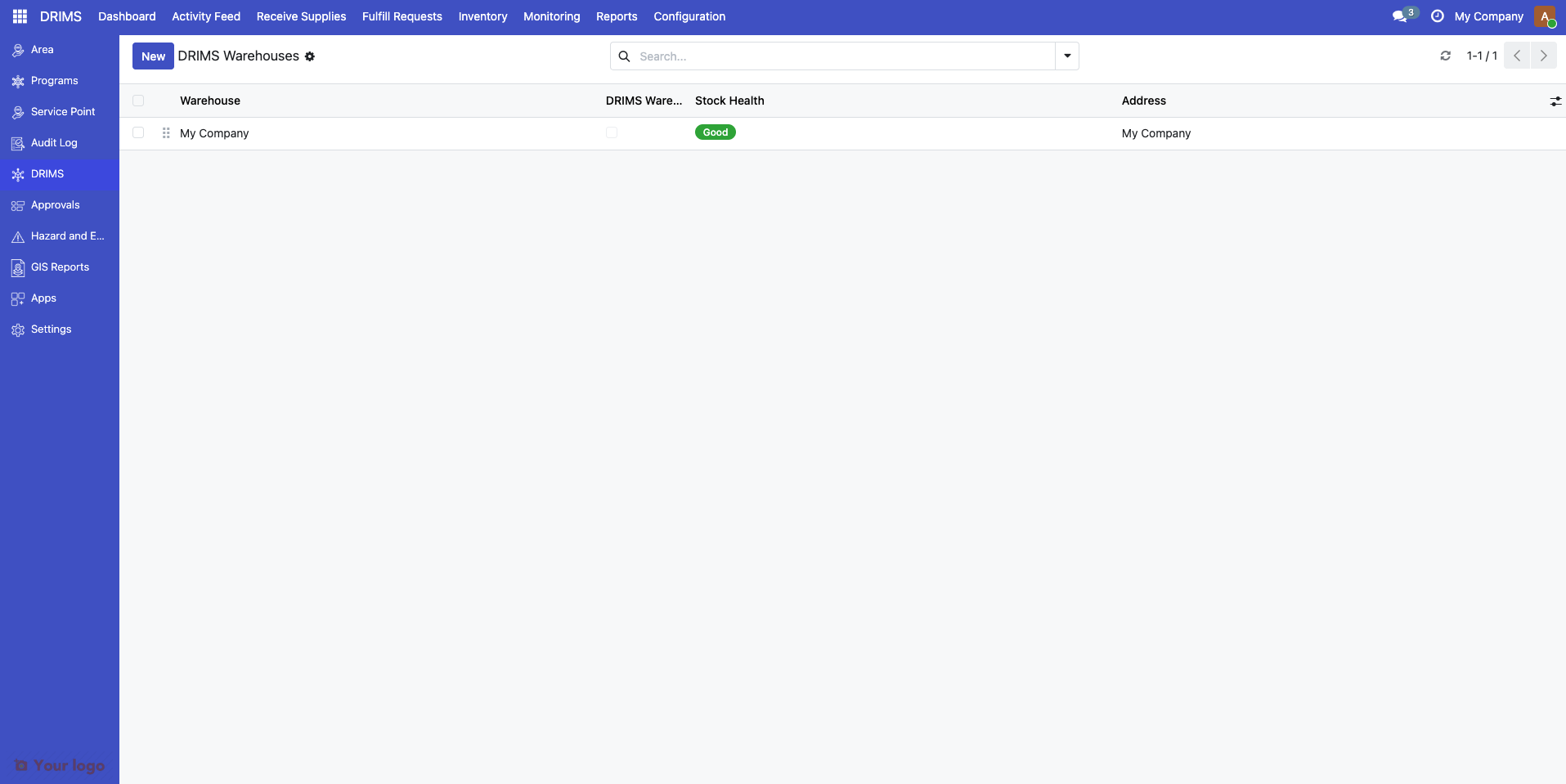
Select an existing warehouse or create a new one using the New button
In the warehouse form, check the DRIMS Warehouse checkbox
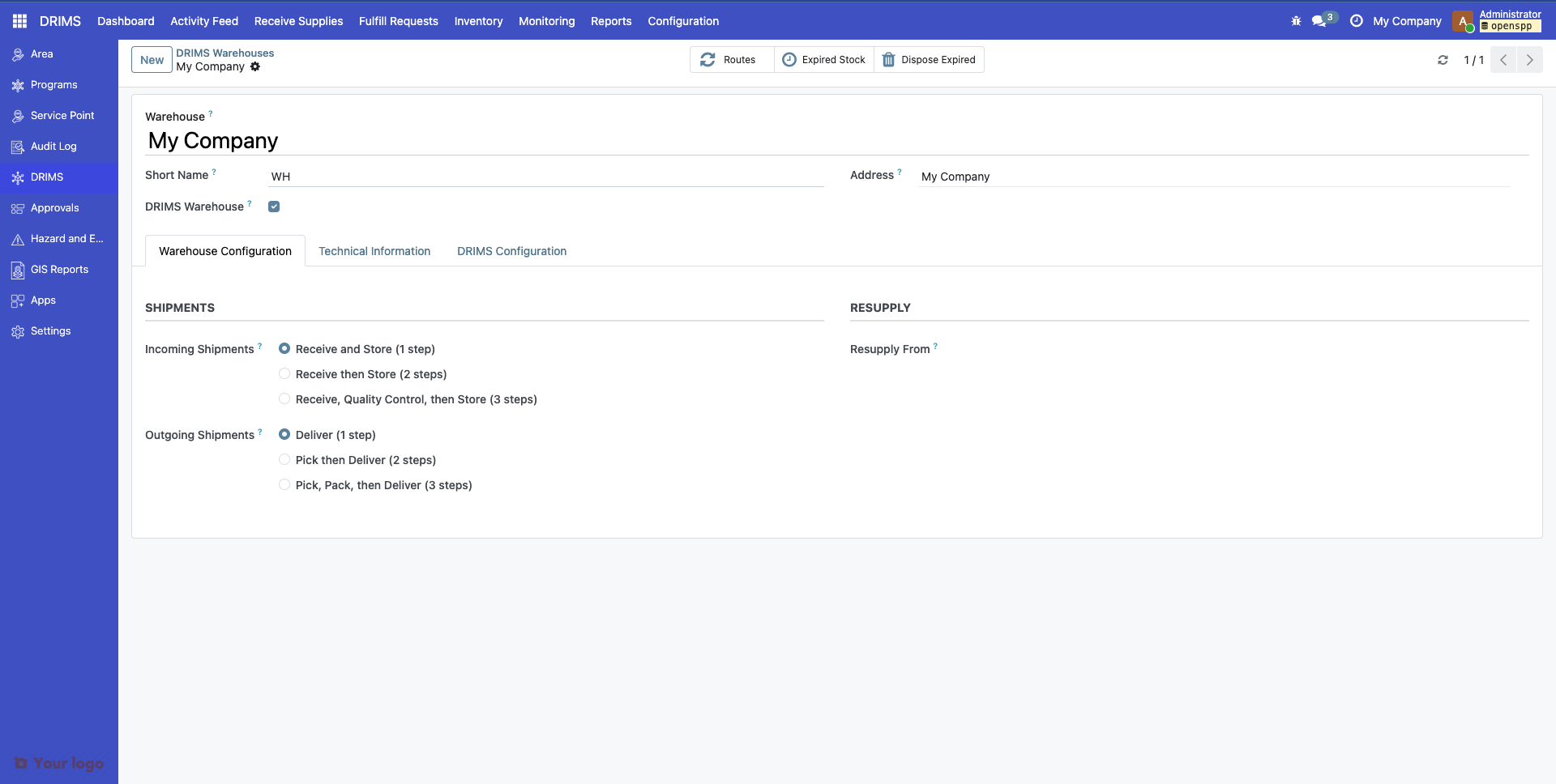
Configure the DRIMS-specific fields (see next section)
Click Save
Warehouse Configuration#
Once a warehouse is DRIMS-enabled, configure these fields:
Field |
Type |
Required |
Description |
|---|---|---|---|
DRIMS Warehouse |
Checkbox |
Yes |
Enables the warehouse for DRIMS operations |
Area |
Dropdown |
Recommended |
Geographic location from the area hierarchy |
Storage Capacity (m³) |
Number |
Optional |
Maximum storage volume |
Active Incidents |
Multi-select |
Optional |
Hazard incidents this warehouse is responding to |
Field Details#
Area
Select the geographic area from your configured hierarchy (Province → District → Division). This determines:
Which users can access the warehouse (based on area permissions)
Routing decisions for automated dispatch suggestions
Geographic filtering in reports and dashboards
Linked Incidents
Optional multi-select field to restrict the warehouse to specific disasters. When set:
Only donations/requests for linked incidents can use this warehouse
Dashboard metrics filter to show only linked incident data
Useful for dedicated response warehouses (e.g., "Flood 2024 Response Center")
Leave empty to allow the warehouse to serve all incidents.
Linking Warehouses to Incidents#
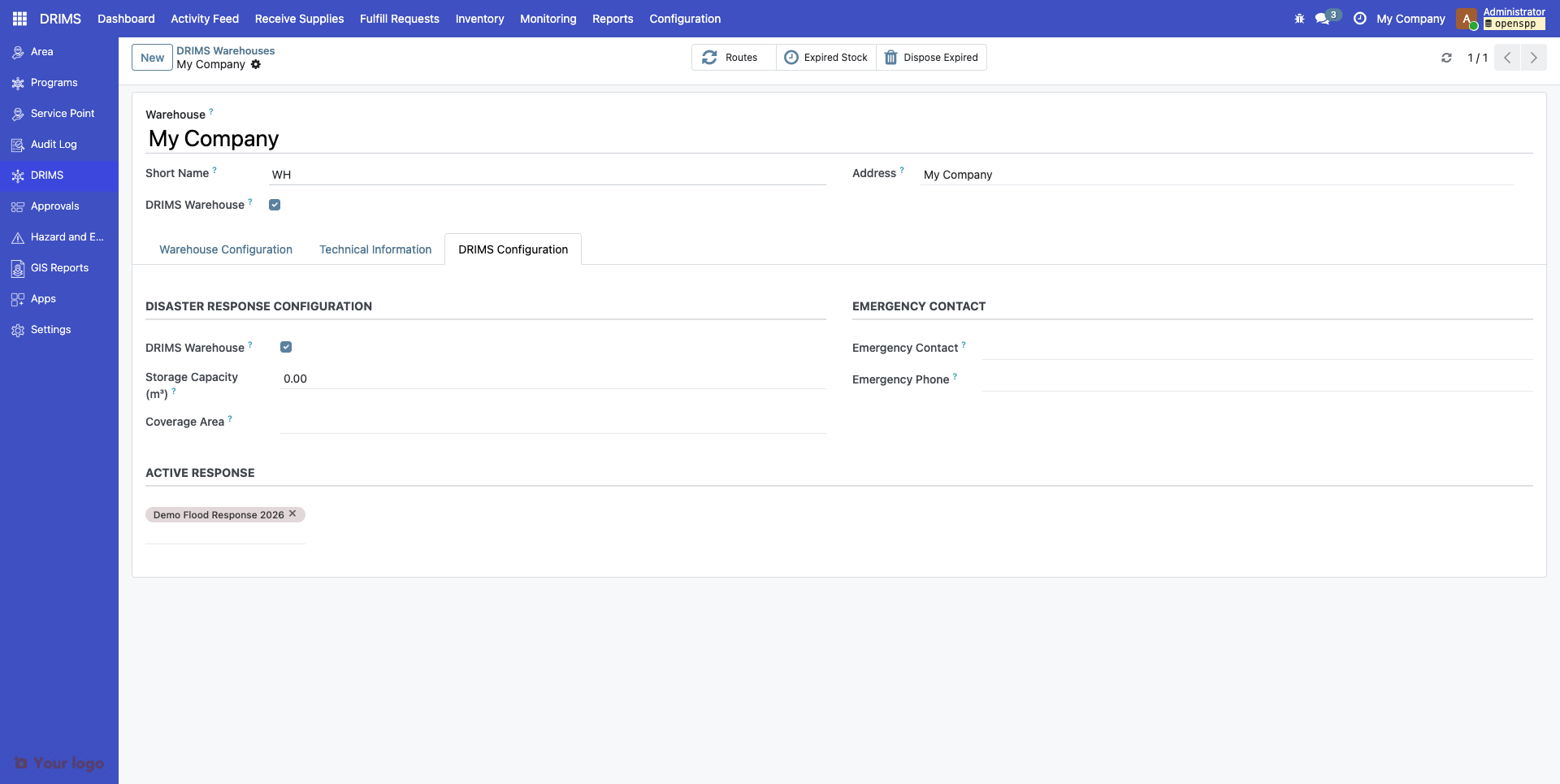
Warehouse–incident linkage is configured from the warehouse form. There is no equivalent flow on the incident form.
Open the warehouse in DRIMS → Inventory → Warehouses
Open the DRIMS Configuration tab
Under Active Response, set one or more incidents in the Active Incidents field
Save the warehouse
Note
The DRIMS Configuration tab is only visible when the user belongs to Storage Locations (stock.group_adv_location) or Multi-Warehouses (stock.group_stock_multi_warehouses). Enable one in Settings → Inventory (or assign the group to the user) if the tab is missing.
When to link warehouses to incidents:
Dedicated response: A warehouse is set up specifically for one disaster
Resource isolation: Strict separation of inventory between concurrent disasters
Security: Limit warehouse visibility to incident-specific teams
When to leave warehouses unlinked:
Shared facilities: One warehouse serves multiple ongoing disasters
Permanent infrastructure: Regional hubs that handle all disasters in their area
Flexible allocation: You want to reassign warehouse capacity as incidents evolve
Common Deployment Patterns#
Pattern 1: Single Warehouse (Small-Scale)#
For pilot programs or single-district responses — one warehouse handles all donations and distribution.
Pattern 2: Hub and Spoke (Provincial)#
For province-wide disasters — a central hub in the provincial capital supplies field locations in affected districts.
Stock Health Indicators#
DRIMS automatically calculates warehouse health based on active alert count:
Health Status |
Color |
Condition |
|---|---|---|
Good |
Green |
No active alerts |
Warning |
Orange |
1–2 active alerts |
Critical |
Red |
3 or more active alerts |
You cannot set health status manually — it reflects the current alert state and updates automatically as alerts are created and resolved.
Are You Stuck?#
Can't see DRIMS Warehouse checkbox?#
Problem: The DRIMS Warehouse field doesn't appear on the warehouse form.
Solution: Ensure the spp_drims module is installed. Go to Apps → Update Apps List and search for "DRIMS". Install if not already active.
Warehouse doesn't appear in donation/request forms?#
Problem: A DRIMS-enabled warehouse isn't showing up as an option when creating donations or requests.
Possible causes:
Incident mismatch: The warehouse is linked to specific incidents, but you're creating a donation/request for a different incident. Either unlink the warehouse from incidents (to make it available for all) or ensure you're working with a matching incident.
Area permissions: Your user account may not have access to the warehouse's assigned area. Contact your administrator to verify your area assignments in Settings → Users → [Your User] → DRIMS Area Access.
Area permissions: Verify the warehouse's area is accessible to your user account.
Next Steps#
Configuring Vocabularies - Configure donor types and item conditions
Configuring Alerts and Thresholds - Set up stock monitoring and alerts
Receive a donation - Receive donations into warehouses