 openspp.org
Testing eligibility rules
Contents
Testing eligibility rules#
This guide is for implementers validating eligibility rules before deploying them to production programs.
Why test eligibility rules?#
Testing prevents:
Risk |
Impact |
|---|---|
Wrong beneficiaries enrolled |
Program integrity compromised |
Eligible people excluded |
Policy objectives not met |
Expression errors |
System failures during import |
Performance issues |
Slow processing at scale |
Testing workflow#
        graph LR
    W[Write expression] --> V[Validate syntax]
    V --> P[Preview count]
    P --> S[Sample review]
    S --> T[Test import]
    T --> D[Deploy]
Step 1: Validate syntax#
The CEL editor validates expressions as you type:
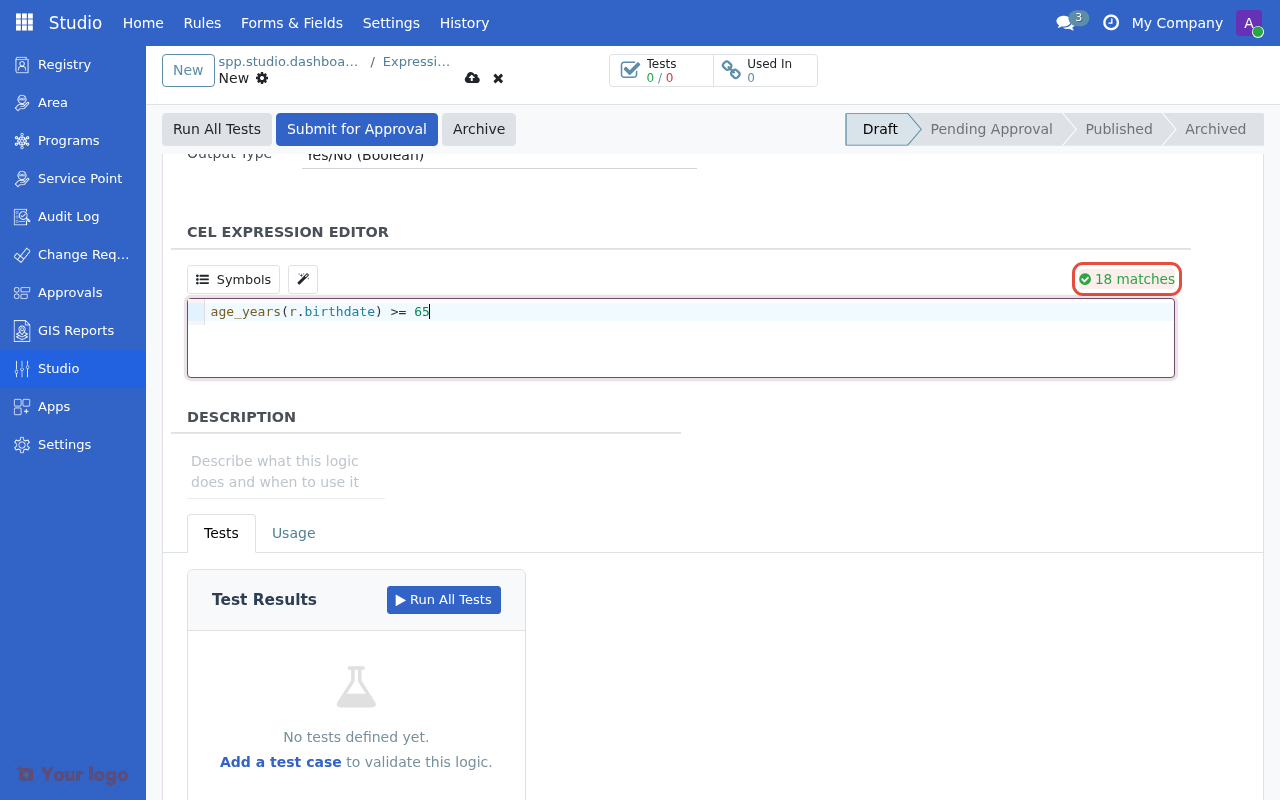
The CEL editor showing a valid expression with the green 18 matches indicator.#
Validation indicators#
Indicator |
Meaning |
Action |
|---|---|---|
Green checkmark |
Valid expression |
Proceed to preview |
Red error message |
Syntax error |
Fix the error |
No indicator |
Empty expression |
Enter an expression |
Common validation errors#
Error |
Cause |
Fix |
|---|---|---|
"Unknown identifier" |
Field name typo |
Check symbol browser |
"Expected ')'" |
Missing parenthesis |
Balance parentheses |
"Unknown function" |
Function name typo |
Check function name |
"Type mismatch" |
Wrong data type |
Check field types |
Step 2: Preview match count#
After validation passes, the editor shows how many registrants match:
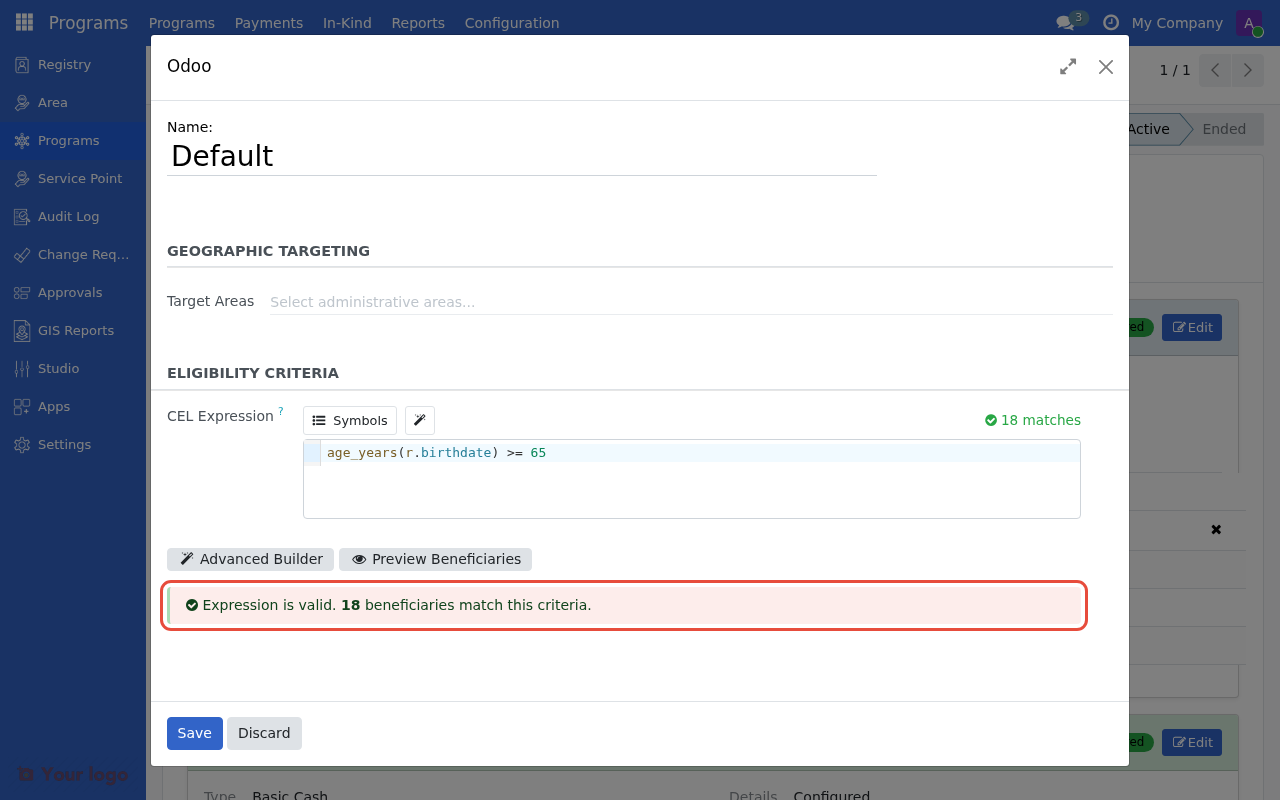
The validation success message showing 18 beneficiaries match this criteria in the eligibility manager.#
Interpreting the count#
Count |
Interpretation |
Action |
|---|---|---|
0 |
No matches |
Check expression logic and data |
Very low |
May be too restrictive |
Review criteria |
Very high |
May be too broad |
Consider adding criteria |
Expected range |
Likely correct |
Proceed to sample review |
Investigating unexpected counts#
If the count is unexpected:
Simplify the expression to isolate the issue
Check individual conditions separately
Verify data in the registry
# Instead of complex expression, test parts:

# Test 1: Age only
age_years(r.birthdate) >= 65
# Count: 1,234

# Test 2: Gender only
is_female(r.gender_id)
# Count: 5,678

# Test 3: Combined
age_years(r.birthdate) >= 65 and is_female(r.gender_id)
# Count: 567
Step 3: Sample review#
Use the Preview Beneficiaries button to review matching registrants:
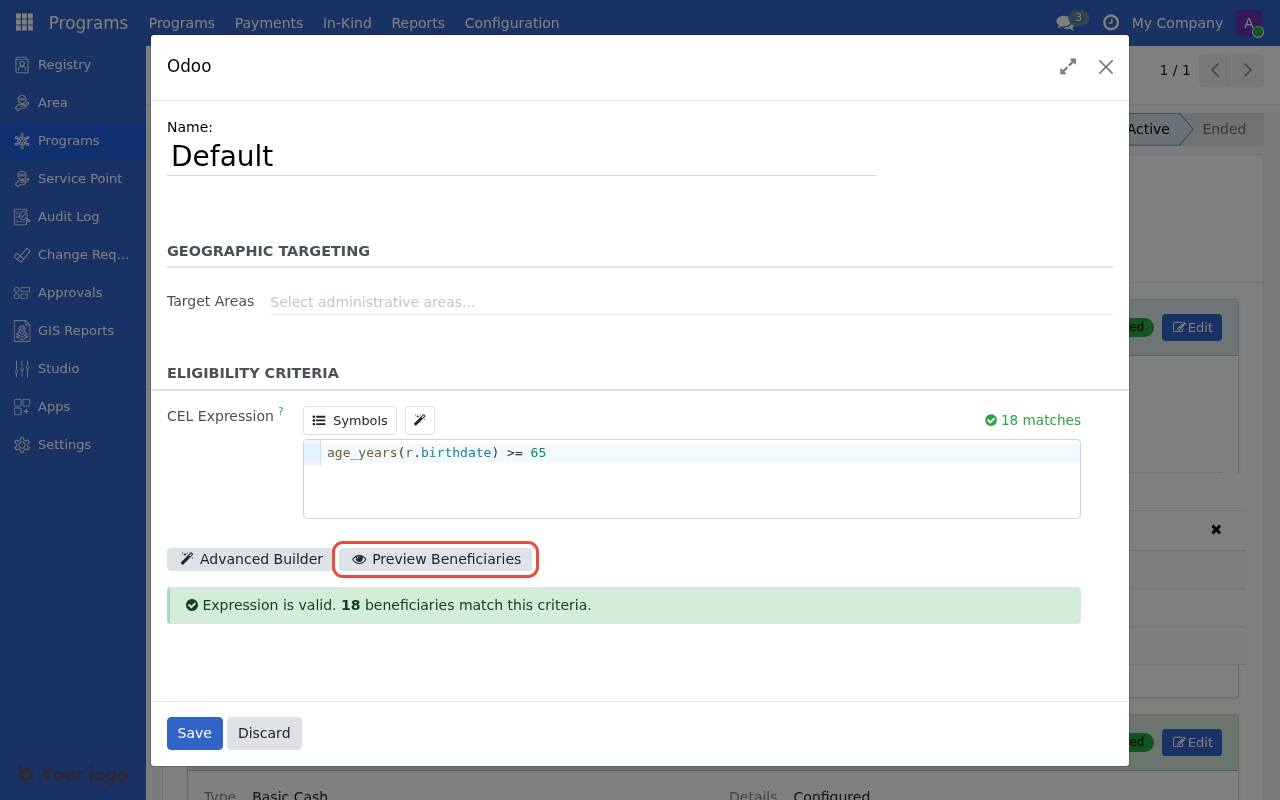
The Preview Beneficiaries button appears after the expression passes validation.#
This opens a list of matching registrants:
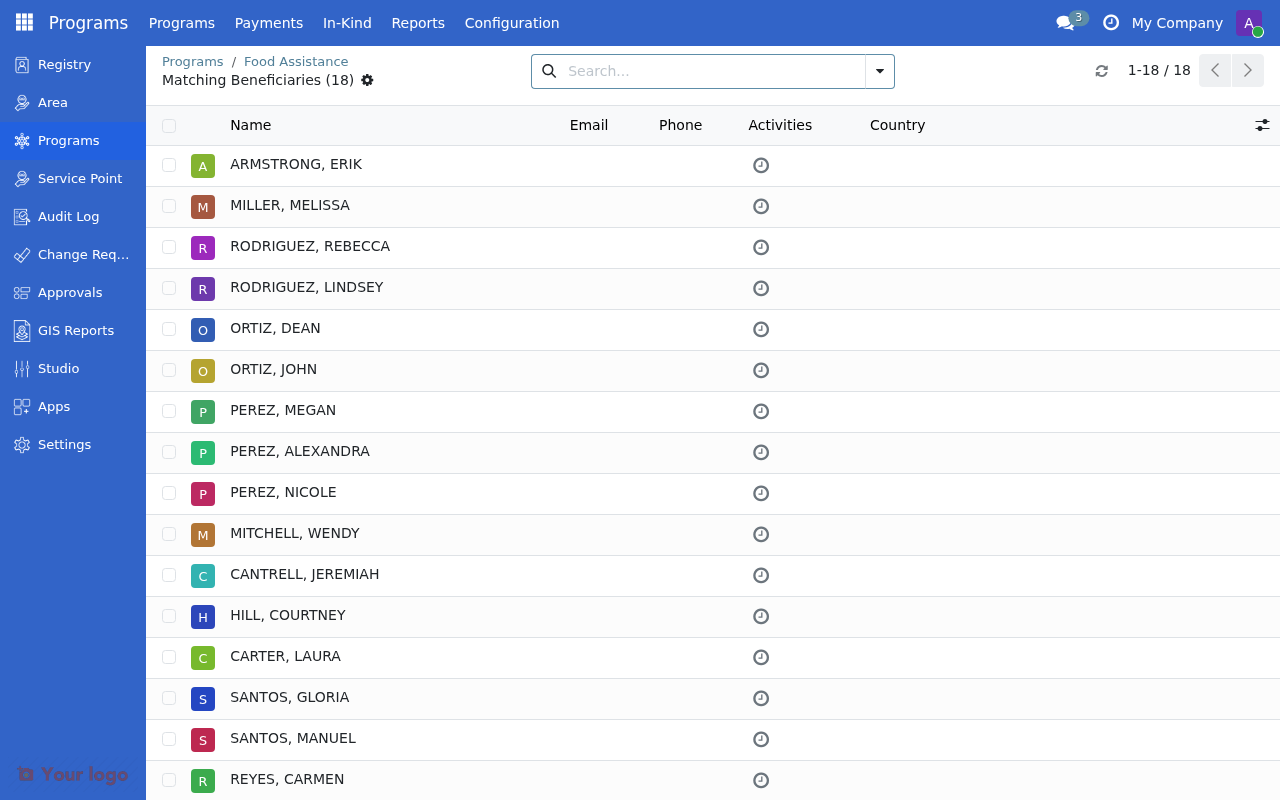
The list of matching beneficiaries showing registrant details for review.#
What to check#
Check |
Look for |
|---|---|
Sample variety |
Different ages, locations, household sizes |
Edge cases |
Registrants near thresholds (e.g., age 64 vs 65) |
Exclusions |
Scroll to verify unexpected registrants aren't included |
Data quality |
Missing or incorrect data affecting matches |
Spot-checking registrants#
Click on a registrant to open their profile
Verify their data matches the eligibility criteria
Check 5-10 registrants from different parts of the list
Step 4: Test import (staging)#
Before production, test the full import process:
Create a test program#
Create a copy of the program (or use a staging environment)
Apply the same eligibility configuration
Run Import Eligible Registrants
Review the imported members
Verify import results#
Check |
Expected result |
|---|---|
Member count |
Matches preview count |
Member data |
Correct registrants imported |
No duplicates |
Each registrant appears once |
Status |
All members in expected state |
Test edge cases#
Create test registrants with edge case data:
Test case |
Data |
Expected result |
|---|---|---|
Exactly at threshold |
Age = 65 |
Included |
Just below threshold |
Age = 64 |
Excluded |
Missing data |
No birthdate |
Excluded (unless handled) |
Boundary conditions |
Born today |
Correct age calculation |
Step 5: Monitor after deployment#
After deploying eligibility rules:
Initial monitoring#
Metric |
Target |
|---|---|
Import success rate |
100% |
Match count stability |
Consistent with preview |
User feedback |
No unexpected exclusions |
Ongoing validation#
Frequency |
Check |
|---|---|
Each cycle |
Match count trends |
Monthly |
Sample spot-checks |
Quarterly |
Rule review with policy team |
Testing checklist#
Before deploying eligibility rules, verify:
[ ] Expression passes syntax validation
[ ] Match count is in expected range
[ ] Sample of 10+ registrants reviewed
[ ] Edge cases tested
[ ] Test import completed successfully
[ ] Geographic targeting verified (if used)
[ ] Template lineage documented (if applicable)
[ ] Approval from program manager
Debugging techniques#
Isolate conditions#
Test each condition separately:
# Full expression
age_years(r.birthdate) >= 65 and hh_size >= 4 and members.exists(m, age_years(m.birthdate) < 5)

# Test parts:
# 1. age_years(r.birthdate) >= 65          → Count: 1,000
# 2. hh_size >= 4                          → Count: 2,500
# 3. members.exists(...)                   → Count: 800
# 4. Combined                              → Count: 50
Check data distribution#
If counts are unexpected, check the data:
# Are there registrants with birthdate?
r.birthdate != null
# Count: 10,000 (good)

# Are there household heads?
members.exists(m, head(m))
# Count: 5,000 (good)
Review null handling#
CEL expressions may exclude records with null values:
# This excludes records where birthdate is null
age_years(r.birthdate) >= 65

# To include records regardless of birthdate:
r.birthdate == null or age_years(r.birthdate) >= 65
Are you stuck?#
Preview button is disabled?
Ensure the expression passes validation first
Check for errors in the CEL editor
Preview count is zero unexpectedly?
Verify the target type matches your data (Individual vs Group)
Check that registrants have the required data fields populated
Test import fails?
Check the program configuration is complete
Verify user permissions for import operation
Review error messages in the import log
Count differs between preview and import?
Data may have changed between operations
Check for disabled registrants (excluded from eligibility)
Verify no additional filters are applied
Next steps#
CEL expressions for eligibility - Refine your expressions based on testing
Advanced eligibility configuration - Handle complex scenarios with multiple managers