 openspp.org
Manage Inventory
Contents
Manage Inventory#
Applies to: DRIMS
This feature is available in OpenSPP deployments with the DRIMS module installed.
This guide is for warehouse staff and managers who need to monitor and manage stock levels in DRIMS warehouses.
What You'll Do#
Learn how to view and manage relief supply inventory across your warehouses:
View current stock levels and quantities on hand
Understand stock status (available, reserved, expired)
Find items by product, warehouse, or lot number
Check expiry dates and lot tracking information
Review stock movements and history
Before You Start#
You need DRIMS Warehouse Staff or Manager access to view inventory
You need Warehouse Officer or higher to make stock adjustments
Stock on hand#
2. Understand the Stock List#
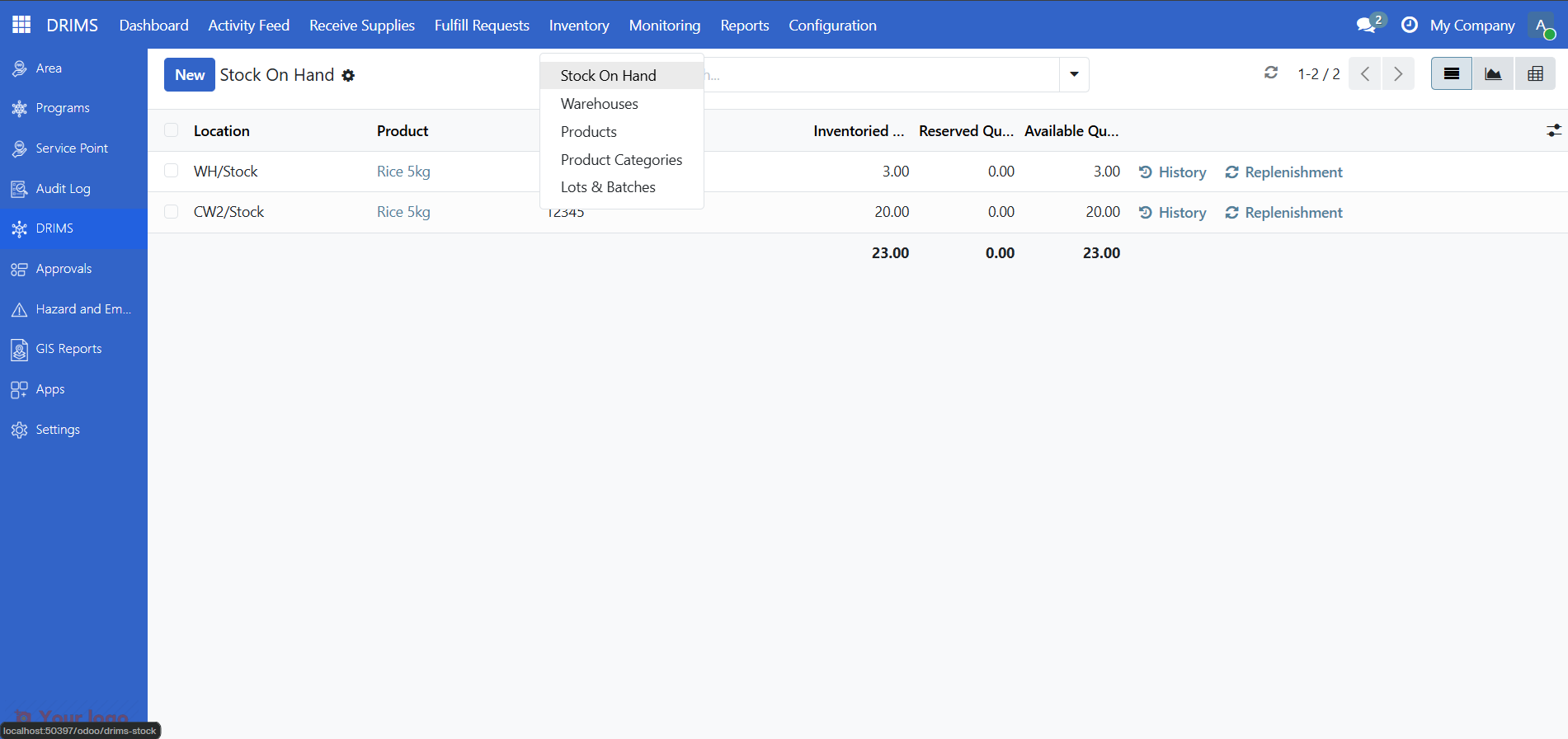
The stock list shows all items currently in your warehouses:
Column |
What it shows |
|---|---|
Location |
Specific storage location within the warehouse |
Product |
Name of the relief item |
Lot/Serial Number |
Batch or serial identifier if the product is lot-tracked |
On Hand |
Total quantity physically on the shelf — everything in the location, including stock already committed to requests |
Reserved |
Portion of On Hand already committed to approved requests but not yet dispatched — physically still in the warehouse but spoken for |
Tip
Available Quantity = On Hand minus Reserved. It tells you what is actually free to allocate to new requests. This column is hidden by default — click the column selector icon at the top-right of the list and check Available Quantity to show it.
3. Filter by Warehouse#
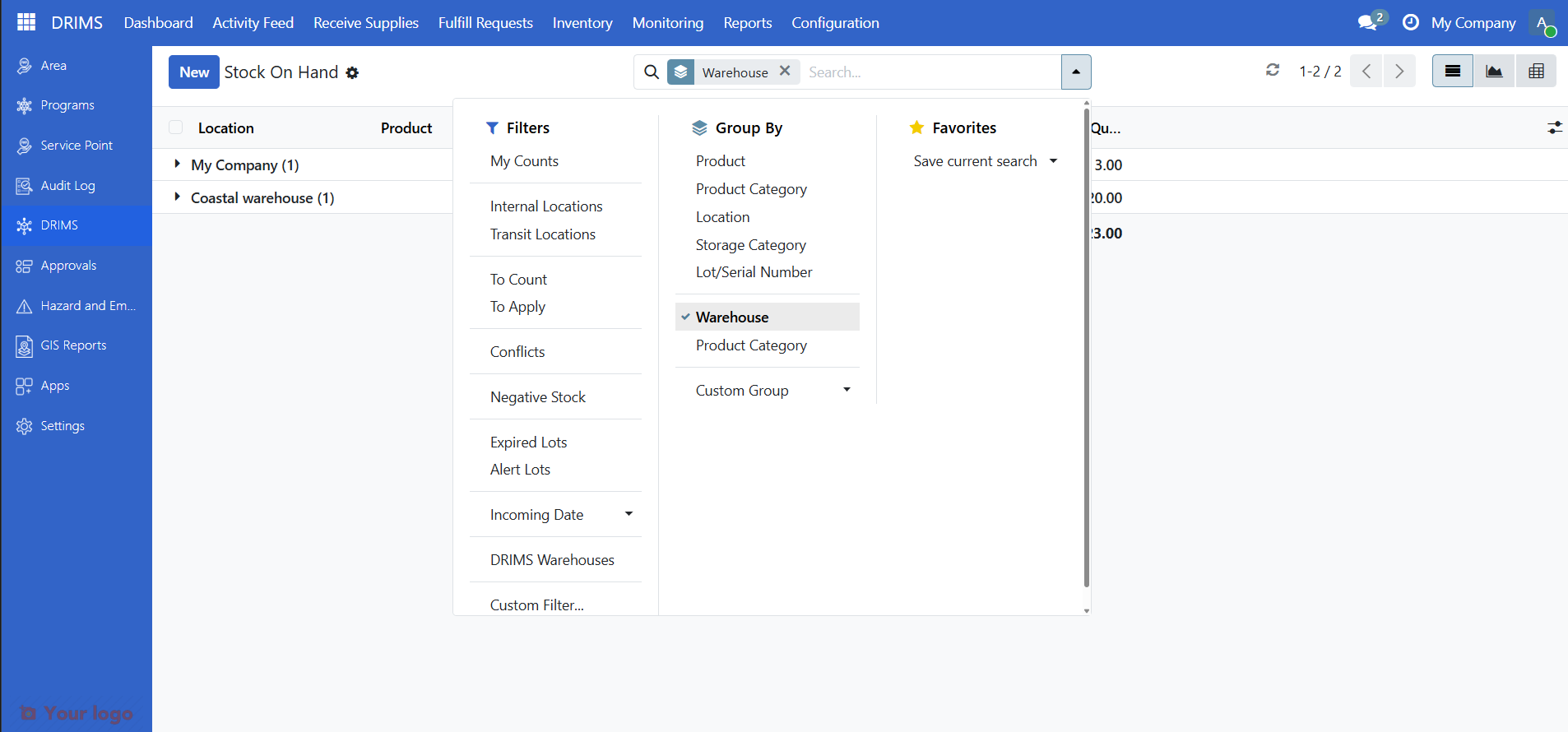
To see stock for a specific warehouse, click the Filters button and select your warehouse.
4. Search for Specific Products#
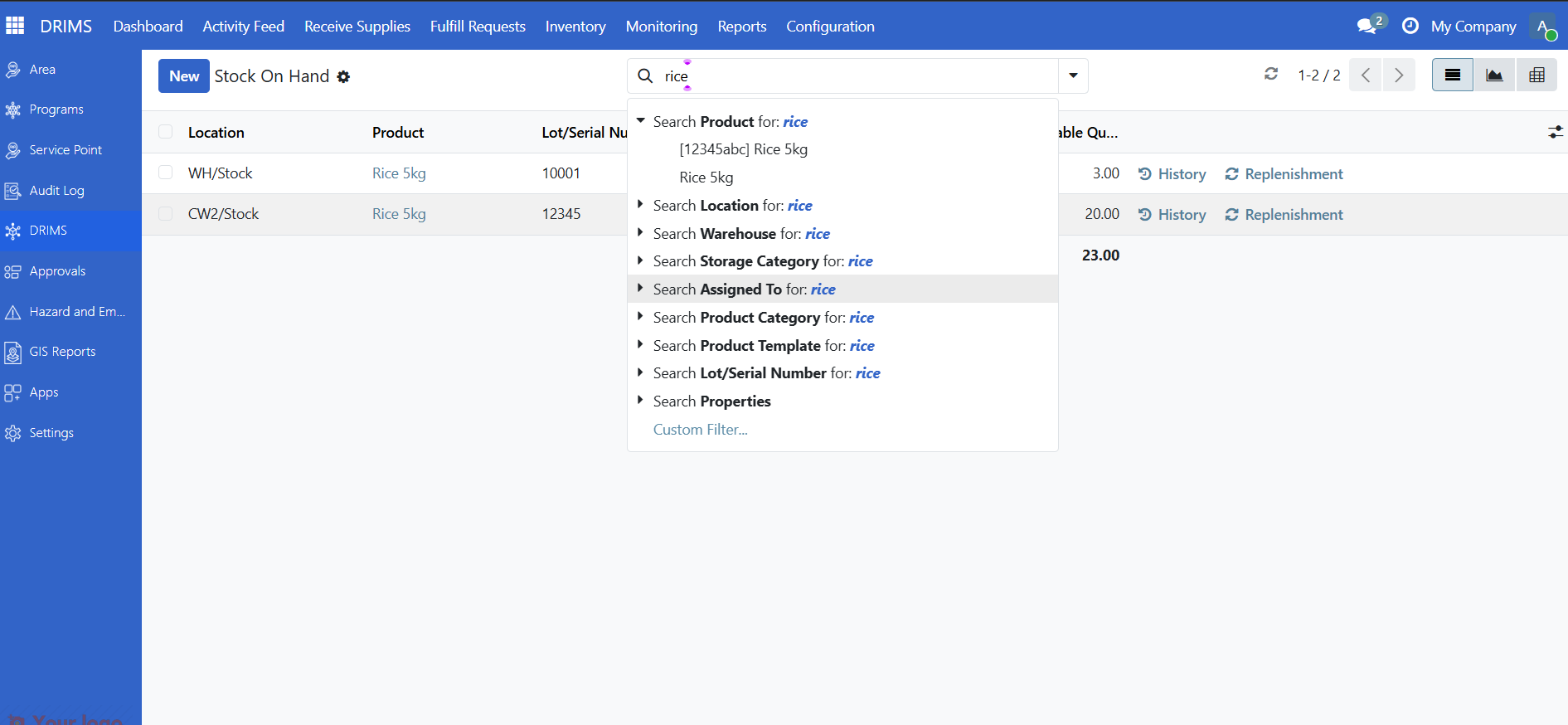
Use the search bar to find specific items. You can search by:
Product name (e.g., "blankets" or "rice")
Product code (e.g., "NFI-001")
Category (e.g., "Medical Supplies")
Understanding Stock Status#
Items in your warehouse can have different status indicators:
Stock Availability#
Check the On Hand, Reserved, and Available Quantity columns to understand what you can actually use:
Status |
What It Means |
|---|---|
Available > 0 |
Stock is free to allocate to new requests |
Reserved = On Hand |
All stock is committed — nothing available for new requests |
On Hand = 0 |
Out of stock, cannot fulfill requests |
Quality status#
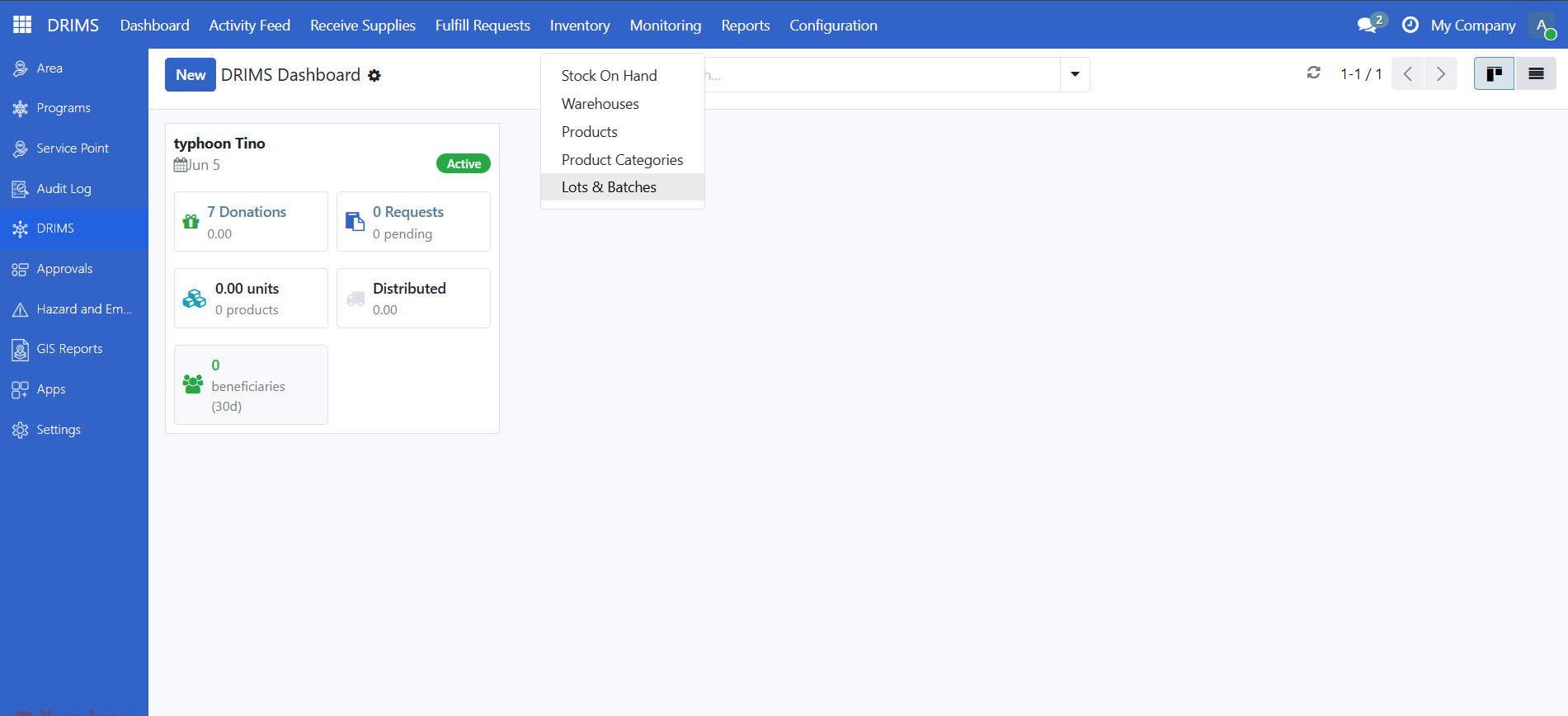
Quality is tracked at the lot level, not on the Stock On Hand list. To check expiry status, go to DRIMS → Inventory → Lots & Batches and look at the Expiry Date column. Items that passed inspection are in inventory; damaged or rejected items are excluded during the donation inspection step and never enter stock.
Situation |
Where to check |
Action |
|---|---|---|
Items approaching expiry |
Lots & Batches → filter by expiry date |
Prioritize for dispatch |
Items past expiry date |
Lots & Batches → expiry date in the past |
Create a stock adjustment to remove from inventory |
Damaged items in stock |
Should not occur — rejected during donation inspection |
If found, create a stock adjustment and investigate |
Check Expiry Dates#
For items with shelf life tracking (like medical supplies, food items), you can view expiry information.
2. View Expiry Information#
The lot list shows tracking details for each batch of items:
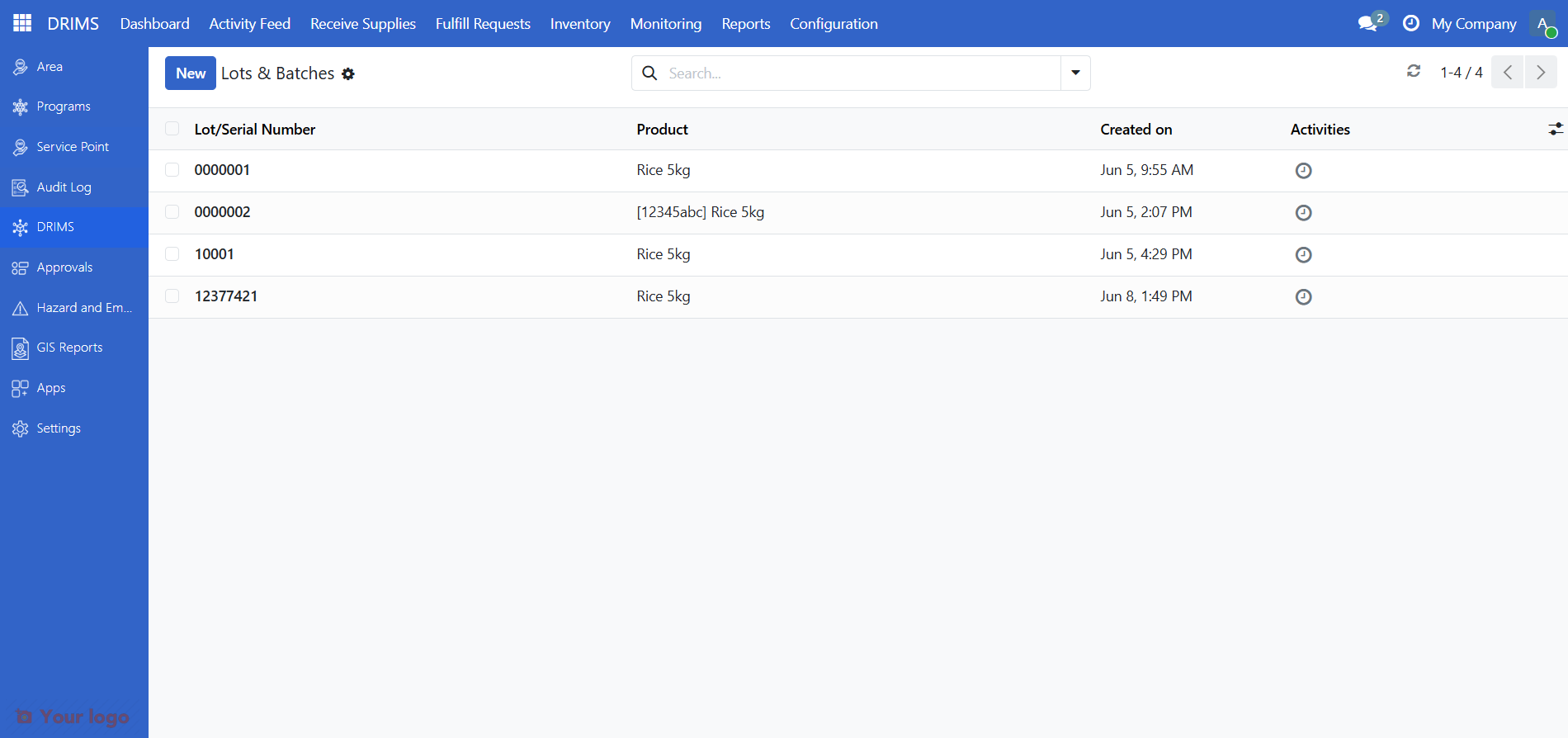
Default columns:
Column |
What It Shows |
|---|---|
Lot/Serial Number |
Batch identifier from the manufacturer or donor |
Product |
Name of the item |
Created on |
Date the lot was registered in the system |
Important
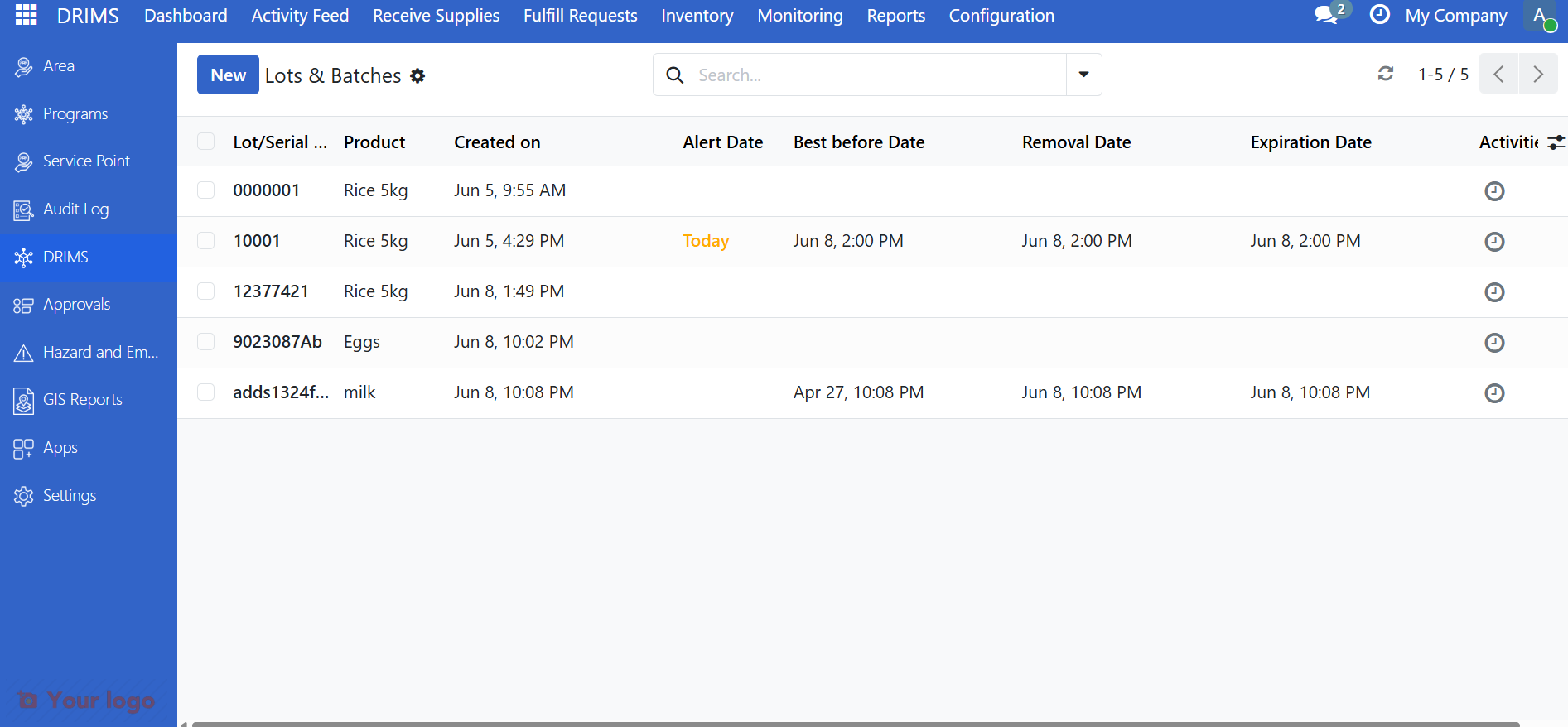
Expiration Date and On Hand Quantity are hidden by default but are essential for DRIMS operations. Click the column selector icon at the top-right of the list and enable both before using this view. Without Expiration Date visible, you cannot identify batches approaching expiry without opening each lot individually.
3. Filter Expiring Items#
To find items expiring soon:
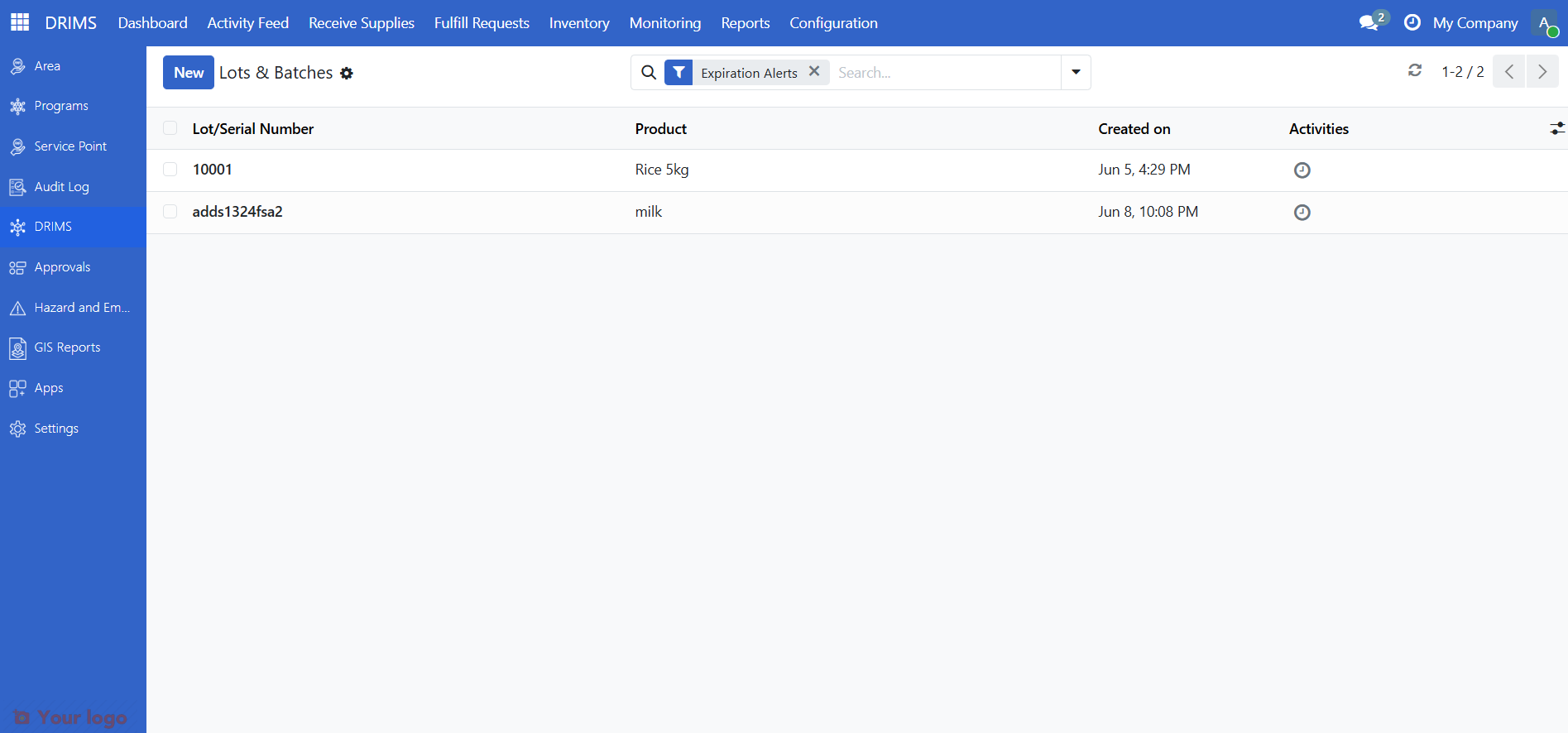
Click Filters
Select Expiration Alerts to show all lots whose Alert Date has been reached — these are lots that need attention now. For a custom date range, use Expiration Date instead
Review the list and plan dispatches
Warning
Lot records show a status badge in the top-right corner of the lot form:
Expiring (orange) — the Alert from date has been reached; the lot is still within its shelf life but action is needed soon
Expired (red) — the lot has passed its Expiration date and should not be dispatched
The system does not block dispatch of expired lots — it is the warehouse staff's responsibility to check lot status before dispatching. Expired lots should be removed from inventory through a stock adjustment.
View stock movements#
Track how a specific lot has moved in and out of your warehouses using the Traceability Report.
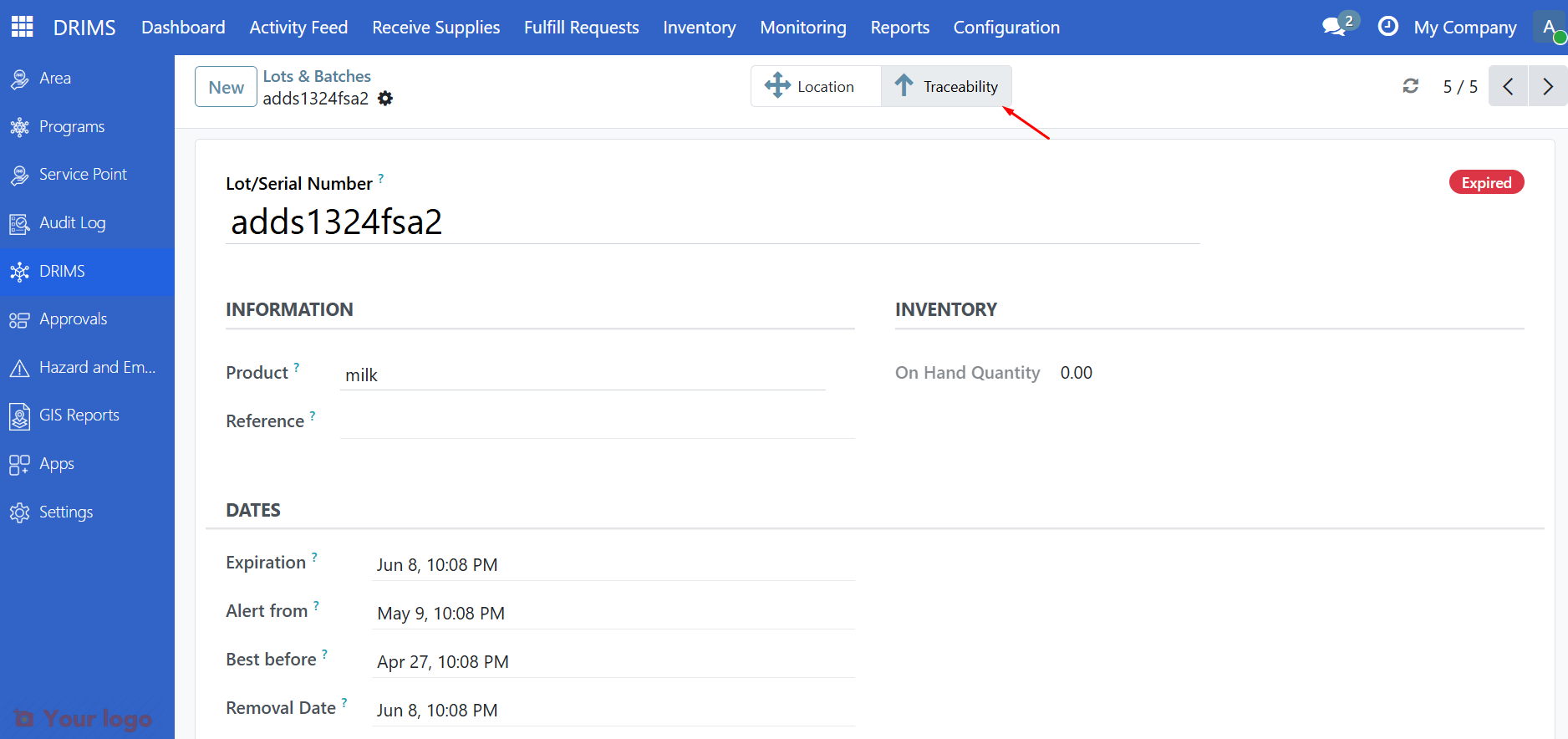
3. Read the report#
The Traceability Report shows every movement for that lot:
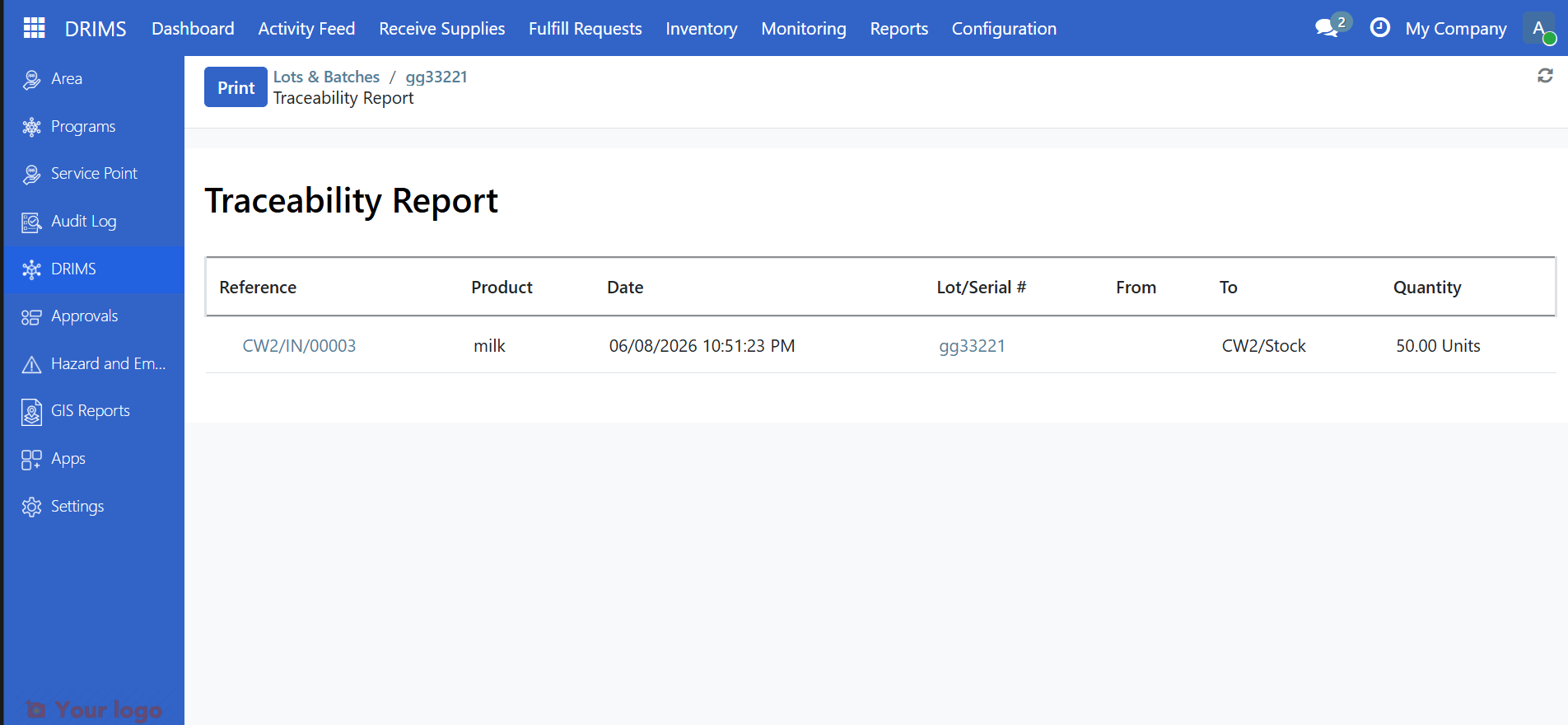
Column |
What It Shows |
|---|---|
Reference |
Linked document (donation receipt, dispatch, return) |
Product |
Item that was moved |
Date |
When the movement occurred |
Lot/Serial # |
The lot number |
From |
Source location |
To |
Destination location |
Quantity |
How many units moved |
Click any Reference link to open the originating document (e.g., the donation or dispatch that created the movement).
Check stock by incident#
View inventory KPIs for a specific disaster incident.
1. Open the incident record#
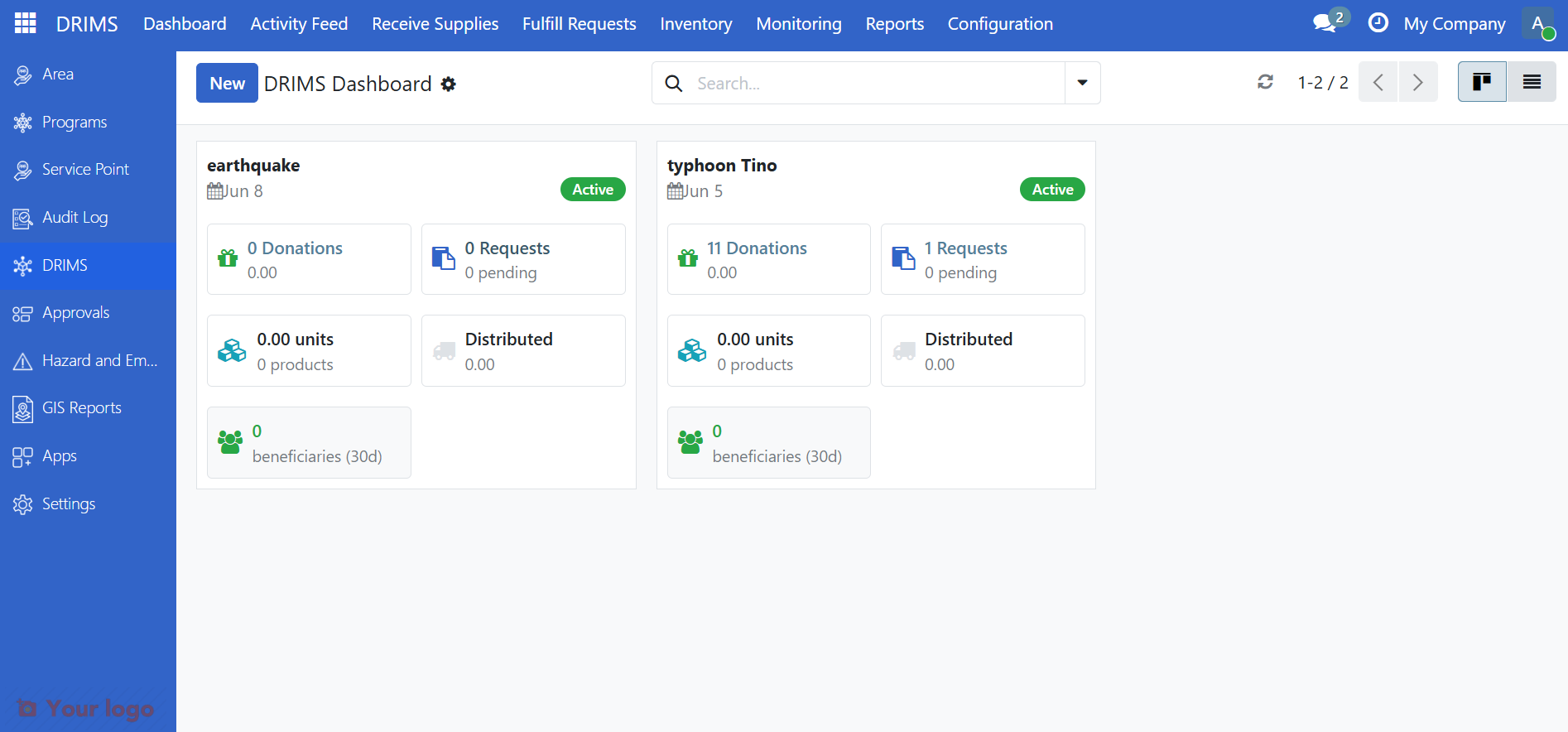
Click DRIMS in the sidebar
Select Dashboard
Click on the incident card to open it
2. Open the DRIMS KPIs tab#
Click the DRIMS KPIs tab on the incident form.
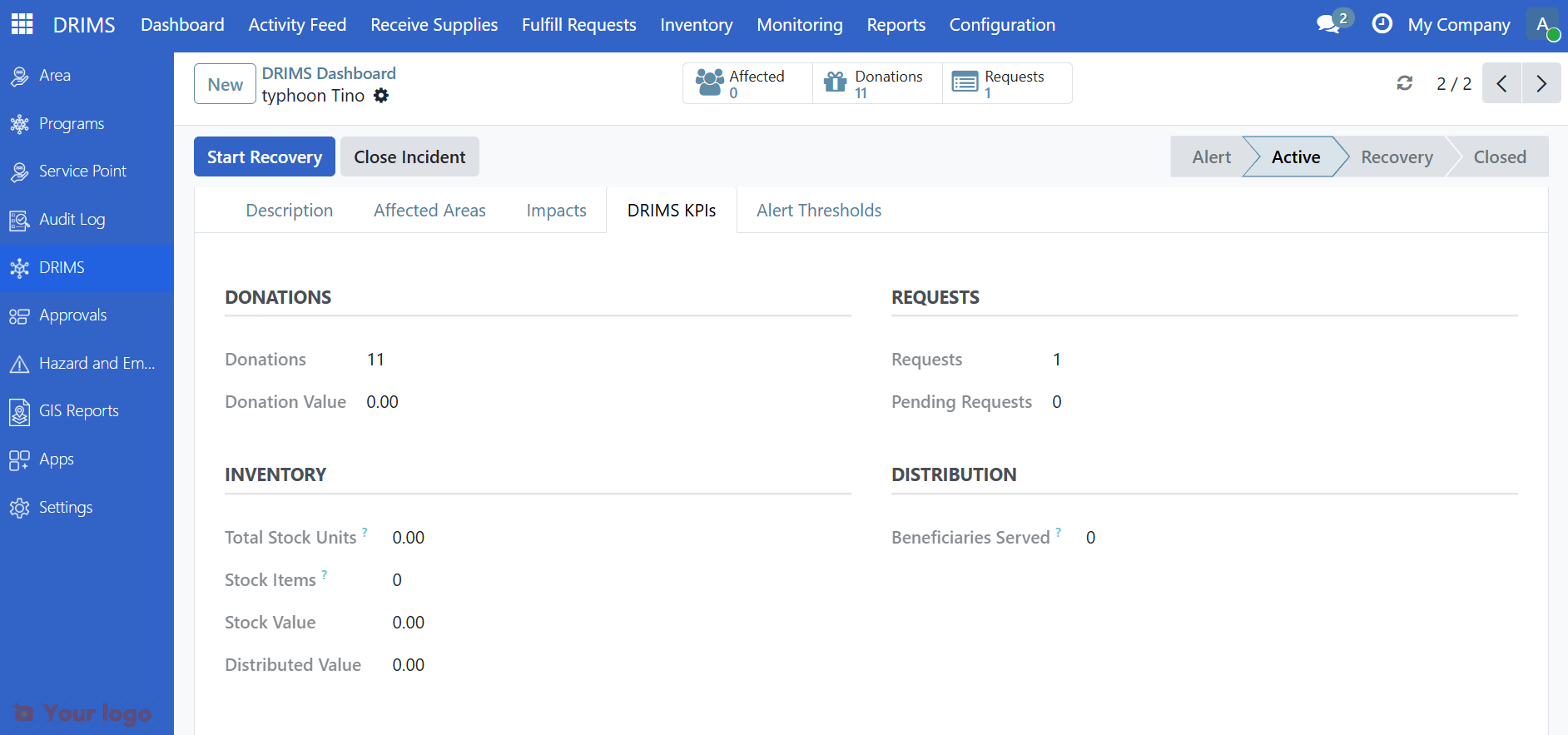
The Inventory section shows a summary of stock for this incident:
Field |
What it shows |
|---|---|
Total Stock Units |
Total quantity of all items currently in stock for this incident |
Stock Items |
Number of distinct product lines in stock |
Stock Value |
Monetary value of current stock |
Distributed Value |
Monetary value of items already dispatched |
Make stock adjustments#
Use stock adjustments to record inventory losses, damaged goods, expired disposals, or counting errors. Adjustments are tied to a warehouse and incident for full audit traceability.
Note
Stock adjustments require Warehouse Officer or Manager permissions. All adjustments are logged to the DRIMS activity feed.
1. Open the warehouse#
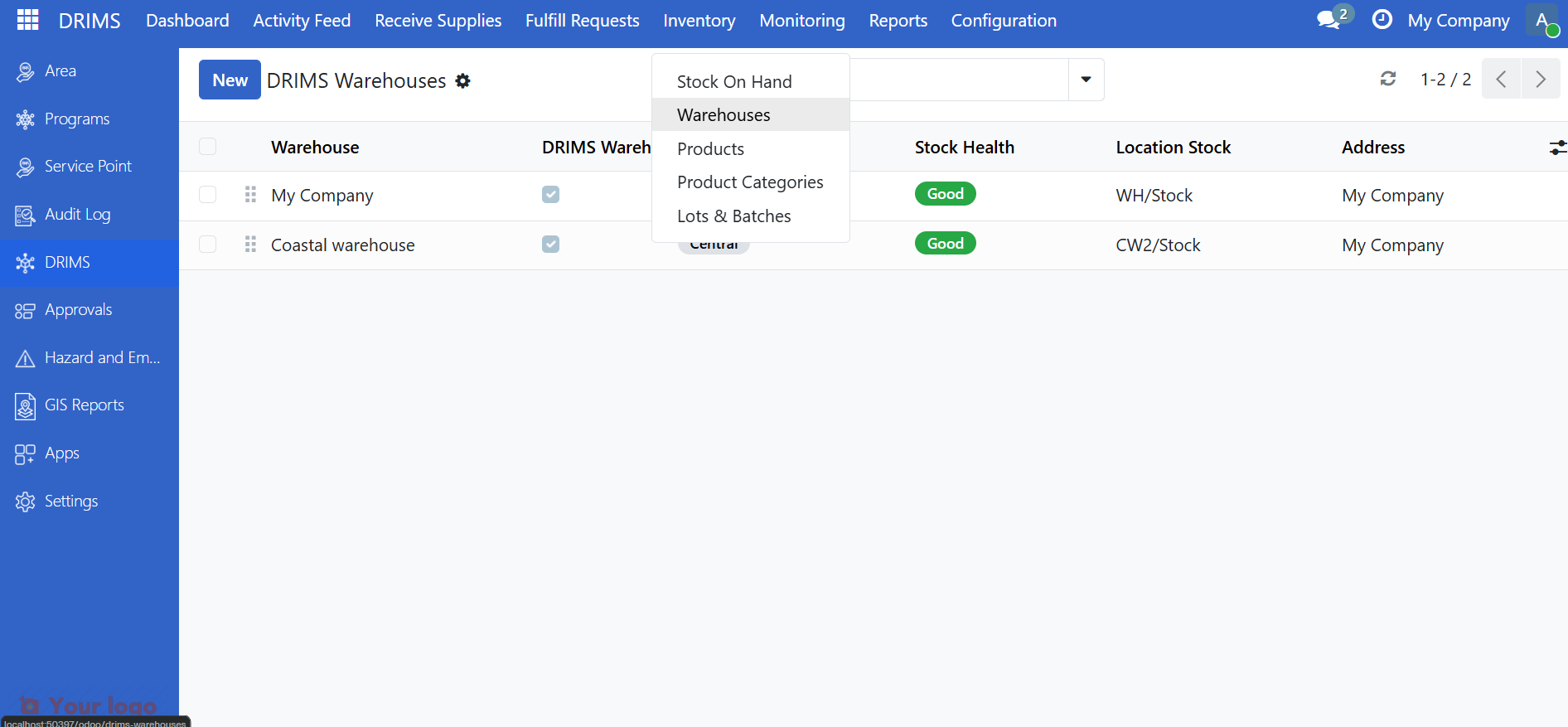
Go to DRIMS → Inventory → Warehouses and open the warehouse where the adjustment is needed.
2. Click Dispose Expired and fill in the form#
Click the Dispose Expired button in the warehouse form header. The stock adjustment wizard opens with the warehouse pre-filled.
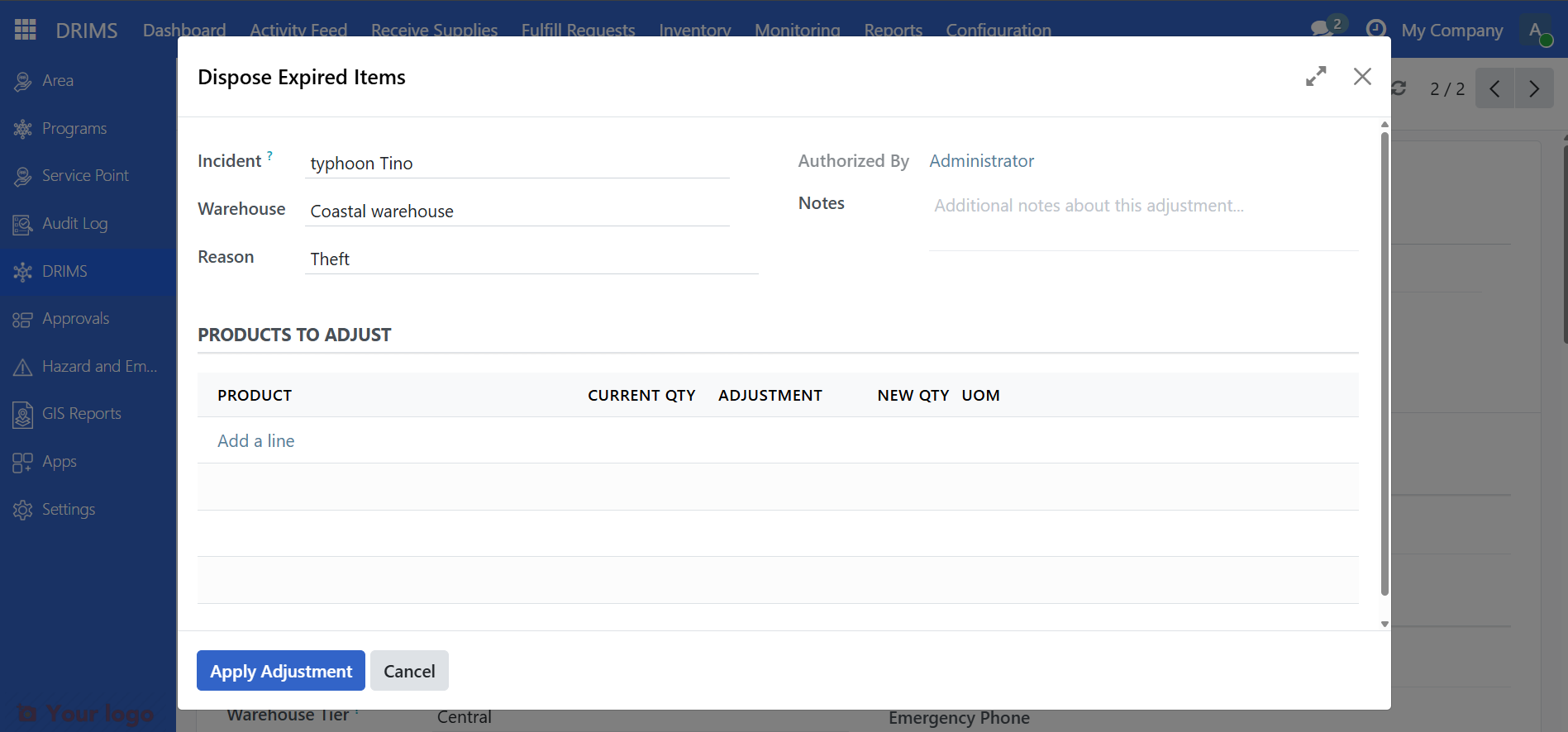
Field |
What to enter |
|---|---|
Warehouse |
Pre-filled from the warehouse you opened |
Incident |
The incident this adjustment relates to |
Reason |
Why stock is being adjusted — Expired, Damaged, Lost, Theft, Counting Error, or Other |
Authorized by |
The person authorizing the adjustment |
Notes |
Details about the discrepancy |
Add one line per product being adjusted, specifying the product, lot (if tracked), and quantity to remove.
3. Apply the adjustment#
Click Apply Adjustment. Stock levels update immediately and the adjustment is recorded in the activity feed.
Add a product#
If a product is missing from the catalog, ask your administrator to create it. For full instructions on setting up products, categories, lot tracking, and expiry dates, see Configure relief products.
Are You Stuck?#
Can't see inventory for a warehouse?
You may not have access to that warehouse. Contact your administrator to verify your warehouse assignments in Settings → Users → [Your User] → DRIMS Warehouse Access.
Stock numbers look wrong?
Stock quantities are updated in real time for most operations. If numbers don't match:
Check for pending dispatches (reserved but not yet shipped)
Check for unprocessed donations (received but not yet stocked)
Perform a physical count and create an adjustment if needed
Can't find a product?
The product may be:
Not in the catalog - Contact your administrator to add it
In a different warehouse - Remove the warehouse filter to search all locations
Using a different name - Try searching by product code instead
Lot/serial number not showing?
Not all products require lot tracking. Only items configured for tracking (like medical supplies with expiry dates) will show lot information.
Can't make an adjustment?
Stock adjustments require Warehouse Officer permissions. Contact your supervisor to get the appropriate access level, or ask them to make the adjustment on your behalf.
Why is stock "Reserved" but nothing was dispatched?
Stock is reserved as soon as a request is approved and allocated to your warehouse. It remains reserved until the dispatch is validated. Check the Dispatches list for pending dispatches that need processing.
Next Steps#
Receive a donation - Learn how to receive new donations
Process a dispatch - Learn how to process dispatches
Understand the Dashboard - Monitor warehouse health and alerts