 openspp.org
Case teams
Contents
Case teams#
This guide is for implementers setting up case management teams, caseload limits, and assessment frameworks.
Mental model#
Teams organize who handles cases:
Component |
What it does |
Example |
|---|---|---|
Team |
Groups case workers under a supervisor |
"Region 4 Protection Team" |
Caseload |
Limits how many cases each worker handles |
Max 30 cases per worker |
Risk factors |
Categories for risk assessment |
"Domestic violence", "Substance abuse" |
Vulnerabilities |
Categories for vulnerability assessment |
"Disability", "Chronic illness" |
Team configuration#
Field |
What it means |
|---|---|
Team Name |
Label for the team |
Supervisor |
Team leader (a system user) |
Members |
Team members who handle cases |
Case Types |
Which case types this team handles |
Company |
Organization the team belongs to |
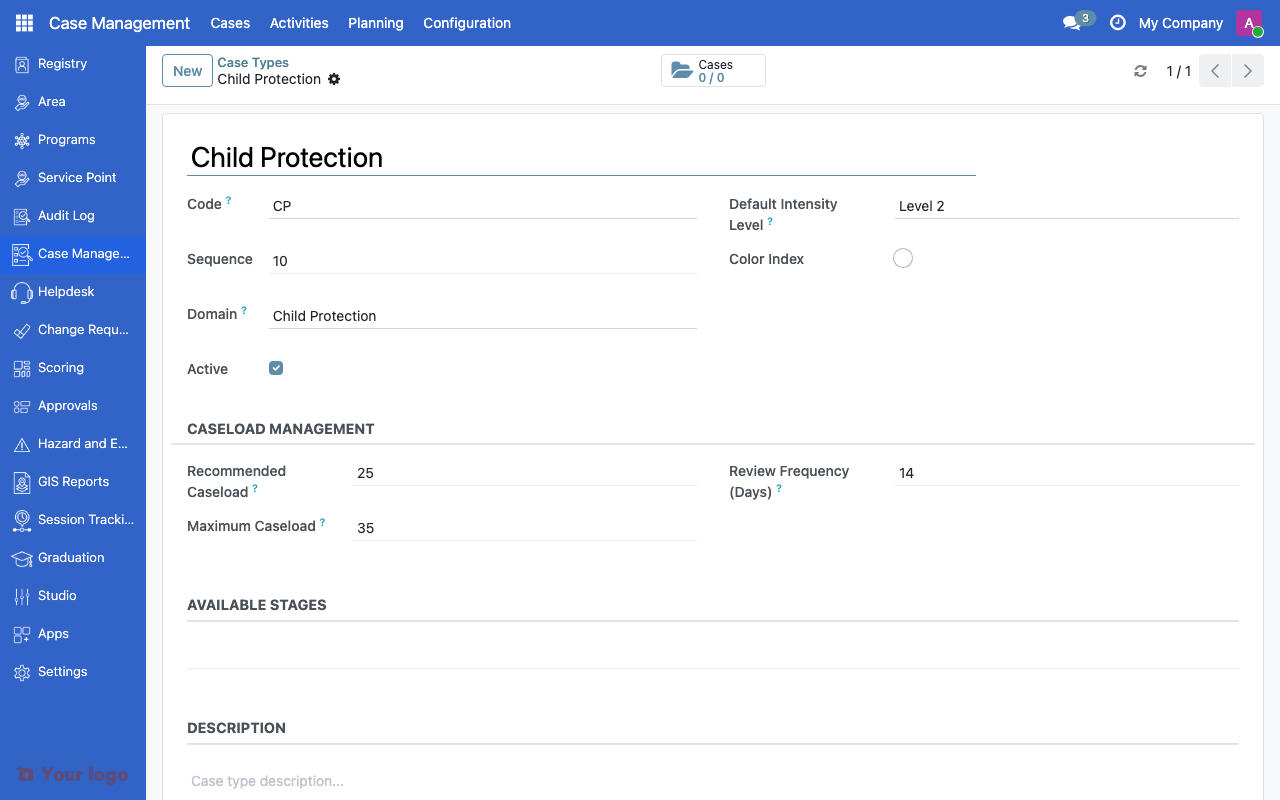
Case type form showing domain, intensity, caseload limits, and available stages.#
The system tracks per team:
Active Cases - Number of currently open cases
Total Cases - All cases ever handled
Setting up a team#
Navigate to Cases > Configuration > Case Teams
Click Create
Enter the Team Name and select a Supervisor
Add Members from the user list
Select the Case Types this team handles
Save
Caseload management#
Each case type defines caseload limits:
Setting |
What it does |
|---|---|
Recommended Caseload |
Suggested maximum per worker (soft limit, triggers warning) |
Maximum Caseload |
Hard limit per worker (blocks new assignments) |
When assigning a case to a worker, the system checks the worker's current load against these limits.
Risk factors#
Risk factors are used during case assessment to evaluate danger or urgency.
Field |
What it means |
|---|---|
Name |
Risk factor label (e.g., "Domestic Violence") |
Code |
Unique identifier |
Severity Weight |
Numeric weight from 0.0 to 1.0 (higher = more severe) |
Color |
Visual indicator in the UI |
Setting up risk factors#
Navigate to Cases > Configuration > Risk Factors
Click Create
Enter the Name and Code
Set the Severity Weight (e.g., 0.9 for life-threatening, 0.3 for low risk)
Save
Common risk factors#
Risk Factor |
Weight |
When to use |
|---|---|---|
Physical violence |
0.9 |
Active physical abuse |
Neglect |
0.7 |
Basic needs not met |
Exploitation |
0.8 |
Labor or sexual exploitation |
Substance abuse |
0.5 |
Substance dependency affecting care |
Homelessness |
0.6 |
No stable housing |
Vulnerabilities#
Vulnerabilities describe characteristics that increase a person's need for support.
Field |
What it means |
|---|---|
Name |
Vulnerability label (e.g., "Physical Disability") |
Code |
Unique identifier |
Description |
Detailed explanation |
Color |
Visual indicator |
Setting up vulnerabilities#
Navigate to Cases > Configuration > Vulnerabilities
Click Create
Enter the Name, Code, and Description
Save
Common vulnerabilities#
Vulnerability |
Description |
|---|---|
Physical disability |
Permanent physical impairment |
Chronic illness |
Ongoing health condition |
Mental health condition |
Psychological or psychiatric condition |
Elderly (65+) |
Age-related vulnerability |
Unaccompanied minor |
Child without parent or guardian |
Single-parent household |
One parent caring for children alone |
Are You Stuck?#
Can a worker be on multiple teams?
Yes. A user can be a member of several teams. Their caseload limit applies across all teams combined.
How are cases assigned to workers?
Cases can be manually assigned by a supervisor or self-assigned by team members from the "Unassigned Cases" queue. Automatic assignment rules can be configured using formula-based rules (requires the Case CEL module — ask your administrator).
Caseload doesn't match what I expect?
The caseload count includes only active (non-closed) cases. Check that closed cases have properly reached a stage with Is Closed checked.
Risk factor weights - how are they used?
Weights contribute to an overall risk score for the case. Higher total risk scores can trigger alerts or priority flags. The exact calculation depends on the scoring model.
Can I deactivate a team without deleting it?
Yes. Set the team to inactive (uncheck the Active box). This preserves historical data while removing it from active assignment options.
Next steps#
Case management overview - Case management fundamentals
Case stages - Configure lifecycle stages
Access control overview - Set up user roles for case workers