 openspp.org
Storage backend overview
Contents
Storage backend overview#
This guide is for implementers and system administrators configuring file storage in OpenSPP. The default storage works for most organizations. Cloud storage options require IT assistance to set up.
Mental model#
Storage backends control where uploaded files are physically stored:
Backend |
Where files go |
Best for |
|---|---|---|
Database |
Inside the system's database |
Small deployments, simplest setup |
Filesystem |
Files on the server |
Medium deployments, good performance |
Cloud storage |
Cloud service (e.g., Amazon S3 or similar) |
Large deployments, scalability |
Think of it like choosing where to save photos: database is your phone's internal storage (simple but limited), filesystem is an external hard drive (more space), and cloud storage is a cloud service (unlimited, accessible from anywhere).
Key concepts#
Backend configuration#
Field |
What it means |
|---|---|
Name |
Backend label |
Backend Type |
Storage technology |
Directory Path |
For filesystem: where to store files |
Bucket Name |
For S3: the storage bucket |
Endpoint URL |
For S3: the service endpoint |
Access Key / Secret Key |
For S3: authentication credentials |
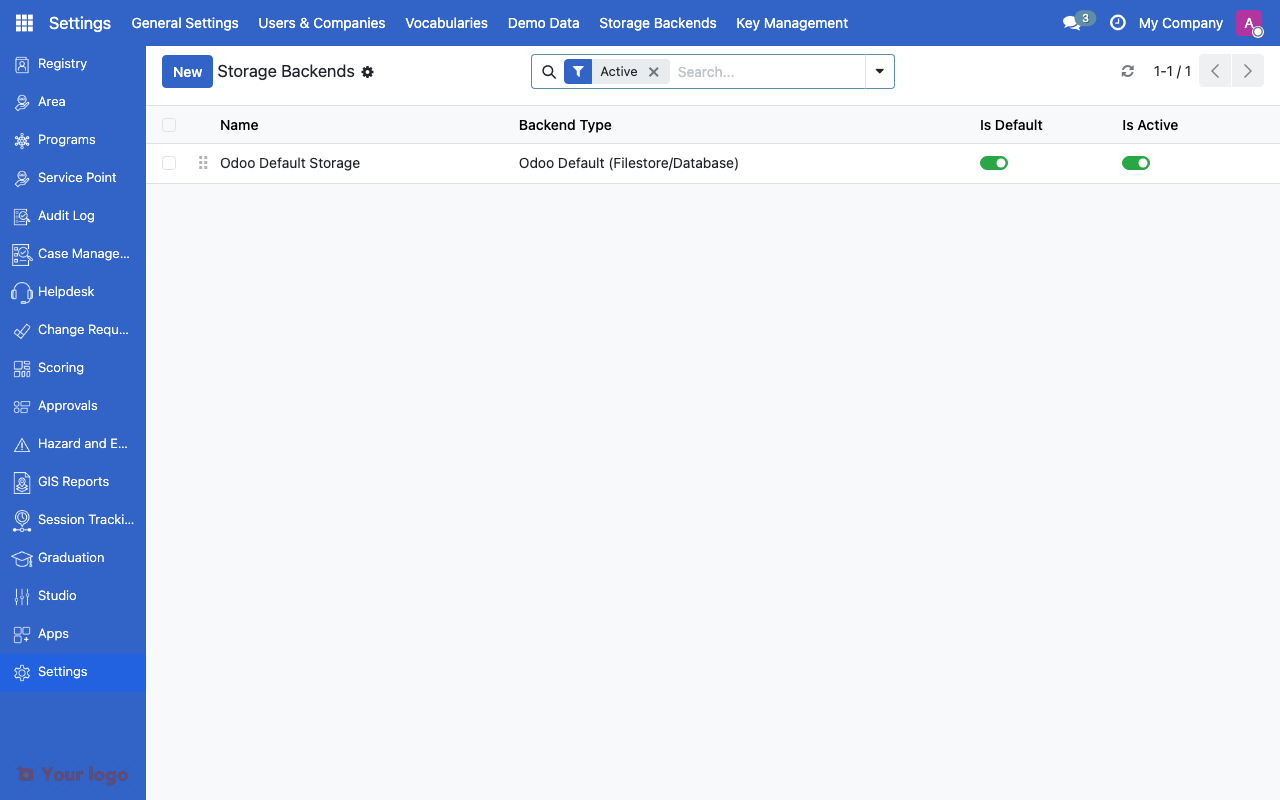
Storage backends list showing configured storage options.#
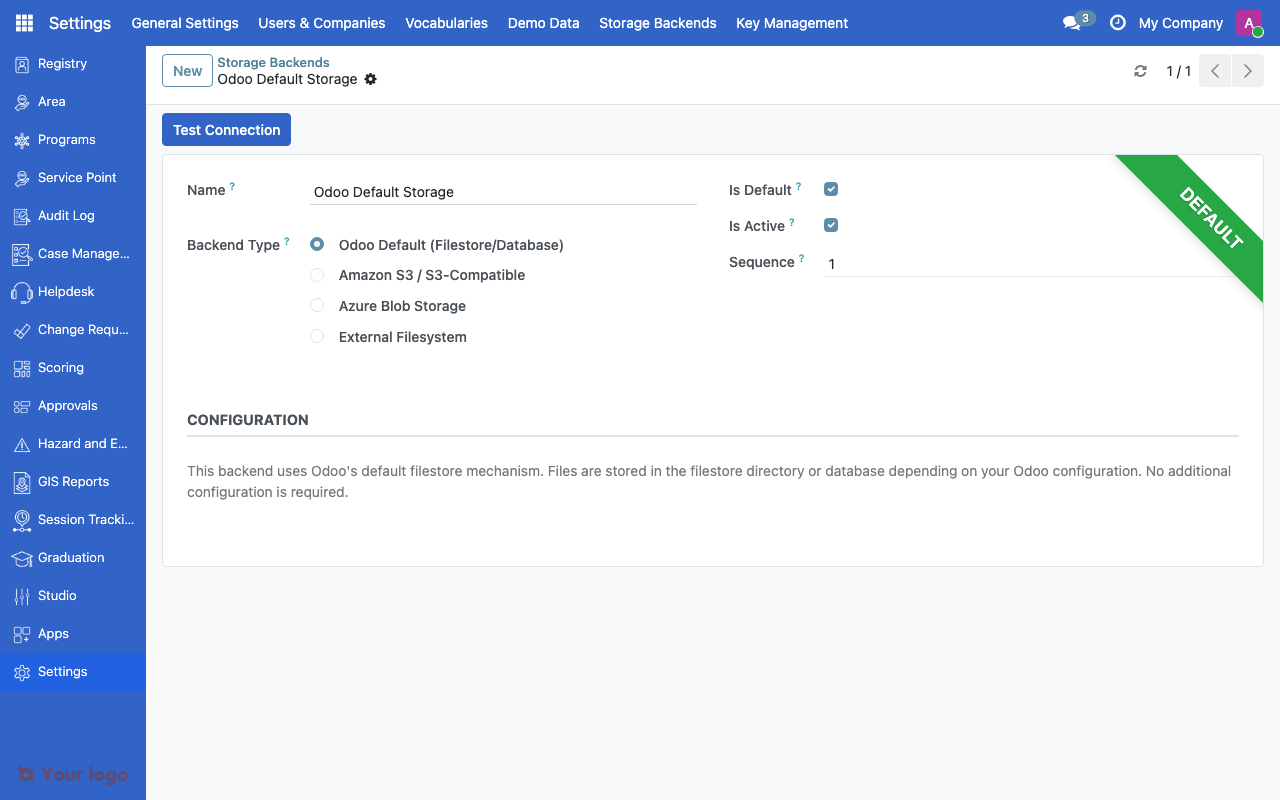
Storage backend form showing backend type and connection settings.#
Choosing a backend#
Factor |
Database |
Filesystem |
Cloud Storage |
|---|---|---|---|
Setup complexity |
None (default) |
Low |
Medium (IT required) |
Storage limit |
Database size |
Server disk size |
Unlimited |
Backup |
Included in database backups |
Separate backup needed |
Provider handles it |
Performance |
Good for small files |
Good |
Good |
Multi-server |
No |
Shared filesystem needed |
Yes |
Setting up a storage backend#
Filesystem backend#
Ask your IT team to:
Create the storage directory on the server
Create a backend with type = Filesystem
Set the Directory Path to the storage location
Cloud storage backend#
Ask your IT team to:
Set up a storage bucket on your cloud service (e.g., Amazon S3 or compatible)
Create a backend with type = Cloud Storage
Enter the connection details and credentials
Test the connection
Are You Stuck?#
Files not uploading?
Ask your IT team to check the backend connection and permissions.
Can I migrate between backends?
Migrating existing files between backends requires manual intervention. New uploads use the active backend; existing files remain where they were stored.
Which backend for production?
For single-server deployments, filesystem is recommended. For multi-server or cloud deployments, use cloud storage. Consult your IT team for the best option.