 openspp.org
Review and Approve Requests
Contents
Review and Approve Requests#
Applies to: SP-MIS, DRIMS
This guide is for users who need to review items waiting for their approval and take action on them.
What You Will Do#
Find items waiting for your approval
Review the details of each request
Approve, reject, or request revisions
Track approval history
Before You Start#
You need Approver or Manager access
Items must be assigned to you or your security group
Find Your Pending Approvals#
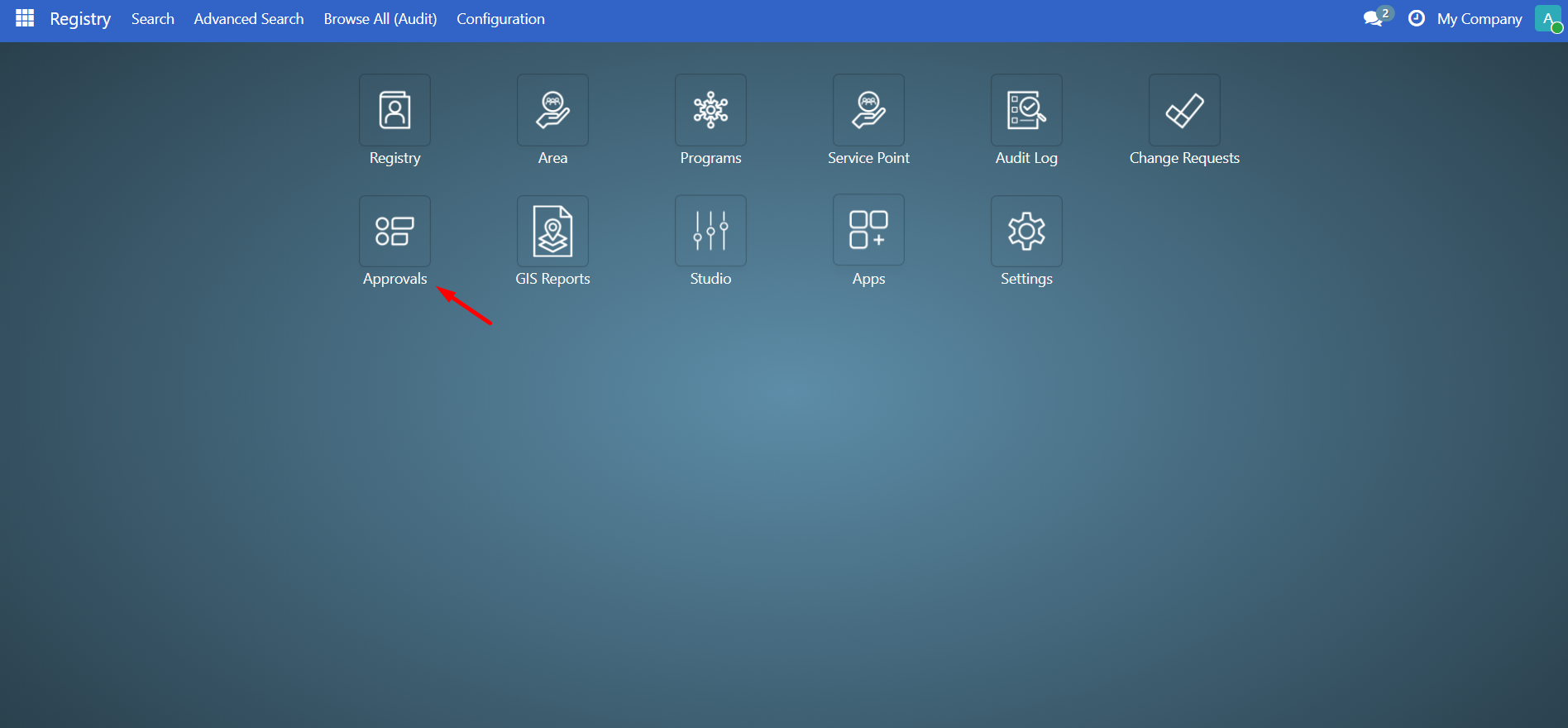
2. Go to Pending Approvals#
Click My Approvals, then Pending Approvals.
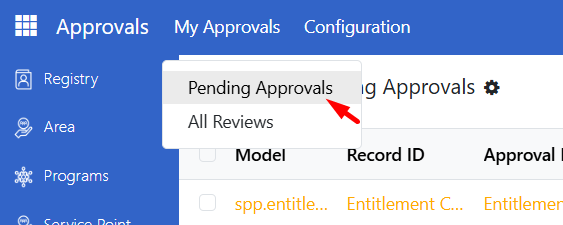
You will see a list of all items waiting for your approval.
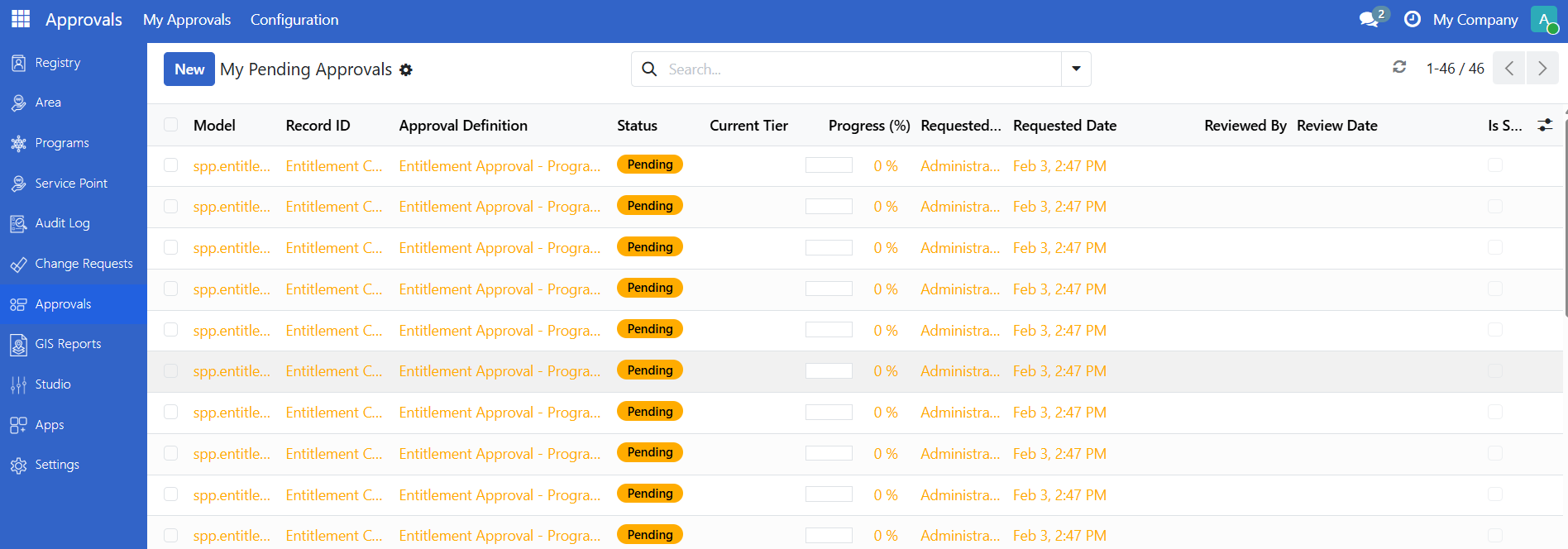
Understanding the List#
Column |
What It Shows |
|---|---|
Model |
The type of item (change request, entitlement, etc.) |
Record ID |
Link to the actual item |
Definition |
Which approval workflow applies |
Status |
Always "Pending" in this view |
Requested By |
Who submitted the item |
Requested Date |
When it was submitted |
SLA Exceeded |
Whether the item is past its deadline |
Review an Item#
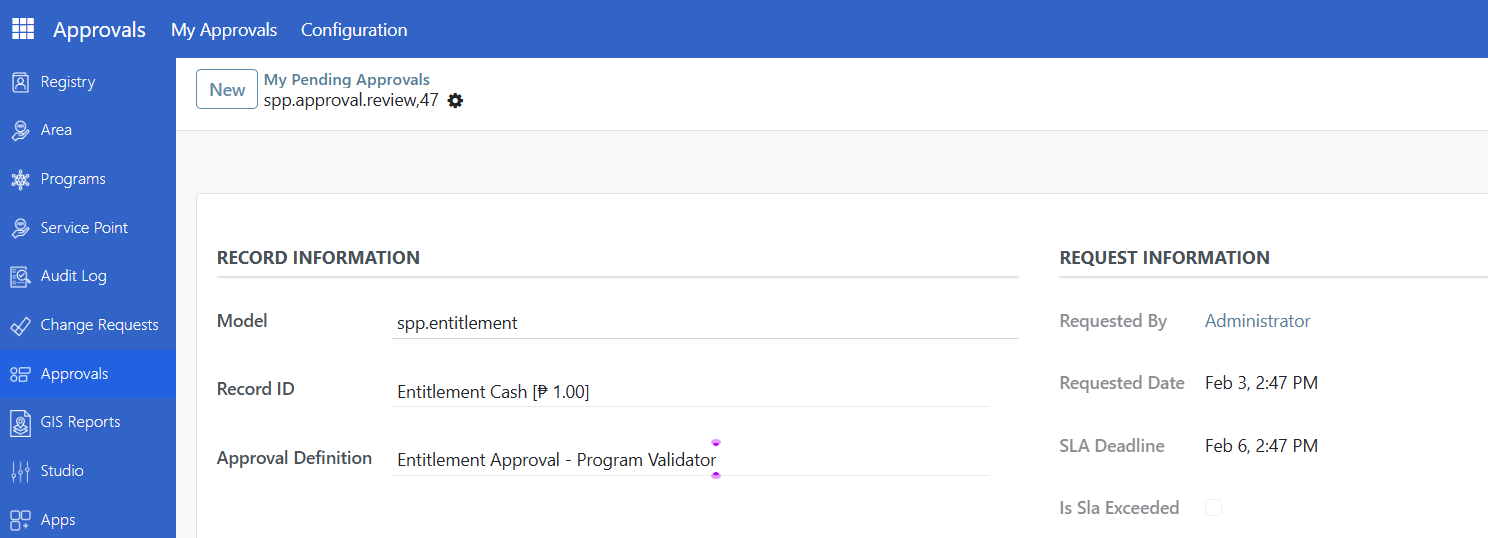
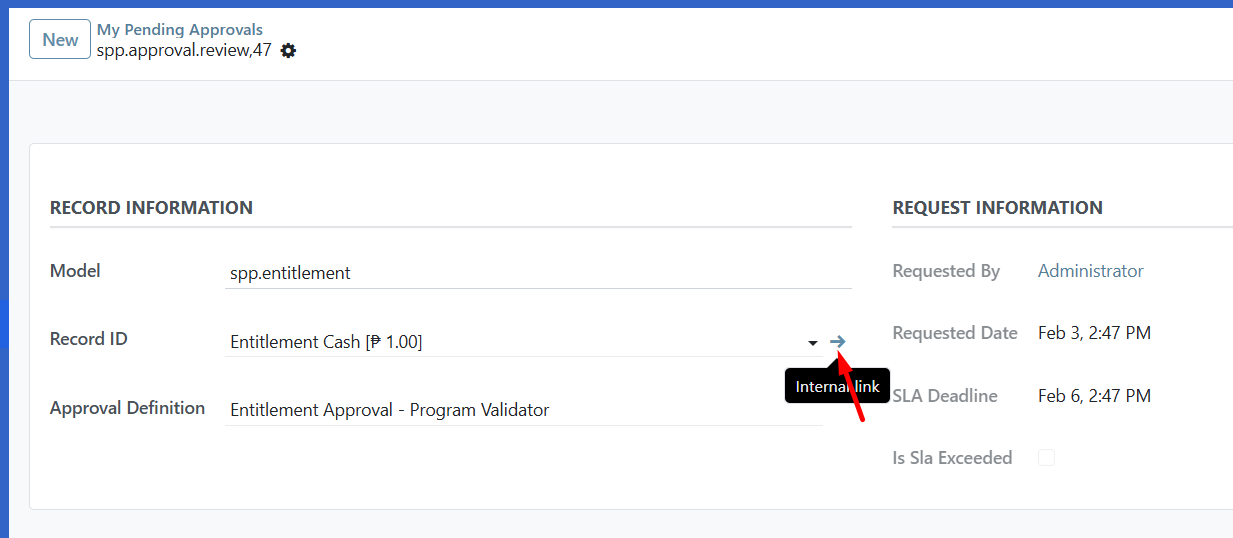
2. View the original record#
To see the full details of what you are approving, click the Record ID link to open the original item.
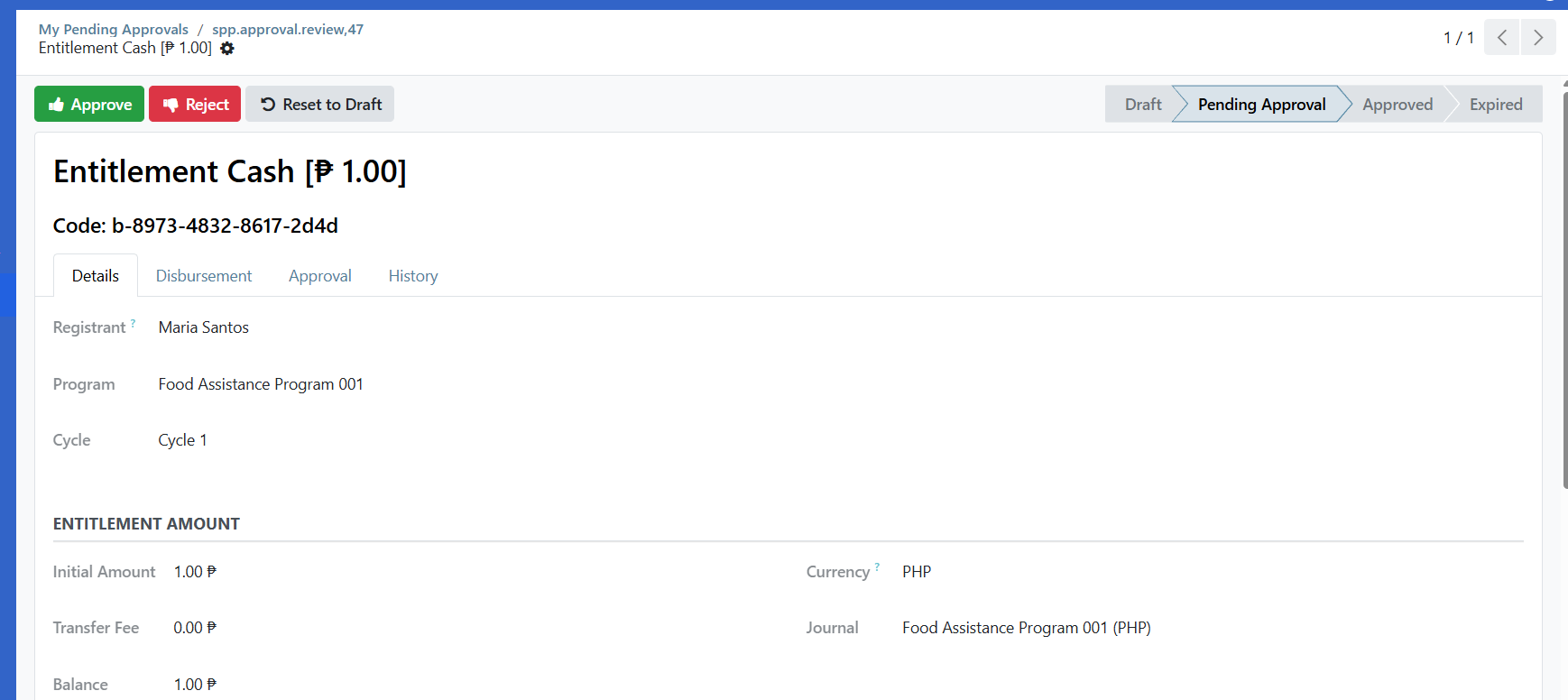
This opens the actual change request, entitlement batch, or other item so you can review all the details.
Approve an Item#
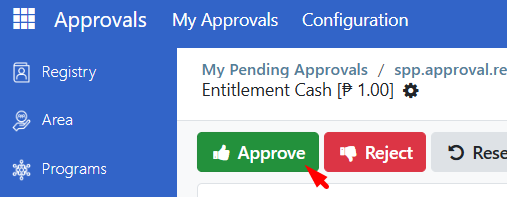
1. Click Approve#
From the original record, click the Approve button.
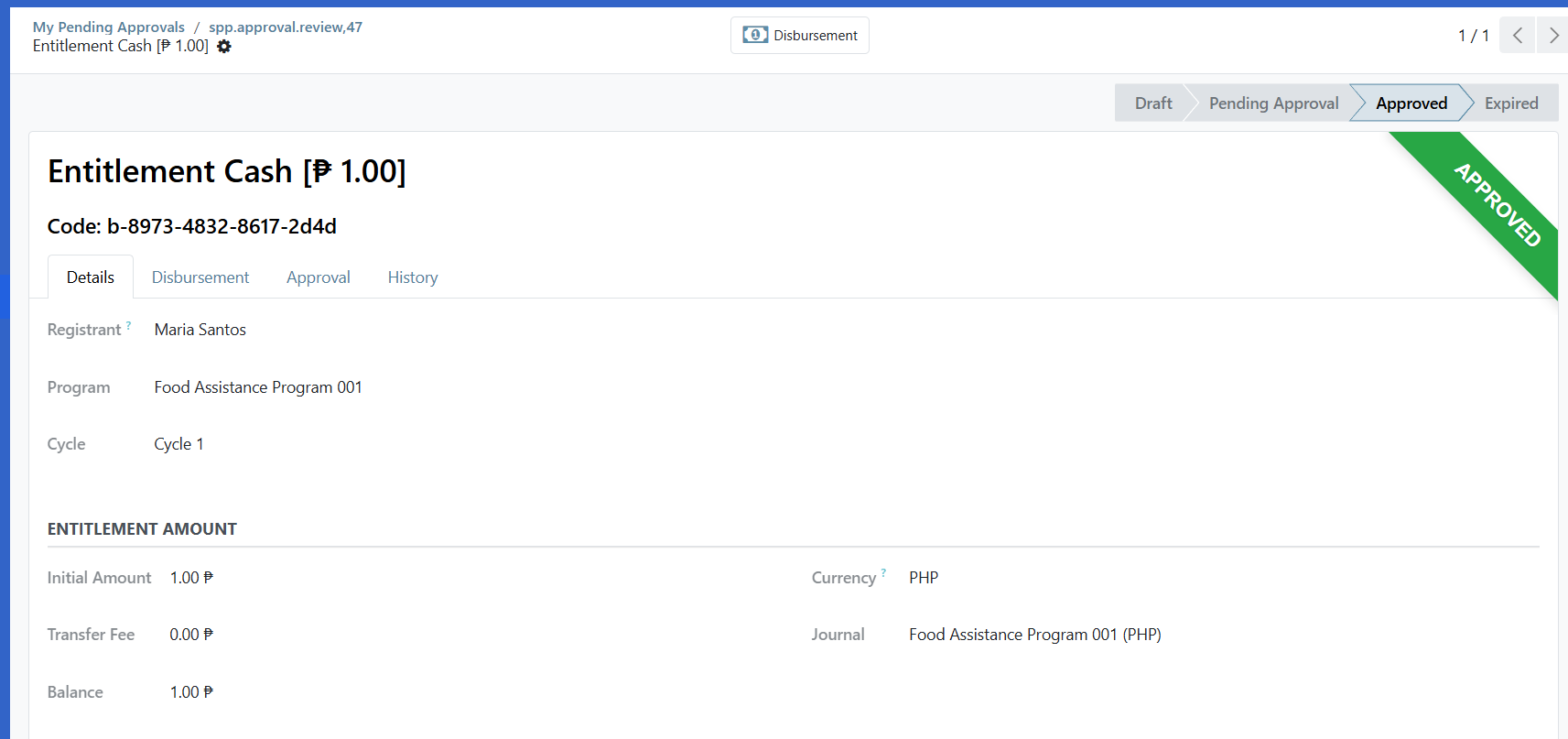
The item status changes to Approved.
Note
For multi-tier approvals, clicking Approve moves the item to the next approval level. It only becomes fully approved after all levels have approved.
Reject an Item#
If the request should not be approved, you can reject it with a reason.
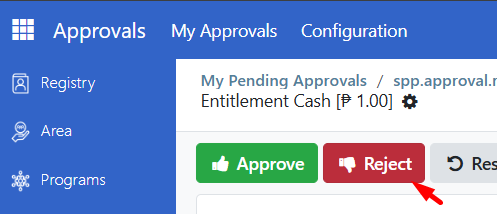
2. Enter a reason#
A dialog appears asking for your rejection reason. This is required.
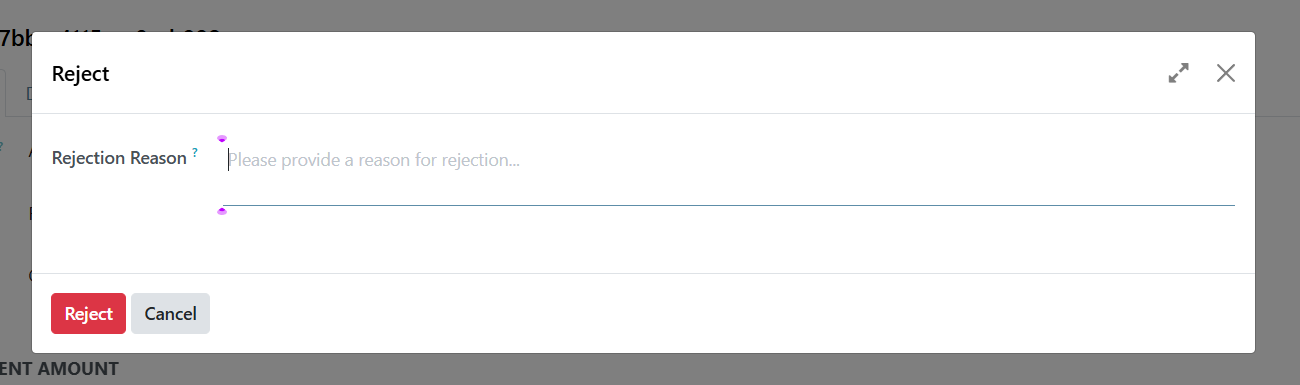
Field |
What to Enter |
|---|---|
Rejection Reason |
Explain why you are rejecting this item |
3. Confirm rejection#
Click Reject to confirm.
The item status changes to Rejected and the submitter is notified with your reason.
Request Revisions#
If an item needs changes before you can approve it, you can request revisions instead of rejecting.
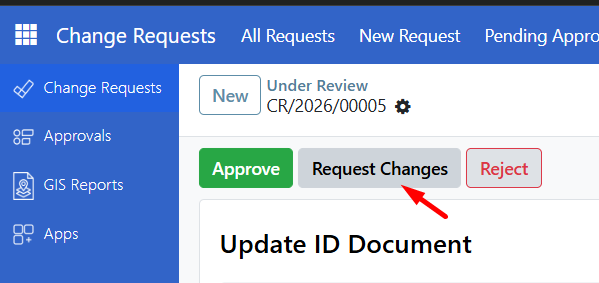
2. Enter revision notes#
Describe what changes are needed.
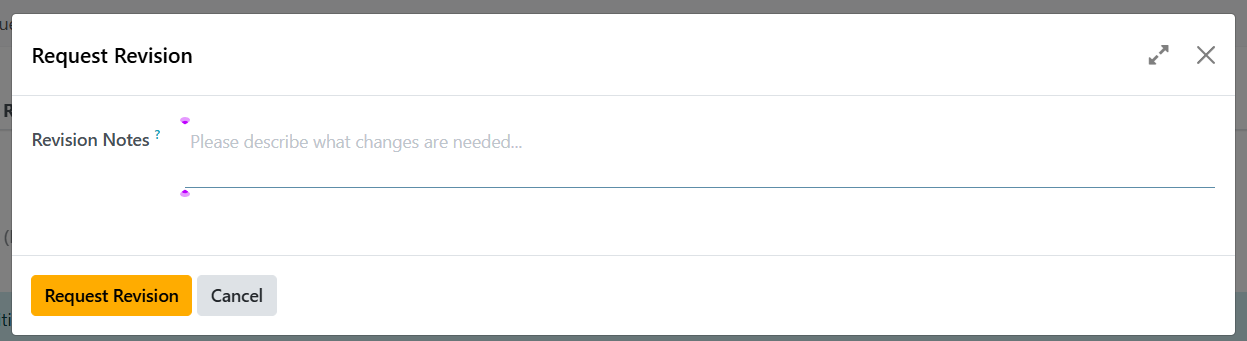
Field |
What to Enter |
|---|---|
Revision Notes |
Explain what needs to be changed before approval |
3. Confirm#
Click Request Revision to confirm.
The item status changes to Revision Requested. The submitter can make changes and resubmit.
View Approval History#
From the review list#
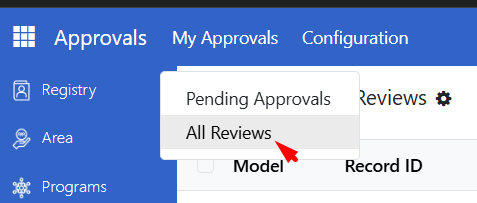
Managers can see all reviews by going to Approvals > My Approvals > All Reviews.
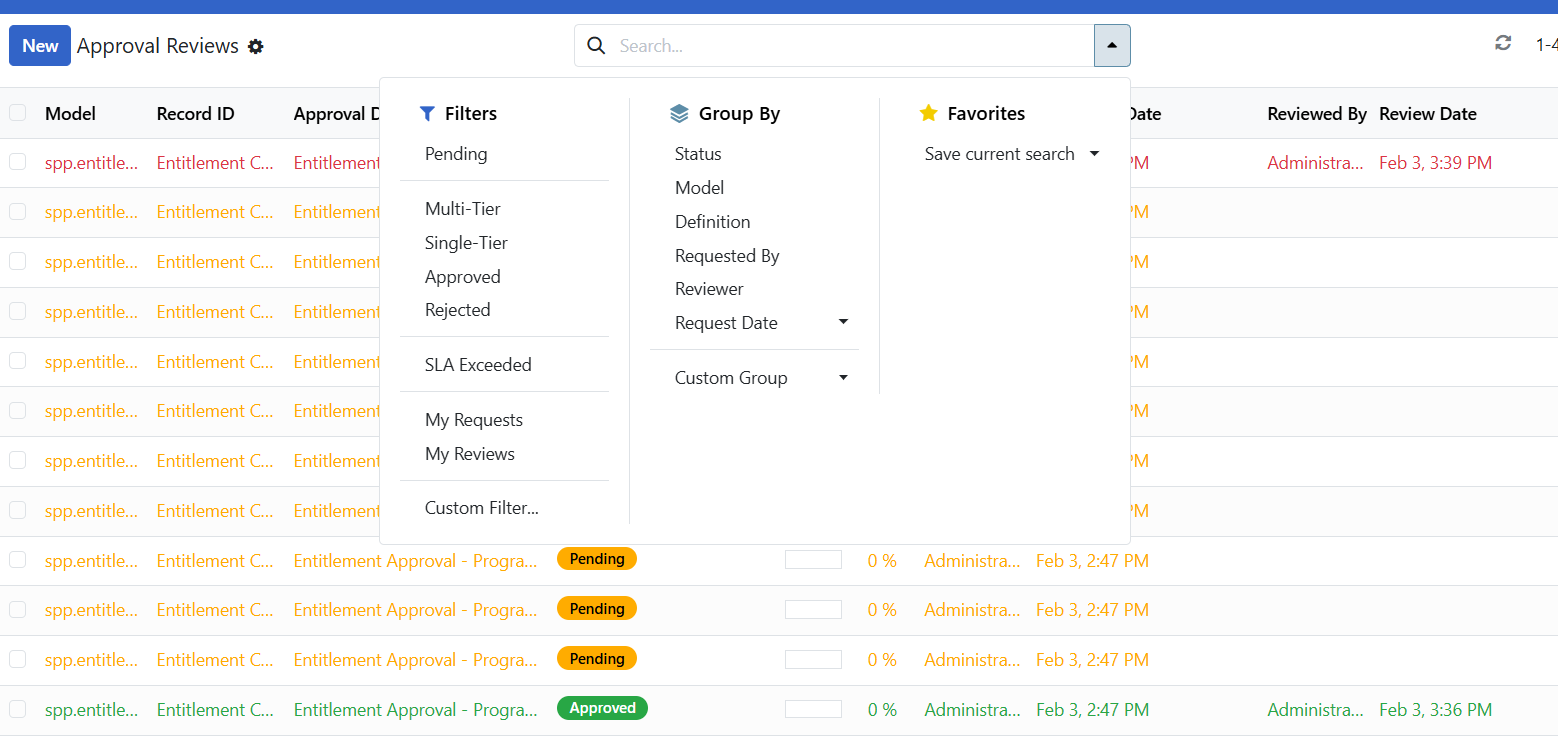
Use the filters to find specific approvals:
Filter |
What It Shows |
|---|---|
Pending |
Items waiting for approval |
Approved |
Previously approved items |
Rejected |
Previously rejected items |
SLA Exceeded |
Items past their deadline |
My Requests |
Items you submitted |
My Reviews |
Items you reviewed |
From the original record#
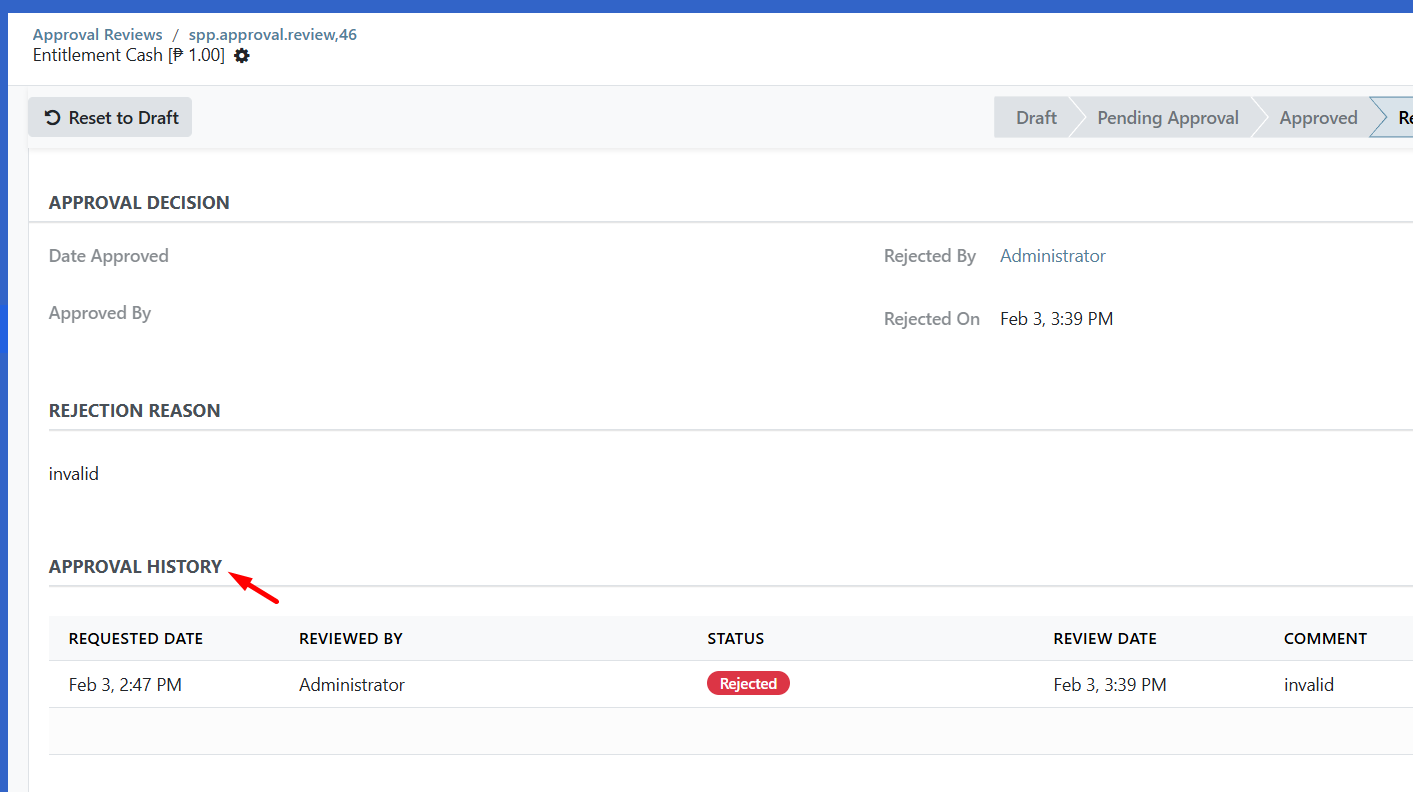
Open any record that uses approvals. The approval history appears in the Approval History section or the message log at the bottom.
Multi-Tier Approvals#
Some items require approval from multiple levels. For example:
Supervisor approves first
Finance Manager approves second
Director gives final approval
How it works#
When you approve an item with multi-tier approval:
Your approval is recorded for your tier
The item moves to the next tier
The next approver is notified
The item only becomes fully approved after all tiers approve
Check progress#
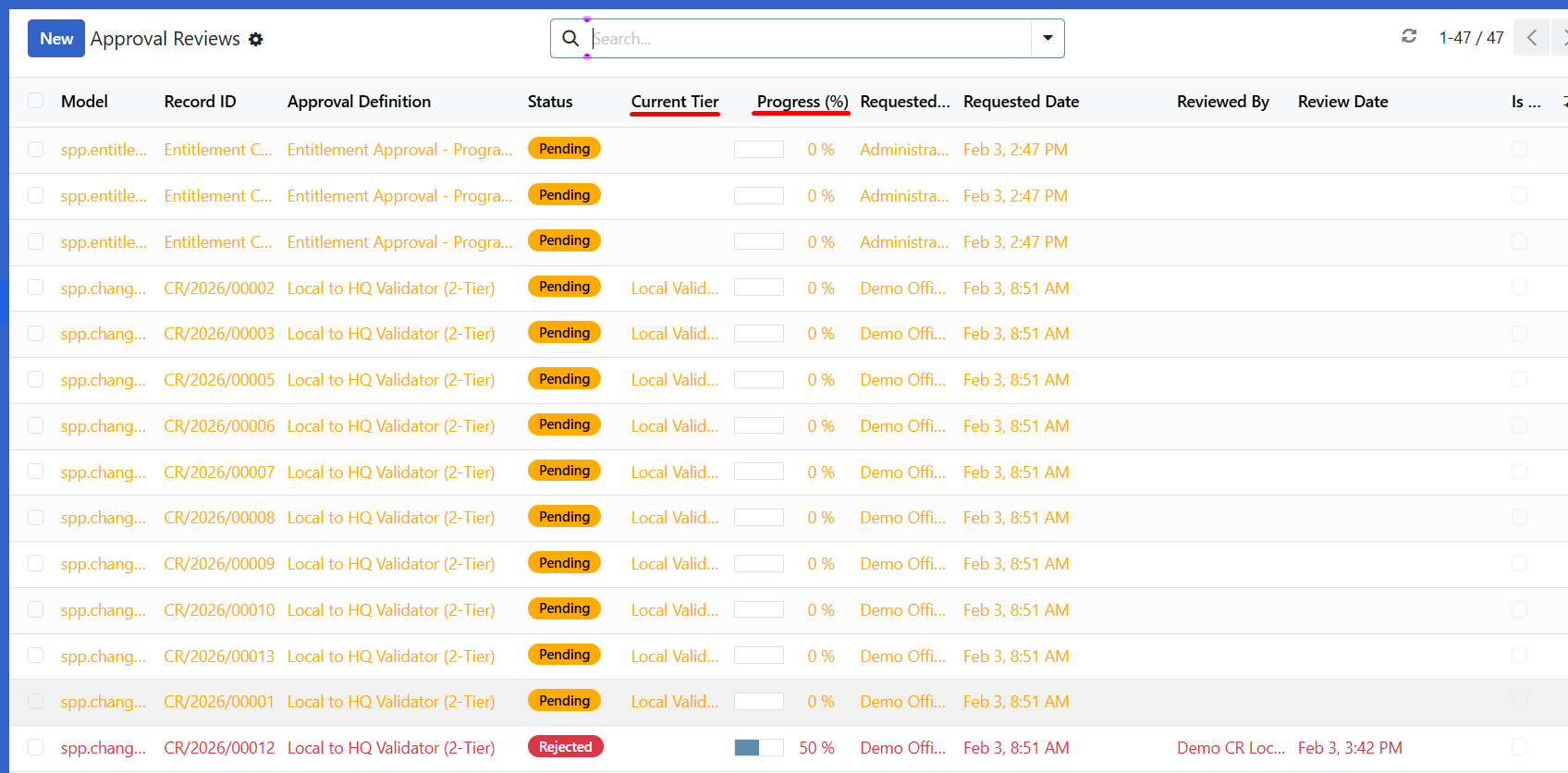
On items with multi-tier approval, you can see:
Field |
What It Shows |
|---|---|
Current Tier |
Which level is currently reviewing |
Progress |
Percentage of tiers completed |
Are You Stuck?#
Cannot find the Approve button? The approval buttons appear on the original record, not on the review record. Click the Record ID link to open the original item.
Approve button is grayed out or missing? You may not have permission to approve this type of item. Check with your administrator.
Rejected by mistake? Contact your supervisor. Depending on the workflow, the submitter may be able to resubmit, or an administrator may need to intervene.
Item is past SLA deadline? Items past their deadline are highlighted. Process them as soon as possible and discuss with your supervisor if you are regularly receiving overdue items.
Cannot see All Reviews menu? This option is only available to users with Manager permissions. Regular approvers only see their own pending items.
Multi-tier approval stuck? If an item is waiting at another tier and you are the approver for that tier but cannot see it, check that you have the correct security group membership.
Next Steps#
Change Requests - Learn about change request workflows
Programs - Understand program cycle approvals