 openspp.org
Manage farm data
Contents
Manage farm data#
Applies to: Farmer Registry
This guide is for users (Registry officers, Managers or Admin ) who record and update agricultural data for farms registered in OpenSPP.
What you will do#
View and update the farmer-registry-specific tabs on a farm record: farm classification details, agricultural activities, land parcels, and farm assets.
Before you start#
You need Registry Officer or Administrator access
The
spp_farmer_registrymodule must be installed — contact your administrator if you do not see the tabs described in this guideFor land parcel maps,
spp_gisand a MapTiler API key are required (see View maps and generate reports), Please note thatspp_gisis auto installed when installingspp_farmer_registry
Note
Farms are registered as Groups in OpenSPP. The farmer registry module adds extra tabs to the standard group form. If you have not yet created a farm record, see Register a group first.
Steps#
Step 1. Open a farm record#
Go to Registry > Groups and open an existing farm record, or create a new group as described in Register a group.
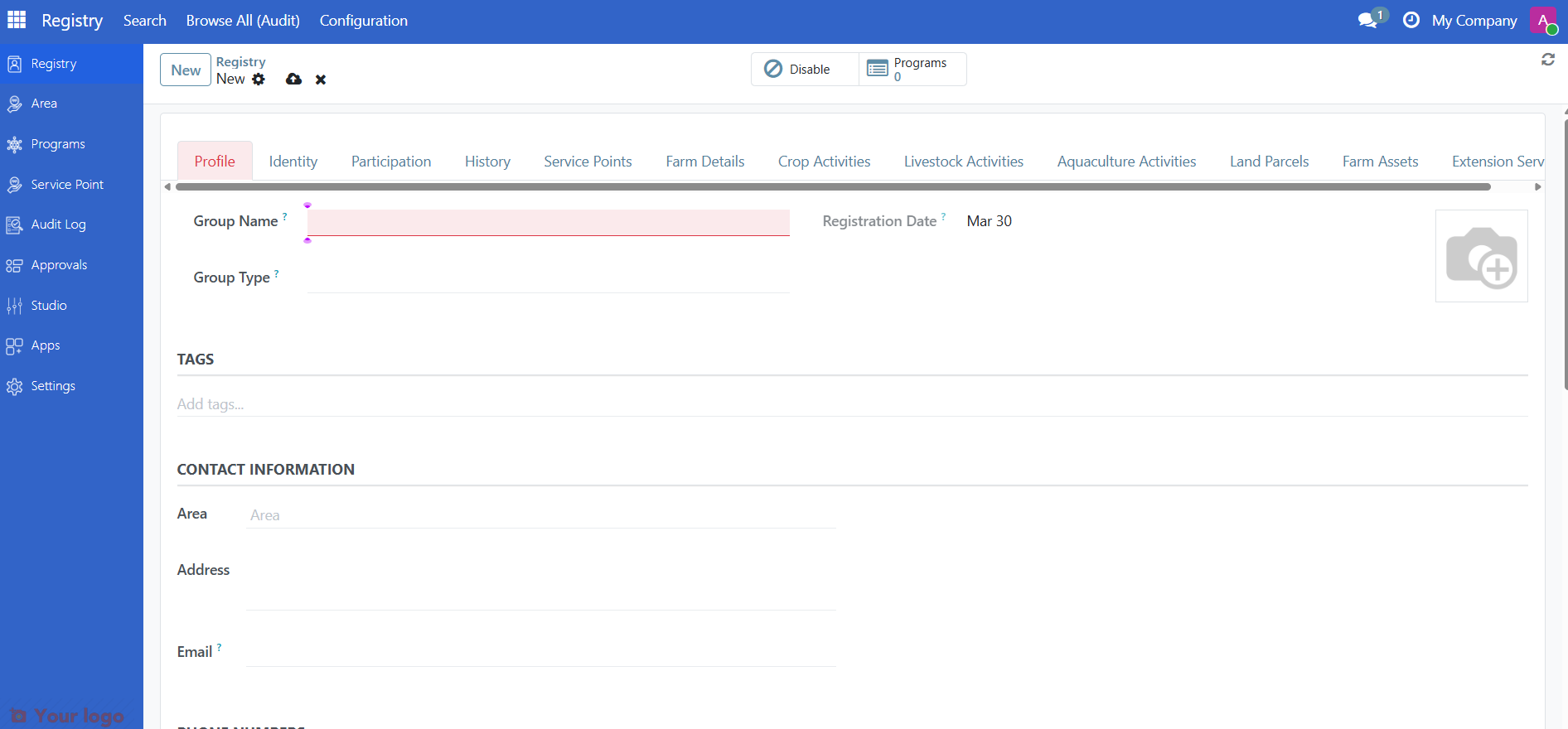
Step 2. Fill in the Farm Details tab#
Click the Farm Details tab to enter farm classification and size information.
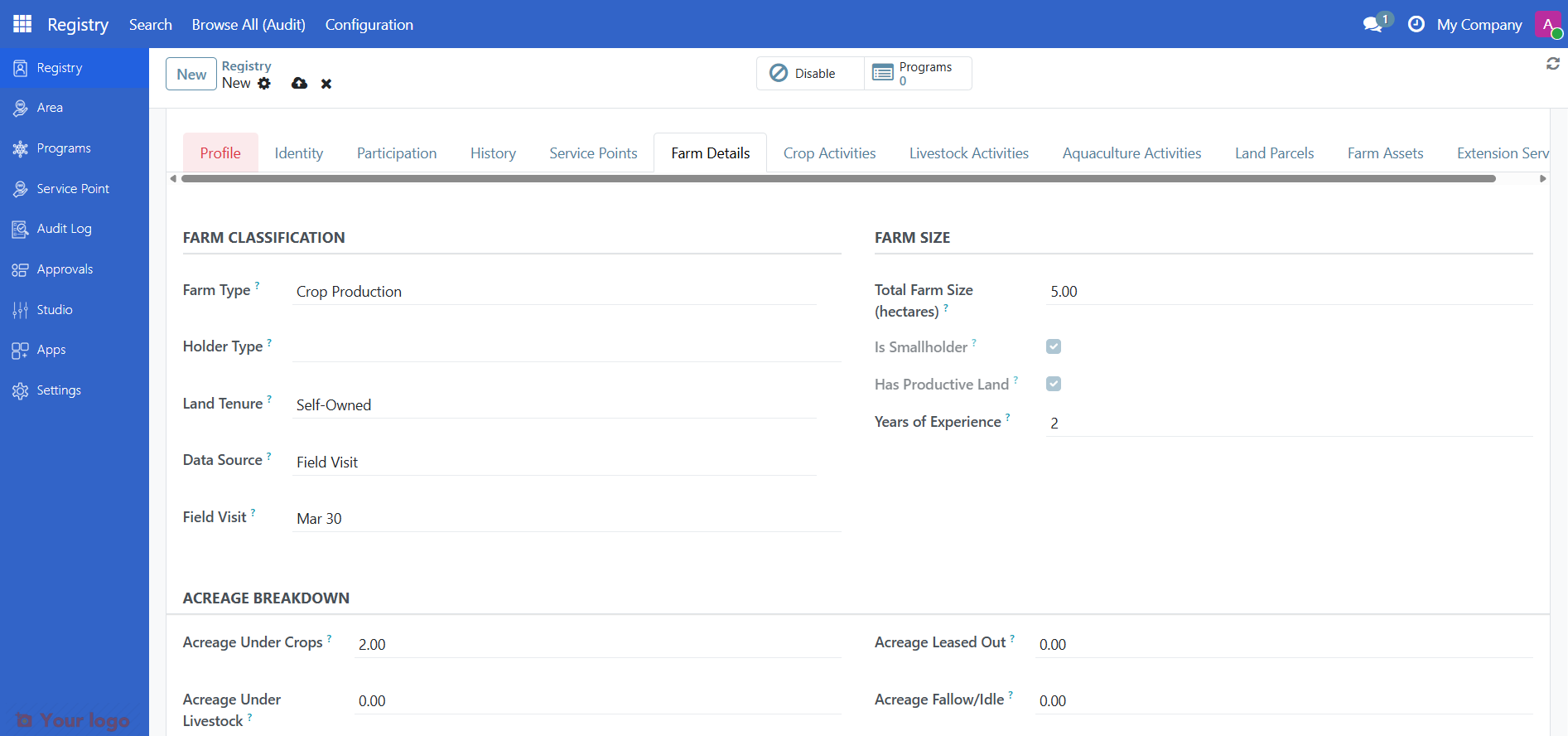
Farm classification#
Field |
What to enter |
|---|---|
Farm Type |
Select from vocabulary: Crop, Livestock, Aquaculture, or Mixed |
Land Tenure |
Ownership or use rights classification (FAO-aligned) |
Holder Type |
Individual, joint, or institutional holder (FAO WCA 2020) |
Data Source |
How the data was collected: Census, Self-registration, or Field visit |
Farm size#
Enter the farm area in the Total Farm Size field. You can also record a breakdown by land use:
Field |
Description |
|---|---|
Total Farm Size |
Total area of the farm |
Crops |
Area under crop cultivation |
Livestock |
Area under livestock use |
Aquaculture |
Area under aquaculture use |
Leased Out |
Area leased to others |
Fallow |
Area currently not in use |
Computed indicators#
OpenSPP automatically calculates these indicators from the farm size fields:
Indicator |
Description |
|---|---|
Farm size (hectares) |
Alias for total farm size used in eligibility rules |
Smallholder |
Yes if total size is 5 hectares or less (configurable threshold) |
Has productive land |
Yes if any land is under crops, livestock, or aquaculture |
Total livestock heads |
Sum of all livestock activity quantities |
Step 3. Record agricultural activities#
Click the Agricultural Activities tab to record what the farm produces.
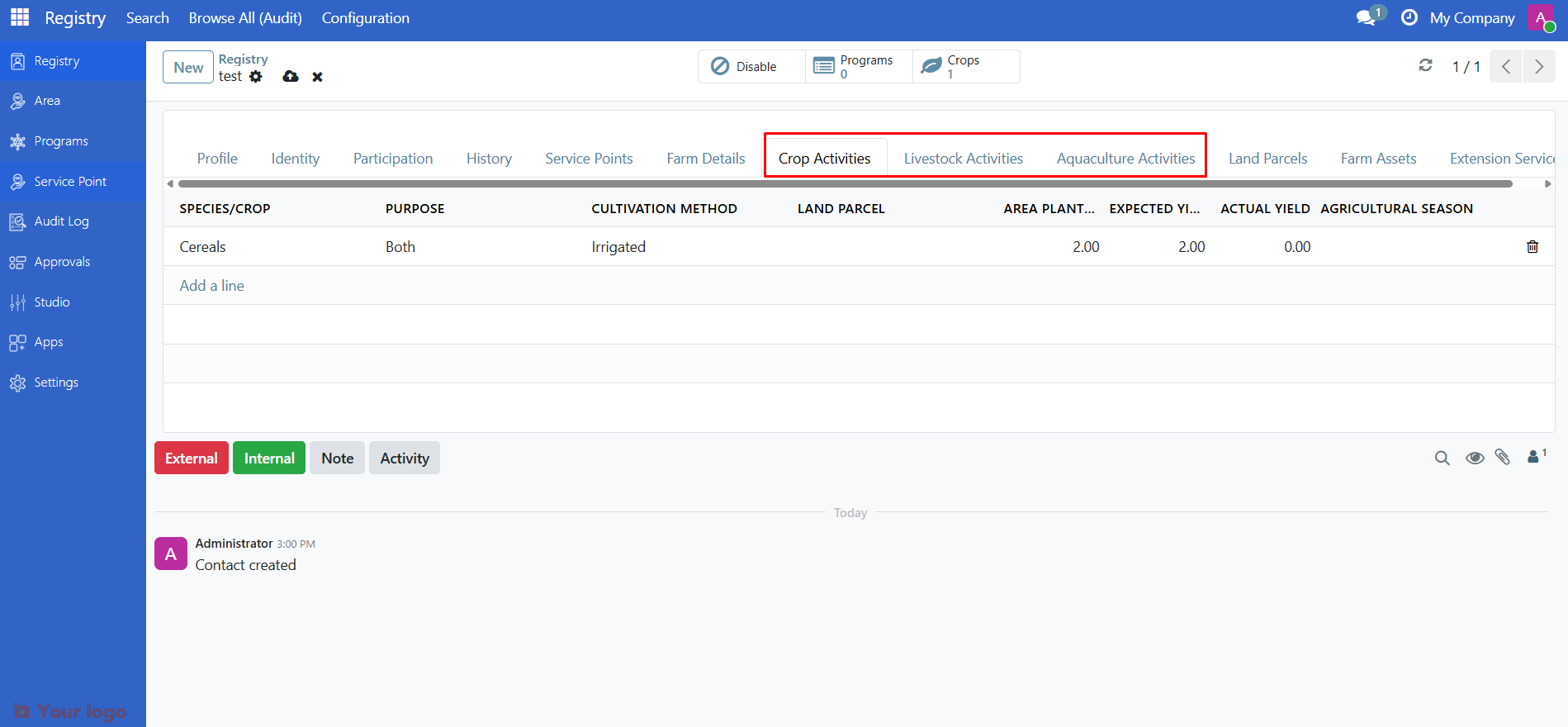
Activities are grouped by type. Click Add a line under the relevant section to add a new activity.
Activity type |
Species vocabulary |
Example |
|---|---|---|
Crop cultivation |
FAO ICC Crop Classification |
Maize, Rice, Wheat |
Livestock rearing |
FAO Livestock Classification |
Cattle, Goats, Poultry |
Aquaculture |
FAO ASFIS Species List |
Tilapia, Catfish, Shrimp |
For each activity, fill in:
Field |
Description |
|---|---|
Activity type |
Crop cultivation, Livestock rearing, or Aquaculture |
Species |
Select from the vocabulary for that activity type |
Quantity |
Number of animals or area planted |
Area planted |
Land area used for this activity |
Expected yield |
Projected harvest or production |
Actual yield |
Recorded harvest or production (after the season) |
Purpose |
Subsistence, commercial, or both |
Cultivation method |
Irrigation, rainfed, or other method |
Season |
Link to the agricultural season this activity belongs to |
Land parcel |
Link to the specific parcel used for this activity |
Step 4. Manage land parcels#
Click the Land Parcels tab to view and manage the farm's land parcel records.
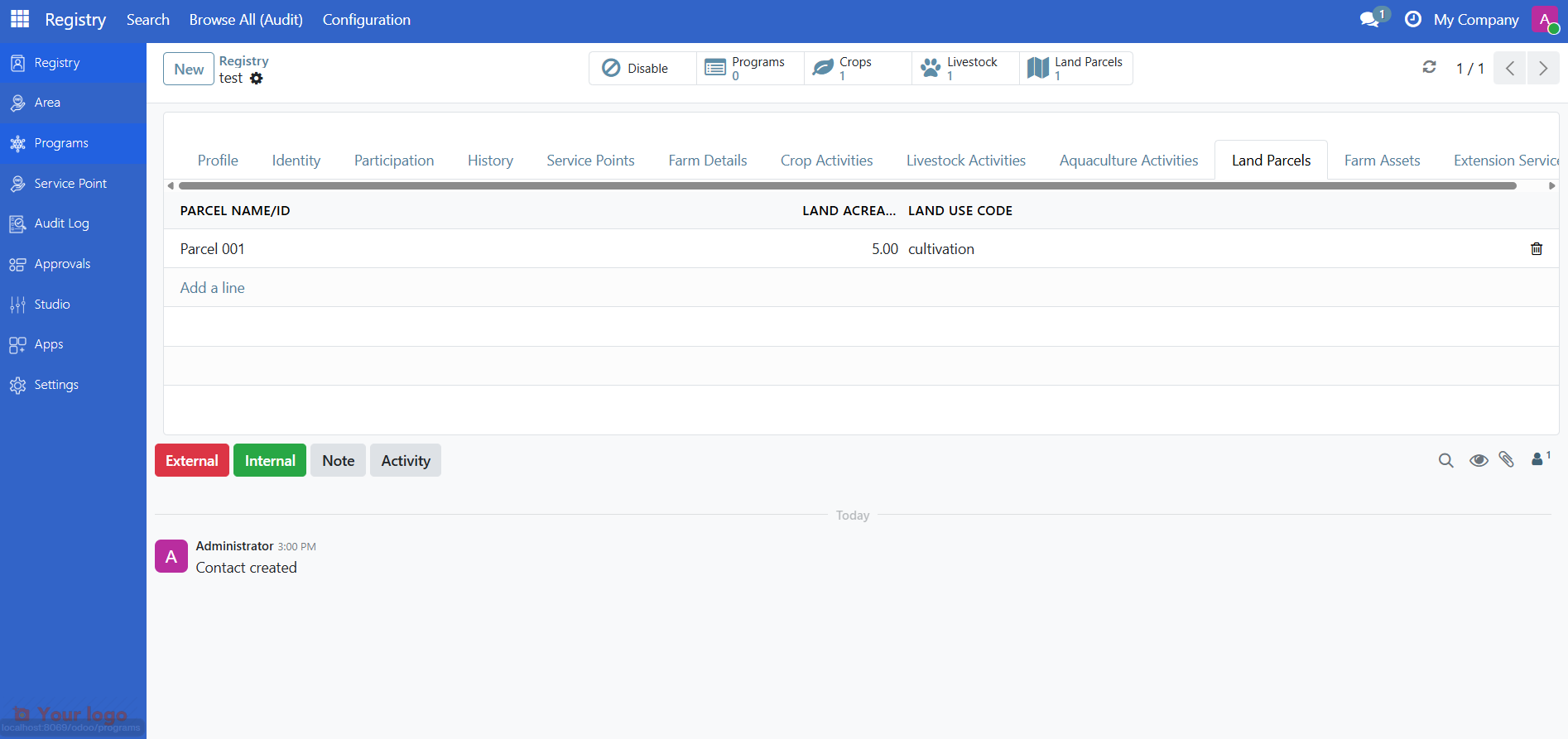
Click Add a line to create a new parcel, or click an existing parcel to open it.
Parcel details#
Field |
Description |
|---|---|
Parcel Name/ID |
Unique name or identifier for this parcel |
Farm |
The farm this parcel belongs to (auto-filled) |
Acreage |
Area measurement of the parcel |
Land Use |
Classification from standard vocabulary (e.g., Cropland, Pasture, Forest) |
Ownership and lease#
Field |
Description |
|---|---|
Owner |
The person or organization who owns the parcel |
Lessee |
The person or organization currently leasing the parcel |
Lease start |
Start date of the lease agreement |
Lease end |
End date of the lease (must be after the start date) |
Parcel coordinates and boundaries#
Each parcel can store a GPS point and a polygon boundary for use in map views. To add or edit coordinates, open the parcel record and use the map drawing tools.
Note
See View maps and generate reports for instructions on configuring the map viewer, adding GPS coordinates, and drawing polygon boundaries.
Step 5. Record farm assets#
Click the Assets tab to record farm equipment and machinery associated with this farm.
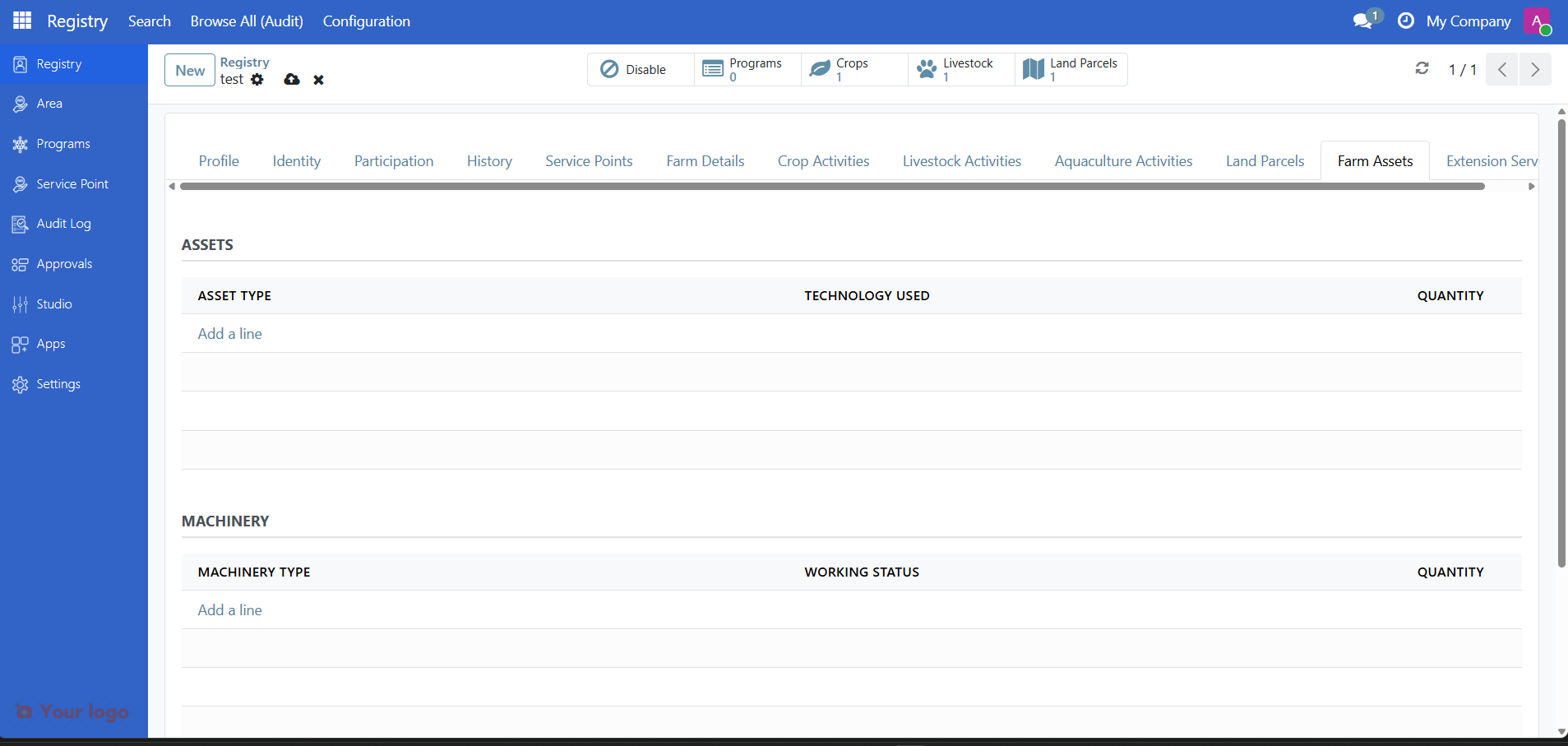
Click Add a line to add a new asset record for tractors, irrigation equipment, storage facilities, or other farm infrastructure.
Manage agricultural seasons#
Agricultural seasons control which time period is active for recording farm activities. Seasons are managed system-wide by administrators or managers.
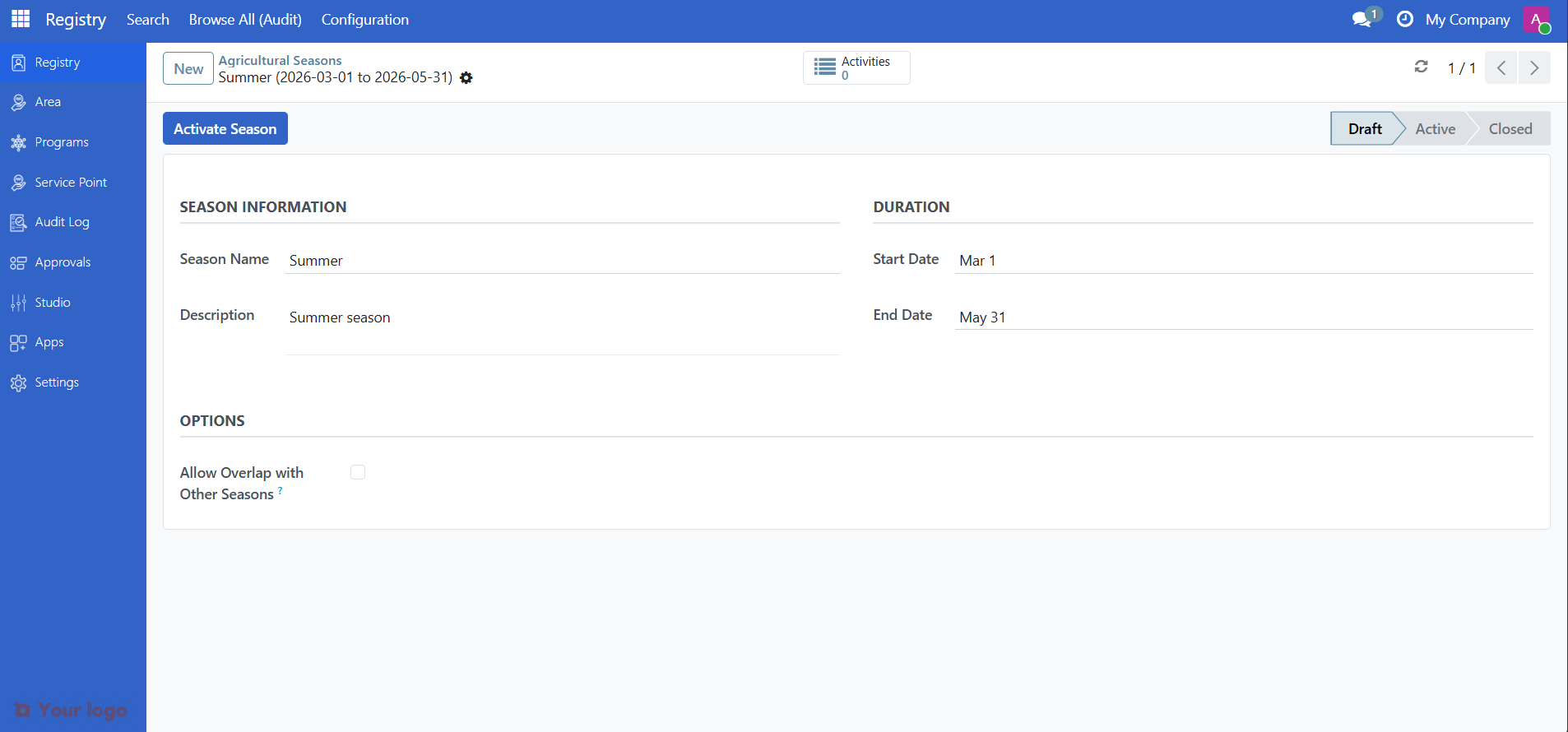
Status |
Meaning |
|---|---|
Draft |
Season is being set up; activities cannot be linked to it yet |
Active |
Season is open; field officers can record activities |
Closed |
Season is finished; activities can no longer be modified |
Only managers can move a season between statuses. Only one season can be active at a time (overlap prevention is enforced).
To check or manage seasons, go to Registry > Configuration > Seasons.
View farm location on the map#
Farms can store GPS coordinates as a location point or a polygon, which appears as a pin on the interactive map.
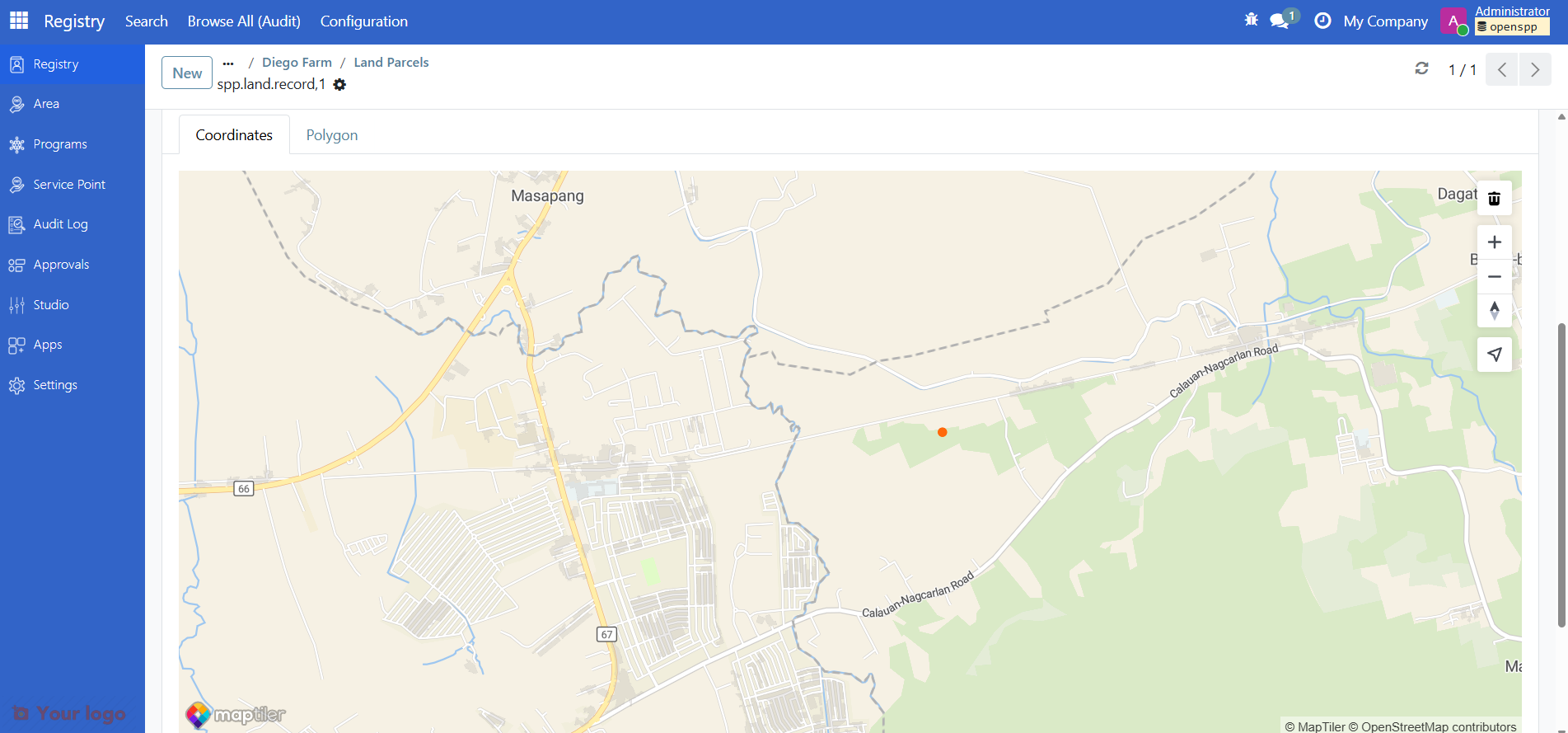
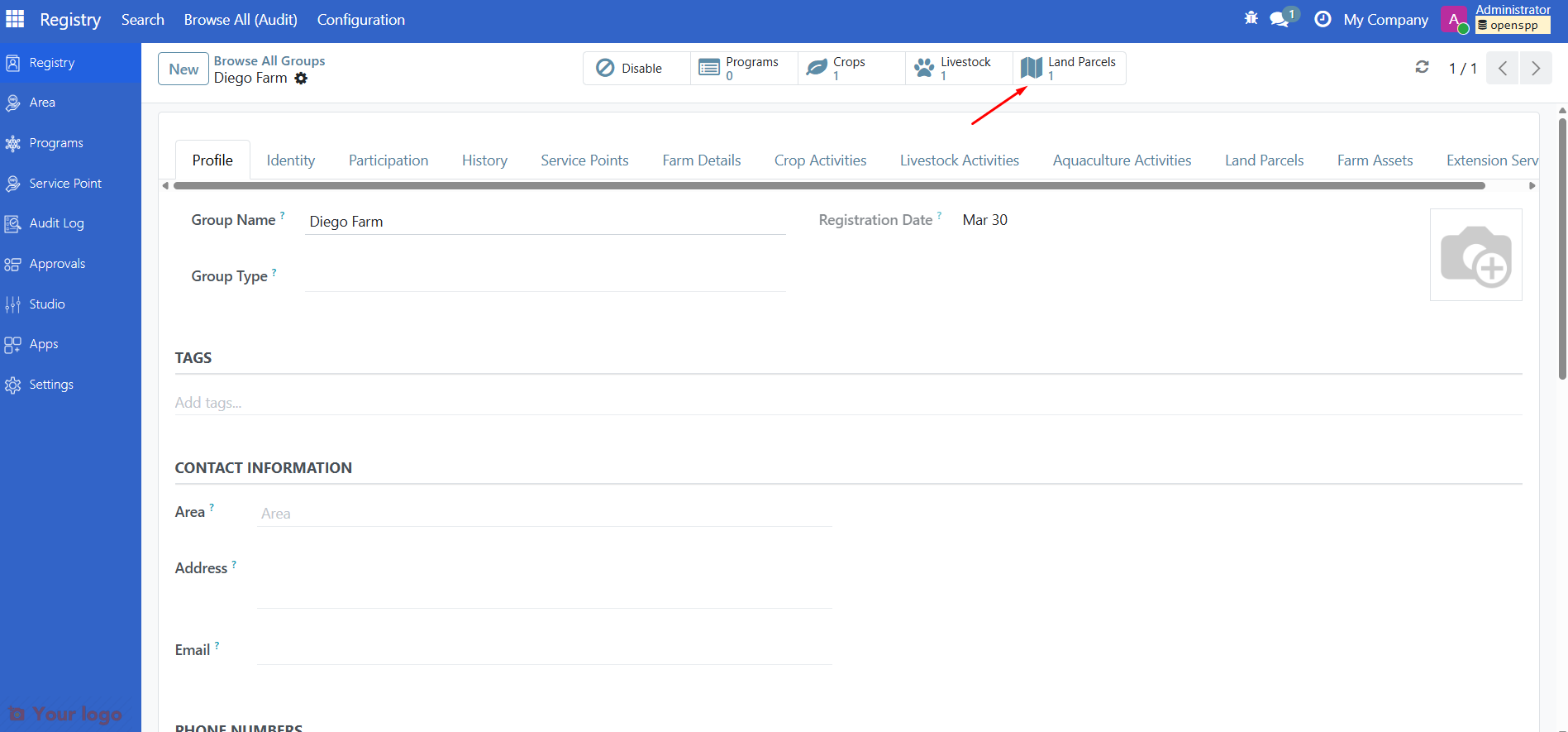
To add or update a farm's location, open the farm record, click the Land Parcels smart button, then use the drawing tool to pin the location on the map. Note that Land Parcels smart button might not appear if there are no existing Land parcel record yet.
For full instructions on configuring the map viewer, setting the MapTiler API key, and drawing polygon boundaries, see View maps and generate reports.
Form tabs overview#
Tab |
Contents |
|---|---|
Profile |
Name, registration date, area, contact information |
Farm Details |
Farm type, tenure, holder type, acreage breakdown, computed indicators |
Agricultural Activities |
Crop, livestock, and aquaculture activity records |
Land Parcels |
Parcel records with ownership, lease, and GIS boundaries |
Assets |
Farm equipment and machinery |
Identity |
ID documents linked to the farm |
Participation |
Program enrollments |
Are you stuck?#
The Farm Details, Agricultural Activities, or Land Parcels tabs are not visible.
The
spp_farmer_registrymodule may not be installed. Ask your administrator to install it from the Apps menu.
Vocabulary fields (Farm Type, Land Tenure, etc.) show no options.
The farmer registry vocabularies have not been set up. Ask your administrator to install
spp_farmer_registry_vocabulariesand load the standard vocabularies.
I cannot add activities — the Add a line button is missing or grayed out.
Check that an Active agricultural season exists. Go to Registry > Agricultural Seasons and confirm one season has the Active status.
If no active season exists, ask a manager or administrator to activate one.
The land parcel map is blank or shows no tiles.
The MapTiler API key may not be configured. See View maps and generate reports — Step 1.
The raster layer may not be set up. Follow Step 2 in that same guide.
Lease end date shows a validation error.
The lease end date must be after the lease start date. Correct the dates and save again.
Computed indicators (Smallholder, Has productive land) are not updating.
Make sure you have saved the record after changing acreage or activity fields. Indicators recalculate on save.
Next steps#
Register a group — Create a new farm group from scratch
View maps and generate reports — Configure maps and view farm and parcel locations
Change Requests — Submit farm data changes through the approval workflow