 openspp.org
Manage in-kind products
Contents
Manage in-kind products#
Applies to: SP-MIS
This guide is for administrators (and users with Stock Manager group access) who need to create and maintain the product catalog used for in-kind programs. Only users with access to the In-Kind menu can see Programs > In-Kind > Products. The products you create here are the same ones that appear when creating a program with Benefit Type: In-Kind and configuring the Items step.
Why manage in-kind products?#
In-kind programs distribute goods or services (e.g., food rations, agricultural inputs, hygiene kits) instead of cash. Before you can create such a program, the products that beneficiaries will receive must exist in the system. By creating and maintaining products under Programs > In-Kind > Products, you ensure that program managers can select those products when they set up an in-kind program and define quantities per beneficiary.
See also
Create programs for creating a program and choosing In-Kind as the benefit type
In-kind benefits and inventory management for an overview of the in-kind benefits system
Access and permissions#
Role |
Can view Products list |
Can create or edit products |
|---|---|---|
System Administrator |
Yes |
Yes (if also Stock Manager or equivalent) |
Program Manager / Program Validator |
Yes |
No (view only unless they have Stock Manager) |
Stock Manager |
Yes |
Yes |
If you do not see the New button on the Products screen, you do not have permission to create or edit products. Contact your administrator to request Stock Manager group access.
Open the In-Kind Products list#
Click Programs in the main menu.
Click In-Kind in the submenu.
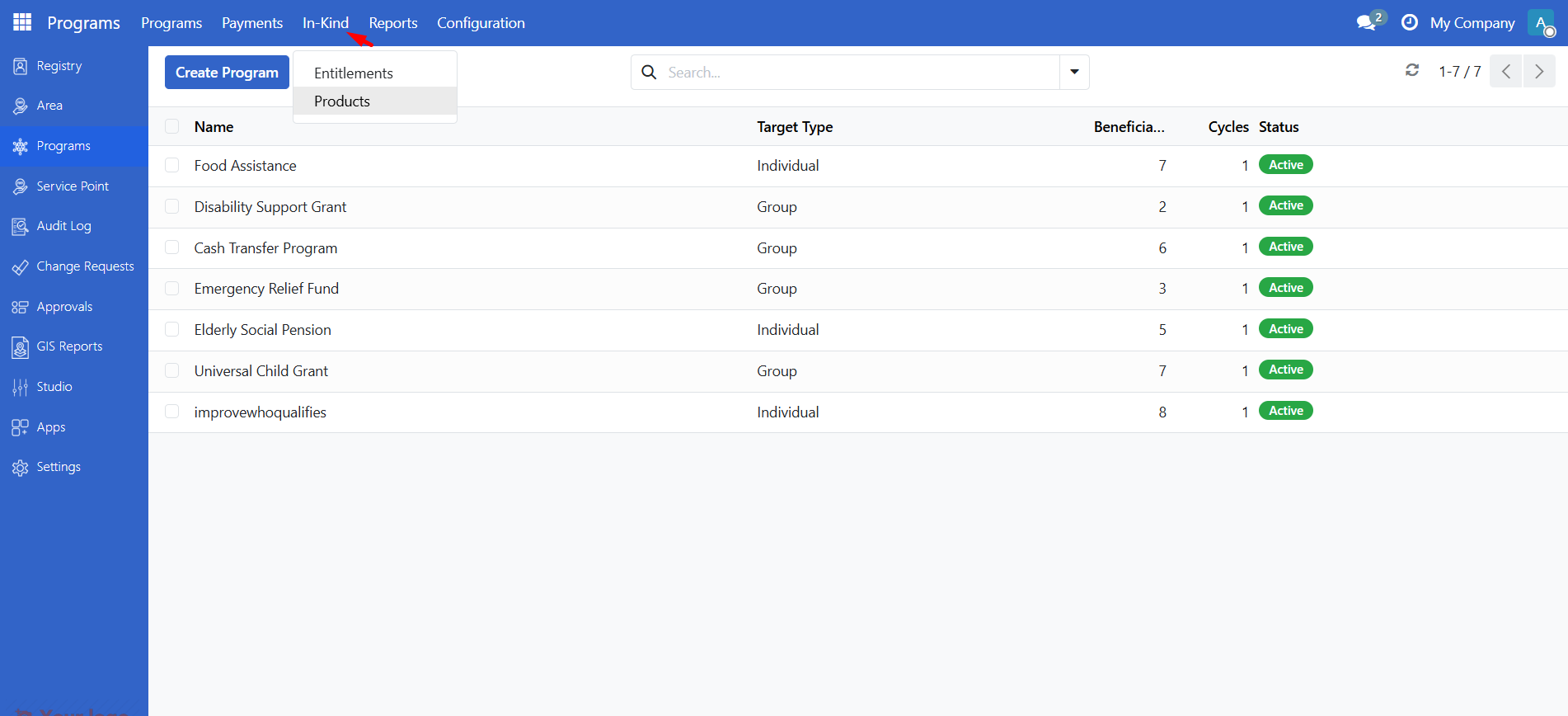
Click Products.
The Products list shows all products available for in-kind programs. You can search, filter, and open any product to view or edit (if you have permission).
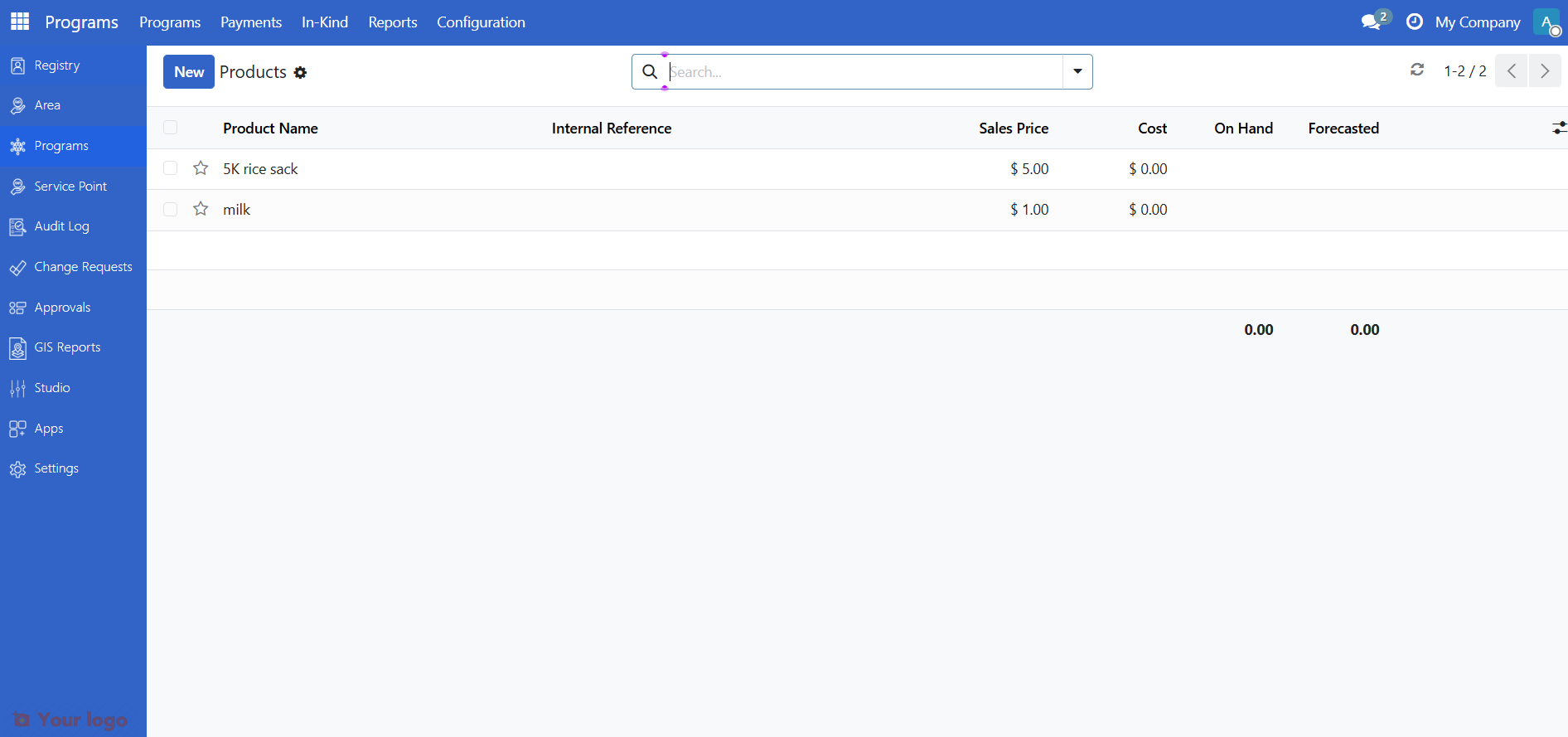
Create a new in-kind product#
From the Programs > In-Kind > Products list, click New.
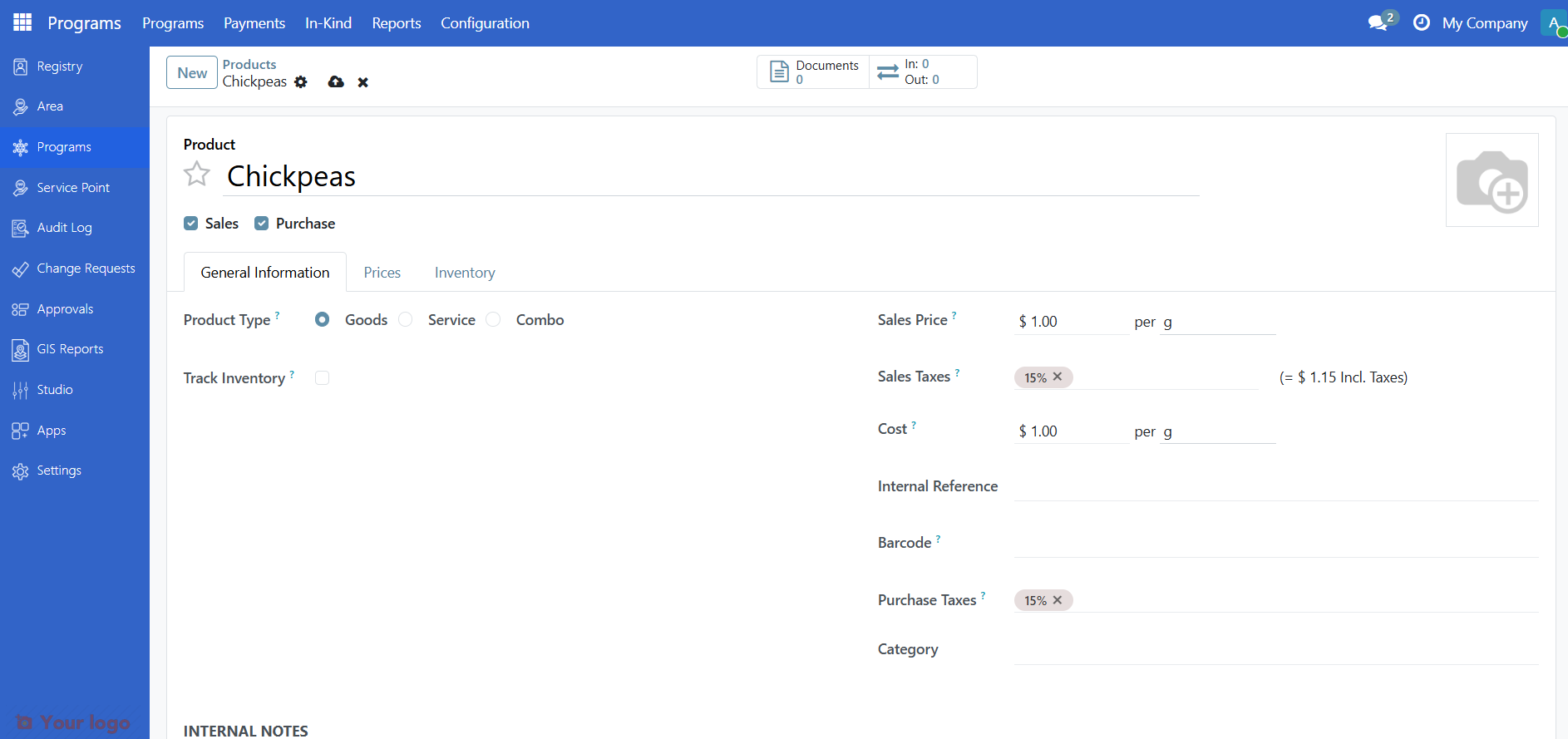
Fill in the product form. Key fields:
Note
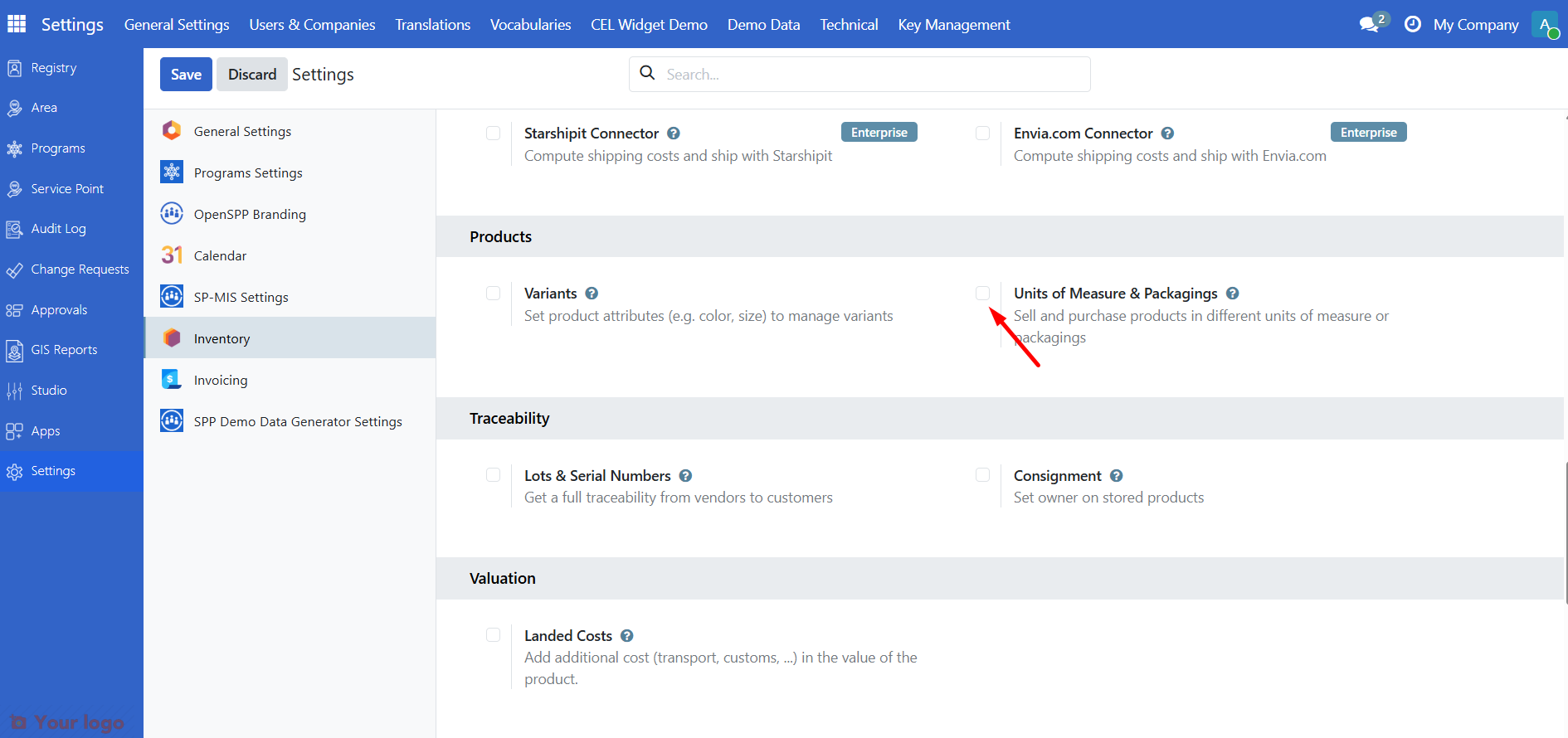
Unit of Measure: To use different units (e.g., Kilogram, Box) on products, enable Unit of measure & packaging first: go to Settings > Inventory and tick Unit of measure & packaging. If this is not enabled, the product form may not show the Unit of Measure field or may use a single default unit. Settings > Inventory is accessible by the Administrator role only; contact your administrator if you need this enabled.
Field |
Description |
Required |
|---|---|---|
Product Name |
Name of the item (e.g., "Rice 5 kg", "Hygiene Kit") |
Yes |
Product Type |
Goods (physical items tracked in inventory), Service, or Combo |
Yes |
Category |
Product category for grouping (e.g., Food, Hygiene) |
Optional |
Unit of Measure |
How the product is counted (e.g., Unit, Kilogram, Box) |
Yes |
Save the product. It will now appear in the product catalog and can be selected when configuring an in-kind program's Items in the program creation wizard.
Note
Products created here are used when creating a program with Benefit Type: In-Kind. In the program wizard, the Items tab lets you add lines with Product (dropdown), Quantity, and Unit of Measure. Only products from this catalog appear in that dropdown.
Edit or archive a product#
Edit: Open the product from the list and change any field, then save. Changes apply to existing and future program configurations that use this product.
Archive: To hide a product from new program configurations without deleting it, you can set it to Archived. Check with your administrator for the recommended way to retire a product.
Are you stuck?#
Cannot see the In-Kind menu? You need access to Programs and to the In-Kind submenu (typically Program Manager, Program Validator, Stock Manager, or System Administrator). Contact your administrator.
Cannot create or edit products? Creating and editing products requires Stock Manager (or equivalent) rights. If you only see the list but the Create/Edit buttons are missing or disabled, contact your administrator.
Product does not appear when creating an in-kind program? Ensure the product is saved and active. The program creation wizard's Items tab shows only products from this same catalog (Programs > In-Kind > Products).
Next steps#
Create programs – Create a program and select In-Kind as the benefit type; then add items from this product catalog in the Items tab.