 openspp.org
Enroll beneficiaries
Contents
Enroll beneficiaries#
Applies to: SP-MIS
What you will do#
Learn how to add registrants to a program and verify their eligibility.
Before you start#
You need Program manager, Program validator, or Administrator roles assigned to your user account.
Registrants must already exist in the Registry
Understanding enrollment#
Enrollment adds registrants to a program as beneficiaries. There are three ways to enroll:
Method |
Best for |
How it works |
|---|---|---|
Import Eligible |
Large-scale enrollment |
System finds all registrants matching eligibility rules |
Enroll Eligible |
Verifying and activating |
Moves imported registrants from Draft to Enrolled |
Individual Enrollment |
Single registrants |
Enroll one registrant from their profile |
Note
Large-scale operations: When importing or enrolling 1,000 or more beneficiaries, the system processes these operations in the background to ensure performance. The program will be temporarily locked during processing, and you'll receive notifications when operations start and complete.
Enrollment states#
Beneficiaries progress through these states:
State |
Meaning |
|---|---|
Draft |
Added to program but not yet verified |
Enrolled |
Actively enrolled and eligible for benefits |
Paused |
Temporarily suspended (still in program) |
Exited |
Permanently removed from program |
Not Eligible |
Does not meet eligibility criteria |
Duplicated |
Flagged as a duplicate record |
Method 1: Import and enroll eligible registrants#
This is the standard workflow for enrolling multiple registrants.
Step 1: Open the program#
Click Programs > Programs in the main menu.
Click on the program where you want to enroll beneficiaries.
Step 2: Import eligible registrants#
Click the Import Eligible button.
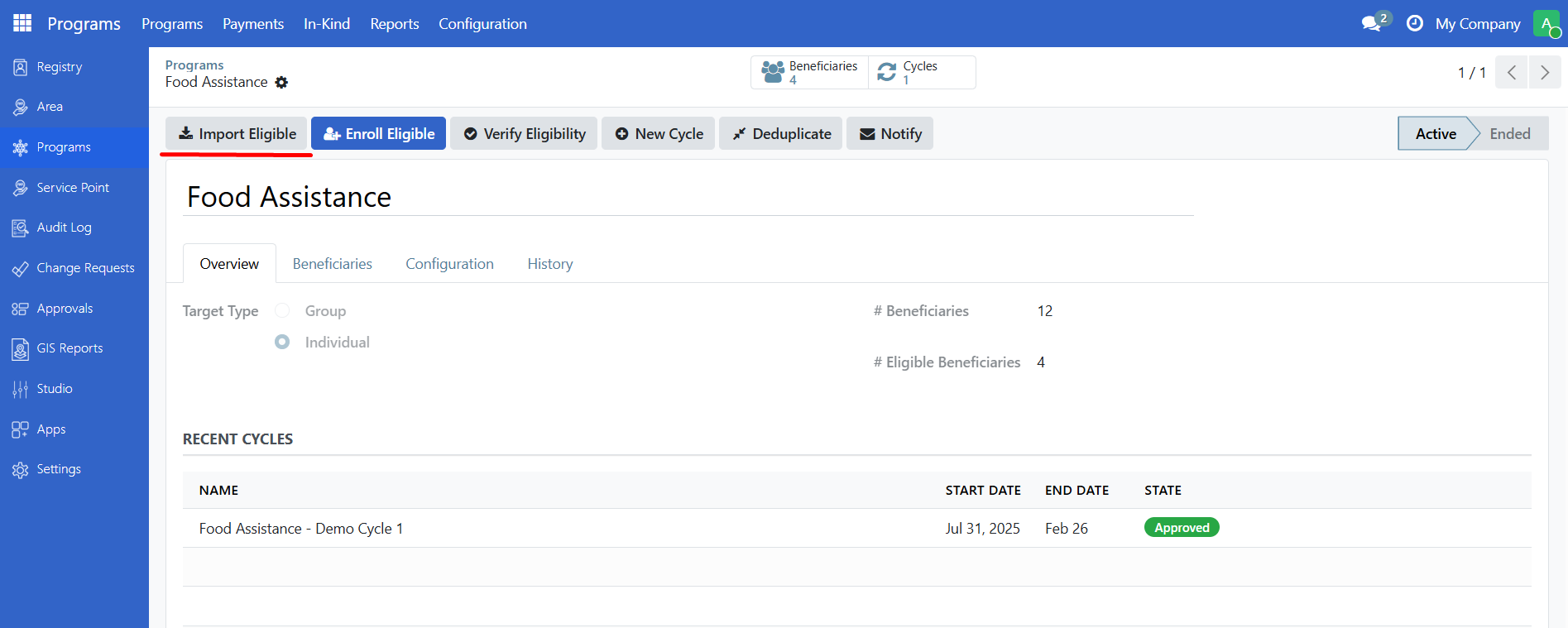
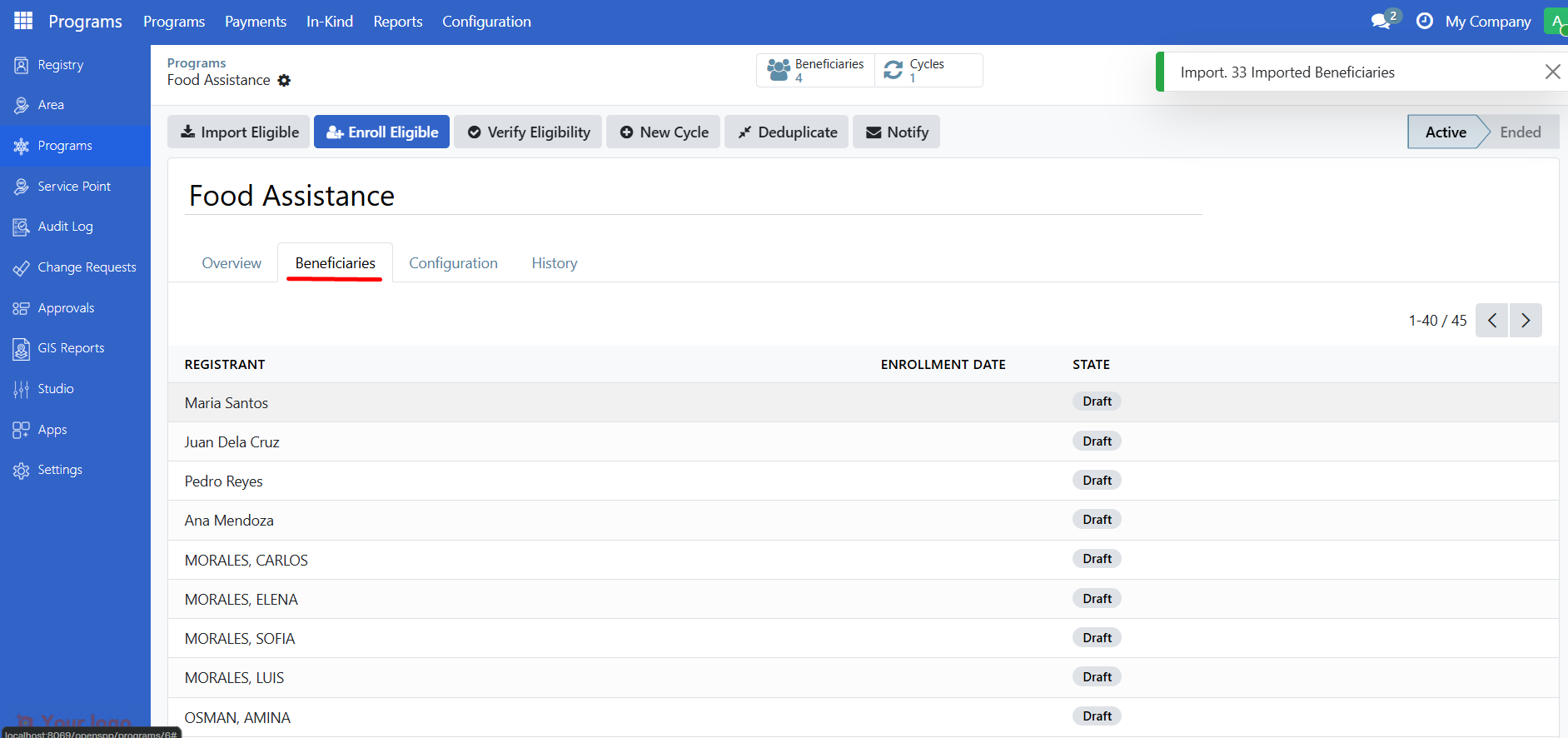
Wait for the import to complete. A notification shows how many registrants were found.

Note
Large-scale imports: If importing 1,000 or more beneficiaries, the system processes the import in the background. You'll see a warning notification saying "Started importing X beneficiaries" instead of an immediate success message. The program will be locked during the import process, and you'll receive a notification when the import completes.
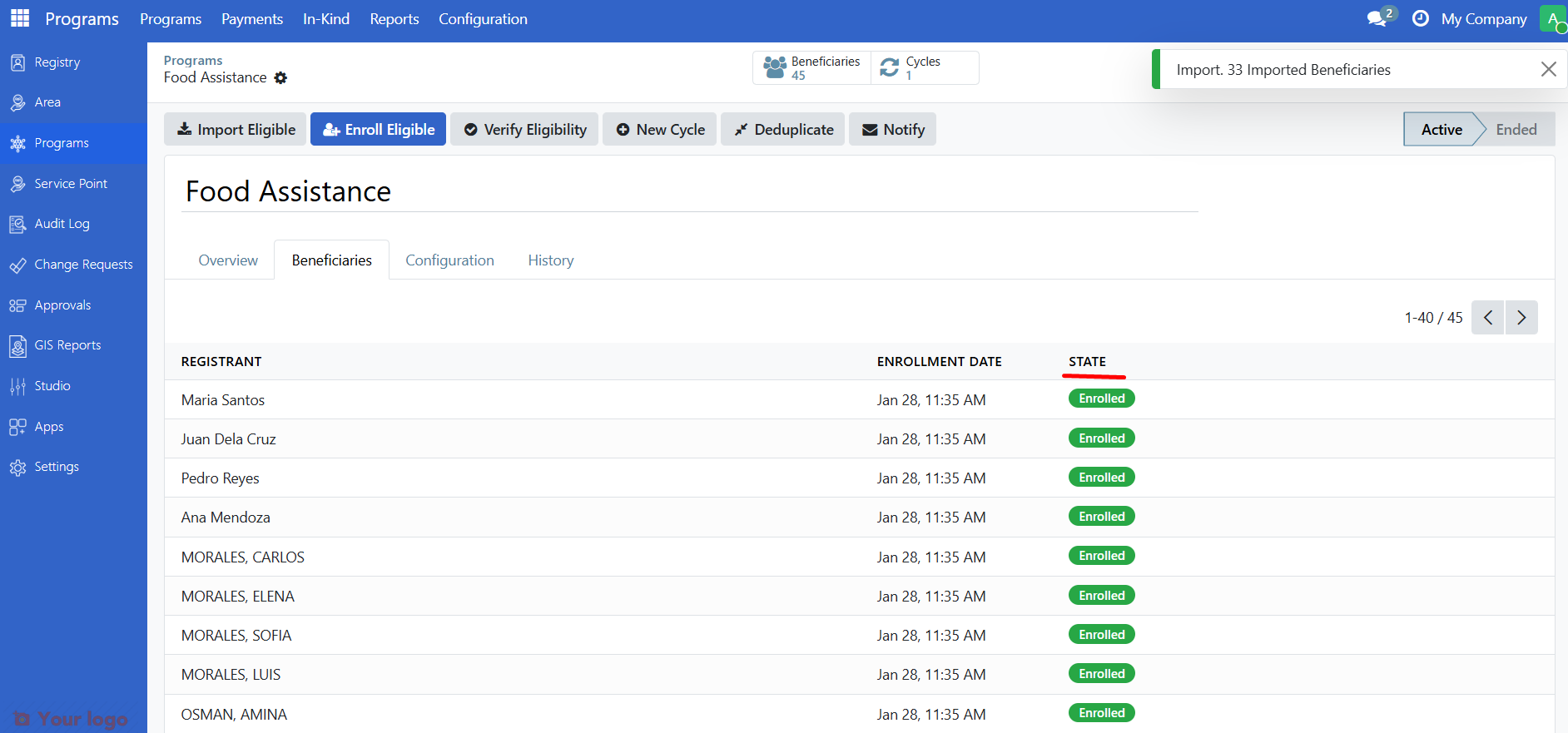
The imported registrants appear in the Beneficiaries tab with Draft status.
Step 3: Enroll eligible registrants#
Click the Enroll Eligible button.
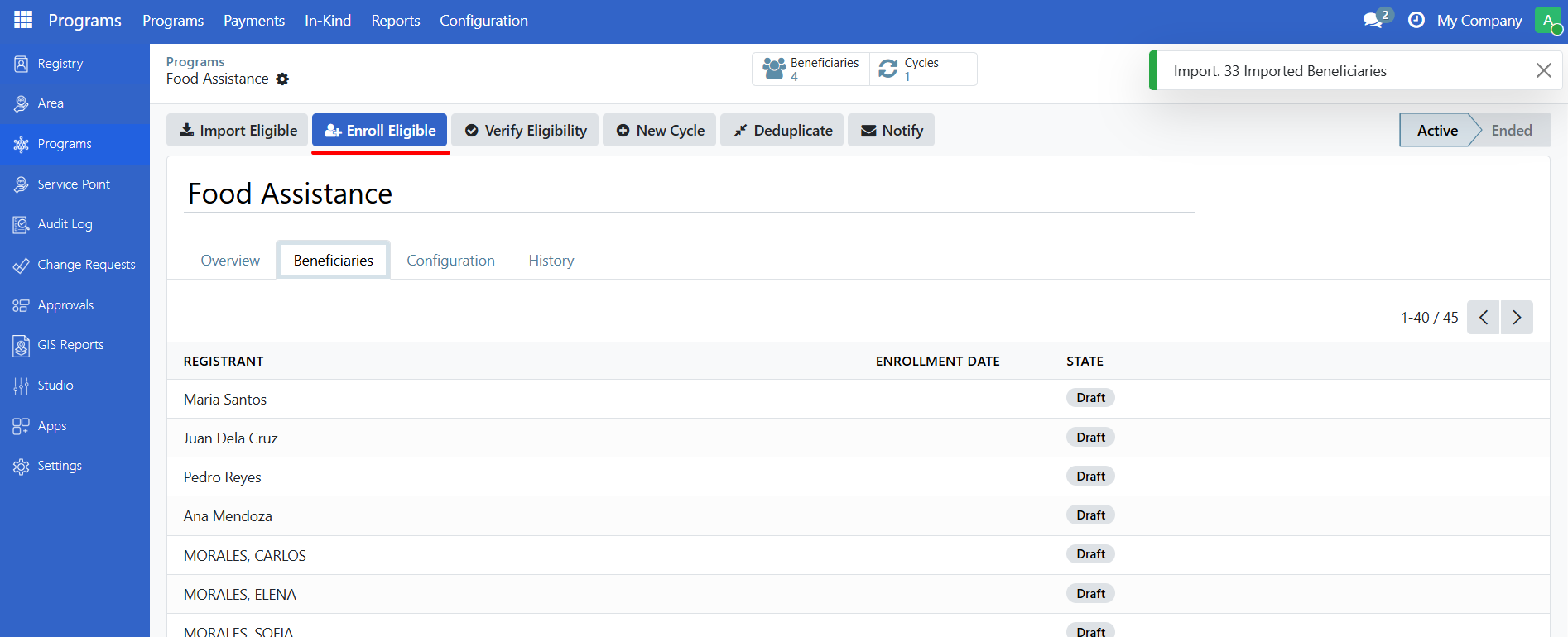
The system verifies each registrant against the eligibility rules.
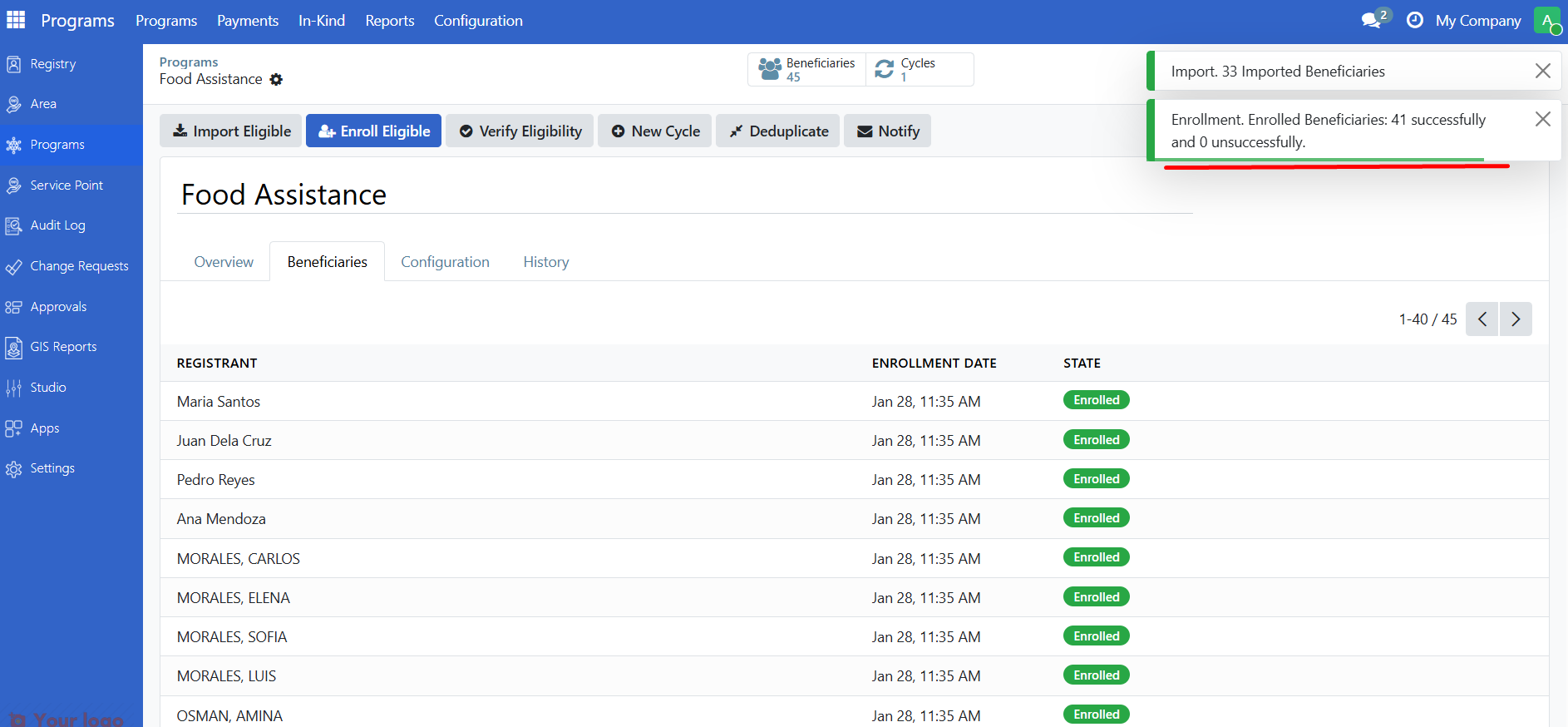
A notification shows the enrollment results:
Small batches (< 1,000 beneficiaries): Immediate success notification showing "Enrolled Beneficiaries: X successfully and Y unsuccessfully"
Large batches (≥ 1,000 beneficiaries): Warning notification saying "Eligibility check of X beneficiaries started" - the process runs in the background
Important
Background processing: For large-scale enrollment (1,000+ beneficiaries), the program will be locked during processing. You'll see a lock indicator and the reason "Eligibility check of beneficiaries". Wait for the process to complete - you'll receive a notification when finished.
Successfully enrolled registrants now show Enrolled status.
Step 4: Review results#
Check the Beneficiaries tab to see:
Enrolled - Successfully enrolled and eligible
Not Eligible - Did not meet eligibility criteria
Duplicated - Flagged as potential duplicate
Method 2: Enroll individual registrant#
Enroll a single registrant directly from their profile.
Step 1: Open the registrant#
Go to Registry and find the registrant you want to enroll.
Open their profile.
Step 2: Click Enroll in Program#
In the Participation section, click Enroll in Program.
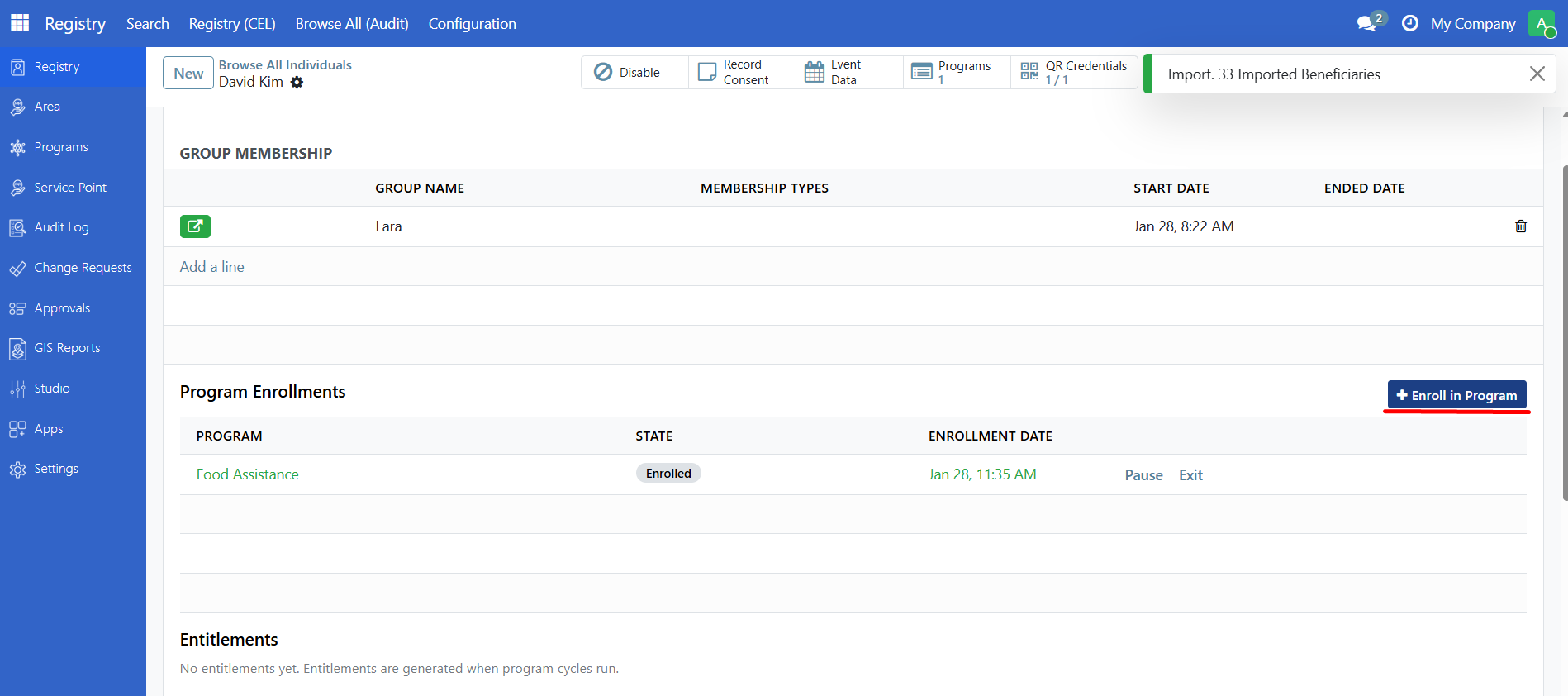
A wizard opens.
Step 3: Select the program#
Select the program from the dropdown.
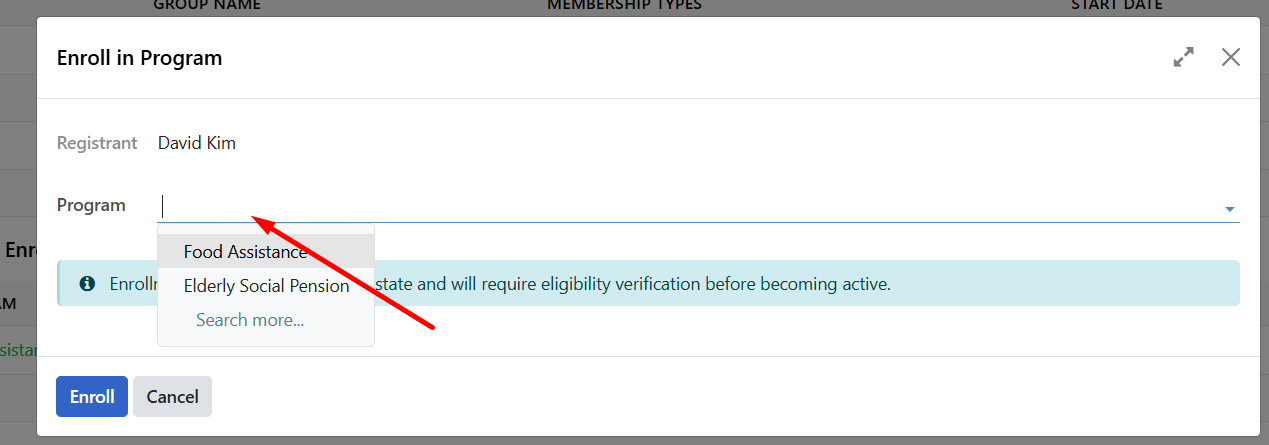
Only programs matching the registrant type (individual or group) are shown.
Click Enroll.
Step 4: Verify enrollment#
A notification confirms the enrollment.
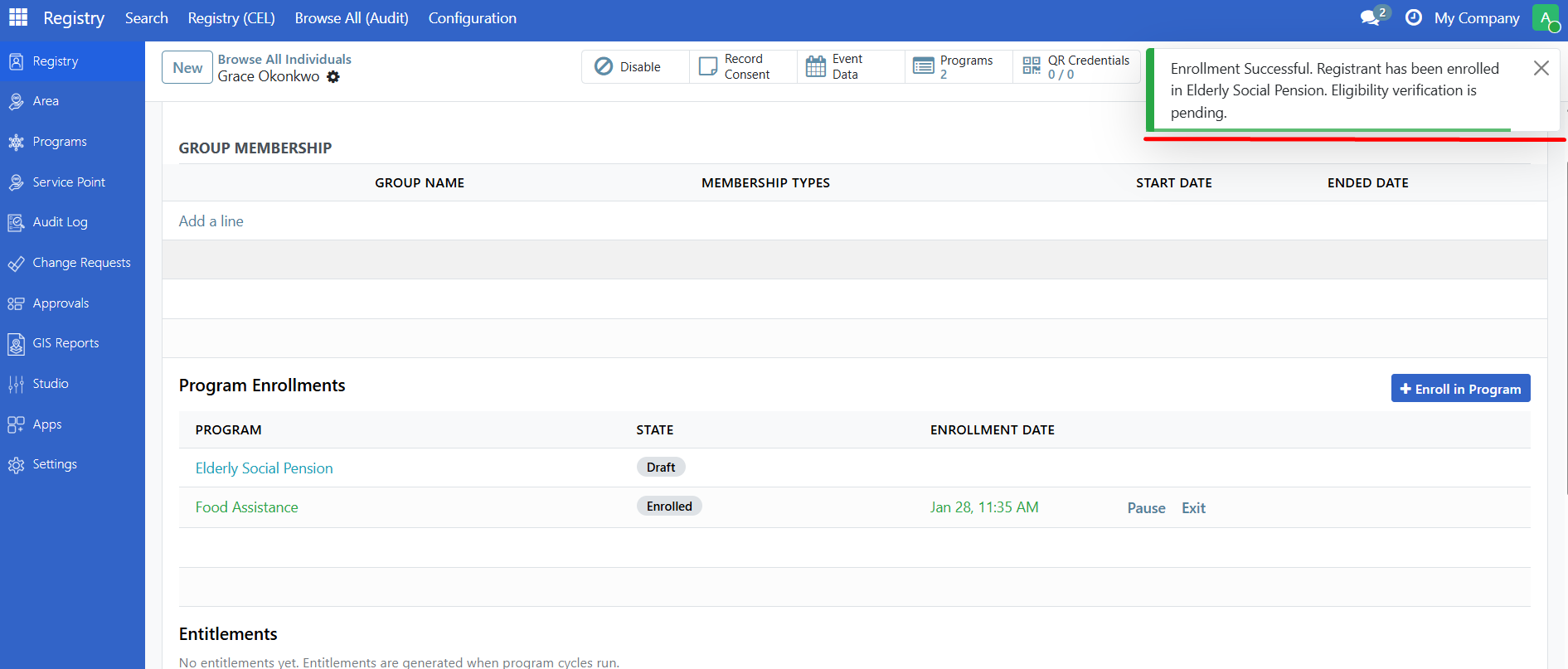
The enrollment appears in the registrant's Program Enrollments section.
Verify eligibility#
Re-check eligibility for beneficiaries who are currently Enrolled or Not Eligible (useful when registry data changes or eligibility rules are updated):
Open the program.
Click Verify Eligibility.
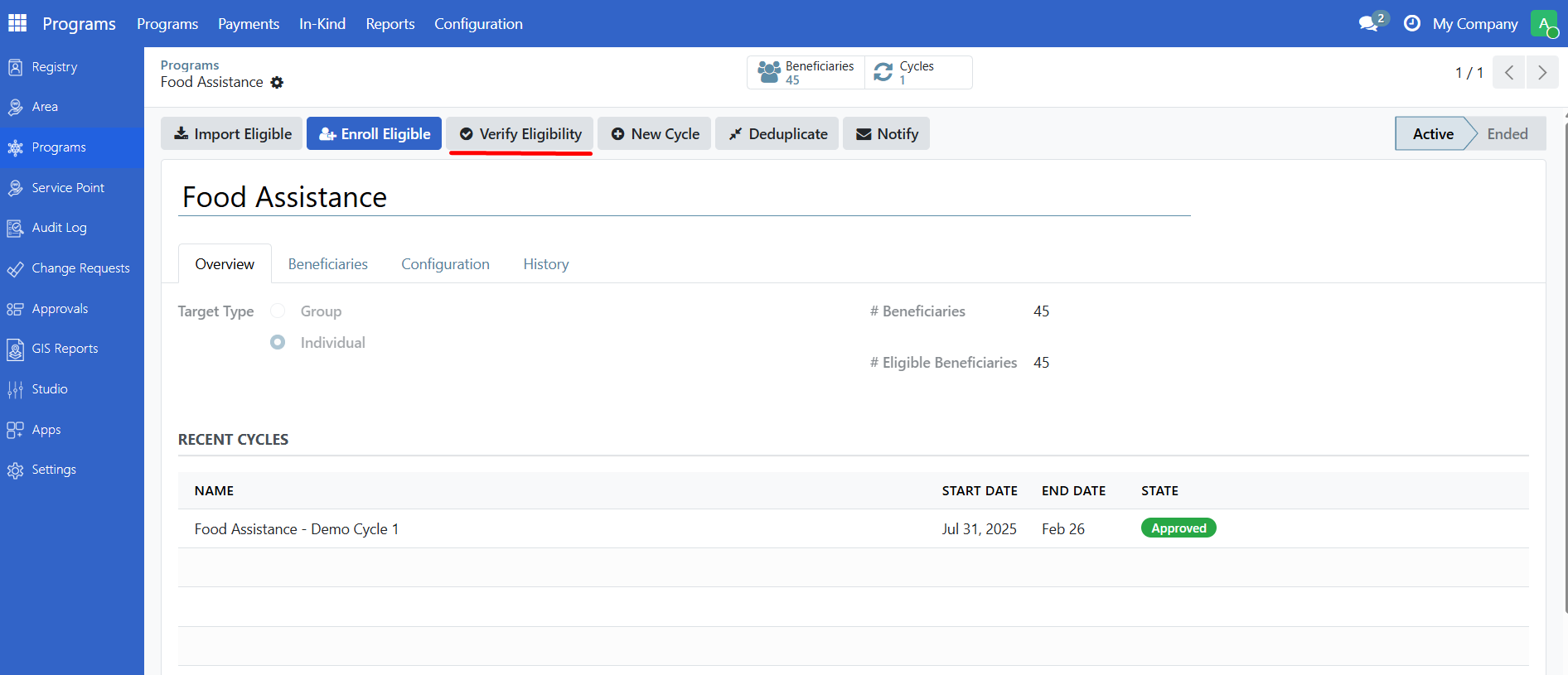
The system re-evaluates beneficiaries in Enrolled and Not Eligible states against the current eligibility rules.
Beneficiaries who no longer qualify are marked as Not Eligible. Beneficiaries who now qualify (previously marked as Not Eligible) are moved to Enrolled status.
Note
Large-scale verification: If verifying 1,000 or more beneficiaries, the process runs in the background. The program will be locked during verification, and you'll receive a notification when complete.
View beneficiary details#
From the program#
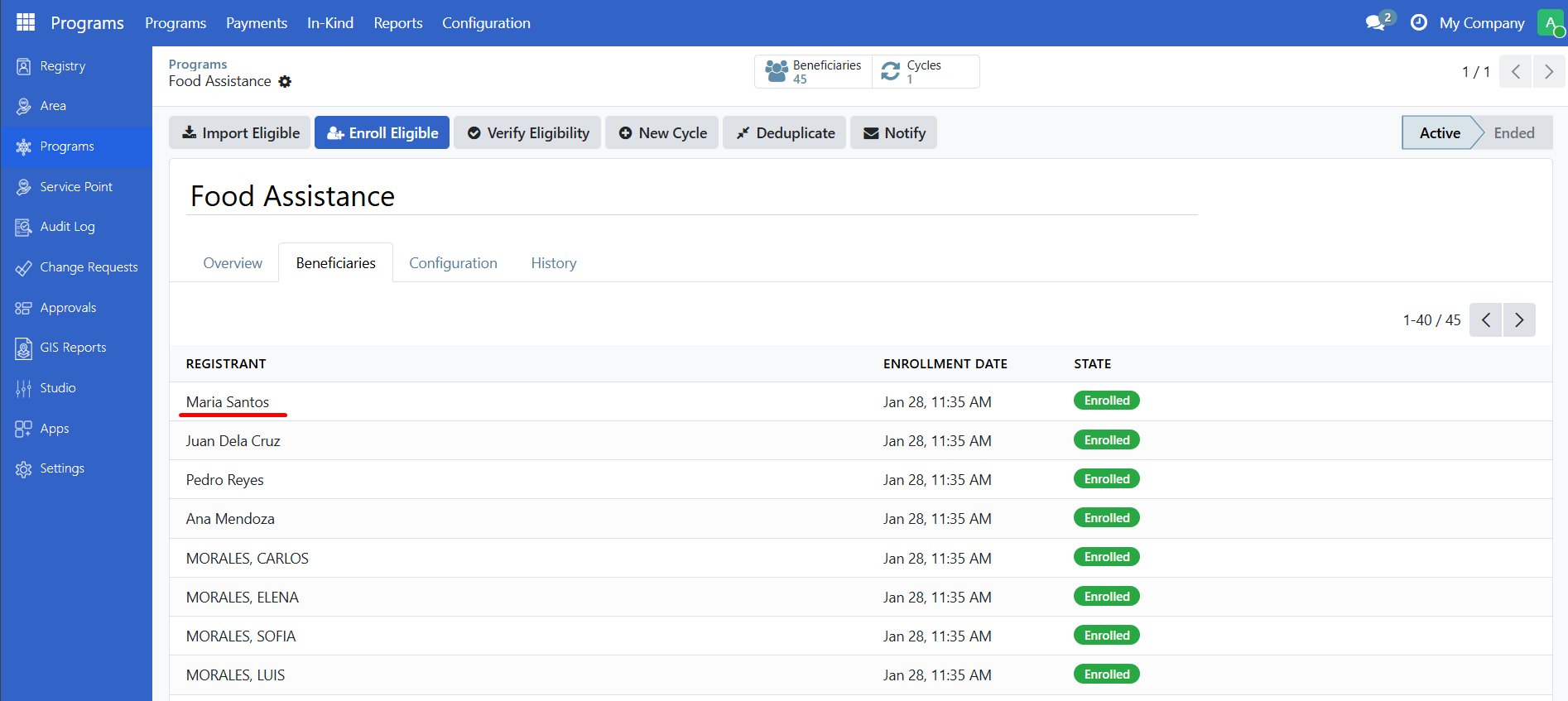
Open the program.
Click the Beneficiaries tab or the Beneficiaries smart button.
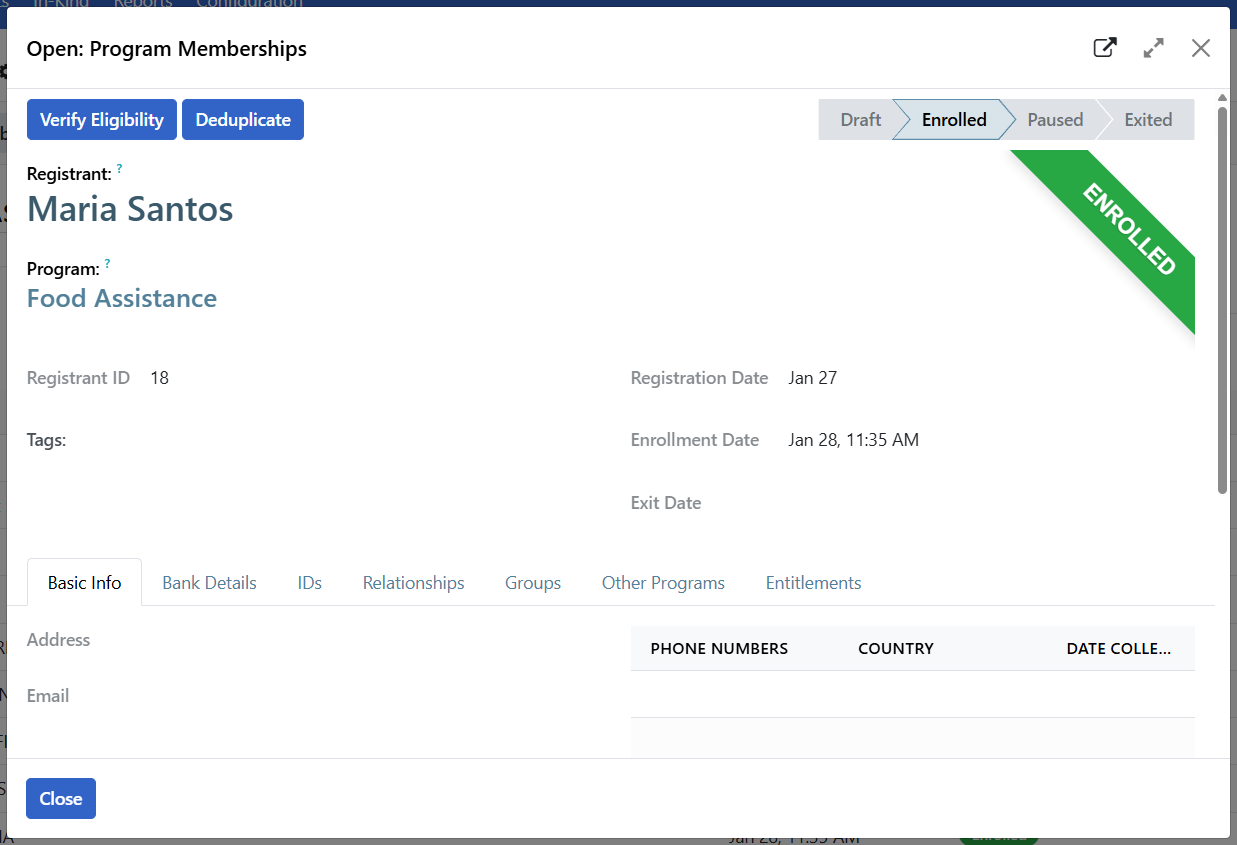
Click on a beneficiary row to see their details.
Beneficiary information#
Field |
Description |
|---|---|
Registrant |
Link to the registrant's profile |
Program |
The program they are enrolled in |
State |
Current enrollment status |
Enrollment Date |
When they were enrolled |
Exit Date |
When they exited (if applicable) |
Manage beneficiary status#
Pause a beneficiary#
Temporarily suspend a beneficiary without removing them:
Open the beneficiary record.
Click Pause.
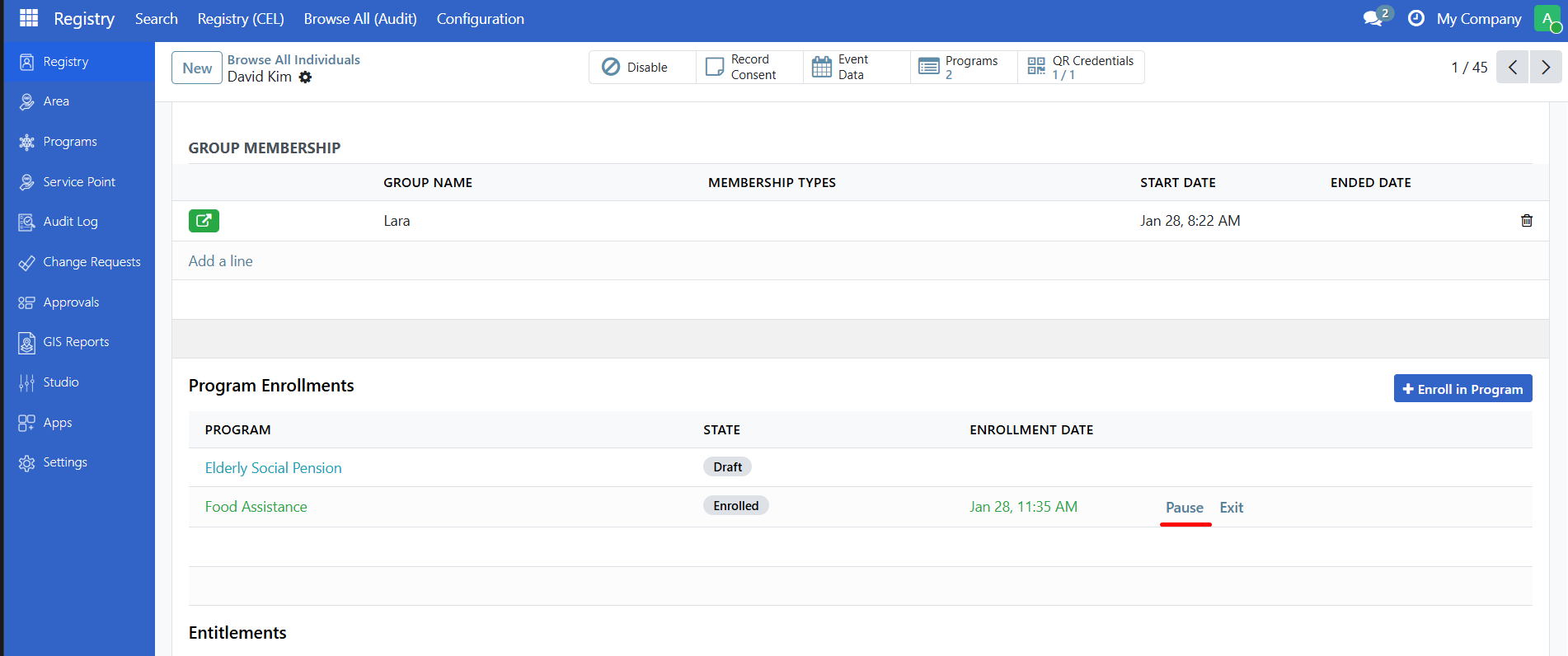
The status changes to Paused. They will not receive benefits until resumed.
Resume a beneficiary#
Reactivate a paused beneficiary:
Open the beneficiary record.
Click Resume.
The status changes back to Enrolled.
Exit a beneficiary#
Permanently remove a beneficiary from the program:
Open the beneficiary record.
Click Exit.
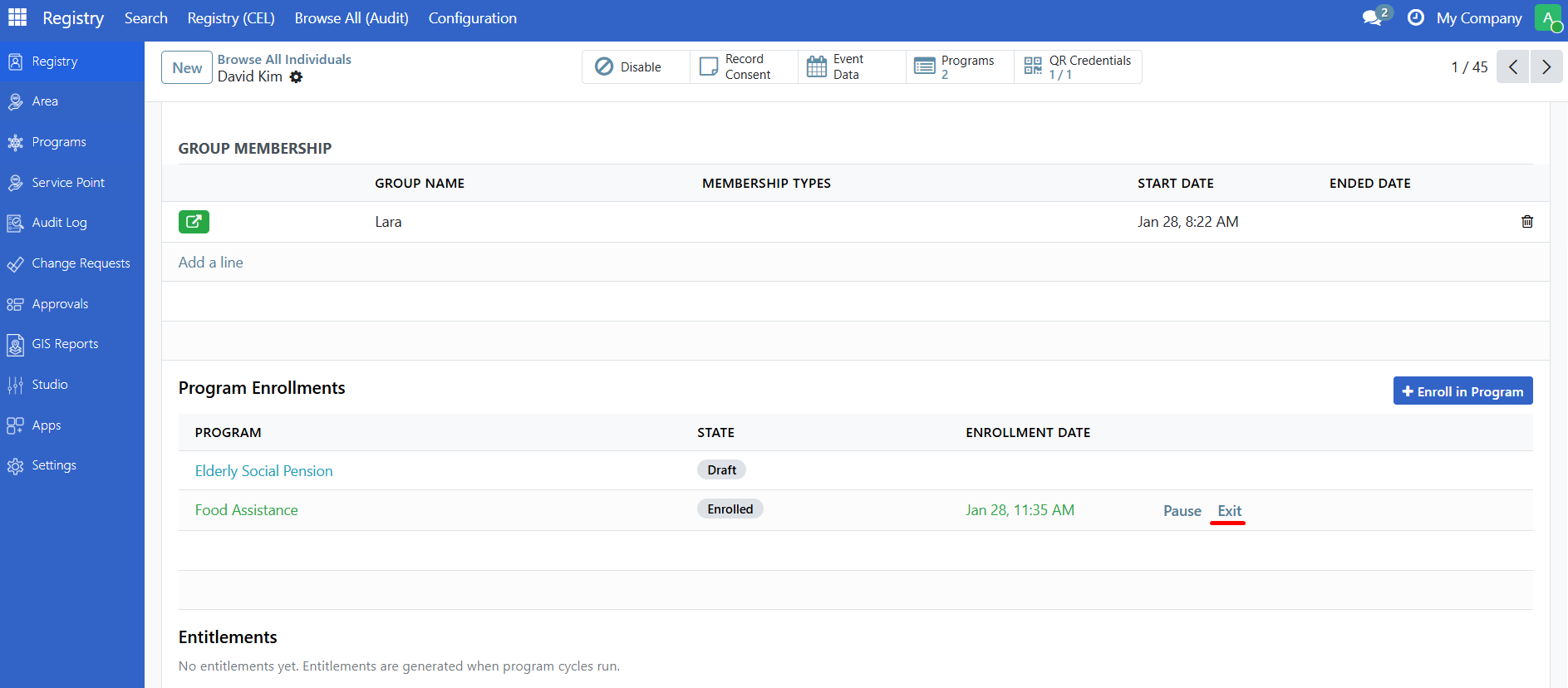
The status changes to Exited and the exit date is recorded.
Exited beneficiaries cannot be resumed. To re-enroll, create a new enrollment.
Deduplicate beneficiaries#
Find and flag potential duplicate enrollments:
Open the program.
Click Deduplicate.
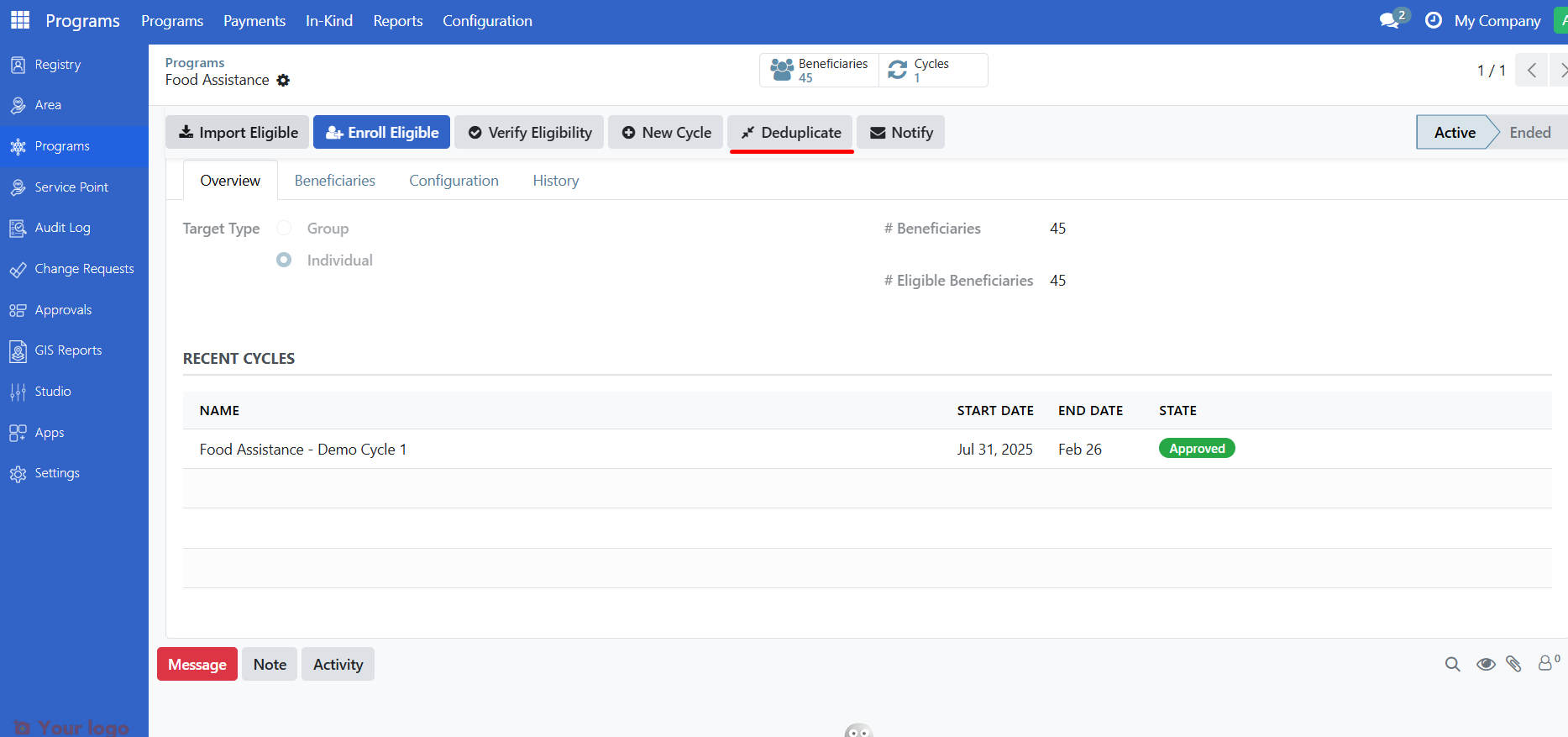
The system checks for duplicates based on configured rules.
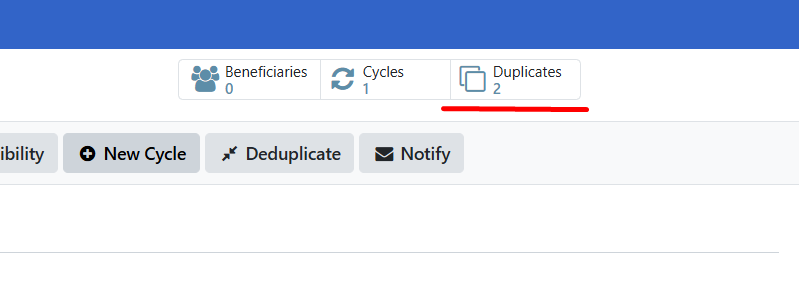
A notification shows how many duplicates were found.
View duplicates using the Duplicates smart button.
Are you stuck?#
Import Eligible button does nothing?
The program may not have an eligibility manager configured
Contact your Program Manager to verify the configuration
No registrants found during import?
Check that registrants exist in the Registry
Verify the program's target type matches (individual vs. group)
Review the eligibility criteria with your Program Manager
Program is locked and I can't make changes?
The program is currently processing a large-scale import or enrollment operation
Wait for the background process to complete - you'll see a notification when finished
Check the program's chatter/messages for status updates
The lock will automatically release when the operation completes
Registrant shows "Not Eligible" after enrollment?
The registrant's data may not meet the eligibility criteria
Open their profile and verify their information is complete
Check with your Program Manager about the specific eligibility rules
Cannot pause or exit a beneficiary?
You may not have the required permissions
The beneficiary may already be in the state you are trying to set
"Already enrolled in this program" error?
A registrant can only be enrolled once per program
Check the program's beneficiary list for existing enrollment
If they were exited, you may need to create a new enrollment
Individual enrollment shows no programs?
Check that active programs exist for the registrant's type
Individual registrants can only enroll in individual-targeted programs
Group registrants can only enroll in group-targeted programs
Next steps#
Work with program cycles - Create cycles to distribute benefits
Manage entitlements - View entitlements for enrolled beneficiaries