 openspp.org
Allocate funds to programs
Contents
Allocate funds to programs#
Applies to: SP-MIS
What you will do#
Allocate funds to a program so that entitlements can be approved and distributed. Program funds are posted to the program's disbursement journal and must be in place before entitlements can be fully approved.
Before you start#
You need Program Manager or Administrator access (the Program Funds menu is restricted to these roles)
The program must exist and have a Disbursement Journal configured (set in the program's Configuration or during program creation)
You must have at least one Active program to allocate funds to
Why allocate funds?#
Entitlements require allocated funds to be successfully approved. Allocating funds to a program:
Reserves budget for the program in the accounting journal
Allows cycle approvers to approve entitlements once sufficient funds are posted
Keeps a clear record of when and how much was allocated (reference number and date posted)
Allocate funds to a program#
Step 1. Open Program Funds#
Go to Programs in the main menu.
Click Payments in the submenu.
Click Program Funds.
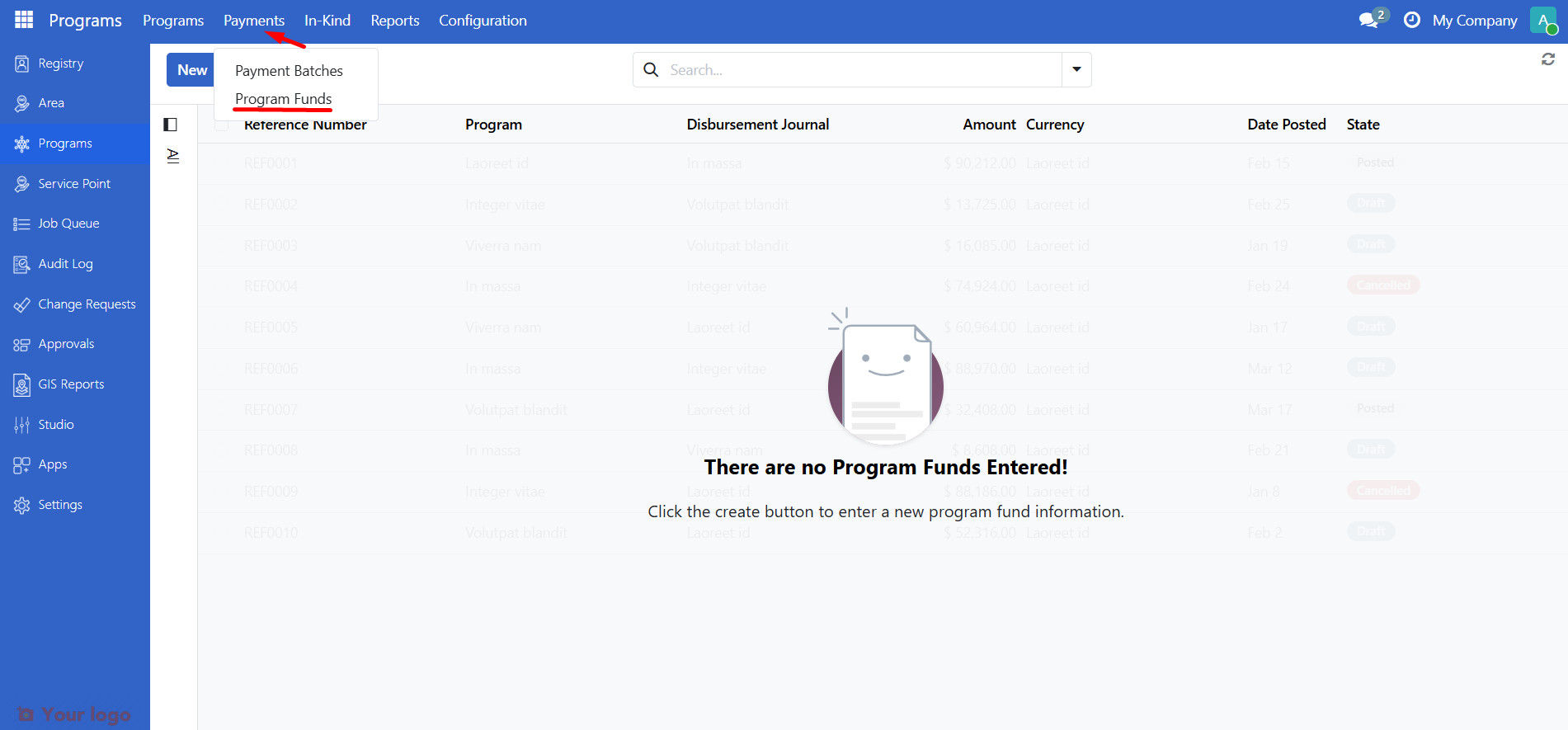
You will see the list of existing program fund entries (if any). Each entry shows Reference Number, Program, Amount, Date Posted, and State (Draft, Posted, or Cancelled).
Step 2. Create a new fund entry#
Click New.
Fill in the form:
Field |
Description |
Required |
|---|---|---|
Program |
Select the program to allocate funds to (only active programs appear) |
Yes |
Amount |
The budget amount to allocate (uses the program's journal currency) |
Yes |
Reference Number |
Optional. Leave as Draft to auto-generate a reference when you post; or enter your own reference |
No |
Remarks |
Optional notes (e.g., source of funds, grant reference) |
No |
Date Posted |
Defaults to today; used for the posting date when you click Post |
Yes |
The Disbursement Journal and Currency are read-only and come from the selected program.
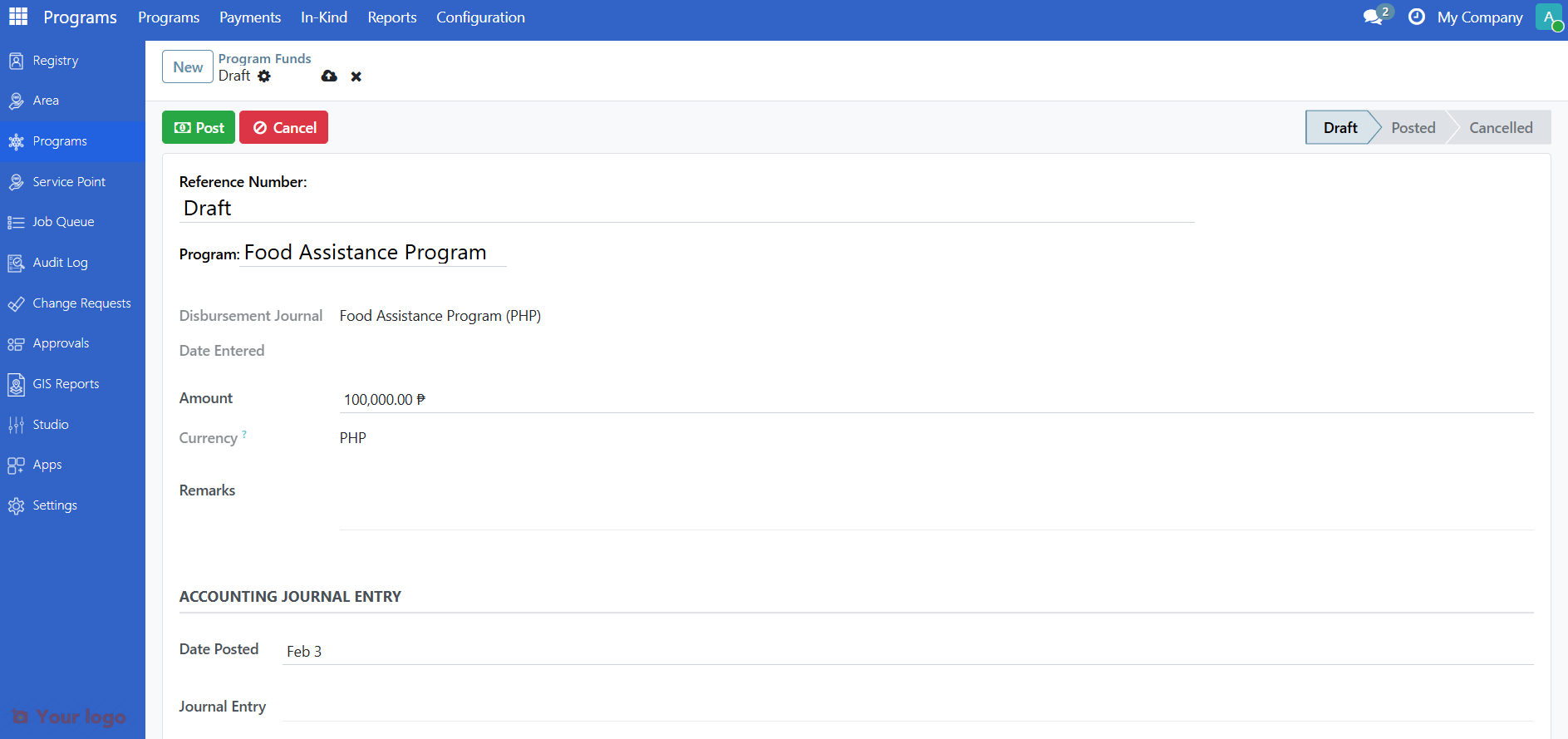
Click Save to keep the entry in Draft, or go to Step 3 to post immediately.
Step 3. Post the fund#
With the fund entry in Draft state, click Post in the header.
The system will:
Set the State to Posted
Set Date Posted to today (if not already set)
Generate a Reference Number automatically if you left it as "Draft"
A success message confirms that the fund has been posted.
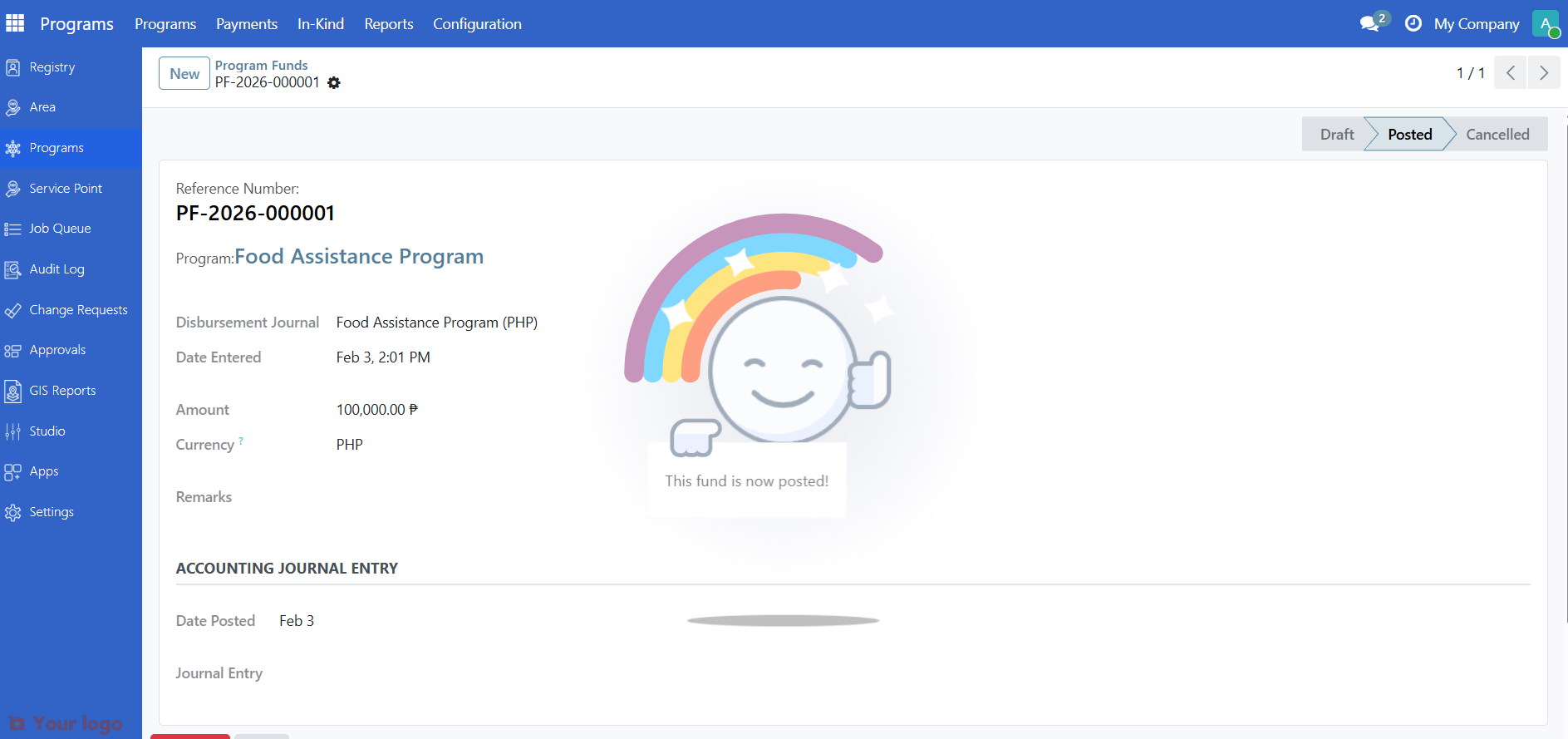
Once posted, the fund cannot be edited or deleted; it is part of the program's accounting record.
Fund states#
State |
Meaning |
|---|---|
Draft |
Entry is being prepared; you can edit or delete it. Click Post to post, or Cancel to cancel the entry. |
Posted |
Fund has been allocated to the program. No further edits; the amount is available for entitlements. |
Cancelled |
Entry was cancelled from Draft. You can use Reset to Draft to make it editable again, then post or leave as draft. |
Are you stuck?#
Program Funds menu not visible?
You need Program Manager or Administrator access. Contact your administrator.
No programs in the Program dropdown?
Only Active programs appear. Ended programs are excluded. Create or activate a program first.
Program has no Disbursement Journal?
The program must have a journal configured (programs created with the wizard usually have this set automatically). A Program Manager or Administrator can set it in Programs > Configuration or in the program's Configuration tab.
Cannot post the fund?
Ensure the entry is in Draft state. Only draft funds can be posted. Cancelled entries must be reset to draft first.
Next steps#
Create programs - Create programs
Work with program cycles - Work with program cycles
Manage entitlements - Manage entitlements