 openspp.org
Grievance redress overview
Contents
Grievance redress overview#
This guide is for implementers configuring the GRM in OpenSPP. You should understand your program's complaint handling requirements but don't need programming knowledge.
Mental model#
The GRM in OpenSPP has four layers:
Layer |
What it does |
Example |
|---|---|---|
Category |
Classifies the type of complaint or request |
"Payment delay", "Enrollment error" |
Stage |
Tracks where a ticket is in the resolution process |
"New", "In Progress", "Resolved" |
Channel |
How the complaint was submitted |
"Phone", "Email", "Web" |
SLA |
Defines response and resolution time targets |
"Respond within 24 hours, resolve within 5 days" |
Think of it like a customer service system: categories are the issue types in a support ticket, stages track the ticket status, channels are how the customer reached you, and SLAs are your service guarantees.
Key concepts#
Ticket stages#
Stages track a ticket through its lifecycle. Each stage has a type:
Stage Type |
Meaning |
|---|---|
New |
Ticket just created, not yet triaged |
In Progress |
Actively being worked on |
Waiting |
On hold pending information or external action |
Escalated |
Elevated to a higher authority |
Resolved |
Solution provided |
Closed |
Ticket completed and confirmed |
Cancelled |
Ticket voided |
Stage configuration:
Field |
What it means |
|---|---|
Name |
Stage label |
Sequence |
Display order |
Stage Type |
Classification (see above) |
Is Closed |
Marks ticket as closed |
Requires Approval |
Transition needs approval |
Requires Decision |
Must record a decision before closure |
SLA Hours |
Time allowed in this stage |
Mail Template |
Auto-send email when entering this stage |
Allowed Groups |
Which user groups can move tickets to this stage |
Ticket categories#
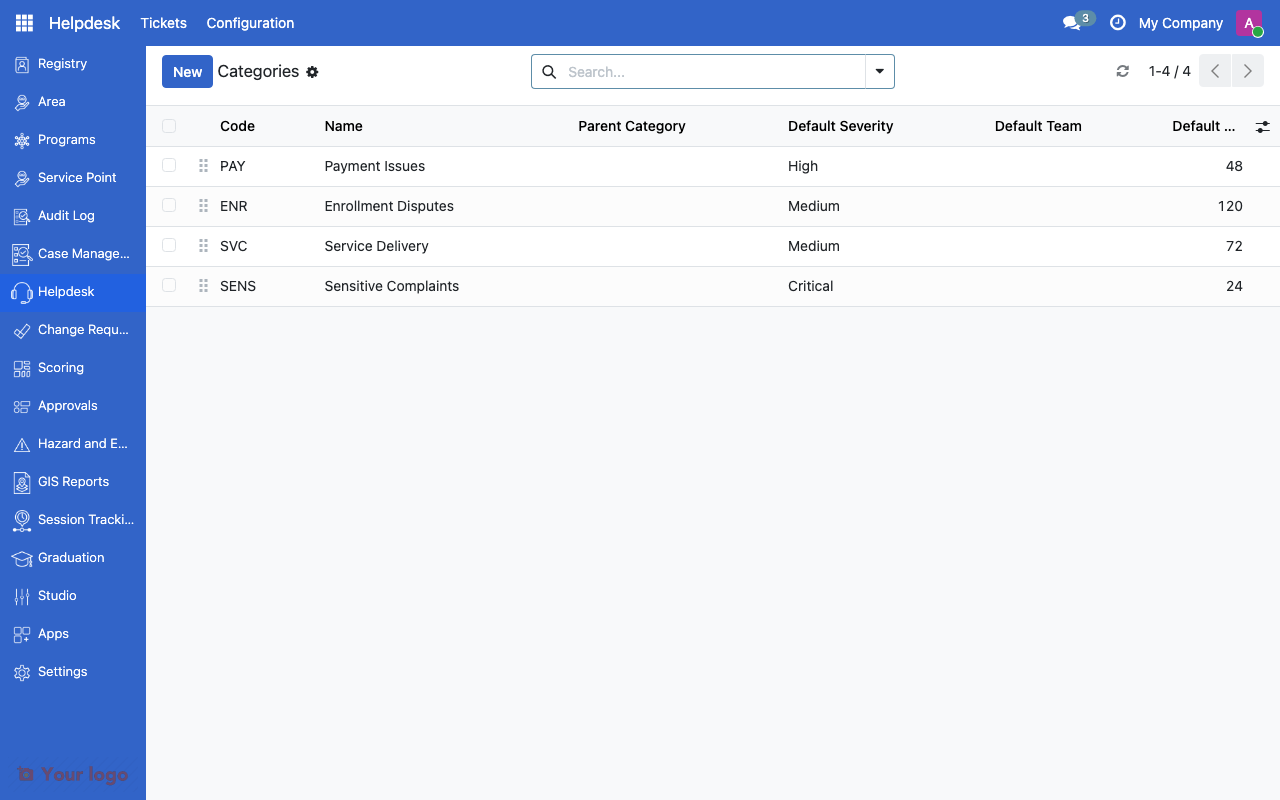
Ticket categories list showing severity, sensitivity, and SLA settings.#
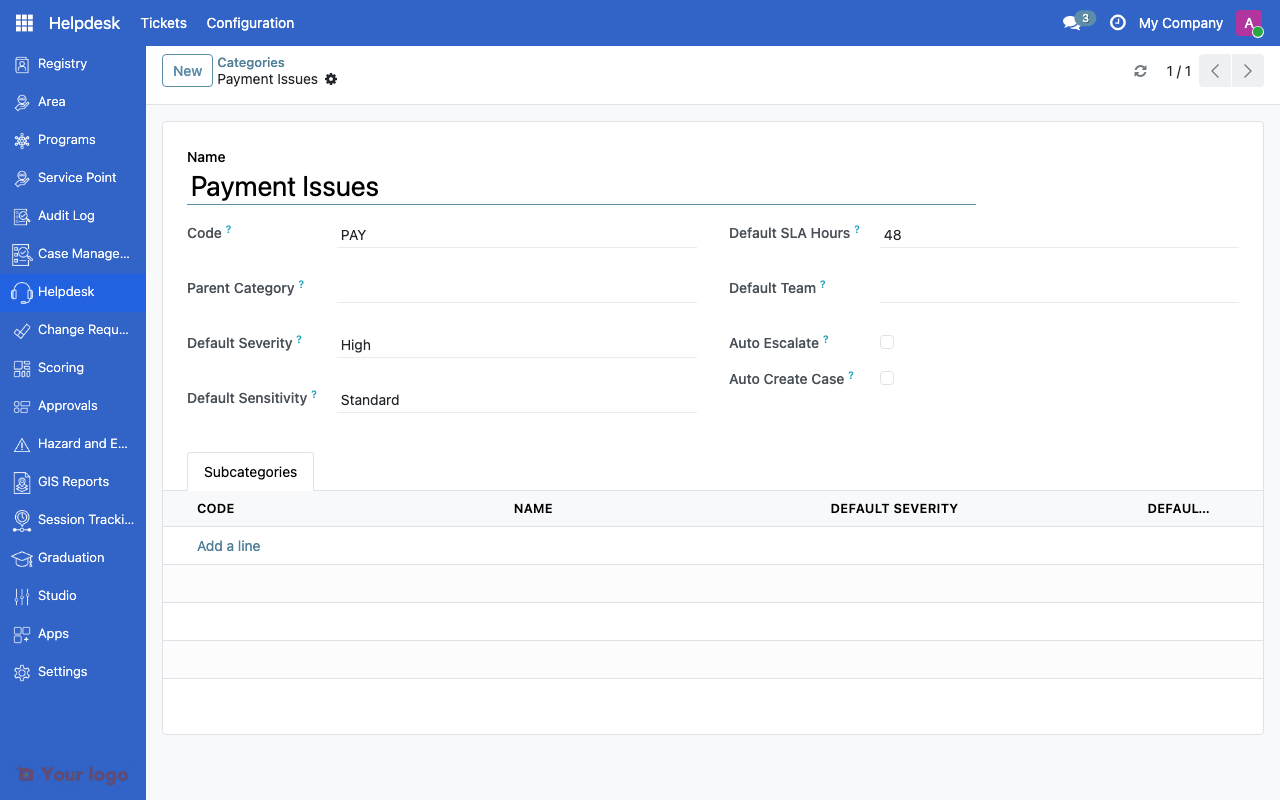
Ticket category form with severity, SLA hours, and subcategories.#
Categories classify complaints in a hierarchy (parent → child):
Field |
What it means |
|---|---|
Name |
Category label (e.g., "Payment Issues") |
Code |
Unique identifier |
Parent |
Parent category for hierarchy |
Default Severity |
Low, Medium, High, or Critical |
Default Sensitivity |
Standard, Sensitive, or Highly Sensitive |
Default SLA Hours |
Time target for this category |
Default Team |
Team auto-assigned for this category |
Auto Escalate |
Automatically escalate if SLA breached |
Auto Create Case |
Create a linked case management record |
Subcategories#
Second-level categories for finer classification:
Example Category |
Example Subcategories |
|---|---|
Payment Issues |
Late payment, Wrong amount, Payment not received |
Enrollment |
Rejected application, Missing documents, Data error |
Service Delivery |
Service point closed, Staff misconduct, Long wait times |
Submission channels#
Channels track how complaints are received. Channels are configurable records — you can create as many as you need. The system ships with these defaults:
Channel |
Description |
|---|---|
Web |
Online submission |
Electronic mail |
|
Phone |
Hotline or call center |
Other |
Any other channel |
You can add additional channels (e.g., In-person, SMS, Field visit) through Configuration > Channels.
Navigation#
Menu |
Purpose |
|---|---|
Helpdesk |
Main GRM dashboard |
Helpdesk > All Tickets |
View all tickets |
Helpdesk > My Tickets |
Tickets assigned to you |
Configuration > Stages |
Define ticket stages |
Configuration > Categories |
Create ticket categories |
Configuration > Subcategories |
Create subcategories |
Configuration > Channels |
Configure submission channels |
Configuration > SLA Rules |
Set service level agreements |
Configuration > Teams |
Manage GRM teams |
Configuration > Tags |
Create ticket tags |
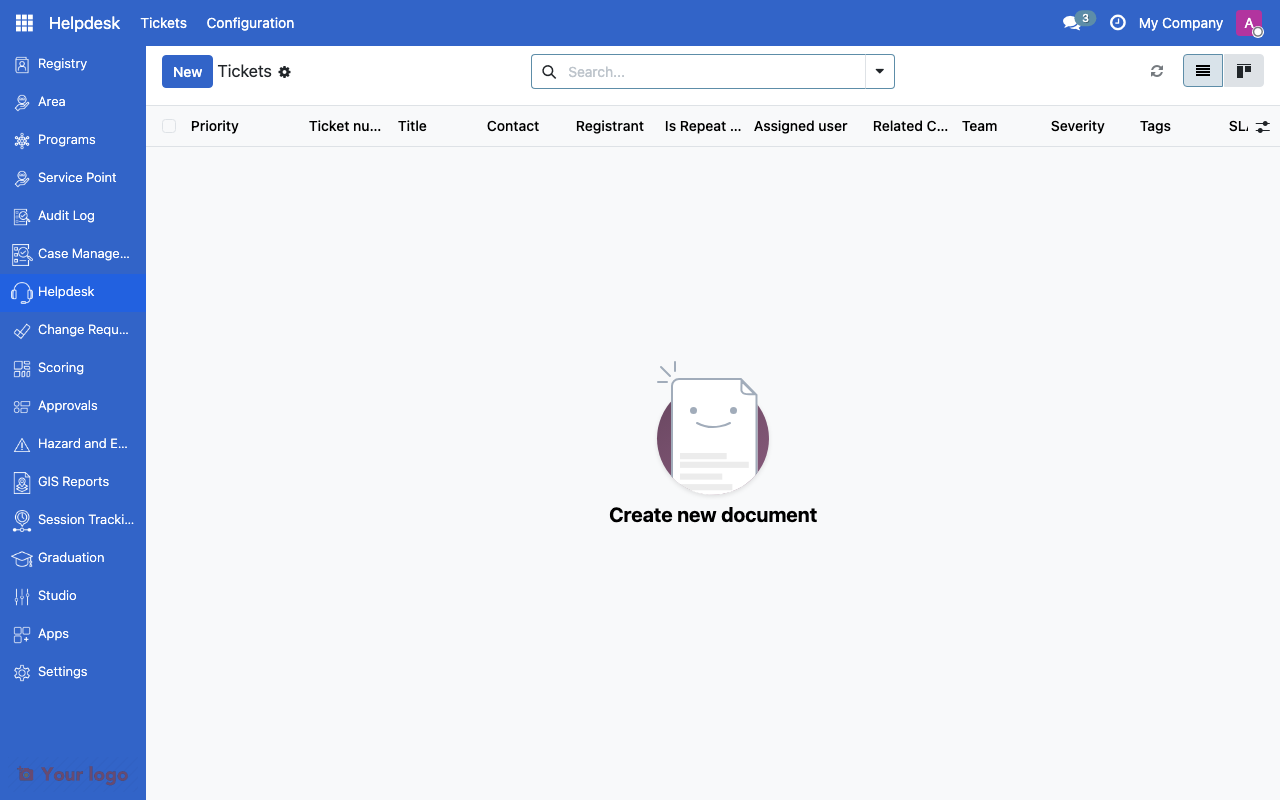
GRM tickets view showing the helpdesk interface.#
Common use cases#
Use case 1: Payment complaint handling#
Goal: Track and resolve payment-related complaints.
Setup:
Create a "Payment Issues" category with subcategories (Late, Wrong amount, Not received)
Set default severity to "High" and SLA to 48 hours
Assign a default team (e.g., "Finance Support")
Enable auto-escalation if SLA is breached
Configure stages: New → Under Investigation → Resolution Proposed → Resolved → Closed
Use case 2: Multi-channel complaint intake#
Goal: Accept complaints through phone, in-person, and SMS.
Setup:
Create channels: Phone, In-Person, SMS
Each ticket records which channel was used
Use channel data for reporting (which channels are most used)
Ensure all channels lead to the same resolution workflow
Use case 3: Sensitive complaint handling#
Goal: Handle GBV or exploitation complaints with restricted access.
Setup:
Create a "Sensitive Complaints" category with sensitivity = "Highly Sensitive"
Restrict stage access using Allowed Groups (only trained staff)
Disable auto-escalation (manual routing only)
Enable Requires Decision on the resolution stage
Are You Stuck?#
Where do I configure the GRM?
Go to Helpdesk > Configuration. All GRM settings are under this menu.
Ticket auto-assigned to wrong team?
Check the Default Team on the ticket's category. When a ticket is created with that category, it auto-assigns to the specified team.
SLA timer not showing?
SLA rules must match the ticket's category and team. Check that an SLA rule exists with matching conditions (see SLA rules).
Can I link a grievance to a specific program?
Yes, if the GRM Programs module is installed. This adds program and entitlement fields to tickets. Ask your administrator if you don't see these fields.
Can I link a grievance to a registrant?
Yes, if the GRM Registry module is installed. This adds beneficiary lookup to tickets. Ask your administrator if you don't see this feature.
How do I handle anonymous complaints?
Create the ticket without linking it to a registrant. Use the channel field to record how the complaint was received.
Next steps#
SLA rules - Configure service level agreements
GRM teams and tags - Set up GRM teams and tags
Case management overview - Link grievances to case management