 openspp.org
Custom fields overview
Contents
Custom fields overview#
This guide is for implementers organizing custom registrant data into logical groups. You should understand your data collection needs but don't need programming knowledge.
Mental model#
Custom fields in OpenSPP have two layers:
Layer |
What it does |
Example |
|---|---|---|
Field group |
Organizes related fields into a section |
"Health Information" section on registrant form |
Custom field |
Individual data field within a group |
"Blood type", "Disability status" |
Think of it like form sections: field groups are the section headers on a paper form, and custom fields are the individual blanks to fill in.
Key concepts#
Field groups#
Field |
What it means |
|---|---|
Name |
Group label (e.g., "Disability Information") |
Target Type |
Group registrants or Individual registrants |
Sequence |
Display order on the registrant form (lower = first) |
Active |
Enable/disable the group |
Target types#
Type |
Where fields appear |
|---|---|
Group |
On household/group registrant forms |
Individual |
On individual registrant forms |
A field group is shown only on the registrant type it targets. This keeps forms clean by showing only relevant fields.
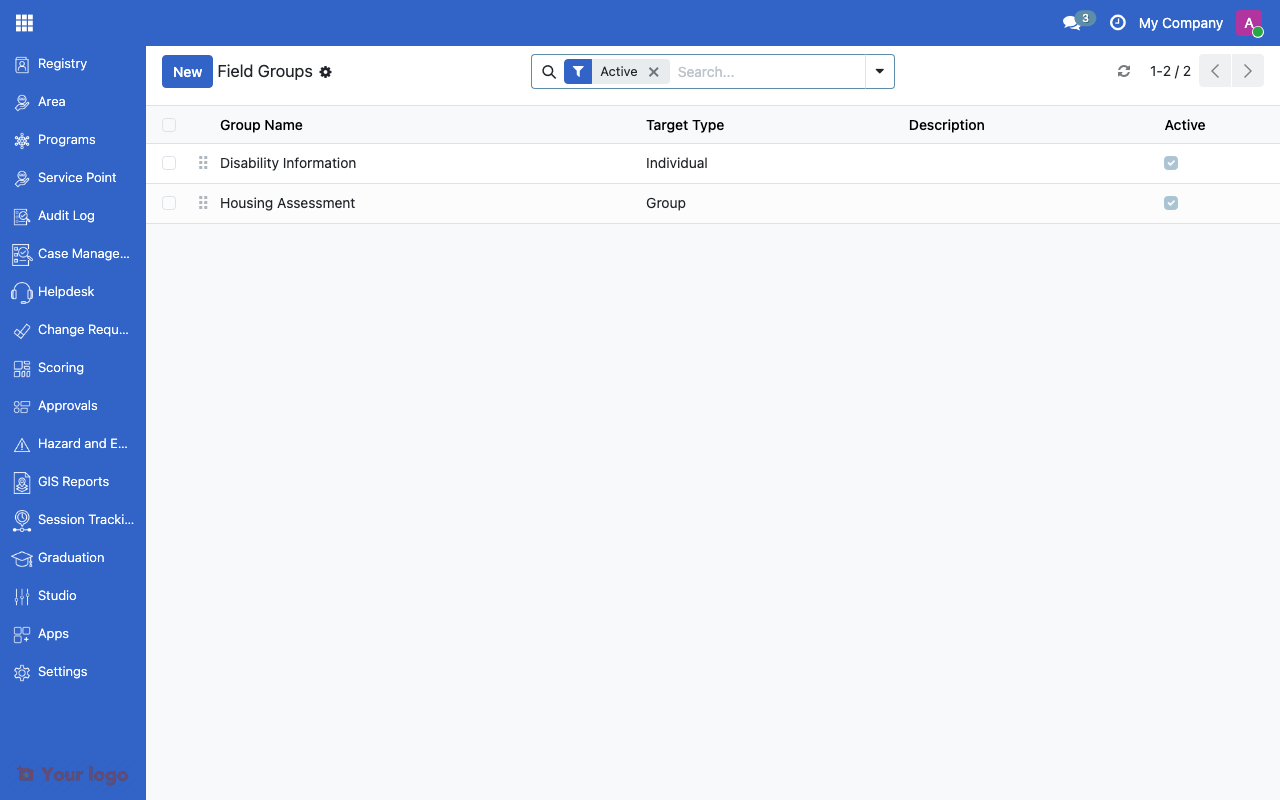
Custom field groups list showing target type and sequence.#
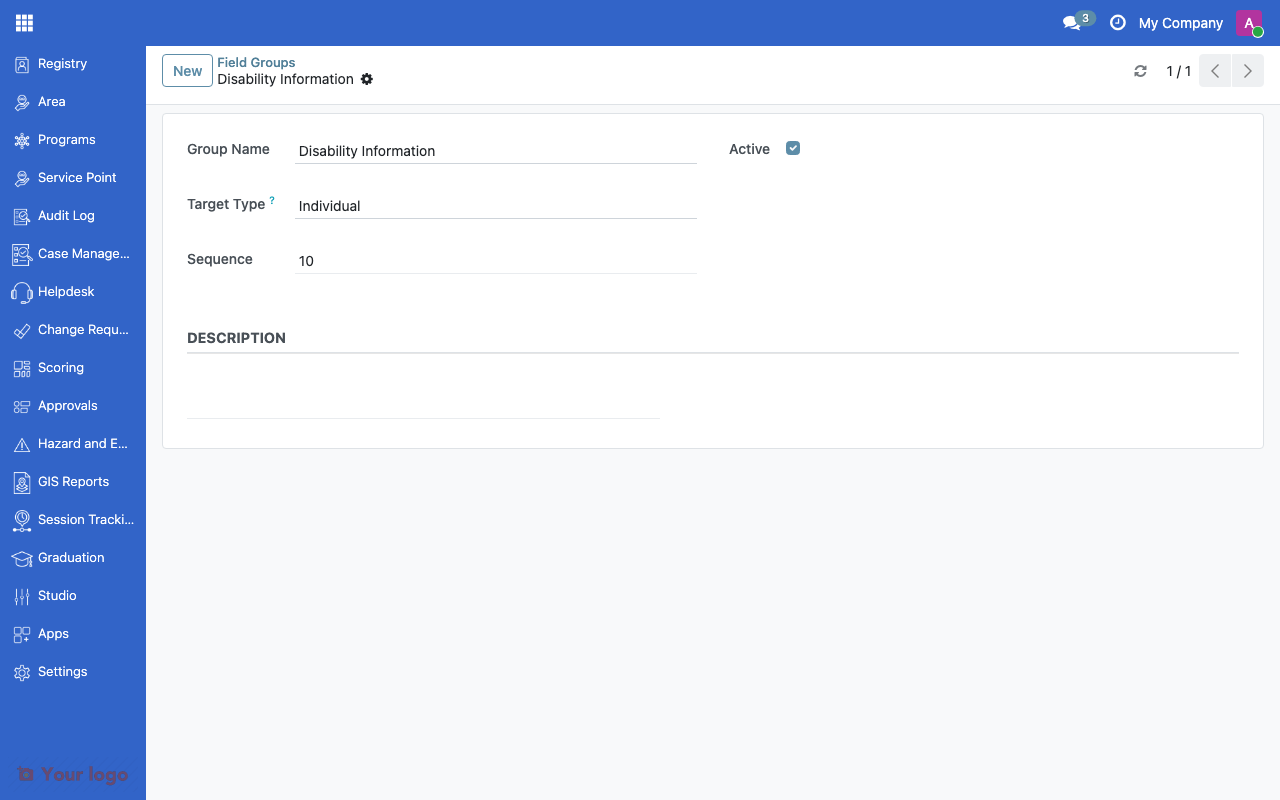
Custom field group form showing name, target type, and sequence.#
Setting up field groups#
Step 1: Create a field group#
Navigate to SPP Studio → Forms and Fields → Custom Fields
Click Create
Enter the Name
Select the Target Type (Group or Individual)
Set the Sequence for ordering
Save
Step 2: Link fields to the group#
Custom fields (created using OpenSPP Studio — see OpenSPP Studio) can be associated with a field group. This determines which section they appear in on the registrant form.
Common use cases#
Use case 1: Disability data collection#
Goal: Add disability-related fields to individual registrants.
Setup:
Create a field group "Disability Information" targeting Individuals
Set sequence to 20 (after basic info)
Associate fields: disability type, severity, assessment date, assistive device needs
Use case 2: Housing assessment#
Goal: Capture housing data for household registrants.
Setup:
Create a field group "Housing Assessment" targeting Groups
Set sequence to 30
Associate fields: roof material, wall material, floor type, water source, sanitation
Are You Stuck?#
Where do I create the actual custom fields?
Use OpenSPP Studio (OpenSPP Studio) to create custom fields without code. Then associate them with a field group.
Field group not visible on the form?
Check the Target Type matches the registrant type (Group vs Individual). Also verify the group is Active.
How do I reorder field groups?
Change the Sequence value. Lower numbers appear first on the form.
Can I use custom fields in eligibility rules?
Yes. Once created, custom fields can be referenced in eligibility formulas, scoring, and other rules. See CEL expressions for how to write these formulas.
Next steps#
OpenSPP Studio - Create custom fields with Studio
Variables Overview - Reference custom fields in variables