 openspp.org
Batch approvals and freeze periods
Contents
Batch approvals and freeze periods#
This guide is for implementers configuring bulk approval processing and system-wide approval freezes.
Batch processing#
When programs generate large numbers of items for approval (e.g., hundreds of change requests after a data collection round), processing them one by one is impractical.
Batch configuration#
The system-wide approval config controls batch behavior:
Setting |
What it means |
|---|---|
Batch Size |
Maximum records processed in one batch operation |
Async Threshold |
When the number of records exceeds this limit, processing runs in the background so you can continue working |
Navigate to approval system configuration to set these values.
How batch approval works#
Go to My Approvals > Pending Approvals
Select multiple records using checkboxes
Click Approve Selected or Reject Selected
If the count exceeds the Async Threshold, the system processes them in the background
You receive a notification when batch processing completes
Daily digest#
Configure a daily summary of pending approvals:
Setting |
What it means |
|---|---|
Send Daily Digest |
Enable/disable the daily summary email |
Digest Time |
Time of day to send the summary |
The digest lists all items pending the recipient's approval, helping approvers stay on top of their queue.
Freeze periods#
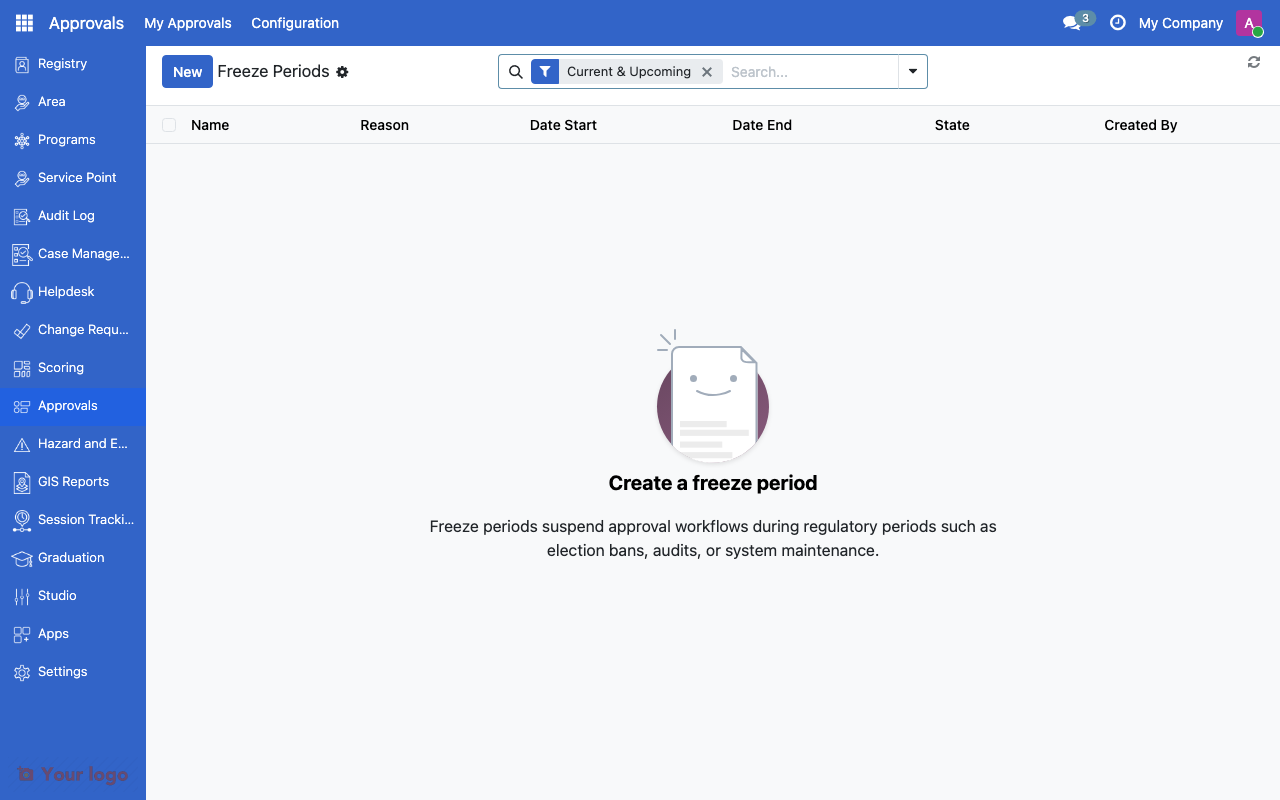
Approval freeze periods list showing scheduled freeze windows.#
Freeze periods block all approvals system-wide during critical operational windows.
When to use freezes#
Scenario |
Purpose |
|---|---|
System migration |
Prevent approvals while data is being migrated |
Audit period |
Freeze changes during an external audit |
Payment processing |
Halt approvals while a payment batch is running |
Holiday shutdown |
Block approvals when staff are unavailable |
Setting up a freeze period#
Navigate to Configuration > Freeze Periods
Click New
Set the Start Date and End Date
Add a Reason for the freeze
Save and activate
During a freeze:
No approvals or rejections can be processed
Pending items remain in queue
Submitters can still create new items (they queue for approval after the freeze)
SLA timers pause during the freeze
Warning
Freeze periods affect ALL approval workflows system-wide. Use them only when necessary.
Emergency override#
If an urgent item must be processed during a freeze:
An administrator can enable Emergency Bypass on the approval definition
Items marked as emergency can proceed through approval despite the freeze
Emergency overrides are logged for audit purposes
Are You Stuck?#
Batch approval is slow?
Increase the Batch Size for faster processing, or lower the Async Threshold so large batches are processed in the background automatically.
Freeze period not taking effect?
Check that the freeze period is active (not in draft state) and that the date range covers the current date and time.
Can I freeze only certain approval types?
No. Freeze periods are system-wide. To selectively pause specific workflows, deactivate the individual approval definition instead.
Approvals processed during a freeze by mistake?
Check if the approval definition has Emergency Bypass enabled. If so, emergency items are exempt from the freeze.
Next steps#
Approval workflows overview - Approval workflow fundamentals
Approval tiers - Multi-tier approval configuration