 openspp.org
Cash calculations
Contents
Cash calculations#
This guide is for implementers configuring cash entitlement calculations including fixed amounts, multipliers, and maximum caps.
Understanding cash entitlements#
Cash entitlements are monetary payments calculated for each beneficiary. The calculation can be:
Fixed amount - Same amount for all beneficiaries
Multiplied amount - Amount multiplied by a beneficiary field
Formula-based - Complex calculation using CEL expressions
Capped amount - Maximum limit on total entitlement
Cash entitlement manager configuration#
Accessing the configuration#
Open your program's Configuration tab
Find the Entitlement Manager section
Click the gear icon on the cash entitlement manager
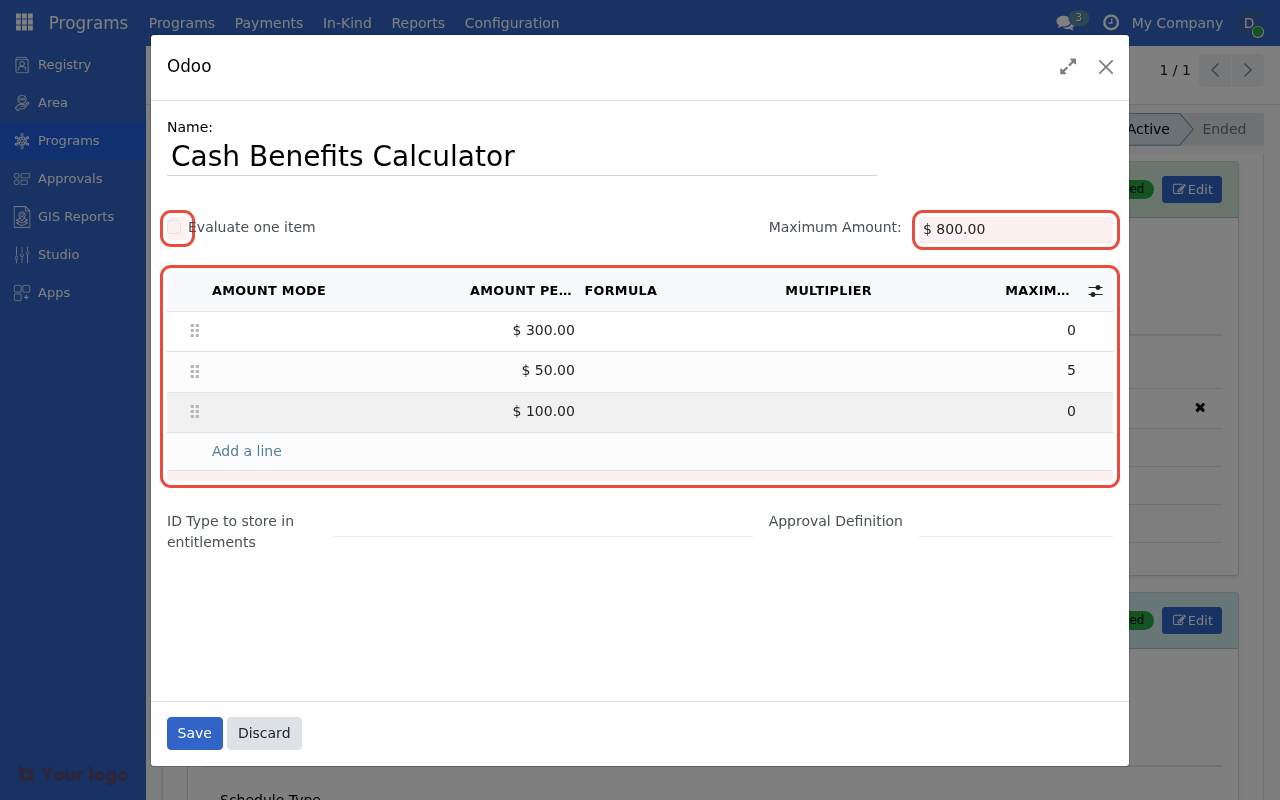
The Cash entitlement manager form showing Evaluate one item, Maximum Amount, and the Entitlement Items list.#
Manager-level settings#
Field |
Description |
|---|---|
Name |
Display name for this manager |
Maximum Amount |
Cap on total entitlement (0 = no cap) |
Entitlement Validation Group |
User group that can approve entitlements |
Entitlement Items |
List of calculation rules |
Entitlement items#
Each cash entitlement manager has one or more items. Items are evaluated in order, and amounts are summed.
Adding an entitlement item#
In the entitlement manager form, click Add a line in the Entitlement Items section
Configure the item fields
Save the configuration
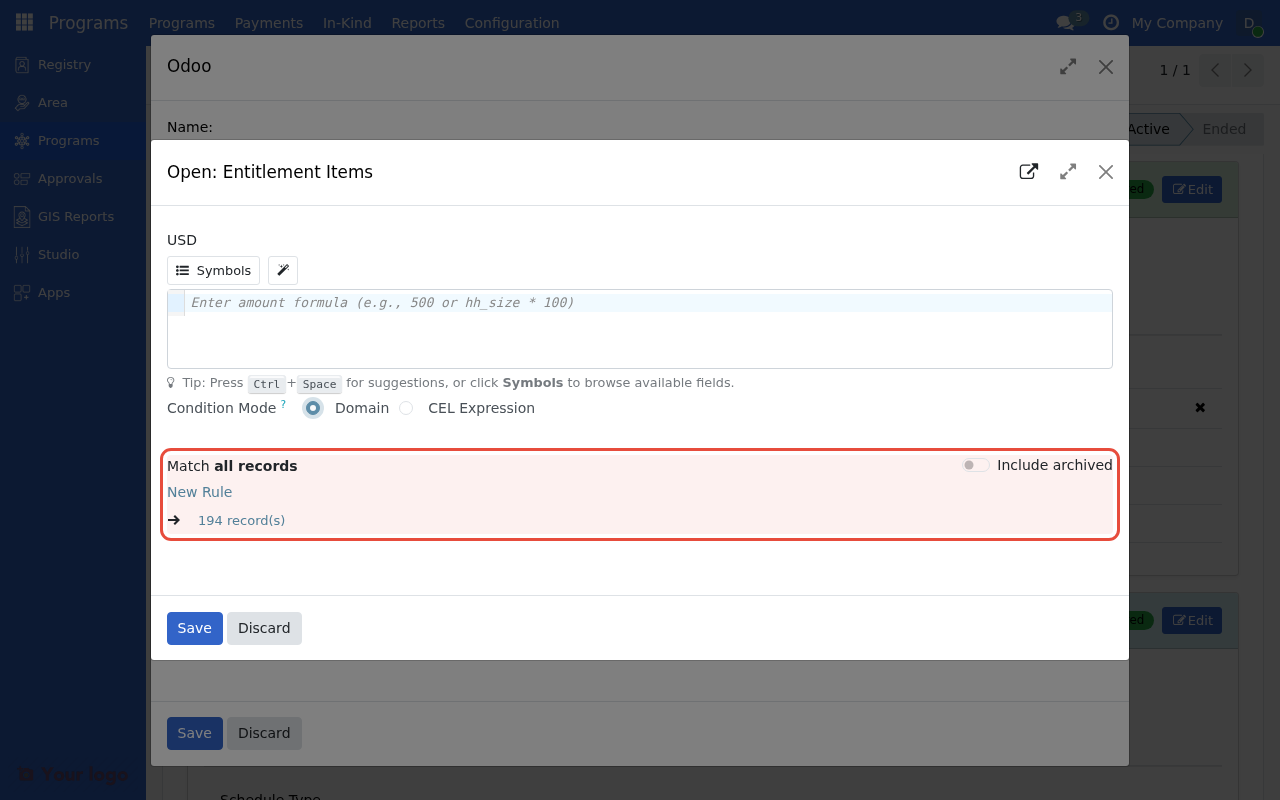
The entitlement item form with Amount, Condition Domain, Multiplier, and Maximum number fields.#
Item configuration fields#
Field |
Description |
Example |
|---|---|---|
Amount |
Base amount for this item |
|
Currency |
Payment currency |
USD, PHP |
Multiplier Field |
Beneficiary field to multiply by |
|
Max Multiplier |
Maximum multiplier value (0 = no max) |
|
Condition |
CEL expression for who gets this item |
|
Formula |
CEL expression for complex calculation |
|
Fixed amount configuration#
For a simple fixed amount for all beneficiaries:
Field |
Value |
|---|---|
Amount |
|
Multiplier Field |
(empty) |
Condition |
(empty) |
Result: Every beneficiary receives $500.
Multiplier configuration#
To scale the amount by a beneficiary field:
Field |
Value |
|---|---|
Amount |
|
Multiplier Field |
(select an integer field from the registrant model) |
Max Multiplier |
|
Result: $100 multiplied by the selected field value, maximum 10 = $1,000 max.
How multiplier fields work#
The Multiplier Field dropdown shows all integer fields available on the registrant model (res.partner). Common examples include household member counts, but the specific fields available depend on your deployment's custom field configuration.
Note
If you don't see the fields you need in the dropdown, ask your administrator to create computed integer fields on the registrant model (e.g., via Studio or a custom module) that count household members by category.
Maximum amount cap#
To limit the total entitlement regardless of multipliers:
Set Maximum Amount at the manager level
This caps the sum of all entitlement items
Configuration |
Value |
|---|---|
Item 1 Amount |
|
Multiplier |
|
Maximum Amount (manager) |
|
Example: Household of 12 members
Calculated: 12 × $100 = $1,200
Capped at: $800
Multiple entitlement items#
Combine multiple items for complex calculations:
Example: Base + per-child supplement#
Item 1: Base amount
Field |
Value |
|---|---|
Amount |
|
Condition |
(empty - all beneficiaries) |
Item 2: Child supplement
Field |
Value |
|---|---|
Amount |
|
Multiplier Field |
(select a field that counts children under 5) |
Max Multiplier |
|
Result for household with 3 children under 5:
Base: $300
Children: 3 × $50 = $150
Total: $450
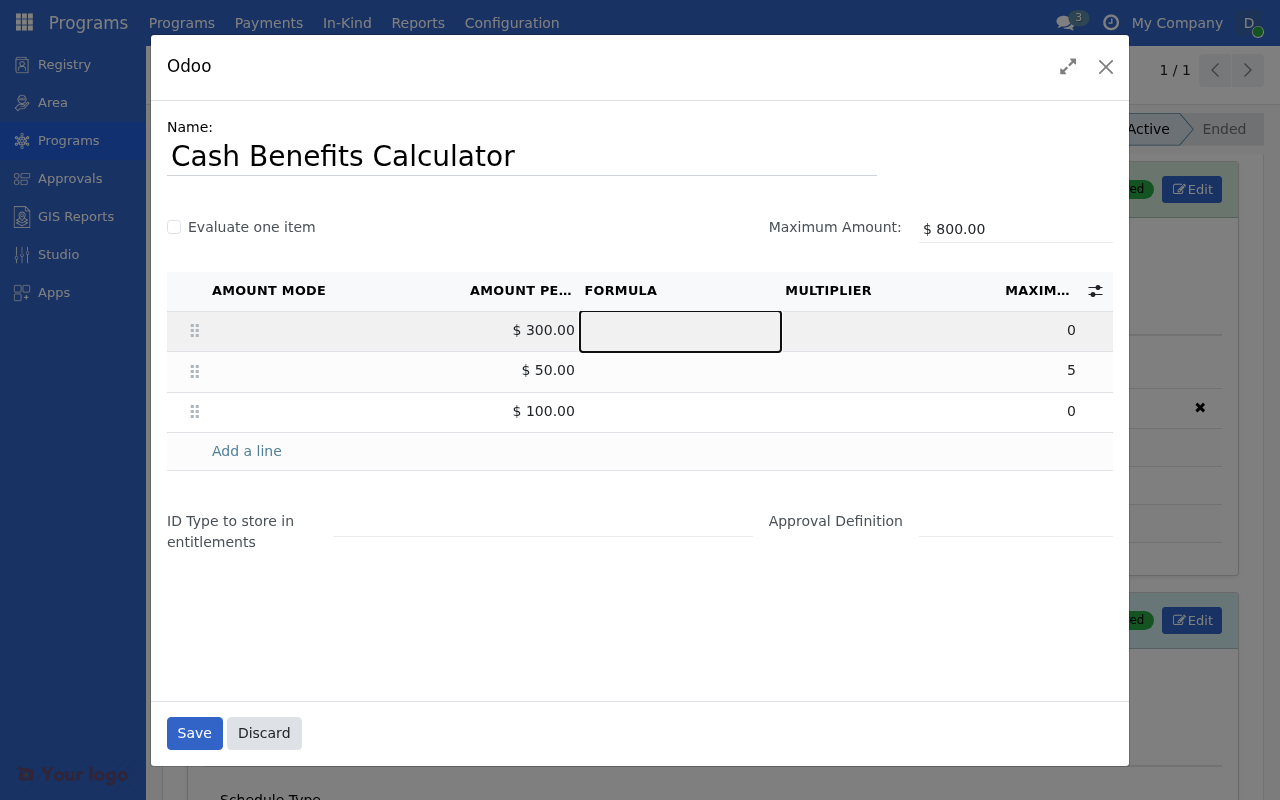
Multiple entitlement items configured with different amounts, multipliers, and conditions for complex calculations.#
Formula-based calculations#
For complex calculations, use CEL formulas instead of simple multipliers.
Formula context#
In amount formulas, you can reference:
Variable |
Description |
|---|---|
|
The Amount field value for this item |
|
The beneficiary record |
Simple formula examples#
# Fixed amount (same as leaving formula empty)
500

# Percentage increase
base_amount * 1.1

# Conditional adjustment
base_amount * 1.5 if me.is_female_headed else base_amount
Using beneficiary fields#
# Based on household size
base_amount * me.household_size

# With cap logic
min(base_amount * me.household_size, 1000)

# Conditional based on attribute
base_amount + (100 if me.has_disability else 0)
Formula validation#
When you enter a formula, OpenSPP validates it:
Indicator |
Meaning |
|---|---|
No error |
Formula syntax is valid |
Error message |
Syntax error or invalid field |
Sample calculation |
Shows result for a sample beneficiary |
Built-in functions#
Available in amount formulas:
Function |
Description |
Example |
|---|---|---|
|
Calculate age from date |
|
|
Minimum value |
|
|
Maximum value |
|
|
Absolute value |
|
|
Check if field exists |
|
Calculation order#
When preparing entitlements:
Each entitlement item is evaluated in order
Conditions are checked first
If condition passes, amount is calculated
Multiplier is applied (if configured)
Max multiplier caps the multiplier value
All item amounts are summed
Manager's maximum amount caps the total
        graph TD
    I[Entitlement Item] --> C{Condition?}
    C --> |Pass| A[Calculate Amount]
    C --> |Fail| S[Skip Item]
    A --> M{Multiplier?}
    M --> |Yes| MV[Apply Multiplier]
    M --> |No| SUM
    MV --> CAP{Max Multiplier?}
    CAP --> |Yes| MC[Cap Multiplier]
    CAP --> |No| SUM
    MC --> SUM[Add to Total]
    SUM --> NEXT[Next Item]
    NEXT --> MAX{Max Amount?}
    MAX --> |Yes| FINAL[Cap Total]
    MAX --> |No| DONE[Final Amount]
    FINAL --> DONE
Best practices#
Keep it simple#
Do |
Don't |
|---|---|
Use multiplier fields for scaling |
Write complex formulas for simple scaling |
Use manager max amount for caps |
Implement cap logic in every formula |
Test with sample data first |
Deploy without testing |
Document your configuration#
Practice |
Benefit |
|---|---|
Name items descriptively |
"Base + Child Supplement" |
Add notes explaining logic |
Future maintainability |
Record policy rationale |
Audit trail |
Performance considerations#
Tip |
Reason |
|---|---|
Avoid complex formulas |
Faster calculation |
Use indexed fields for conditions |
Faster filtering |
Test with production data volumes |
Verify performance |
Are you stuck?#
Amount is always 0?
Check the Amount field has a value
Verify the condition isn't excluding all beneficiaries
Ensure multiplier field exists and has data
Multiplier not working?
Verify the field name is correct
Check the field has numeric values
Look for typos in field name
Formula error?
Check syntax (use
base_amountnotamount)Verify field names match your model
Use the symbol browser for available fields
Total exceeds expected?
Check Max Amount is set at manager level
Verify Max Multiplier on items
Review all items - amounts are summed
Next steps#
Formula library - Pre-built formulas for common scenarios
Dynamic entitlements - Household-based calculations
Conditional logic - Different amounts for different groups