 openspp.org
Step 3: Add members
Contents
Step 3: Add members#
This tutorial is for users who need to add individual family members to a household.
What you'll do#
Create individual records for family members and link them to the household you created in Step 2.
Before you start#
Complete Step 2: Create a Household
Have information about each family member (names, dates of birth, etc.)
Allow 5-10 minutes to complete this step
The scenario#
You've created the Garcia Family household. Now you need to register the individual family members: Maria (head of household), Carlos (spouse), and Sofia (child).
Steps#
1. Create the Head of Household#
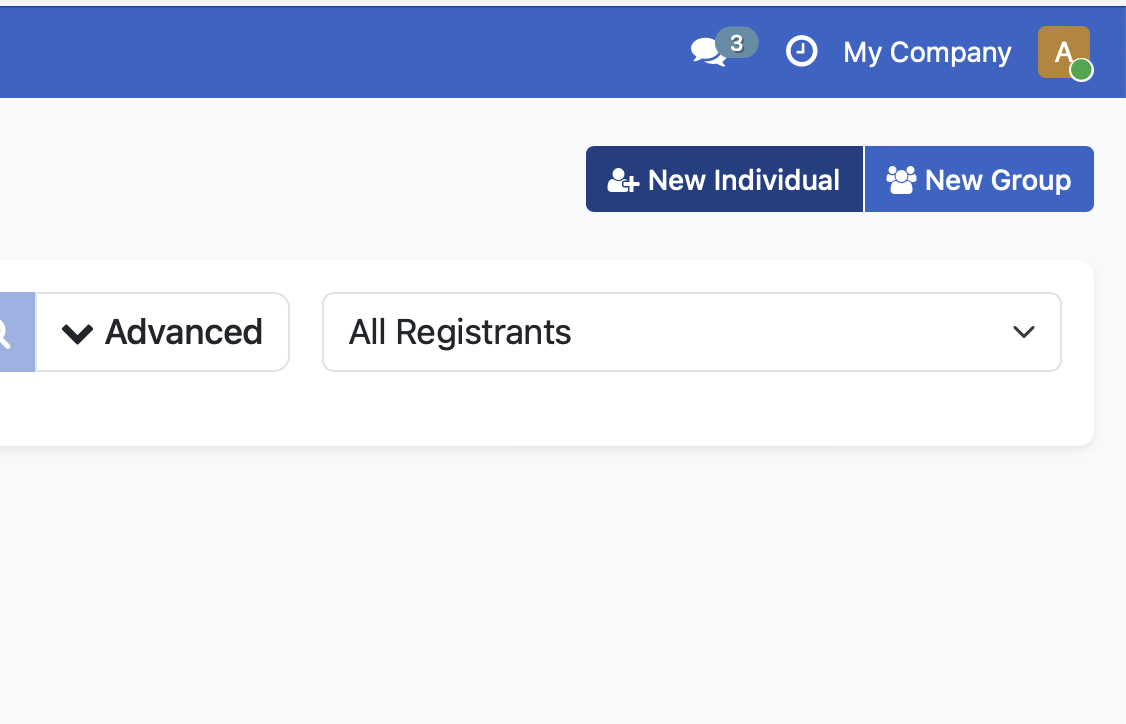
From the Registry Search Portal, click New Individual to create the first family member.
2. Enter individual information#
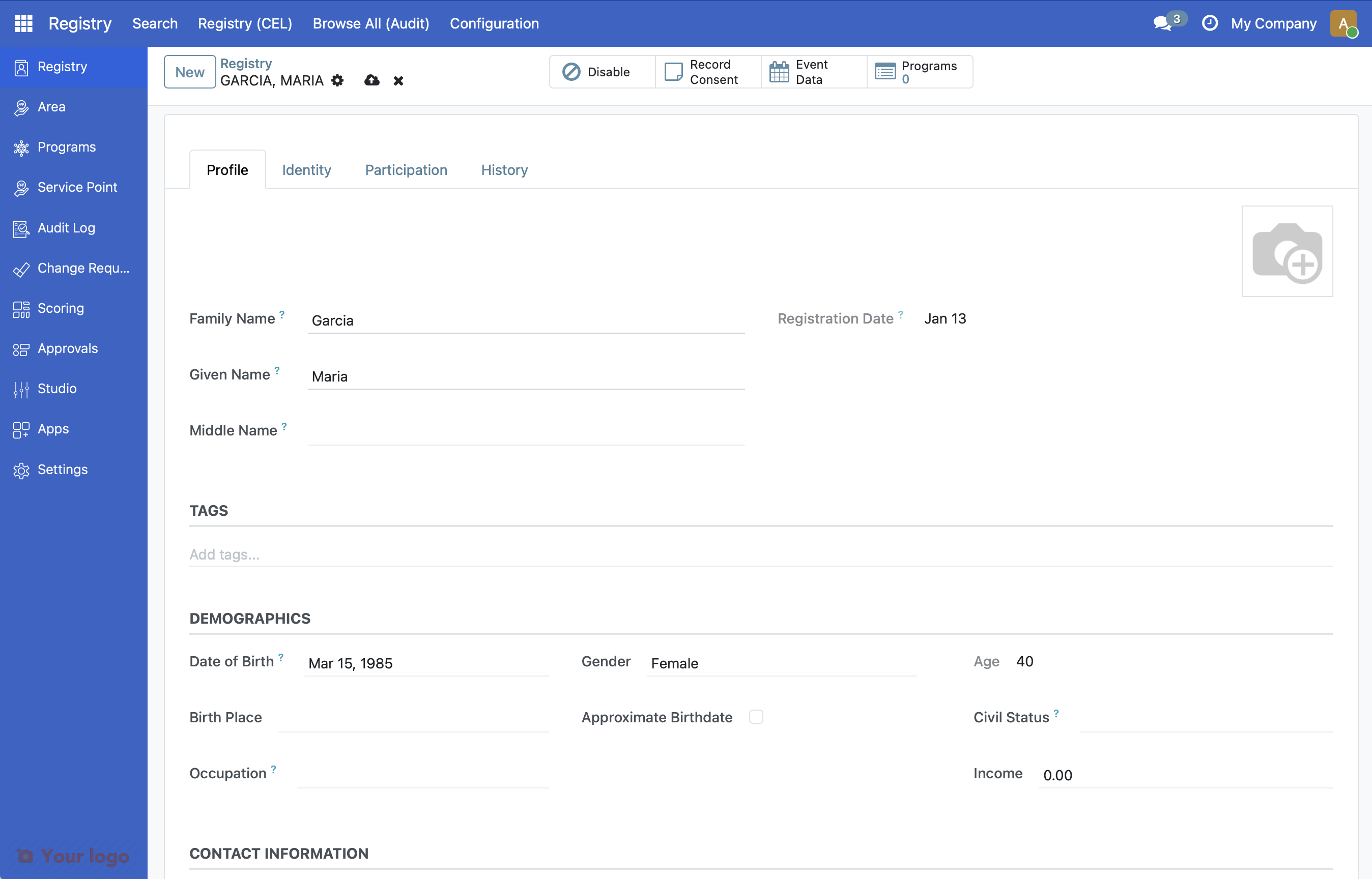
Enter the information for Maria Garcia, the head of household:
Field |
Value |
|---|---|
Family Name |
Garcia |
Given Name |
Maria |
Date of Birth |
1985-03-15 |
Gender |
Female |
Phone |
+1-555-0123 |
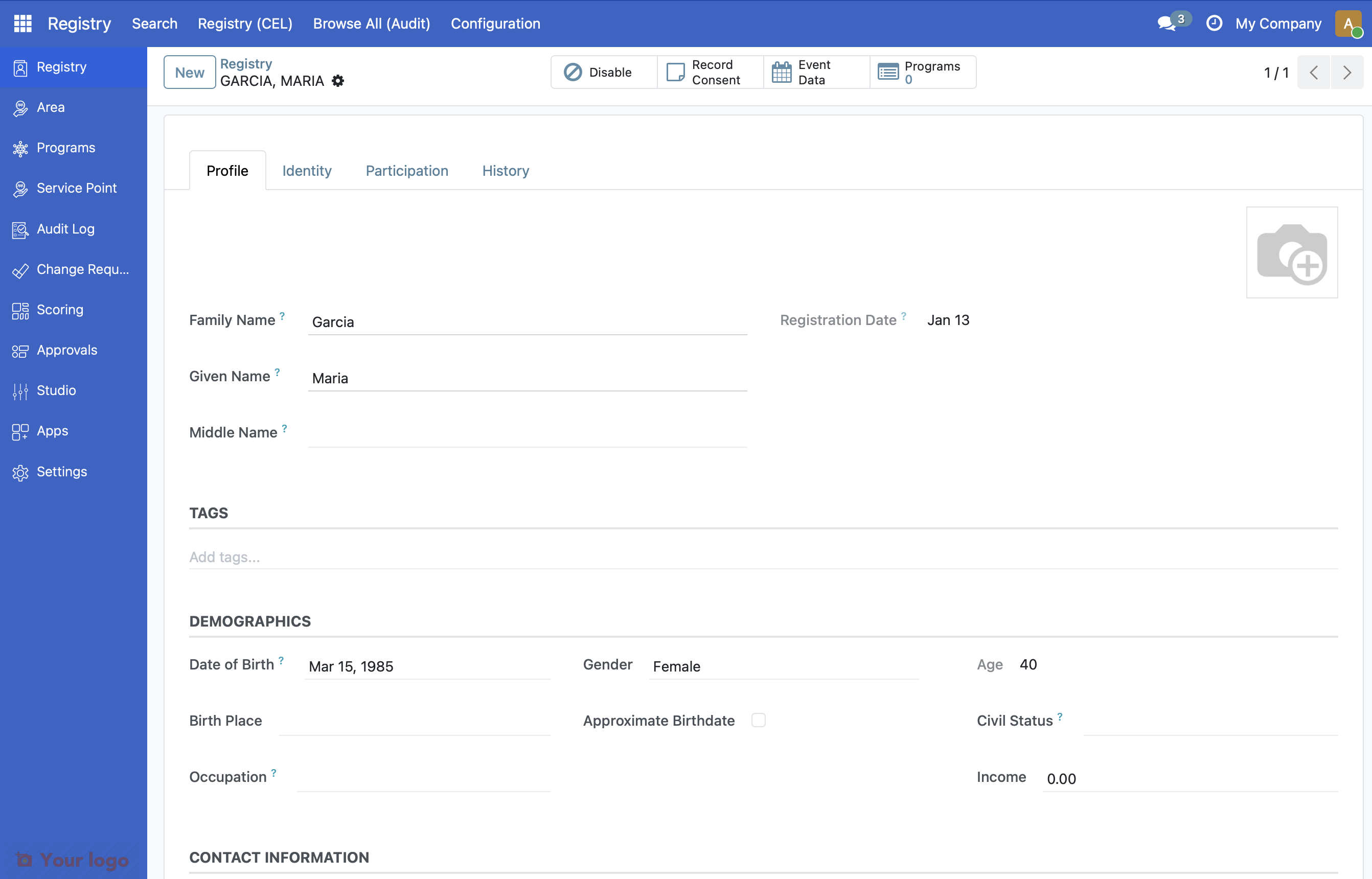
4. Create Additional Family Members#
Repeat steps 1-3 to create records for:
Carlos Garcia (Spouse)
Field |
Value |
|---|---|
Family Name |
Garcia |
Given Name |
Carlos |
Date of Birth |
1983-07-22 |
Gender |
Male |
Sofia Garcia (Child)
Field |
Value |
|---|---|
Family Name |
Garcia |
Given Name |
Sofia |
Date of Birth |
2020-01-10 |
Gender |
Female |
5. Open the household record#
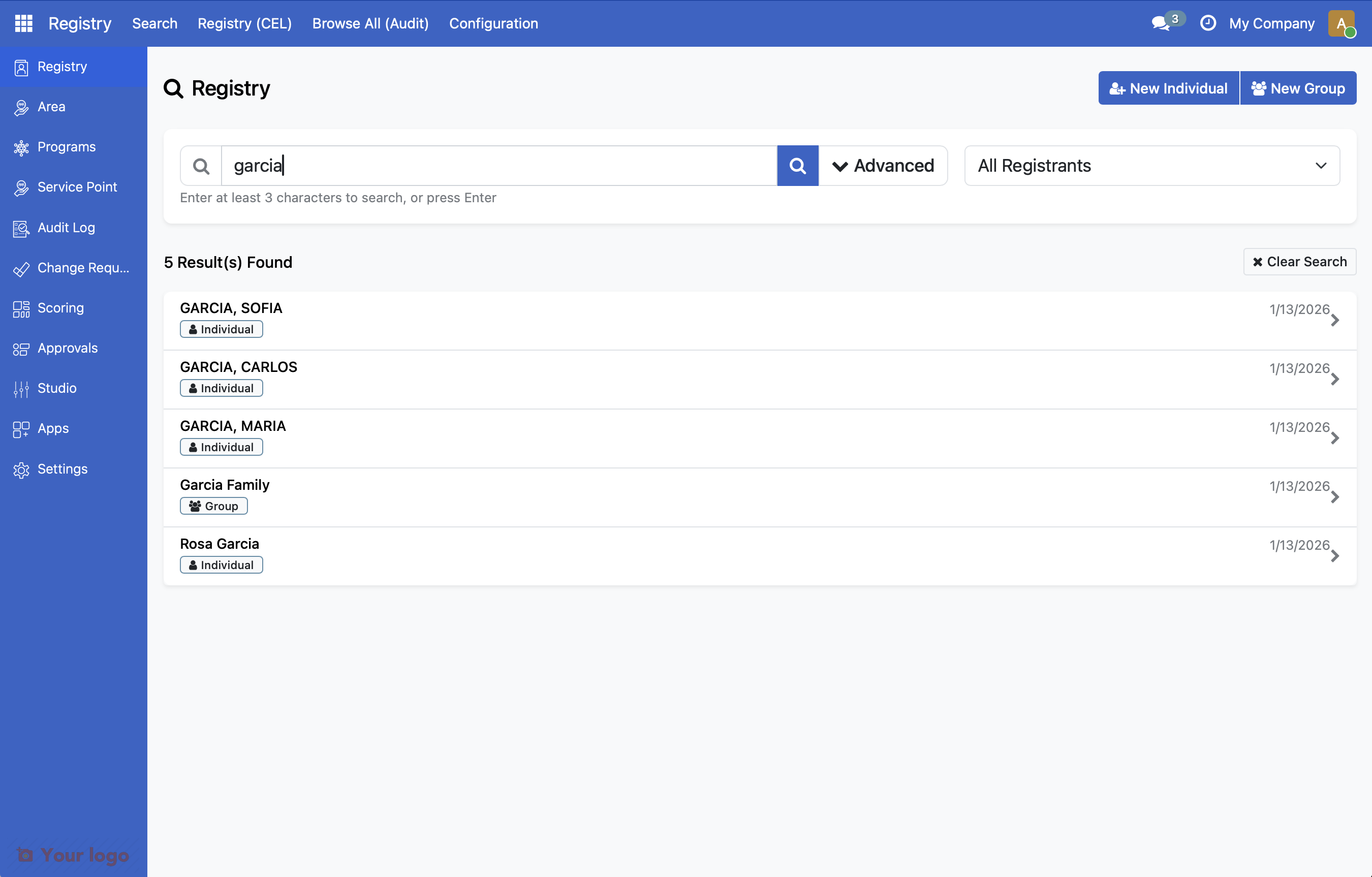
Search for "Garcia Family" in the Registry Search Portal and open the household record.
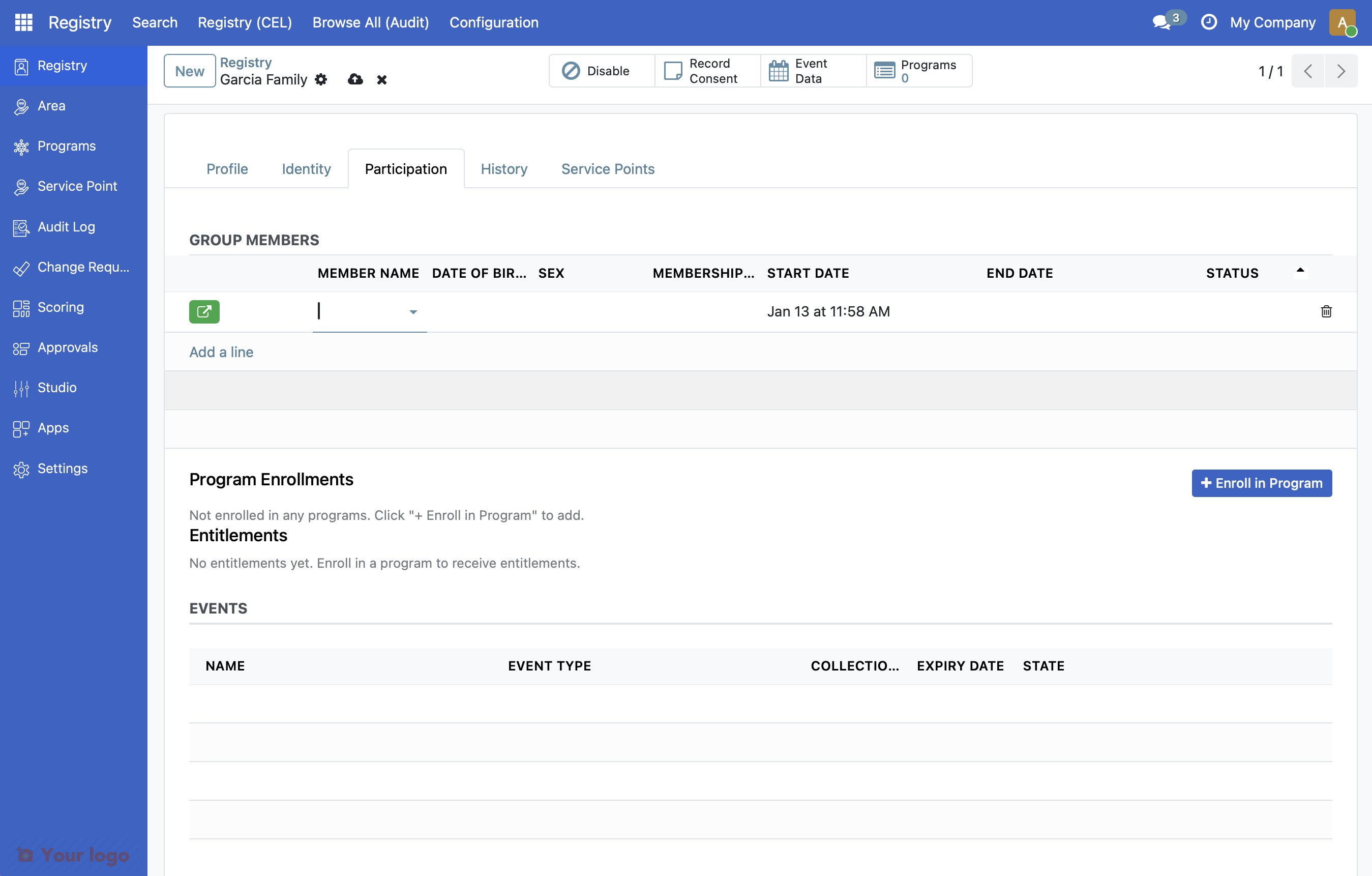
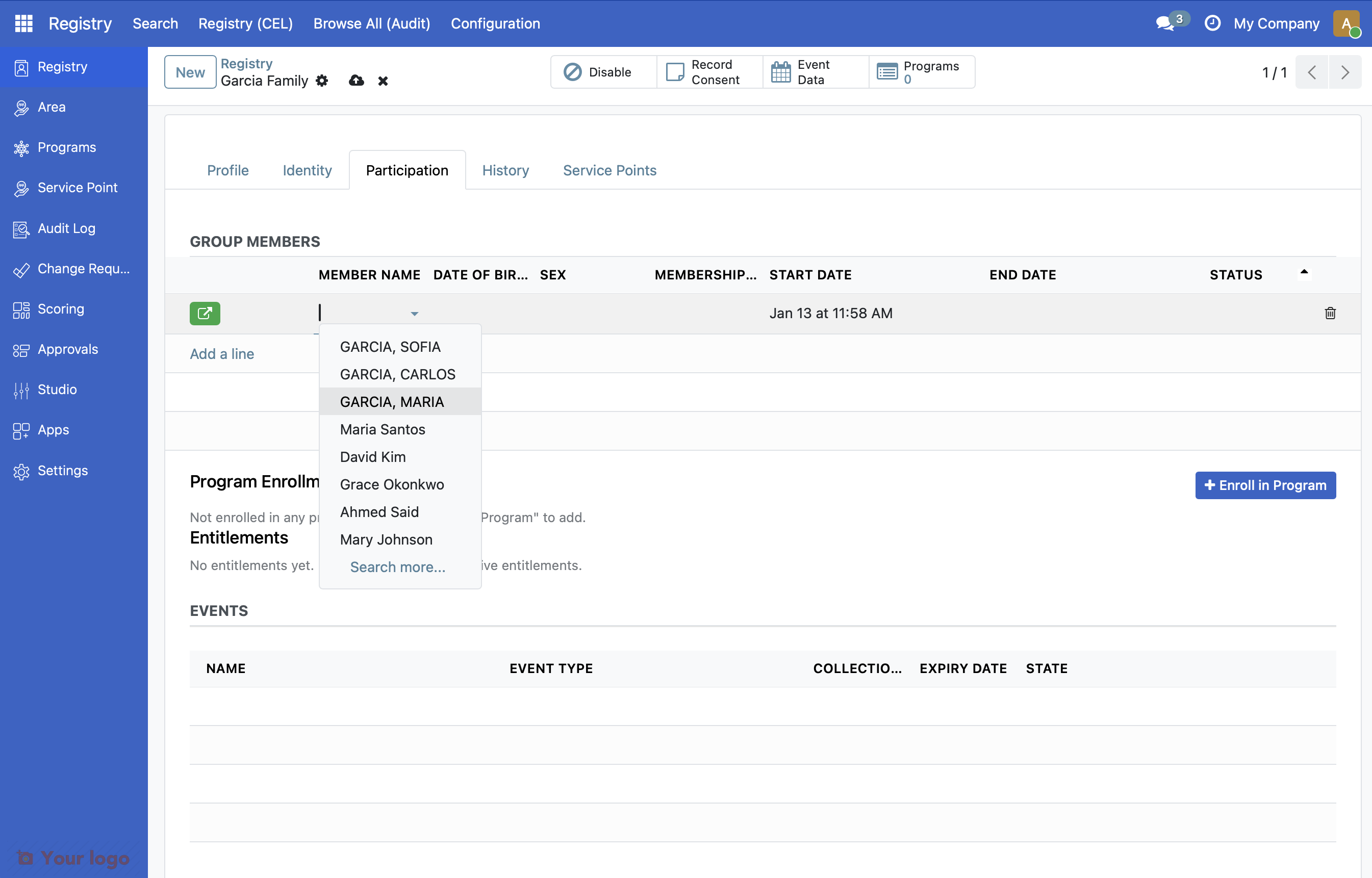
7. Select family members#
Select each individual from the dropdown. You can also click Search More to find specific individuals.
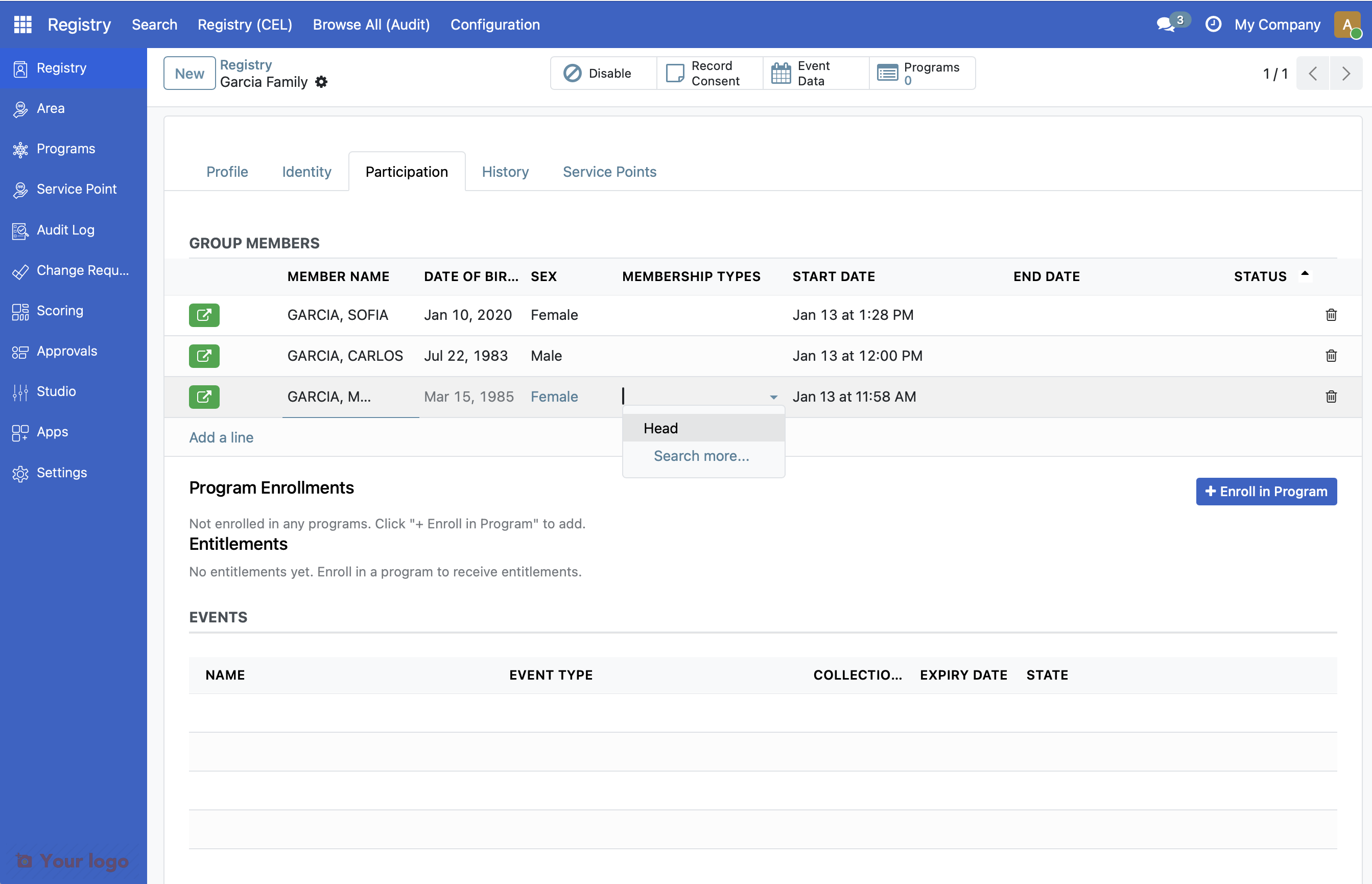
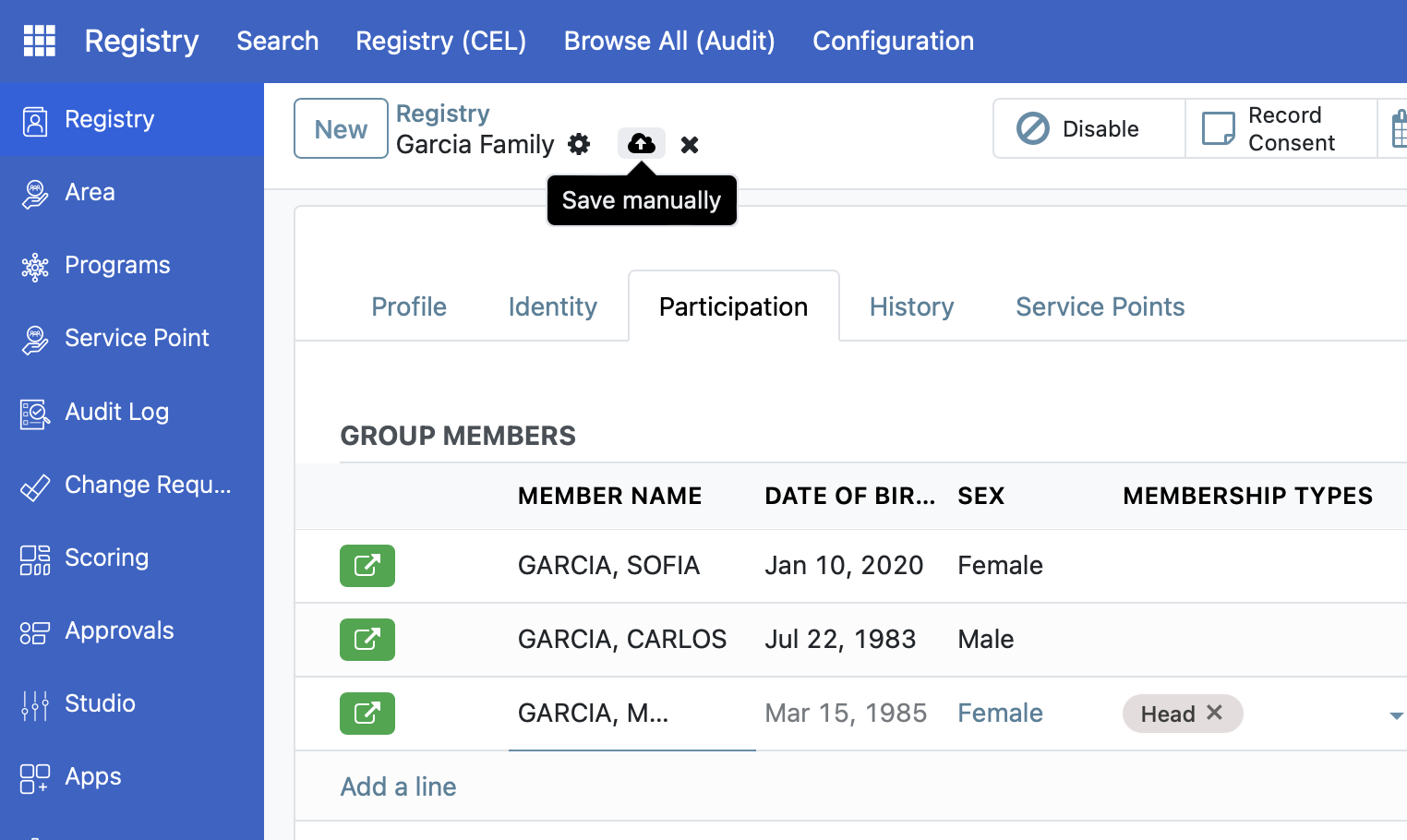
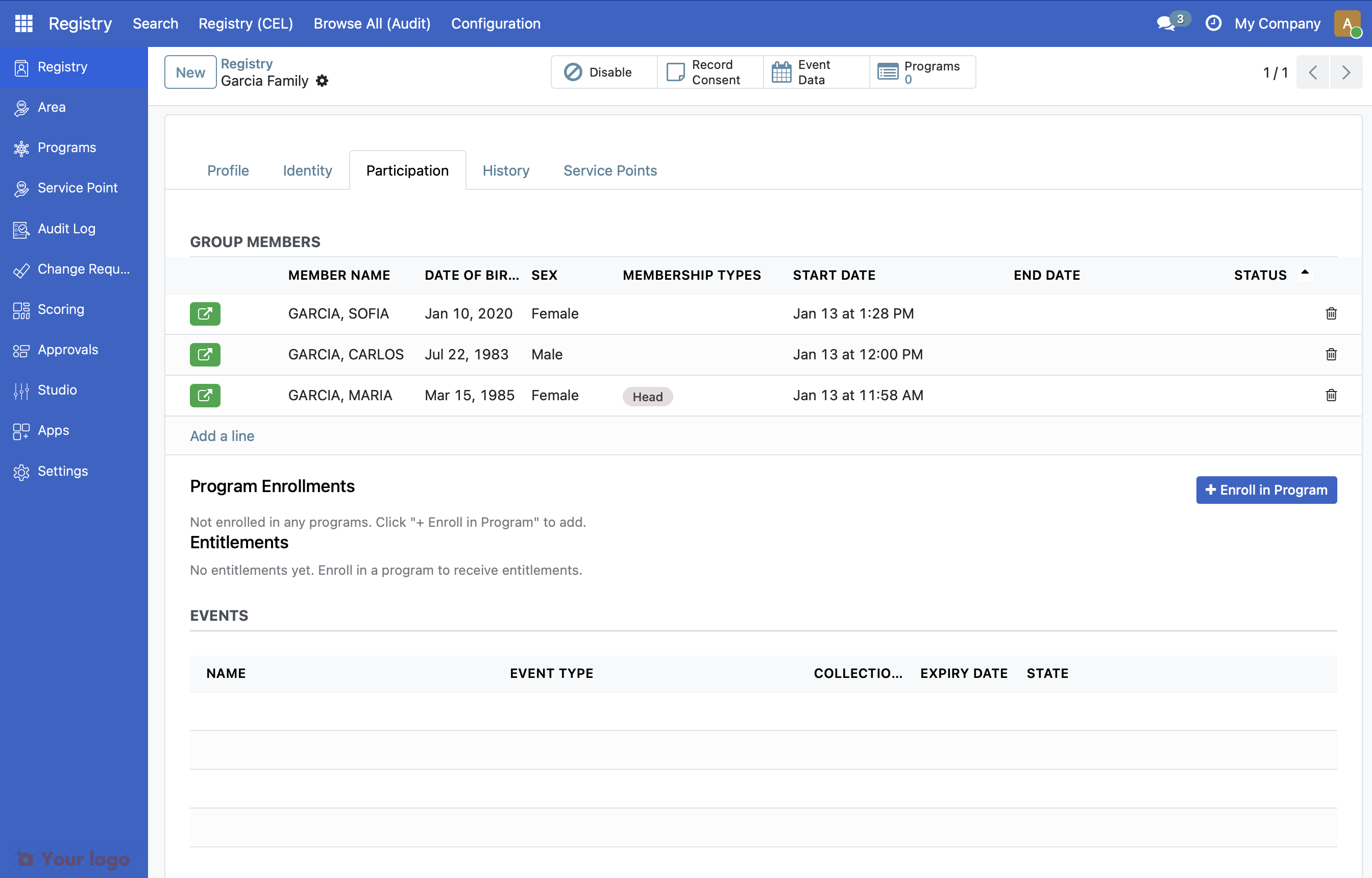
10. Verify the completed household#
Review the household record. You should see all three family members listed with their roles.
What you accomplished#
You've learned how to:
Create individual records for family members
Link individuals to a household
Assign roles to household members
Verify the completed household
Key concepts#
Concept |
Description |
|---|---|
Individual |
A single person registered in the system |
Member |
An individual linked to a group |
Role |
The person's relationship to the household (Head, Spouse, Child, etc.) |
Are you stuck?#
Can't find the individual in the dropdown? Make sure you've saved the individual record first. Search for them using the Search More option.
Role options not showing? Your administrator may need to configure member roles for your installation.
Can't add members? Verify you have permission to edit group records. Contact your administrator if needed.
Next Steps#
Congratulations! You've successfully registered your first household with family members.
From here, you can:
Import registrant data - Import multiple registrants from files
Your first program - Enroll this household in a social protection program
Export registrant data - Export registrant data for reporting