 openspp.org
Step 1: Access the Registry
Contents
Step 1: Access the Registry#
This tutorial is for users who are new to OpenSPP and want to learn how to access the beneficiary registry.
What you'll do#
Learn how to navigate to the Registry module and understand the Registry Search Portal - the central interface for managing registrants in OpenSPP.
Before you start#
You need access to OpenSPP with Registrar, Officer or admin role permissions assigned to your user (see Explore OpenSPP)
OpenSPP should be installed and running (see Installation)
OpenSPP SPMIS Demo should be installed (see Install a module in Odoo)
Allow 2-3 minutes to complete this step
Note
Installing the SPMIS Demo module automatically installs OpenSPP and its dependencies. If you install SP-MIS Demo V2 from the Apps menu, you do not need to install OpenSPP separately.
The scenario#
As a registry officer, the Garcia family has arrived at your office to enroll in social protection programs. You need to access the registry to confirm whether they already exist in the system before creating or updating their records.
Steps#
1. Navigate to Registry#
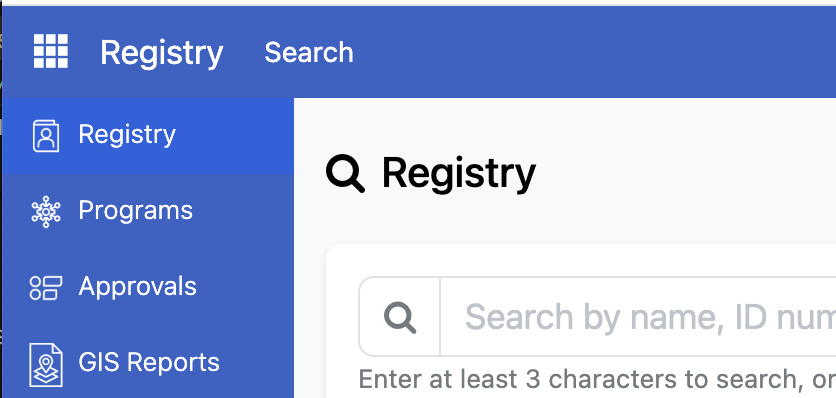
After logging in to OpenSPP, you'll see the sidebar menu on the left. Click Registry to access the beneficiary management portal.
2. Explore the Registry Search Portal#
The Registry Search Portal is the main interface for managing registrants. It provides a privacy-first approach where you search for records rather than browsing lists.
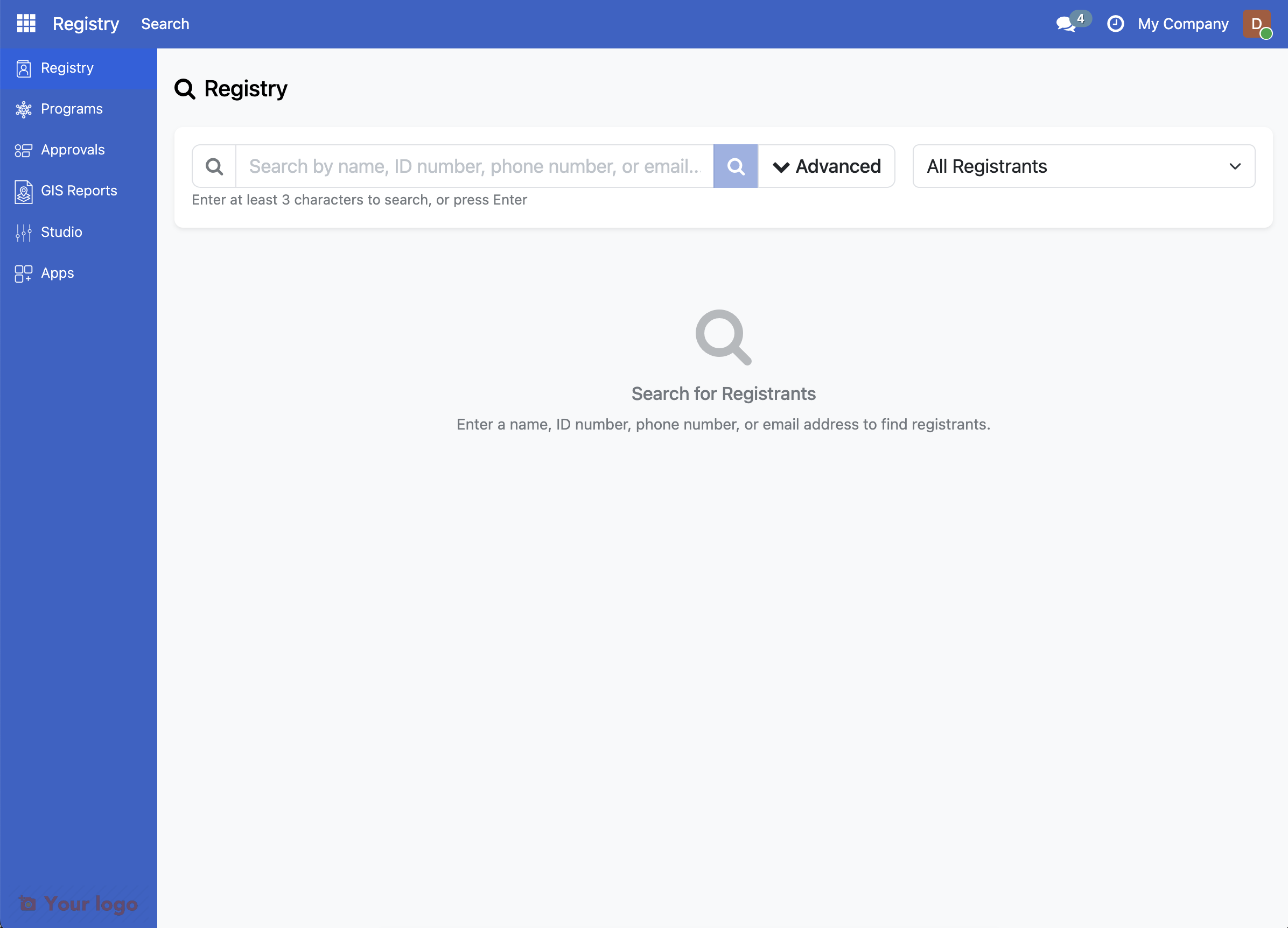
Key elements of the interface:
Element |
Purpose |
|---|---|
Search Bar |
Find registrants by name, ID, phone, or email |
New Individual button |
Register a new person |
New Group button |
Register a new household or family |
Advanced |
Access advanced search filters |
All Registrants dropdown |
Filter by registrant type |
Recently Viewed |
Quick access to records you've viewed recently |
3. Use the search function#
The search bar allows you to find existing beneficiaries. Click on the search bar to begin typing.
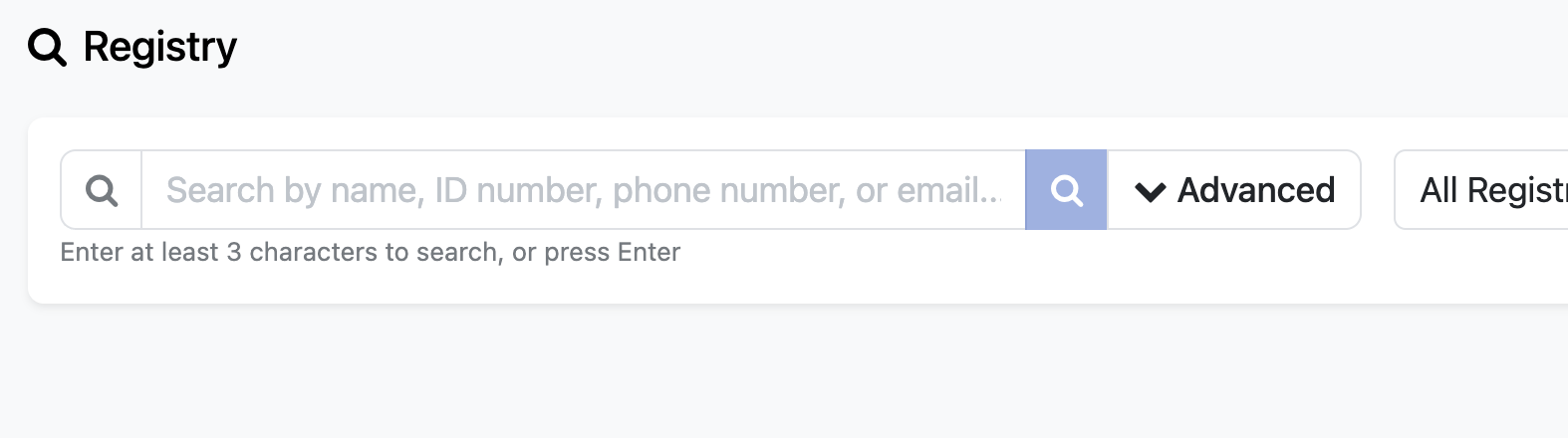
Enter at least 3 characters to search by:
Name
ID number
Phone number
Email address
4. View search results#
In this example, searching for "Garcia" returns matching beneficiaries. The results show the beneficiary name, type (Individual or Group), and when the record was last updated.
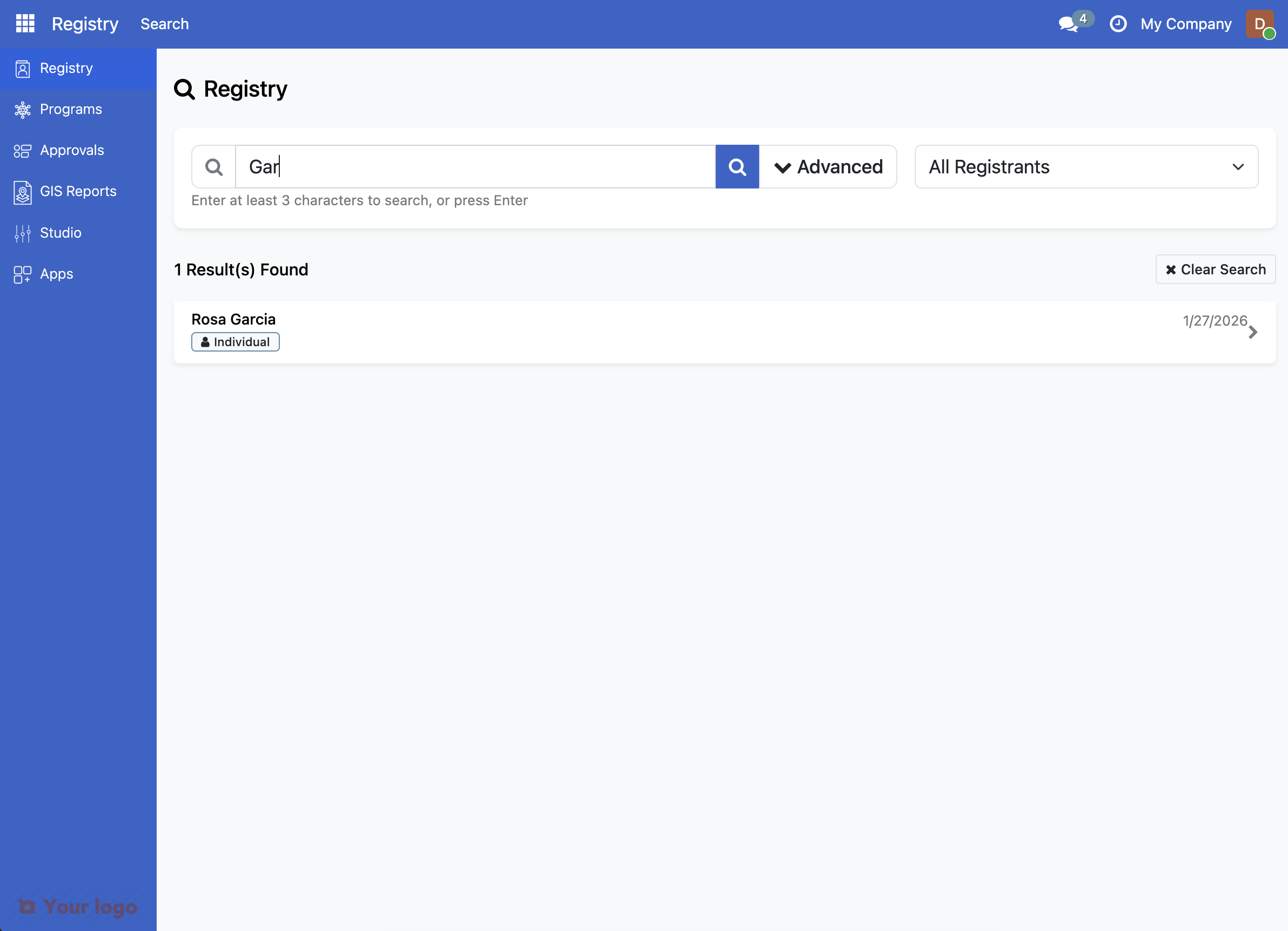
This privacy-first search approach ensures beneficiary data is protected - you must actively search for records rather than browsing through lists.
What you accomplished#
You've learned how to:
Access the Registry module from the sidebar
Navigate to the Registry Search Portal
Understand the key interface elements
Use the search function to find existing records
Key concepts#
Concept |
Description |
|---|---|
Groups |
Households or families registered as a unit |
Individuals |
Single persons in the registry |
Privacy-First Search |
Must search to find records; no open browsing |
Recently Viewed |
Quick access to records you've accessed |
Registrant |
Any person or group recorded in the registry |
Beneficiary |
A registrant who has been enrolled in a program |
Are you stuck?#
Can't find Registry in the sidebar? Make sure you're logged in with appropriate permissions. Ask your system administrator to grant you access to the Registry module.
Don't see New Individual or New Group buttons? You may not have permission to create new records. Contact your administrator to grant you the appropriate access rights.
Next Step#
Now that you understand the registry interface, you're ready to create your first household. Continue to Step 2: Create a Household.