 openspp.org
Step 2: Create a Household
Contents
Step 2: Create a Household#
This tutorial is for users who want to register a new household in OpenSPP.
What you'll do#
Create a new household (group) record in the registry, entering basic information about the family.
Before you start#
Complete Step 1: Access the Registry
Log in with a user that has administrator permissions
Have information about the household to register (name, address, contact details)
Allow 3-5 minutes to complete this step
The scenario#
The Garcia family has come to your office. You need to create a household record for them before adding individual family members. As a user with administrator priveledge, you can access Browse All and see the New Individual and New Group buttons needed to create registrant records.
Steps#
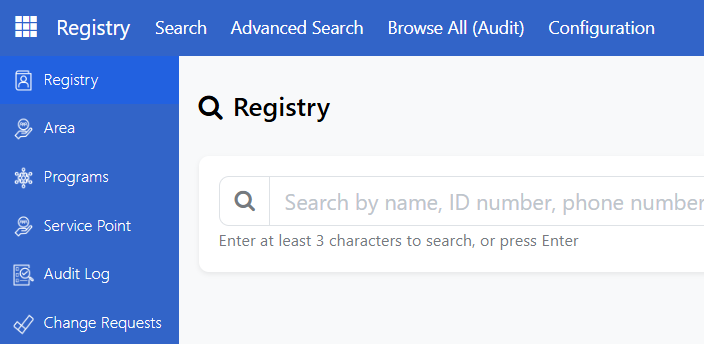
1. Click Browse All#
From the Registry Search Portal, click Browse All to open the list of registrants where you can create new groups and individuals.
2. Click New Group#
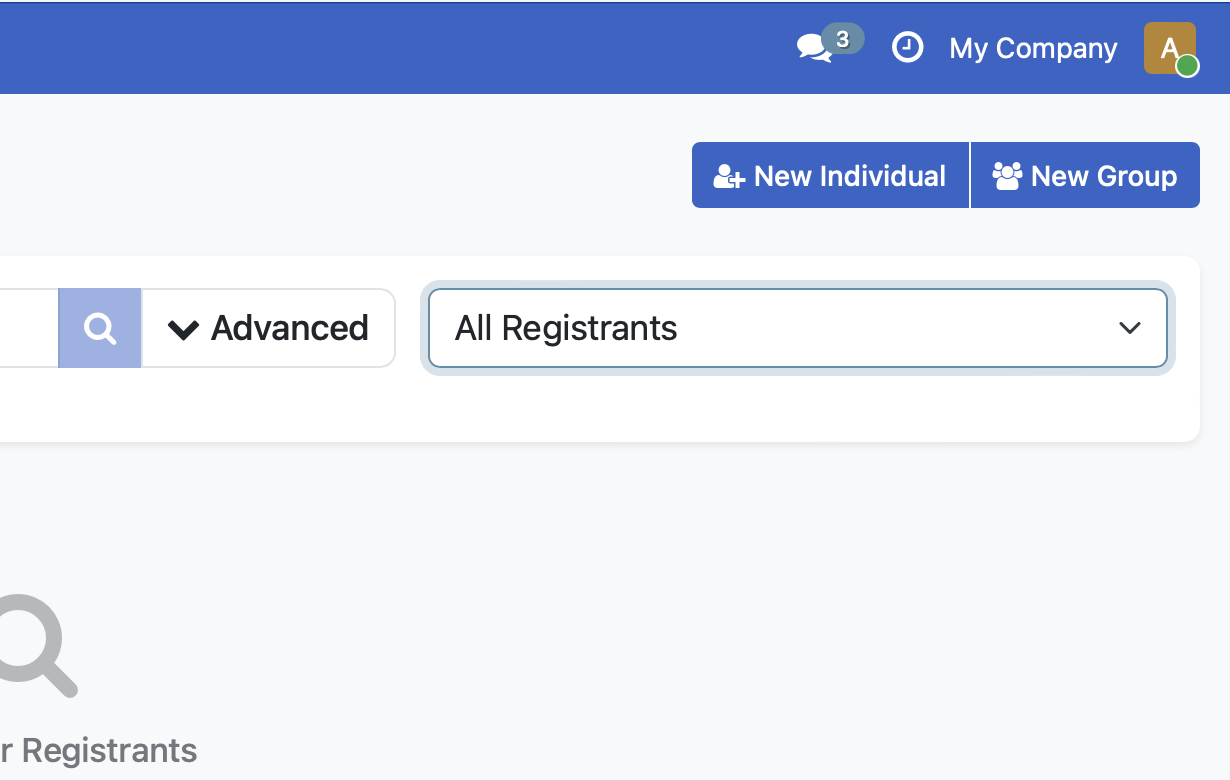
From the Registry Search Portal (or the Browse All view), click the New Group button.
3. Enter household information#
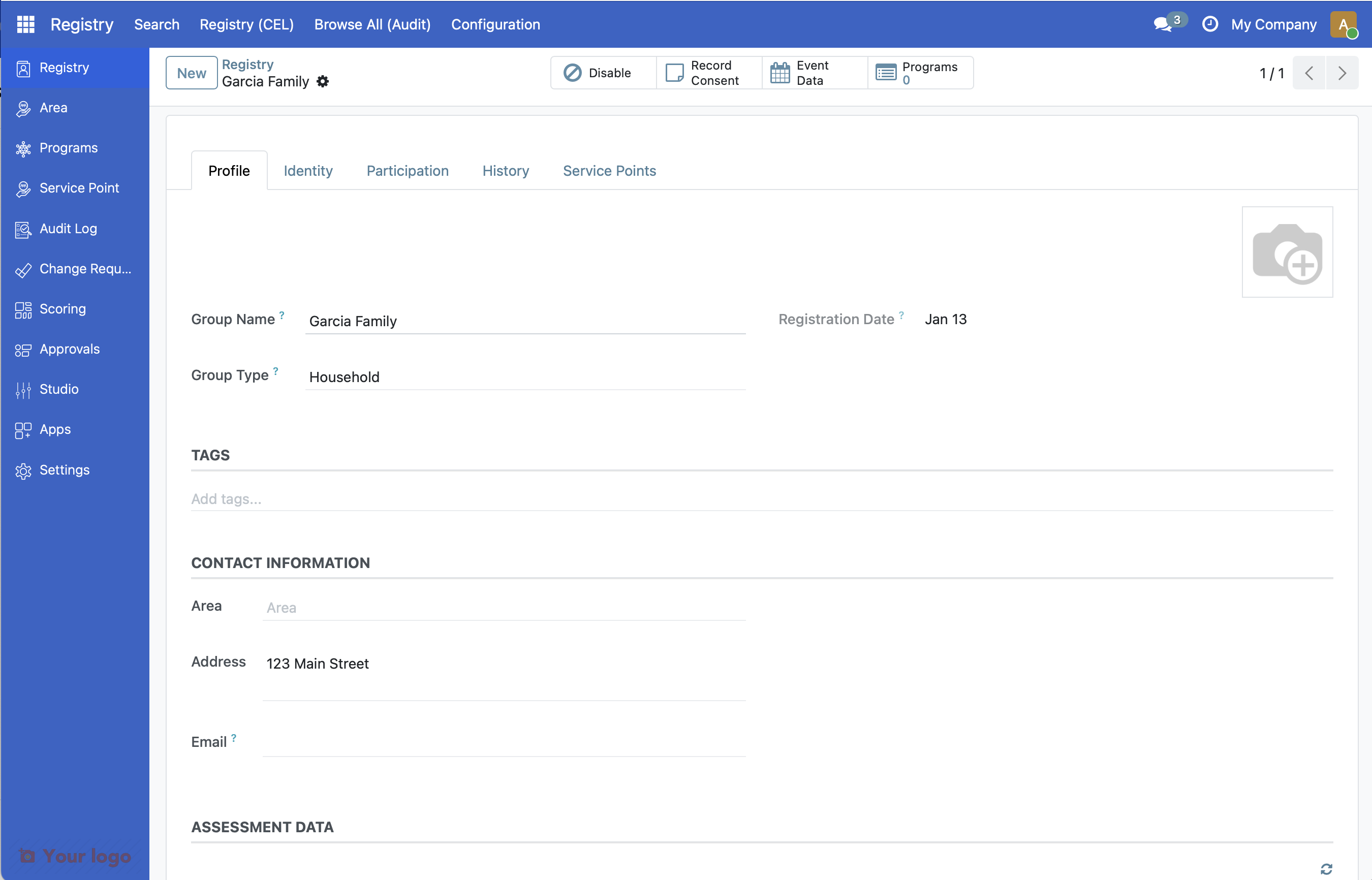
The group form opens. Enter the required information:
Field |
Value |
Description |
|---|---|---|
Name |
Garcia Family |
A name to identify this household |
Kind |
Household |
Type of group |
Address |
123 Main Street |
Physical address |
Phone |
+1-555-0123 |
Contact number |
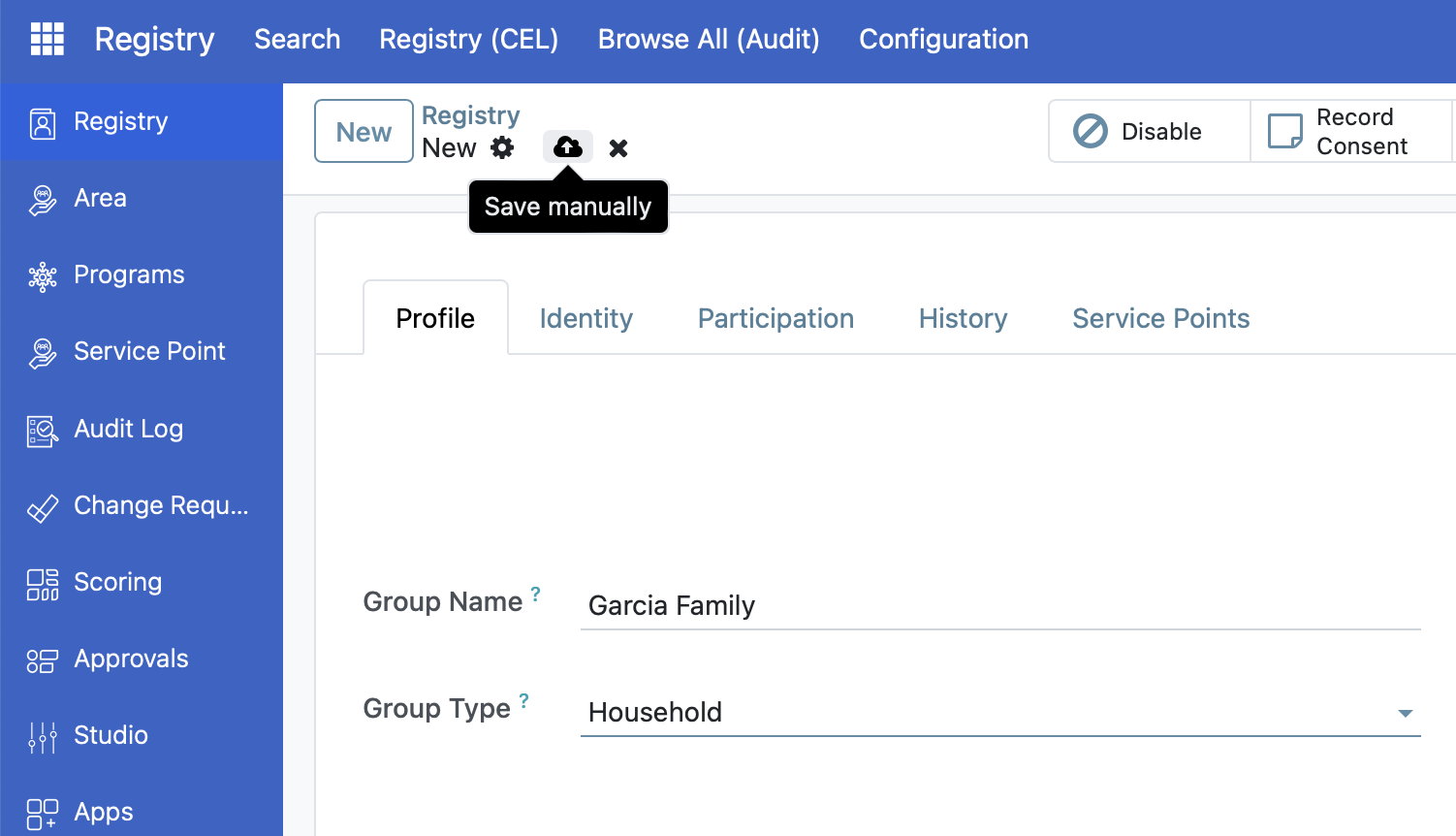
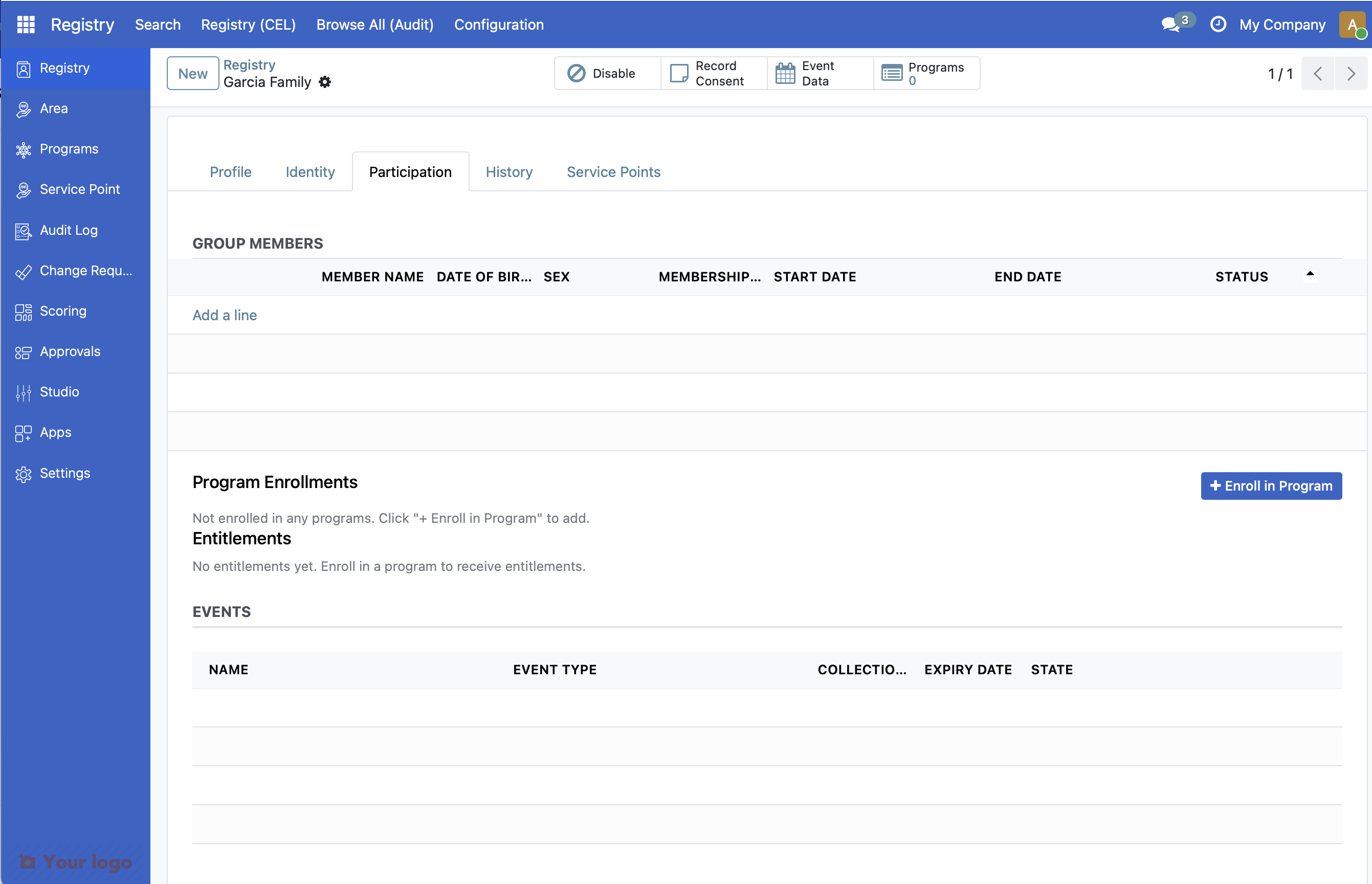
5. Verify creation#
After saving, you'll see the household record. Notice the household has no members yet - you'll add them in the next step.
What you accomplished#
You've learned how to:
Create a new household (group) in the registry
Enter basic household information
Save and verify the household record
Key concepts#
Concept |
Description |
|---|---|
Group |
A collection of individuals, typically a household or family |
Kind |
The type of group (Household, Organization, etc.) |
Members |
Individuals who belong to the group |
Are you stuck?#
Required field missing? Required fields depend on your system configuration. Contact your administrator if a field you need isn't available.
Can't save the record? Check that all required fields are filled in. Required fields typically have an asterisk (*) next to them.
Group kind options not showing? Your administrator may need to configure group types for your installation.
Next Step#
Now that you've created the household, you're ready to add family members. Continue to Step 3: Add Members.