 openspp.org
Change Request Builder
Contents
Change Request Builder#
This guide is for implementers creating change request types with approval workflows. You should be comfortable with forms and workflows like those in KoBoToolbox, but you don't need programming knowledge.
What is Change Request Builder?#
Change Request Builder lets you create new types of registry modification requests with approval workflows. Define which existing registry fields can be updated and who needs to approve the changes.
When to use Change Request Builder#
Use this tool when you need a formal process to update registry information:
Use case |
Example change request type |
|---|---|
Contact updates |
"Update Phone Number" with supervisor approval |
Address changes |
"Update Address" requiring review |
ID corrections |
"Update ID Document" with verification |
Data corrections |
"Fix Registration Error" with review workflow |
Mental model: change requests#
Think of change requests as "update forms with approval":
Without change requests |
With change requests |
|---|---|
Edit registry directly |
Submit request → Approve → Apply |
Changes immediate |
Changes reviewed first |
No audit trail |
Full history of who requested what |
Anyone can edit |
Controlled permissions |
When to use:
Updates need approval before taking effect
You want audit history of all changes
Multiple people might request changes to the same registrant
When NOT to use:
Direct edits are acceptable
Complex multi-record operations (add member, split household) - use built-in types
Before you start#
Prerequisites#
Studio Editor or Studio Manager permissions
Understanding of:
What registry fields can be updated
Who should approve changes
What Studio can create#
Studio handles simple field update requests (most common needs):
✓ Studio can create |
✗ Requires built-in types |
|---|---|
Update phone number |
Add group member |
Update address |
Remove group member |
Update ID information |
Change head of household |
Correct field values |
Split household |
Update contact info |
Merge registrants |
Exit registrant |
Why the limitation? Built-in types handle complex multi-record operations that require custom code.
Planning your change request type#
Decide:
Name: Clear purpose (e.g., "Update Phone Number")
Applies to: Individuals, Groups, or both
Fields to update: Which existing registry fields can be changed
Approval: Does it need approval before changes are applied?
Creating a change request type#
Step 1: Open Change Request Builder#
Click Studio in the main menu
Click Change Requests (under Forms & Fields)
Click the New button
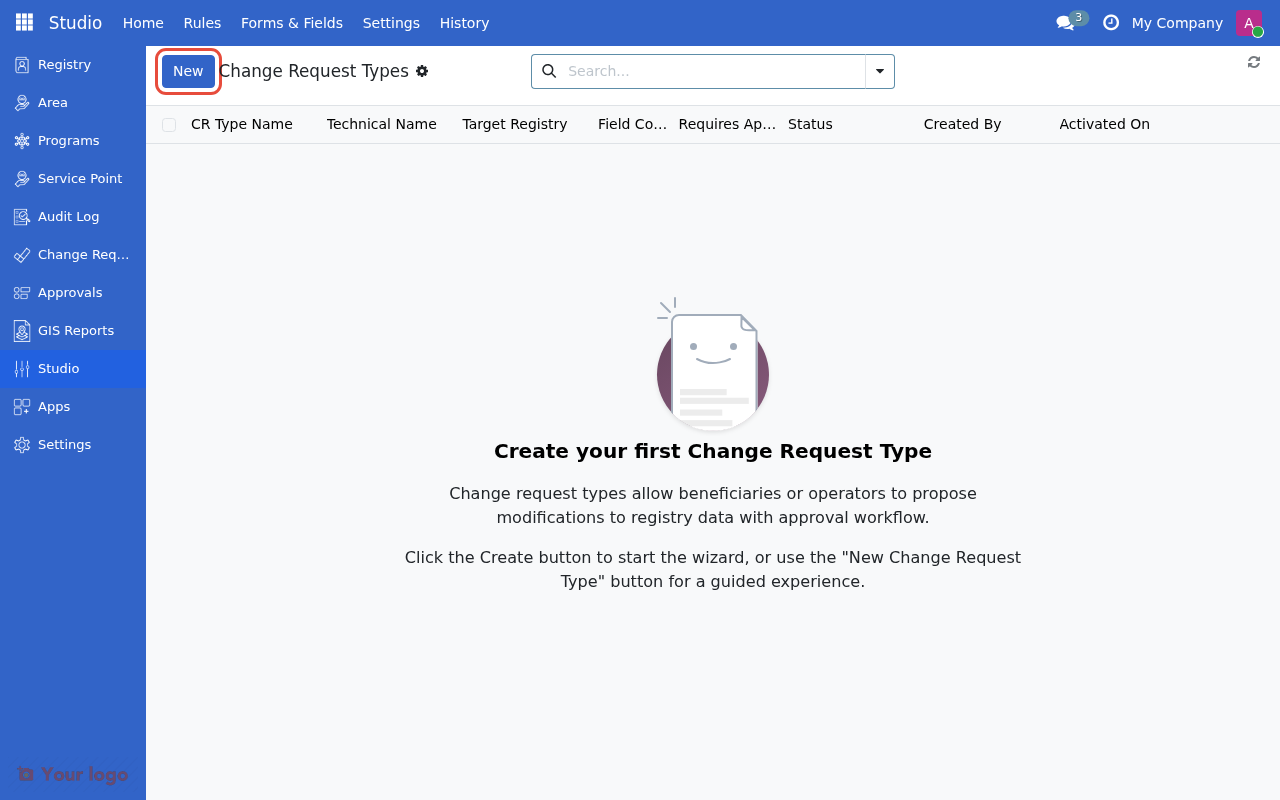
Click New to create a new change request type.#
Step 2: Enter basic information#
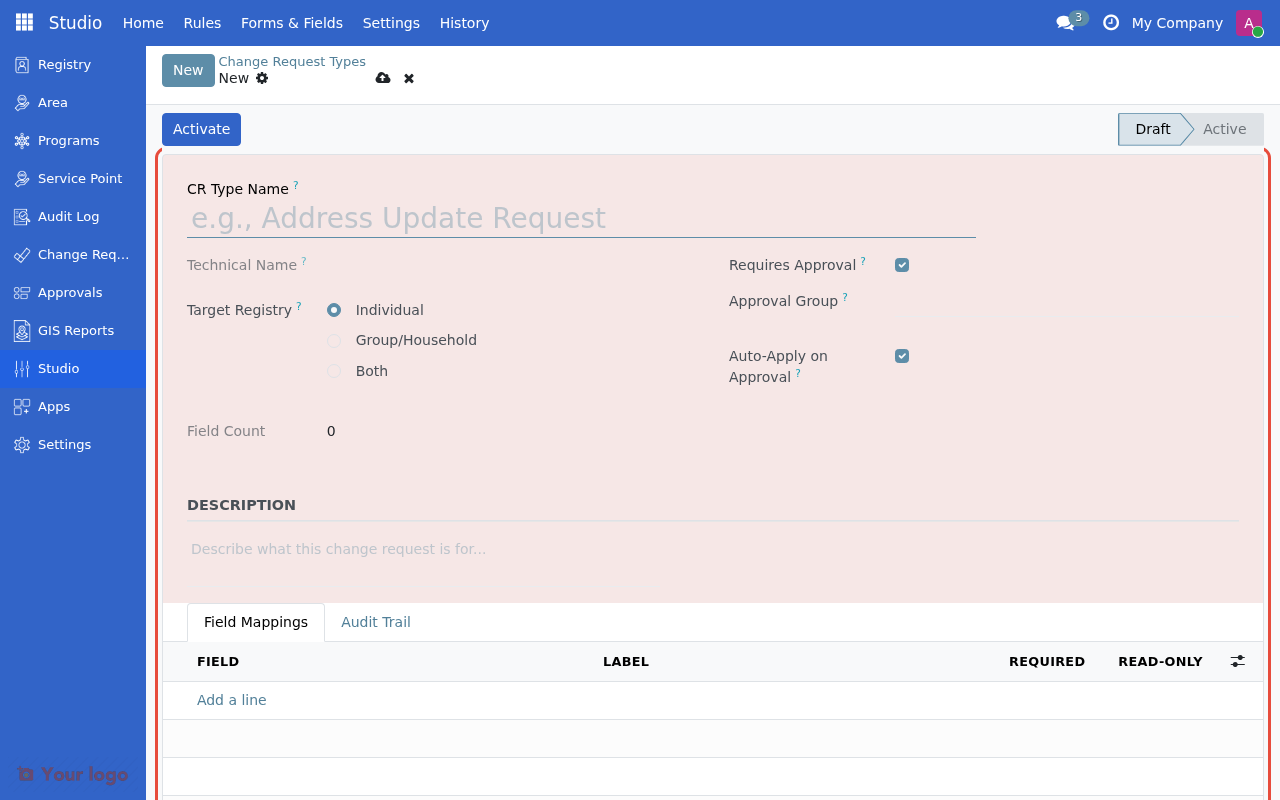
The change request type form with Basic Information and Configuration sections.#
Field |
What to enter |
Example |
|---|---|---|
CR Type Name |
Descriptive name |
"Update Phone Number" |
Technical Name |
Auto-generated code (read-only after save) |
|
Target Registry |
Who this applies to |
Individual, Group/Household, or Both |
Description |
Optional explanation |
"Request to update phone number for a registered beneficiary" |
Step 3: Configure approval settings#
Field |
What it does |
Default |
|---|---|---|
Requires Approval |
If checked, requests need review before changes apply |
Checked |
Who can approve |
Select user group authorized to approve |
(select a group) |
Auto-apply when approved |
If checked, changes apply immediately after approval |
Checked |
Tip: If approval is not required, changes can be applied immediately when the request is submitted.
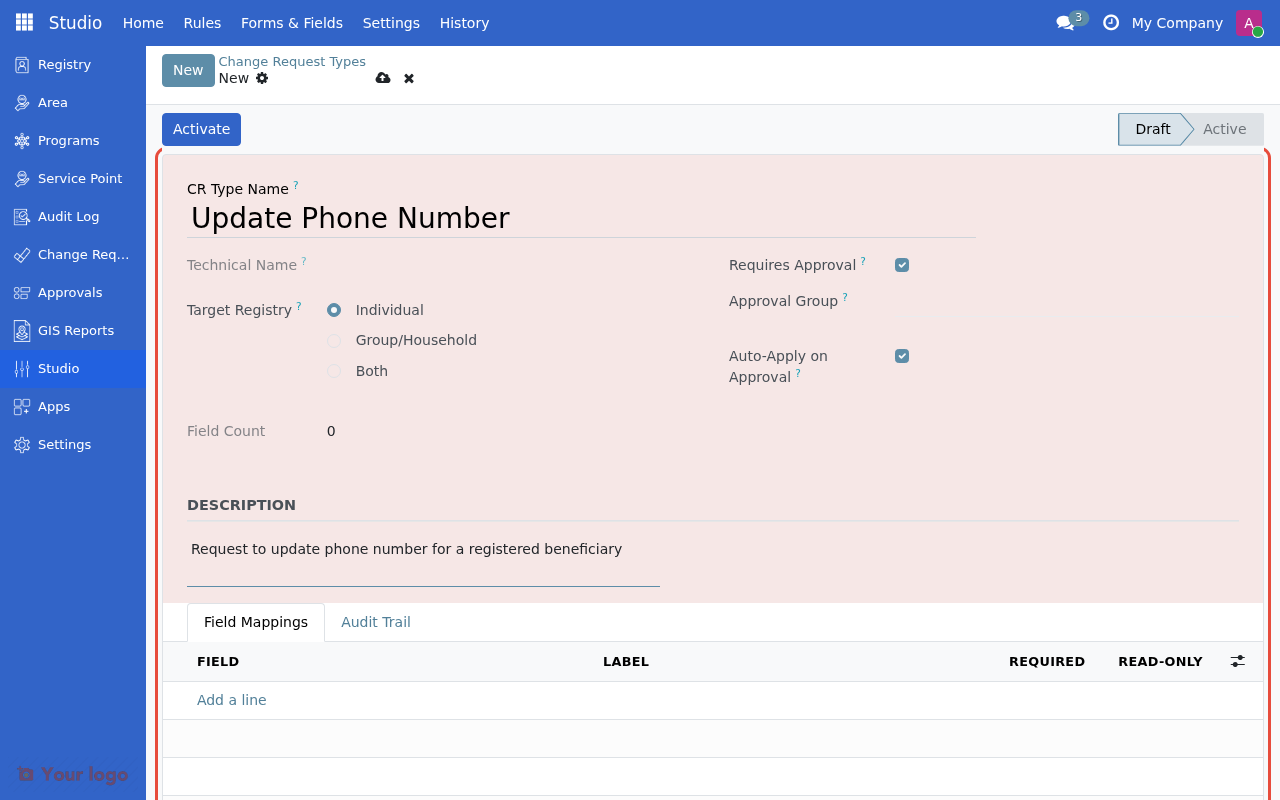
Enter the change request type name, target registry, description, and approval settings.#
Step 4: Define field mappings#
Click the Field Mappings tab to specify which registry fields can be updated.
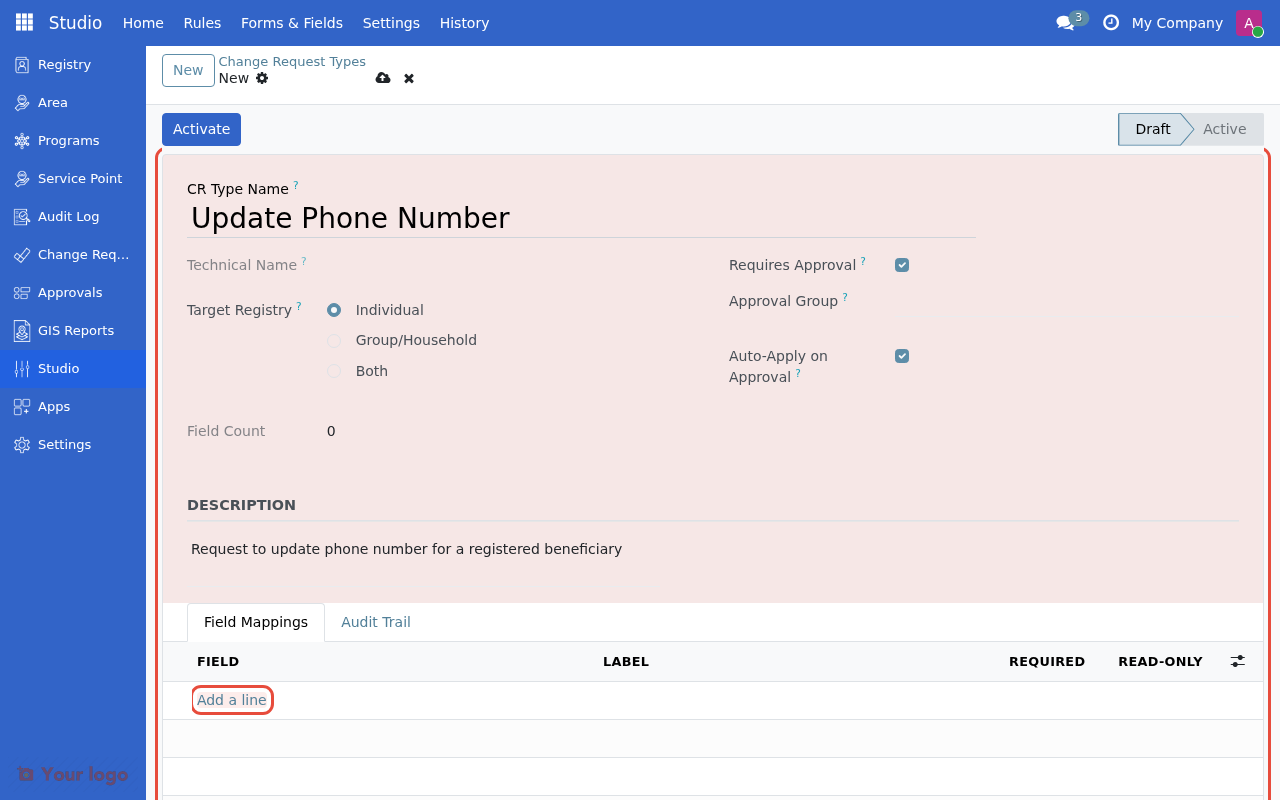
Click Add a line to start adding field mappings.#
Click Add a line to add each field:
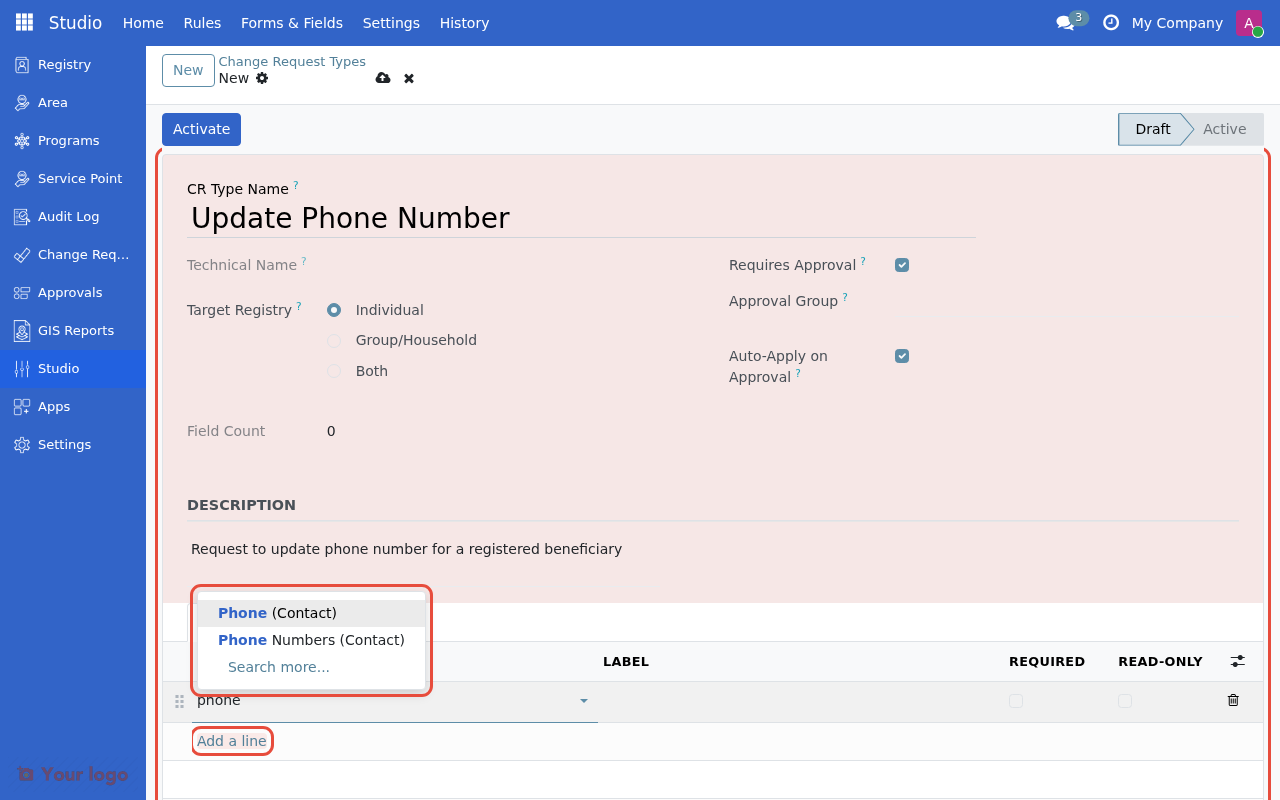
Search and select from existing registry fields to map.#
Setting |
What to enter |
|---|---|
Field |
Select from existing res.partner fields |
Label |
Display name in the request form |
Required |
Check if field must be filled |
Read-only |
Check if field is shown but cannot be edited |
How field mapping works#
When you select a field, it automatically maps to that registry field:
Field selected |
Result when approved |
|---|---|
|
Updates registrant's phone field |
|
Updates registrant's street address |
|
Updates registrant's email field |
Custom fields ( |
Updates the custom field on registrant |
All fields map directly to their corresponding registry field. When a change request is approved, the values are copied to the registrant record.
Example field mapping#
For an "Update Phone Number" change request:
Field |
Label |
Required |
Read-only |
|---|---|---|---|
|
New Phone Number |
Yes |
No |
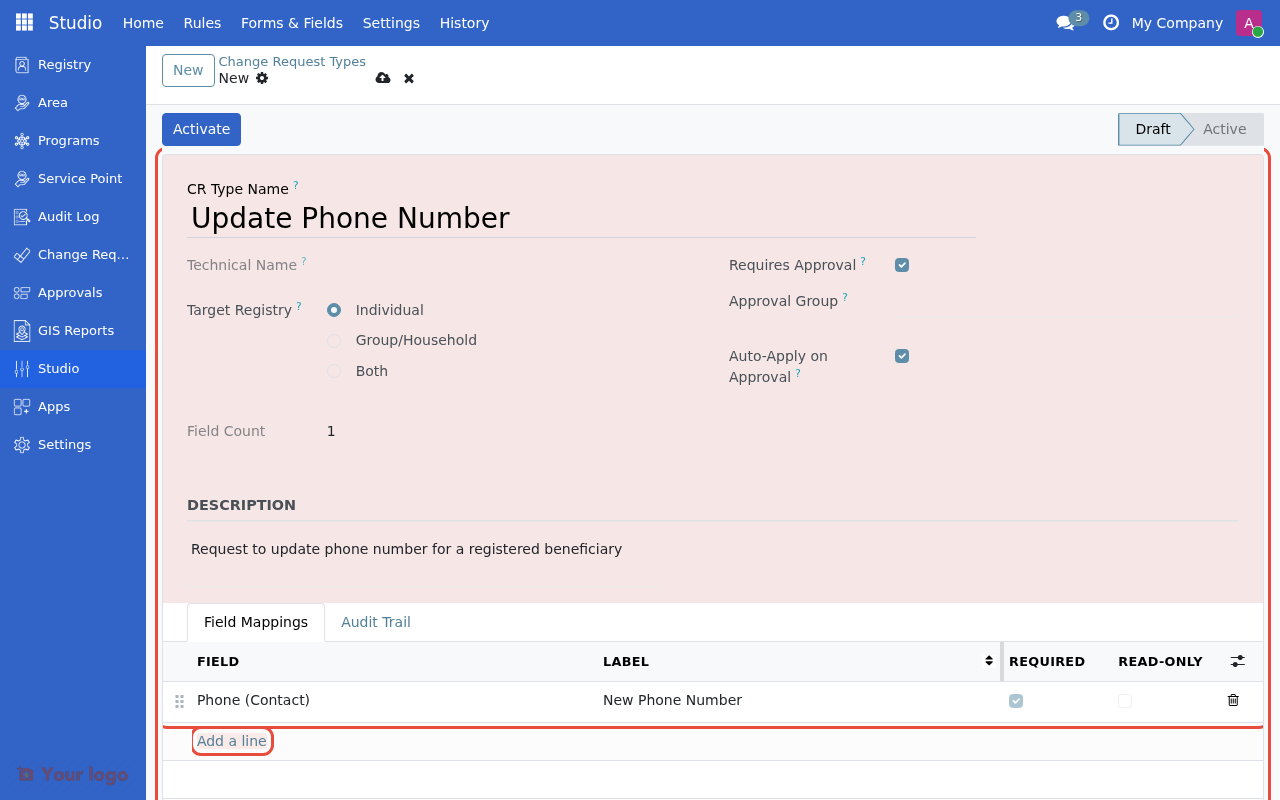
Field mapping configured with the phone field, label, and required setting.#
Field mapping options (advanced)#
Click on a field row to open detailed configuration:
Option |
Use for |
|---|---|
Help Text |
Additional guidance for users filling the form |
Validation Type |
None, Regular Expression, or Domain |
Validation Rule |
Regex pattern or domain expression (if validation enabled) |
Step 5: Save as draft#
Click Save to create the change request type in Draft state.
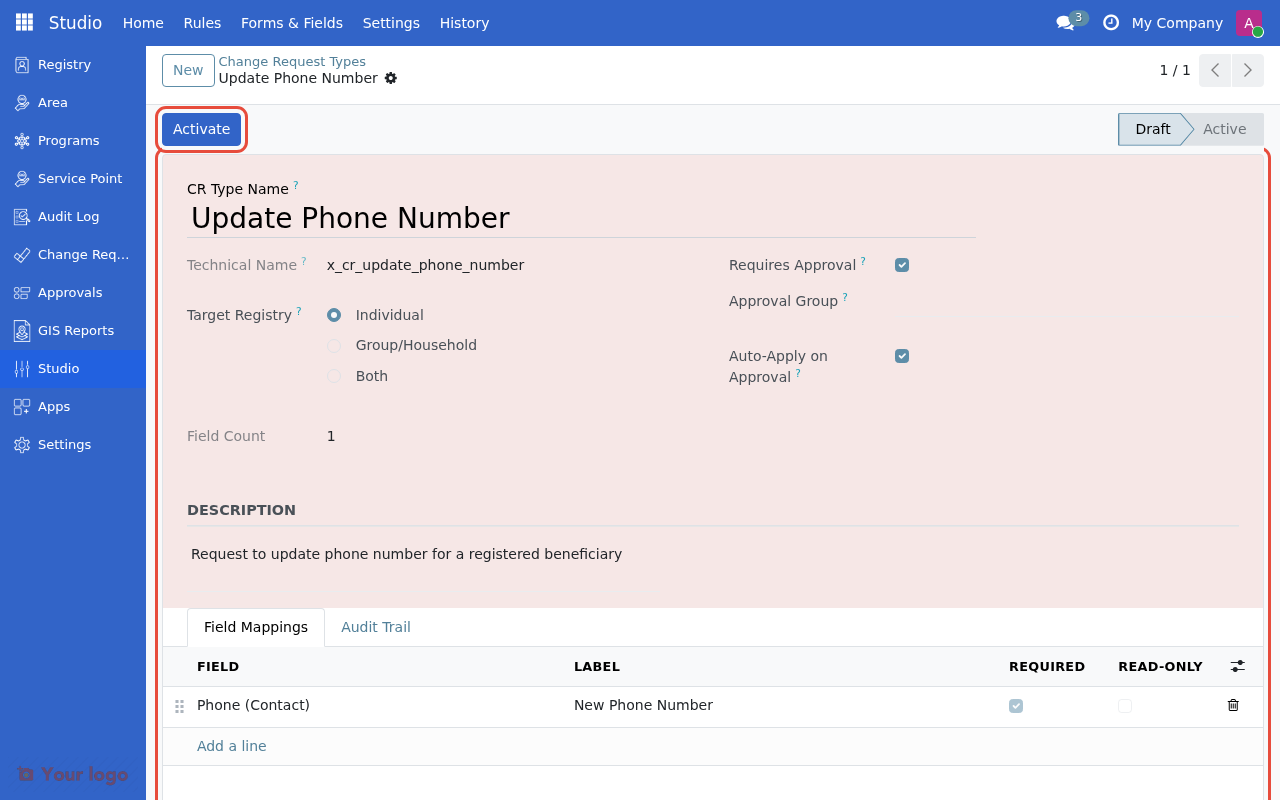
Click Activate to make the change request type available for use.#
Note
Change request types are created in Draft status by default. Draft types can be edited freely but are not available for submitting requests until activated.
Change request type lifecycle#
Change request types follow a three-state lifecycle:
Draft ──► Active ──► Inactive
  ▲                     │
  └─────────────────────┘
      (can reactivate)
State |
Can edit fields? |
Can edit settings? |
Can be used? |
Actions available |
|---|---|---|---|---|
Draft |
Yes |
Yes |
No |
Activate |
Active |
Yes (add/modify) |
No |
Yes |
Deactivate, View Requests |
Inactive |
No |
No |
No |
Reactivate |
Note: Unlike Event Types, active Change Request Types allow you to add or modify field mappings. Core settings (name, target, approval) remain locked while active.
Activating a change request type#
Open the change request type in Draft state
Click Activate (requires Studio Manager permission)
The type becomes available for submitting requests
Deactivating a change request type#
Open an Active change request type
Click Deactivate
Existing requests continue to process, but no new requests can be created
Using change request types#
Submitting a change request#
Once a change request type is active:
Go to Registry and open an individual or group record
Look for the Change Requests tab
Click to create a new request
Select the change request type
Fill in the new values
Submit the request
Approving a change request#
If approval is required:
Go to GRM → Change Requests
Find the pending request
Review the requested changes
Click Approve or Reject
If approved and auto-apply is enabled, changes are applied immediately
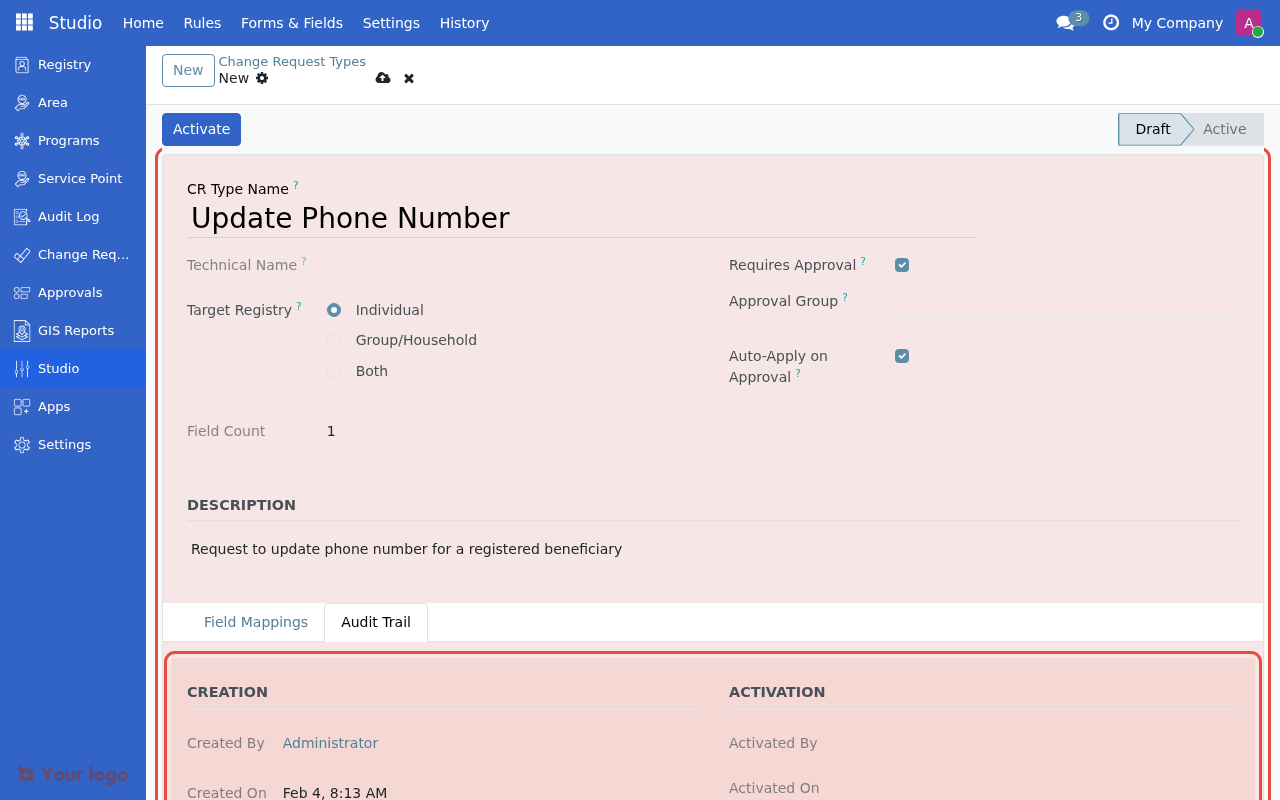
Managing change request types#
View all change request types#
Studio → Change Requests shows all types:
Column |
Shows |
|---|---|
Name |
Change request type name |
Technical Name |
Internal code |
Target Type |
Individual, Group/Household, or Both |
Fields |
Number of field mappings |
State |
Draft, Active, or Inactive |
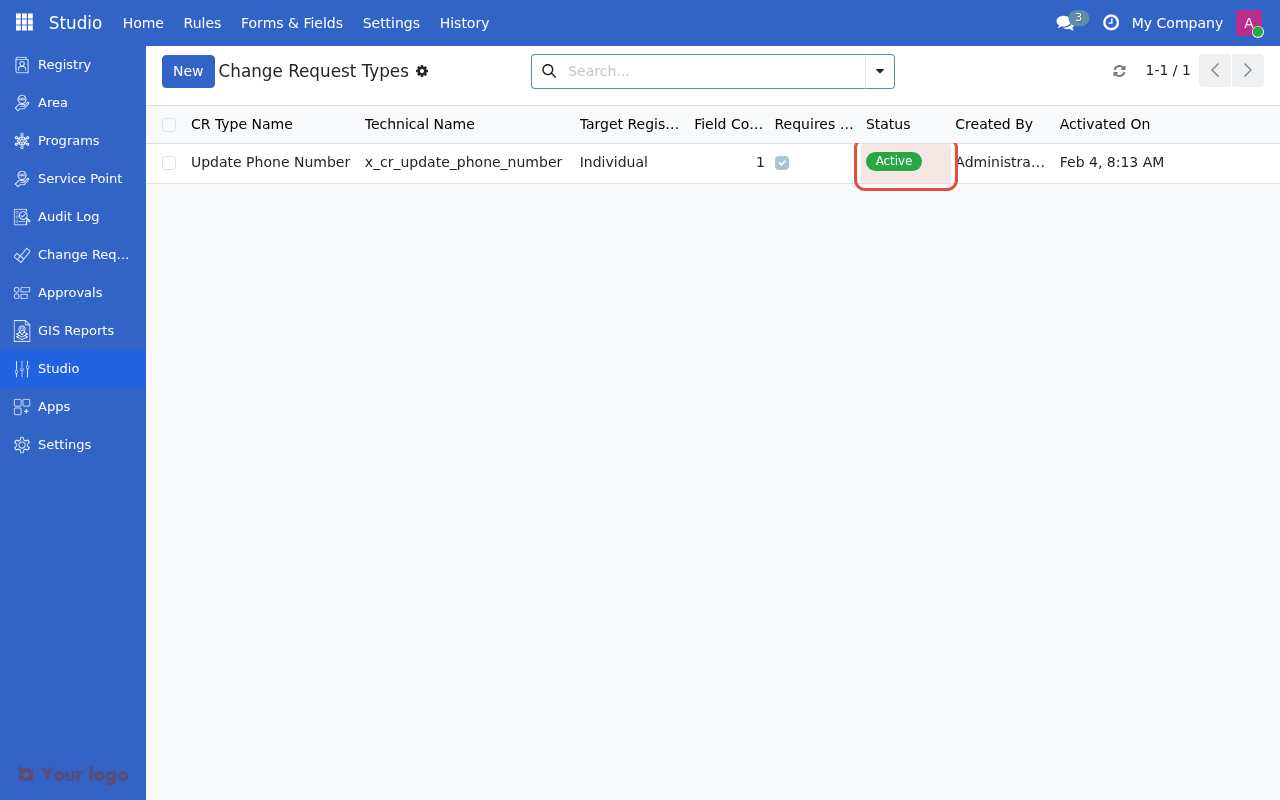
The change request type now shows Active status in the Change Request Types list.#
Filtering change request types#
Use the search and filter options:
Filter by state: Draft, Active, Inactive
Filter by target: Individual, Group
Search by name: Find specific types
Common patterns#
Phone number update#
Name: Update Phone Number
Applies to: Individuals
Requires Approval: Yes

Field Mappings:
  - phone → "New Phone Number" [Required]
Address change#
Name: Update Address
Applies to: Individuals and Groups
Requires Approval: Yes

Field Mappings:
  - street → "Street Address" [Required]
  - city → "City" [Required]
  - zip → "Postal Code" [Optional]
Email update#
Name: Update Email
Applies to: Individuals
Requires Approval: Yes

Field Mappings:
  - email → "New Email Address" [Required]
Are you stuck?#
Can't see the Activate button?
You need Studio Manager permission
The change request type must have at least one field mapping
Check that you're viewing a Draft type
Can't edit settings on an active type?
Active types have locked core settings (name, target, approval)
You can still add or modify field mappings
To change core settings: Deactivate first, then edit
Field not appearing in the mapping dropdown?
Only stored fields from res.partner appear in the list
System fields and computed fields are excluded
Custom fields (x_*) should appear if they're stored
Changes not applying after approval?
Check that "Auto-apply when approved" is enabled
Verify the field mapping is correct
Check that the mapped field is not read-only on the registrant
Want to add documentation-only fields? This is not currently supported. All mapped fields will update the registry when approved. For documentation needs, consider using the notes/description fields on the change request itself.
Can I create a change request for adding group members? No, use the built-in "Add Member" change request type. Studio cannot create multi-record operations.
How do I track who approved what? All approvals are logged in the change request record. Go to the request detail view to see the approval history.
What if the requester selects the wrong registrant? If the request is still pending, the submitter or approver can cancel it and create a new one.
Next steps#
Create event types for surveys: Event Type Designer
Add custom registry fields: Custom Fields (Registry Field Builder)
Define eligibility rules: CEL expressions
Return to Studio overview: Studio Overview