openspp.org
Event Data
Contents
Event Data#
In OpenSPP, Event Data provides a flexible mechanism to record and track specific, significant occurrences related to registrants over time. This functionality enhances the system's capacity to capture a chronological history of changes and actions without directly modifying the main registrant profile.
The spp_event_data module is designed to:
Provide a structured way to log and store data about events impacting registrants.
Link these events to the specific data entries they affect, creating a clear audit trail.
Offer tools to view and navigate the event history of a registrant.
Store multiple versions of the data, manage separate data lifecycles and sharing agreements, better manage the source of different data, and store data that should not be visible to all users or that loses relevance over time.
Prerequisites#
To utilize and manage Event Data, ensure the following prerequisites are met:
Individual or group records already exist in your registry. For more information, refer to Register individual or Import and export registrant data.
The spp_event_data module (OpenSPP Event Data) is installed.
If specific event types are required (such as program membership events), ensure that any related modules (e.g., spp_event_data_program_membership) are also installed.
To access demonstration features, the spp_event_demo module should be installed.
To learn on installing optional modules, refer to the Installing Additional Modules section in the document: Module installation.
Appropriate user access roles are assigned to allow creation or viewing of event records. By default, the System admin user account has access to event data functionality.
Objective#
By understanding Event Data, you will be able to:
Log and store structured data about events impacting registrants.
Link these events to specific data entries, creating a clear audit trail.
View and navigate the event history of a registrant from their profile.
Manage different types of event data, allowing for flexible data collection and historical tracking.
Process#
Event data functionality fulfills several important roles, including the systematic tracking of changes to a registrant's information. A system administrator or authorized user may create an event data entry to record the registrant's current details at a specific point in time. Subsequent data collection cycles can generate additional event data entries to document any updates or modifications. This approach enables comprehensive monitoring of changes over time and supports the use of event data as conditions or eligibility criteria for particular programs, when appropriately configured.
Create Event Data#
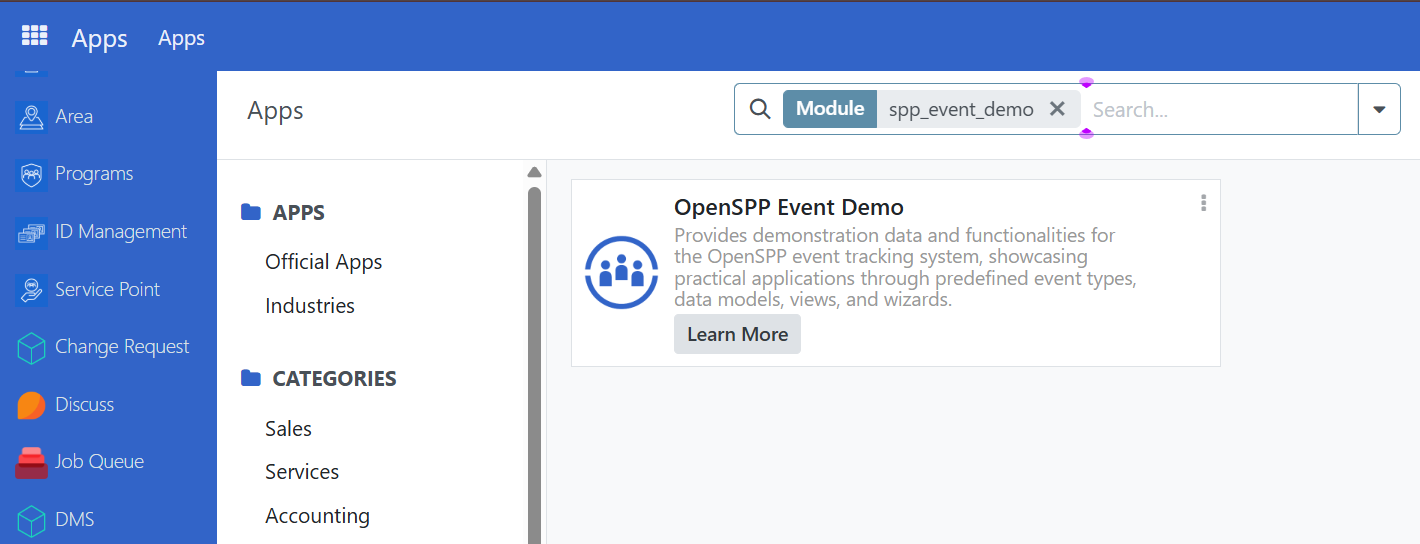
To demonstrate the event data functionality, ensure that spp_event_demo is activated. To verify, navigate to Apps and search for spp_event_demo. If it is not yet enabled, click Activate. Once successfully activated, the Activate button will no longer be visible.
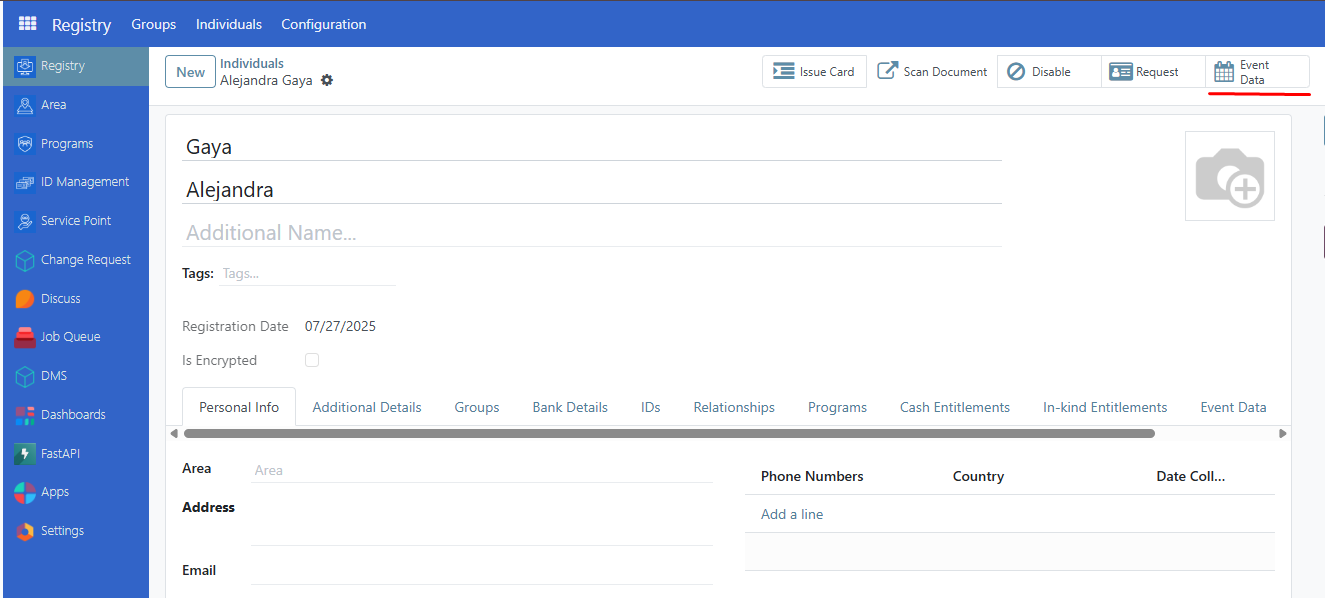
Navigate to the registry and select a record either from groups or individuals, then click on the event data button from the top menu bar.
A modal window will appear. In the Event Type field, select an event data template; House Visit is suggested for this demonstration.
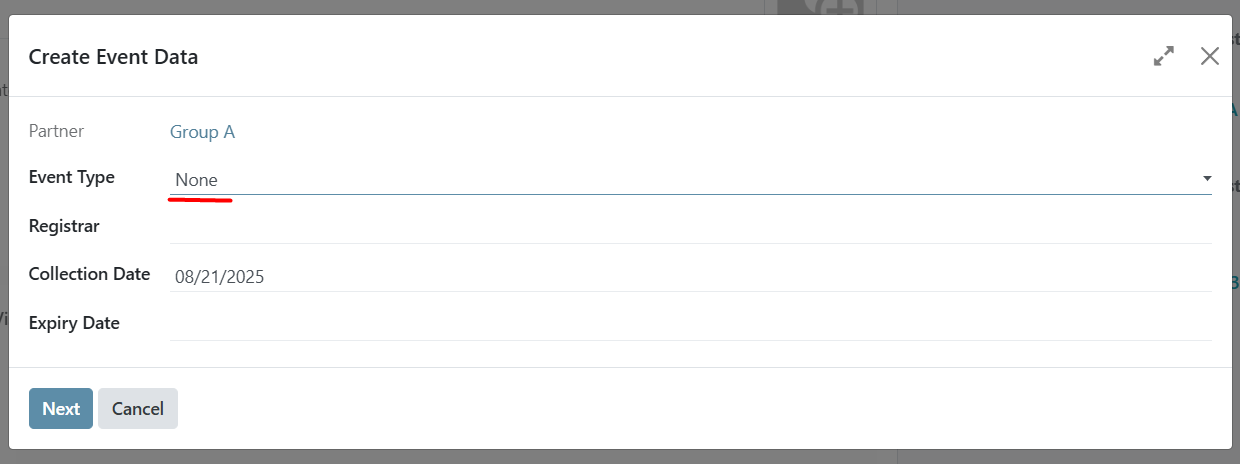
Set an Expiry Date to determine when the record will become inactive. Click Next to continue.
The field names displayed in the event data modal are customizable depending on your preference or configuration.
Fill in the fields you wish to define, then click Save to create the event data entry.
View Event Data#
From Registry, select a group or an individual and click on the event data tab.
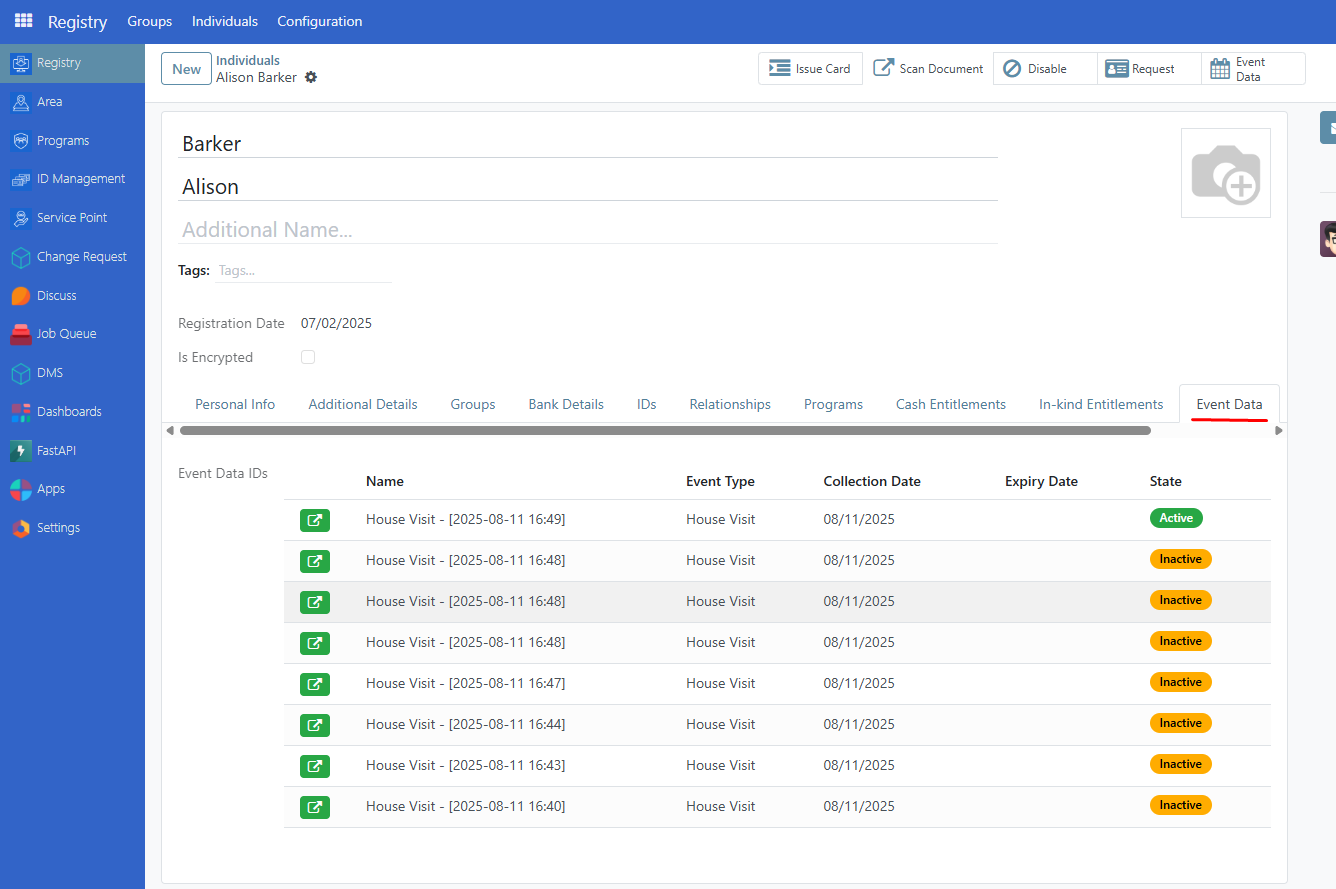
Click on the green button to view the registrant’s event data details.
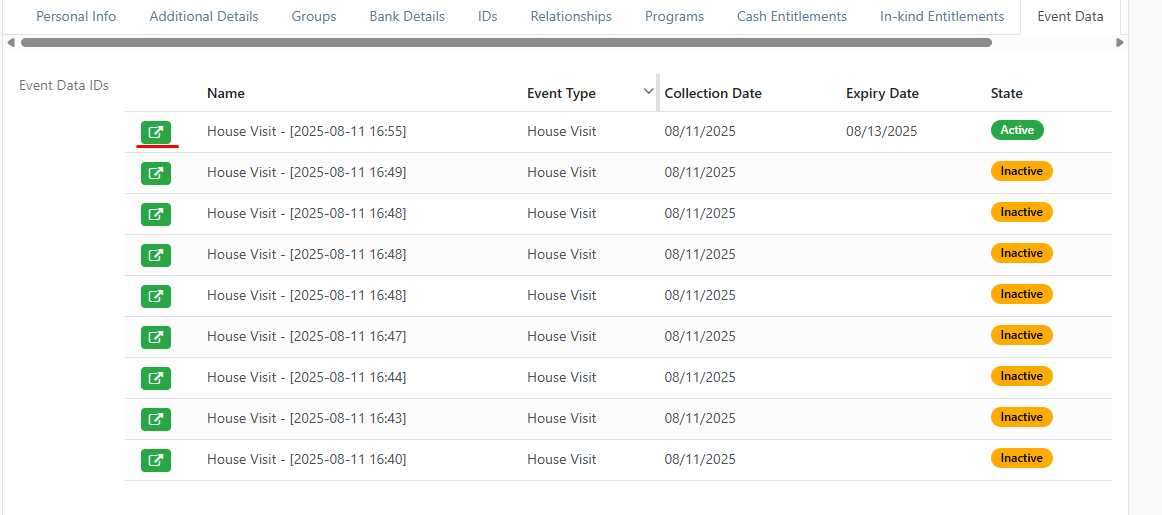
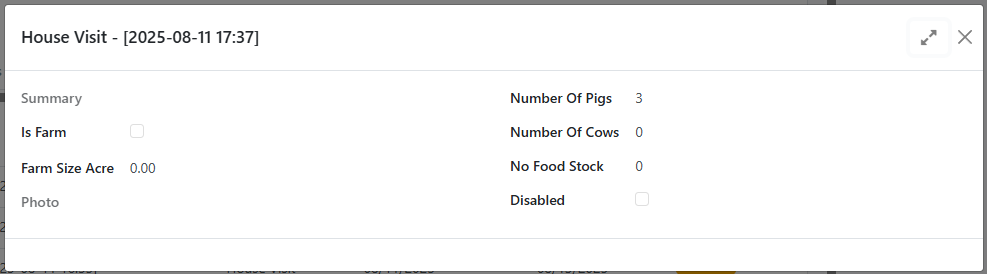
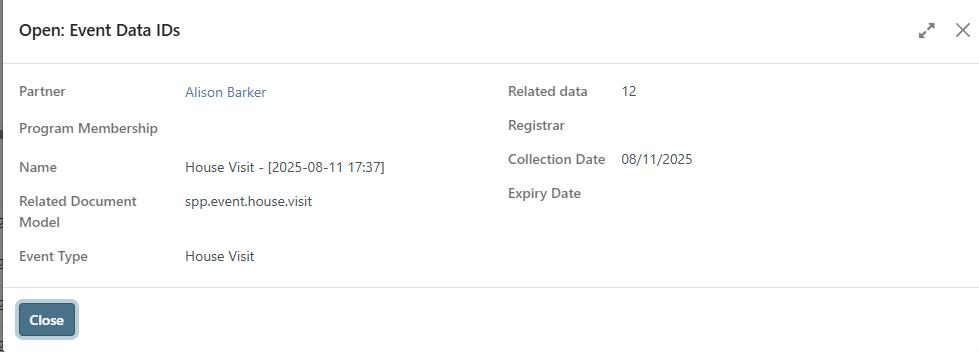
A modal should display the values of the fields for that event data.
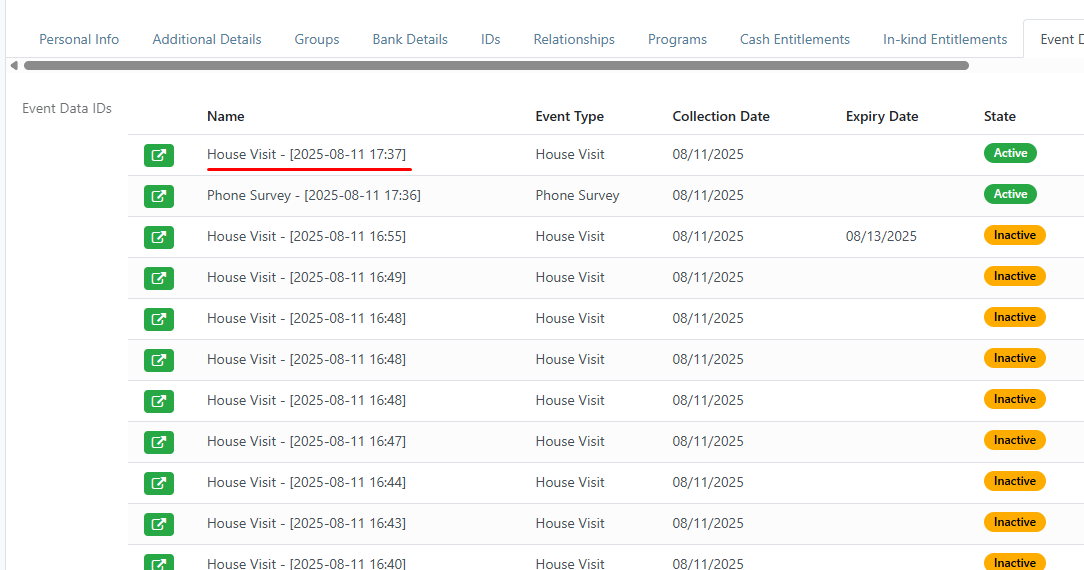
From the Event Data tab, you can click on the record’s name to view the event data’s information.
The displayed fields are all read-only and cannot be modified. For the Related Data field, the number shown indicates how many event data entries of the same type currently exist in the registrant's records.
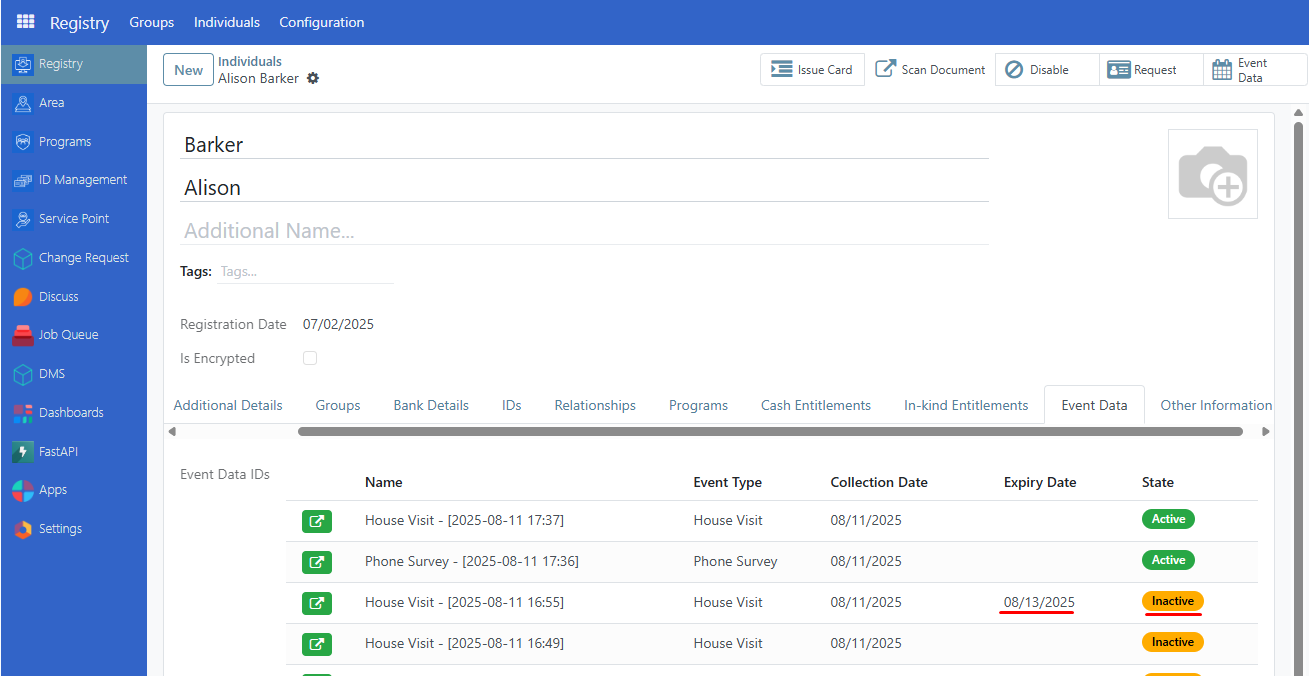
Active/Inactive Event Data#
When a new event data entry is saved, it is automatically marked as active. Any existing entries with the same event type are automatically updated to inactive, ensuring only the latest entry remains active.
Please note that only one event data entry of each type can be active at a time.
Once an event data entry reaches its expiration date, it will automatically be set to inactive.