openspp.org
Configure in-kind entitlements
Contents
Configure in-kind entitlements#
This guide includes steps for approving in-kind entitlements and preparing cycles with in-kind entitlements.
Prerequisites#
Ensure you have the appropriate user permissions, such as Global Registry or System Admin roles. For details on user roles and access levels, refer to the User access documentation.
Create a Program or have an already existing program. Learn more about this in the guide Create program.
Install the module: OpenSPP In-Kind Entitlement on your OpenSPP instance as System Admin. Learn more on installing modules in the guide: Module installation.
Objective#
This guide will enable you to effectively set up and manage in-kind entitlements in OpenSPP. By the end of this tutorial, you will be able to define the products for distribution, configure their quantities, and link them to your programs to ensure accurate and efficient benefit delivery.
Process#
Create in-kind entitlements#
Login as System Admin, and navigate to Inventory from the sidebar. If it is not visible, you must enable the checkbox Show Non-OpenSPP Menu from the Access Rights tab of this User.
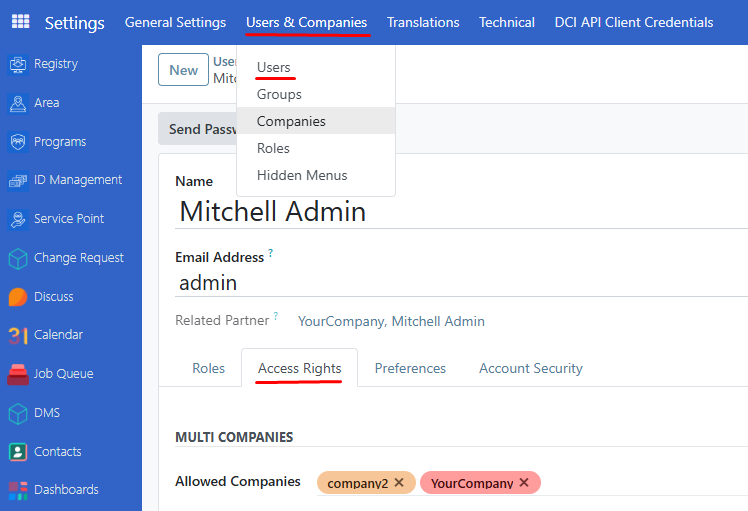
To edit this Access right tab, you must enable developer mode as show in the guide: Developer mode (debug mode).
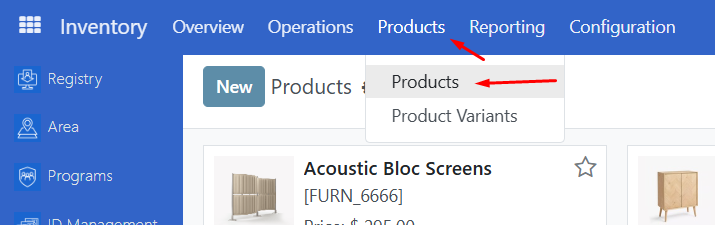
In the Inventory Page click on Products-->Products
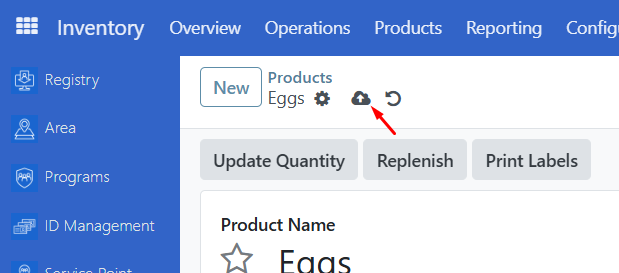
Click on New, then Define the name of your product
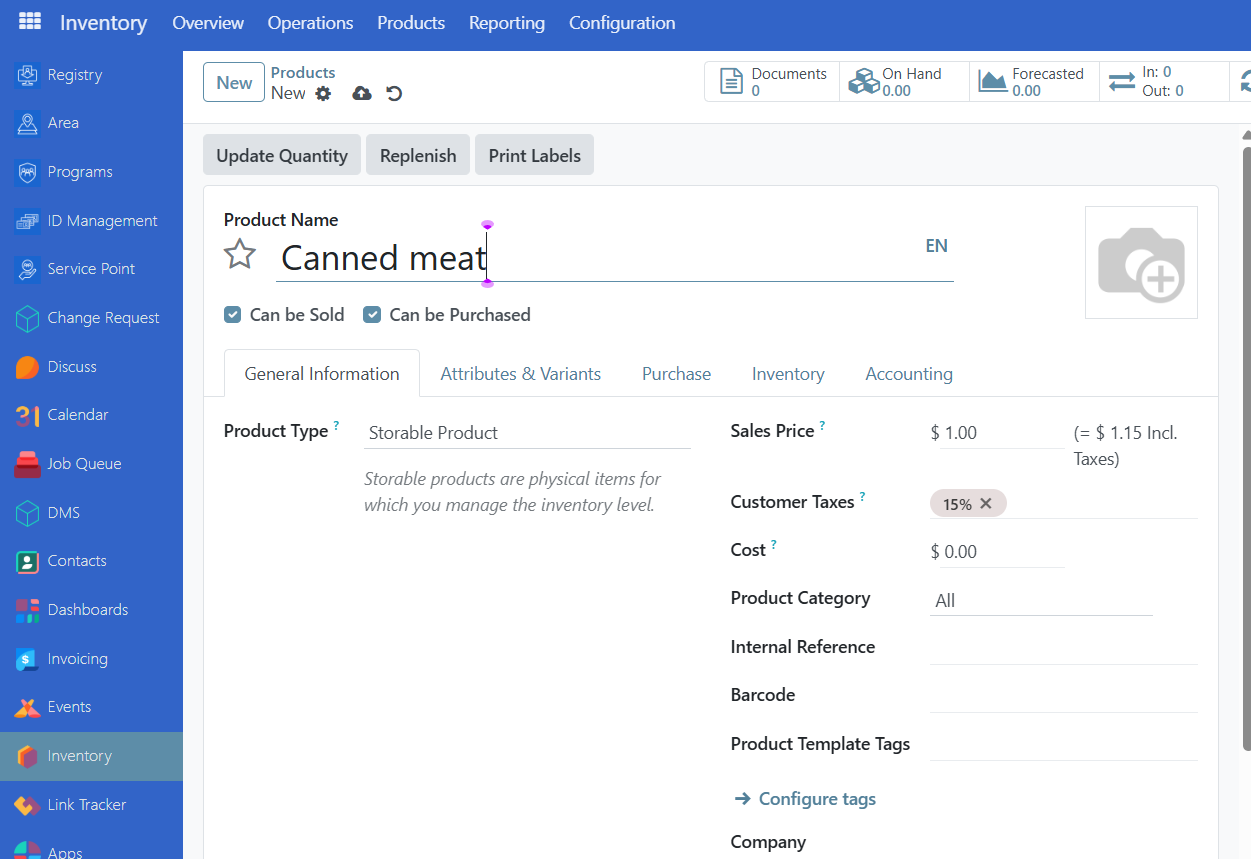
Click on Save to complete the changes.
Categorize Products#
You can also further categorize these products using Product Categories Feature
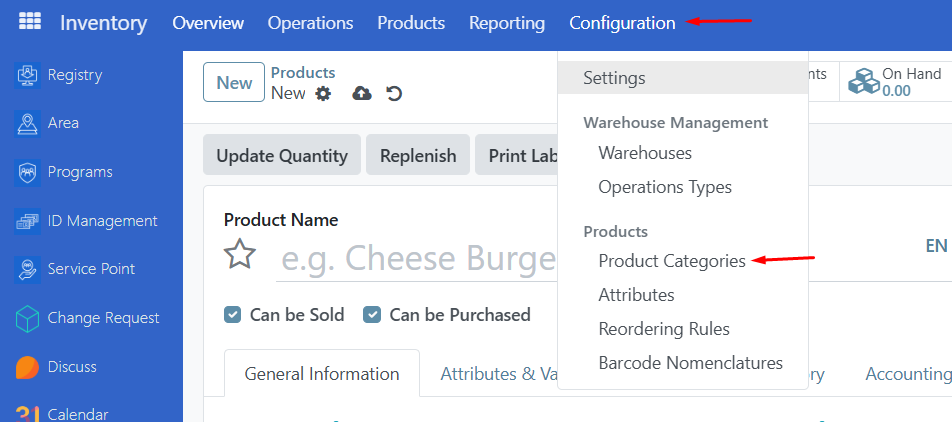
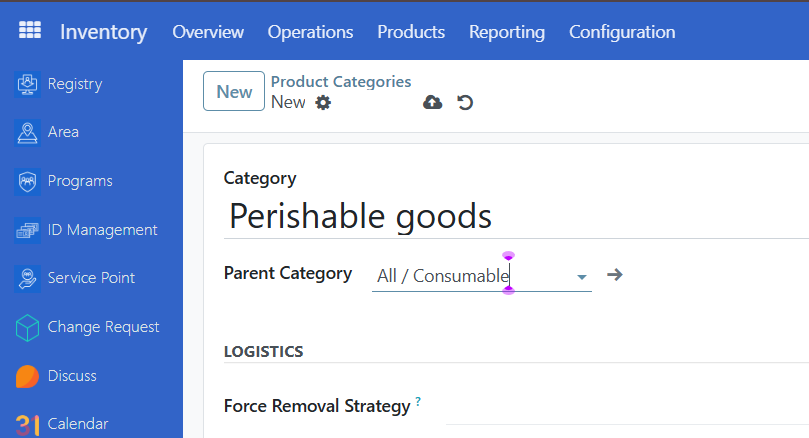
Click on New to define a new product category.
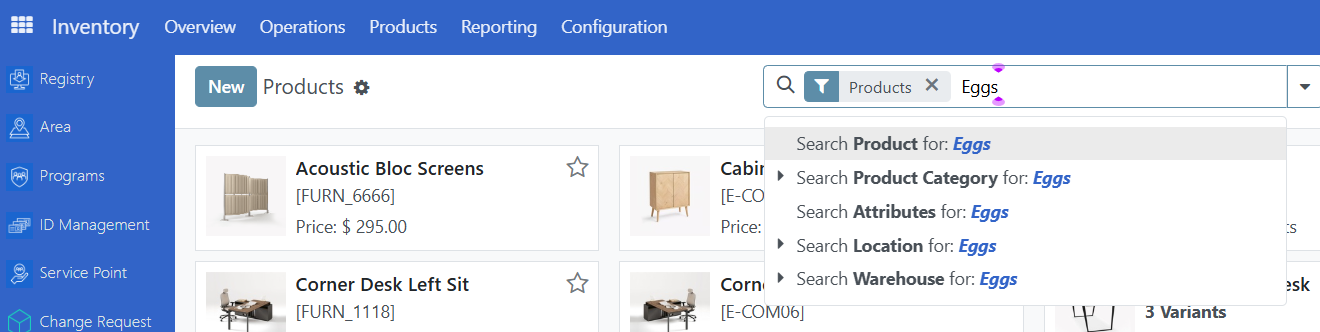
You can go back to Products page and search for a product.
Select the product and define the Product Category field.
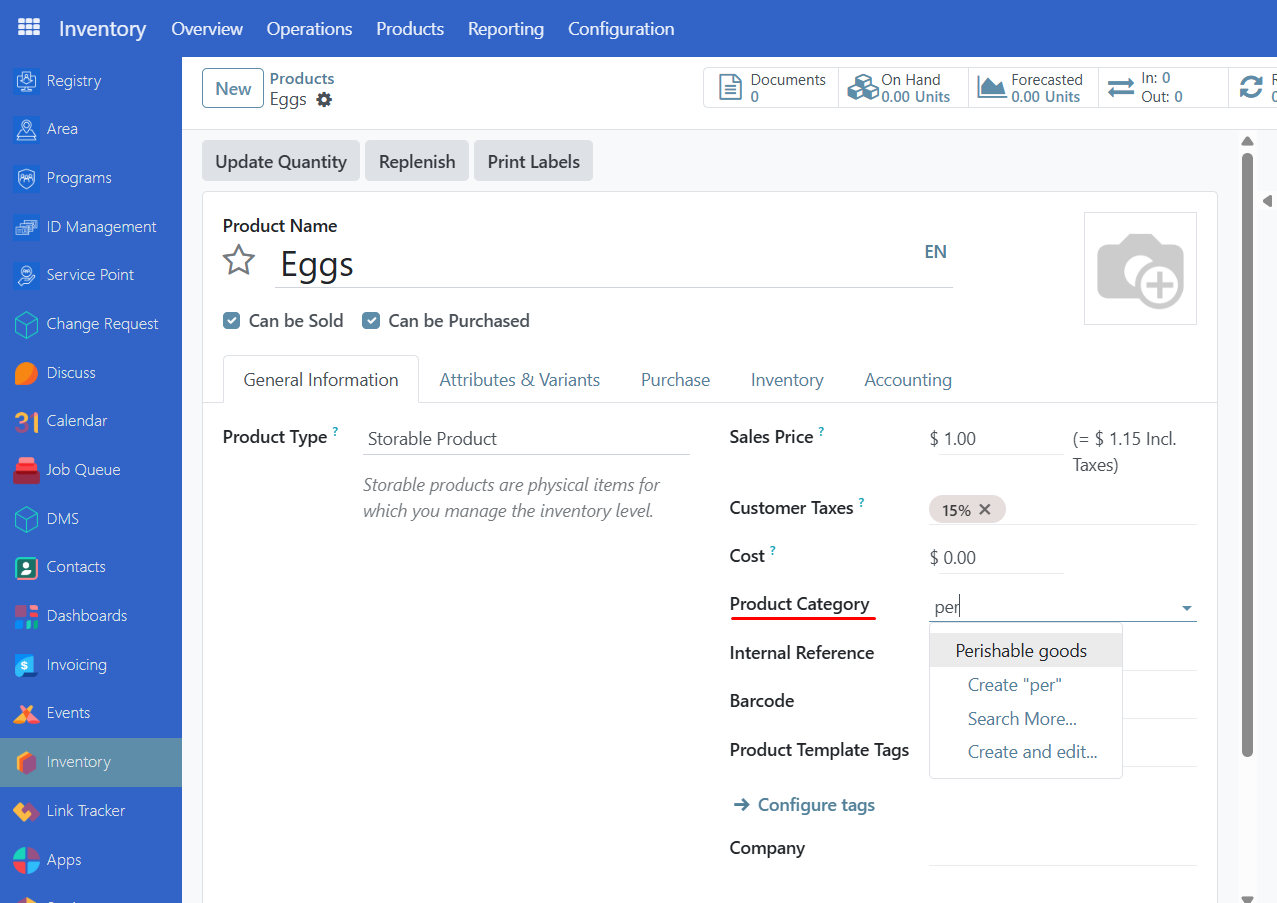
Click on save to complete the changes.
In-kind entitlements in a program#
You can modify in-kind entitlements during program creation or on an existing one. Both methods are explained below.
Selecting in-kind during creation of a program#
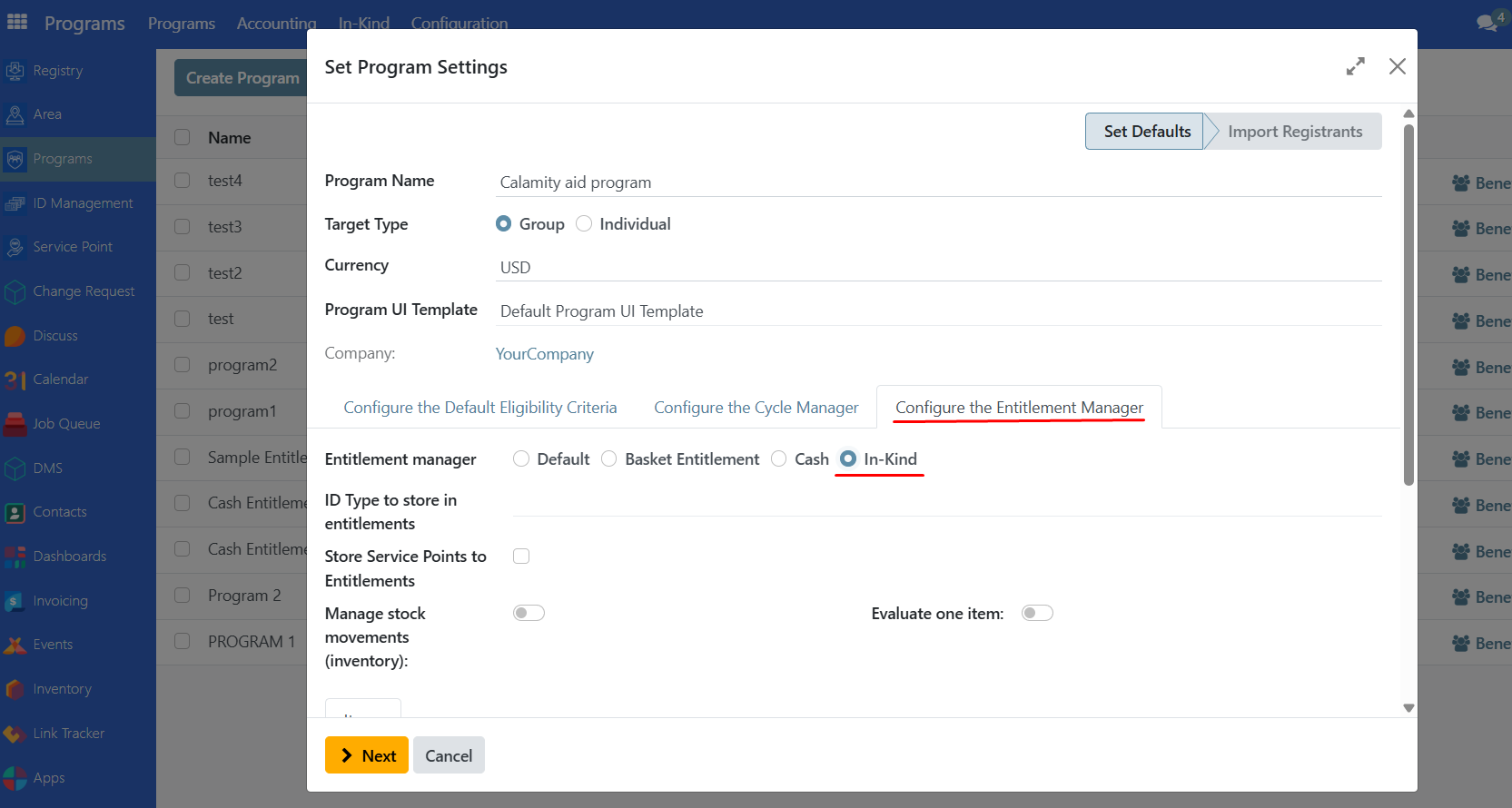
Define the in-kind entitlements during program creation under Configure the Entitlement Manager
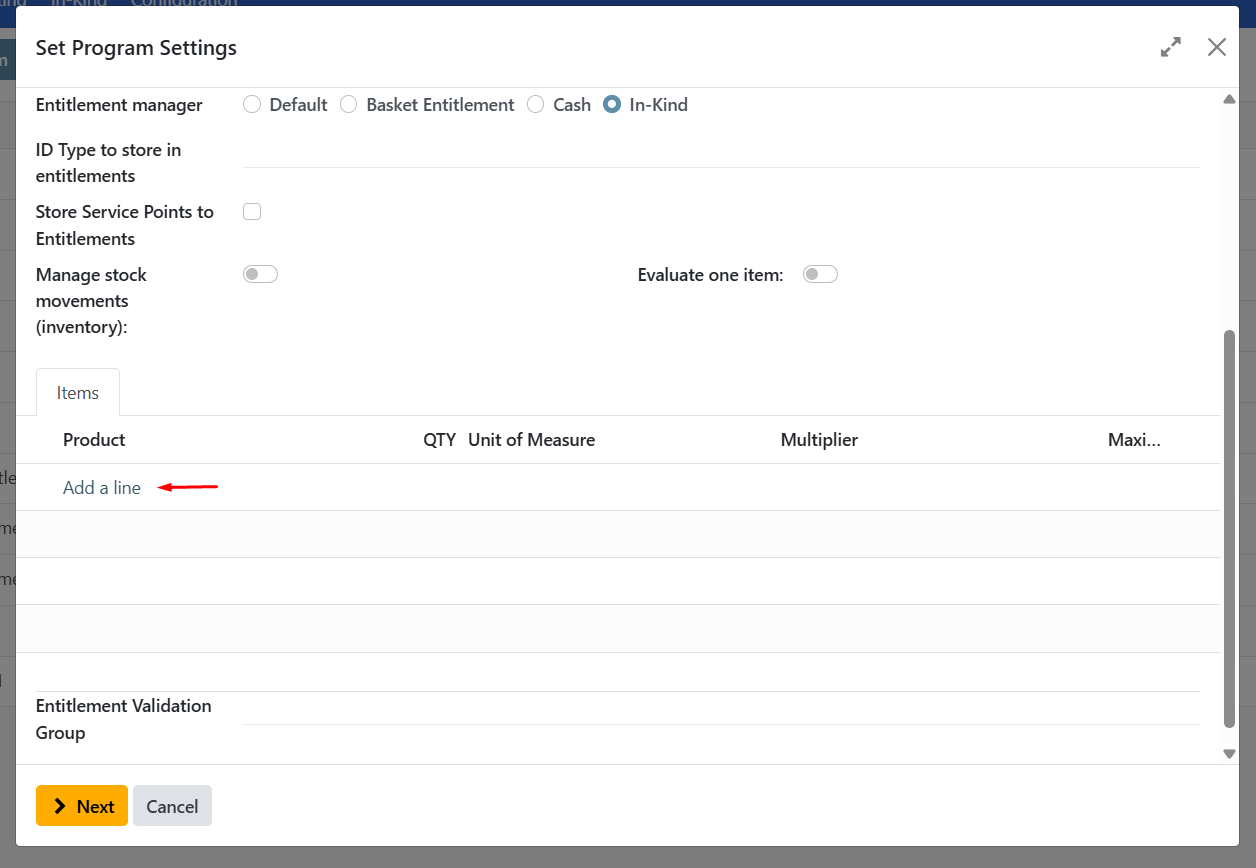
Scroll down from the program modal and click on Add a line
Select the product you wish to use.
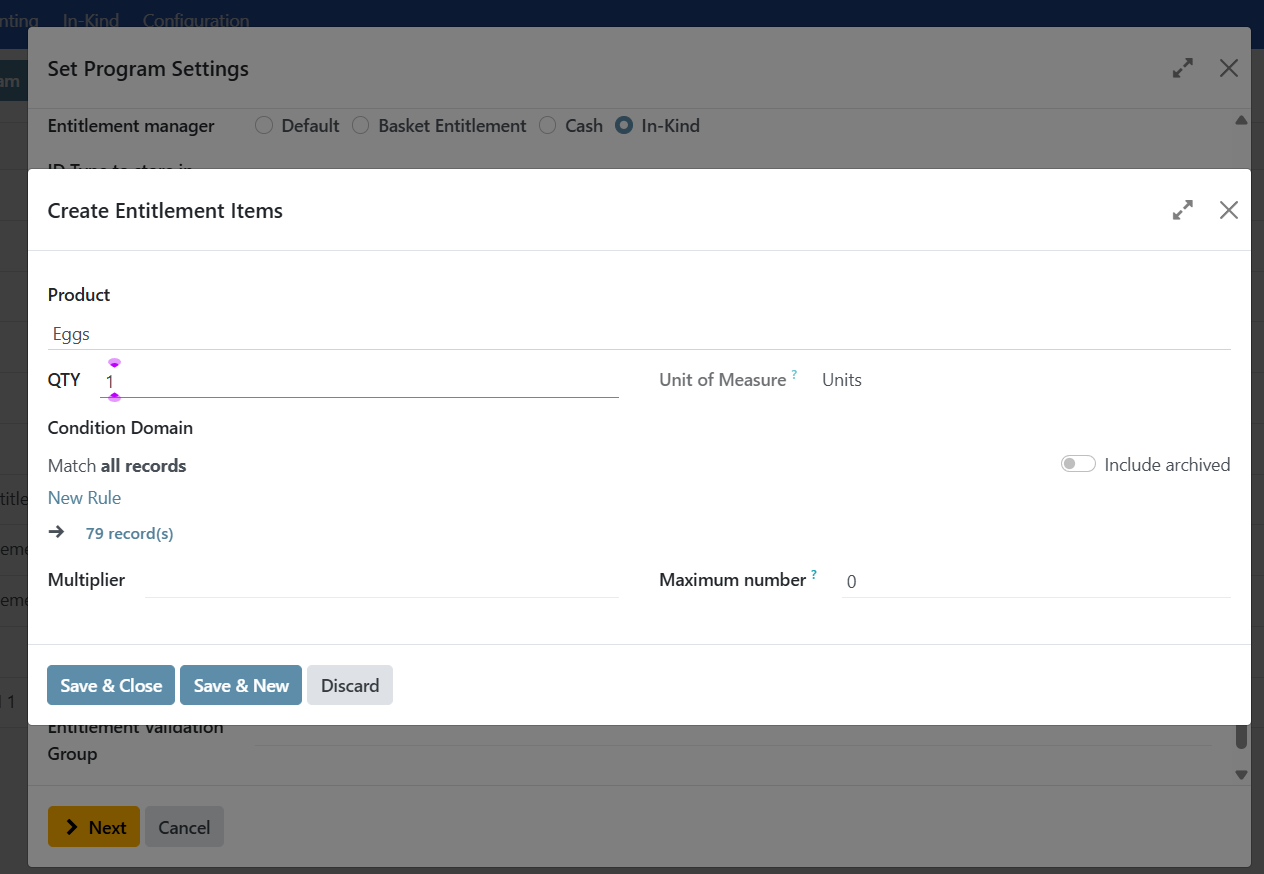
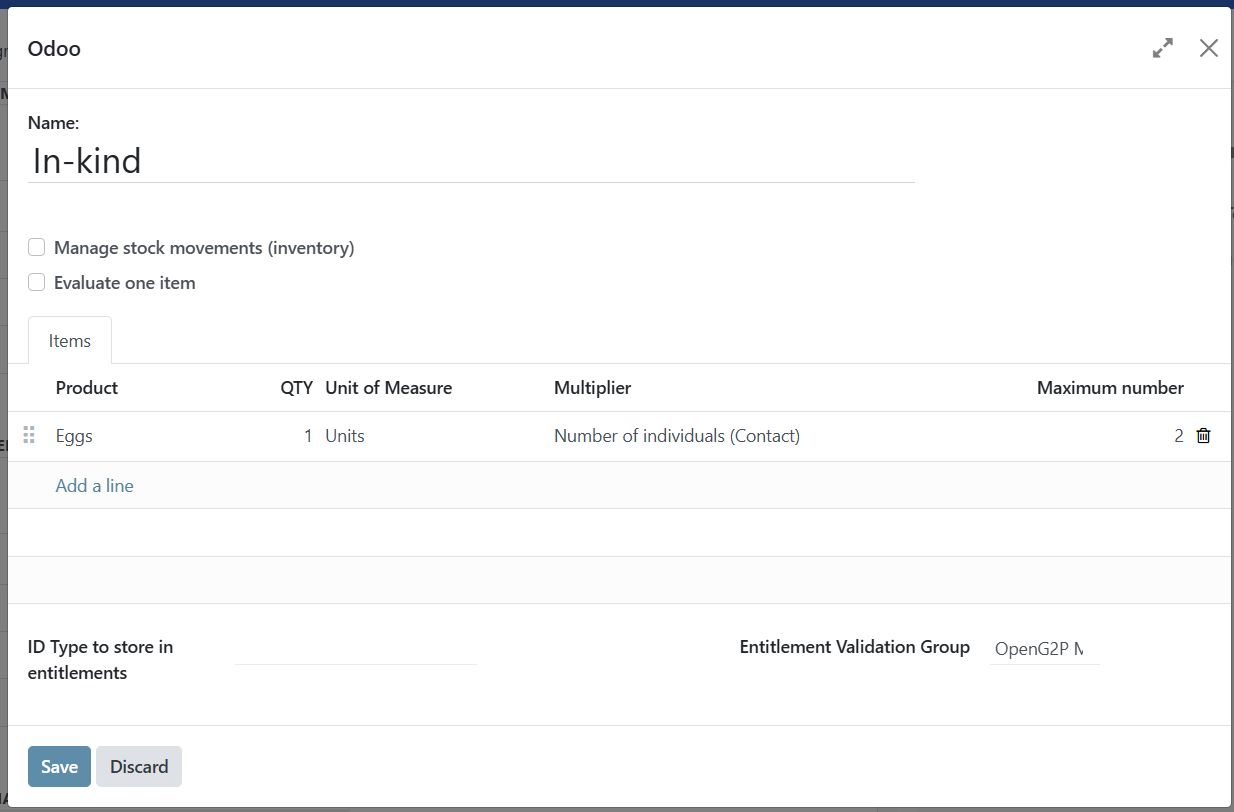
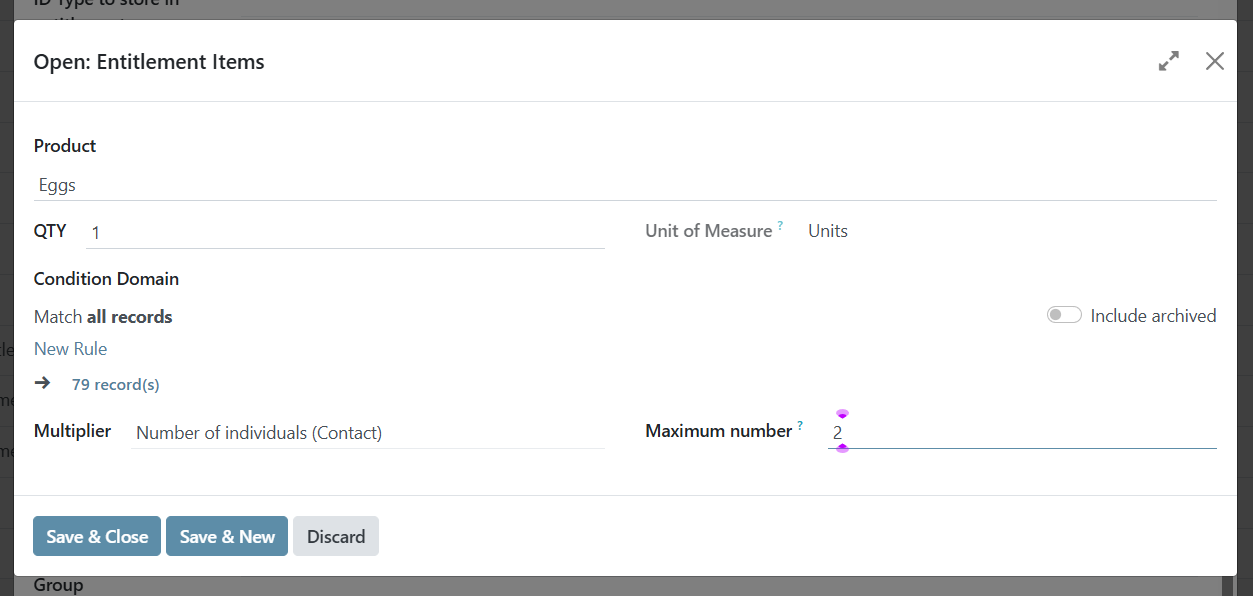
Note that the Multiplier defines how many quantity is generated in relation to the selected value under multiplier. Maximum number sets the limit how much multiplier value can reach. change to zero to to set it with no limit.
In the example below, if a group has 5 individuals, it would supposedly get 5 eggs , however with Maximum number defined as 2, the group would only get 2 eggs.
Configure Entitlement Validator#
Select which user role is able to approve these in-kind entitlements for this program, this needs to be defined if auto-approved entitlements is not enabled.
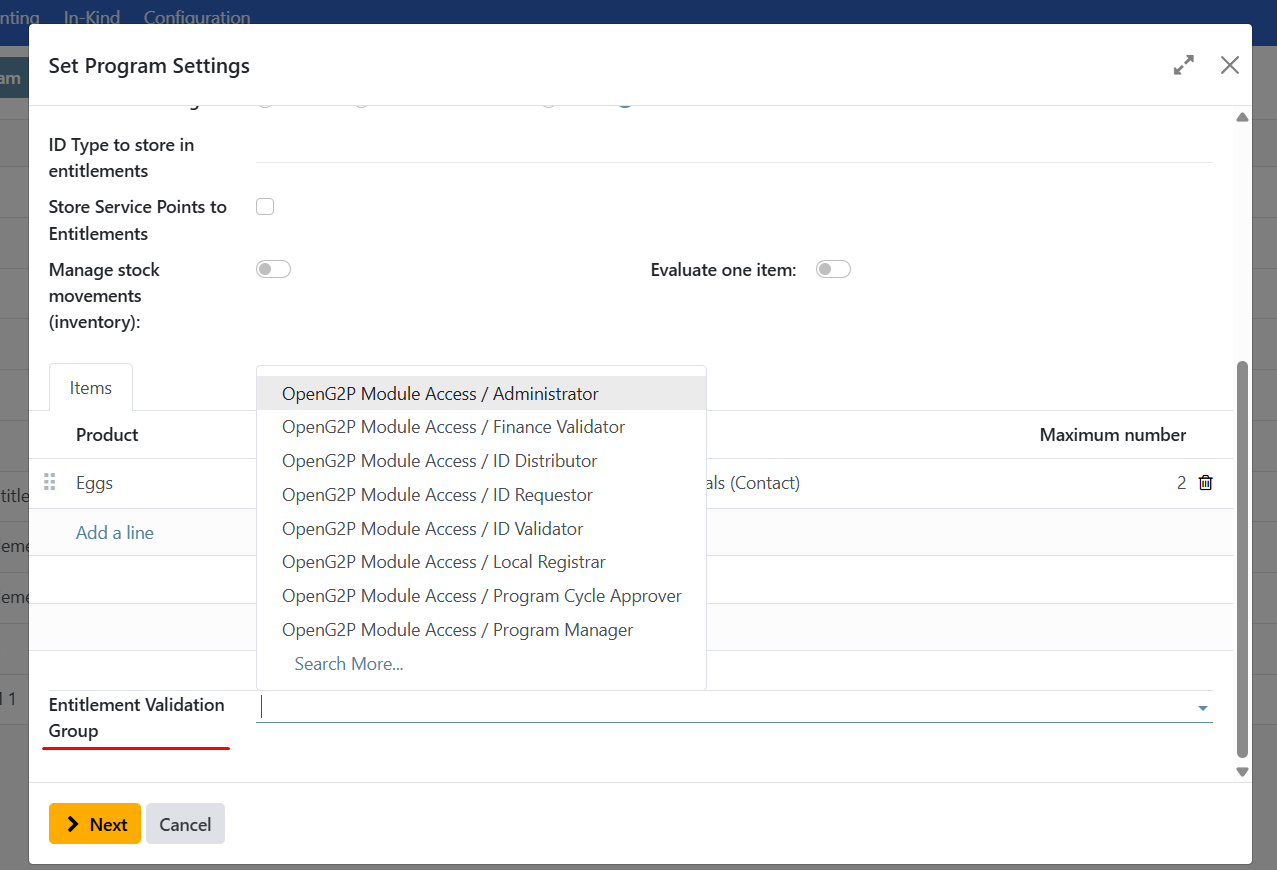
then continue with program creation. Learn more in the guide Create program.
Verify entitlement count#
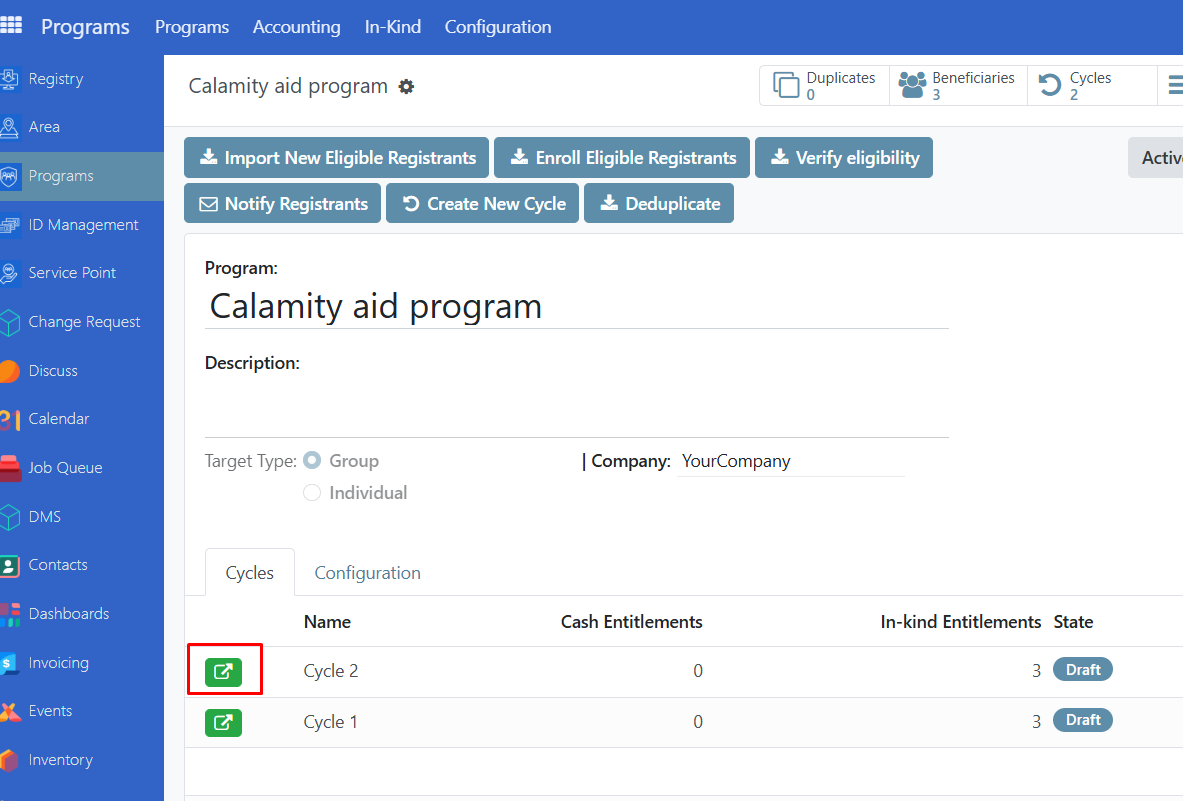
Go to your program and select the cycle you want to verify.
Once prepare entitlement is clicked. Navigate to entitlements page.
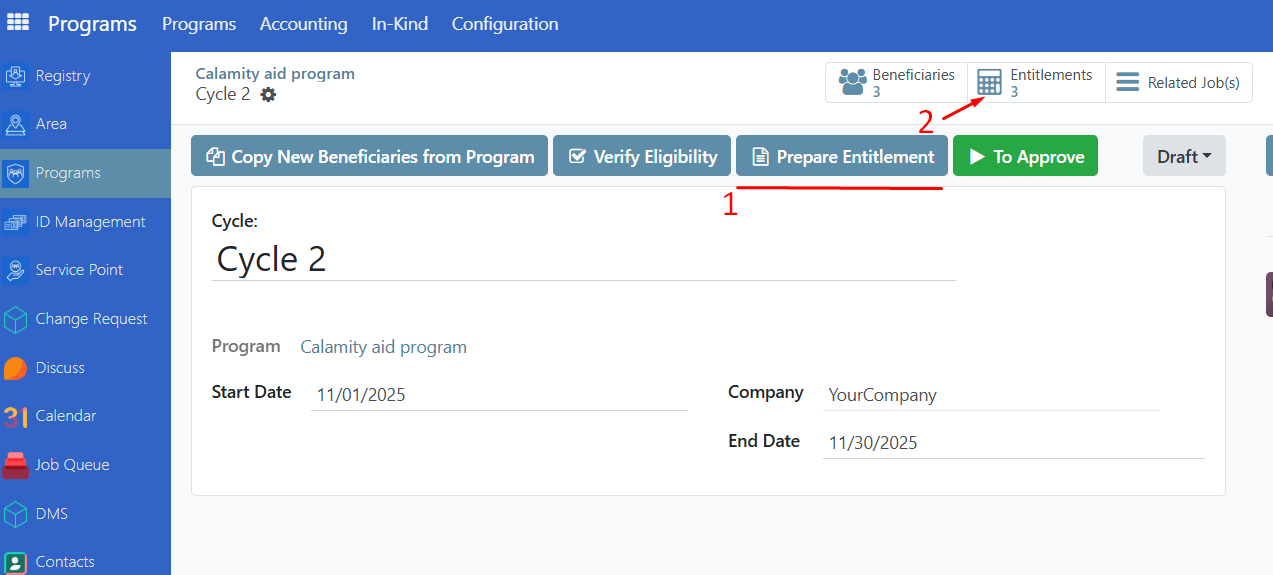
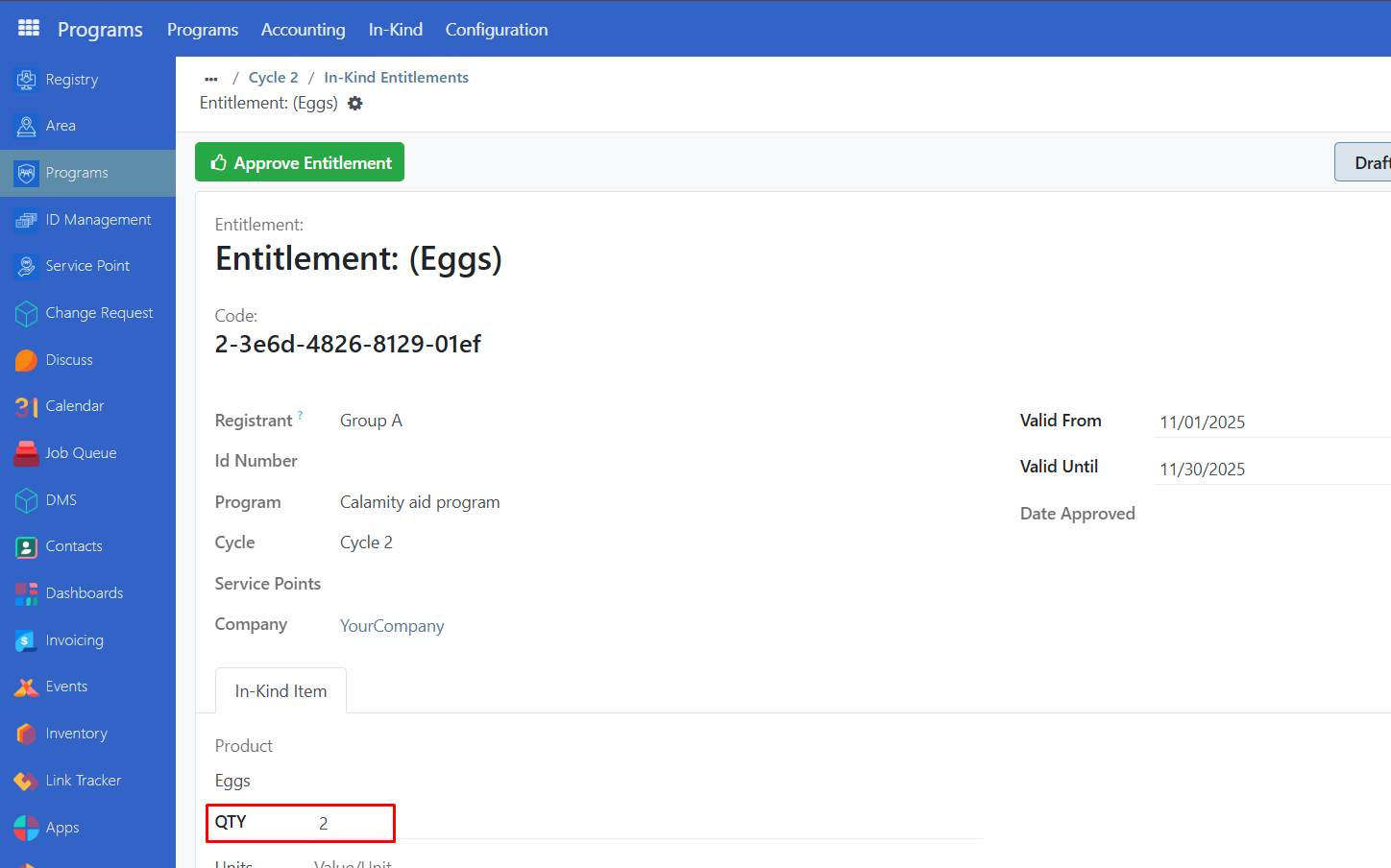
Click on a group and verify the quantity of in-kind entitlements generated if it is correct.
In this example, Group A consists of 3 individuals, but since the maximum is set to 2, only 2 eggs will be generated instead of 3.
Selecting in-kind on existing program#
You can modify the in-kind entitlements generated for an existing progam by navigating to program page and going to configuration tab.
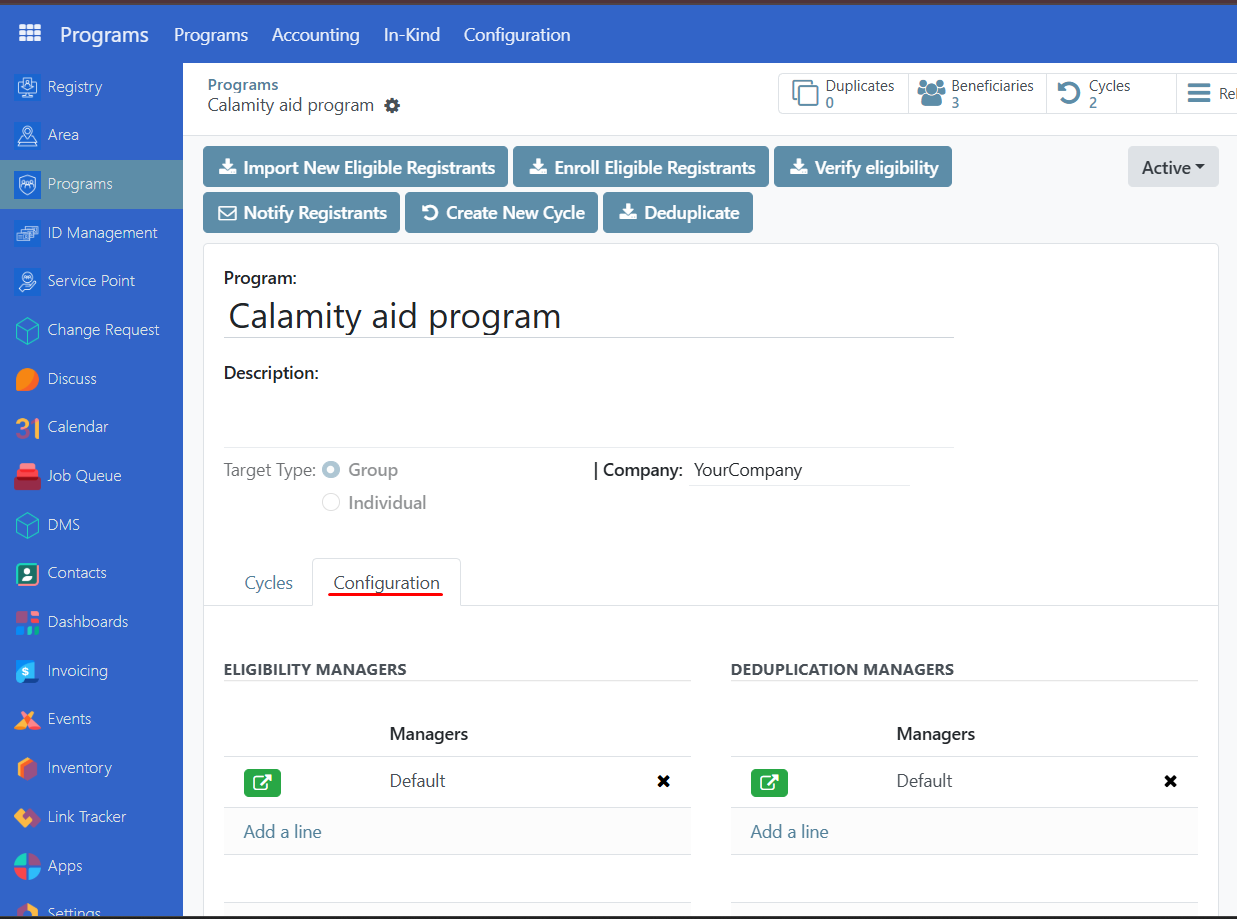
Scroll down to see Entitlement Manager, then click on the green icon.
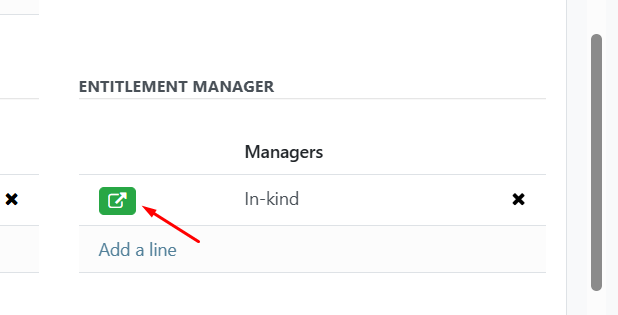
In the modal below, you can add, edit or remove products for this program, click Save to complete. Note that any changes in the in-kind entitlements would only take effect to those cycles that are still yet to prepare entitlements.