 openspp.org
Integrate geolocation
Contents
Integrate geolocation#
This guide provides step-by-step instructions for integrating geolocation platforms such as MapTiler with the OpenSPP Farmer Registry module to enhance area-based functionality.
Prerequisites#
To enable geolocation integration in OpenSPP, ensure the following:
Your user account has the System Admin role. Learn more in this guide: User access.
Your OpenSPP instance has the Farmer Registry base module installed. Learn more in this guide: Farmer Registry installation.
You have an API key for MapTiler to enable GIS functionality. You can retrieve this by checking their documentation here.
Developer mode in OpenSPP is enabled to allow configuration of the MapTiler key. For details, refer to the Developer mode (debug mode).
Objective#
By the end of this guide, you will have configured MapTiler integration to enable area-based features in the Farmer Registry and will learn how to add, edit, and remove farm geolocation data using the map tools.
Process#
Setting Up the API Key for MapTiler#
As a System Admin, log in to your OpenSPP Farmer Registry instance. Go to Settings, then select Technical, and click System Parameters.

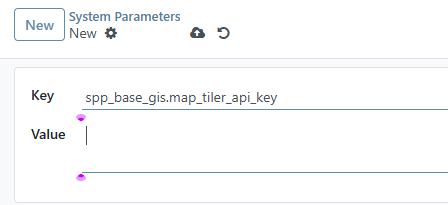
Click the New button. Set the Key field to spp_base_gis.map_tiler_api_key and enter your MapTiler API key in the value field.
Note
Keep your API key secure. Avoid sharing it publicly or storing it in version control systems.
Click the Save button to apply the configuration. Refresh your browser to see the changes.
Add Geolocation Data#
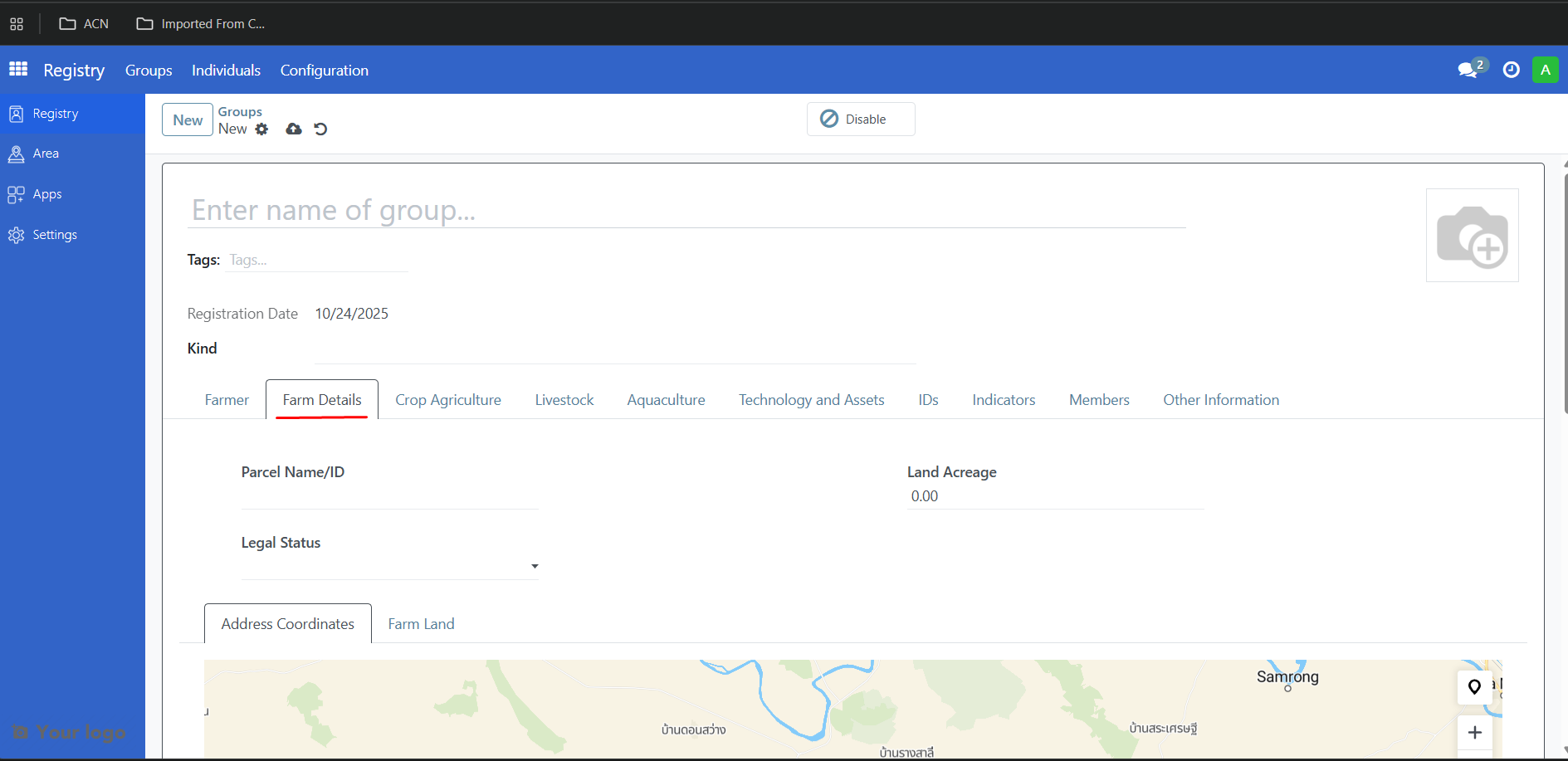
After setting up the API key for the geolocation platform, navigate to the Registry and click an existing farm group, then open the Farm Details tab.
Add Address Coordinates#
Under the Farm Details tab, click Address Coordinates.
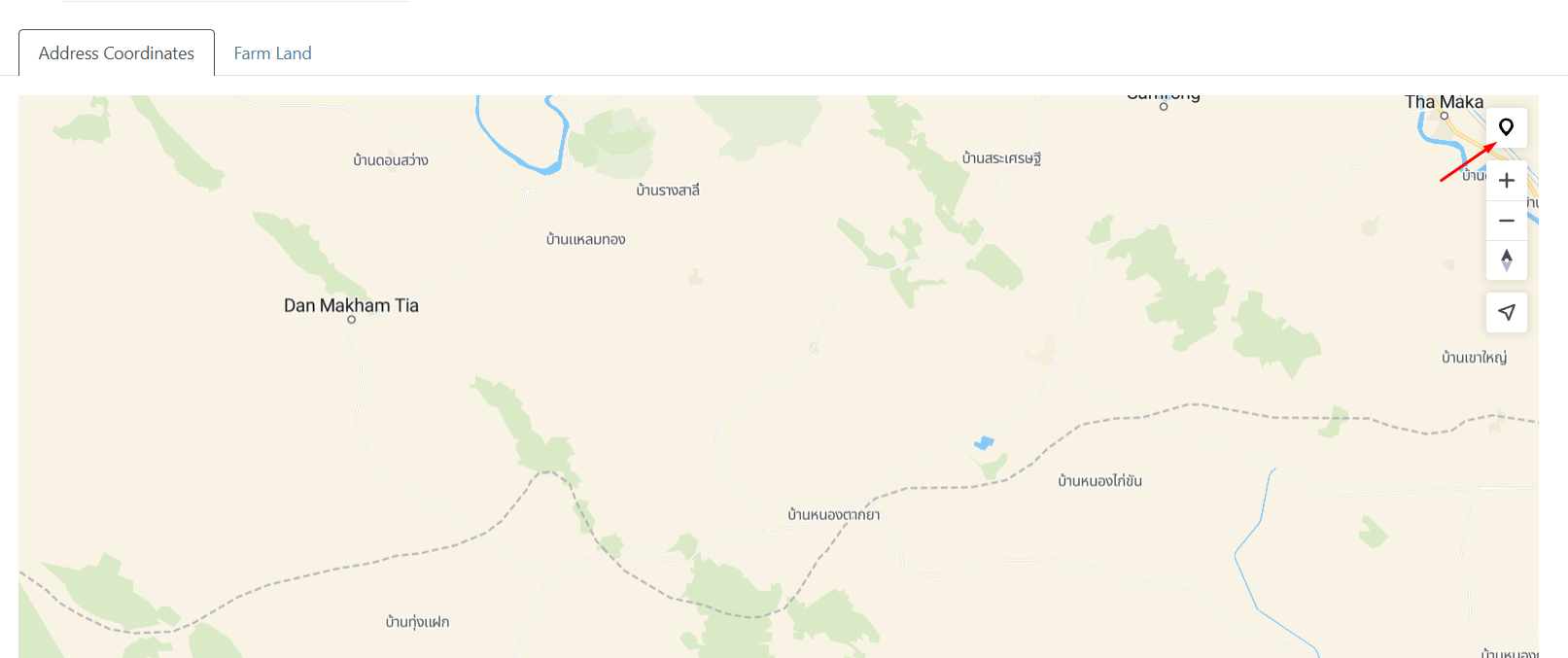
Click the Marker tool once, then select a location on the map to add a pin for the farm.
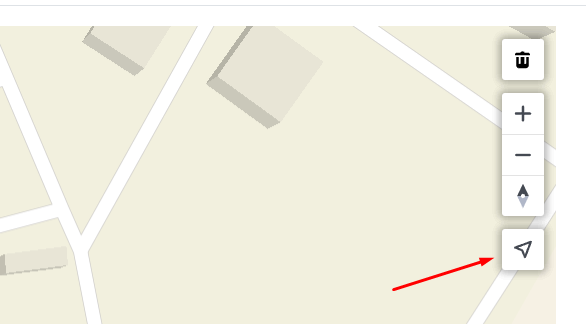
You can also click the Find My Location button to center the map on your current location.
Add Farm Land#
Under the Farm Details tab, click Farm Land.
Click the polygon tool once, then click the map to add vertices until the area is outlined; double-click the final point to close the polygon.
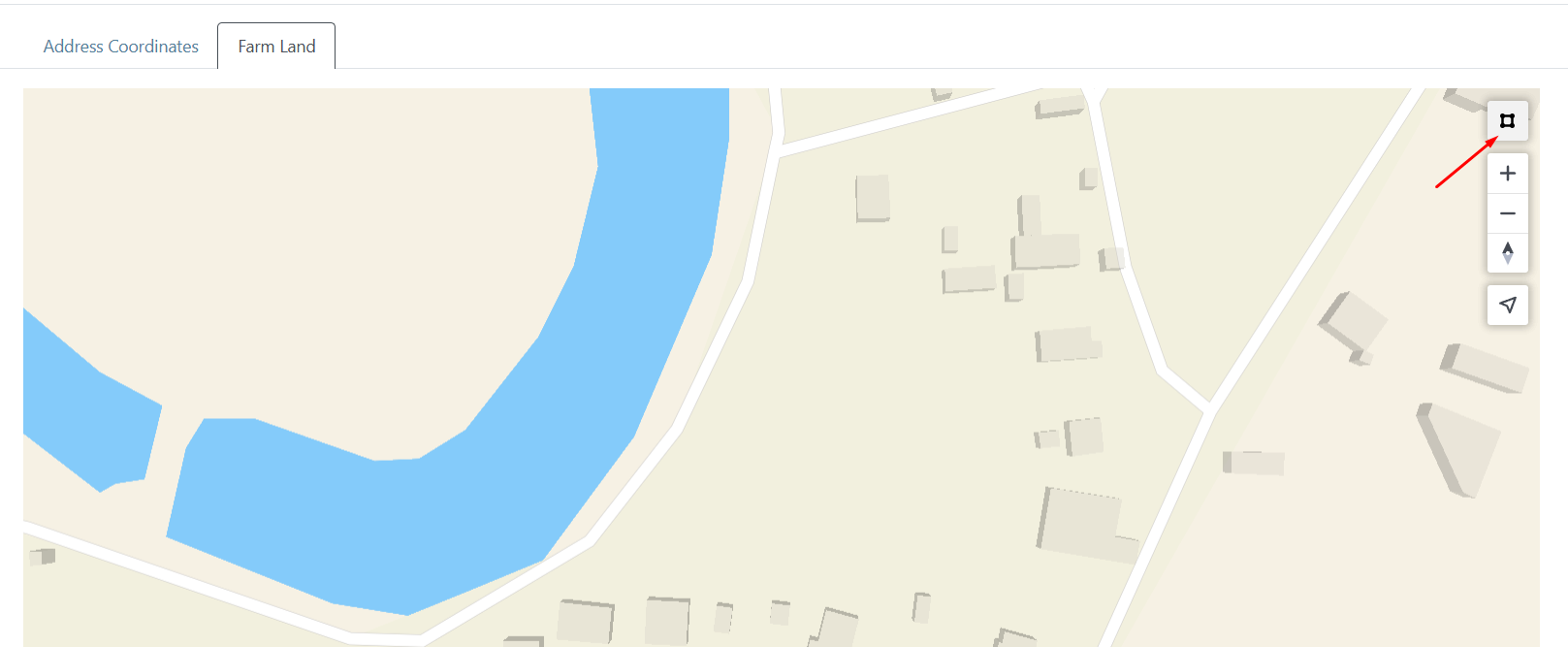
You can also click the Find My Location button to center the map on your current location.
Remove Geolocation Data#
To remove geolocation data, navigate to the Farm Details tab, then open the tab for either Address Coordinates or Farm Land.
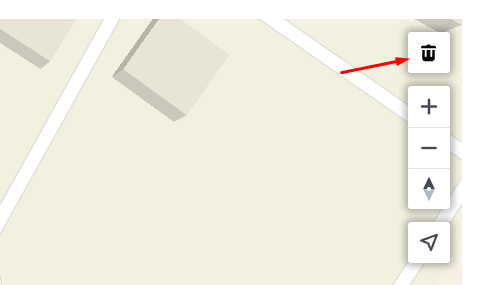
Click the trash icon to remove the geolocation data.
Note
The trash icon appears only when there is existing map data.
Deletion cannot be undone.