 openspp.org
Configure cash entitlements
Contents
Configure cash entitlements#
This tutorial describes the steps of configuring cash entitlements when selected as Entitlement manager.
Prerequisites#
Have an access role as an System Admin. Learn more about this in the guide User access
Install and activate the module: OpenSPP Cash Entitlement on your OpenSPP instance as System Admin. Learn more on installing modules in the guide: Module installation
Create a Program or have an already existing program. Learn more about this in the guide Create program.
Objective#
After completing this guide, you will be able to learn how to configure cash entitlements and edit existing cash entitlement configuration.
Process#
Configure the Entitlement Manager#
It is possible to configure cash entitlements either during creation of the program or after. Both options are explained below.
Configure cash entitlements during program creation#
When Creating a program, the tab Configure the Entitlement manager is available from the pop-up modal. Click on it to start setting it up.
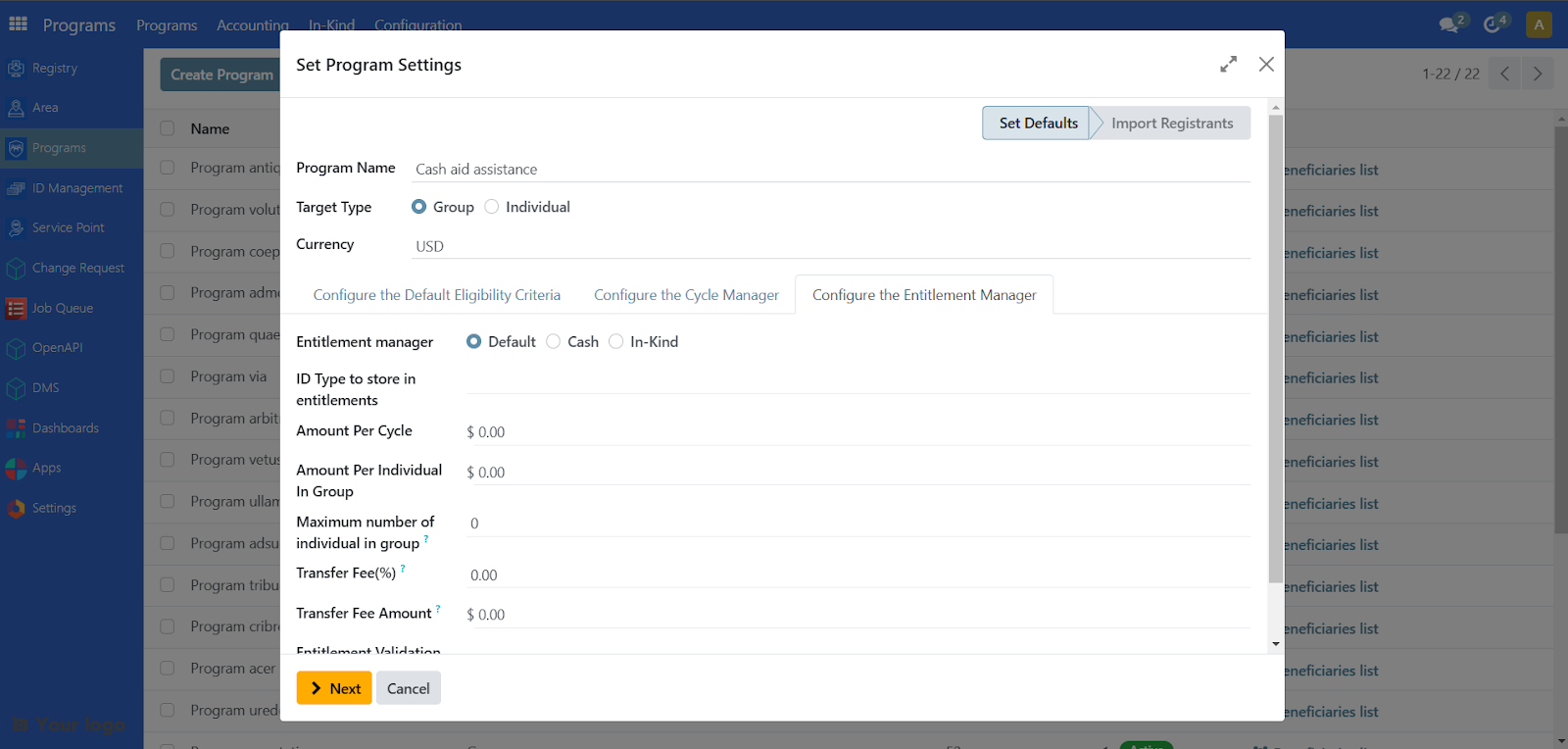
Depending on installed modules there may be different options, click on Cash as Entitlement Manager. if Cash is not visible, it could be the module OpenSPP Cash Entitlement is not installed.
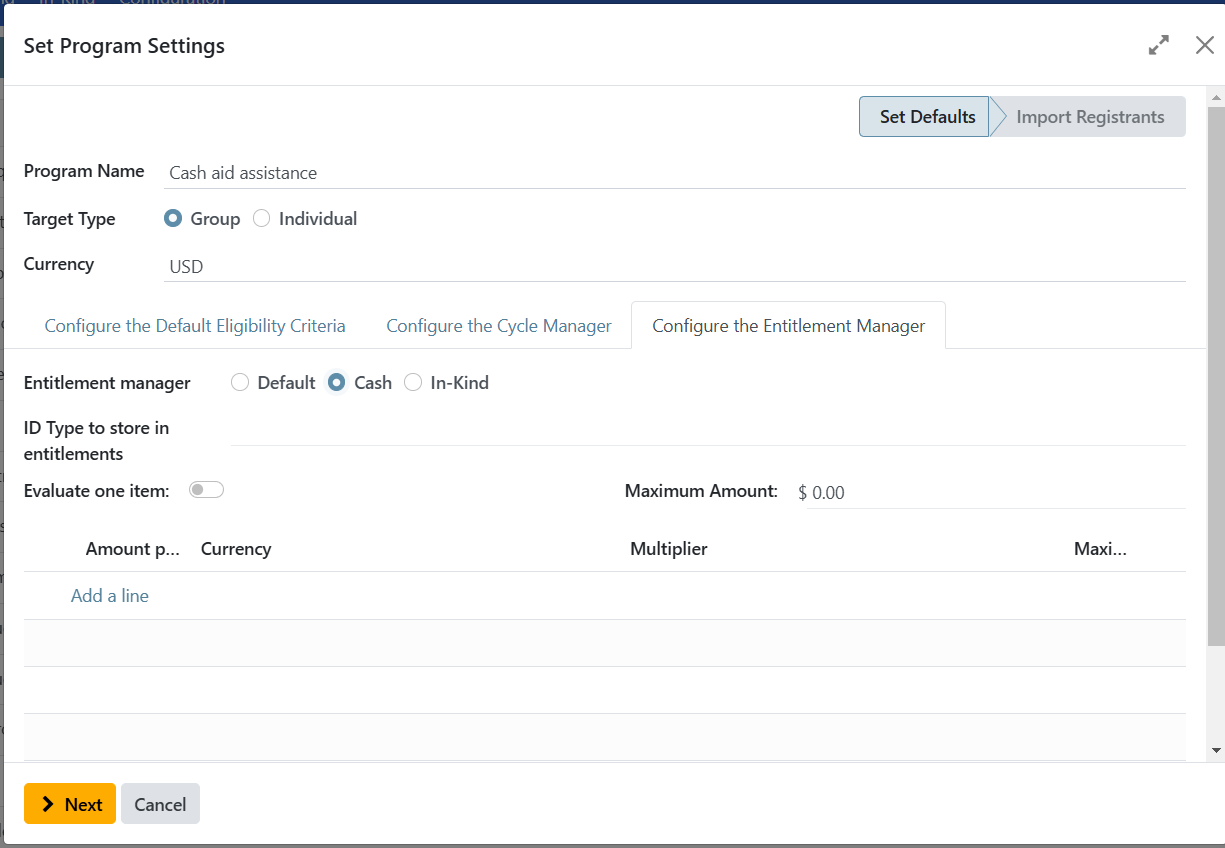
Click on Add a line to add an amount for your entitlement. Define the amount under Amount per cycle.
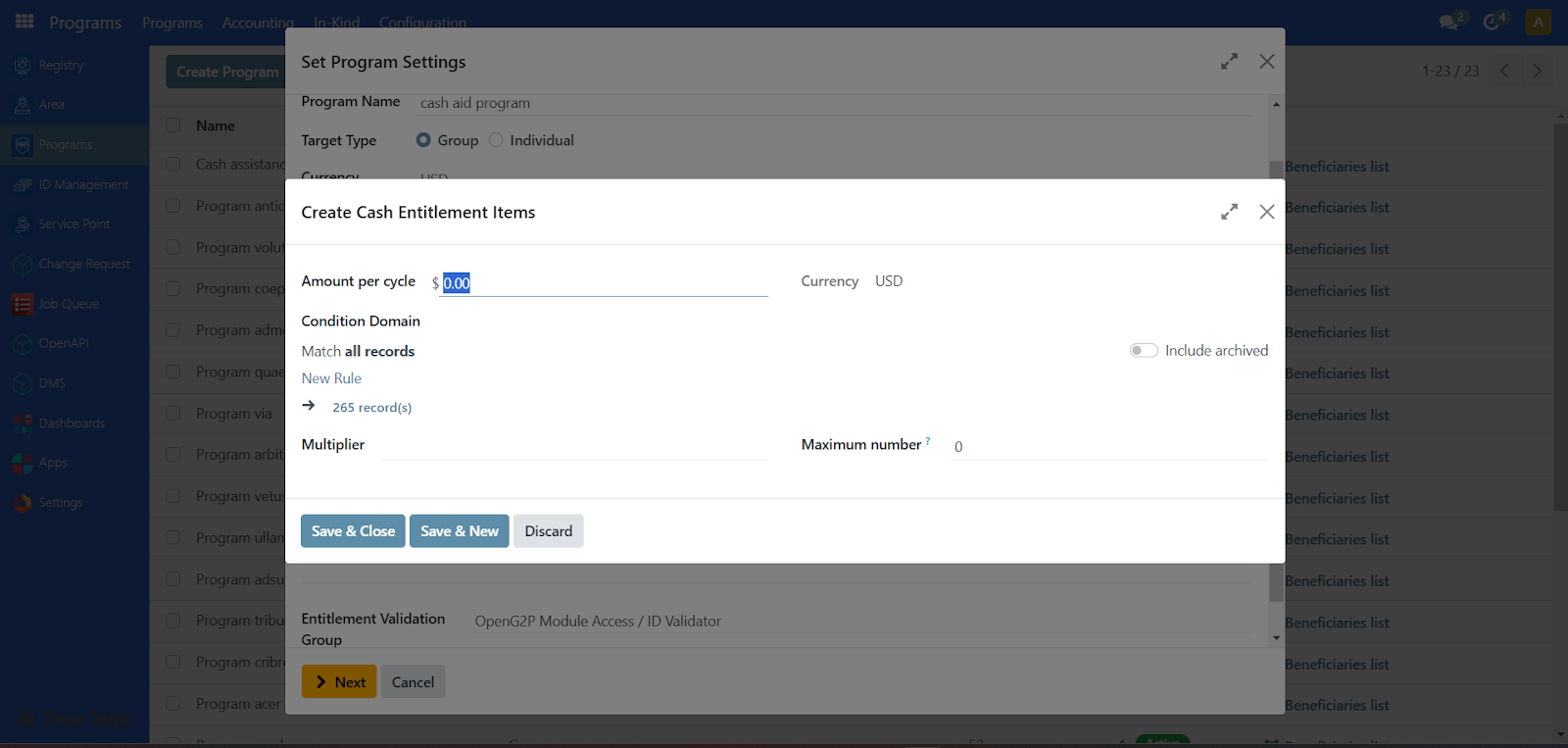
Multiplier: this dropdown field defines how many times the Amount per cycle will be multiplied. For example, if the indicator is set to Number of adults it would multiply the Amount per cycle by the number of adults in this group. The total amount will be the registrant’s entitlement.

Maximum number: this input field defines the maximum count for the multiplier. If, for example “Number of adults = 5” and “Maximum number= 3”, the Amount will be multiplied by 3 instead of 5.
In order to not have any limitations this field should be set to zero(0).
Edit after program creation#
Once a program is created, you are still able to configure its settings by selecting the program and clicking on the tab Configuration.
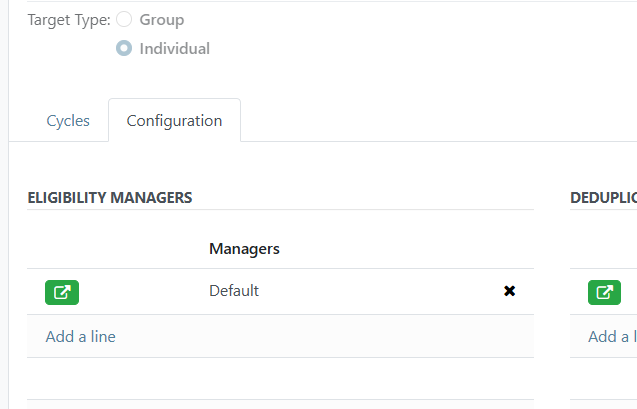
Scroll down to the section Entitlement manager. Click on the green box to expand.
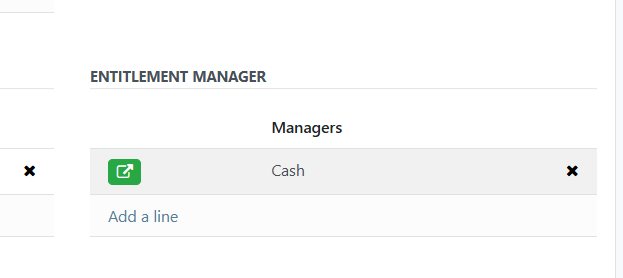
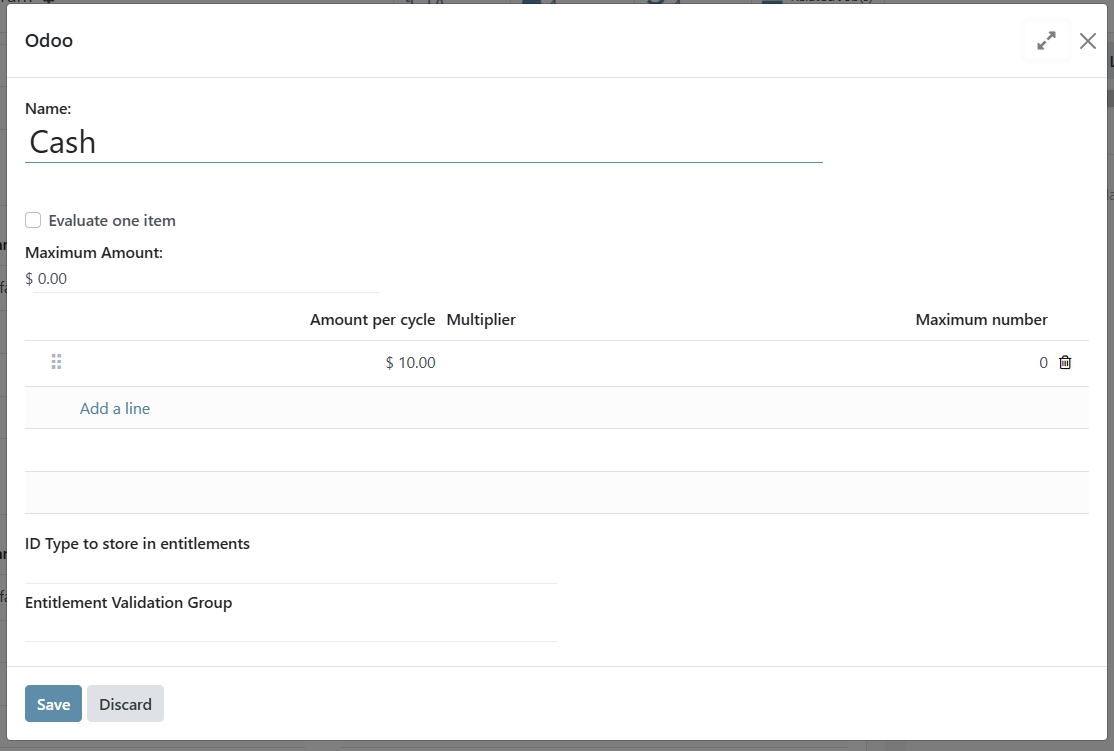
Modifying amount per cycle#
Click on the Entitlement item to display another modal pop-up. Edit amount by replacing value under Amount per cycle.

Multiplier: this dropdown field defines how many times the Amount per cycle will be multiplied. For example, if the indicator is set to Number of adults it would multiply the Amount per cycle by the number of adults in this group. The total amount will be the registrant’s entitlement.
Maximum number: this input field sets an upper limit for the multiplier. For example, if “Number of adults = 5” and “Maximum number = 3”, the Amount per cycle will be multiplied by a maximum of 3, even if there are more adults. This ensures the entitlement does not exceed the specified cap.
In order to not have any limitations this field should be set to zero(0).
Adding a cash entitlement#
Click on Add a line and input the amount under Amount per cycle.
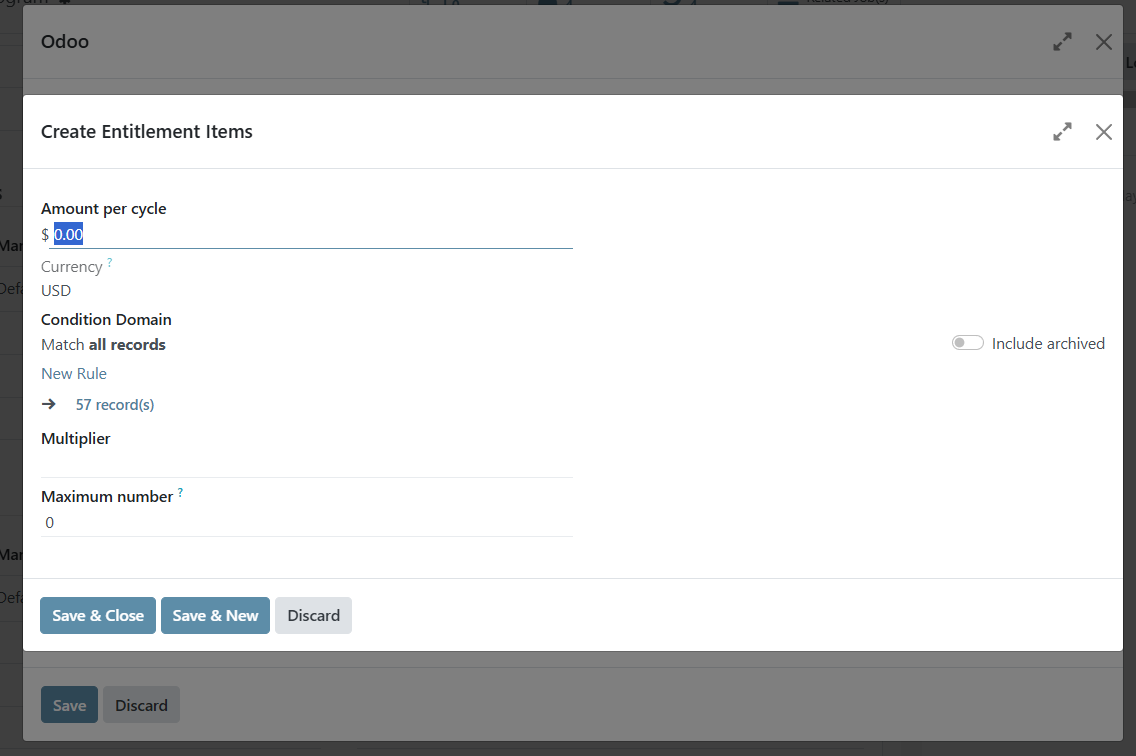
Multiplier: this dropdown field defines how many times the Amount per cycle will be multiplied. For example, if the indicator is set to Number of adults it would multiply the Amount per cycle by the number of adults in this group. The total amount will be the registrant’s entitlement.
Maximum number: this input field defines the maximum count for the multiplier. If, for example “Number of adults = 5” and “Maximum number= 3”, the Amount will be multiplied by 3 instead of 5.
In order to not have any limitations this field should be set to zero(0).
Click Save and Close to apply the changes.
Please note that the amount of the entitlements will be final once entitlements have been prepared in a cycle.