openspp.org
Change Requests
Contents
Change Requests#
This guide explains how to update registrant information in OpenSPP using the Change Request module. The process follows a defined workflow, requiring users with specific roles to initiate and validate requests. Permission-based access and thorough documentation help ensure data accuracy and reliable operations.
Prerequisites#
Before submitting or approving change requests, ensure the following:
Have existing individual records in your registry, either by creating records manually Register individual or importing records into OpenSPP Import and export registrant data.
Assign appropriate roles to Change Request validators. You can learn how to perform these tasks in the User access document under the Configuring Roles section:
Local Validator: Add the group name under the Groups tab:
Change Request Module Access / Change Request Validator Local.HQ Validator: Add the group name under the Groups tab:
Change Request Module Access / Change Request Validator HQ.
Install the following modules
spp_change_request Change Request
spp_change_request_change_info Change Information Change Request
Note
Learn more about Installing Additional Modules in the guide:
Module installation
Objective#
After completing this tutorial, you will be able to:
Submit and validate change requests for registrant data.
Navigate role-specific approval workflows.
Attach supporting documentation and track updates efficiently.
Process#
To update a registry record, a change request is initiated by a System Administrator or Registrar. The request is drafted, applicant information is updated for validation, and supporting documents are attached to have a reference for the updating of information. Once submitted, the request undergoes validation by a Local Validator. If approved, it proceeds to an HQ Validator for final review. Upon HQ validation, the change request is applied to the applicant's record and can be verified through the registry.
Creating a Change Request draft#
Login as System Administrator or Registrar, then from the menu, click on Change Request.
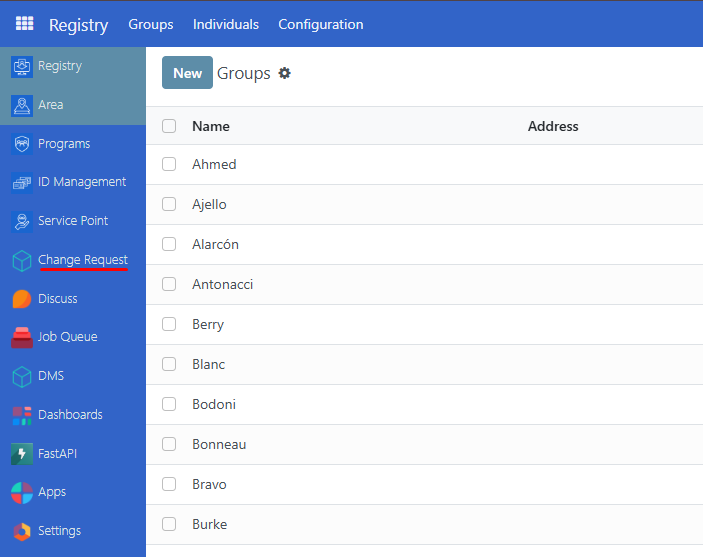
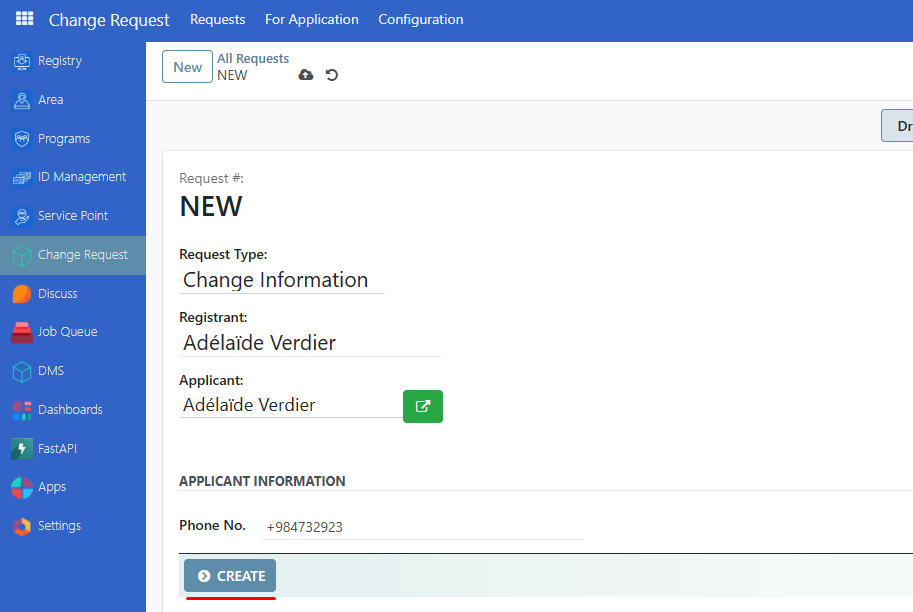
From the Change request page, click the New button. Then fill in the request details:
Request Type: Select Change Information.
Registrant: Choose the registrant initiating the request.
Applicant: Select the registrant whose data will be changed.
Phone Number: Enter the registrant's contact number.
Click Create to proceed. Clicking Create will generate a draft file for your change request.
Updating Applicant Information#
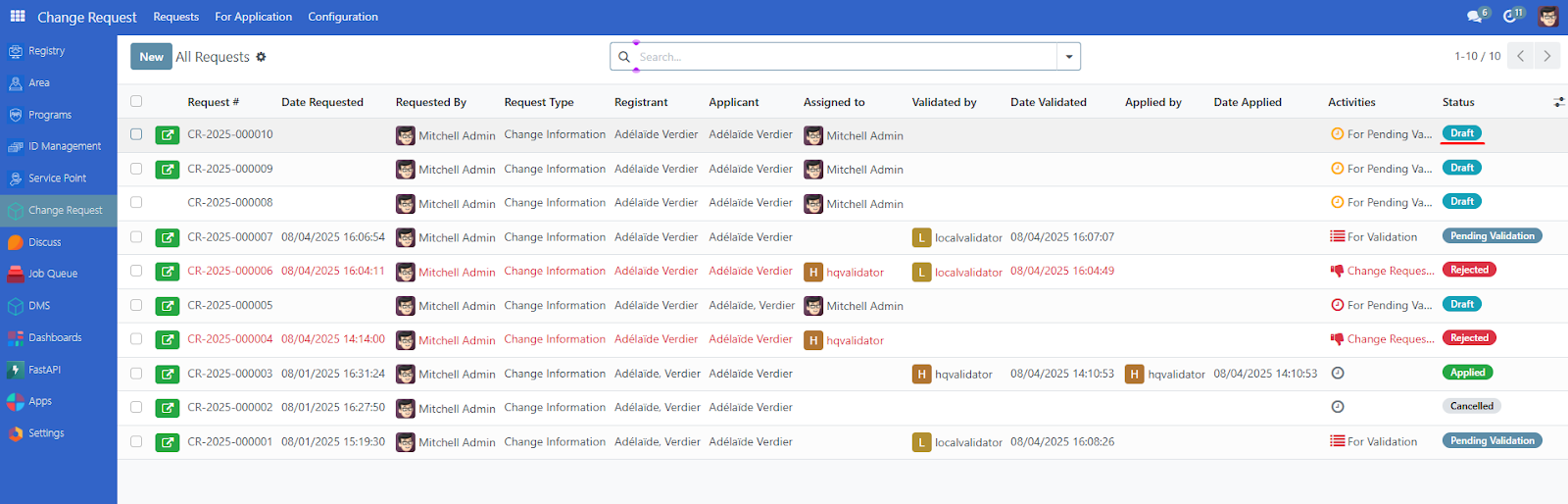
From the Change request page, select a Change request file currently in Draft state.
Click Next, then fill in the necessary fields.
Family Name and Given Name are required.
Input directly into the field data you wish to update.
If you do not wish to update the field, leave it blank.
Please note that more fields may be displayed here depending on the specific configuration for your OpenSPP instance.
Navigate to the Attachments tab:
Click Request Form (required) then upload your file related with your information request.
Optionally, attach Birth Certificate or Other Documents as reference for your change request update.
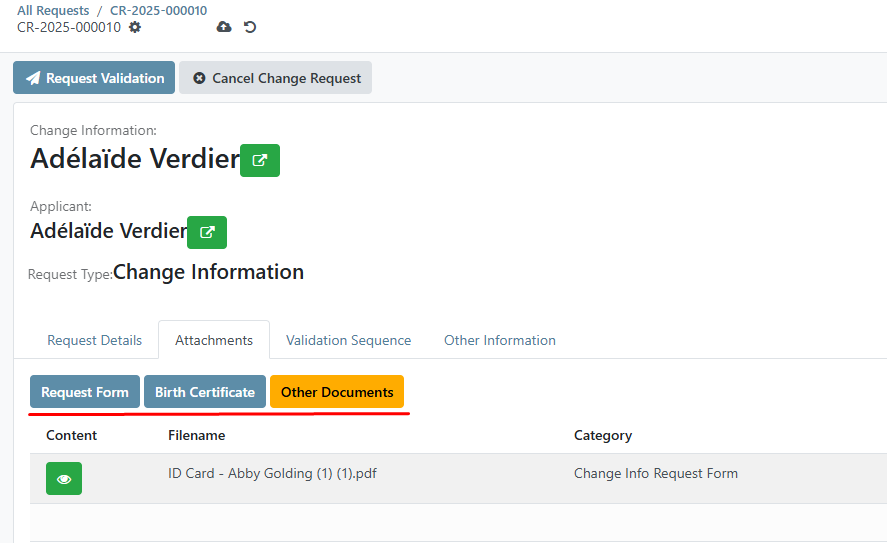
Click Request Validation to submit for approval.
Validation Workflow#
Review request by Local Validator Role#
Log in using a Local Validator user account then go to Change Request.
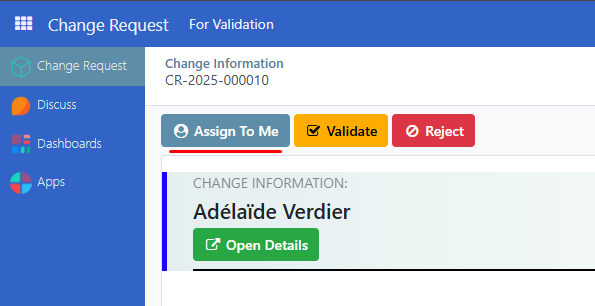
Select the request and click Assign to me.
Review Request details and Attachment for uploaded files as reference for the change request. Alternatively, you can review uploaded files in DMS (Directory Management System) feature. Learn more in this guide: Document Management System
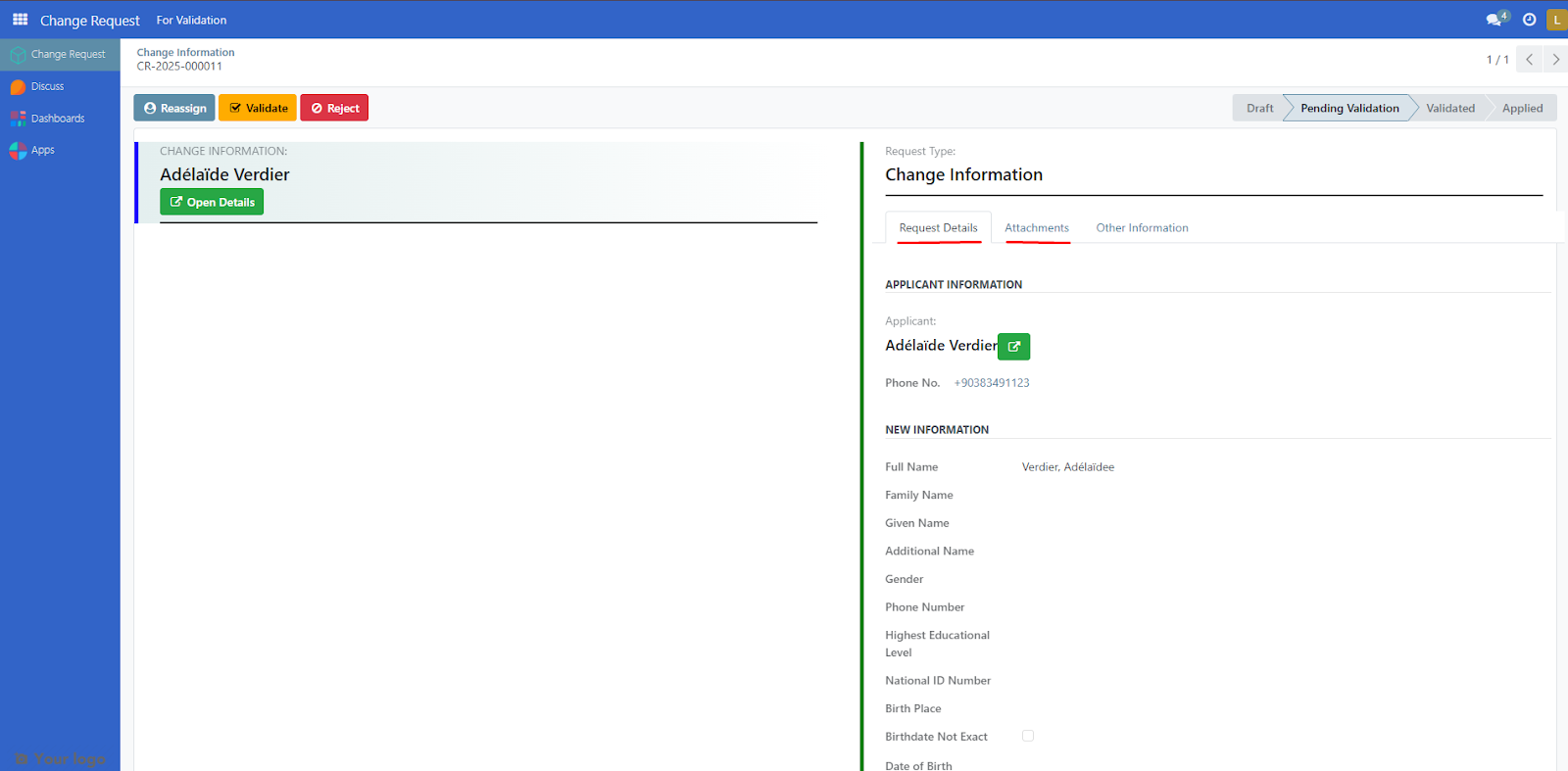
Click Validate to partially approve the change request. A success notification will appear upon approval. Otherwise, click reject to negate and cancel change request.
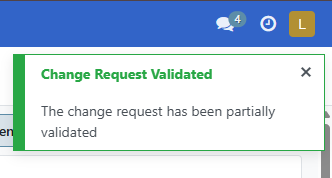
Partially approved change requests are then reviewed by users with HQ validator roles.
Review request by HQ Validator Role#
Log in using a HQ Validator user account then go to Change Request.
Select a change request, review Request details and Attachment for uploaded files as reference for the change request. Alternatively, you can review uploaded files in DMS (Directory Management System) feature. Learn more in this guide: Document Management System
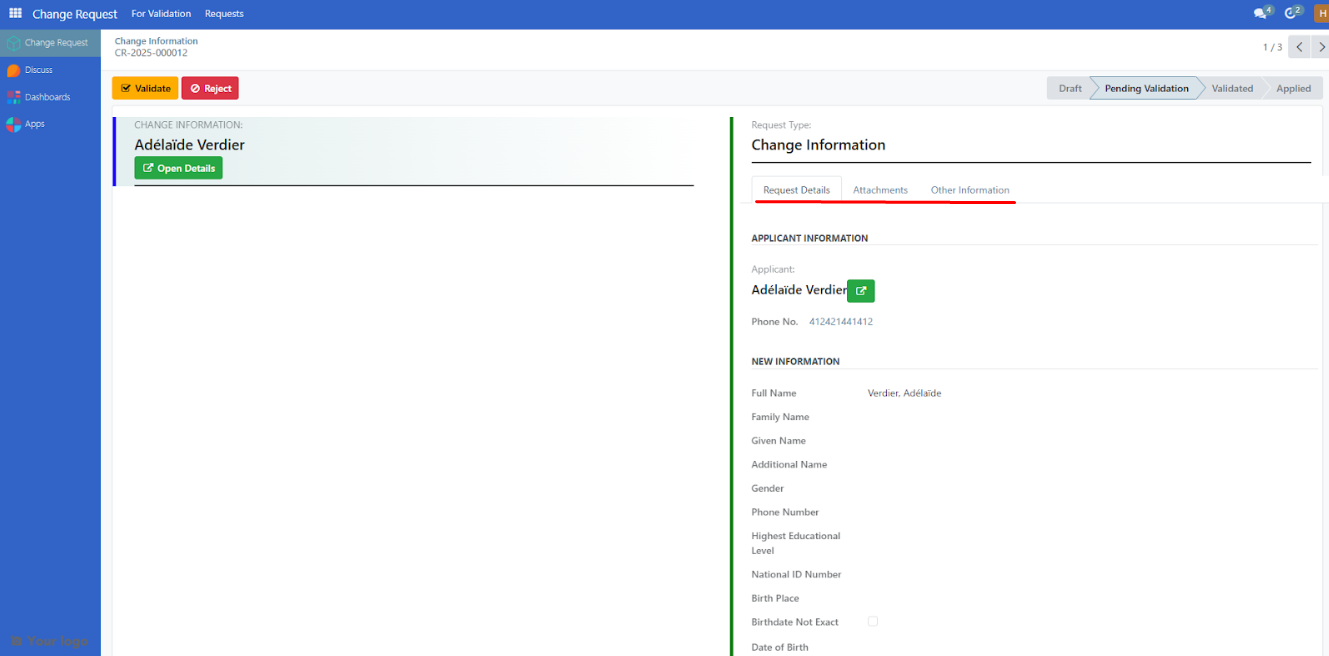
Click Validate to completely approve the change request. A success notification will appear upon approval. Otherwise, click reject to negate and cancel change request.
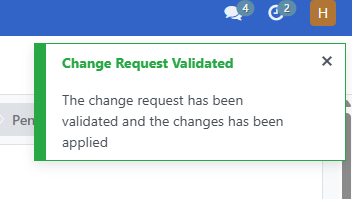
Change requests approved by HQ validator users are applied directly to the applicant’s records.
Please note that change requests may be rejected by the HQ validator user even if they haven't been approved by a local validator user.
Please note that change requests cannot be validated by the HQ validator user unless they have been pre-validated by a local validator user.
Reviewing Changes#
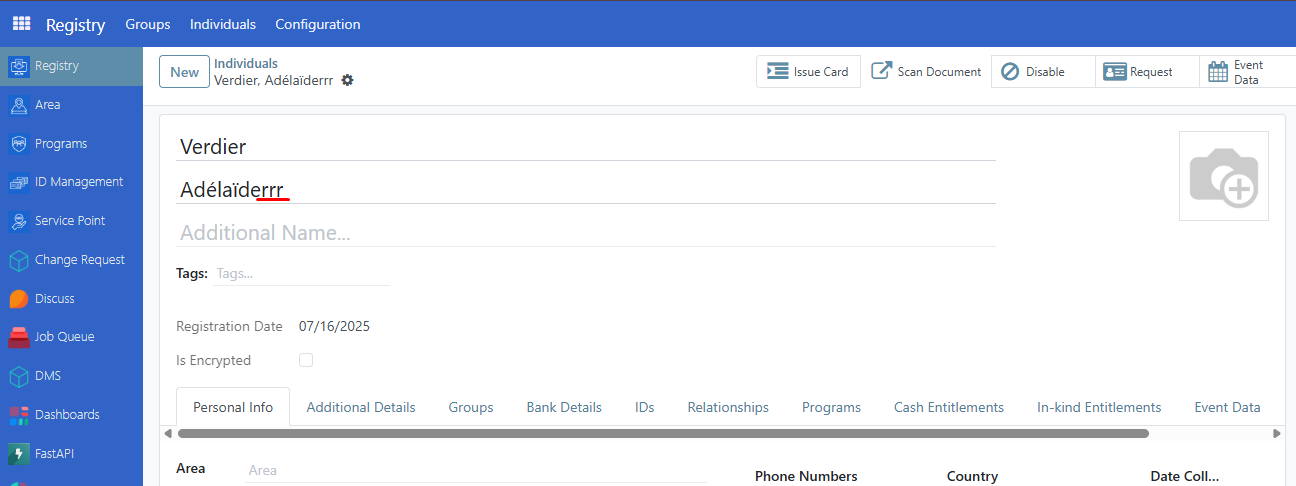
Log back in as Administrator or Registrar and go to Registry→Individual.
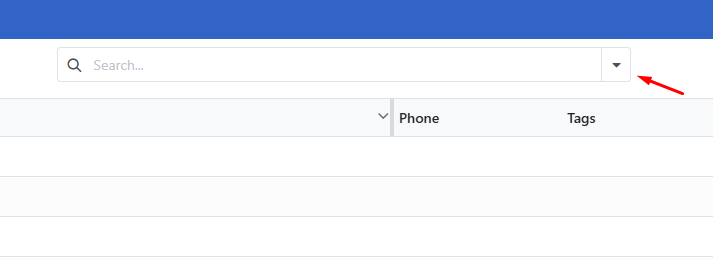
Click search filter dropdown.
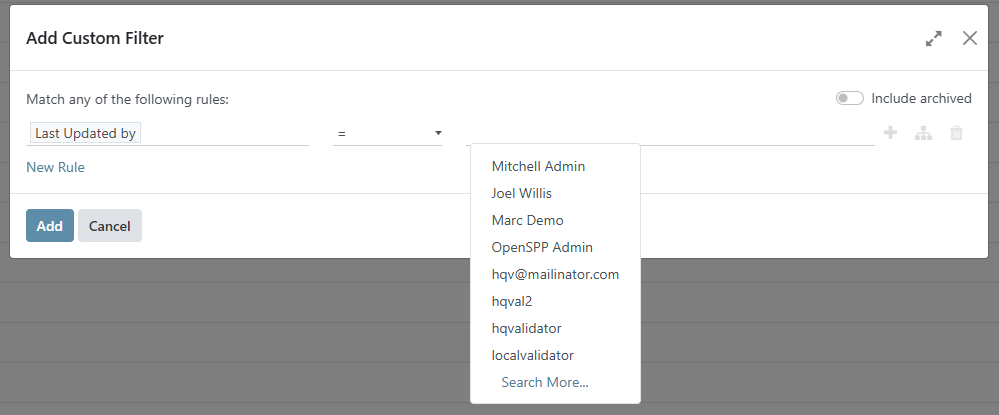
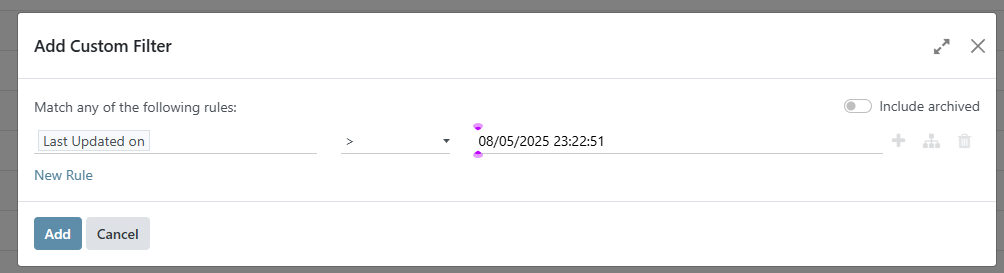
Click on Add Custom Filter.
Filter by Last Updated By - to search by validator name. Define the relational operators. Then click on Add.
Filter by Last Updated On - to search by updated date. Define the relational operators. Then click on Add.
Verify that registrant changes are reflected in their profile.