openspp.org
Inventory configuration
Contents
Inventory configuration#
OpenSPP's In-Kind and Basket Entitlement modules leverage Odoo's powerful Inventory application to manage the distribution of goods and services to beneficiaries. To ensure these modules function correctly, specific features within the Inventory settings must be activated.
This guide provides a step-by-step process for enabling two critical inventory features:
Storage locations: Allows for the management of specific locations within a warehouse (e.g., shelves, bins), which is essential for detailed stock tracking.
Units of Measure: Enables the use of different units for buying, selling, and storing products (e.g., kilograms, boxes, individual units), which is crucial for accurate entitlement definition.
Prerequisites#
To configure the Inventory settings, you will need:
A user account with System Admin or Inventory Admin role. For details on user roles and access levels, refer to the User access documentation.
The Inventory (
stock) module must be installed in your OpenSPP instance. For details on installing additional modules, refer to the Module installation documentation.
Objective#
After completing this guide, you will have enabled the necessary Inventory configurations to support the spp_entitlement_in_kind and spp_entitlement_basket modules, ensuring proper management of products for distribution.
Process#
The process involves navigating to the Inventory settings and activating two key options: Storage Locations and Units of Measure.
Enabling storage locations#
This feature allows you to manage a structured warehouse with specific locations.
Navigate to inventory settings#
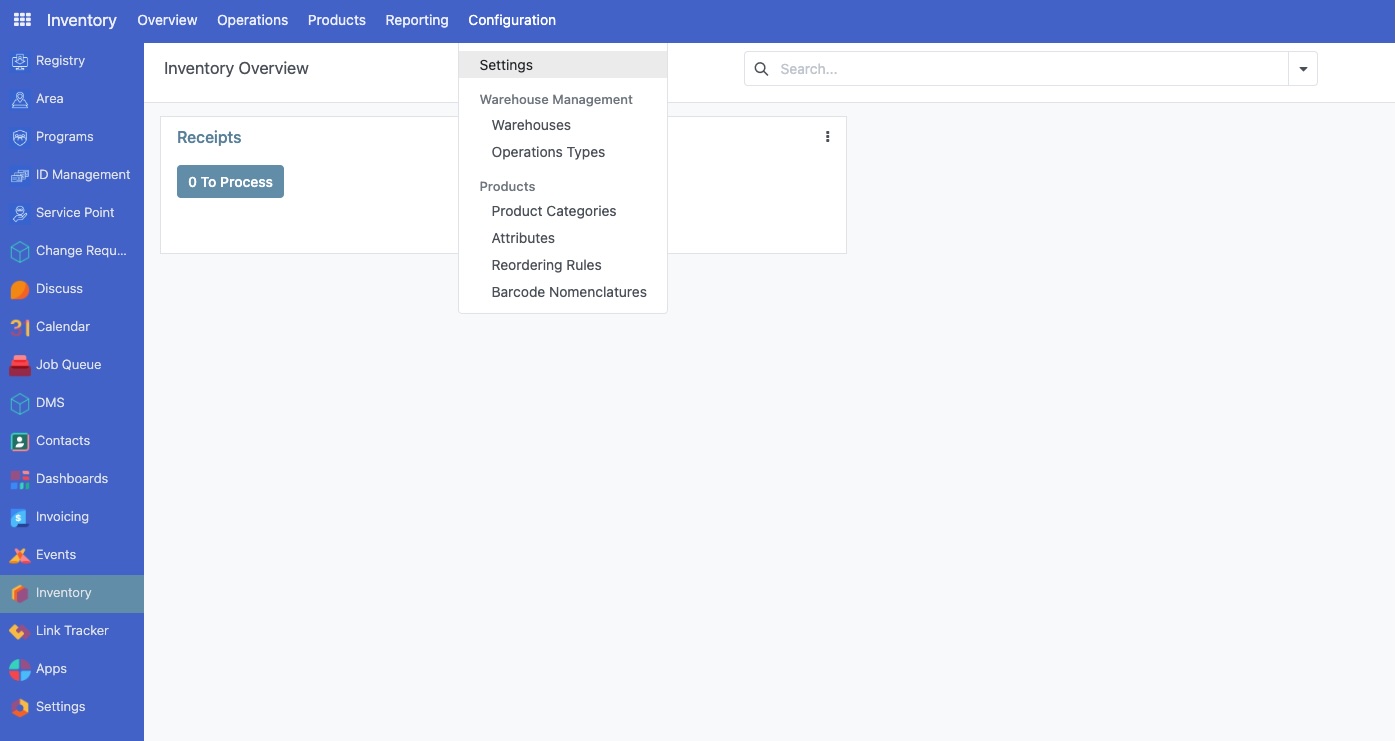
Click on the menu icon in the top-left corner and select Inventory.
In the Inventory dashboard, click on the Configuration menu and select Settings.
Activate storage locations#
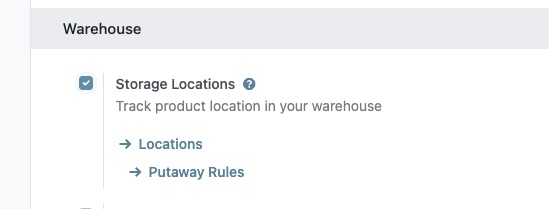
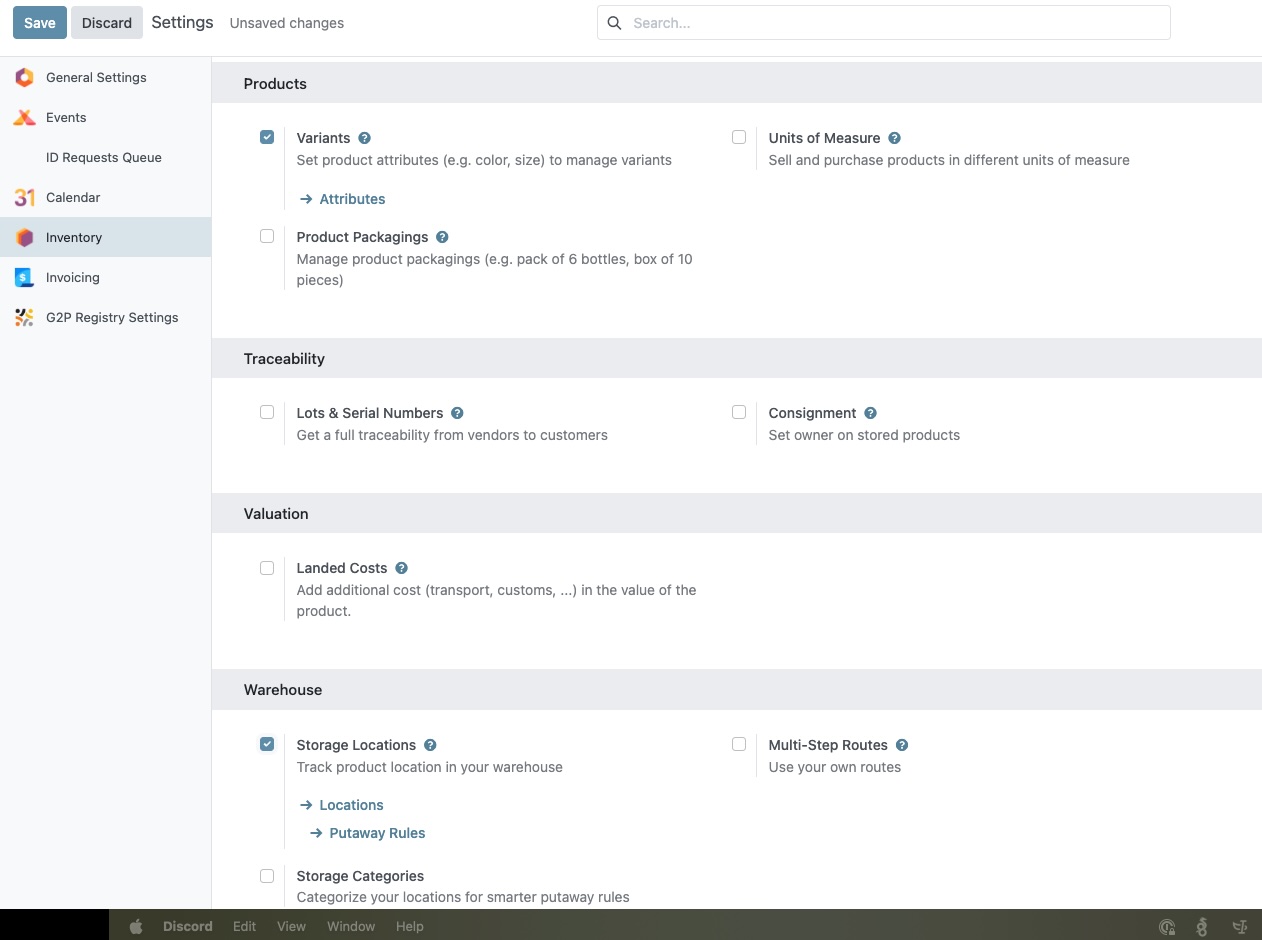
On the Settings page, scroll down to the Warehouse section.
Check the box next to Storage Locations.
Save the configuration#
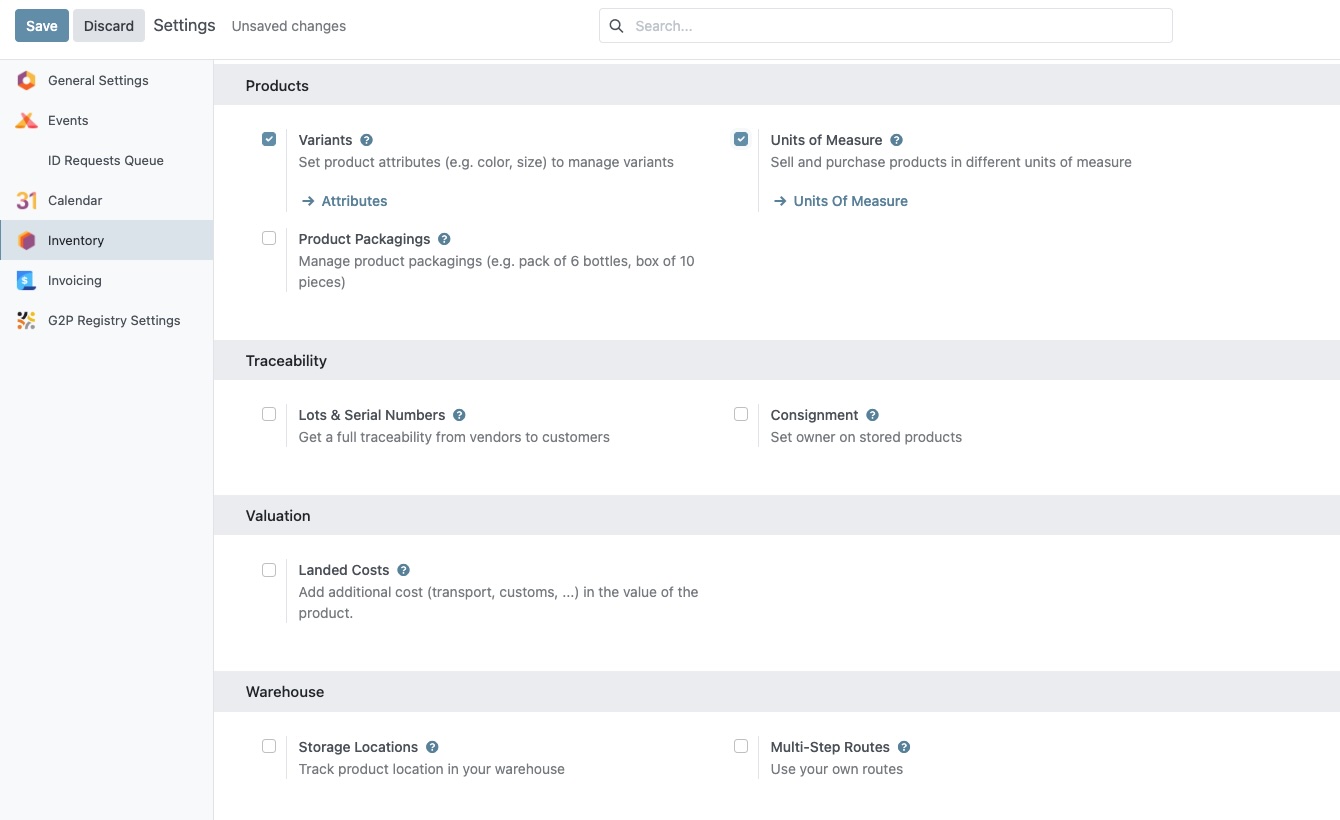
After checking the box, a Save button will appear at the top of the page.
Click Save to apply the changes. The page will reload with the new setting enabled.
Enabling Units of Measure#
This feature is essential for defining product quantities in different units.
Navigate to inventory settings#
If you are not already on the settings page:
Go to the Inventory application.
Click on Configuration > Settings.
Activate Units of Measure#
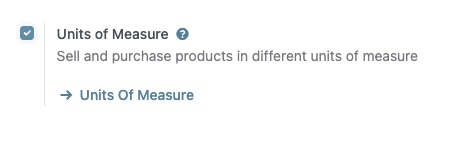
On the Settings page, scroll down to the Products section.
Check the box next to Units of Measure.