 openspp.org
Incoming email configuration
Contents
Incoming email configuration#
Configuring an incoming email server allows OpenSPP to fetch emails from a dedicated mailbox and process them automatically. This is a powerful feature that can create or update records based on the content of the emails. For example, an email sent to support@youremailserver.com could automatically create a new Grievance ticket.
Prerequisites#
To configure an incoming email server, you will need:
A user account with System Admin role. For details on user roles and access levels, refer to the User access documentation.
The connection details for your IMAP or POP email server:
Server type (IMAP or POP)
Server address (e.g.,
imap.youremailserver.com)Server port (e.g., 993 for IMAP with SSL/TLS)
Whether SSL/TLS is required
Username and password for the dedicated email account.
Objective#
After completing this section, you will be able to configure OpenSPP to fetch emails from a mailbox and create new records automatically.
Process#
The process is similar to configuring an outgoing server, involving developer mode and navigating to the technical settings.
Activate developer mode#
If you have not already, activate developer mode to access the technical settings.
Navigate to incoming email servers#
Go back to the main Settings page.
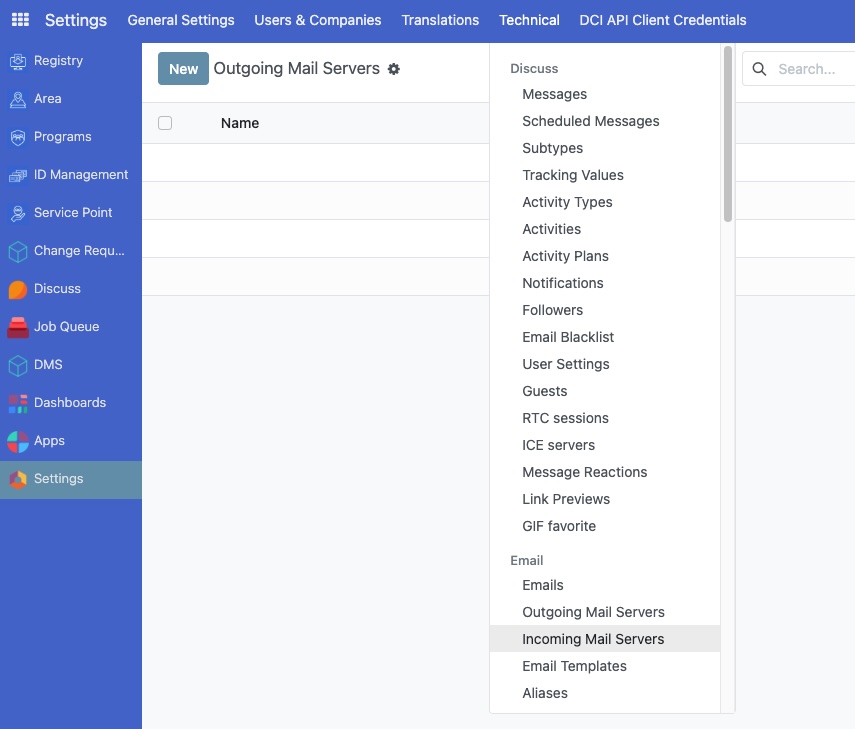
Click on the Technical menu in the header.
Under the Email section, click on Incoming Email Servers.
Create a new server configuration#
On the Incoming Email Servers page, click the New button.
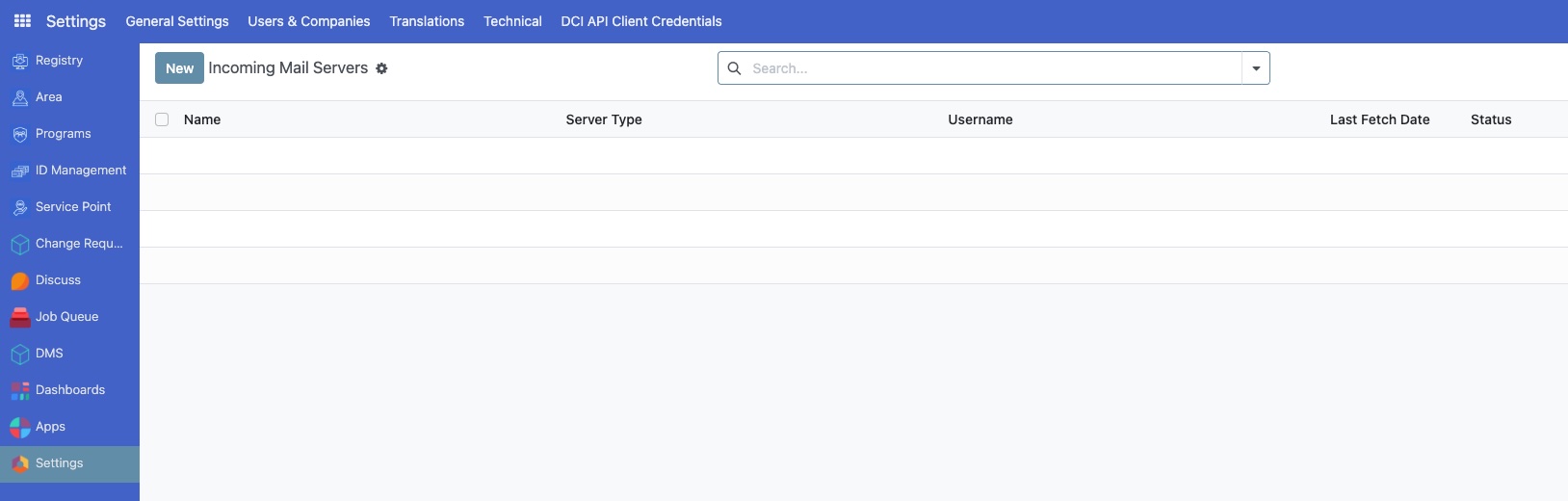
This will open a form to enter your incoming server details.
Fill in server details#
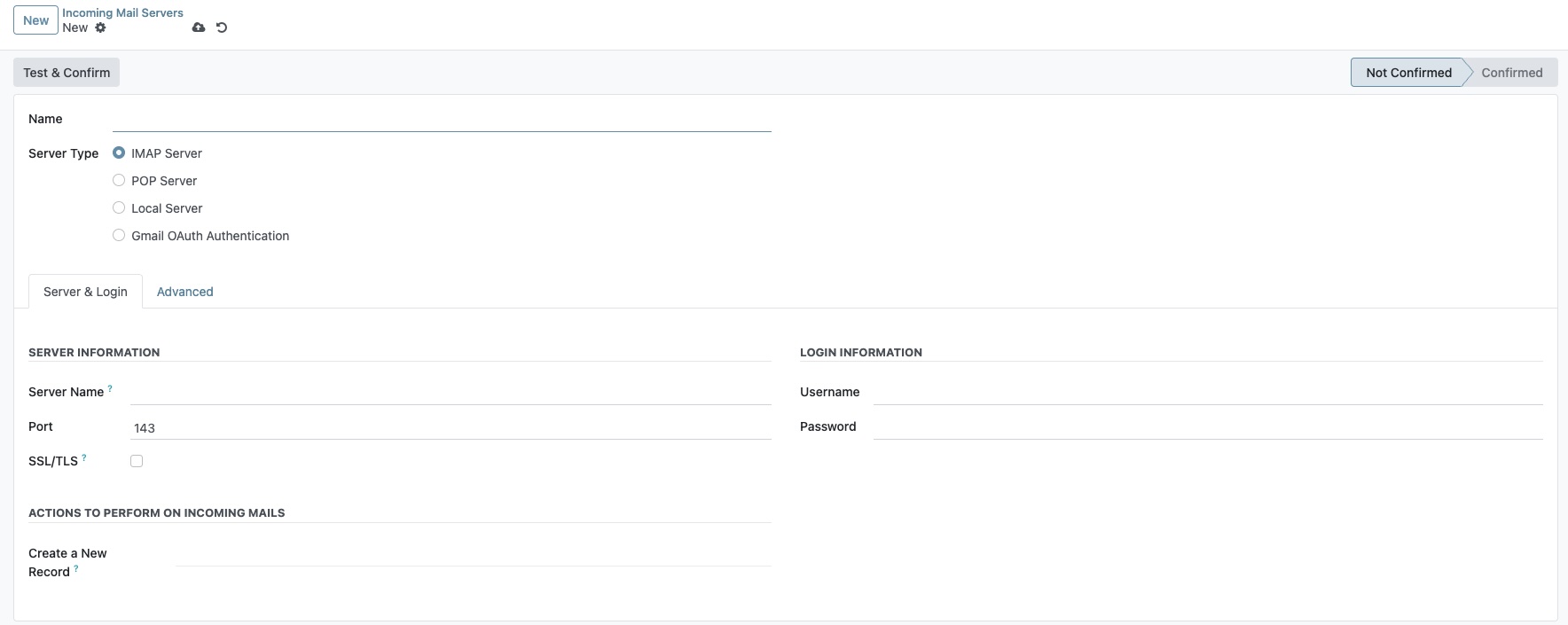
Fill in the form with the details for the mailbox you want OpenSPP to monitor.
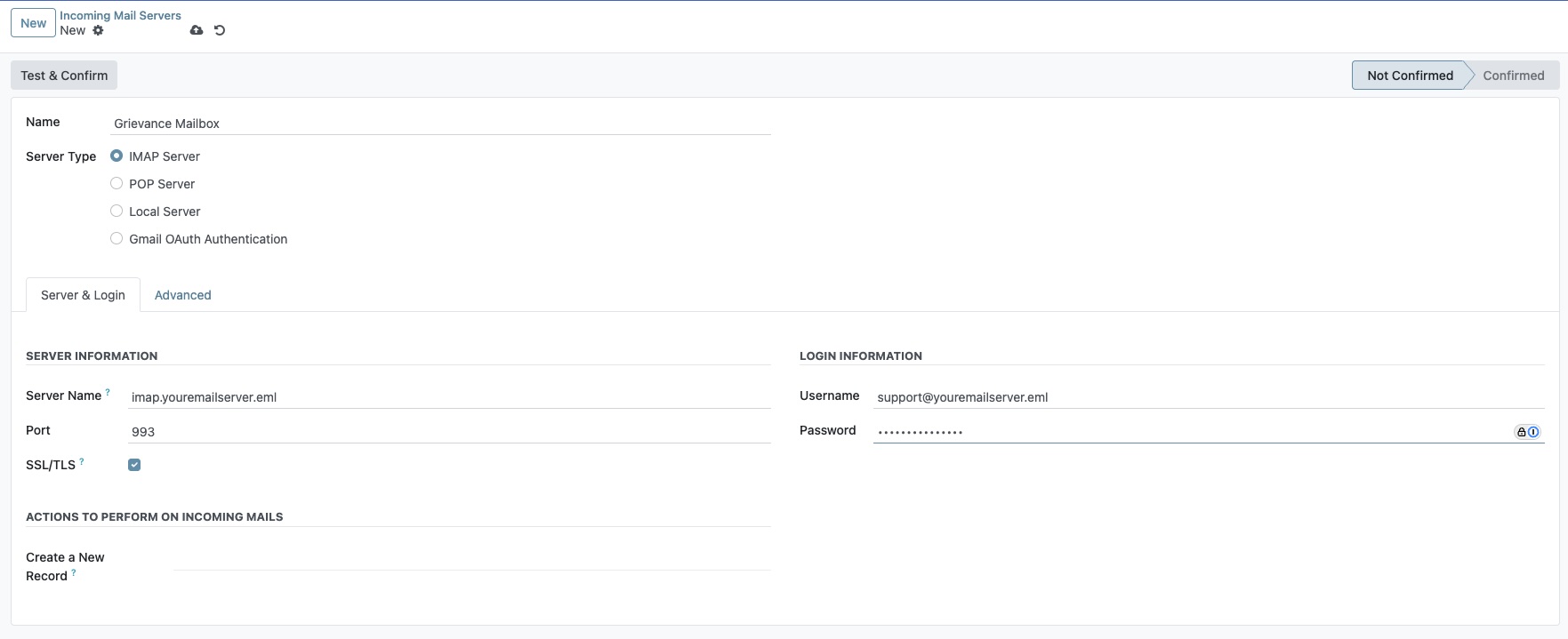
Name: A descriptive name, e.g.,
Grievance Mailbox.Server Type: Choose
IMAP ServerorPOP Server. IMAP is generally recommended.Server Name: Enter your server's address, e.g.,
imap.youremailserver.com.Port: Enter the correct port number (e.g.,
993for IMAP).SSL/TLS: Check this box if your server uses SSL/TLS encryption.
Username: The full email address of the mailbox.
Password: The password for the email account.
Action to Perform on Incoming Mails: Select
Create a new Record.Create a New Record: This is a critical field. Select the type of record you want to create from incoming emails. For example, you could select
Grievanceif you have a grievance module installed. The available options depend on the modules installed in your system.
Test and save#
Click the Test & Confirm button.
OpenSPP will attempt to connect to the mailbox. If successful, you will see a confirmation.
If there is an error, re-check all your server settings.
Once the test is successful, click Save.
OpenSPP will now periodically check this mailbox for new emails and create records based on your configuration.